Hello there!

Need Help? We are right here!

miniorange Support~
miniOrange Email Support
success

Thanks for your Enquiry.

If you don't hear from us within 24 hours, please feel free to send a follow-up email to info@xecurify.com

Search Results:

×

Two-Factor Authentication (MFA/2FA) for Outlook Web App (OWA) login


Microsoft Outlook Web App (OWA) MFA/2FA is a security feature requires two factors to log in to your OWA account and Exchange admin center (EAC). The first factor is something you know, such as your username and password. The second factor is something you have, such as a security key or an authenticator app.
miniOrange provides various MFA methods and integrates seamlessly with multiple third-party identity providers, simplifying the setup and usage of OWA MFA.
OWA Multi-Factor Authentication (MFA) offers several benefits, including increased security, reduced risk of data breaches, and increased productivity.
Here are some additional benefits of OWA MFA:
  • Protectecting your organization against phishing attacks.
  • Helps to prevent unauthorized access to your email and other sensitive data.
  • Contributes to enhancing your compliance with industry regulations.
OWA MFA: OWA Exchange Gateway Single Sign-on login

Connect with External Source of Users


miniOrange provides user authentication from various external sources, which can be Directories (like ADFS, Microsoft Active Directory, OpenLDAP, AWS etc), Identity Providers (like Microsoft Entra ID, Okta, AWS), and many more. You can configure your existing directory/user store or add users in miniOrange.



Apps supported by miniOrange


two factor authentication (2FA) miniOrange authenticator app

miniOrange
Authenticator App

Download miniOrange Authenticator App from Google Play Store    Download
two factor authentication (2FA) google authenticator app

Google
Authenticator App

Download Google App Authenticator from Google Play Store    Download Google App Authenticator from Apple Store
two factor authentication (2FA) authy authenticator app

Authy 2-Factor
Authentication App

Download Authy 2-Factor
Authentication App from Google Play Store    Download Authy 2-Factor
Authentication App from Apple Store
two factor authentication (2FA) Microsoft authenticator app

Microsoft
Authenticator App

Download Microsoft Authenticator App from Google App store    Download Microsoft Authenticator App from Apple store

Follow the Step-by-Step Guide given below to enable Two-Factor Authentication (2FA) for outlook web access (OWA) or Exchange

1. Configure OWA / Exchange Gateway in miniOrange IdP

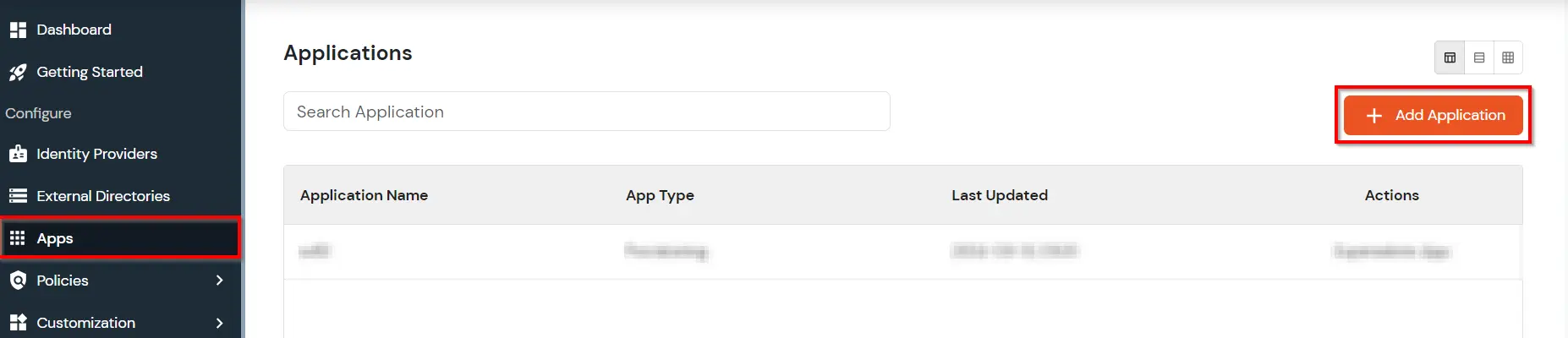
  • Login into miniOrange dashboard from the Admin Console.
  • Click on Add Application button.
  • Outlook Web Access Single Sign-On (SSO) add app

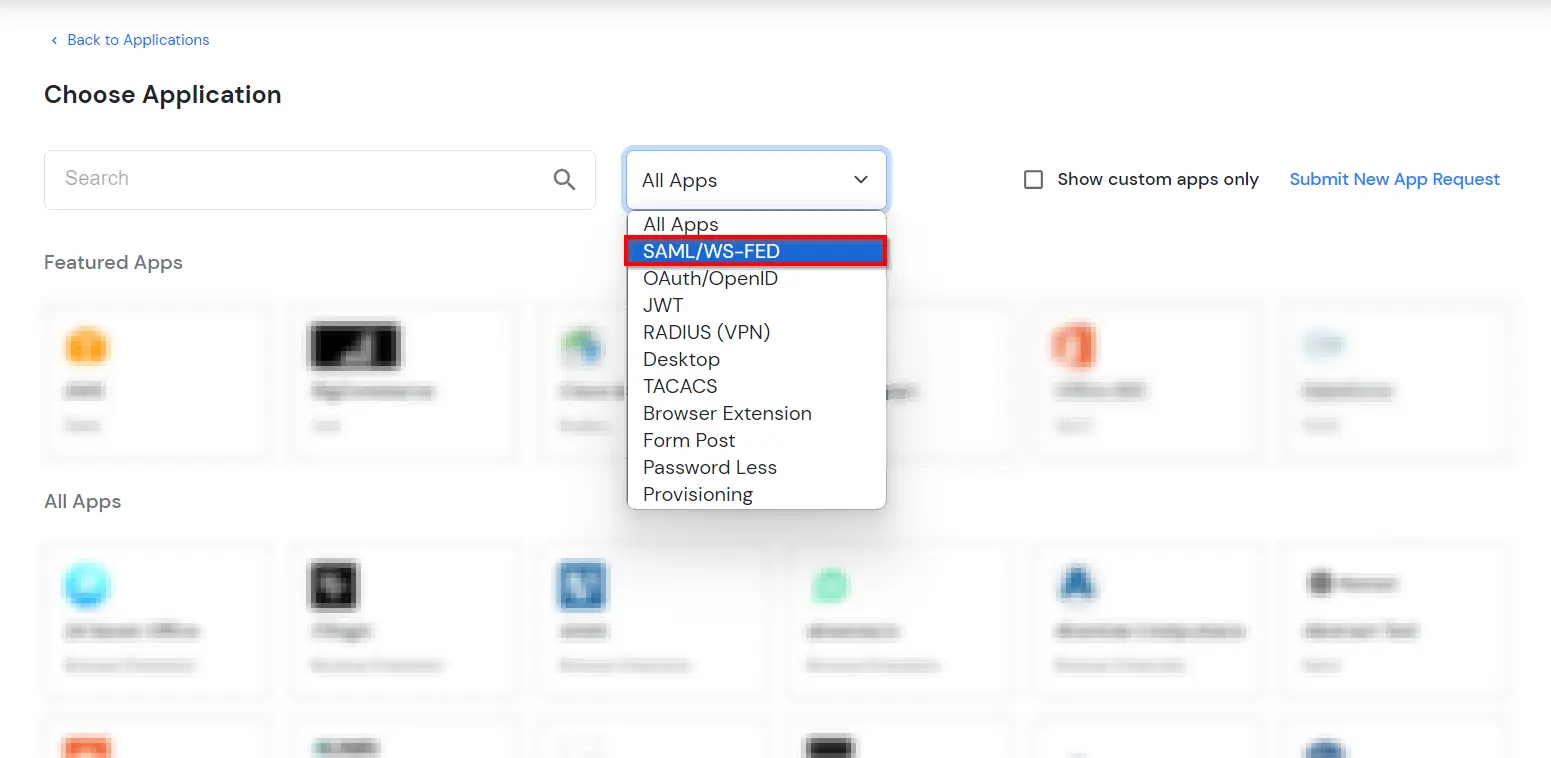
  • In choose application type, click on create app button in SAML/WS-FED application type.
  • OWA SSO choose app type

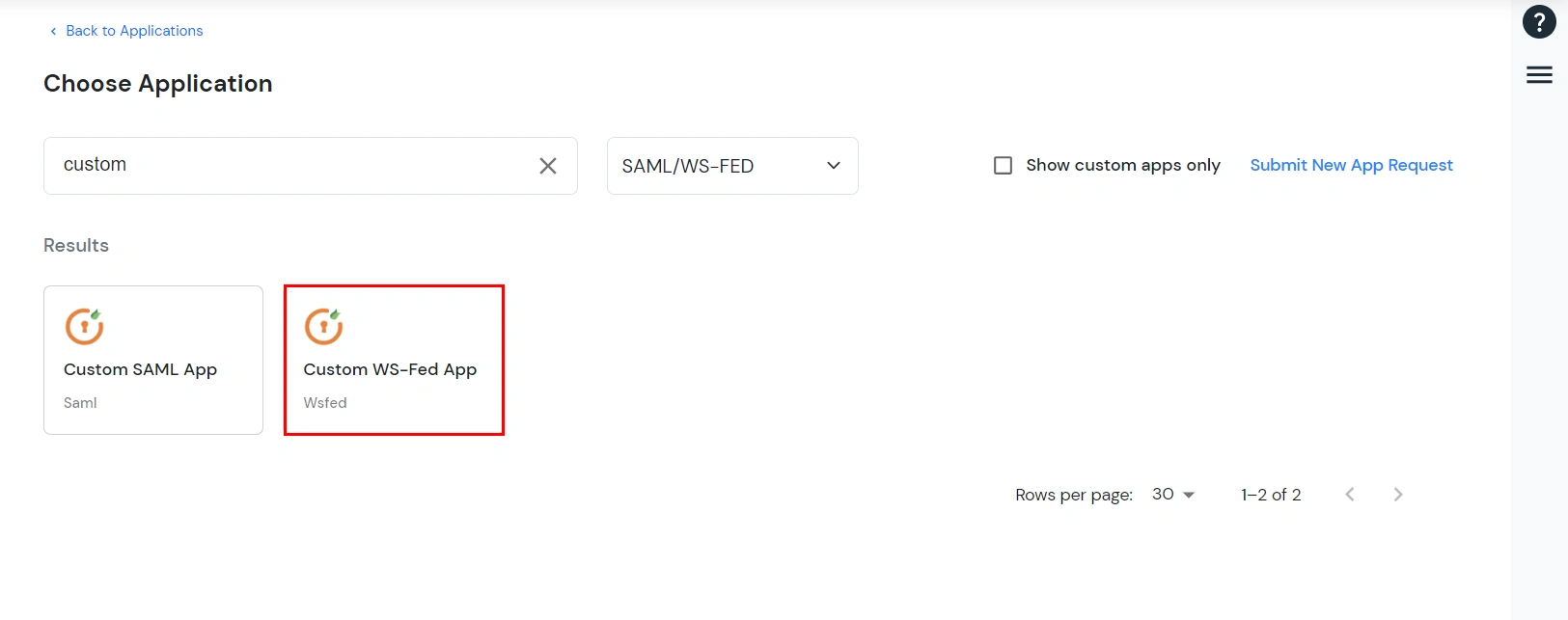
  • In the next step, search for your application from the list, if your application is not found. Search for "custom" and you can set up your app via Custom WS-Fed App.
  • Exchange OWA Single Sign-on (SSO) select SAML tab

  • Enter the following information in the respective fields.
    • Custom Application Name: Outlook Web access Owa
    • WT-Realm: https://{owa-url} e.g. https://mail.example.com/owa
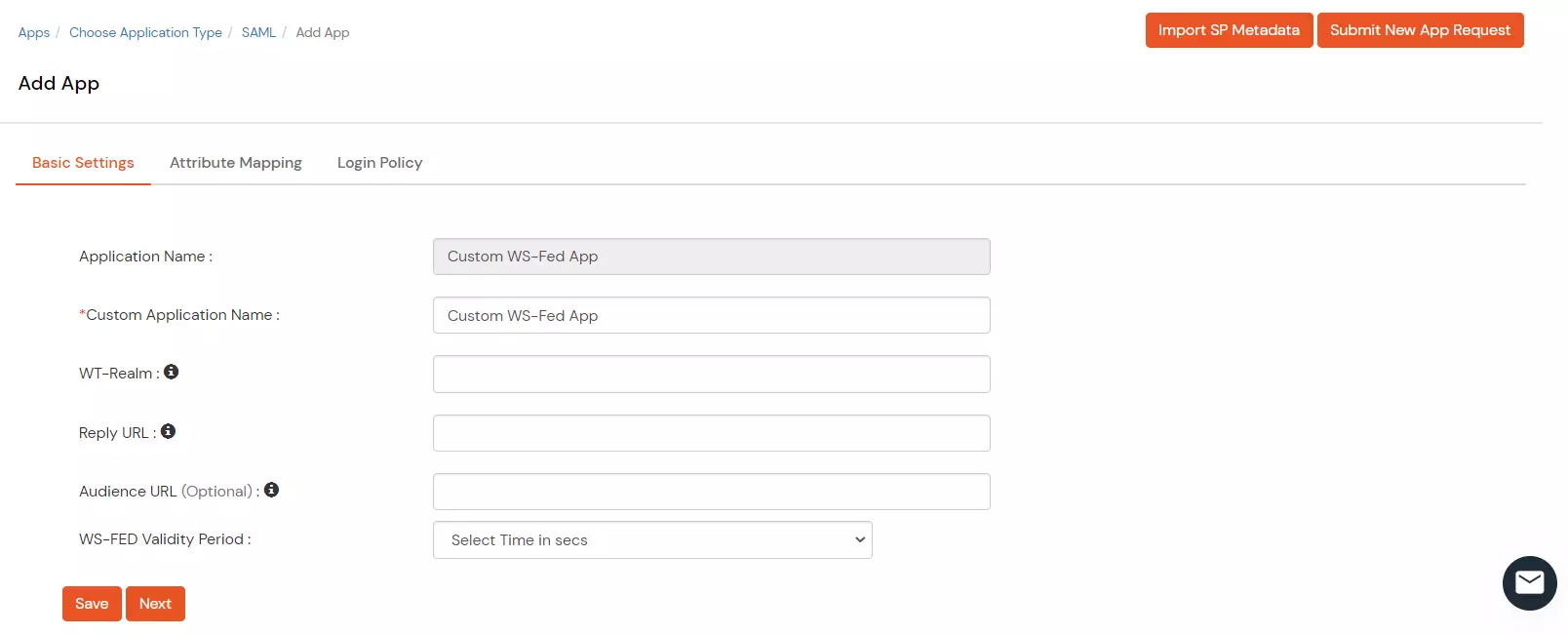
    • Reply URL: https://{owa-url} e.g. https://mail.example.com/owa
    • Set WS-Fed validity period: 300s
    Outlook Web Access Single Sign-On (SSO)

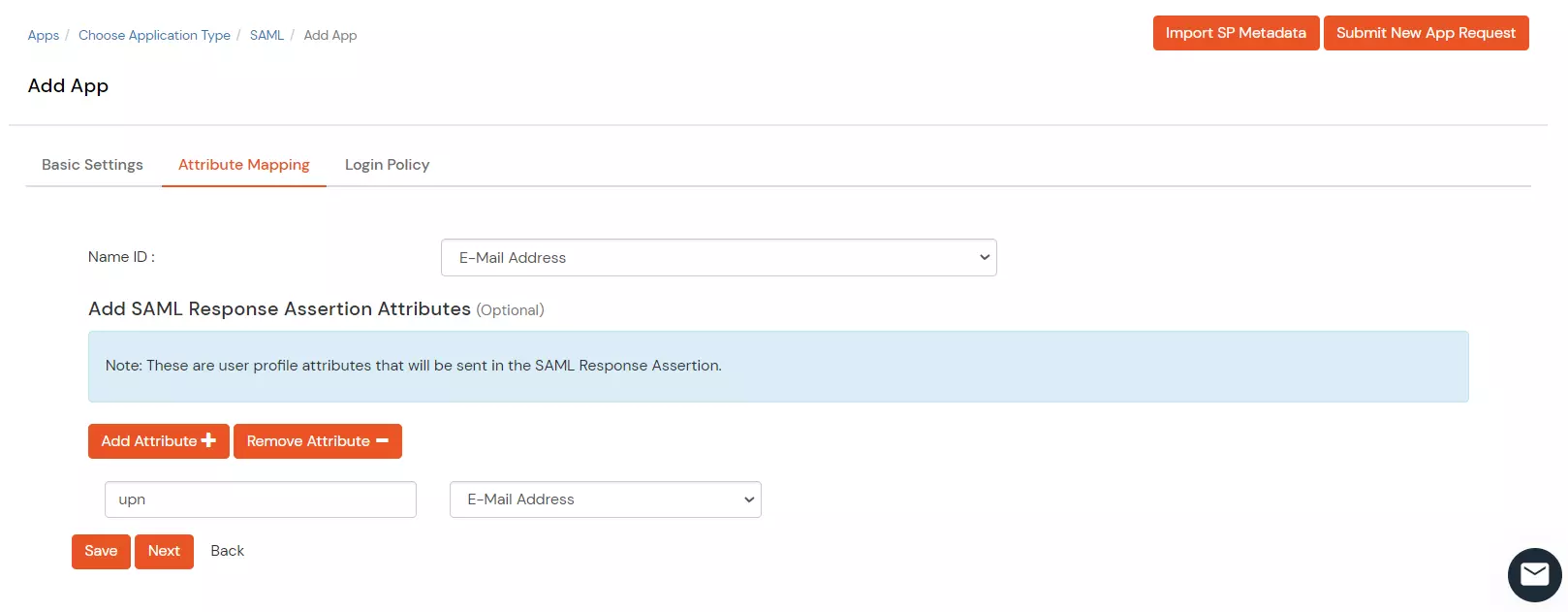
  • Under Attribute Mapping section, enter the following attributes as shown below:
  • Outlook Web Access Single Sign-On (SSO)

  • Click on Save.

2. Configure Exchange / OWA for Sign-On using miniOrange

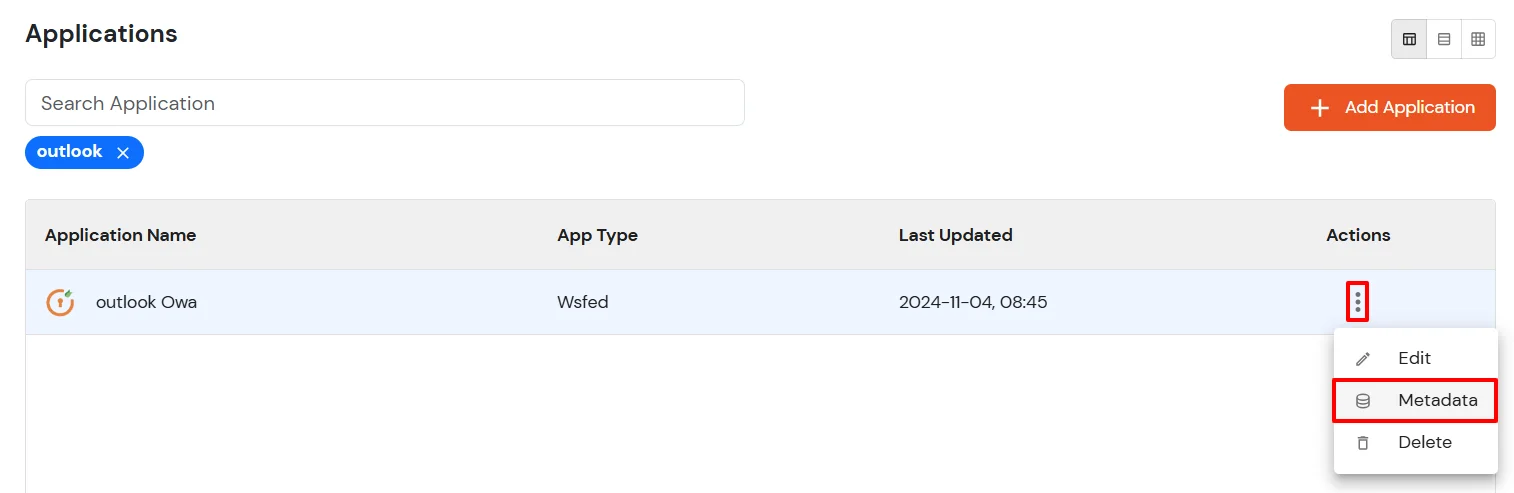
  • After saving the app, go to Apps and click on Select >> Metadata against the app saved.
  • SharePoint On-premise Single Sign-On (SSO) manage apps

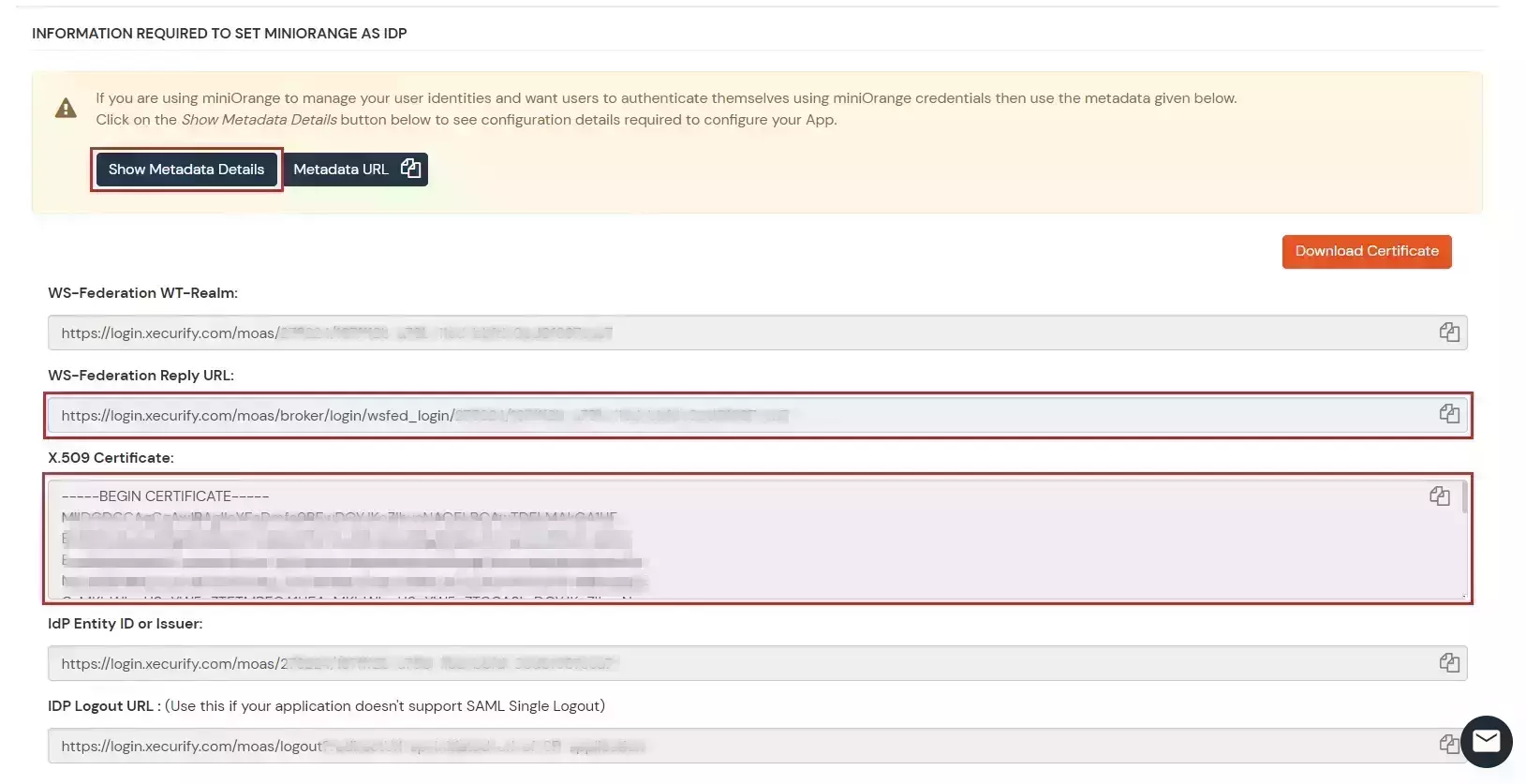
  • Select Show Metadata Details to reveal the details shown in the image below.
  • SharePoint On-premise Single Sign-On (SSO) manage apps

  • Copy the WS-Federation Reply URL and download the X.509 Certificate.
  • Add above certificate (obtained in above step) to the Trusted People store on the Exchange Server using the steps below:
    • Got to Management Console. Open run dialog (Win + R) and type mmc and press enter.
    • In Management Console, go to File > Add or Remove Snap-ins (Ctrl + M).
    • Search for Certificates on the left side and press Add.
    • In the Certificate Snap In window, select Computer account and press Next. Then select Local Computer and press Finish.
    • You will see an entry for Certificates (Local Computer) in the right pane. Click OK to close the Add or Remove Snap-ins window.
    • You will see a branch named Certificates created under Console Root. Expand the Certificates branch and select Trusted People.
    • Right click on Trusted People > Find > Import and click on Next.
    • Choose the location of the downloaded certificate file you created above and click on Next, again Next and Finish.
    • You have successfully added a Signing Certificate to Trusted People. Now close Management Console and choose No on the Save data prompt.
  • Execute the commands below on the Exchange Server using the Exchange Management Shell.
  • In the below command, ##Base URL## is the exchange/OWA host. The command has both URLs: One ending in / and the other one which does not contain a trailing slash.
    $uris=@("https://##Base URL##/owa/","https://##Base URL##/ecp/","https://##Base URL##/owa","https://##Base URL##/ecp")
  • In the below command, the ##miniOrange URL## is the WS-Federation Reply URL. The Cert Thumbprint is the SHA-1 thumbprint of the certificate you downloaded.

    Note: Make sure the certificate thumb print is in uppercase.


    Set-OrganizationConfig -AdfsIssuer "##miniOrange URL##" -AdfsAudienceUris $uris -AdfsSignCertificateThumbprint ##Cert Thumbprint##
    Get-EcpVirtualDirectory | Set-EcpVirtualDirectory -AdfsAuthentication $true -BasicAuthentication $false -DigestAuthentication $false -FormsAuthentication $false -WindowsAuthentication $false
    Get-OwaVirtualDirectory | Set-OwaVirtualDirectory -AdfsAuthentication $true -BasicAuthentication $false -DigestAuthentication $false -FormsAuthentication $false -WindowsAuthentication $false -OAuthAuthentication $false
    # Restart w3svc and was net stop was /y net start w3svc

3. Configure 2FA for Outlook Web Access (OWA)

3.1: Enable 2FA for Users of Outlook Web Access (OWA) app
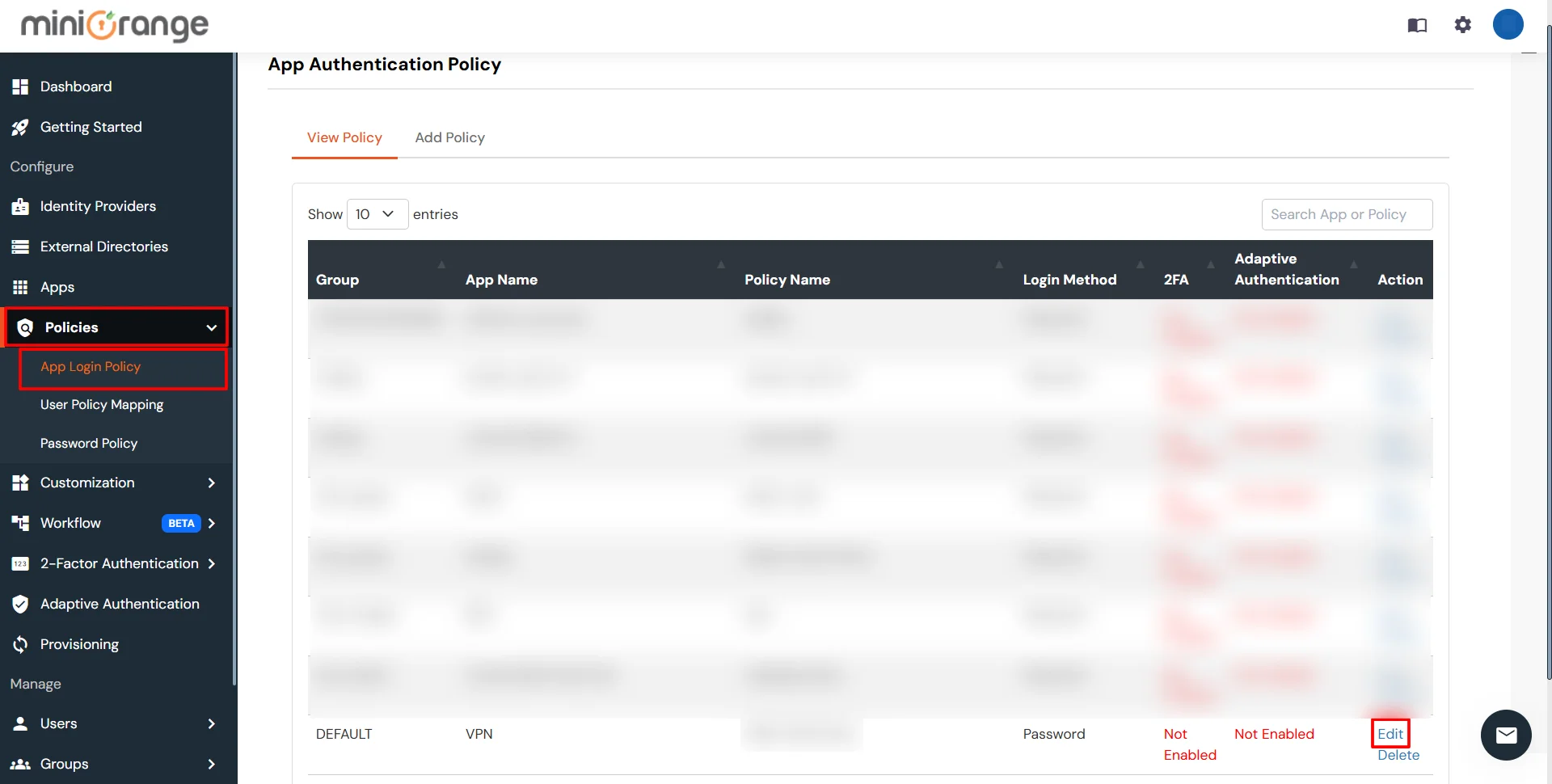
  • To enable 2FA for Users of Outlook Web Access (OWA) application. Go to Policies >> App Login Policy
  • Click on Edit icon against the application you have configured.
  • Two factor-authentication for Outlook Web Access (OWA) | Two Factor Authentication configure 2fa of application

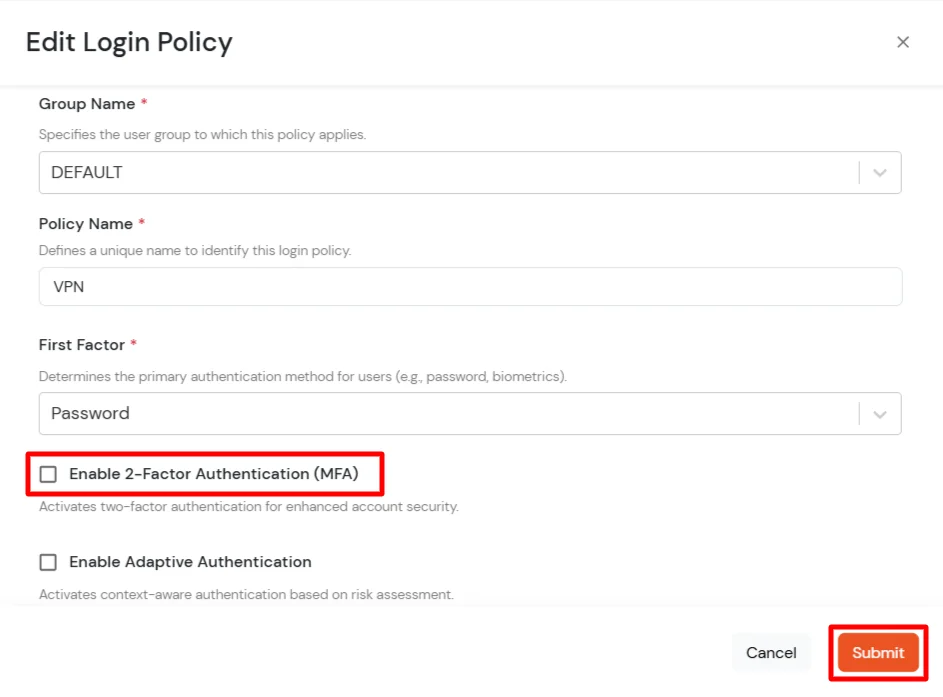
  • Check the Enable 2-Factor Authentication (MFA) option.
  • Two factor-authentication for Outlook Web Access (OWA) | Two Factor Authentication enable 2fa

  • Click on Submit.

3.2: Configure 2FA for your Endusers
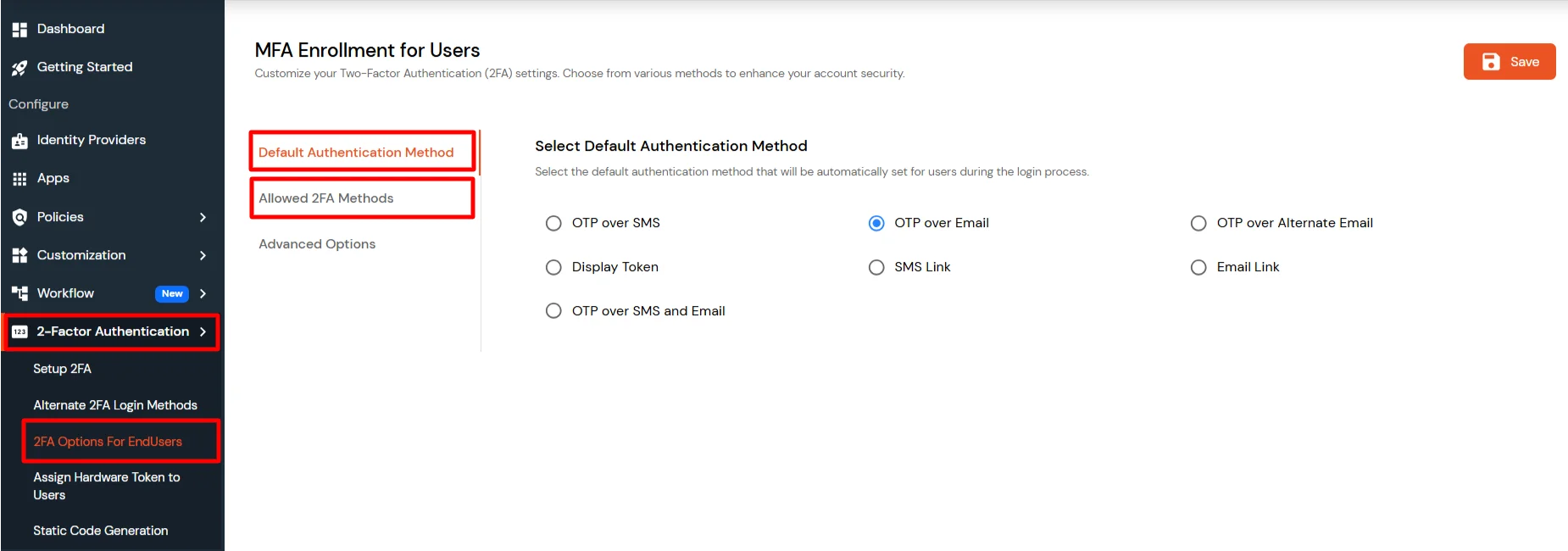
  • To enable 2FA/MFA for endusers, go to 2-Factor Authentication >> 2FA Options For EndUsers.
  • Select default Two-Factor authentication method for end users. Also, you can select particular 2FA methods, which you want to show on the end users dashboard.
  • Once Done with the settings, click on Save to configure your 2FA settings.
  • MFA/Two-Factor Authentication(2FA) for   Configure 2FA Panel

3.3: Enduser 2FA Setup

  • Login to End-User Dashboard using end user login URL.
    • For Cloud Version: The login URL (branding url) which you have set.
    • For On-Premise version: The login URL will be the same as of Admin Login URL.
  • Select Setup 2FA from left panel. Then select any of the 2FA method available.
  • For now, we have selected the SMS >> OTP OVER SMS as our 2FA method. You can explore the guide to setup other 2FA methods here.
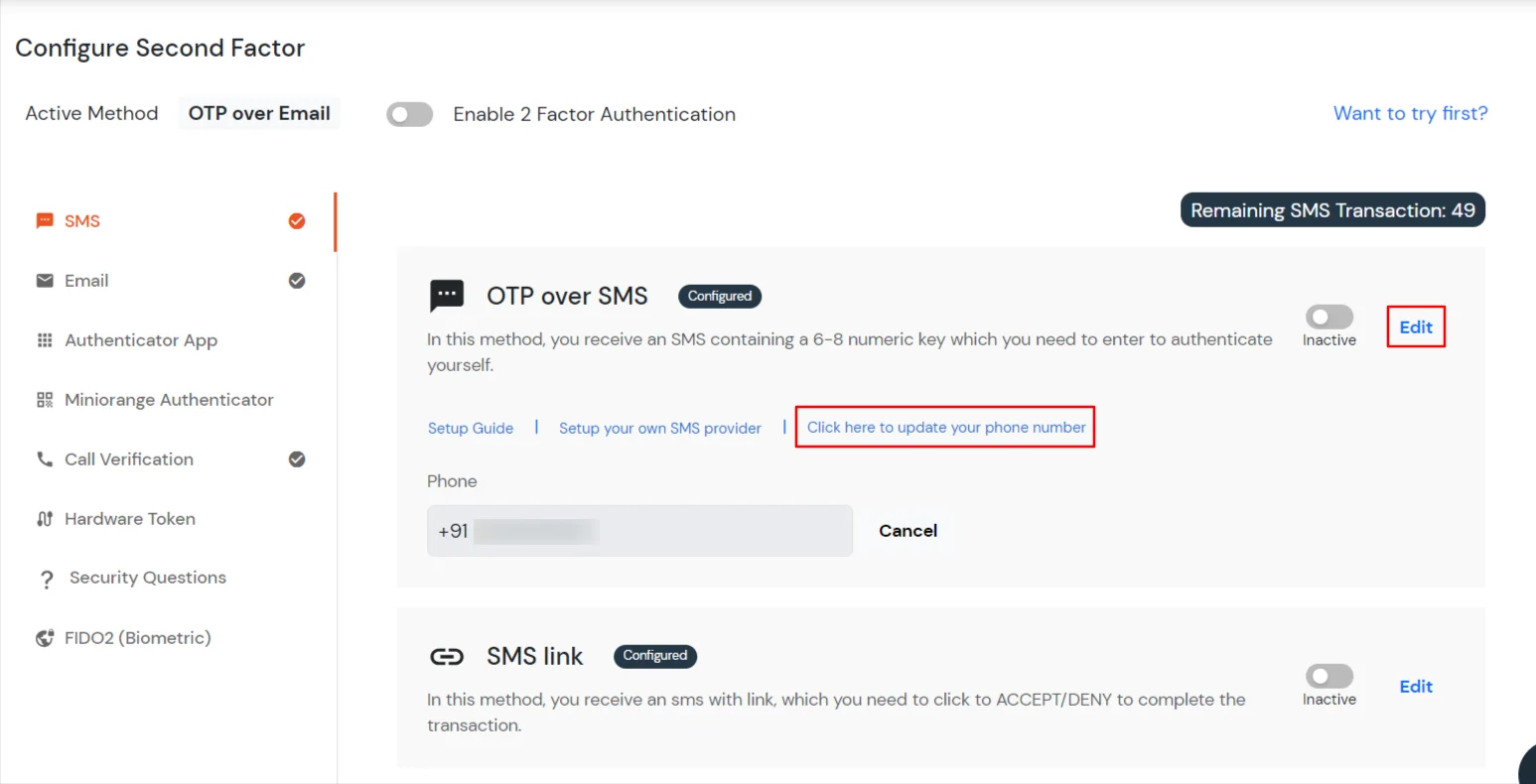
  • Enable the OTP over SMS if you have your phone number added under your account information else click on Edit >> Click here to update your phone number link.
  • MFA/Two-Factor Authentication(2FA) for  - Click on Edit >> Click here to update your phone number

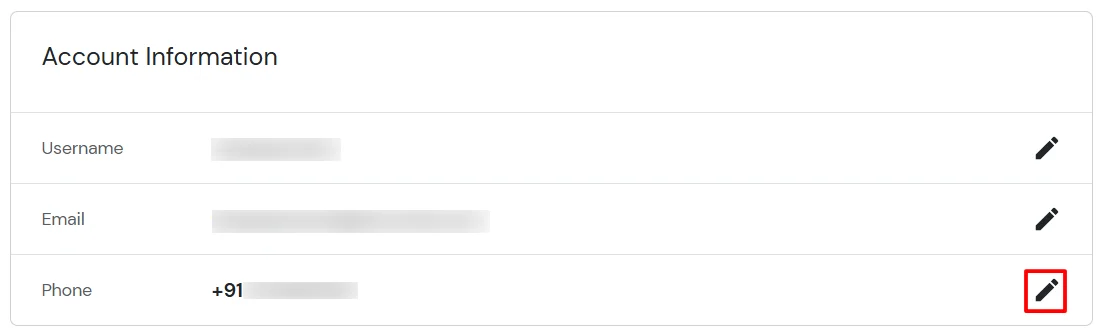
  • In Account Information, click on edit icon.
  • MFA/Two-Factor Authentication(2FA) for  - Click on Edit icon

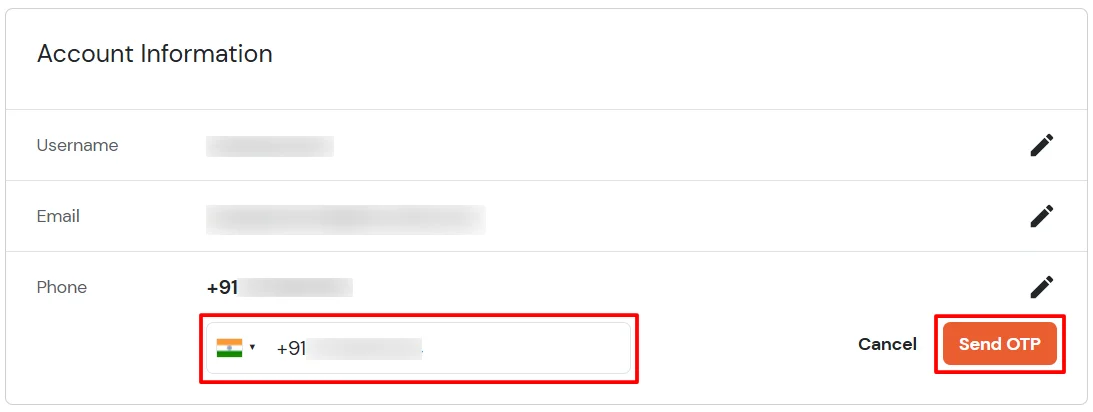
  • Select your country code, enter your mobile number, and click Send OTP.
  • MFA/Two-Factor Authentication(2FA) for  - Select Country Code and enter Phone Number

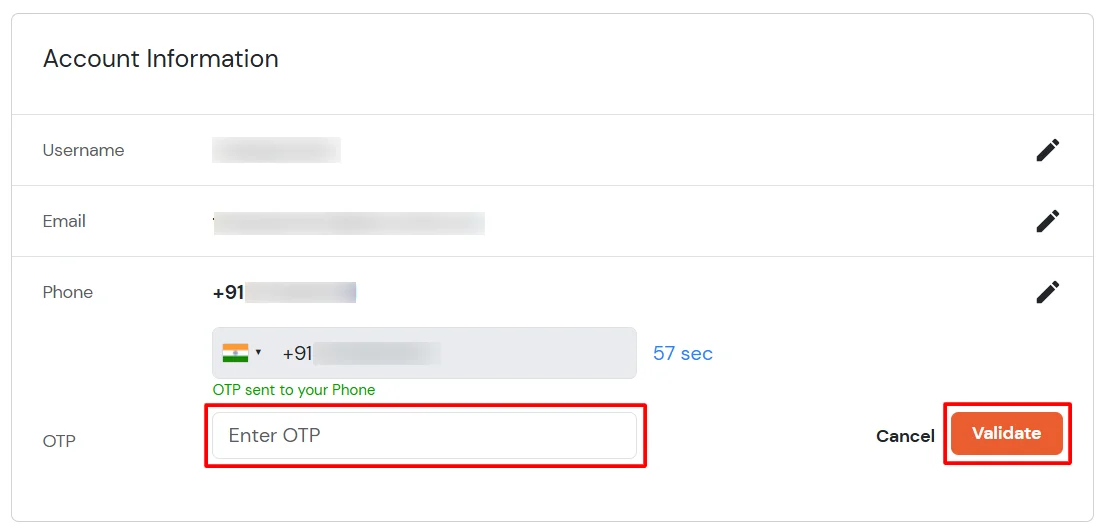
  • Enter the OTP sent to your phone and click Validate.
  • MFA/Two-Factor Authentication(2FA) for  - Enter OTP

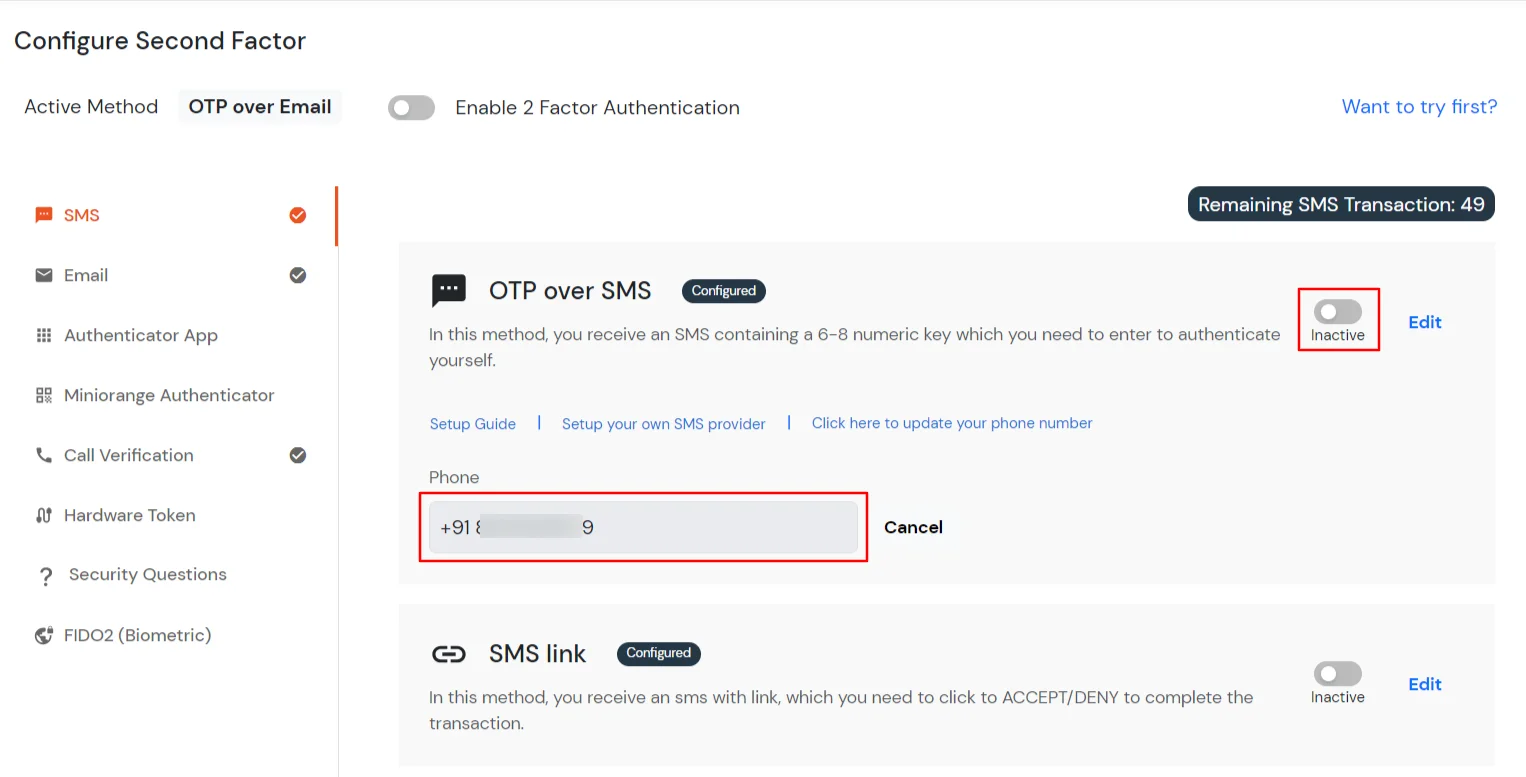
  • After adding your phone number, turn on the toggle to activate OTP over SMS.
  • MFA/Two-Factor Authentication(2FA) for  - Switch the toggle

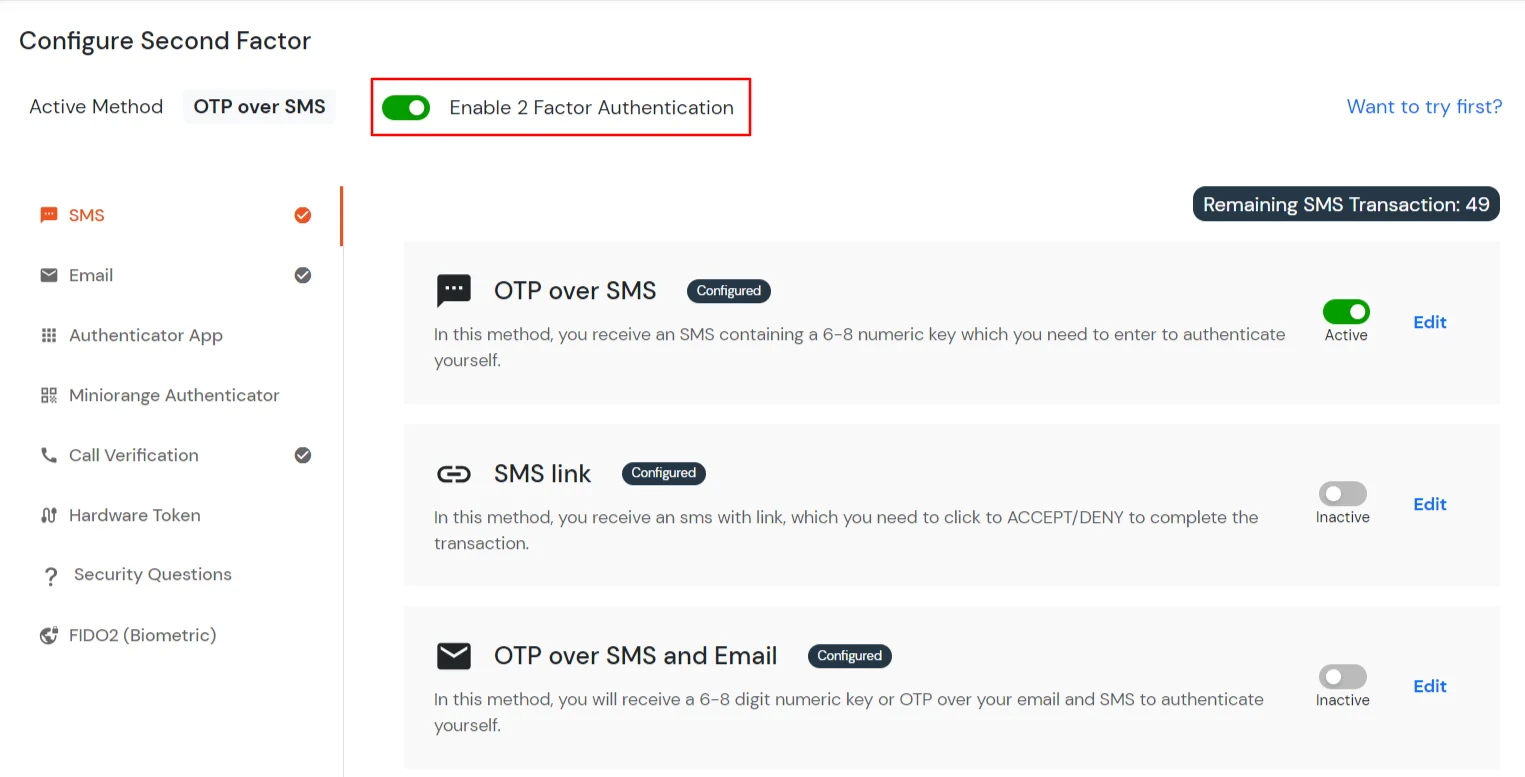
  • Now Enable 2 Factor Authentication toggle if not done before as shown below.
  • MFA/Two-Factor Authentication(2FA) for  Enter mobile number to receive OTP via SMS

4. Test Outlook Web Access (OWA) 2FA

    a. If 2FA for for End-user is configured

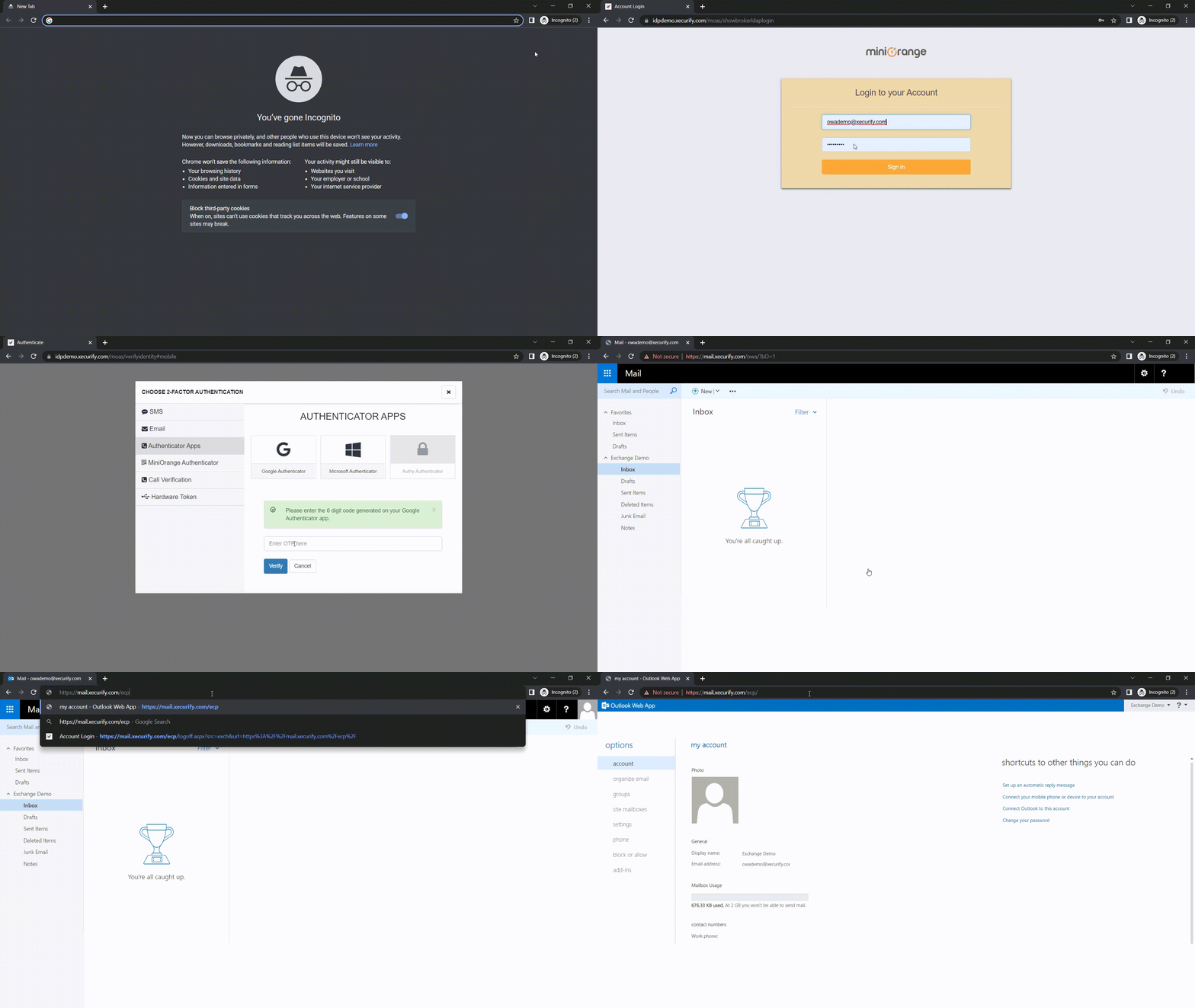
  • Go to your Outlook Web Access (OWA) Domain. It will redirect you to miniOrange Single Sign-On Service console.
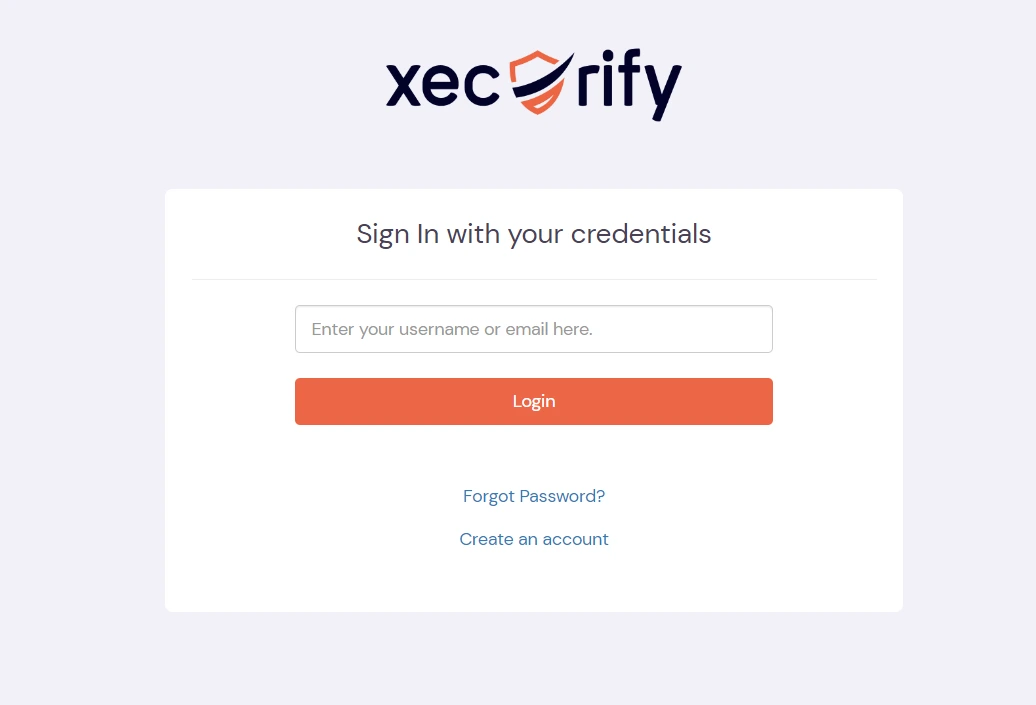
  • zoom two factor authentication(2fa) user credentials

  • Enter your login credentials, and click on login. It will prompt to verify yourself against the configured 2fa method.
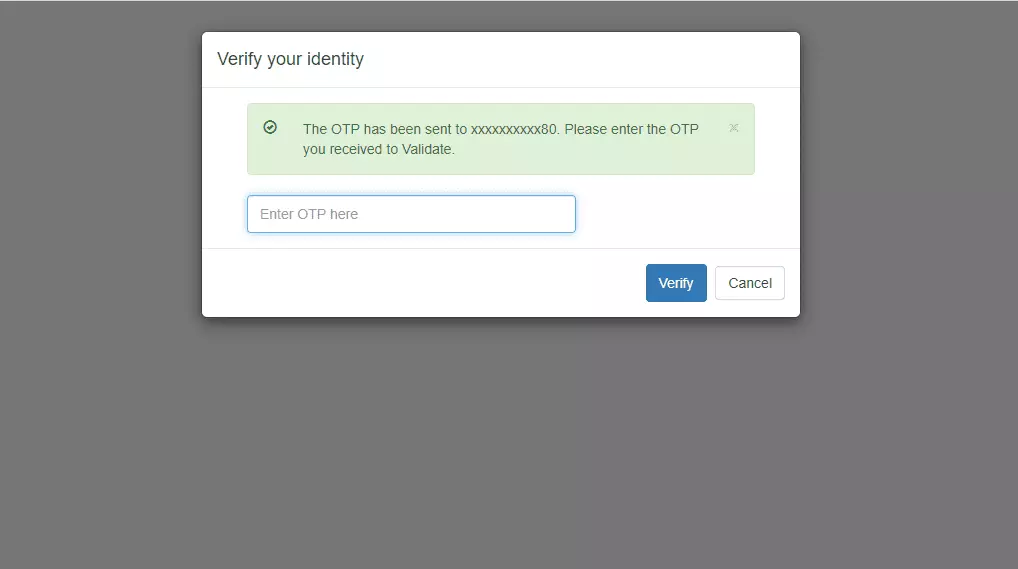
    e.g. If you have configured OTP over SMS, after login into Outlook Web Access (OWA) it will prompt for OTP.
  • zoom two factor authentication(2fa) otp prompt

  • Enter the OTP received in your phone, after successful 2fa verification, you will be redirected to the Outlook Web Access (OWA) dashboard.
  • b. If 2FA for end-user is not enabled

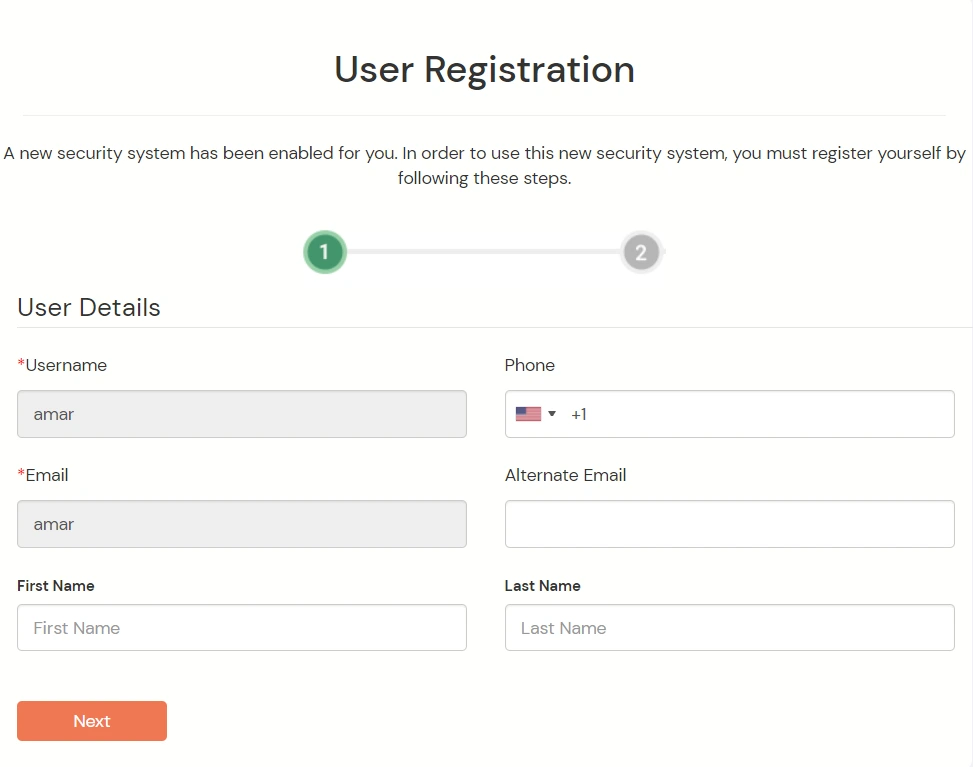
  • You will be prompted to register for 2Fa for end-user. It's a one time process.
  • Configure your basic details.
  • zoom two factor authentication(2fa) user registration

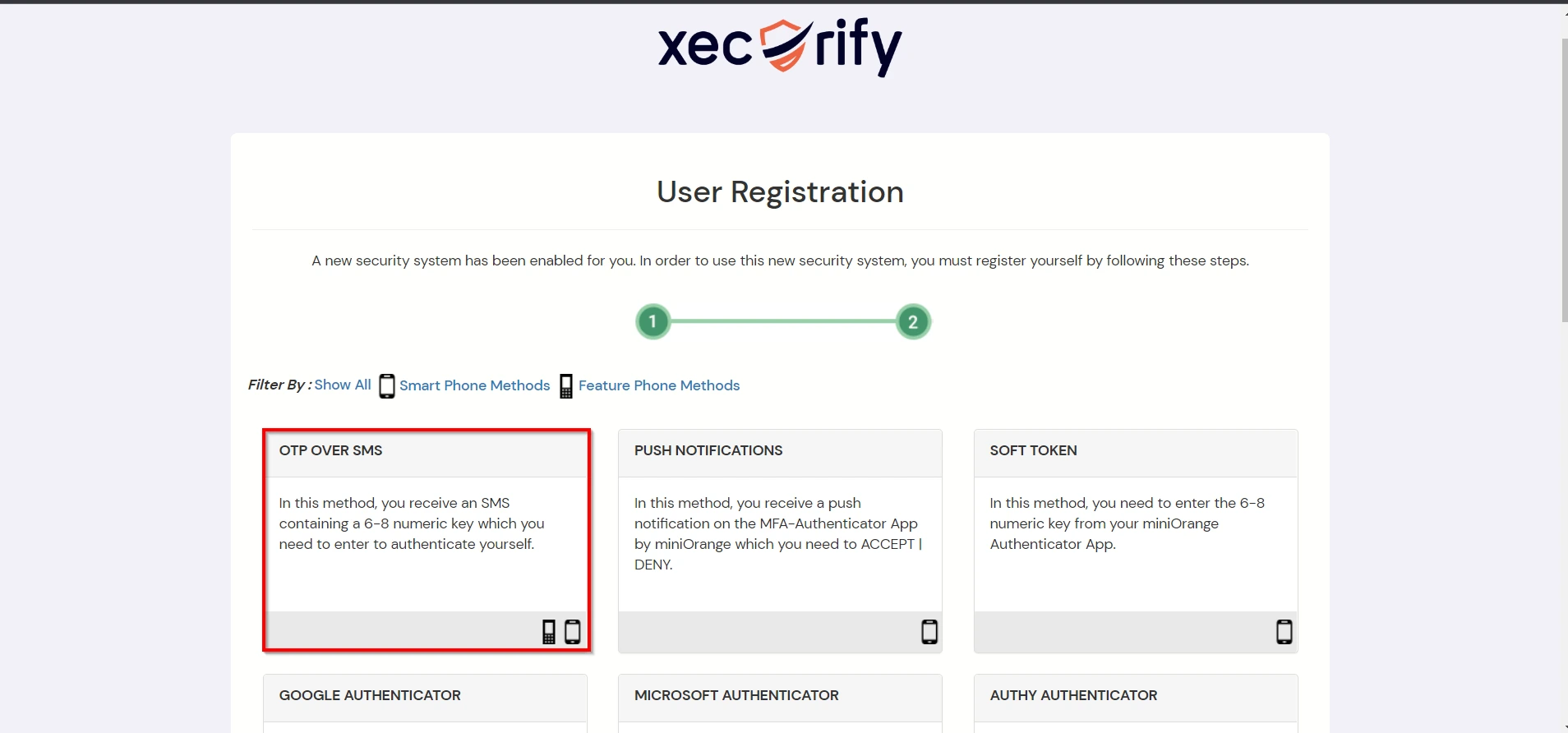
  • Configure any authentication method of your choice.
  • zoom two factor authentication(2fa) add new security

  • After successful registration, you will be logged in to your Outlook Web Access (OWA) account.

  • Not able to configure or test MFA?


    Contact us or email us at idpsupport@xecurify.com and we'll help you setting it up in no time.


5. Adaptive Authentication with Outlook Web Access (OWA)

A. Restricting access to Outlook Web Access (OWA) with IP Configuration

    You can use adaptive authentication with Outlook Web Access (OWA) Single Sign-On (SSO) to improve the security and functionality of Single Sign-On. You can allow a IP Address in certain range for SSO or you can deny it based your requirements and you can also challenge the user to verify his authenticity. Adaptive authentication manages the user authentication bases on different factors such as Device ID, Location, Time of Access, IP Address and many more.

    You can configure Adaptive Authentication with IP Blocking in following way :
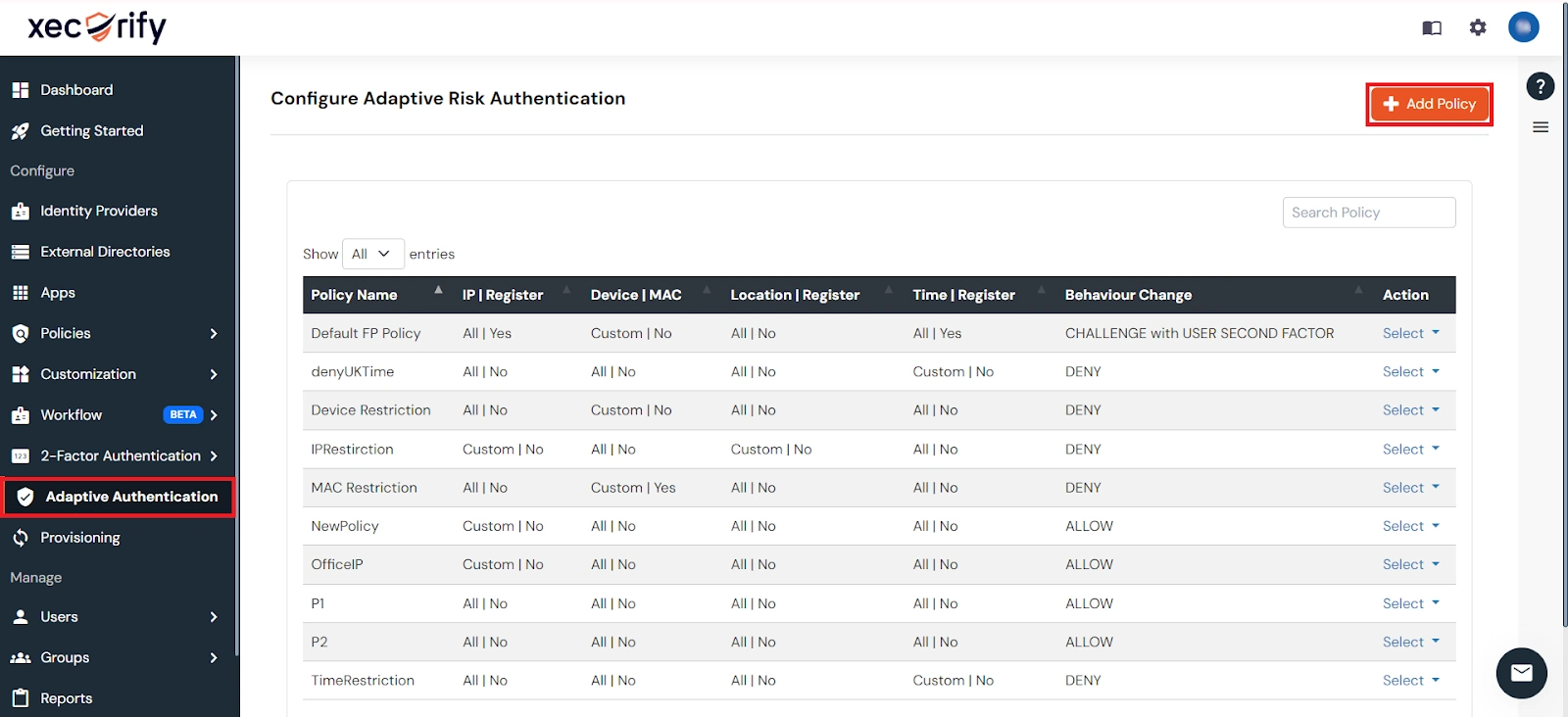
  • Login to Self Service Console >> Adaptive Authentication >> Add Policy.
  • Outlook Web Access (OWA) Single Sign-On (SSO) Restrict Access adaptive authentication policy

  • Add a Policy Name for your Adative Authentication Policy.
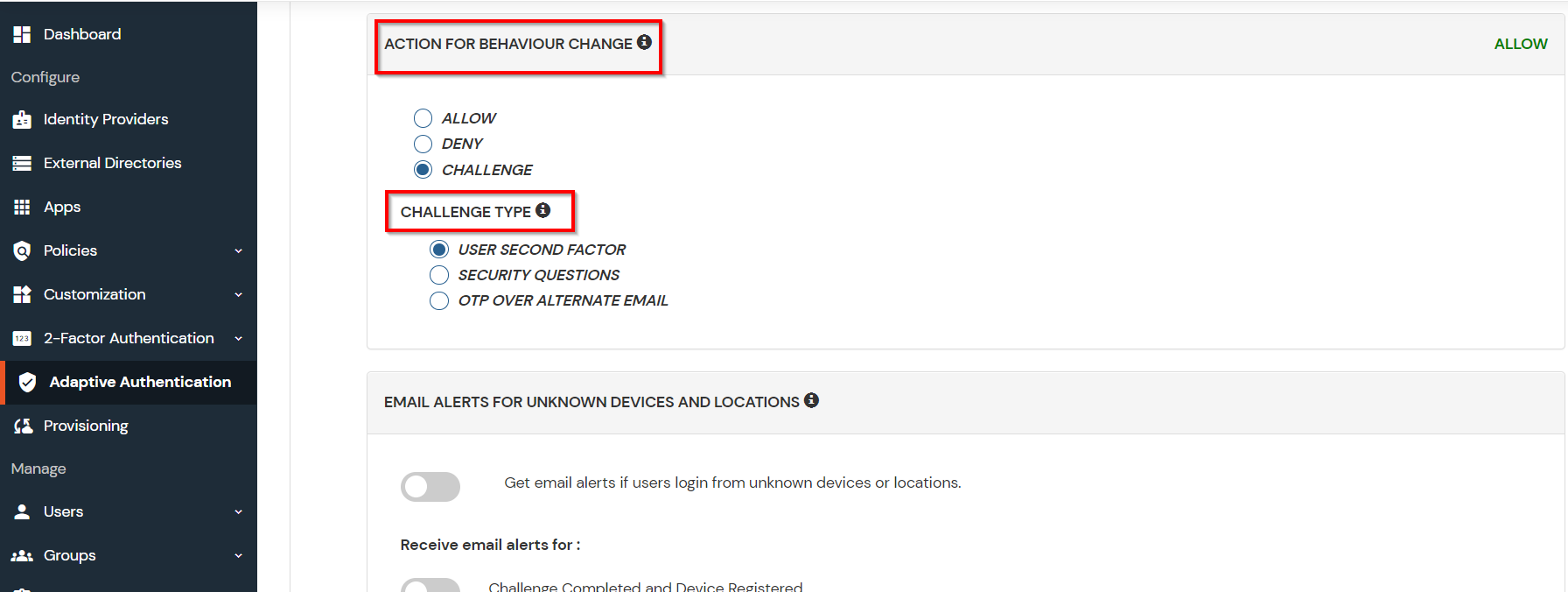
  • Select Action for Behavior Change, click the Edit link, and then choose the appropriate Action and Challenge Type for the user from that section.
  • Outlook Web Access (OWA) Single Sign-On (SSO) Restrict Access adaptive authentication behavior change


    Action for behavior Change Options :


    Attribute Description
    Allow Allow users to authenticate and use services if Adaptive authentication condition is true.
    Deny Deny user authentications and access to services if Adaptive authentication condition is true.
    Challenge Challenge users with one of the three methods mentioned below for verifying user authenticity.

    Challenge Type Options :

    Attribute Description
    User second Factor The User needs to authenticate using the second factor he has opted or assigned for such as
    • OTP over SMS
    • PUSH Notification
    • OTP over Email and, many more.
    KBA (Knowledge-based authentication) The System will ask the user for 2 of 3 questions he has configured in his Self-Service Console. Only after the right answer to both questions is the user allowed to proceed further.
    OTP over Alternate Email User will receive an OTP on the alternate email they have configured through the Self Service Console. Once the user provides the correct OTP, they are allowed to proceed further.

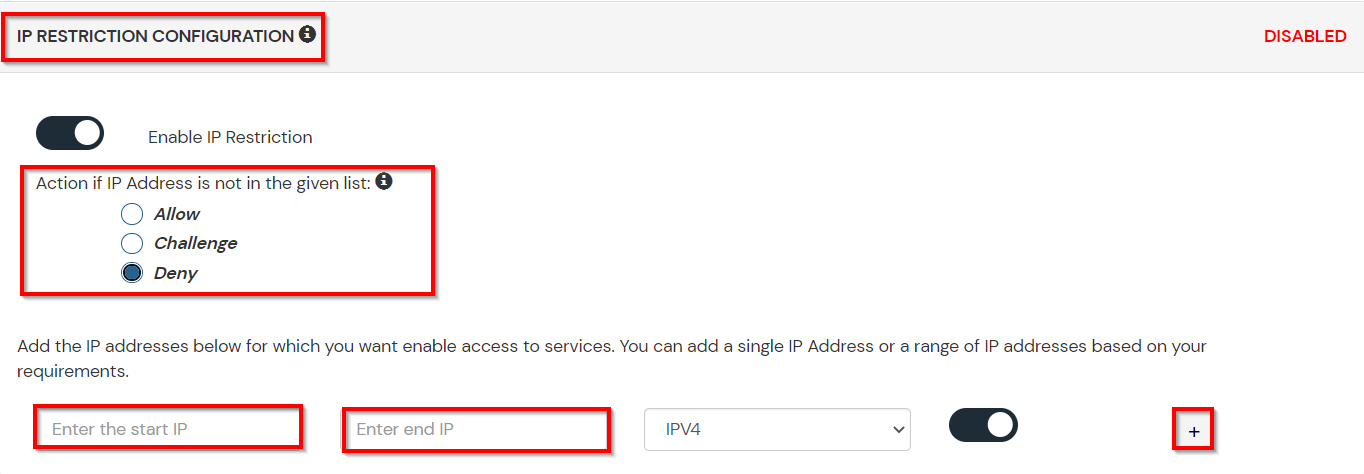
  • Now click Edit option from the IP Configuration section to configure custom IP range.
  • Select Add IP if the User's IP Address is not in the configured list.
  • Specify the IP Address that you want to whitelist. For the IP Range other than the whitelisted one, you can select the above setting to reflect.
  • Choose either allow or deny by selecting the corresponding option from the dropdown.
  • If a user tries to login with the whitelisted IP address, they will always be allowed access.
  • We support IP address range in three formats i.e., IPv4, IPv4 CIDR, and IPv6 CIDR. You can choose whichever is suitable for you from the dropdown menu.
  • You can add multiple IPs or IP ranges by clicking the + Add IP button.
  • Outlook Web Access (OWA) Single Sign-On (SSO) Restrict Access adaptive authentication ip blocking

  • Once the changes are made, scroll down to the end and click on Save.

B. Adaptive Authentication with Limiting number of devices

    Using Adaptive Authentication you can also restrict the number of devices the end user can access the Services on. You can allow end users to access services on a fixed no. of devices. The end users will be able to access services provided by us on this fixed no. of devices.

    You can configure Adaptive Authentication with Device Restriction in following way
  • Login to Self Service Console >> Adaptive Authentication >> Add Policy.
  • Add a Policy Name for your Adaptive Authentication Policy.
  • Select your Action for behavior Change and Challenge Type for user from the Action for behavior Change Section.
  • Outlook Web Access (OWA) Single Sign-On (SSO) Restrict Access adaptive authentication behavior and challenge type

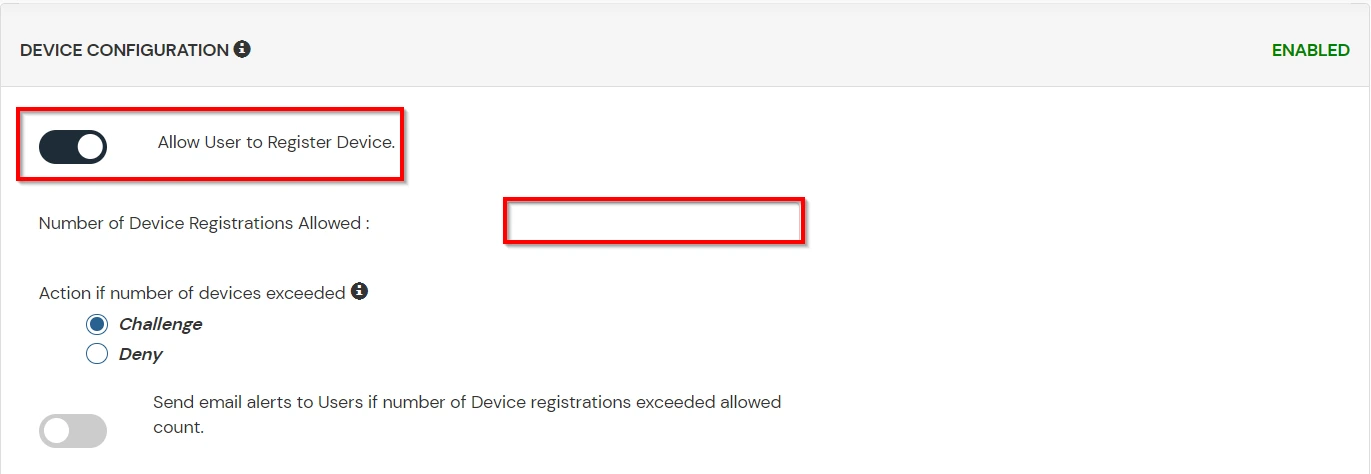
  • On the Add Policy tab, go to the Device Configuration section and click the Edit button.
  • Enter the Number of Device Registrations Allowed as per your requirement. (2-3 devices are recommended.)
  • Choose Action if number of devices exceeded (This will override your setting for Action for behavior Change.)
    • Challenge: The user needs to verify himself using any of the three methods mentioned in table in step 5.1
    • Deny : Deny users access to the system
  • Enable Mobile Device Restriction to block logins from mobile devices. This ensures all login attempts from mobile devices will be declined.
  • Enable MAC Address Based Restriction if you want to restrict access based on device MAC address.
  • Outlook Web Access (OWA) Single Sign-On (SSO) Restrict Access adaptive authentication enable device restriction

  • Scroll down to the bottom of the page and click on Save.

C. Add Adaptive Authentication policy to Outlook Web Access (OWA)
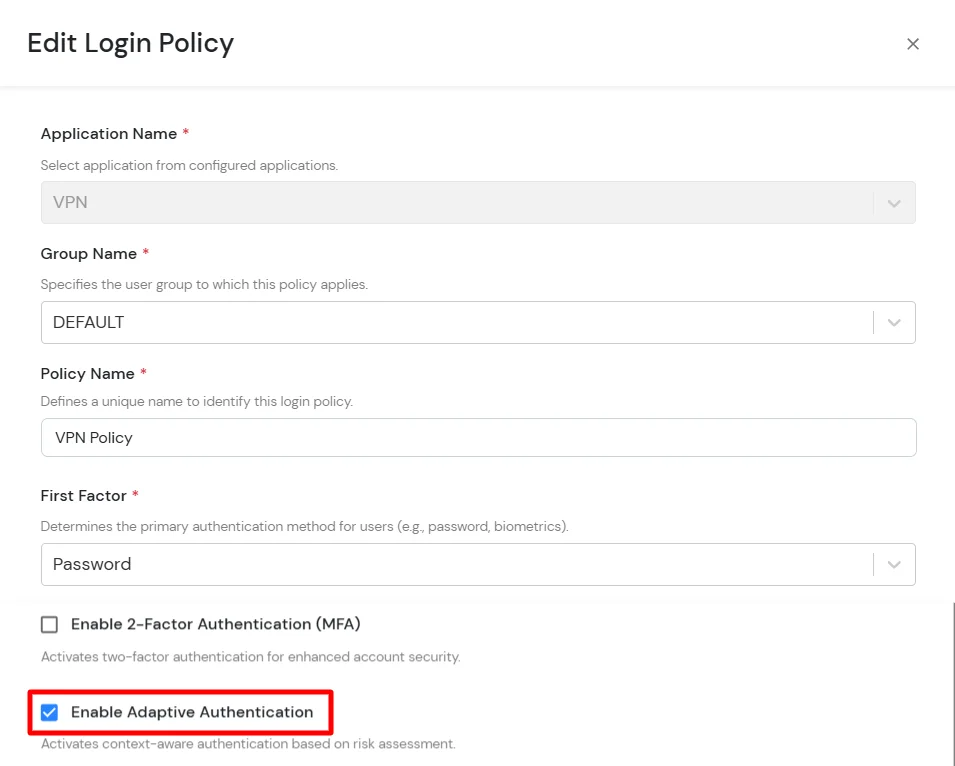
  • Login to Self Service Console >> Policies >> Add Login Policy.
  • Click on Edit icon option for predefined app policy.
  • Outlook Web Access (OWA) Single Sign-On (sso) edit device restriction policy

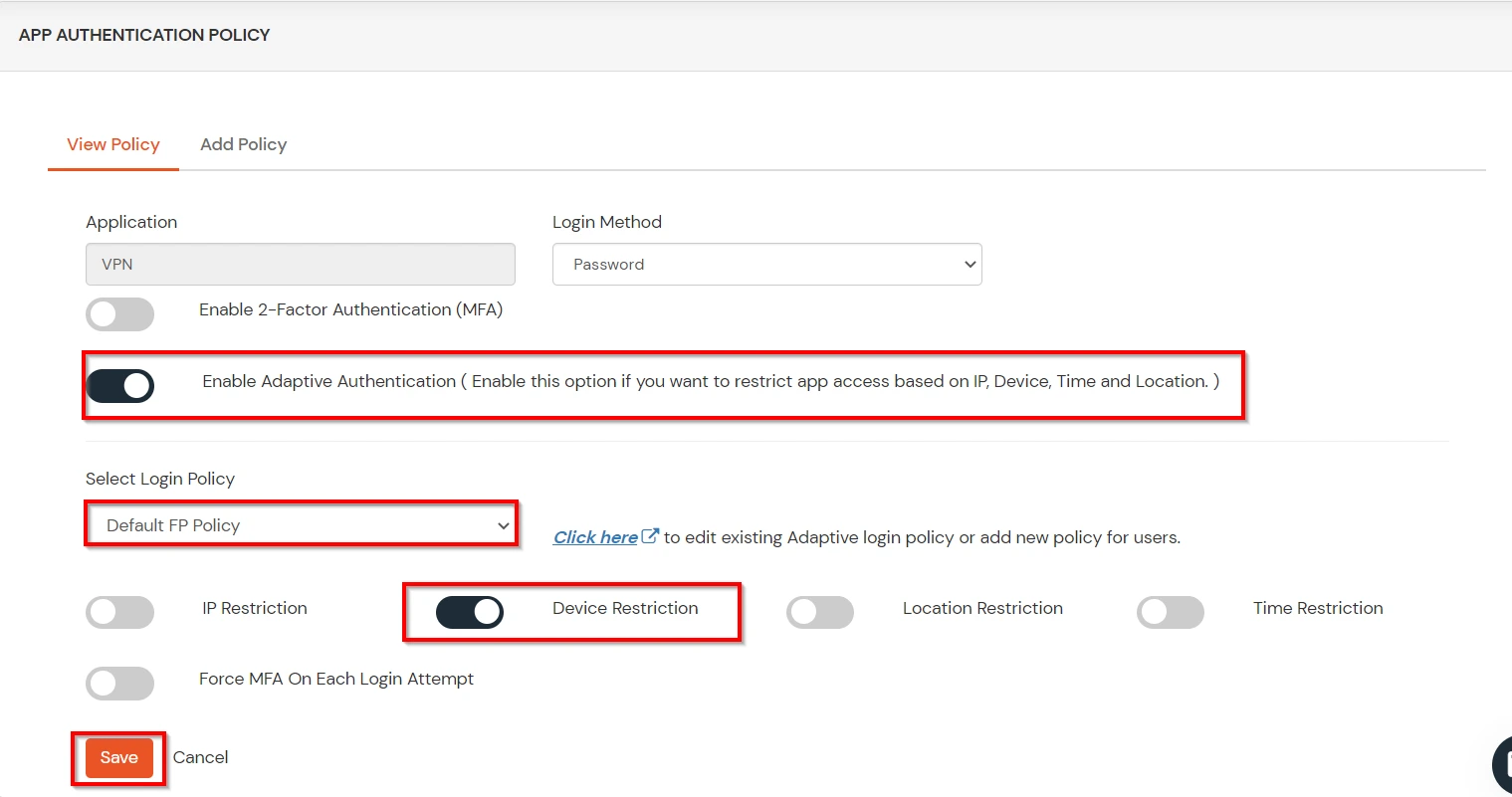
  • Set your policy in the Policy Name and select Password as First Factor.
  • Enable Adaptive Authentication on Edit Login Policy page and select the required restriction method as an option.
  • From Select Login Policy dropdown select the policy we created in last step and click on Submit.
  • Outlook Web Access (OWA) Single Sign-On (SSO) Restrict Access Enable Adaptive Authentication

    Outlook Web Access (OWA) Single Sign-On (SSO) Restrict Access Submit device restriction policy

D. Notification and Alert Message.

    This section handles the notifications and alerts related to Adaptive Authentication. It provides the following options :
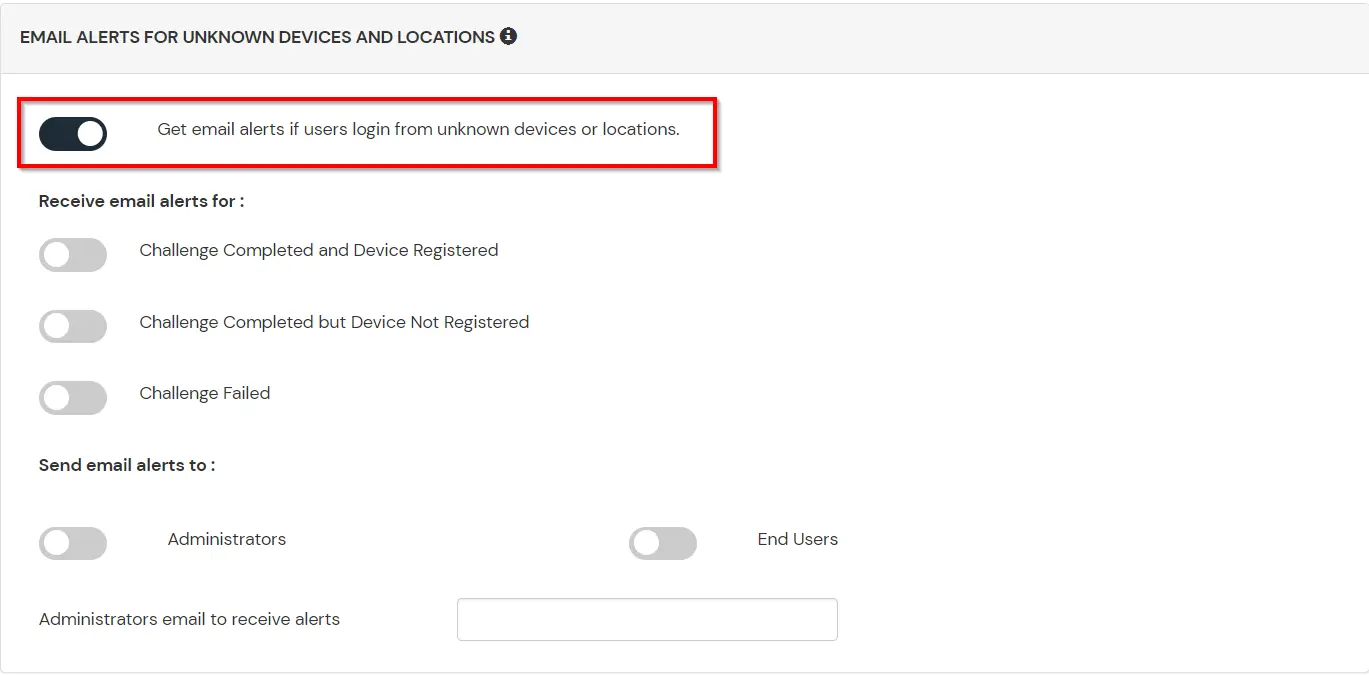
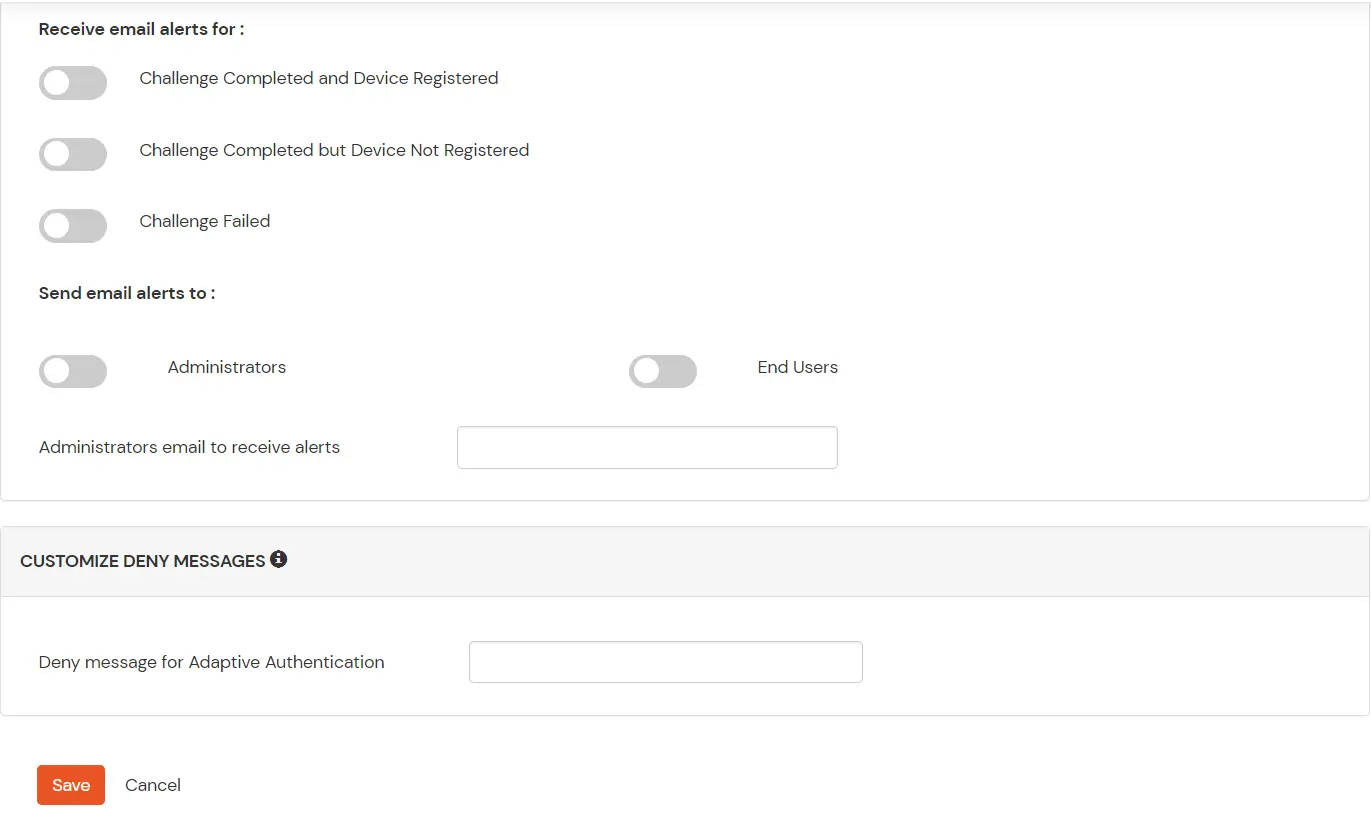
  • Get email alerts if users login from unknown devices or locations: Admins need to enable this option to enable receiving alerts for different alert options.
    Adaptive authentication Action for behavior Change Configuration

  • Option Description
    Users login from unknown IP addresses, devices or locations Enabling this option allows you to login from unknown IP addresses or devices and even locations.
    Number of Device registrations exceeded allowed count This option will allow you to register more devices than the devices you have numbered.
    Challenge Completed and Device Registered Enabling this option allows you to send an email alert when an end-user completes a challenge and registers a device.
    Challenge Completed but Device Not Registered Enabling this option allows you to send an email alert when an end-user completes a challenge but do not registers the device.
    Challenge Failed Enabling this option allows you to send an email alert when an end-user fails to complete the challenge.


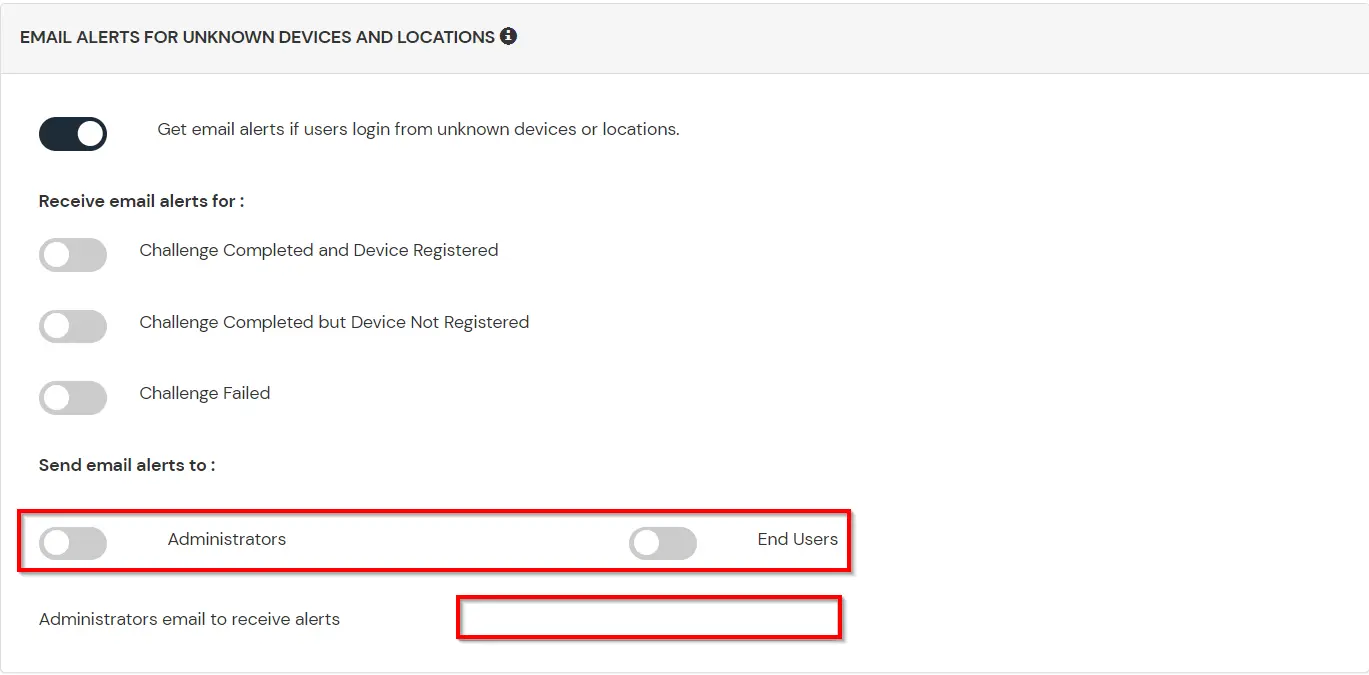
  • Next subsection is Send email alerts which allows us to enable or disable alerts for admin and end-users. To enable alerts for admins, you can enable the Administrators checkbox.
  • Adaptive Authentication: Send email alerts

  • In case you want multiple admin accounts to receive alerts, then you can enable the option for admin and then enter the admin emails separated by a ‘,’ in the input field next to Administrator’s email to receive alerts label. To enable alerts for the end users, you can enable the End User checkbox.
  • In case you want to customize the deny message that the end user receives in case his authentication is denied due to adaptive policy, you can do this by entering the message inside Deny Message text box.
  • Adaptive Authentication: Customize Deny message

How to add a trusted Device
  • When End-user log in to the self service console after the policy for device restriction is on, he is provided the option to add the current device as a trusted device.

FAQ

How to disable miniOrange Login for Exchange?

  • You can run the below commands in Exchange Management Shell to disable federation with miniOrange and enable Forms based authentication.
  • Get-OwaVirtualDirectory | Set-OwaVirtualDirectory -AdfsAuthentication $false -BasicAuthentication $false -DigestAuthentication $false -FormsAuthentication $true -WindowsAuthentication $false -OAuthAuthentication $false
    Get-EcpVirtualDirectory | Set-EcpVirtualDirectory -AdfsAuthentication $false -BasicAuthentication $false -DigestAuthentication $false -FormsAuthentication $true -WindowsAuthentication $false
    # Restart w3svc and was net stop was /y net start w3svc

External References

Want To Schedule A Demo?

Request a Demo


Our Other Identity & Access Management Products