React Single Sign-On SSO
Simplify user authentication in your React applications with React SSO (Single Sign-On) solution by miniOrange. Our React SSO solution enables users to securely access your React app using a single set of credentials through their existing Identity Provider (IdP), eliminating the need for multiple passwords and reducing login friction. React SSO supports JWT-based authentication and integrates seamlessly with popular identity sources such as Microsoft Entra ID, AWS Cognito, Active Directory, LDAP, and more.
With miniOrange React SSO solution, organizations can centralize authentication, improve security, and streamline user access across applications. The solution supports external user directories, social login providers, and flexible user onboarding options, making it ideal for both workforce and customer-facing React applications.Below is the setup guide for the React SSO.
Prerequisites
- Download the JWT-connector.
- Copy the JWT-connector to the src folder of your project.
- Install all the dependencies.
npm install --save base64url jsrsasign jssha utf8
Connect with External Source of Users
miniOrange provides user authentication from various external sources, which can be Directories (like ADFS, Microsoft Active Directory, OpenLDAP, AWS etc), Identity Providers (like Microsoft Entra ID, Okta, AWS), and many more. You can configure your existing directory/user store or add users in miniOrange.
Follow the Step-by-Step Guide given below for React Single Sign-On (SSO)
1. Configure React in miniOrange:
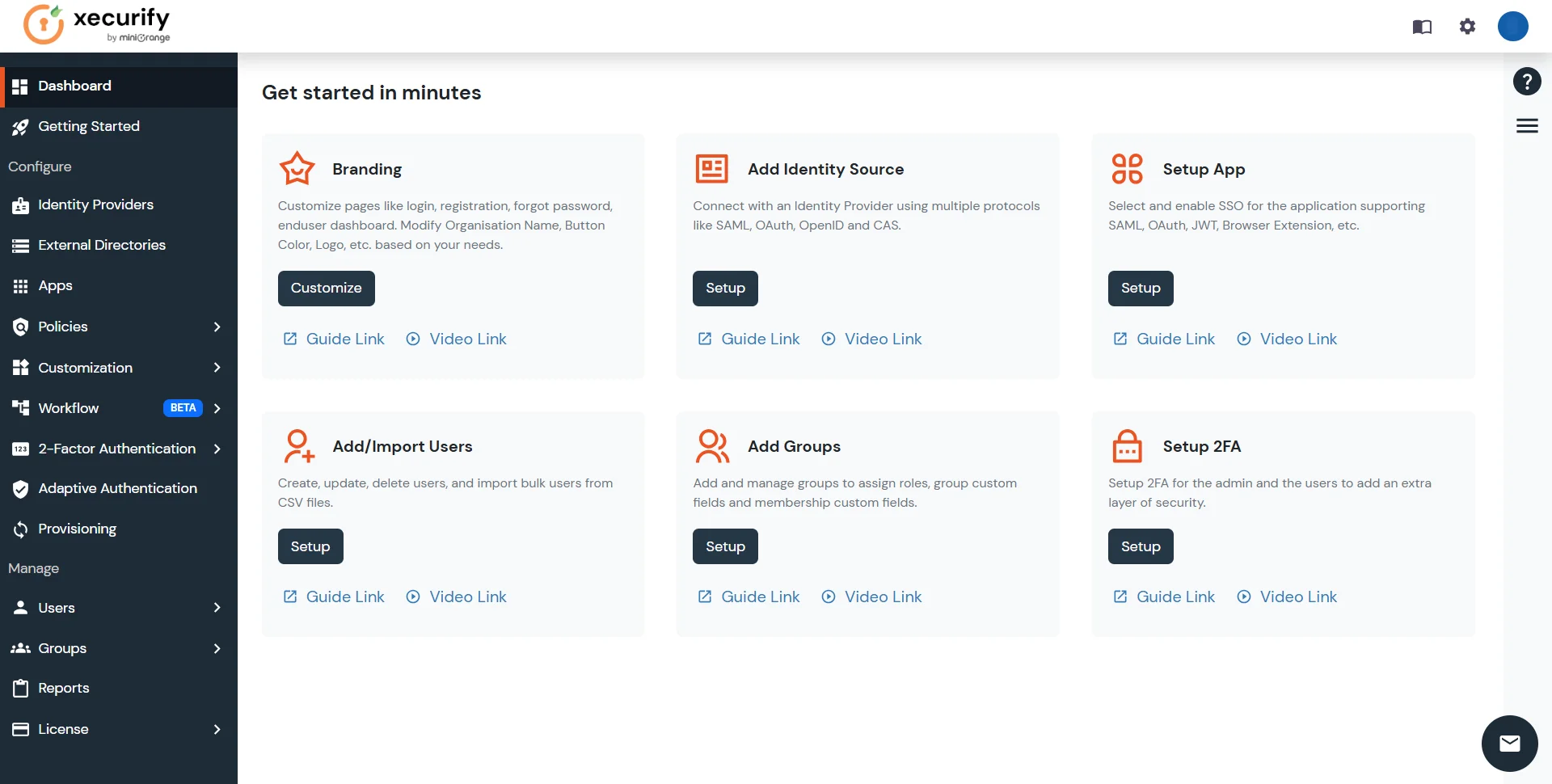
- Login into miniOrange Admin Console.
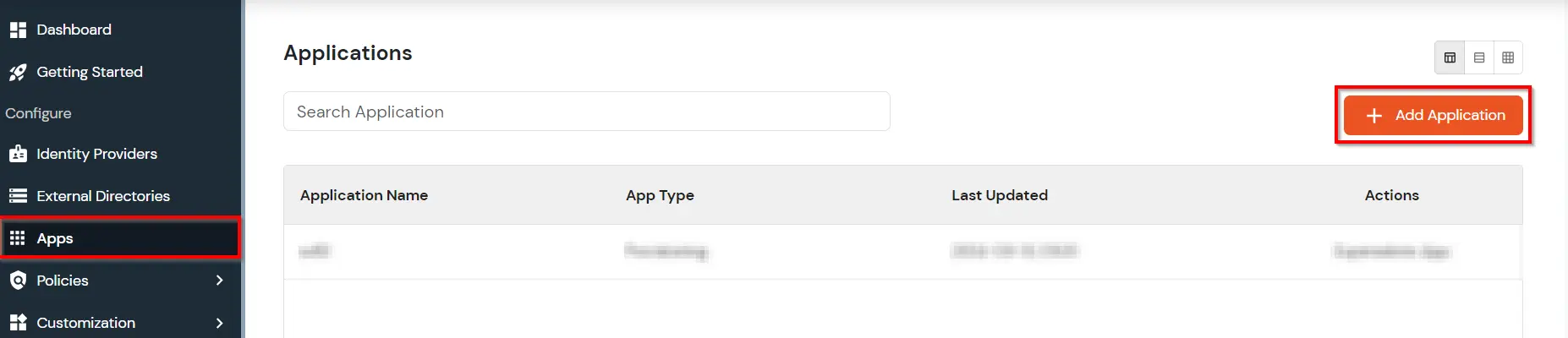
- Go to Apps and click on Add Application button.
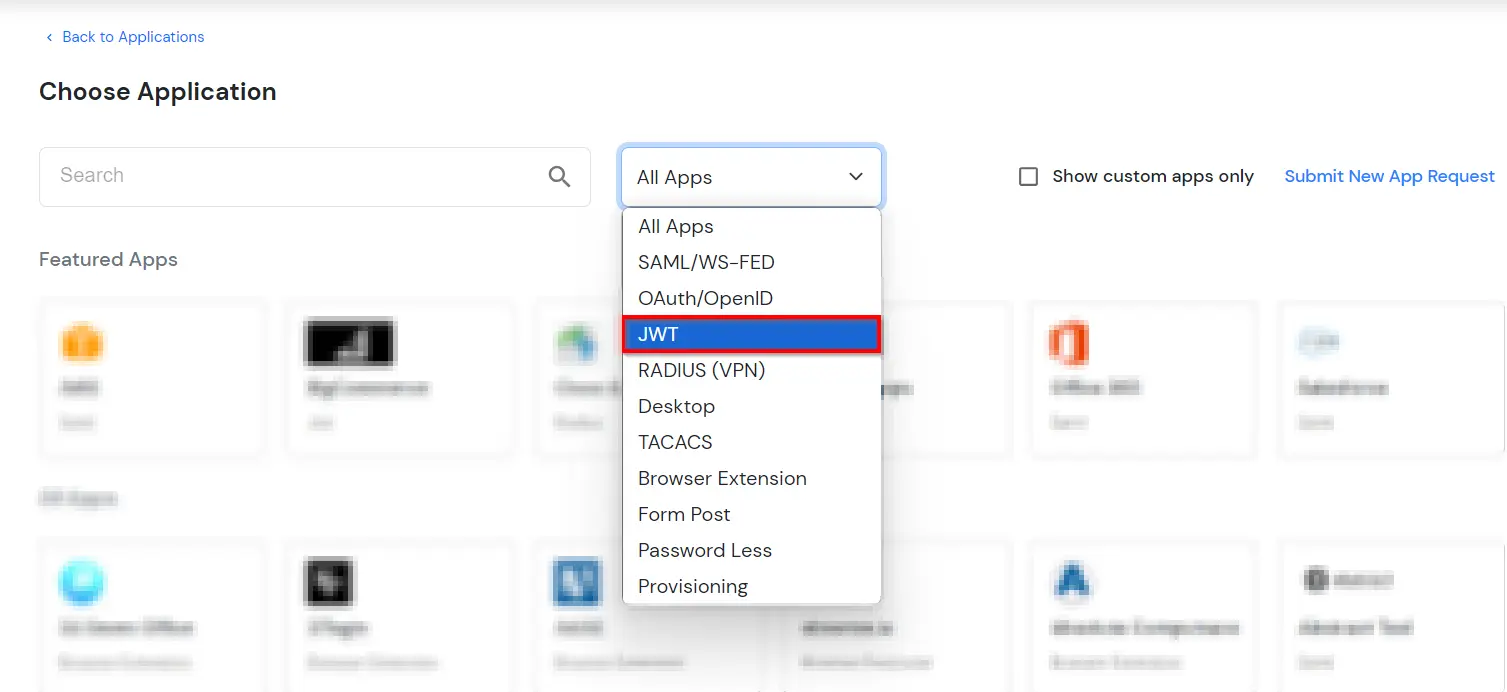
- In Choose Application, select JWT from the application type dropdown.
- In the next step, search for React application from the list. If your application is not found, search for JWT App and you can set up your Application.
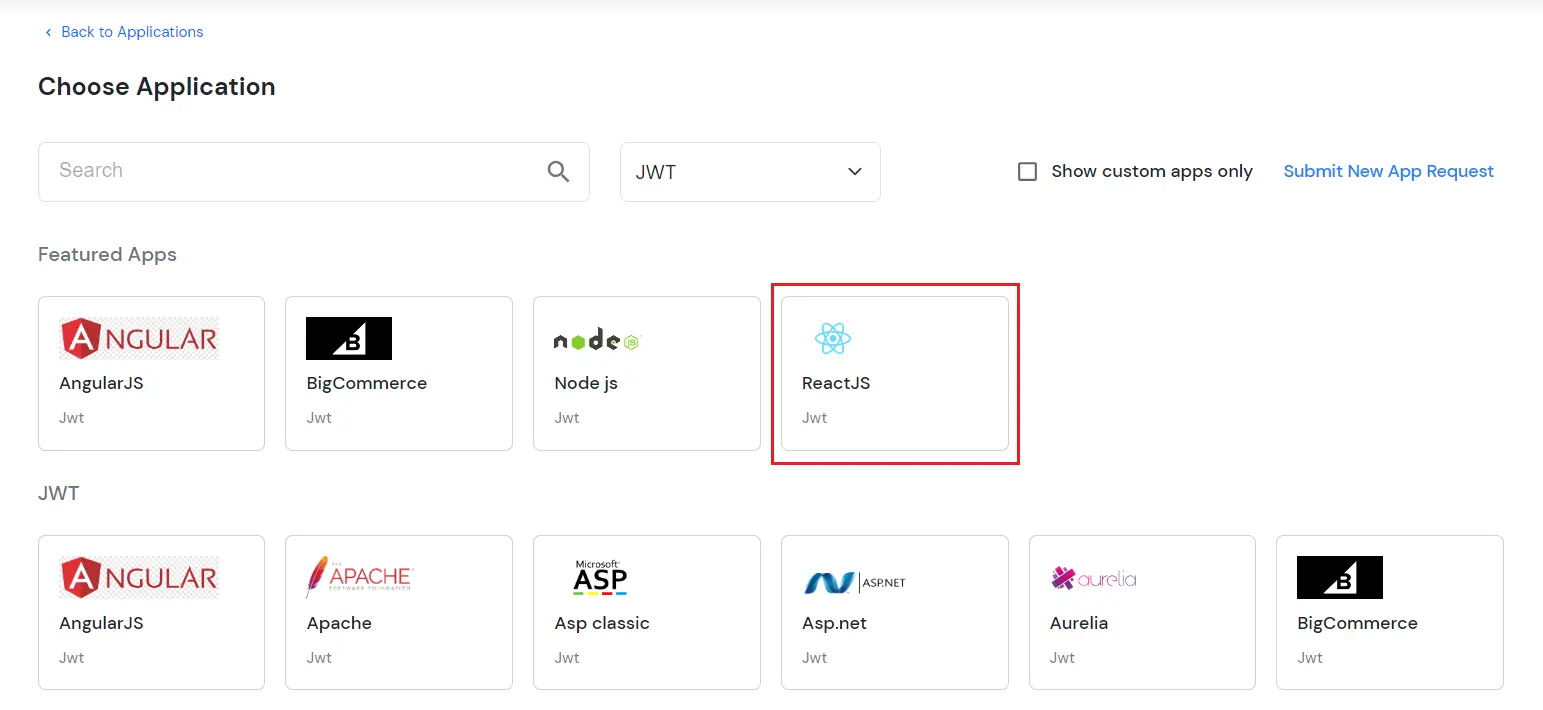
-
You can configure the following details in the application:
| Display Name |
Enter the Display Name (i.e. the name for this application) |
| Redirect URL |
Enter the Redirect URL (i.e. the endpoint where you want to send/post your JWT token).
You can add multiple redirect URLs by separating them with a ‘;’.E.g. abc.com;xyz.com
|
| Client ID |
The Client ID is shown in the field below. Click the clipboard icon to copy it. |
| Client Secret |
Client Secret is hidden by default. Click the eye icon to reveal it and use the clipboard icon to copy it. This is used in the HS256 signature algorithm for generating the signature.
|
| Description (Optional) |
Add a description if required.
|
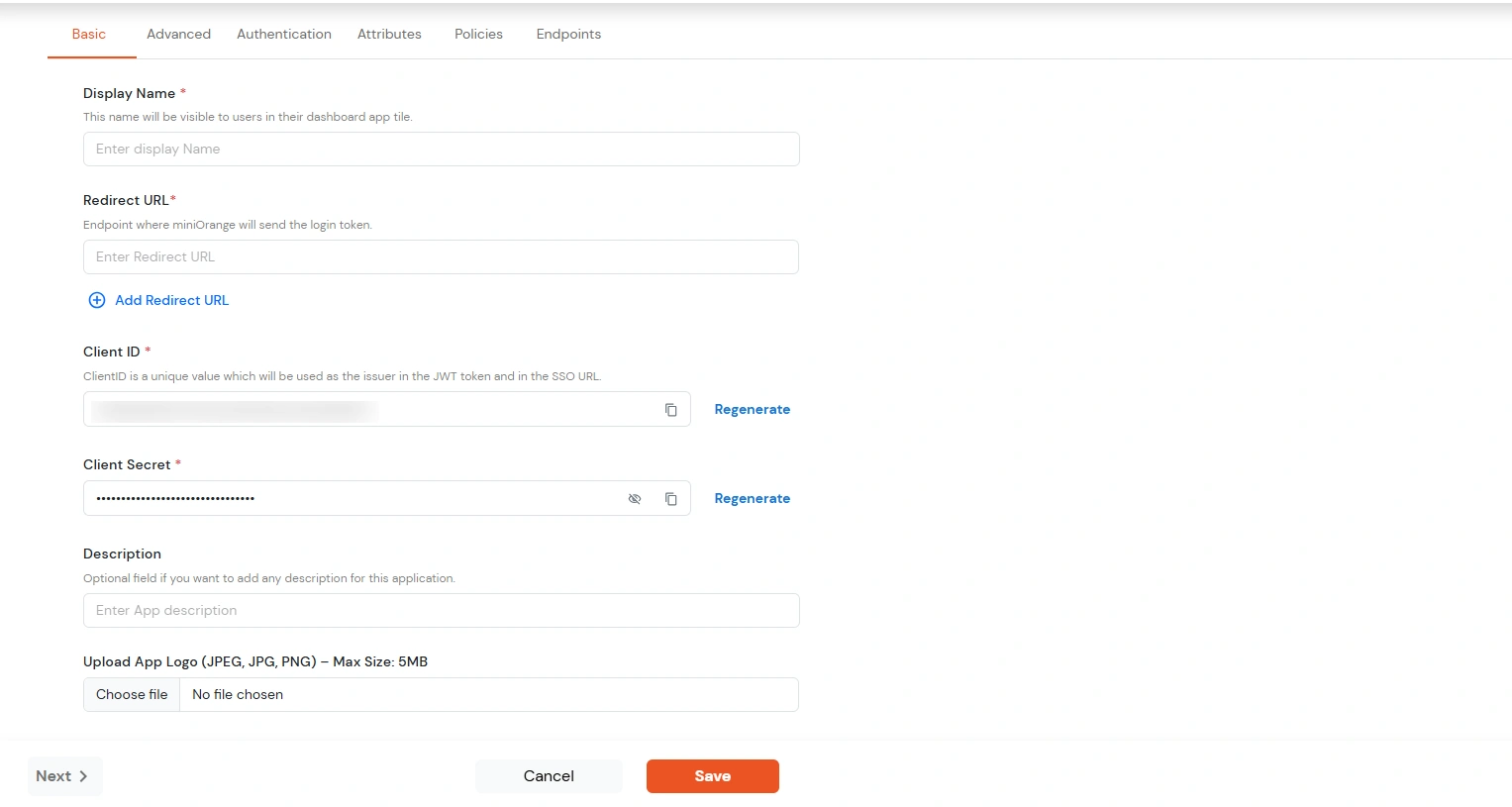
- Click Save.
- You will be redirected to the Policies section.
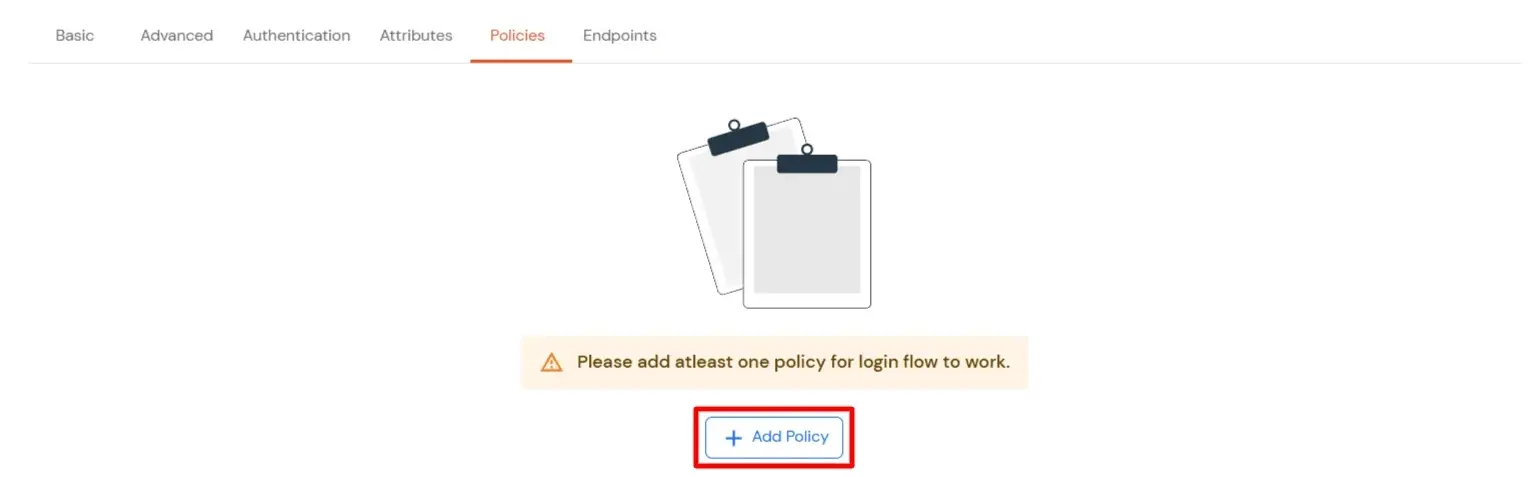
- Click on the Assign group button. A new Configure Group Assignment Modal will open.
- Assign Group: Select the groups you want to link with the application. You can select up to 20 groups at a time.
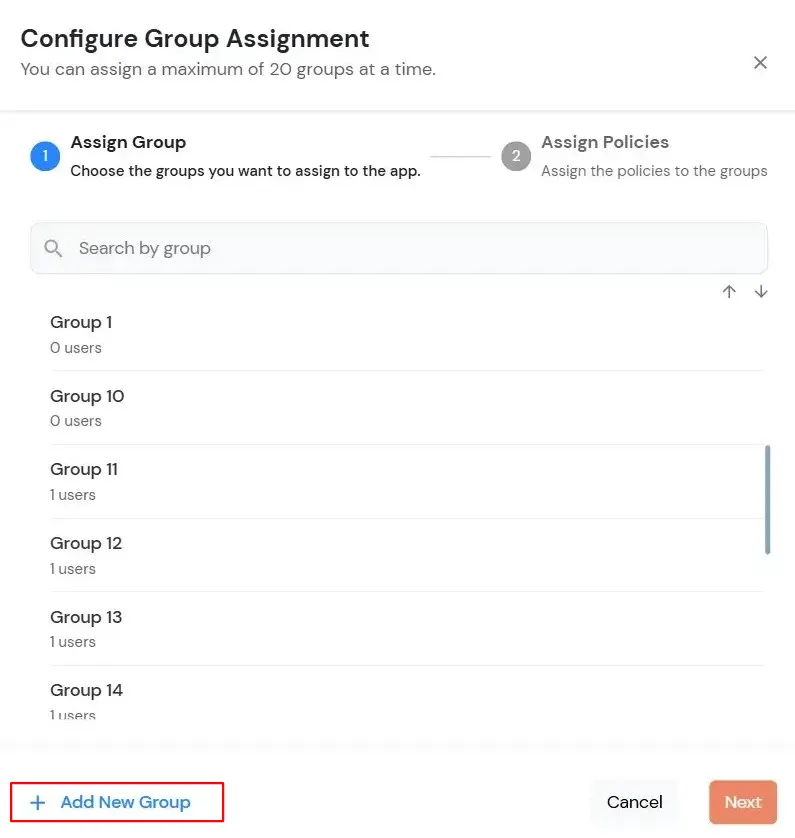
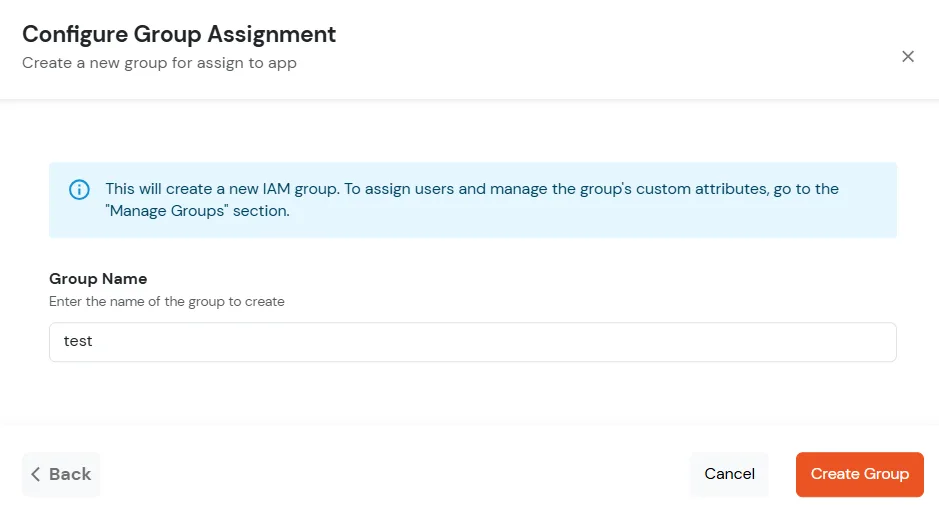
- If you need to create new group. Click on Add New Group button.
- Enter the Group name and click on Create Group.
- Click on Next.
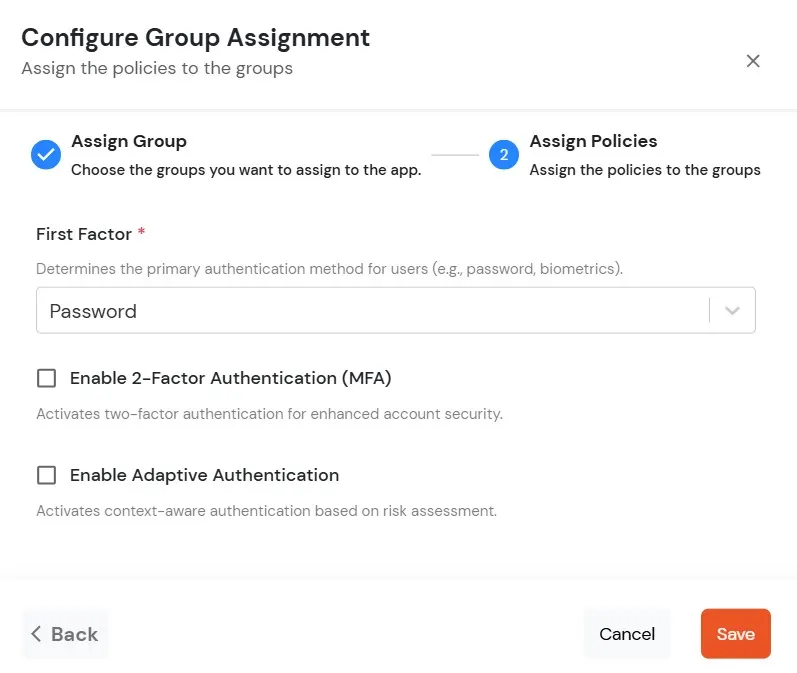
- Assign Policies: Add the required policies to the selected groups. Enter the following details:
- First Factor: Select the login method from the dropdown.
- If you select Password as the login method, you can enable 2-Factor Authentication (MFA) and Adaptive Authentication, if needed.
- If you select Password-less as login method, you can enable 2-Factor Authentication (MFA) if needed.
- If you select Magic Link as the login method, the following options appear:
- Enable sign-in from other IPs: When enabled, users can open the Magic Link from a different IP address than the one from which it was requested.
- Enable sign-in from other devices: When enabled, users can open the Magic Link on a different device than the one used to request it.
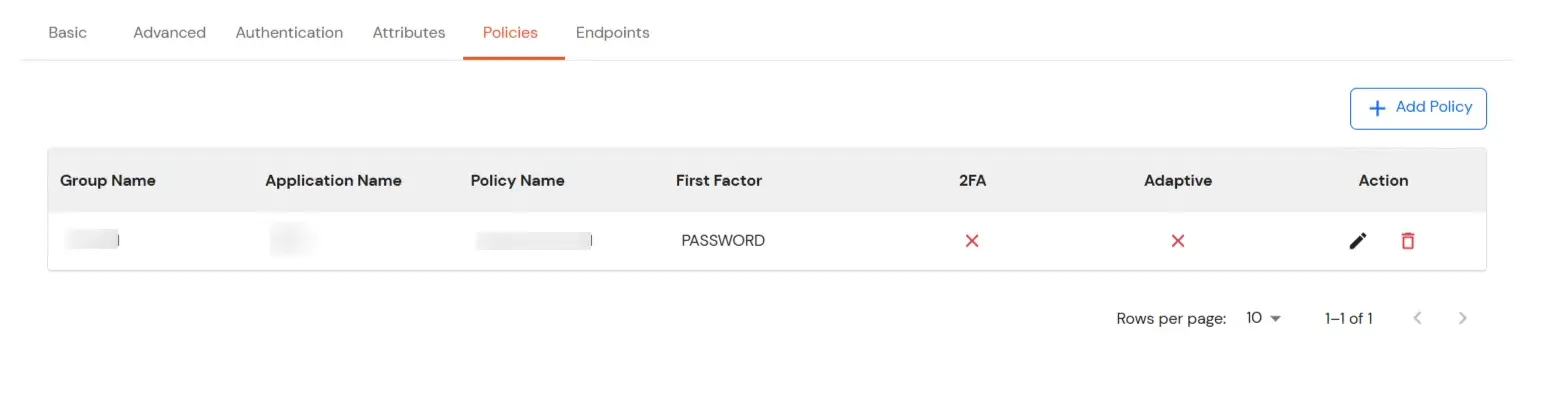
- Click on Save. Policies will be created for all the selected groups.
- You will see the policy listed once it’s successfully added.
- Click on Advanced tab.
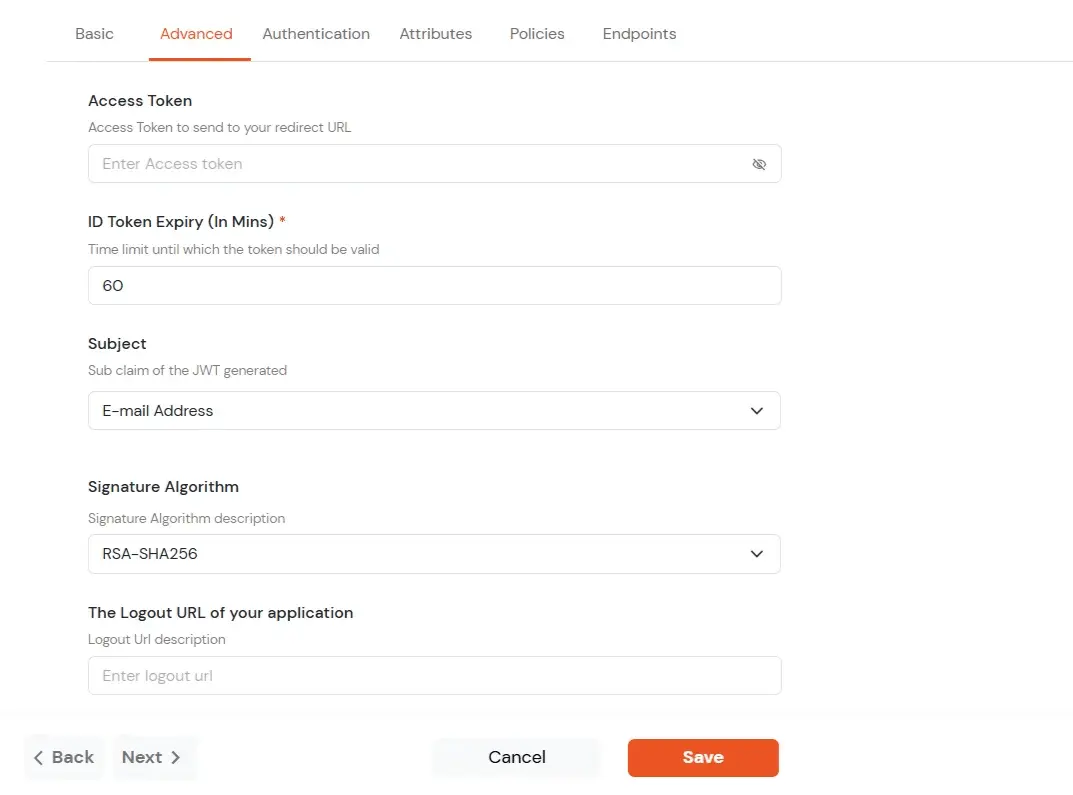
- Enter the following details as required:
| Access Token |
Enter the access token that will be sent to your redirect URL after a user logs in. This token helps your app know the user is allowed to access certain features. |
| ID Token Expiry (In Mins) |
Set how long (in minutes) the ID token will be valid. After this time, the user will need to log in again to get a new token. |
| Subject |
Choose what information, like the user’s email address, will be used to identify them in the token. This helps your app know which user is logged in. |
| Signature Algorithm |
Select your signature algorithm from the dropdown. |
| The Logout URL of your application |
Enter the web address where users should be sent after they log out. |
| Enable Shared Identity |
This feature lets you control whether a specific application can be accessed by shared user or not. |
- Signature Algorithms for JWT
RSA-SHA256
- Asymmetric, uses a set of private and public keys to generate and validate the signature which is included in the JWT token.
- The private key is used to generate the signature on the IDP side.
- The public key is used to verify the signature on the SP side.
- We provide the public key for this.
HS256
- Symmetric, uses the same secret key to generate and validate the signature
- The secret key in this case is configurable from the app configuration page.
-
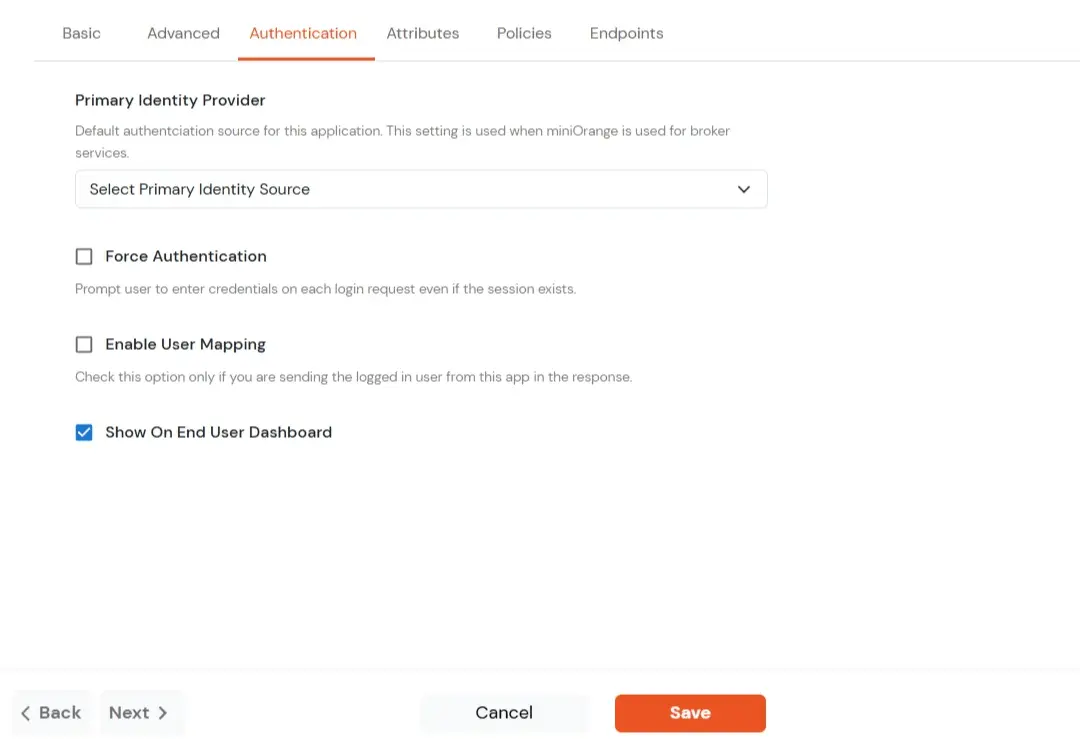
Switch to Login options tab.
| Primary Identity Provider |
Select the default ID source from the dropdown for the application. If not selected, users will see the default
login screen and can choose their own IDP. [Choose miniOrange in this case.]
|
| Force Authentication |
If you enable this option, users will have to log in every time, even if their session already exists. |
| Enable User Mapping |
Enable this option, if you want the app to show which user is signed in when it responds. |
| Show On End User Dashboard |
Enable this option if you want to show this app in the end-user dashboard. |
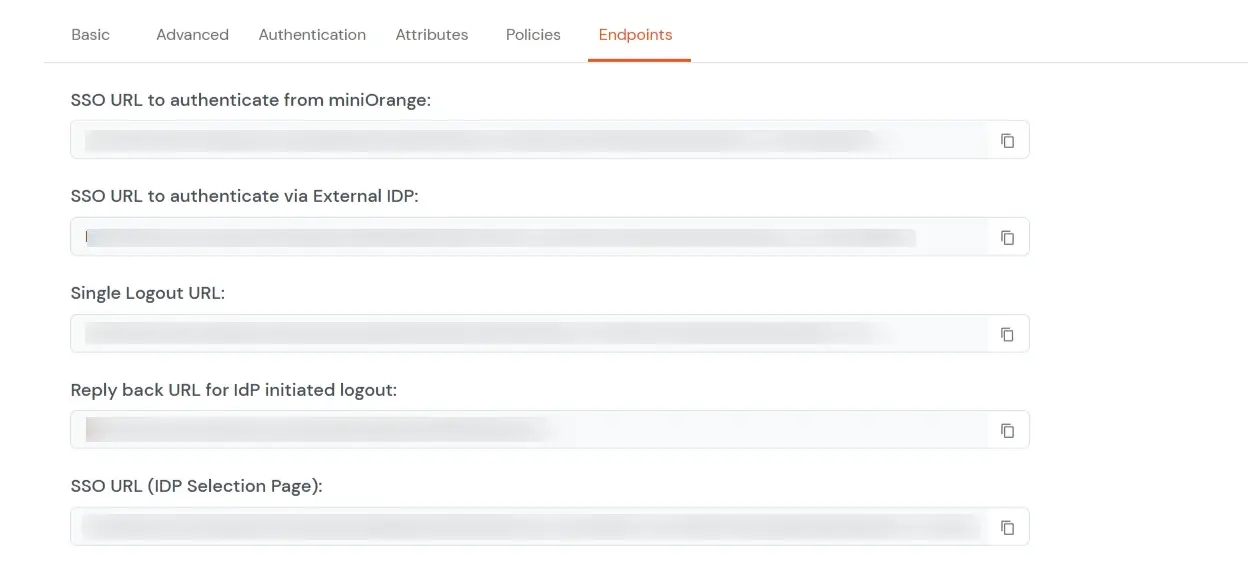
- Navigate to Endpoints and copy the following details:
-
Single Sign-On URL:
- This URL is used to initiate user authentication to obtain the JWT token.
- Take redirect_uri as one of the query parameters.
- After successful authentication on the IDP end, an active user session is created in the IDP and the user is redirected to the redirect_uri with the JWT token.
-
-
Single Logout URL:
- This URL is used to log out the user from the IDP by removing the active user session.
- Take redirect_uri as one of the query parameters.
- After removing the active user session, the IDP redirects the user to the redirect_uri.
-
Reply back URL for IdP initiated logout:
- This URL is used to initiate the logout in case the JWT user login was IDP Initiated [User logged in to the dashboard
first and then initiated the login for the app from the dashboard.]
- After logging out the user from the IDP, the user is redirected to the IDP dashboard login page.
2. Configure SSO in React
- Select a component that will be responsible for verifying the JWT token most preferably the login component.
- Import the JWTBuilder class from the jwt-connector. From the path to which it was moved in step 1 of Pre-requisites.
import { JWTBuilder } from './path/to/jwt-connector';
- You can add a button on your login screen to redirect to the SSO URL. You can get this SSO URL from step 1 of Configure your application in miniOrange.
<button onClick={sso}>Single Sign On</button>

function sso() {
  window.location.href = '<YOUR SSO URL>';
  // example: https://login.xecurify.com/moas/broker/login/jwt/277898?client_id=AbIVW8A MNTBzg2o7&redirect_uri=http://localhost:3000/login;
}
- On Clicking the SSO button the user will be redirected to the miniOrange portal for authentication.
- Then the JWT token is returned to your application to the redirect URL you have set while adding your application in miniOrange. In the following steps, we will be verifying this token and
retrieving the user details.
- You need to add the x509 certificate that you can get in step 1 ‘configure your application in miniOrange ’.
const Login = () => {
  // The SearchParams hook lets us work with the query string of a URL.
  let [searchParams, setSearchParams] = useSearchParams();
  const cert = "<PLACE YOUR CERTIFICATE STRING HERE>";
  var verified = false;
  // Gets the id_token parameter from the query URL
  let jwt = searchParams.get("id_token");

  if (jwt) {
    var jwtBuilder = new JWTBuilder();
    // Initialize the JWT
    jwtBuilder.parseJwt(jwt);
    // set the secret that was shared by your IdP
    jwtBuilder.setSecret(cert);
    try {
      // Compare the hashed jwt with the one received
      verified = jwtBuilder.verifyJwt();
    } catch (error) {
      console.error(error);
    }
  }

  useEffect(() => {
    if (verified) {
      // Once you find the JWT is verified, you can go ahead and get the data from JWT
      let user = jwtBuilder.getPayload();
      let username = user.username;
      let email = user.email;
      // You can create a user session here if required and navigate to the home page
    }
  }, [verified]);
};
- Now if the token is verified, the payload which consists of the User details can be saved in local storage or serialized into a User Class and the user now verified can be
redirected to the home screen of your application.
3. Test SSO Configuration
Test SSO login to your React account with miniOrange IdP:
Using IDP Initiated Login
- Login to miniOrange IdP using your credentials.
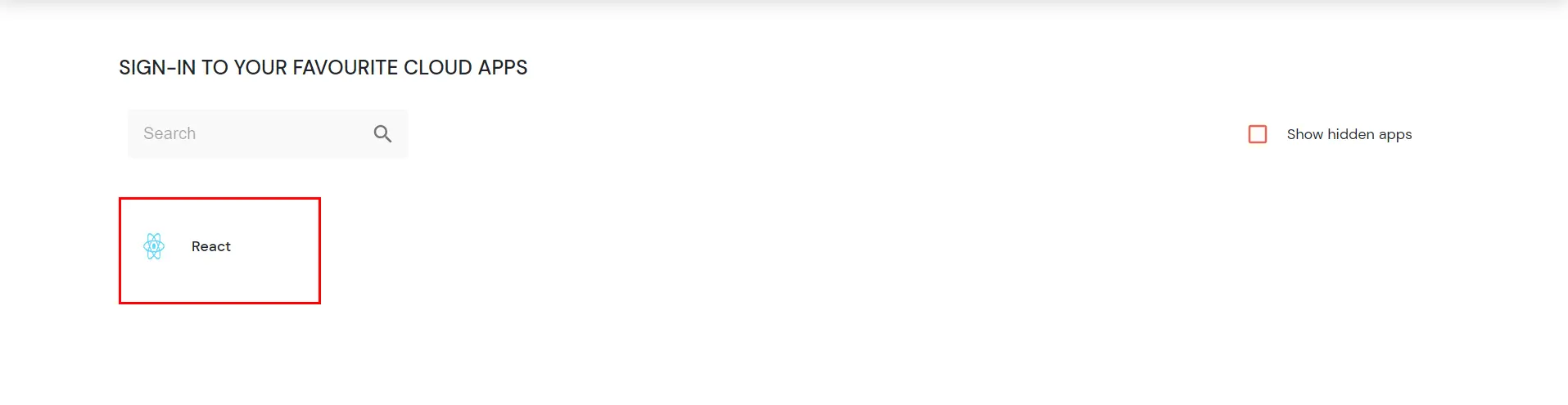
- On the Dashboard, click on React application which you have added, to verify SSO configuration.
4. Configure Your User Directory (Optional)
miniOrange provides user authentication from various external sources, which can be Directories (like ADFS, Microsoft Active Directory, Microsoft Entra ID, OpenLDAP, Google, AWS Cognito etc), Identity Providers (like Okta, Shibboleth, Ping, OneLogin, KeyCloak), Databases (like MySQL, Maria DB, PostgreSQL) and many more. You can configure your existing directory/user store or add users in miniOrange.
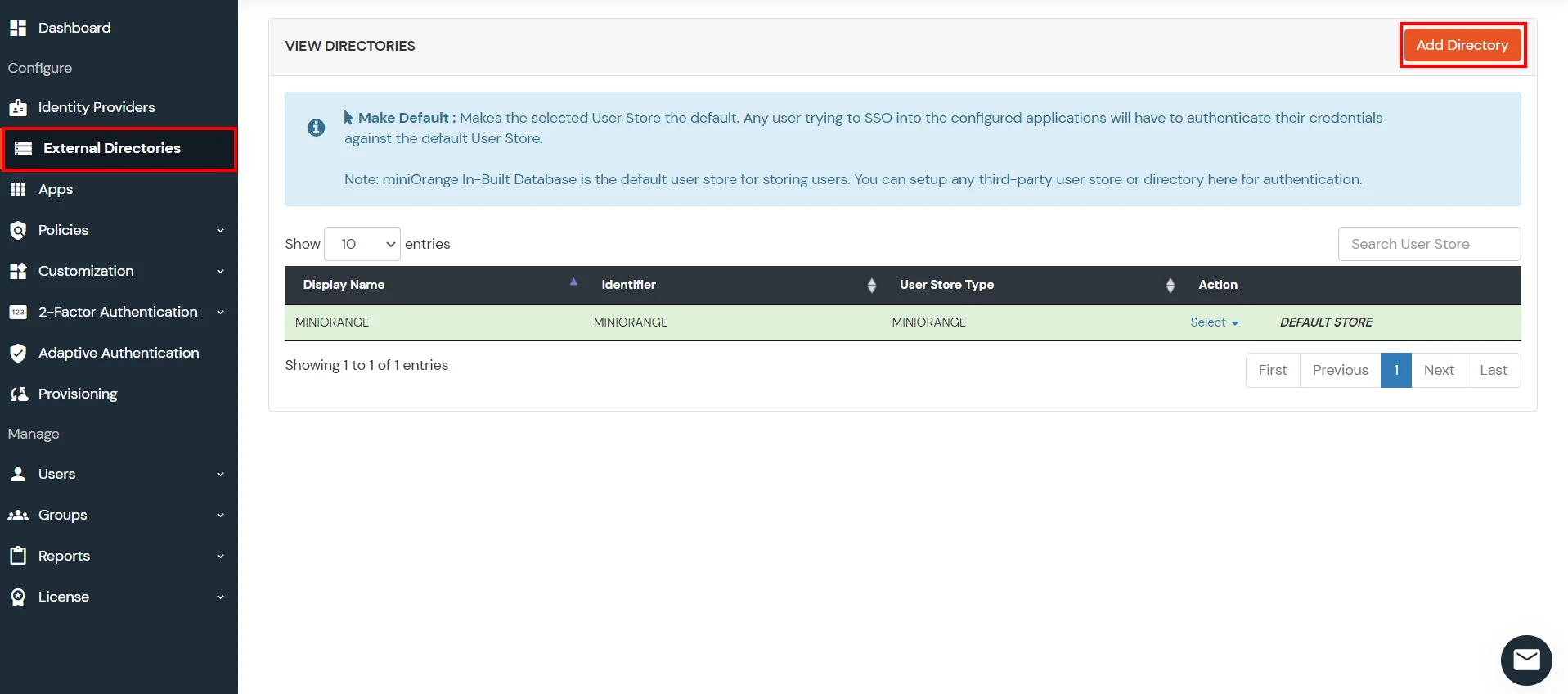
- Click on Identity Providers >> Add Identity Provider in the left menu of the dashboard
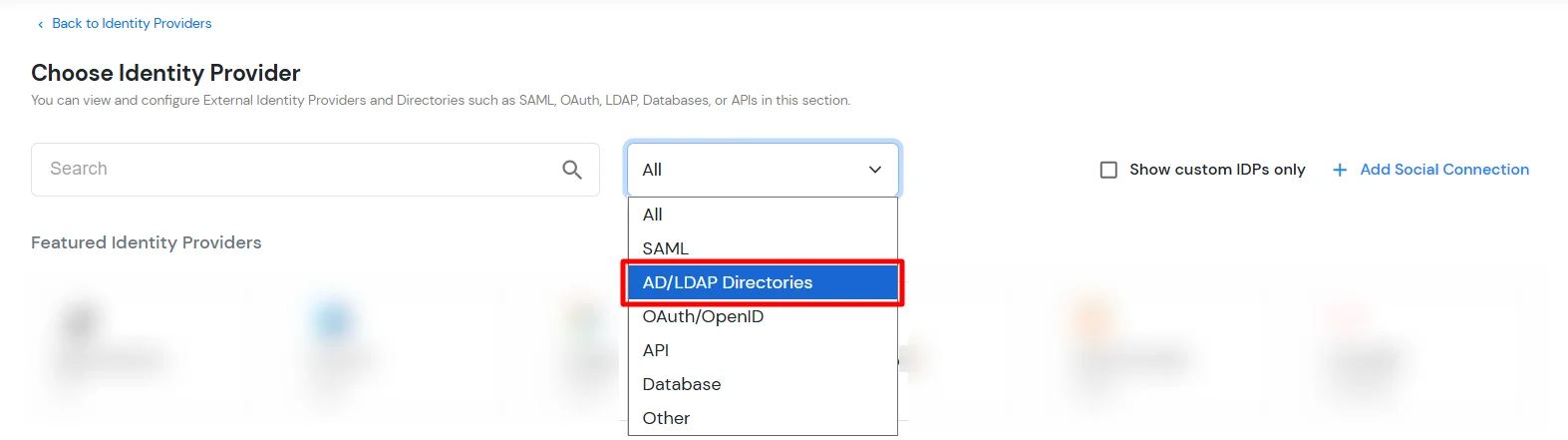
- In Choose Identity Provider, select AD/LDAP Directories from the dropdown.
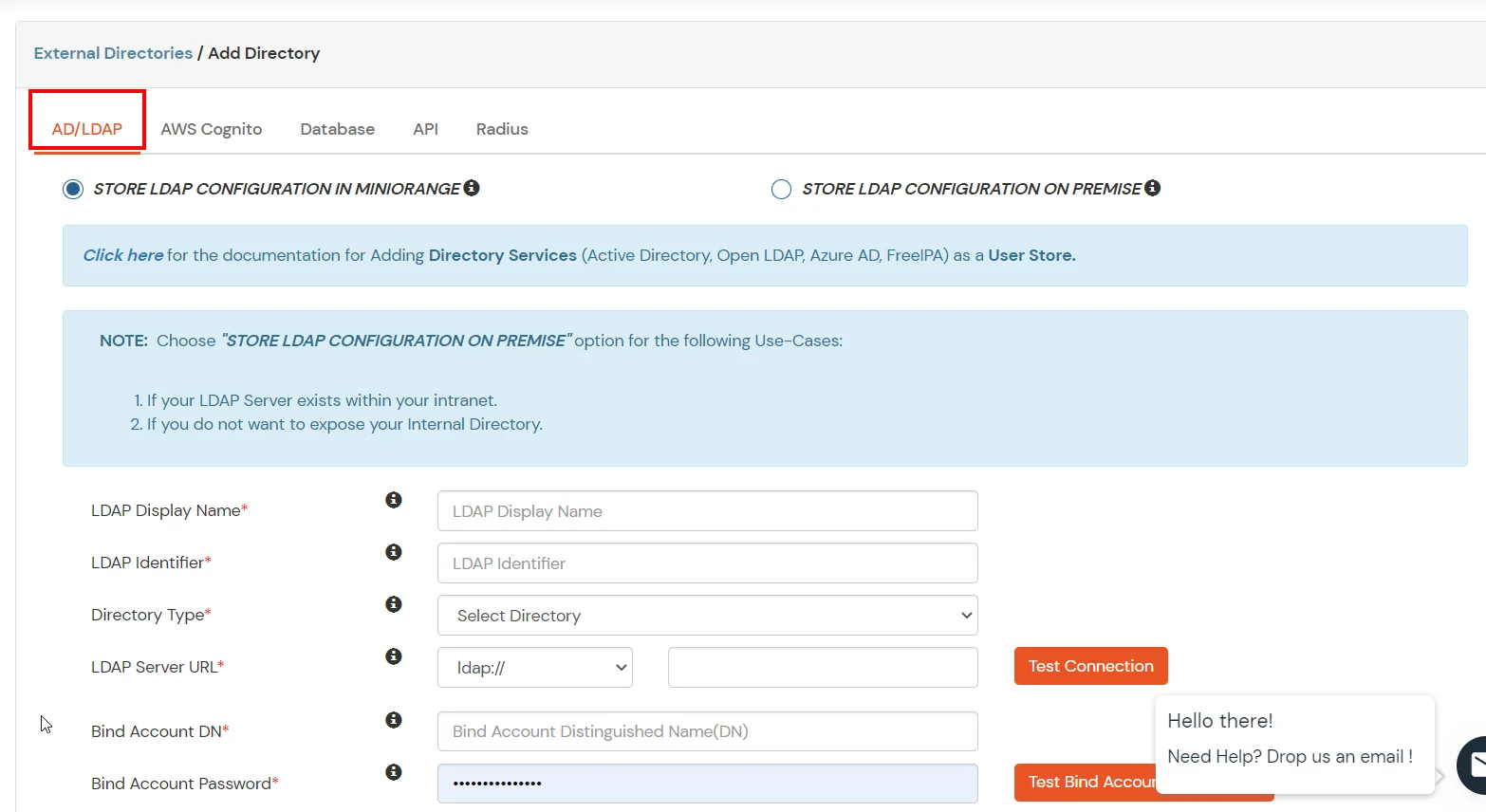
- Then search for AD/LDAP and click it.
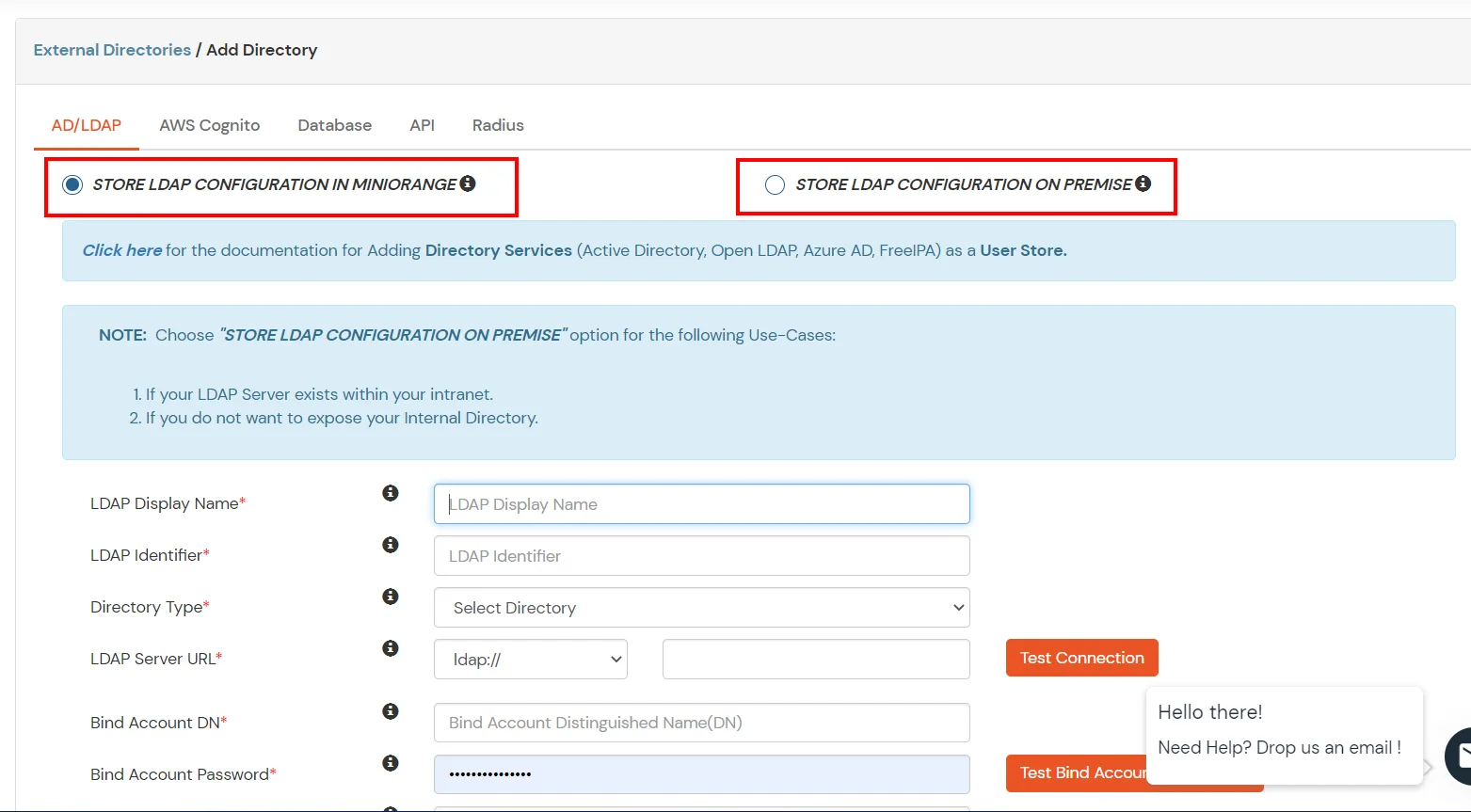
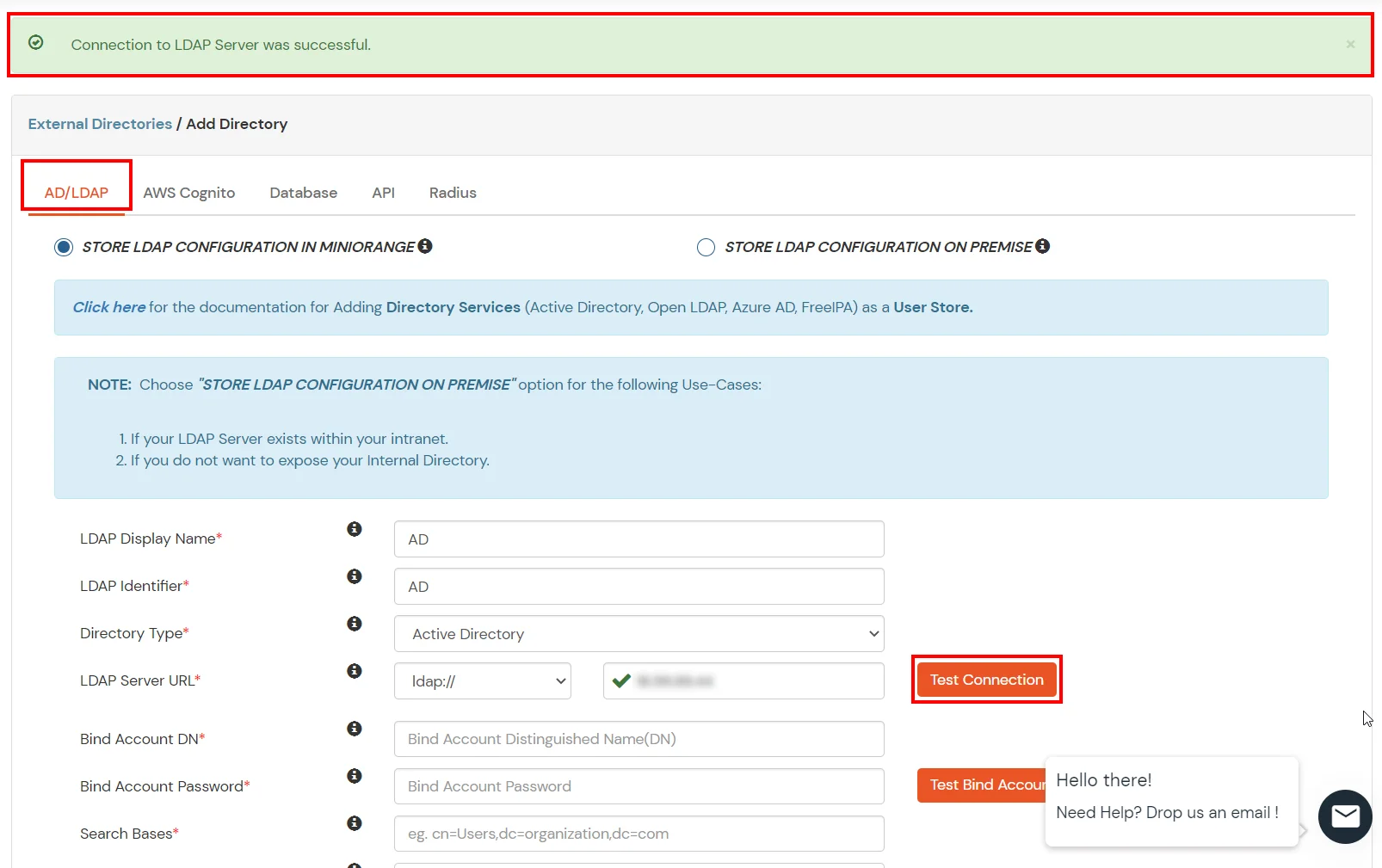
- STORE LDAP CONFIGURATION IN MINIORANGE: Choose this option if you want to keep your configuration in miniOrange. If the active directory is behind a firewall, you will need to open the firewall to allow incoming requests to your AD.
- STORE LDAP CONFIGURATION ON PREMISE: Choose this option if you want to keep your configuration in your premise and only allow access to AD inside premises. You will have to download and install miniOrange gateway on your premise.
- Enter AD/LDAP Display Name and Identifier name.
- Select Directory Type as Active Directory.
- Enter the LDAP Server URL or IP Address against the LDAP Server URL field.
- Click on the Test Connection button to verify if you have made a successful connection with your LDAP server.
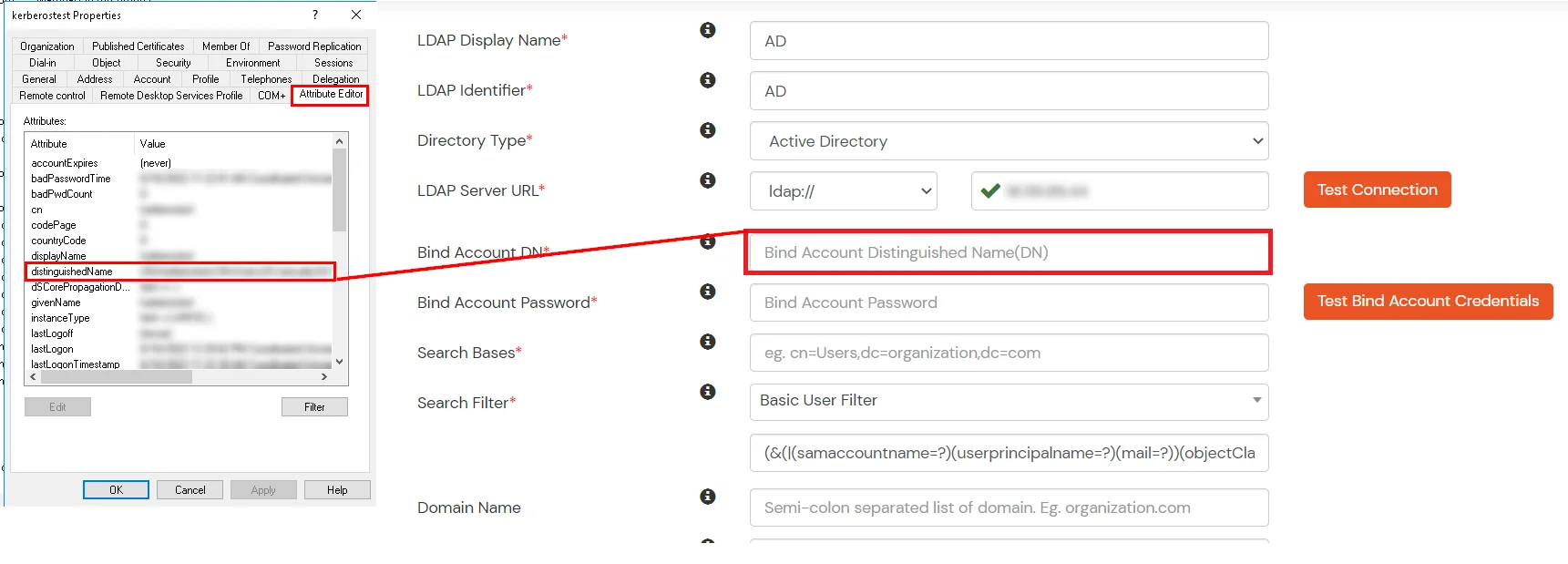
- In Active Directory, go to the properties of user containers/OU's and search for the Distinguished Name attribute. The bind account should have minimum required read privileges in Active Directory to allow directory lookups. If the use case involves provisioning (such as creating, updating, or deleting users or groups), the account must also be granted appropriate write permissions.
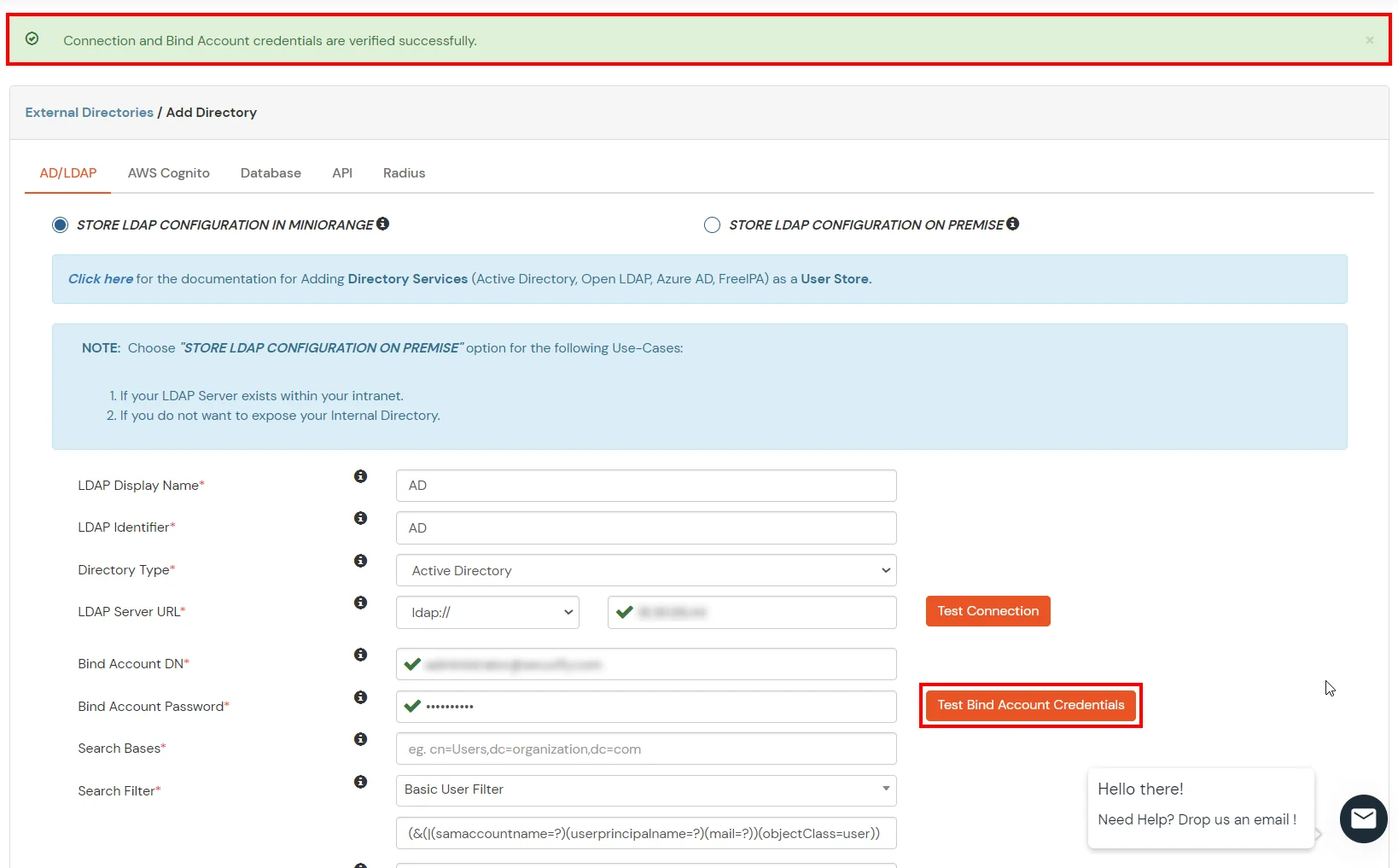
- Enter the valid Bind account Password.
- Click on the Test Bind Account Credentials button to verify your LDAP Bind credentials for LDAP connection.
- Search Base is the location in the directory where the search for a user begins. You will get this from the same place you got your Distinguished name.
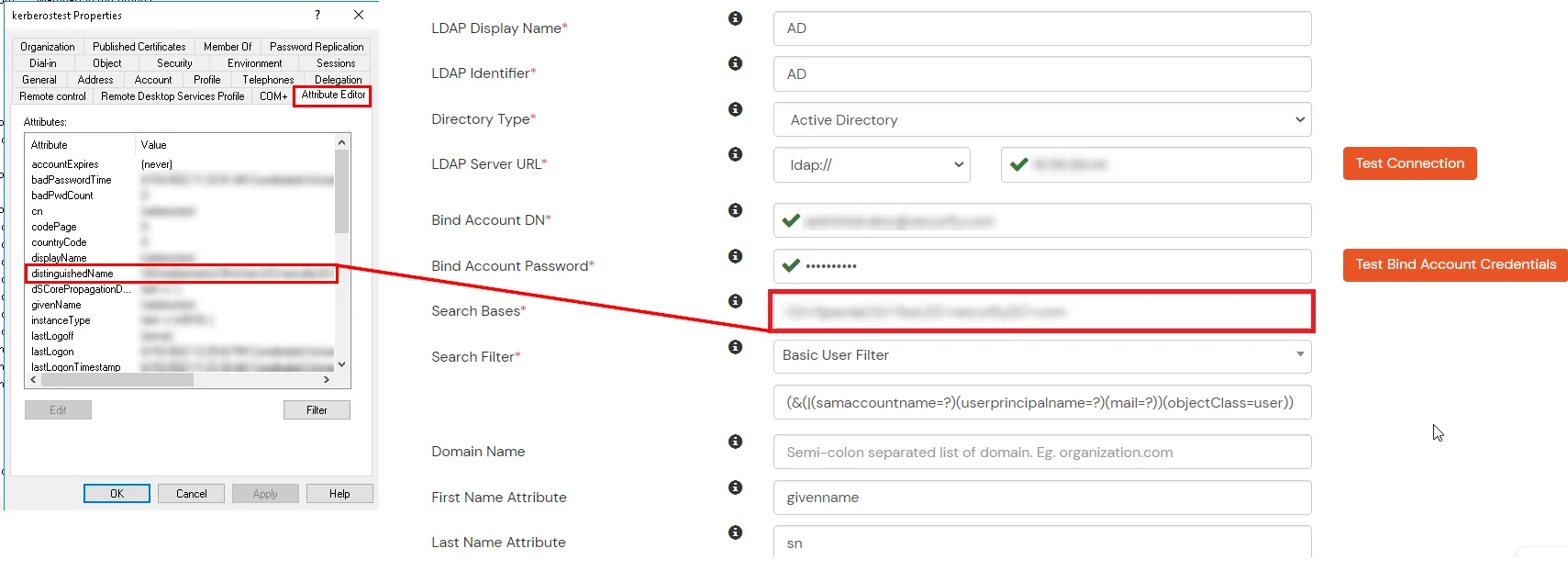
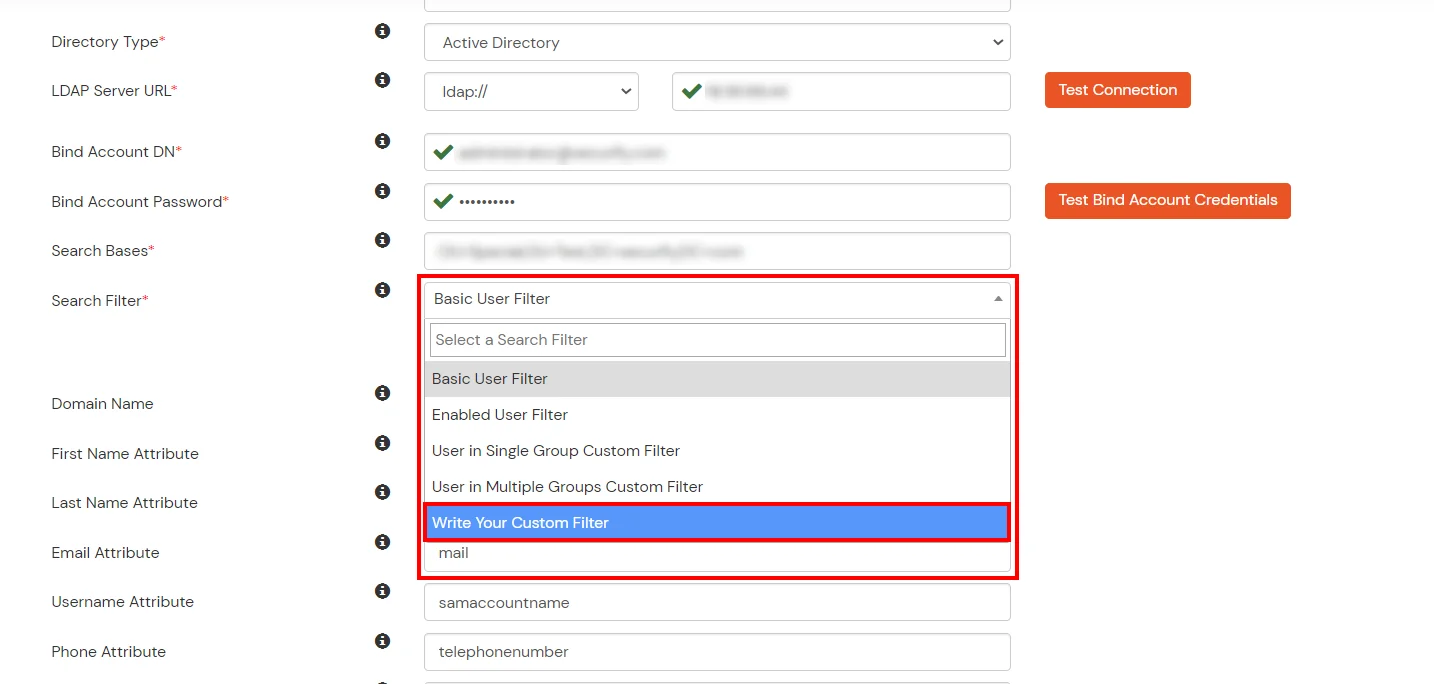
- Select a suitable Search filter from the drop-down menu. If you use User in Single Group Filter or User in Multiple Group Filter, replace the <group-dn> in the search filter with the distinguished name of the group in which your users are present. To use custom Search Filter select "Write your Custom Filter" option and customize it accordingly.
- Click on the Next button, or go to the Login Options tab.
- You can also configure following options while setting up AD. Enable Activate LDAP in order to authenticate users from AD/LDAP. Click on the Next button to add user store.
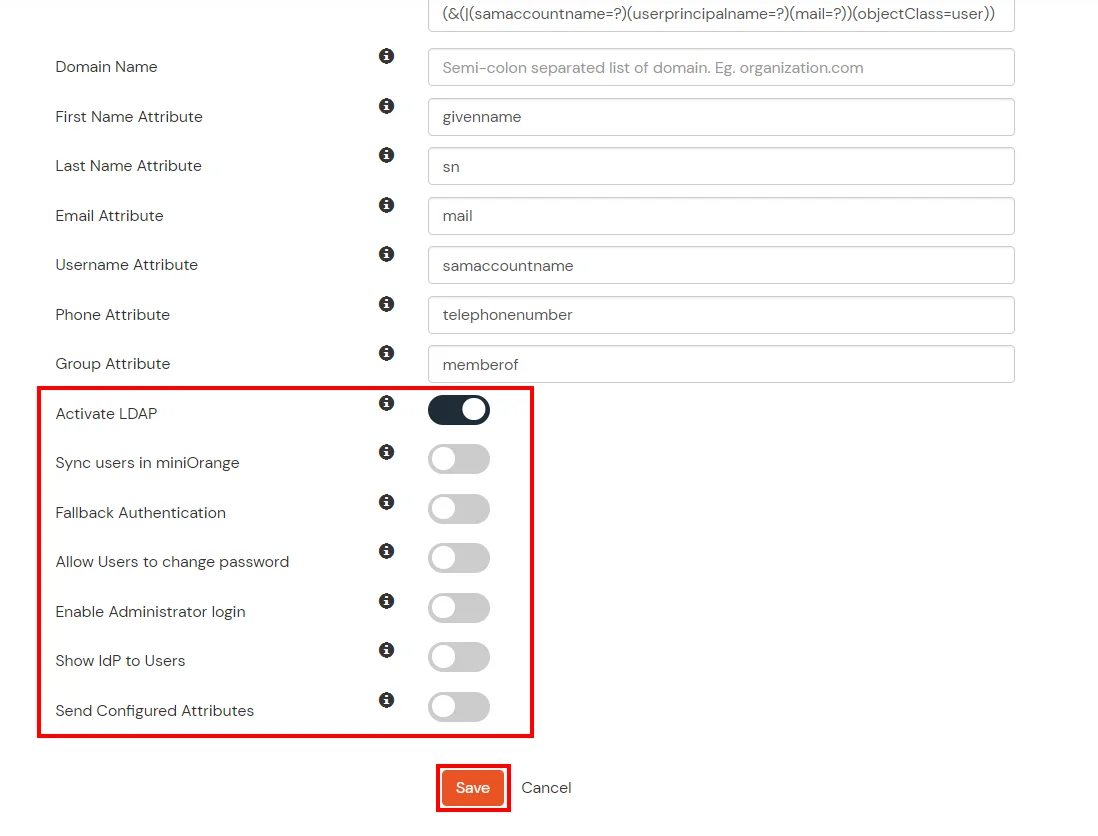
Here's the list of the attributes and what it does when we enable it. You can enable/disable accordingly.
| Attribute |
Description |
| Activate LDAP |
All user authentications will be done with LDAP credentials if you Activate it |
| Fallback Authentication |
If LDAP credentials fail then user will be authenticated through miniOrange |
| Enable administrator login |
On enabling this, your miniOrange Administrator login authenticates using your LDAP server |
| Show IdP to users |
If you enable this option, this IdP will be visible to users |
| Sync users in miniOrange |
Users will be created in miniOrange after authentication with LDAP |
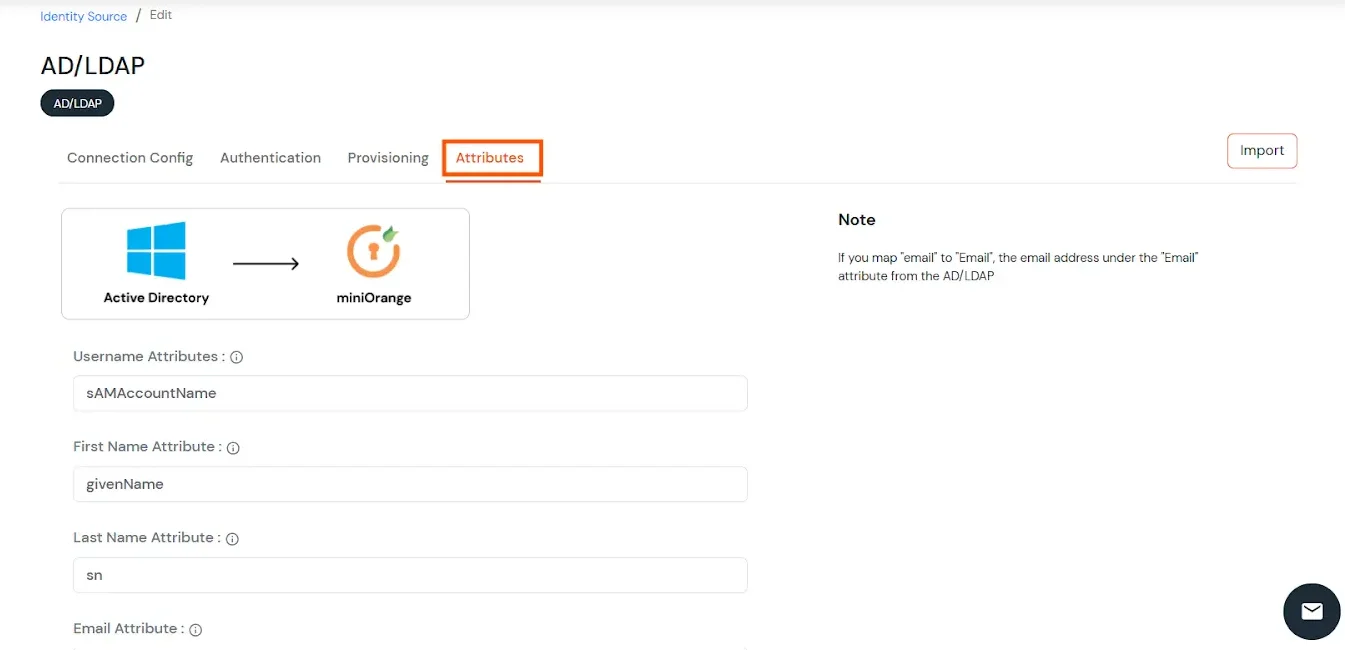
- Click on the Next button, or go to the Attributes tab.
Attributes Mapping from AD
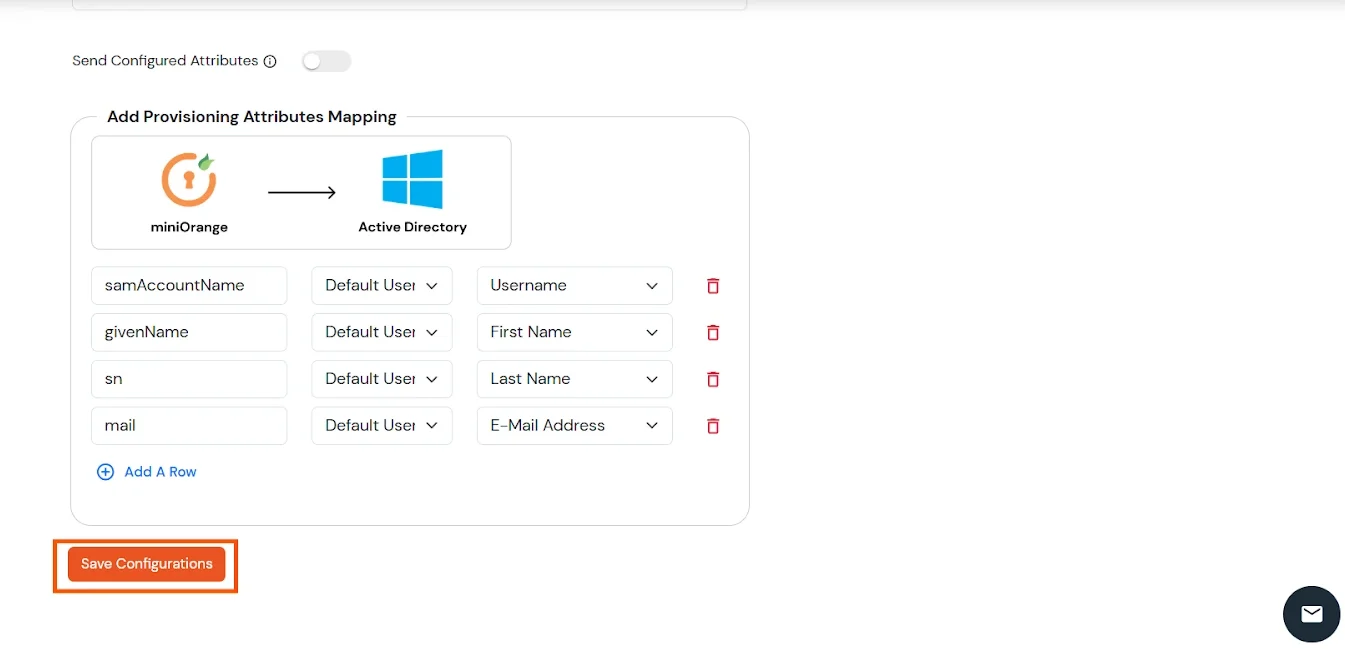
User Import and Provisioning from AD
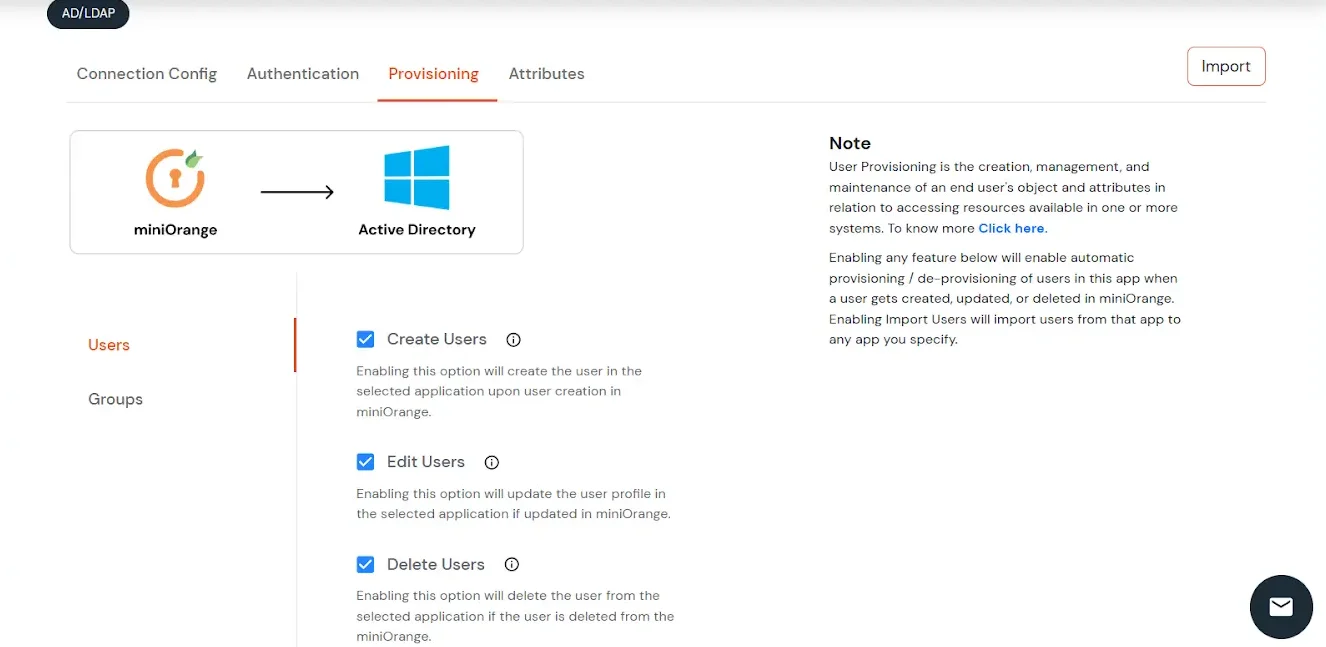
- If you want to set up provisioning, click here for detailed information. We will skip this step for now.
Import Password Policy from AD
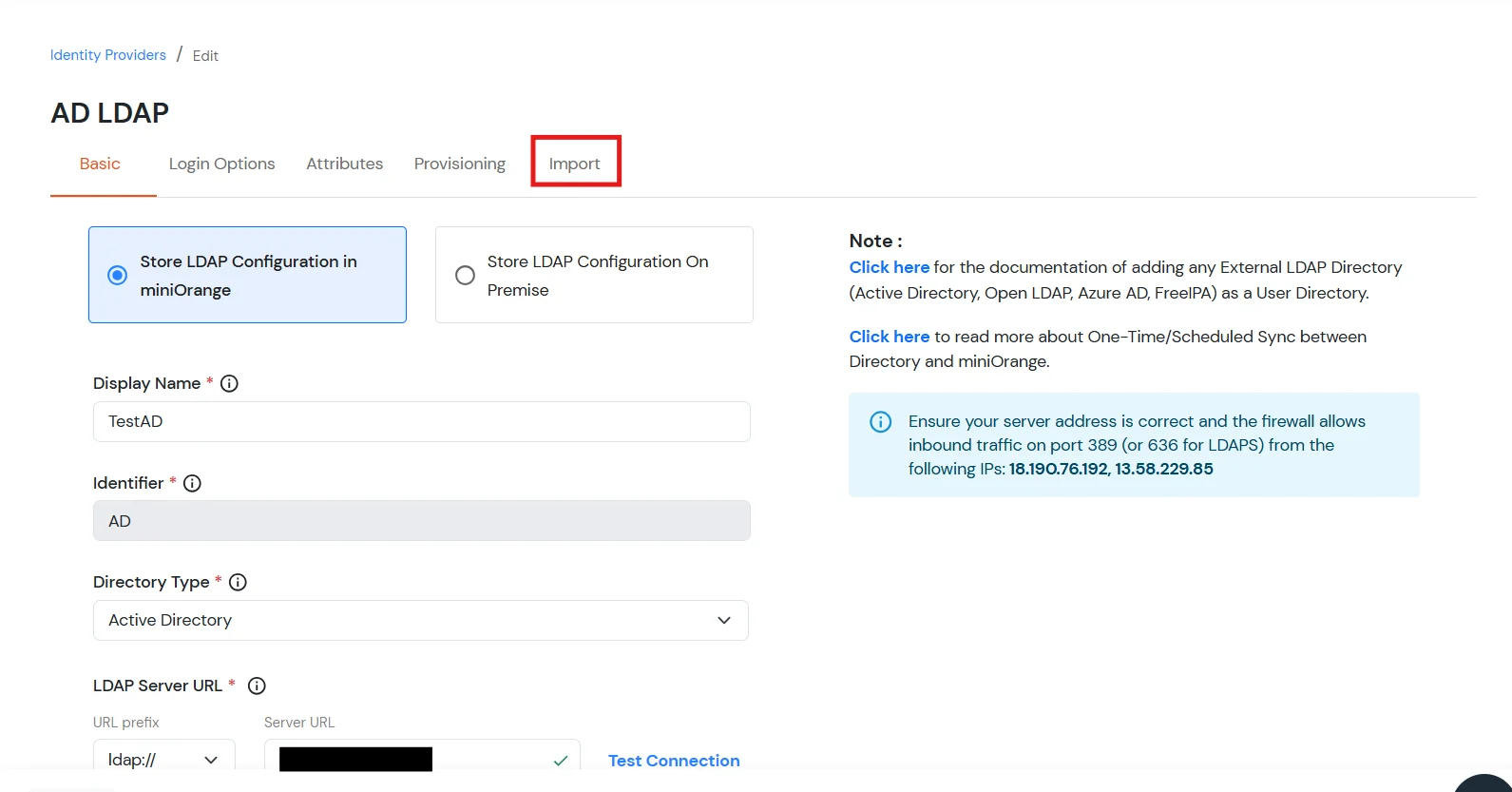
- If you want to import your Active Directory password policy into miniOrange, click here for detailed information. We will skip this step for now.
Test Connections
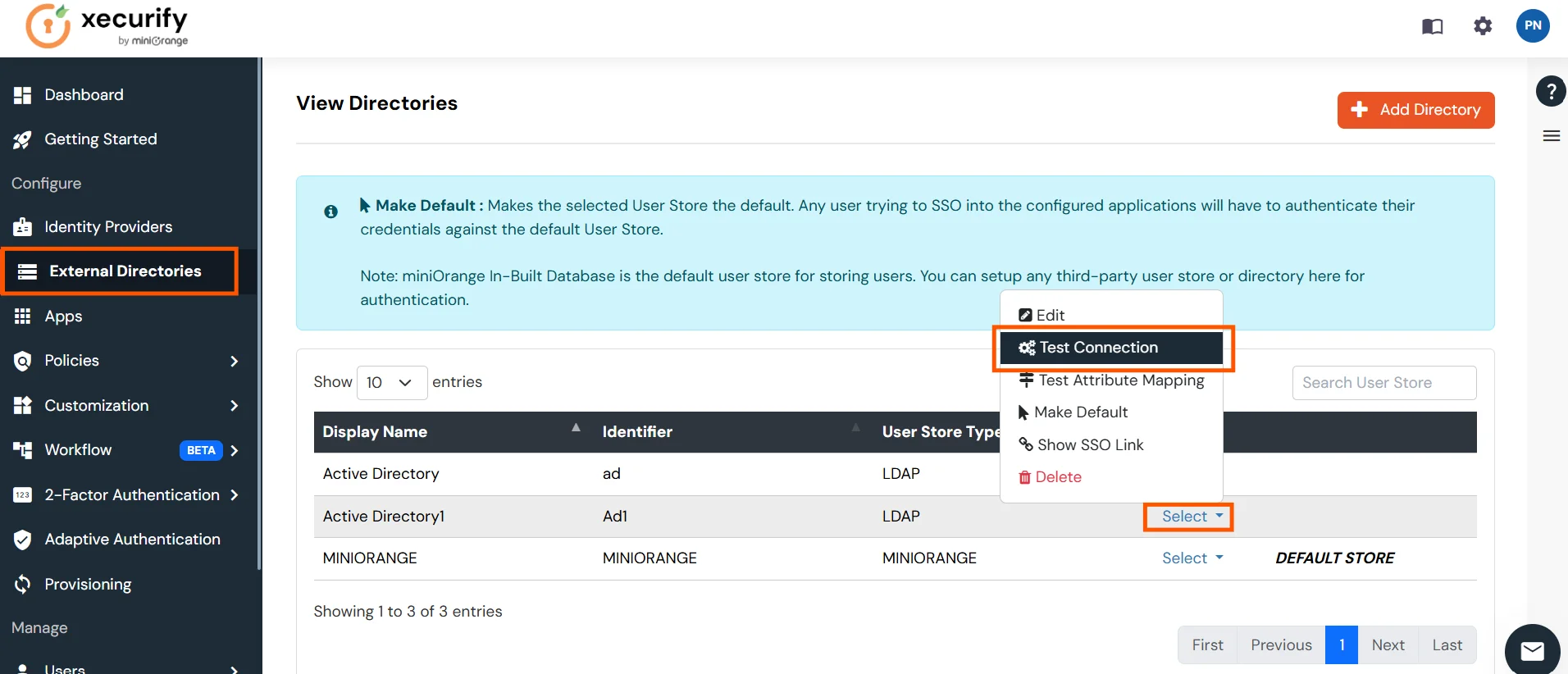
- You will see a list of directories under Identity Providers. From the dropdown, select AD/LDAP Directories, search for your configured directory, click the three dots next to it, and select Test Connection.
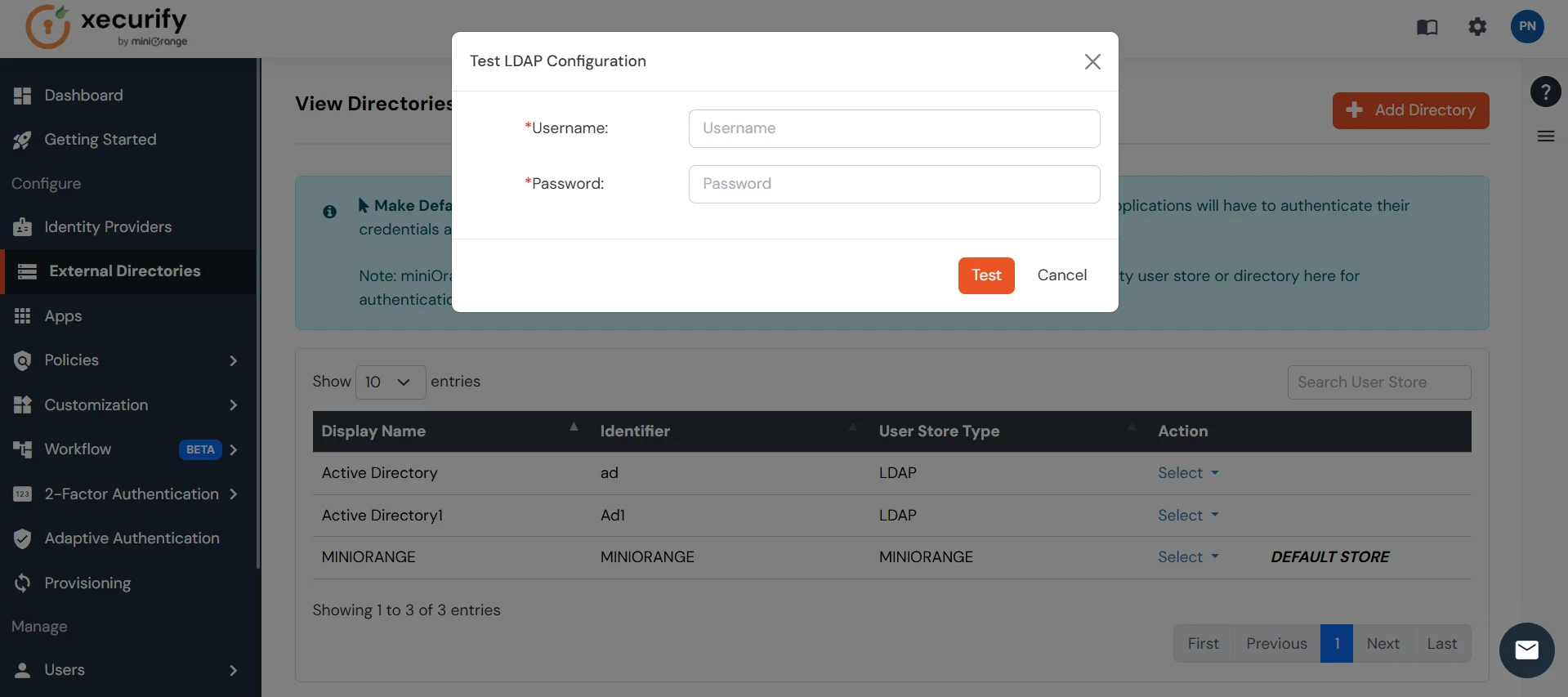
- A pop-up appears prompting you to enter a username and password to verify your LDAP configuration.
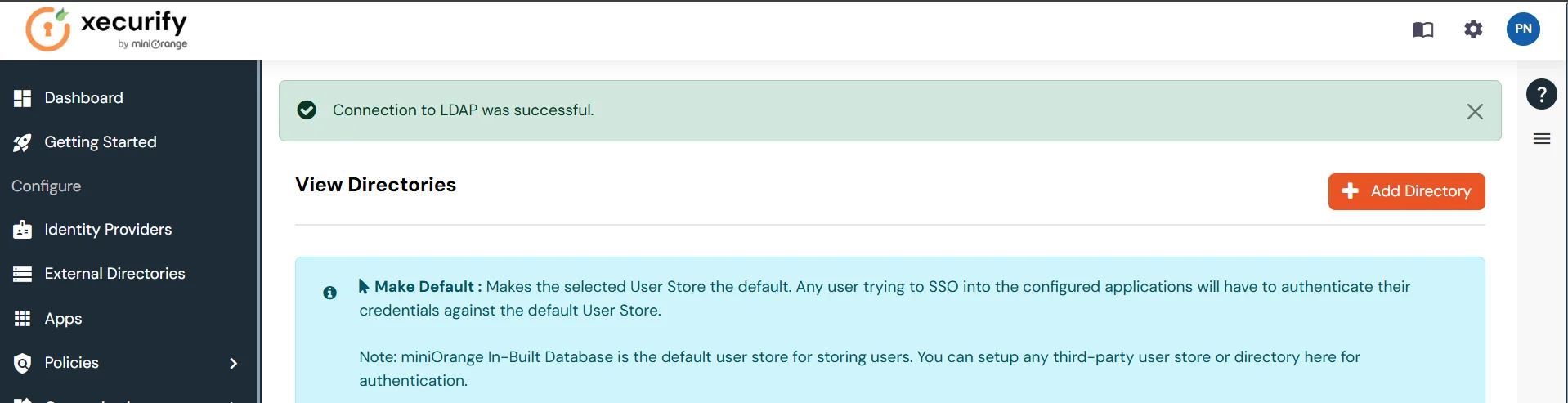
- On Successful connection with LDAP Server, a success message is shown.
Test Attribute Mapping
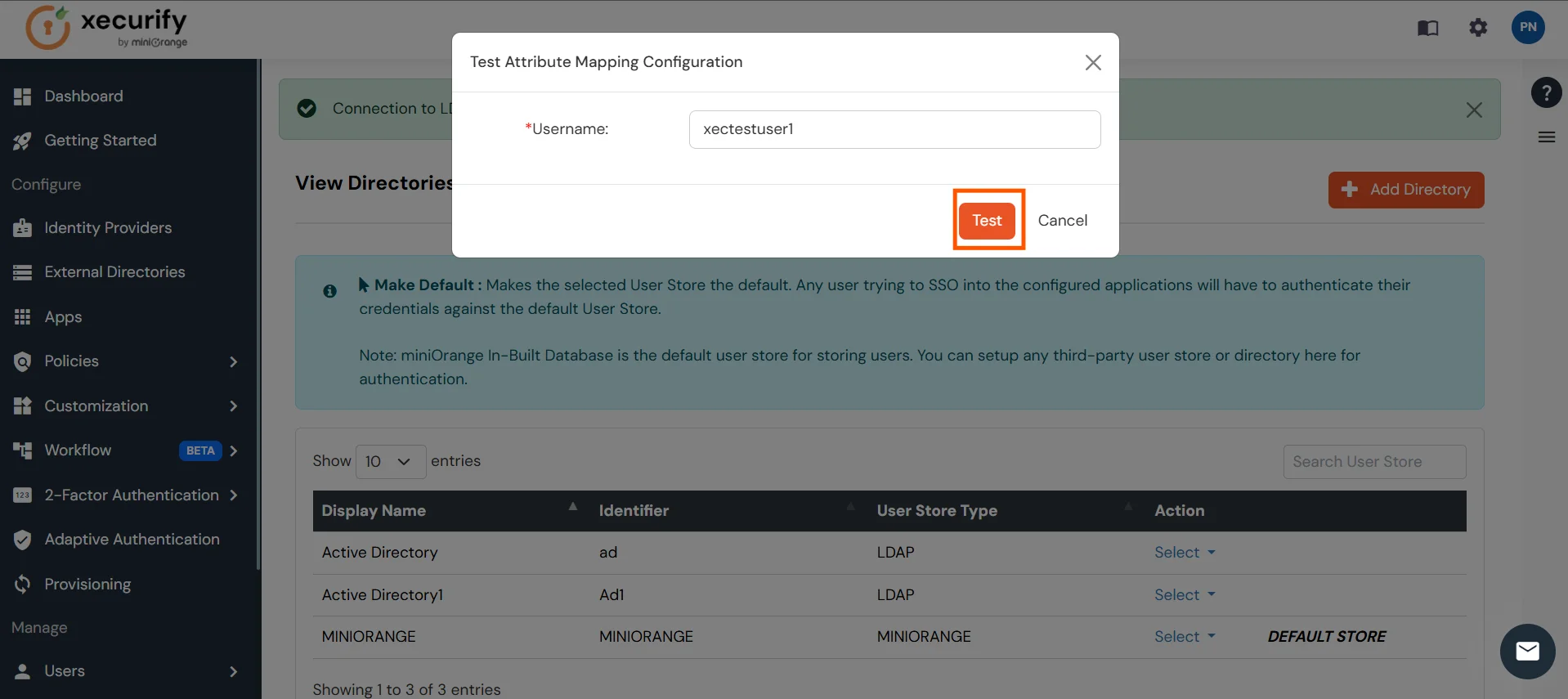
- You will see a list of directories under Identity Providers. From the dropdown, select AD/LDAP Directories, search for your configured directory, click the three dots next to it, and select Test Attribute Mapping.
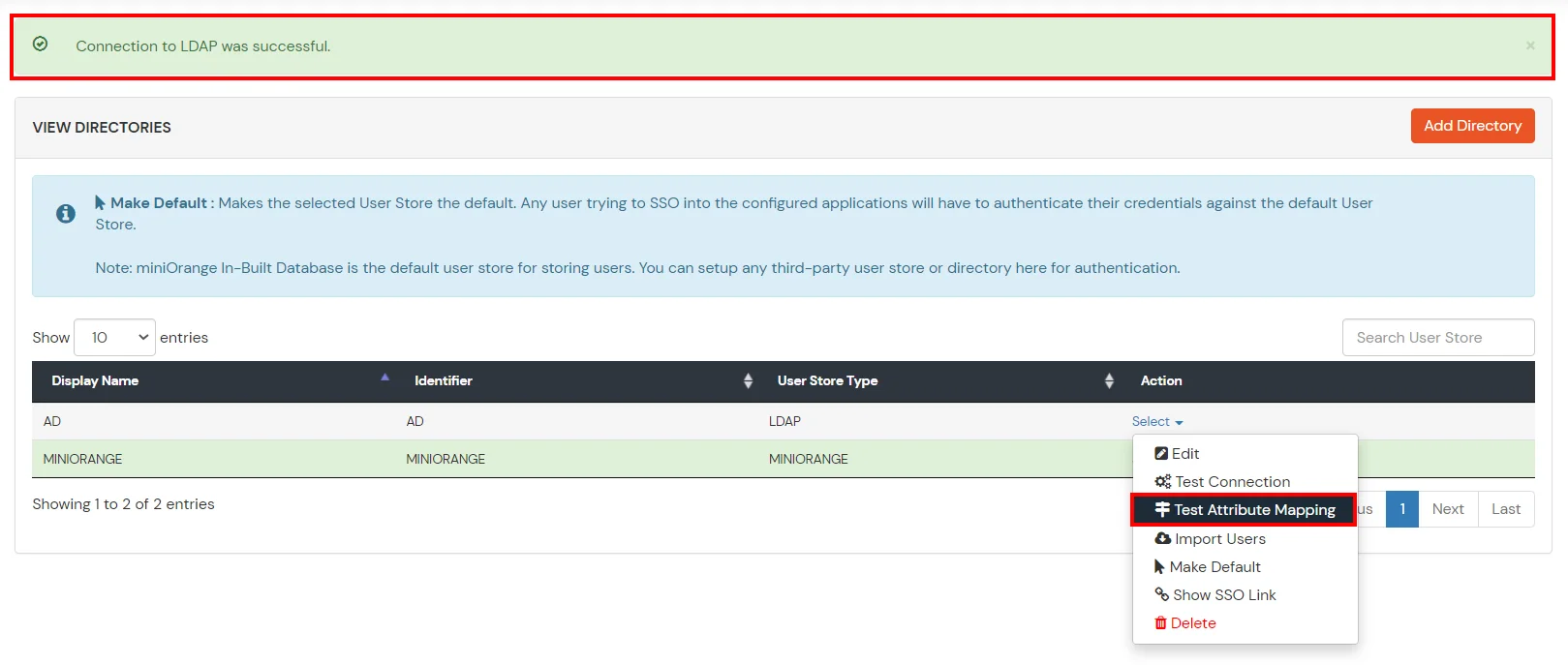
- A pop‑up appears to enter a username and click Test.
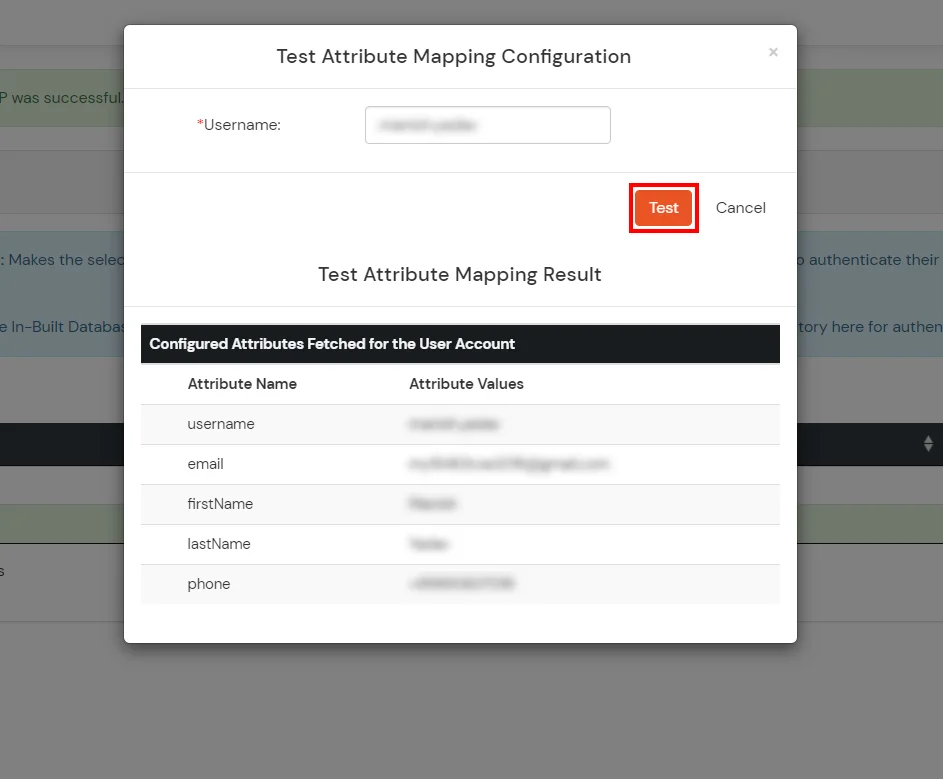
- The Test Attribute Mapping Result will be displayed.
Set up AD as External Directory configuration is complete.
Note: Refer our guide to setup LDAP on windows server.
miniOrange integrates with various external user sources such as directories, identity providers, and etc.
5. Single Logout (Optional)
If you want to ensure that all sessions (SP and IDP) for a user are properly closed, you can configure Single Logout with the steps below.
A. Configure miniOrange with IdP SLO endpoint:
- Go to the Identity Provider tab and edit the configured Identity Provider.
- Find the option Single Logout URL and configure the SLO URL provided by your IdP.

B. Configure IdP with miniOrange SLO endpoint:
- Configure your Identity Provider with below Single logout endpoint.
https://login.xecurify.in/moas/broker/login/saml_logout/<your-customer-id>
- You can find the SSO Binding option to configure the logout binding type to either REDIRECT or POST.
C. Configure your JWT application with SLO endpoint:
- Configure your JWT application with below Single logout endpoint.
https://login.xecurify.in/moas/broker/login/jwt/logout/<your-customer-id>?redirect_uri=<redirect-url>
| your-customer-id |
You have to add your miniOragne account customer ID here. |
| redirect-url |
This should be replaced with the logout URL of your JWT application. |
External References