

TL;DR
- Email quarantine holds suspicious messages in a separate space instead of delivering or deleting them outright, giving a person or policy time to decide.
- Messages get quarantined for reasons like failed SPF/DKIM/DMARC checks, suspicious attachments, phishing links, or low sender reputation.
- Who can release a message (you or an admin only) depends on how confident the system is that it's dangerous.
- Most quarantine setups only watch inbound mail. Very few check what sensitive data might be walking out through outbound email, which is where DLP solutions come into play.
Every mailbox on Microsoft 365 or Google Workspace runs threat filters around the clock. When a message looks risky, it doesn't land in the inbox. It doesn't get deleted outright either.
It sits in a holding pattern until someone, or something, decides what happens next.
That holding pattern is email quarantine. And if you've ever gotten a quarantined email notice that says "1 message is being held for you to review," you've already met it.
This piece walks you through how that holding pattern actually works, why it sometimes catches mail that was never a threat, and the outbound side of quarantine that many setups end up skipping.
What is Email Quarantine and Why It Matters
Email Quarantine isolates a suspicious message from the rest of your mail flow. The message stays intact. Nothing gets lost. But it also doesn't reach anyone's inbox until a policy or a person clears it.
Think of it as a waiting room between "sent" and "delivered." Some messages walk straight through. Others get pulled aside for a second look.
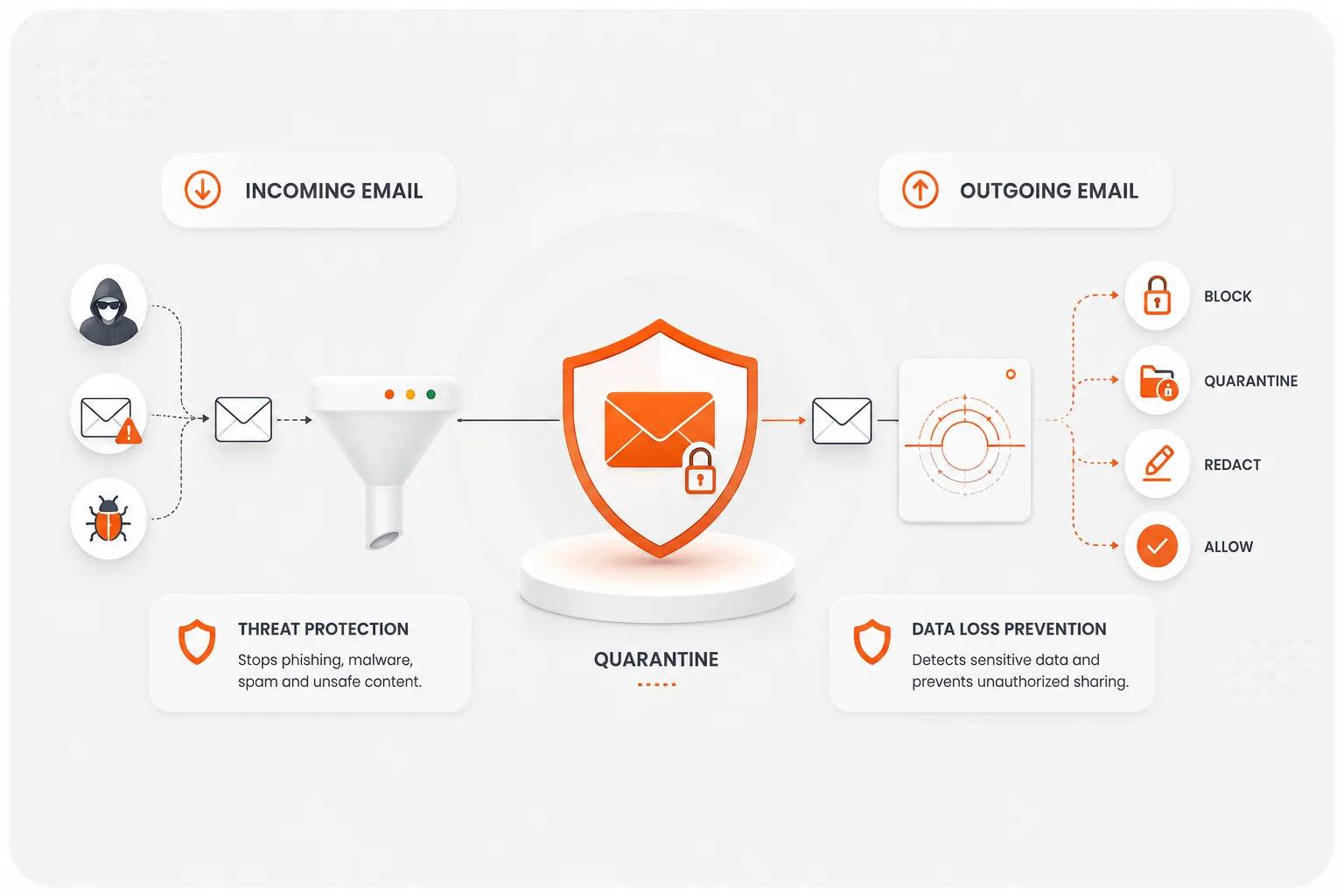
Built-in filters like Microsoft Defender or Google's mail scanning watch one direction only: emails coming into your organization. They're asking a single question. Is this message dangerous to the person about to open it?
There's a second, quieter kind of quarantine that watches the other direction, the outbound emails. It scans mail leaving your organization and holds anything carrying data it shouldn't, say, a spreadsheet of customer card numbers headed to someone's personal Gmail account. More on that a bit later.
For now, the short version: quarantine buys time. It turns a mail system that only knows "deliver" or "reject" into one that can say, "Wait, let's check this first."
Why Email Quarantine Matters for IT and Security Teams
For a security team, from both inbound and outbound email perspectives, quarantine is the difference between reacting to an incident and stopping one before it starts. Every message caught here is one less phishing click, one less malware download, one less account takeover to investigate later.
It also creates a paper trail. When an auditor or a client asks how a phishing attempt was handled, a quarantine log answers that question directly, without anyone having to reconstruct what happened from someone's inbox after the fact.
For IT admins specifically, it cuts down noise. The system does a first pass on every message, so the team only steps in for the ones that genuinely need a human decision instead of triaging every complaint by hand.
7 Common Reasons Emails are Quarantined
Most quarantined messages get flagged for one of a handful of reasons. Some are obvious. Some catch people off guard.
- Suspicious attachments: Executable files, macro-enabled documents, or file types your policy doesn't allow.
- Phishing links: URLs that mimic a login page or point to a known-bad domain.
- Malware detection: A scan finds a signature or behavior tied to known malicious code.
- Domain reputation: The sending domain has a history of spam or abuse, even if this particular email is clean.
- Spam score: Content, formatting, or sending patterns that resemble bulk spam.
- Policy violations: The message breaks a rule your admin set, like blocking certain attachment types company-wide.
- Unsafe file types: Compressed files, disk images, or scripts that could hide something harmful.
If your emails keep getting quarantined and nothing in them looks obviously wrong, it's usually one of these triggering on a technicality rather than actual malicious intent. There's a full section below on fixing that.
How Email Quarantine Works: A Step-By-Step Walkthrough
The process happens in seconds, but it's worth breaking down. Each step is a different kind of decision.
Step 1: Email Arrives
A message hits your mail server, whether that's Exchange Online, Google Workspace, or an on-premise system.
Step 2: Security Scan
Before the message goes anywhere near an inbox, it passes through a set of checks:
- Email authentication protocols: SPF, DKIM, and DMARC verify the sender is who they claim to be
- Malware scanning of the message body and any attachments
- URL analysis, checking links against known threat databases
- Attachment inspection for file type and embedded content
- Sender reputation, based on the domain's and IP's sending history
Step 3: Email Risk Evaluation
The results from step 2 feed into confidence-based threat assessment metrics. Instead of a flat yes or no, the system scores how likely the message is to be spam, phishing, malware, or something else entirely. A borderline score behaves differently from an obvious one.
Step 4: Email Moves to Quarantine
If the score crosses a threshold set in your policy, the message gets pulled aside instead of delivered.
Step 5: Admin or User Reviews the Email
Depending on why it was flagged and what your quarantine policy allows, either the recipient or an IT admin gets to look at it. High-confidence threats usually skip straight to admin-only.
Step 6: Email is Released or Deleted
The reviewer decides: release it to the inbox, or confirm it as a threat and let it get deleted, either automatically at the end of the retention window or by hand.
Types of Email Quarantine (And How They Differ)
Not every quarantined message gets treated the same way. The category it lands in decides who can act on it and how fast.
| Quarantine type | Typical trigger | Who can release it |
|---|---|---|
| Spam quarantine | Message resembles bulk unsolicited mail | Usually the end user |
| Anti-malware quarantine | Attachment or content matches known malicious code | Admin only |
| High-confidence spam quarantine | Very strong spam indicators, higher certainty than standard spam | Admin only |
| Bulk email quarantine | Legitimate mass mail, like newsletters or marketing sends, that trips volume-based rules | Usually the end user |
| Phishing quarantine | Message mimics a trusted sender or login page | Admin only, in most configurations |
| Policy-based quarantine | Message violates a custom mail flow rule or DLP policy | Admin, or a designated reviewer |
The pattern across all six: the more certain the system is that something's dangerous, the less say the end user gets in releasing it. That's by design. Security teams don't want a user able to rescue a phishing email from quarantine just because the subject line looked familiar.
This is also where user quarantine and administrator quarantine split. User-accessible quarantine covers the low-stakes stuff, spam, and bulk mail mostly. Admin-only quarantine handles everything with real teeth.
How to Release Emails From Quarantine
Releasing a message is quick once you know where to look. Where you look depends on whether you're the recipient or the admin.
How End Users Can Release Quarantined Emails (Outlook / Microsoft 365)
If you're on Microsoft 365, you'll typically get a daily digest email with the subject "Microsoft 365 security: You have messages in quarantine." It lists the sender, subject line, and time each message was held.
From that email, you can usually select Review message to see details, or Release if the message was flagged as standard spam. Phishing and malware detections almost always need an admin's sign-off first, no matter how confident you are it's a false alarm.
You don't have to wait for the digest, either. Go straight to security.microsoft.com/quarantine, sign in with your work account, and you'll see everything currently on hold for you.
How Admins Can Release Quarantined Emails
Admins get a wider view through the Microsoft Defender portal's Quarantine page, where every user's held messages show up in one place. From there, an admin can preview a message safely (without triggering anything it might contain), release it to one recipient or several, add the sender to an allow list, or delete it outright.
Quarantine policies control what actions are even available to whom. An admin can set tighter permissions for high-confidence phishing than for a bulk newsletter that tripped a volume filter, which keeps low-risk decisions fast and high-risk ones locked down.
Why Legitimate Emails Get Quarantined (And How to Prevent It)
False positives happen more than most security teams like to admit. A vendor invoice, a job candidate's resume, an internal newsletter: any of these can get caught for reasons that have nothing to do with actual risk.
The usual culprits:
- Missing or misconfigured SPF, DKIM, or DMARC records on the sending domain
- A new domain or IP address with no sending history yet
- Marketing-style formatting (heavy images, tracking links, bulk-send headers) that mimics spam patterns
- Attachments with macros or file types your policy treats as risky by default
- Spam filter settings tuned for volume over precision, catching more than they should
How to Reduce False Positives and Prevent Quarantine Issues
Start with authentication: Get SPF, DKIM, and DMARC properly configured and aligned for every domain you send from. This alone clears up a large share of quarantine complaints.
Build an allow list for vendors, partners, and internal systems you trust, and keep it current as relationships change. Warm up new sending domains gradually instead of blasting volume from day one; a sudden spike from an unfamiliar domain is exactly the pattern spam filters are tuned to catch.
Rule-based quarantine systems work best with regular review. A policy set once and left alone drifts out of date as your vendor list, sending patterns, and threat landscape change. Check your quarantine logs monthly. If the same sender keeps landing there, that's a signal to adjust the policy, not a signal to keep manually releasing the same email every week.
Benefits and Common Challenges of Email Quarantine
Key Benefits of Email Quarantine
Quarantine cuts down real exposure to malware and phishing before either reaches someone who might click. It gives security teams an audit trail: what was caught, when, and why, which matters when you're explaining an incident after the fact.
It also buys time. A message doesn't have to be perfectly classified in the first half-second it arrives. It can sit, get scanned more thoroughly, and get a human decision if the automated score lands in a gray zone.
And it's reversible in a way deletion isn't. A false positive in quarantine is a two-click fix. A false positive that gets auto-deleted is gone.
Common Email Quarantine Challenges
The most common complaint is false positives interrupting real business mail. A delayed contract or a stuck client email costs goodwill fast, especially when the person on the receiving end has no idea why it happened.
Admin overhead adds up too. Reviewing quarantine daily, tuning policies, and fielding "where's my email" tickets takes real time from a security team that has other priorities.
There's also a visibility gap worth naming. Inbound quarantine tools watch what's coming in. Very few of them watch what's going out, which is exactly where the next section picks up.
Email DLP's Role in Email Quarantine
Everything above covers inbound quarantine: protecting the person receiving a message. There's a separate question most inbound tools never touch. What about the emails your own people are sending out?
That's the gap solutions like miniOrange Email DLP are built for.
Here's the practical difference. Microsoft Defender or Google's built-in filters ask whether an incoming message is dangerous to the recipient. miniOrange Email DLP asks a different question on outbound mail: does this message put the organization at risk if it leaves?
Inbound Security Vs. Outbound DLP
The two work as parallel controls, each watching a different direction of mail flow. A message can pass every inbound check with no problem and still get flagged the moment it's about to leave your organization, carrying a customer's card number or a batch of personal data in an attachment.
| Factor | Inbound email security | Outbound email DLP |
|---|---|---|
| Main questions | Is this incoming message dangerous? | Does this outgoing message put us at risk? |
| Watches for | Spam, phishing, malware | Sensitive data leaving via email or attachments |
| Built on | Quarantine protocols: SPF, DKIM, DMARC | Compliance frameworks: HIPAA, GDPR, PCI-DSS |
How Email DLP Fits into Your Mail Flow
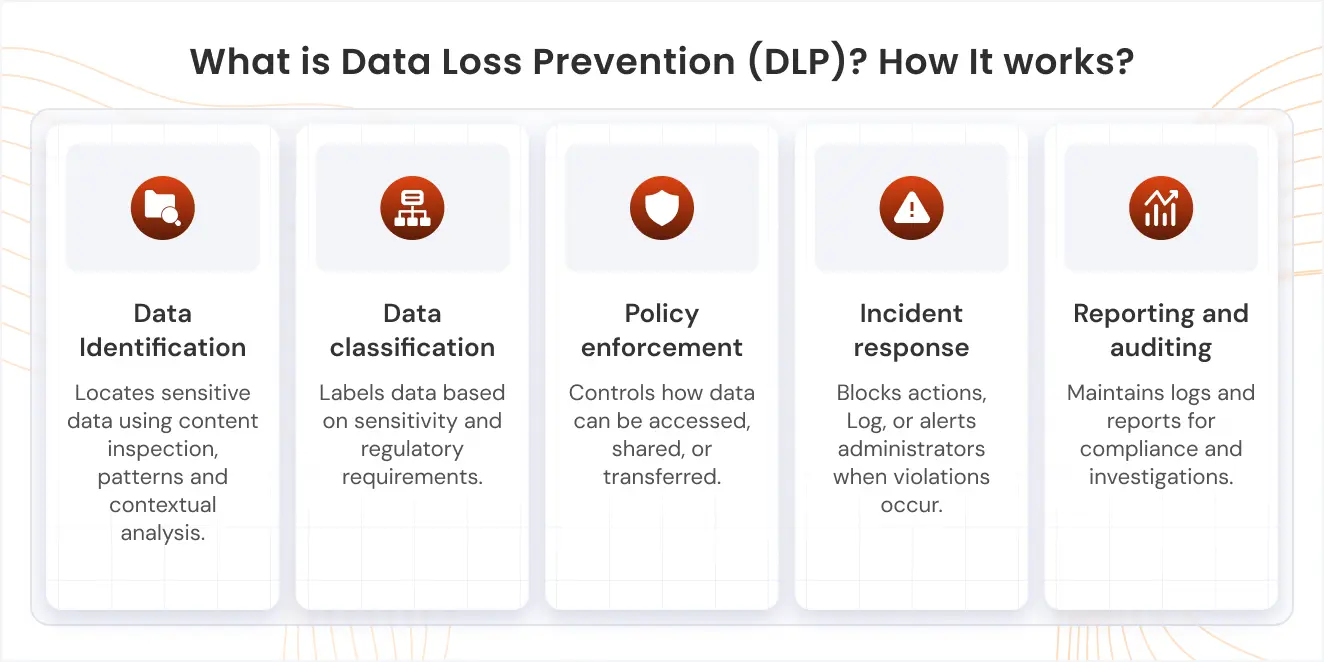
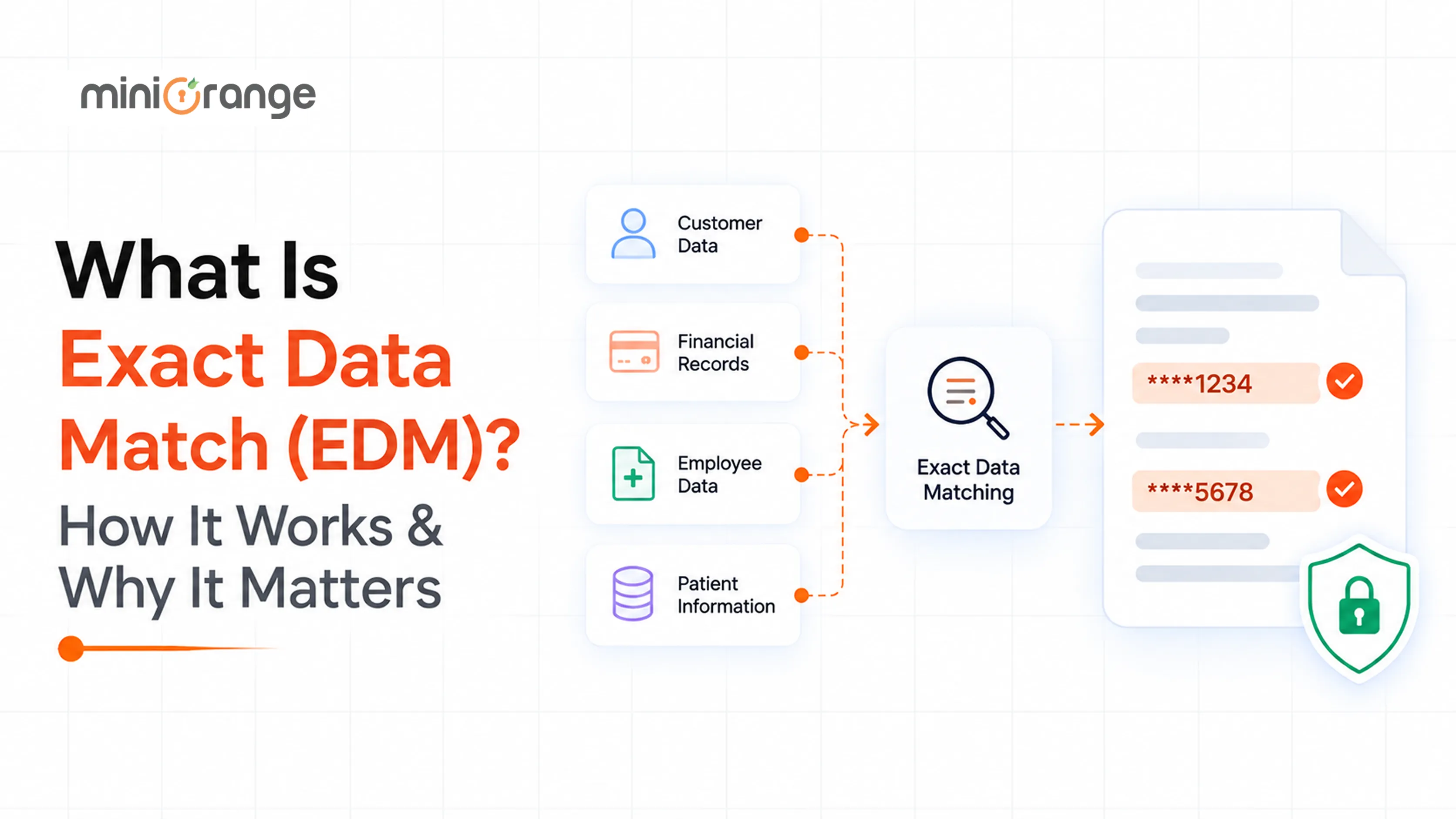
Email DLP solutions like miniOrange Email DLP route outbound mail through a connector, set up as a transport rule in the Exchange admin center for Outlook, or through equivalent routing for Google Workspace. Every outgoing message gets scanned against your DLP policies: body, subject line, and attachments, all checked against classification labels for sensitive data.
What Happens When a Message Matches a Policy
A policy match doesn't lock you into one response. Each policy can be set to:
- Block the message outright
- Log it and let it send, for visibility without disruption
- Quarantine it for review when it's borderline
- Redact the sensitive part automatically before it goes
Domain restrictions add another layer, letting you require that anything flagged as sensitive can only go to allow-listed domains.
Where Does Email DLP Integrate
- Microsoft 365
- Google Workspace
- Zoho Mail
- On-premise Exchange
If you want the specifics, the Outlook setup guide and Google Workspace setup guide walk through the exact configuration steps. For a closer look at what counts as sensitive data in email and how to lock it down, this breakdown of PII in emails is worth a read.
The bigger point: inbound quarantine protects the people you email. Outbound quarantine protects the organization sending it. Most teams have solved for one and left the other wide open.
Conclusion
Email quarantine is the checkpoint between "sent" and "delivered," and most organizations already have some version of it running inbound. That covers phishing, malware, and spam heading toward your team.
What it usually doesn't cover is the reverse direction: sensitive data walking out through a normal-looking email. If you've only ever thought about quarantine as something that protects your inbox, it's worth asking what's protecting the outbox. See how miniOrange Email DLP handles both.
FAQs
1. What is email quarantine?
It's a security feature that holds suspicious or policy-violating emails in a separate space instead of delivering them straight to an inbox, giving a person or a policy time to decide whether the message is safe.
2. Why are my emails being quarantined?
Usually, one of a few reasons: a failed or missing authentication check (SPF, DKIM, DMARC), a suspicious attachment or link, a low sender reputation score, or a policy your organization has set, like blocking certain file types.
3. Is email quarantine the same as spam?
Spam quarantine is one category among several, not the whole picture. Email quarantine also covers malware, phishing, bulk mail, and DLP policy violations. Spam just happens to be the most familiar one.
4. How do I release emails from quarantine?
For Microsoft 365, use the daily quarantine digest email or go directly to security.microsoft.com/quarantine, then select Review message or Release. Phishing and malware detections usually need an admin to release them.
5. Where are quarantined emails stored?
In Microsoft 365, they're held in the Microsoft Defender portal's quarantine, separate from any mailbox. Admins can view all quarantined messages across the organization from that one screen.
6. How long do quarantined emails stay in Microsoft 365?
Up to 30 days by default, depending on why the message was quarantined and how your admin has configured the retention setting. After that, the message is deleted permanently and can't be recovered.
7. What is this "You Have Messages in Quarantine" email?
It's a legitimate notification from Microsoft, sent from quarantine@messaging.microsoft.com, letting you know that one or more messages sent to you were held for security review. It lists the sender, subject, and date for each one, with a Review message button that takes you to the quarantine portal. Attackers have copied this exact notification style before, so it's worth checking the sender address carefully before clicking anything.

Leave a Comment