
Every Windows laptop used in your organization carries sensitive data: customer records, internal documents, credentials, and intellectual property.
If even one of those devices is lost or stolen without encryption, the consequences can be severe. According to industry insights, over 70% of data breaches originate at endpoint devices, highlighting the growing risk posed by unmanaged devices.
To mitigate this threat, enterprises are increasingly turning to BitLocker encryption management to enforce device encryption at scale and keep sensitive data secure across all Windows endpoints.
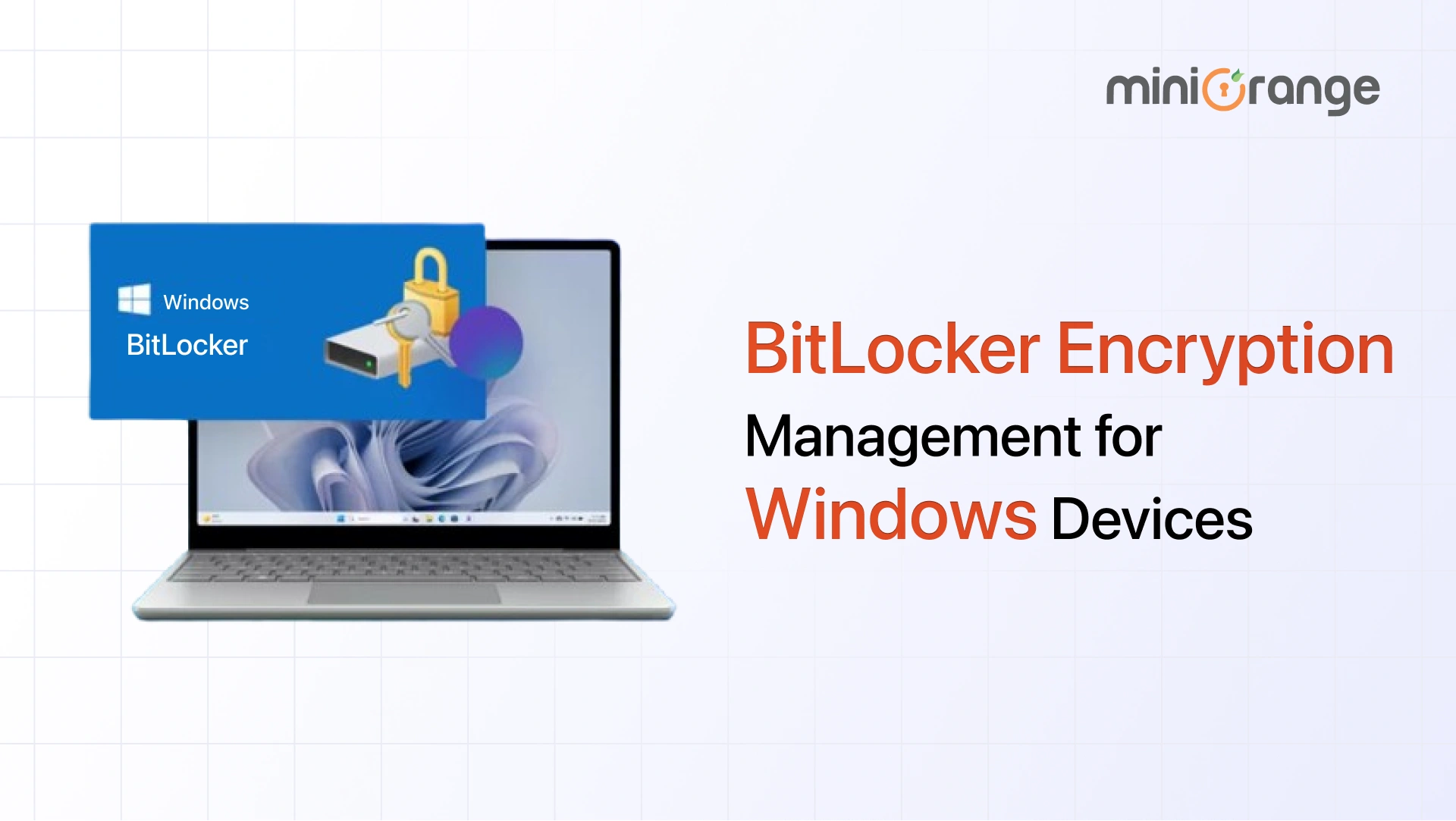
What is BitLocker?
BitLocker is a built-in security feature available in many versions of the Microsoft Windows operating system that protects the data stored on a device by encrypting the entire drive.
Instead of simply restricting access through passwords or user accounts, BitLocker focuses on securing the data itself, ensuring that files remain unreadable without proper authentication.
Basically, BitLocker converts all the information on a drive into encrypted data that can only be unlocked with approved access methods such as a recovery key, PIN, or system verification.
This means that even if someone tries to access the drive directly, the stored data remains protected, making BitLocker particularly valuable for organizations that manage large fleets of laptops and endpoints where physical device security cannot always be guaranteed.
Behind the scenes, BitLocker uses strong encryption standards like the Advanced Encryption Standard (AES) with 128-bit or 256-bit keys, making it extremely difficult for attackers to decipher the data. This combination of strong encryption and seamless usability is what makes BitLocker a widely adopted security measure for protecting data on Windows devices.
How BitLocker Encryption Works
The BitLocker encryption process happens automatically in the background, with several security checks occurring every time the device starts.
Before Windows loads, a Trusted Platform Module (TPM) chip on the motherboard performs integrity checks. It verifies that the device’s firmware, hardware configuration, and boot environment have not been altered or tampered with.
When everything matches the expected system state, the TPM automatically releases the encryption key. BitLocker then unlocks the drive, and Windows starts normally. This entire process happens in the background, so users rarely notice it.
If the TPM detects unexpected changes or if required authentication is missing, BitLocker blocks access and requests a recovery key. This ensures the encrypted data remains protected even if someone attempts to bypass system security.
BitLocker can also work without a TPM by using alternative authentication methods such as a startup PIN, password, or USB security key, giving organizations flexibility in how they secure their Windows devices.
Compatibility and Security Prerequisites for BitLocker
Before implementing BitLocker encryption, organizations must ensure their devices meet certain system, hardware, and operating system requirements. These prerequisites ensure that encryption keys can be securely protected and that the system can verify device integrity during startup.
| Requirements | Details |
|---|---|
| Supported Windows Editions | BitLocker is supported on Windows Pro, Enterprise, Pro Education/SE, and Education editions. |
| Trusted Platform Module (TPM) | A TPM 1.2 or later is recommended to enable system integrity checks and secure storage of encryption keys. If a TPM is not available, BitLocker can still work using alternative methods such as a startup password or USB startup key. |
| Firmware Requirements | Devices with TPM must use TCG-compliant BIOS or UEFI firmware, which helps establish a trusted boot chain before the operating system loads. |
| Disk Partition Structure | BitLocker requires at least two partitions: one for the operating system (formatted in NTFS) and a separate system partition used during startup, which remains unencrypted. |
| USB Support (Optional) | The system firmware must support USB mass storage access in the preboot environment, allowing BitLocker startup keys to be read from external drives when required. |
Once these prerequisites are satisfied, organizations can confidently deploy BitLocker encryption across their Windows devices.
BitLocker Configuration
In modern enterprise environments, organizations rely on centralized policy-driven approaches to ensure BitLocker encryption is applied consistently across all Windows endpoints.
Policy-based configuration using MDM (CSP)
BitLocker can be configured through Mobile Device Management (MDM) solutions using Windows Configuration Service Provider (CSP) policies. These policies allow administrators to enforce encryption across operating systems and data drives, define encryption strength (AES 128-bit or 256-bit), and configure authentication methods such as TPM, PIN, or password.
By applying these configurations during device enrollment, organizations can ensure that encryption is enabled automatically, without relying on user action. This approach also allows recovery keys to be backed up centrally, improving both security and recoverability.
Alignment with data protection strategies
As endpoint security evolves, BitLocker configuration is increasingly tied to broader data protection controls. Integration with endpoint security frameworks, and potentially DLP-driven policies, can ensure that devices handling sensitive data meet encryption requirements before access is granted. This strengthens compliance enforcement and reduces the risk of unprotected endpoints.
A centralized, policy-based approach to BitLocker configuration ensures scalable deployment, consistent enforcement, and better visibility across enterprise device fleets.
Key Features of BitLocker
BitLocker offers several built-in capabilities that make it a reliable encryption solution for securing Windows devices. These features are designed to protect sensitive data, strengthen device authentication, and simplify encryption management across enterprise environments.
1. Pre-Boot Authentication
BitLocker can require authentication before the operating system loads. Users may need to enter a PIN, provide a startup key, or use another authentication method before the device can boot, ensuring that unauthorized users cannot access the system even if they physically possess the device.
2. TPM-Based Protection
BitLocker integrates with the Trusted Platform Module (TPM) to securely store encryption keys and verify system integrity during startup. The TPM helps ensure the device has not been tampered with before releasing the key that unlocks the encrypted drive.
3. BitLocker To Go
BitLocker can also protect removable storage devices such as USB drives and external hard disks. This feature, called BitLocker To Go, encrypts portable media to prevent data leaks when removable storage is lost or shared.
4. Automatic Device Encryption
On compatible Windows devices, BitLocker encrypts internal drives automatically during the Out-of-Box Experience (OOBE). The encryption becomes fully active once the user signs in with a Microsoft or organizational account and the recovery key is backed up. This ensures new devices are encrypted by default without requiring manual BitLocker configuration.
5. Integration with Enterprise Management
BitLocker integrates with enterprise management tools, allowing administrators to enforce encryption policies, manage recovery keys, and monitor encryption status across multiple devices from a centralized environment.
Benefits of BitLocker Encryption
Implementing Windows BitLocker encryption helps organizations secure sensitive data stored on endpoints while maintaining centralized visibility and control.
As a native Windows security feature, BitLocker provides multiple operational and compliance advantages for both individuals and enterprise environments.
1. Strong protection against lost or stolen devices: BitLocker encrypts the entire drive, ensuring that data remains unreadable without the proper decryption key. Even if a device is lost or stolen, unauthorized users cannot access the stored files.
2. Supports compliance requirements: Encryption plays an important role in meeting regulatory requirements such as GDPR, HIPAA, and PCI-DSS. BitLocker helps organizations demonstrate that sensitive data remains protected even if devices leave controlled environments.
3. Reduces risk of data breaches: By encrypting data at rest and restricting access to authorized users, BitLocker reduces the likelihood that confidential information can be extracted from compromised or physically accessed devices.
4. Improves centralized device management: When integrated with Windows management tools or third-party UEM solutions, BitLocker enables IT teams to enforce encryption policies, monitor device compliance, and manage recovery keys across multiple systems from a central interface.
5. Built into Windows at no extra cost: As a native feature in supported Windows editions, BitLocker delivers enterprise-grade encryption without additional licensing costs, simplifying deployment across all compatible devices.
Limitations of BitLocker
While BitLocker is widely used to secure data at rest on Windows devices, organizations should understand certain operational constraints when planning a BitLocker deployment. These limitations typically relate to hardware dependencies, configuration practices, and the overall scope of protection.
1. Recovery key management risk
BitLocker requires a recovery key to regain access if authentication fails or system integrity checks are triggered. If recovery keys are misplaced or deleted, access to the encrypted data may be permanently lost. Proper storage and centralized management of recovery keys is, therefore, critical in enterprise environments.
2. Limited to Windows ecosystems
BitLocker is designed specifically for Windows operating systems and integrates primarily with Windows-based management frameworks. Organizations managing devices across macOS, Linux, or other platforms may face challenges maintaining consistent encryption policies across their entire environment.
3. Hardware dependency for optimal security
BitLocker achieves its strongest protection when used with a Trusted Platform Module (TPM). While BitLocker can operate without TPM, it must rely on alternatives such as USB startup keys to store encryption credentials, which may not provide the same level of hardware-backed integrity verification.
4. Configuration dependencies
The effectiveness of BitLocker depends on correct deployment and policy configuration. Improper setup, such as weak authentication settings or poor recovery key handling, can reduce the intended security benefits of encryption.
5. No protection against ransomware or remote compromise
BitLocker protects data stored on the device when it is offline or physically accessed. However, it does not prevent threats such as ransomware, malware infections, or attackers who gain access to the system after it has already been unlocked.
How BitLocker Helps Keep Data Safe
BitLocker keeps your data secure by encrypting the entire drive, ensuring that sensitive information remains protected even if a device is lost or stolen. Its seamless integration with Windows means no additional software is required, making encryption easy to deploy across individual devices or large enterprise fleets. By encrypting drives, BitLocker safeguards not only internal documents but also client data, financial records, and confidential communications. Once enabled, it maintains continuous endpoint security for all data at rest, preventing unauthorized access while allowing approved users to work without disruption.
BitLocker in enterprise device management
Implementing BitLocker management across an enterprise requires a strategic, centralized approach to ensure devices remain secure, compliant, and easy to manage.
- Consistent encryption enforcement across devices
Centralized management ensures BitLocker is applied uniformly to all Windows endpoints. IT administrators can monitor encryption status, enforce compliance, and quickly identify devices that fall out of policy, reducing the risk of unprotected drives in the network.
- BitLocker policy configuration
Administrators can configure detailed BitLocker policies that dictate encryption algorithms, authentication methods, and recovery options. Policies can be tailored for different device groups or roles, balancing strong security with user convenience.
- End-user awareness and training
Educating employees about BitLocker usage and recovery procedures strengthens organizational security. Awareness programs help users understand the importance of encryption, how to handle recovery keys, and the role of BitLocker in protecting corporate and client data.
- Integration with enterprise systems
Integrating BitLocker with device management solutions helps organizations optimize workflow and maintain consistent device security. With a UEM solution, IT administrators can enable BitLocker by default across all managed Windows devices, enforce encryption policies centrally, and securely generate and store recovery keys. This streamlines encryption management, ensures every device meets organizational security standards, and reduces the risk of gaps or misconfigurations in enterprise-wide deployment.
- Recovery key management and backup
Proper recovery key management is critical in enterprise settings. Centralized backup ensures keys are stored securely, accessible to IT if needed, and protected from accidental deletion or loss, preventing data inaccessibility while maintaining strong encryption standards.
Why You Need miniOrange for BitLocker Encryption Management?
Managing BitLocker encryption across multiple Windows devices can quickly become complex, especially in large enterprises with distributed workforces. This is where a BitLocker management tool simplifies the process.
By centralizing BitLocker management, miniOrange’s Unified Endpoint Management (UEM) solution can help IT administrators enforce encryption policies, monitor device compliance, and manage recovery keys from a single dashboard.
While BitLocker provides strong encryption for Windows devices, managing it across a large fleet of endpoints can be complex. IT teams often face challenges like enforcing consistent policies, tracking compliance, and securely handling recovery keys. A bitlocker management tool helps address these challenges efficiently.
miniOrange’s UEM Solution enables IT administrators to centrally deploy and monitor BitLocker across all managed Windows devices, ensuring encryption is applied consistently, and devices remain compliant. Recovery keys are securely stored and can be retrieved when needed, reducing the risk of data loss or mismanagement.
Key capabilities of the miniOrange UEM solution include:
- Automated setup and policy enforcement, ensuring every device is encrypted consistently without manual intervention.
- Robust integration capabilities allow encryption to be applied across both company-owned and BYOD devices, maintaining strong security standards while accommodating diverse work environments.
- Real-time monitoring and reporting, which help detect devices that fall out of compliance, while secure recovery key storage mitigates risks associated with lost keys.
By aligning BitLocker deployment with centralized Windows device management, miniOrange UEM makes encryption scalable, secure, and easier to maintain across distributed enterprise environments.
Frequently Asked Questions
1. What is BitLocker Encryption?
BitLocker is a built-in security feature in Microsoft Windows that encrypts the entire drive on a device. It ensures that sensitive corporate data, client information, and intellectual property on Windows devices remain unreadable without proper authentication, even if someone tries to bypass the operating system or access the drive directly.
2. What Does BitLocker Do?
BitLocker secures data at rest by encrypting both the operating system and additional drives. It prevents unauthorized access by requiring authentication methods such as TPM, recovery key, PIN, or system verification. If integrity checks fail, access is blocked, ensuring that sensitive information remains protected even if a device is lost or stolen.
3. How to Disable BitLocker Encryption?
In enterprise environments, BitLocker is typically managed through centralized device management solutions. IT administrators can enforce or disable BitLocker encryption using UEM or MDM policies, ensuring changes are applied consistently across all managed devices. This approach allows organizations to control when encryption is enabled or turned off, while maintaining proper recovery key management and avoiding security gaps caused by manual configuration.
4. What Are the BitLocker Encryption Methods?
BitLocker provides multiple ways to secure Windows drives, allowing organizations flexibility based on hardware and security requirements. Authentication options include TPM-based automatic unlocking, PINs, passwords, USB startup keys, etc. For removable media, BitLocker To Go provides encryption for USB drives and external hard disks.
Leave a Comment