
Introduction
Managing collection visibility on Shopify is a common challenge for merchants handling large catalogs, wholesale pricing, or exclusive product groups. Shopify makes it easy to create collections, but controlling their visibility requires a bit more planning.
Learning how to hide collections on Shopify helps you avoid cluttered navigation, prevent customer confusion, and maintain better control over your storefront experience. Instead of deleting collections and losing their structure, many merchants rely on hidden collections to manage access, automation, and future use. Whether you’re managing multiple customer types (B2B and B2C), running short-term campaigns, or deleting unused categories, hiding collections is a practical part of long-term collection management.
This blog walks through why merchants choose to hide collections, practical methods to manage content visibility in Shopify, explaining when to use each approach, and how they fit into a broader collection management strategy.
Why Hide a Collection on Shopify?
Hiding collections on Shopify isn’t just about removing them from view; it’s a strategic way to manage your store’s structure, workflows, and customer experience. Many merchants use hidden collections to stay organized behind the scenes while keeping their storefront focused and relevant for shoppers. Here are some of the most common strategic reasons merchants choose to hide collections on Shopify.
Scenario 1: Testing new products before launch
Before launching a new product line, it’s common to create a collection that isn’t ready for public viewing. Hiding a collection allows you to add products, refine descriptions, upload images, and adjust pricing without worrying about unfinished content being visible to customers. This approach is especially useful for stores with frequent launches or large catalogs. Once everything is finalized, you can simply make the collection visible or share its direct link when you’re ready to go live.
Scenario 2: Building exclusive shopping experiences
Hidden collections are also a powerful way to offer exclusive access. Merchants often use them to create private collections for email subscribers, loyalty members, or special promotions. These collections don’t appear in navigation menus or storefront browsing but can be accessed via a direct link. This creates a sense of exclusivity and allows you to reward specific customer segments without changing your main store layout.
Scenario 3: Handling seasonal or temporary catalogs
Seasonal products don’t need to be rebuilt every year. By keeping these collections hidden during specific periods, you can manage seasonal inventory year-round. When the right time comes, you simply make the collection visible or link it to a campaign. This saves time, reduces errors, and supports a more efficient collection management strategy.
Scenario 4: Streamlining B2C and B2B catalog management
For merchants selling to both retail and wholesale customers, controlling collection visibility is essential. It allows you to maintain separate catalogs for B2C and B2B customers, ensuring that exclusive store content, like wholesale products and bulk pricing, is only accessible to approved buyers, while retail customers can continue to browse the general store content. This keeps your Shopify storefront organized while delivering the right experience to each customer type.
Methods Overview:
| Methods | What It Does | How Collection is Hidden | Best Used When |
|---|---|---|---|
| Exclude from Sales Channels Method | Completely removes a collection from selected sales channels | Unpublishing from “Online Store” or other sales channels | You want the collection fully inaccessible on the storefront |
| Hide Collection in Shopify at Code Level | Uses theme logic to control where and to whom collections appear | Liquid code editing, hiding from search & navigation, metafields-based rules | You need partial visibility or customer-specific access |
| Hide Collections with Content Restriction Apps | Applies rule-based restrictions without editing theme code | Content restriction based on login status, customer tags, domains, location rules, etc. | You want advanced content restriction without managing theme code |
Exclude Collections from Sales Channels Method
One of the simplest ways to hide a collection on Shopify is by removing it from specific sales channels. This method uses Shopify’s native settings and doesn’t require any code changes, making it ideal for merchants who want a quick solution.
When a collection is unpublished from a sales channel like the Online Store, it is completely removed from that channel. Customers won’t be able to see it in navigation menus, search results, or even access it via a direct URL.
When to use this method:
- Temporarily disabling collections that are no longer relevant
- Removing collections tied to discontinued products
- Hiding collections during maintenance or restructuring
However, this approach is all-or-nothing. Once unpublished, the collection is inaccessible everywhere on that channel.
Steps to Unpublish Collection from Sales Channels:
- From your Shopify admin, go to Products and click on Collections
- Click on the collection you want to hide

- Scroll to the Publishing section and click on Manage

- Deselect the sales channels where you want the collection to be hidden (for example, Online Store). Click Done. Then, click on Save.
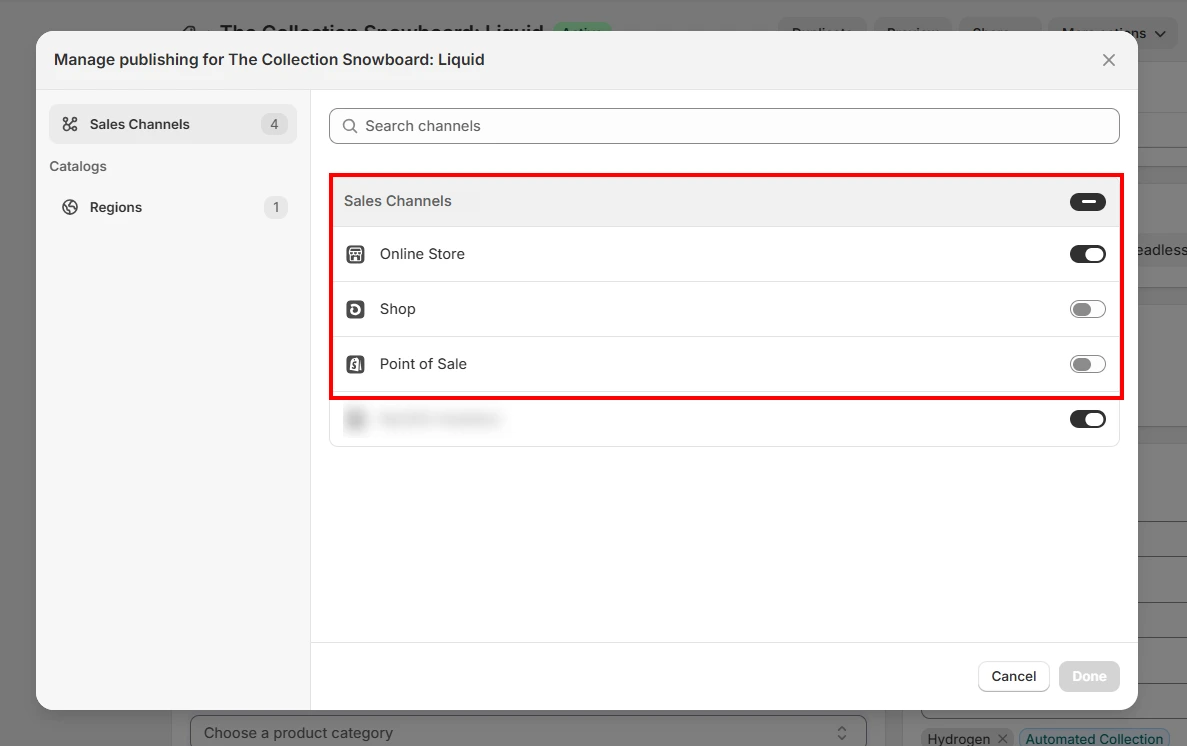
Once saved, the collection will no longer appear on your storefront and cannot be accessed publicly until it’s republished.
Code-Based Methods to Hide Collection on Shopify
Code-based methods give you more flexibility over collection visibility than Shopify’s native controls. Instead of completely removing a collection from your store, these approaches let you control where it appears and who can access it. This makes them useful for scenarios like private links, B2B catalogs, or collections that should stay active without being discoverable through normal storefront browsing.
However, since these methods involve editing theme files, they require familiarity with Shopify’s theme structure and Liquid logic, making them better suited for merchants comfortable working with code.
Method 1: Edit Theme Code
Modifying your theme code lets you decide where collections appear, rather than removing them entirely. This is ideal when you want a collection to remain visible for certain campaigns, via direct links, or for approved customers, without displaying it everywhere.
Note: Before making changes, duplicate your current theme to create a backup and avoid disrupting your live store.
- Open the theme code editor from Online Store, click on Themes
- Click on Actions and then Edit code. Look for files that control collection listings such as:
- list-collections.liquid
- collection.liquid
- index.liquid
- Add conditional logic based on tags or rules, such as checking for a “hidden” tag, to prevent specific collections from being displayed.
Method 2: Hiding Collections from Search & Navigation
This method relies on removing the most common discovery paths rather than blocking access entirely. Since most shoppers find collections through menus or homepage links, removing those entry points is often enough to keep a hidden collection out of sight.
Part A: Remove from navigation
- From Shopify Admin, navigate to Content and click on Menus
- Open the menu containing the collection (usually Main menu)
- In the menu items, locate the collection link you want to hide. Click the X or Delete button next to it to remove the collection link
- Click on Save
Part B: Keep the collection accessible
- From Shopify Admin, navigate to Products and click on Collections
- Click on the collection you want to hide
- In the “Publishing” section, click on Manage to see which sales channels are active.
- To hide the collection from search while keeping accessible by URL, keep “Online Store” checked but remove the collection from navigation (following the steps in Part A)
- Click Done
- Click Save
Note:
Collections that are not linked in navigation menus and not featured on landing pages are effectively hidden from casual browsing. However, they remain accessible to anyone with the direct URL, making this approach useful for private promotions or exclusive B2B collections.
Method 3: Metafields Setup \ Code
Metafields allow you to control whether a collection should be visible to everyone or only to specific customers. Instead of relying on tags or navigation changes to hide a collection on Shopify, you add a simple on/off setting to each collection and let your theme decide when to show or hide it. This method is especially useful for wholesale, B2B, or member-only collections because the visibility rule stays attached to the collection itself.
First, you need to create a metafield that acts as a visibility switch.
Part A: Create a Custom Metafield for Collections
- From your Shopify admin, go to Settings, click on Metafields and metaobjects
- Under Metafield definitions, select Collections
- Click Add definition
- Configure the metafield, for example:
- Name: Hide from public
- Description: Set to true to hide this collection from non-logged-in customers
- Content type: True or false
- Optional: Uncheck Definition pinned if you don’t want it visible on every collection by default
- Click Save
This creates a simple yes/no option that can be reused across multiple collections.
Once the metafield is created, you can enable it on any collection you want to restrict.
Part B: Apply the Metafield to Collections
- In Shopify Admin, go to Products, then click on Collections
- Click on the collection you want to hide
- Scroll to the Metafields section
- Find your custom metafield, e.g., “Hide from public”
- Toggle it to True
- Click Save
You can repeat this for as many collections as needed. Nothing changes on the storefront yet; this step only marks which collections should be restricted.
The final step is telling your theme how to respond when this metafield is set to true.
Part C: Add Theme Logic to Enforce Visibility
- From Shopify Admin, go to Online Store, click on Themes
- Click ⋯ , and then click Edit code
- Locate the files that display collections, usually named as:
- sections/collection-list.liquid
- templates/list-collections.liquid
- sections/featured-collection.liquid
- Locate the loop that displays the collection. Add logic to enforce collection visibility rules that:
- Hides the collection if Hide from public = true
- Allows it to show only when the customer is logged in (or has a specific tag)
This is what actually enforces the restriction on the storefront.
Optional: Restrict Entire Collection Pages
If you want to block access even when the customer has the direct URL, you can add similar logic to templates/collection.liquid or sections/main-collection-product-grid.liquid.
This allows you to display a message, such as “Please log in to view this collection,” instead of the products, hiding collections on Shopify until users are logged in.
For Wholesale or B2B Customers:
You can extend this logic further by checking for customer tags (such as wholesale or B2B).
This allows:
- Retail customers to be blocked from B2B-exclusive collections
- Approved B2B buyers to see the collection normally
This makes metafields setup a flexible option for managing collection visibility in mixed B2C and B2B stores.
App-Based Method: Hide Collections with LockOn
If you’re looking for a way to hide collections on Shopify without touching theme code, a dedicated content restriction app can make storefront access control much easier to manage.
Instead of editing templates or writing Liquid logic, solutions like LockOn - Restrict Store from miniOrange let you define rules in the admin and have those rules automatically applied across your store’s collections, products, pages, and more.
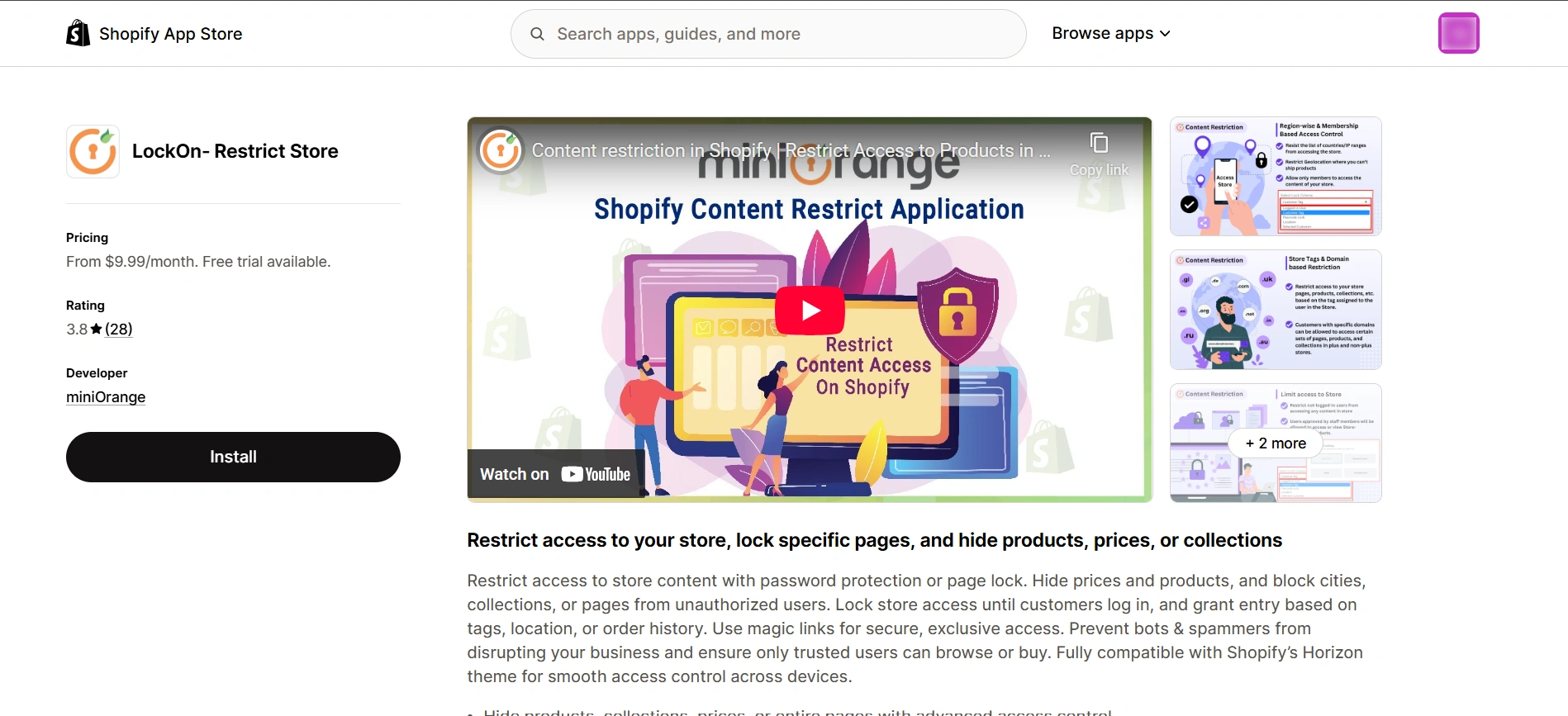
Hiding collections on Shopify using an app-based approach lets you restrict content based on more granular criteria, such as customer login status, tags, geographic location, email domains, or a combination of these. You can choose whether a collection (or any other content) is visible, needs a login, or redirects visitors to a different page depending on your chosen rules.
How to Manage Content Visibility with LockOn:
- Restrict collection visibility based on login status:
Show collections only to logged-in customers and hide them from guests. This is ideal for private catalogs, member-only pricing, or stores that require accounts before browsing. - Control access using customer tags or roles:
Only customers assigned specific tags (such as wholesale, VIP, or internal) can view certain hidden collections, letting you tailor visibility without duplicating collections. - Set location-based rules:
Limit access to collections based on country, city, or even IP address; useful for regional availability, compliance, or localized offerings. - Enforce email domain restrictions:
Only customers with approved email domains can access certain hidden collections, supporting B2B or corporate storefronts. - Enable exclusive access via Magic Links:
Provide selected customers or VIPs with secure, password-free access to restricted collections using temporary email links. This reduces friction for VIP buyers, exclusive launches, or one-time access scenarios while keeping collections protected from public users. With solutions like LockOn, merchants can manage visibility rules without ongoing technical maintenance or theme edits, even as new collections or customer segments are added.
Troubleshooting for Hiding Collections
After setting up any method to hide collections on Shopify, it’s important to test how your store behaves for different types of visitors. Small misconfigurations, such as an unassigned metafield, missing menu cleanup, or incorrect customer conditions, can cause hidden collections to appear in places you didn’t intend.
Here’s a structured approach that will help you verify that your setup works as expected and delivers a consistent experience across your storefront.
For logged-out customers:
Make sure restricted collections remain fully hidden from public users:
- Collections do not appear on the homepage or in featured collection sections
- Collections do not appear on the “All Collections” page
- Direct collection URLs show a login prompt or a disclaimer message instead of products
- Collections do not appear in storefront search results
- Navigation menus do not display links to restricted collections
If any of these checks fail, review your menu settings, search visibility, or theme conditions that control collection visibility.
For logged-in customers:
Confirm that authorized customers can access collections normally:
- Collections appear on the homepage and featured sections
- Collections are visible on the “All Collections” page
- Direct collection URLs load correctly without restrictions
- Collections appear in search results
- Navigation menus display the correct collection links
If collections remain hidden after login, double-check customer tags, metafield values, or login-based conditions.
For collections without visibility rules
Collections that don’t have metafields, tags, or restrictions applied should behave like standard collections:
- Visible to both logged-in and logged-out customers
- Appear across all normal storefront locations
This testing flow helps ensure your content restriction setup remains predictable, secure, and aligned with Shopify’s storefront behavior.
Frequently Asked Questions (FAQs)
Can I hide a collection on Shopify without deleting it?
Yes. You can hide a collection while keeping it fully intact in your Shopify admin. Methods like excluding it from sales channels, removing it from navigation, applying theme-based visibility rules, or using a content restriction app like LockOn allow you to control who sees the collection without deleting it or losing its products and settings.
Does hiding a collection affect SEO?
It depends on how you hide the collections on Shopify. If you unpublish a collection from the Online Store sales channel, it becomes completely inaccessible on the storefront. Other methods, such as removing navigation links or applying customer-based visibility rules using an external app, focus on limiting storefront discovery rather than disabling the collection entirely.
Can I hide products from the “All Products” or shop-all page?
Yes. Products appear on shop-all or collection listing pages based on how collections are displayed in your theme. By hiding or restricting the collections those products belong to, using theme conditions, metafields, or rule-based access controls through content restriction apps like LockOn, you can prevent products from appearing in these listings for specific users while keeping them accessible elsewhere.
Does excluding a collection from sales channels hide it from search?
Yes. When a collection is excluded from the Online Store sales channel, it is completely removed from that channel. It will not appear in navigation menus, storefront search results, or be accessible via a direct URL until it is republished.
How do I prevent products from a hidden collection from appearing in other collections?
To fully prevent this, visibility rules must be applied consistently wherever the products appear. Code-based methods and metafields can help control which collections are displayed, but this requires careful theme logic. Using an app like LockOn simplifies this by enforcing access rules at the collection or product level, ensuring products don’t surface in other visible collections for unauthorized users.
Can I keep a collection live but hidden from navigation and search?
Yes. A collection can remain published to the Online Store while being removed from navigation menus and not featured on storefront pages. In this setup, the hidden collection is accessible via a direct URL. For more controlled access—such as limiting visibility by login status, customer tags, or location—an app like LockOn can apply these rules without modifying theme code.
Conclusion
Hiding collections on Shopify isn’t just about cleaning up your storefront; it’s a practical way to manage access, organize catalogs, and deliver the right experience to different customer groups. Whether you’re preparing products for launch, managing seasonal inventory, or handling B2C and B2B catalogs, the right visibility approach helps keep your store structured and intentional.
Shopify offers multiple ways to control collection visibility. Native options like excluding collections from sales channels work well when you need to remove access entirely. Code-based methods give you more flexibility to keep collections live but hidden from browsing or limited to specific customers.
However, for merchants who want advanced rule-based content restriction without ongoing theme maintenance, app-based solutions like miniOrange’s LockOn-Restrict Store solution provide a scalable way to manage visibility as your store grows.
Choosing the right method to hide collections on Shopify ultimately depends on how much control you need and how complex your access rules are.
Looking to gain better control over your collection management strategy? Reach out to learn more about our content restriction solution.
Leave a Comment