
Introduction
Pricing transparency works well for many direct-to-consumer stores, but for a growing number of Shopify merchants, especially those operating B2B, wholesale, or inclusive business models, displaying prices publicly can create more friction than value. This is where the need to hide prices on Shopify becomes a strategic and operational decision rather than just a cosmetic one.
Shopify does not provide a native setting to control price visibility. Instead, merchants rely on a combination of theme-level logic, styling approaches, or app-based solutions designed for access control and content restriction. Each approach has its own advantages and limitations, depending on the store’s complexity and long-term goals.
In this blog, we’ll walk through why merchants choose to hide prices on Shopify, how Shopify technically renders prices, and which methods are best suited for different use cases. Specifically, we will look at how merchants can hide prices only for non logged-in users, control price visibility on collection pages, and scale these rules efficiently as the store grows.
Why Hide Prices on Shopify Products?
Hiding product prices is usually a deliberate choice for Shopify merchants. In most cases, it supports a specific business model or customer experience requirement.
For B2B and wholesale merchants, pricing is often tied to customer-specific agreements, order volumes, or company relationships. Showing a fixed public price can misrepresent actual buying terms and lead to confusion or unnecessary support requests. In such scenarios, merchants may prefer to hide prices for non logged in users, ensuring that only qualified buyers see relevant pricing.
Another common reason is lead qualification. Some merchants intentionally hide prices to encourage visitors to take an action (creating an account, logging in, or requesting a quote) before they can access pricing. This approach helps filter serious buyers and gives merchants more context before sharing sensitive pricing information.
There’s also a competitive angle. Publicly visible prices make it easier for competitors to monitor and undercut listings. By choosing to hide prices on collection page views or product listings, Shopify merchants can reduce price scraping while still showcasing their catalog.
Finally, stores that serve mixed audiences, such as retail customers alongside wholesale buyers, often need conditional visibility. A single storefront may require different pricing experiences based on login status or customer tags.
Before diving into implementation, it’s important to understand which method fits your store best, especially if you plan to scale or manage multiple customer segments. Let’s compare these approaches:
| Method | Best For | Pros | Cons |
|---|---|---|---|
| Liquid Code | Developers / Advanced users | Full control, no app dependency | Requires theme edits, maintenance, and technical expertise |
| CSS Styling | Quick visual hiding for temporary needs | Easy to implement | Prices still exist in HTML, not secure |
| Shopify Apps | Non-technical merchants, B2B, growing stores | Rule-based, scalable, secure, no coding | App dependency |
For merchants comfortable editing theme files, starting with a free Liquid-based method may be a good starting point to understand how Shopify handles price visibility before moving to more scalable app-based solutions.
Hide Prices on Shopify Using Liquid Code
Using Liquid code is a reliable way to hide prices on Shopify, especially when you want pricing visibility to change based on who is viewing your store. Liquid works by checking conditions, such as whether a customer is logged in, whether a product has a specific tag, or whether it belongs to a restricted collection, before deciding whether prices should be shown.
This logic is typically added to theme files responsible for displaying prices, such as product page templates, reusable price snippets, or product cards used on collection pages. Once applied, the rule works consistently across your storefront.
However, while Liquid code offers control, it requires a certain level of familiarity with Shopify theme structure and templating logic. Merchants without technical expertise may find it difficult to implement or update price-hiding rules safely, especially when changes need to be applied across multiple templates and sections.
1. Hide Prices for All Products Using Liquid
To hide prices storewide, merchants typically edit the main price display file in their theme. The idea is to show prices only when a customer is logged in and replace pricing with a message for everyone else.
Start by opening your theme’s code editor and locating the file responsible for displaying prices on product pages and collections. In most themes, prices are controlled from files such as:
- snippets/price.liquid or snippets/product-price.liquid
- sections/main-product.liquid
- snippets/product-card.liquid (for collection and grid views)
Once identified, you add a login-based condition around the existing price display. After saving, prices will be hidden from all guest visitors across the store, while logged-in customers will continue to see pricing as normal.
This approach ensures pricing is never rendered for guest users, making it effective for catalog-only or inquiry-based stores that need to hide prices for non-logged-in users on Shopify at a global level.
2. Hide Prices for Non-Logged-In Users Using Liquid
This setup is often used by B2B merchants who want products to remain visible but restrict pricing to registered buyers.
The steps are similar to hiding prices on Shopify globally, but the intent is different. Instead of blocking all access, the theme checks whether the visitor has an active customer account. Logged-in customers see prices, while non-logged-in visitors are prompted to sign in or sign up.
This approach works well for wholesale and distributor stores that need to hide prices only for non logged-in users, but it applies the same pricing rule to all logged-in customers unless additional logic is added.
3. Hide Prices by Product Tag or Collection
If you only want to hide prices on collection pages or specific products on Shopify, you can do this using product tags or collections.
For tag-based control, products are tagged with values like wholesale or B2B-only. The price logic then checks whether a product has one of these tags. If it does, prices are shown only to logged-in customers, while others see a restricted message. Products without these tags continue to display prices normally.
For collection-based control, products inside collections such as Wholesale or B2B catalog are identified using the collection handle. Prices are hidden for those products unless the customer is logged in.
This method offers more granular control than hiding prices storewide on Shopify, but requires consistent product tagging or collection management to avoid pricing inconsistencies.
Using CSS Styles to Hide Price Elements
The CSS-based method for hiding prices on Shopify works by visually removing price elements from the storefront using specific selectors. This approach is often used to quickly hide prices on collection pages in Shopify without modifying Liquid logic.
However, CSS does not remove prices from the page source, which is why it is useful for temporary campaigns or design experiments where price visibility needs to change quickly.
- First, you need to identify how prices are rendered in your theme. Most Shopify themes use common class names such as .price, .product-price, or .money, though the exact selector can vary.
- Once you’ve identified the correct selector, you can add a simple CSS rule, like display: none, that hides the price selector and removes prices across your entire storefront. After saving, prices will no longer appear on product pages or collection pages.
- If you want to hide prices only in specific areas, such as product pages, but not collections, you can also add custom CSS at the section level. While editing your theme, select the relevant section (for example, the product information section) and add the CSS code directly within that section’s settings. This approach offers more control but still relies on visual hiding.
Note: CSS-based approaches only affect how prices appear visually on the storefront. Since the pricing data is still present in the page source and can be accessed by inspecting the HTML, this method may be unsuitable for B2B, wholesale, or access-controlled pricing scenarios.
Using Shopify Apps for Hiding Prices
If you’re managing a B2B store, wholesale setup, or need more flexible rules based on customer tags, login status, or other conditions, apps provide a more robust and scalable solution to hide prices on Shopify. One such app is the LockOn-Restrict Store application from miniOrange, which helps you restrict price visibility based on the criteria you choose, right from your Shopify admin, without complex coding.
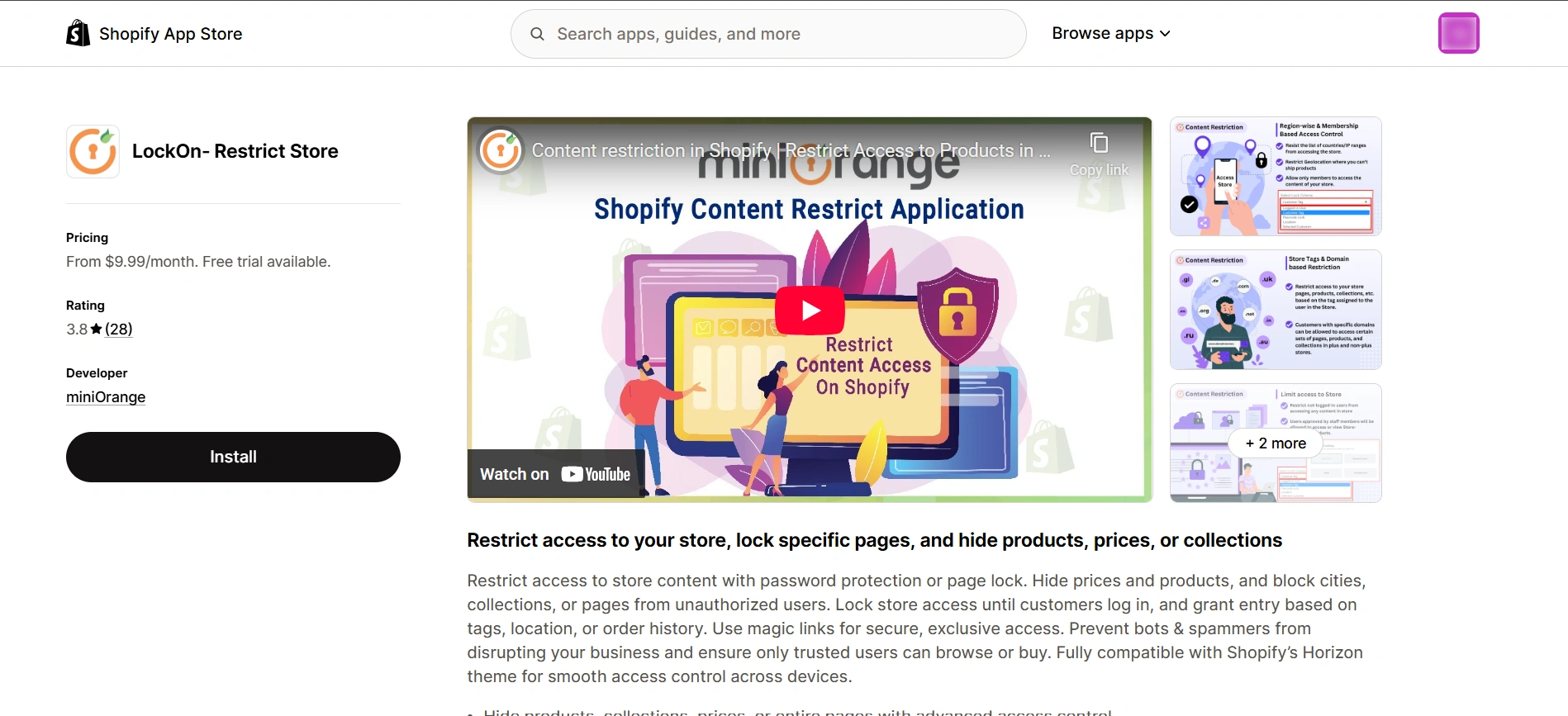
LockOn lets you control price visibility and access to different content across your store by setting up content restriction rules that define who can see prices and who cannot. With granular access control, you can hide prices on collection pages, product pages, or for specific customers (like B2B buyers or logged-in users only).
This makes LockOn ideal for merchants running B2B, wholesale, or members-only stores where price visibility needs to align with business logic.
How to Set Up Price Hiding Rules Using the LockOn App
Hiding prices on Shopify using the miniOrange's LockOn app is straightforward and designed to work without requiring you to edit theme files manually.
Here are the basic steps:
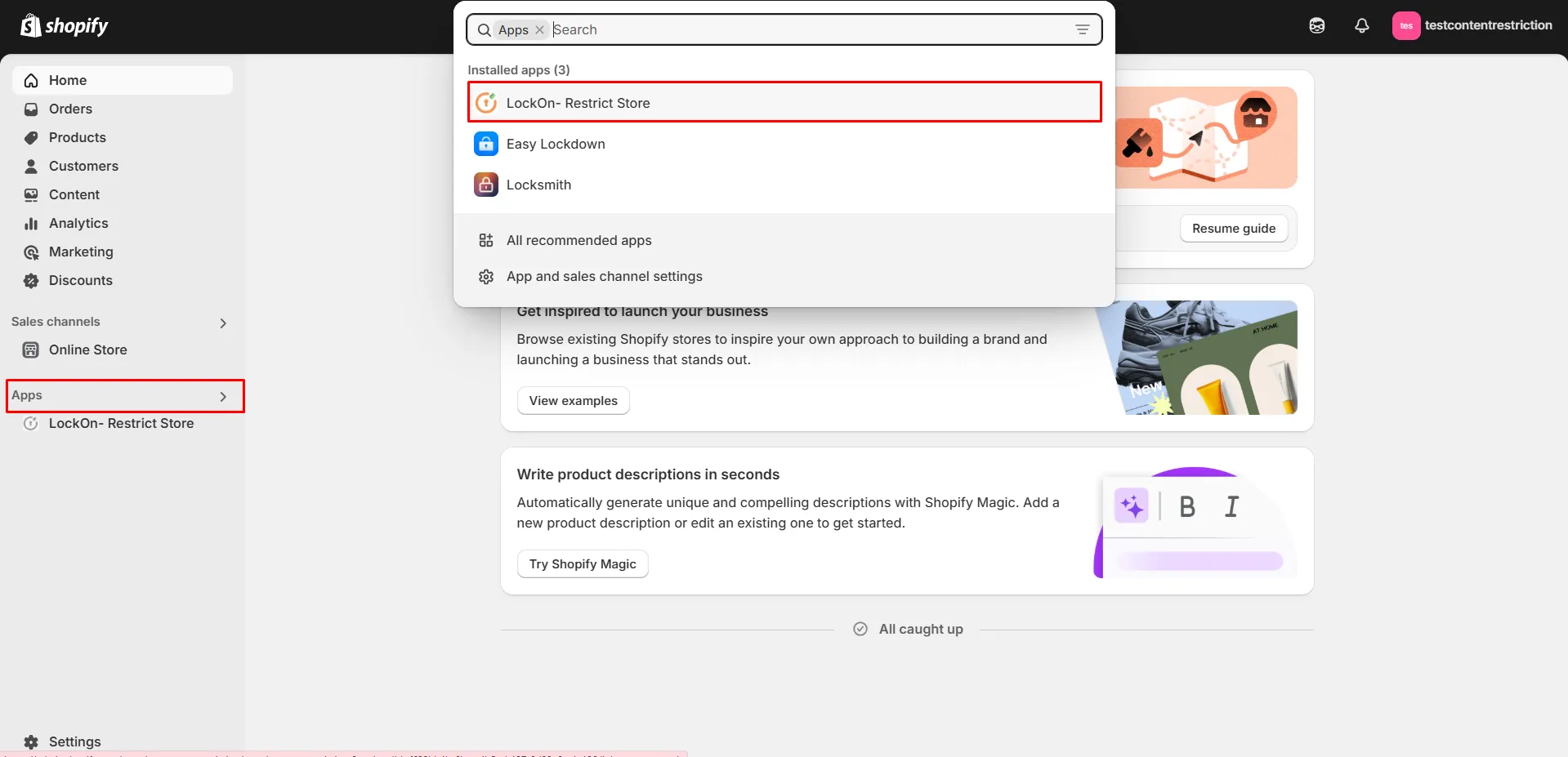
1) Install the LockOn application
Install the LockOn - Restrict Store application on your Shopify store and open it from your admin.
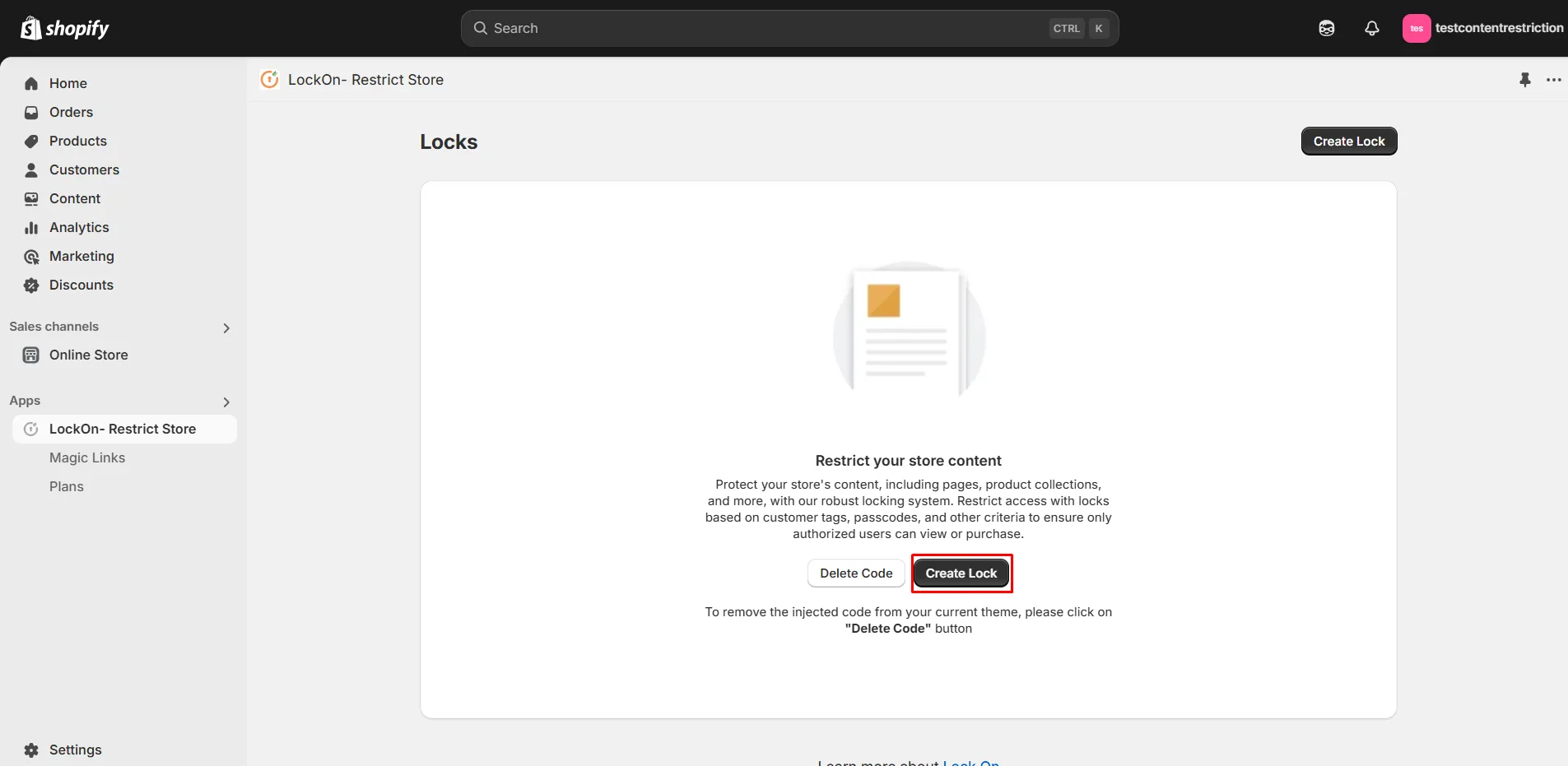
2) Create a new lock for prices
Click Create Lock and give it a meaningful name; something like “Hide Prices for Guests” or “Wholesale Price Lock” helps you organize multiple rules.
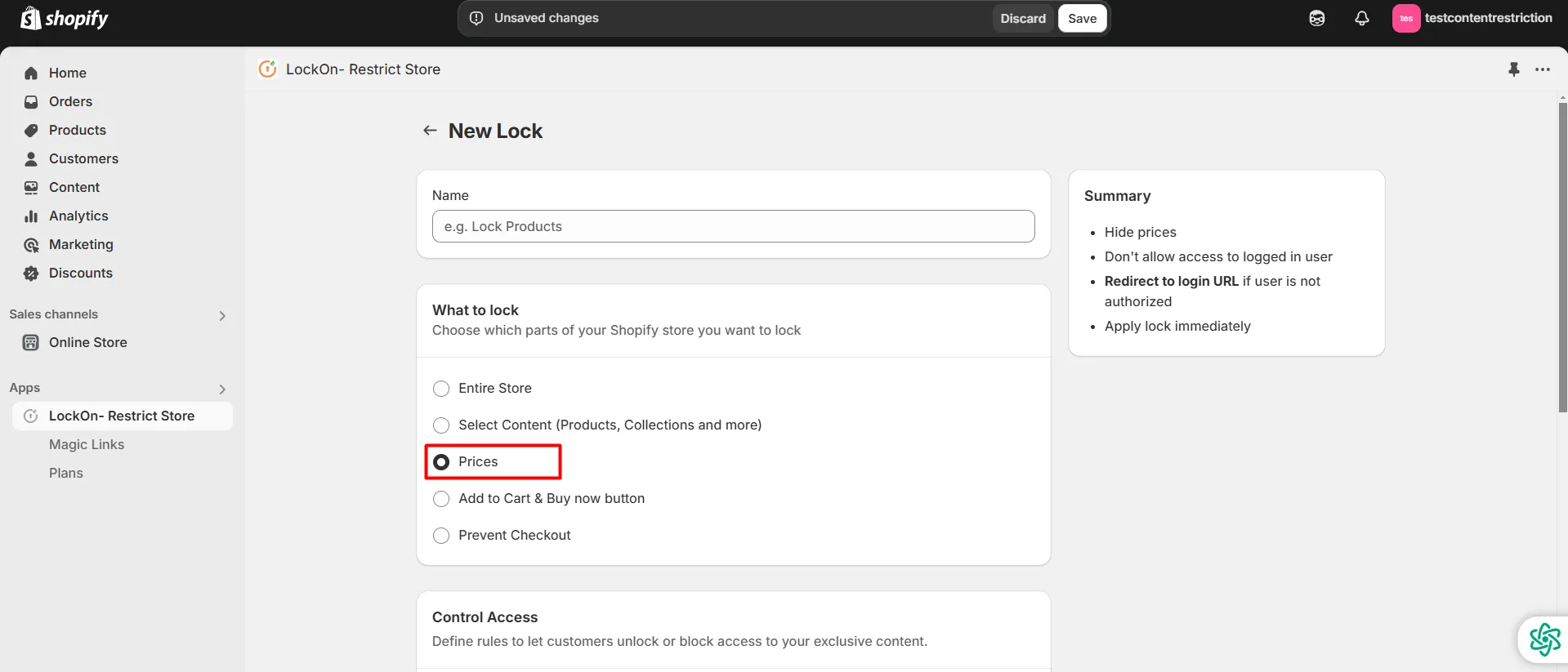
3) Choose what content to lock
Under the “What to lock” section, select Prices to control who can see product pricing on your store.
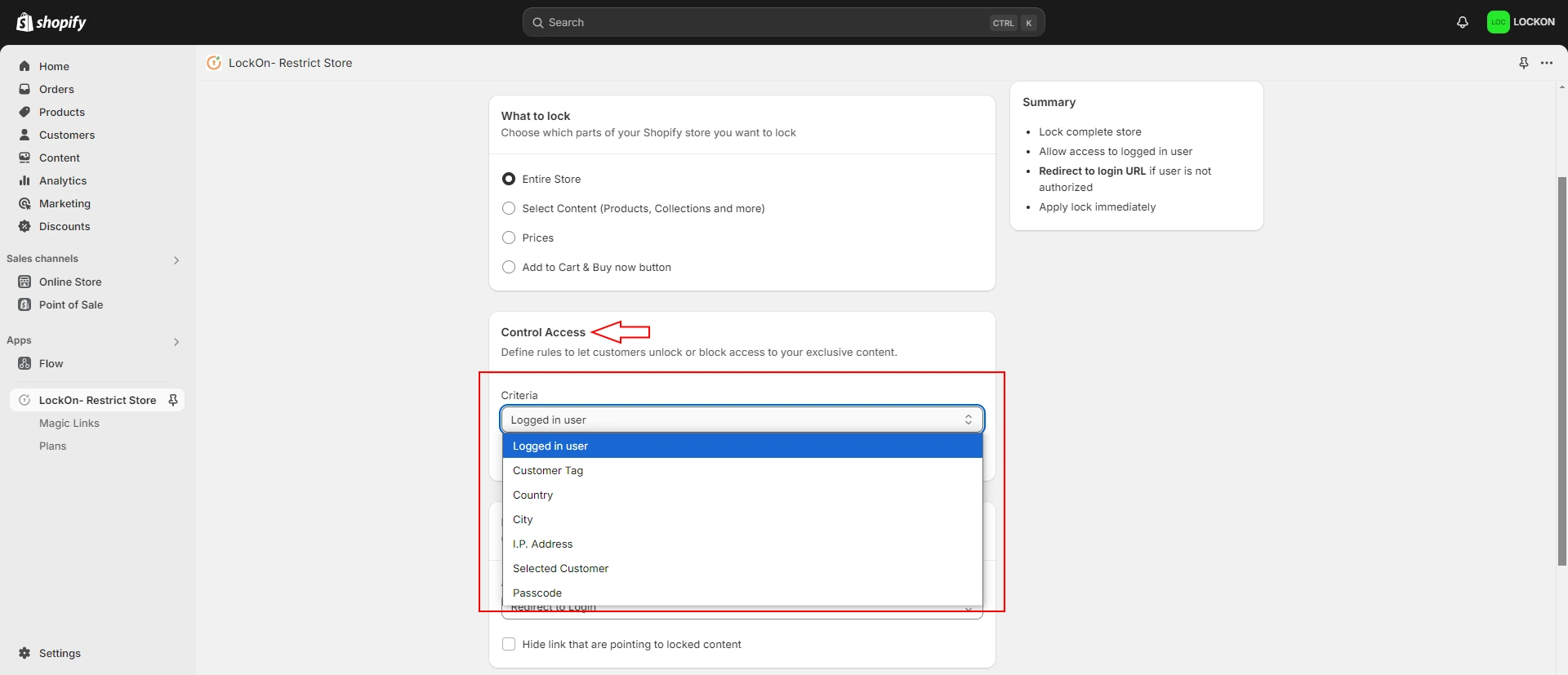
4) Set your access rules
In the “Control Access” section, define the conditions that determine when prices should be visible. Common lock criteria include:
- Logged-in User: Show prices only to customers who are signed in
- Customer Tag: Allow access only to users with specific tags (e.g., B2B)
- Email Domain: Allow access only to users logging in with a verified email domain
- Other conditions - Restrict store content by Location (country, city, state, IP address), passcode lock, or specific customer profiles as needed
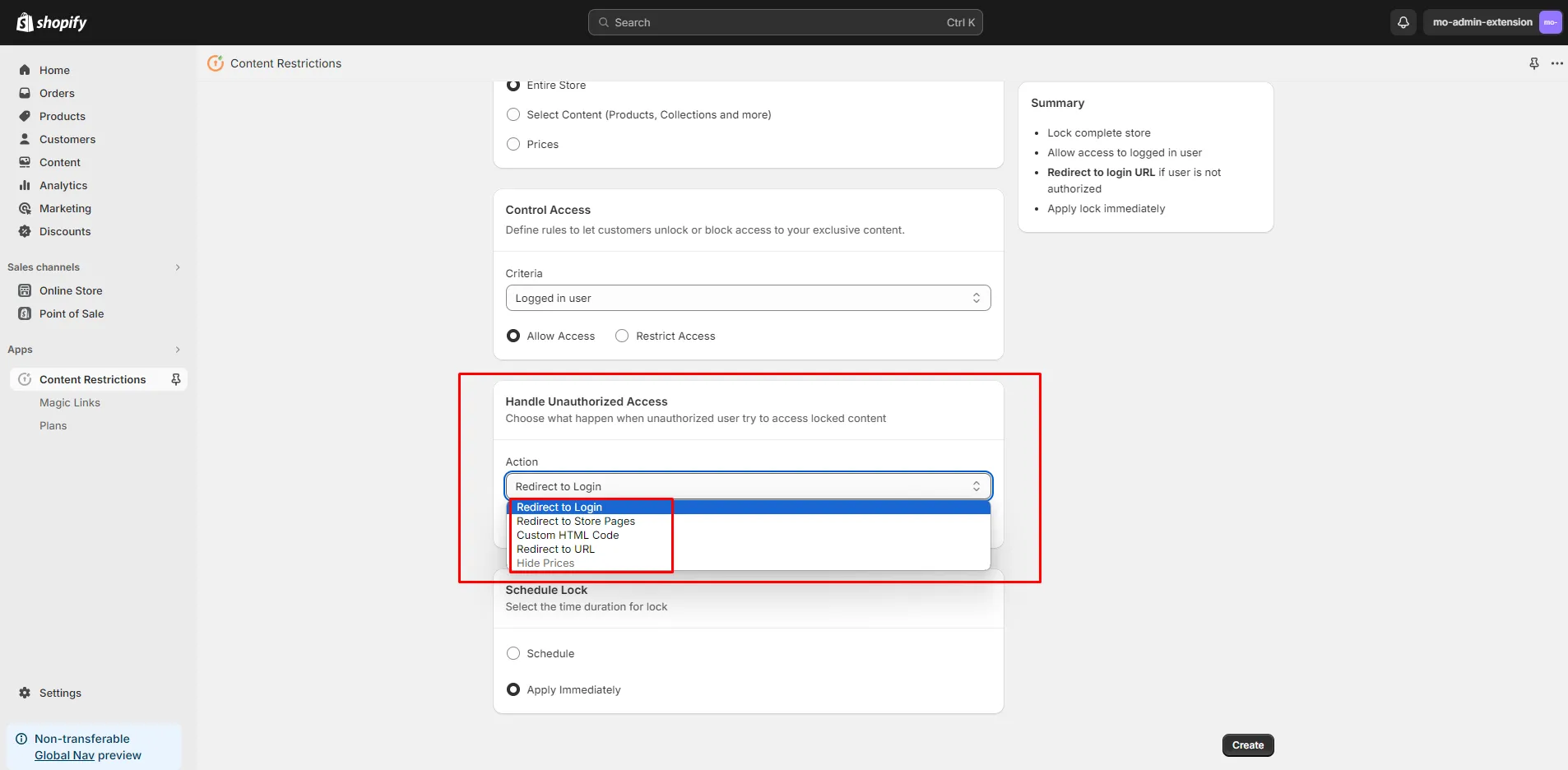
5) Define unauthorized behavior
Choose what happens when someone who doesn’t meet the criteria sees restricted content. You can show a login prompt, redirect to a specific page URL, or display a custom message explaining how to gain access.
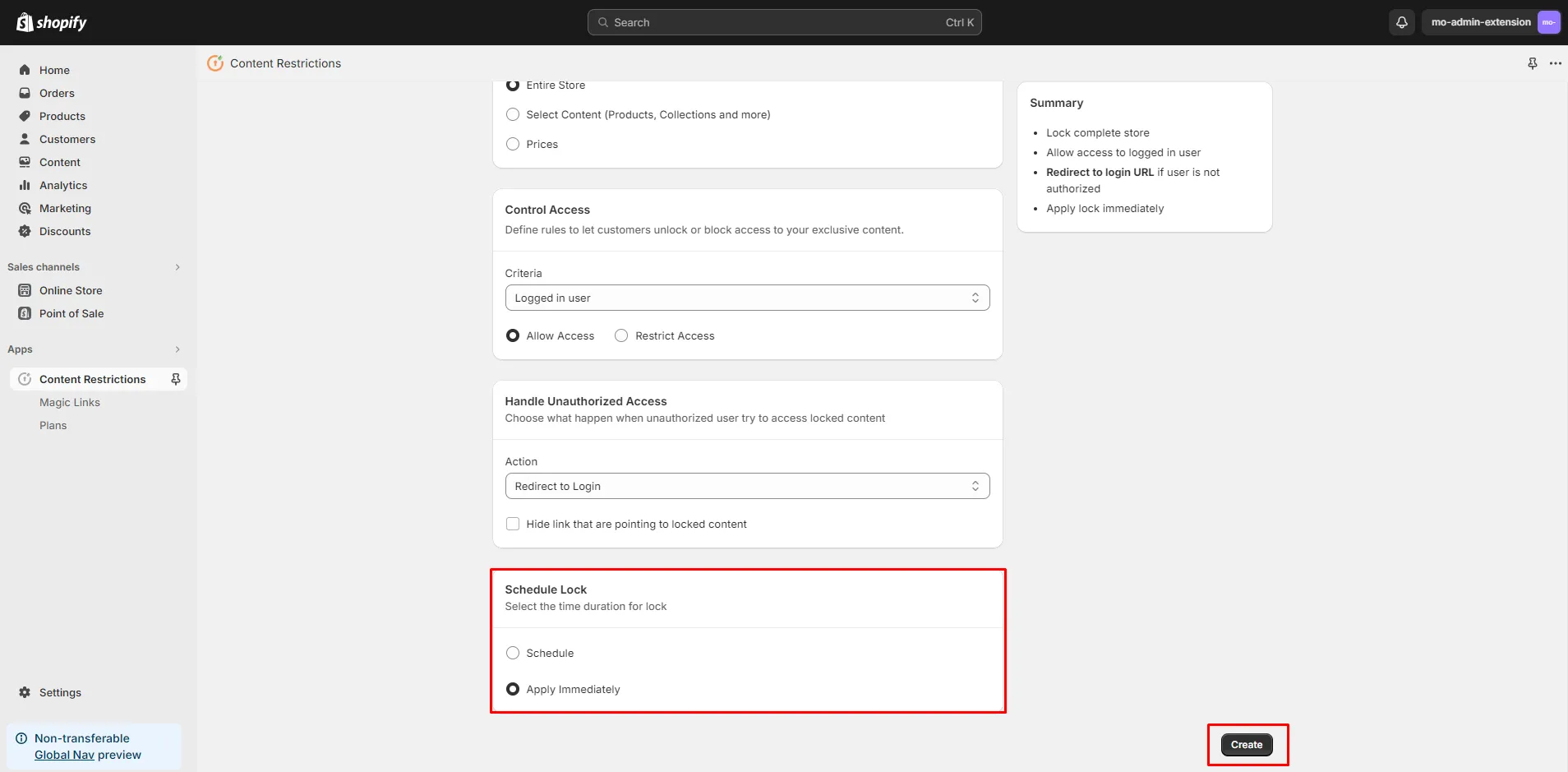
6) Save and activate the lock
Once the lock rules are configured, click Save. You can also choose whether to implement the lock immediately or schedule the lock to become active at specific times.
Frequently Asked Questions (FAQs)
Can I hide prices for non-logged-in visitors?
Yes, Shopify merchants can hide prices only for non-logged-in users using theme-level logic or app-based rules. With Liquid code, you can ensure prices are shown only when a customer account is detected, while guest users see a login prompt instead. This approach is commonly used by B2B and wholesale stores that want products to remain visible but restrict pricing to registered buyers. For stores that want to avoid theme edits, apps like LockOn allow the same login-based price restriction through configurable access rules.
Can I hide prices for specific customers on Shopify?
Yes, Shopify allows merchants to hide prices for specific customer groups using customer tags, collections, or app-based access control. With native methods, you can hide prices on collection pages or product tags by manually editing the theme code, ensuring only certain products have restricted pricing. However, this requires consistent tagging and theme maintenance. Apps like LockOn simplify this process by allowing merchants to define price visibility rules based on customer tags, login status, or other conditions, making it easier to manage pricing for B2B buyers or approved customers as the store expands.
Conclusion
There are multiple approaches to hide prices on Shopify, from Liquid-based logic and CSS styling to app-driven access control. Code-based methods work well for simple use cases but can become difficult to maintain as rules grow more complex. CSS, while easy, should be limited to scenarios where data exposure is not a concern.
For merchants who need more granular access control, especially when pricing depends on login status, customer tags, or buyer type, app-based solutions provide a scalable and sustainable approach. Solutions like LockOn - Restrict Store, for instance, help centralize price visibility rules without relying on ongoing theme edits, making them better suited for growing B2B and wholesale stores.
Choosing the right method ultimately depends on your technical comfort level, store complexity, and long-term growth plans. The key is to hide prices in a way that supports both business goals and customer experience.
Need help deciding the right approach? Get in touch to explore how LockOn can support your Shopify store’s access and pricing rules.
Leave a Comment