

Managing login access across multiple Shopify stores, business applications, and user groups can become challenging as an eCommerce business grows. Customers, employees, vendors, and partners may need access to different platforms, and maintaining separate credentials for each one can create login friction and additional administrative work.
Shopify Single Sign-On (SSO) simplifies this process by connecting your store to an external Identity Provider (IdP). Users can authenticate with their existing credentials and access the Shopify store without maintaining a separate login for every connected platform.
With the miniOrange Shopify SSO solution, merchants can configure SSO for Shopify Plus and non-Plus stores using supported authentication methods. The following guide explains how to set up Shopify SSO, the components involved, and the ways businesses can use it to manage access.
Challenges Faced by Shopify Merchants & Users
As the Shopify ecosystem evolves, merchants and customers may find themselves repeatedly navigating the Shopify login page to perform a Shopify store login on each platform they manage or interact with. This creates friction and inefficiencies for businesses of all sizes.
What are the Major Shopify Login Problems Faced by Merchants and Users?
- Shopify login problems arise when merchants manage multiple stores or regions, requiring separate logins for each instance.
- Using a shared password across stores weakens security, while managing multiple credentials becomes overwhelming.
- Customers accessing a store from different platforms must repeat the login process, leading to a poor user experience.
- For large organizations with several registered users, frequent password resets and access issues can flood helpdesks and overwhelm support teams.
- Manual user session management increases security risks and operational overhead for enterprises.
These challenges make it important for merchants to establish a centralized authentication process when setting up Shopify SSO. Single Sign-On (SSO) helps automate user authentication, reduce login friction, and simplify access management across Shopify stores.
Why is Single Sign-On (SSO) Important for Shopify?
As Shopify continues to grow, with advanced Customer Accounts functionalities and expanding support for B2B and multi-store setups, managing user access across stores has become more complex. This is where Single Sign-On (SSO) plays a critical role for Shopify eCommerce login.
By enabling users to log in to Shopify with credentials from connected stores or platforms, SSO can reduce friction, enhance security, and improve operational efficiency.
For merchants, SSO simplifies access for internal teams, resellers, or distributors, especially when managing multiple Shopify stores. For customers, it delivers a seamless login experience across websites without repetitive Shopify login steps.
In short, Shopify SSO login is essential for scaling operations, improving user satisfaction, and maintaining secure access without manual password management.
How to Implement SSO in Shopify?
The miniOrange Shopify SSO solution allows merchants to set up SSO for their Shopify stores by connecting them to an external Identity Provider (IdP). The setup involves four steps:
Step 1: Install the Shopify SSO Application
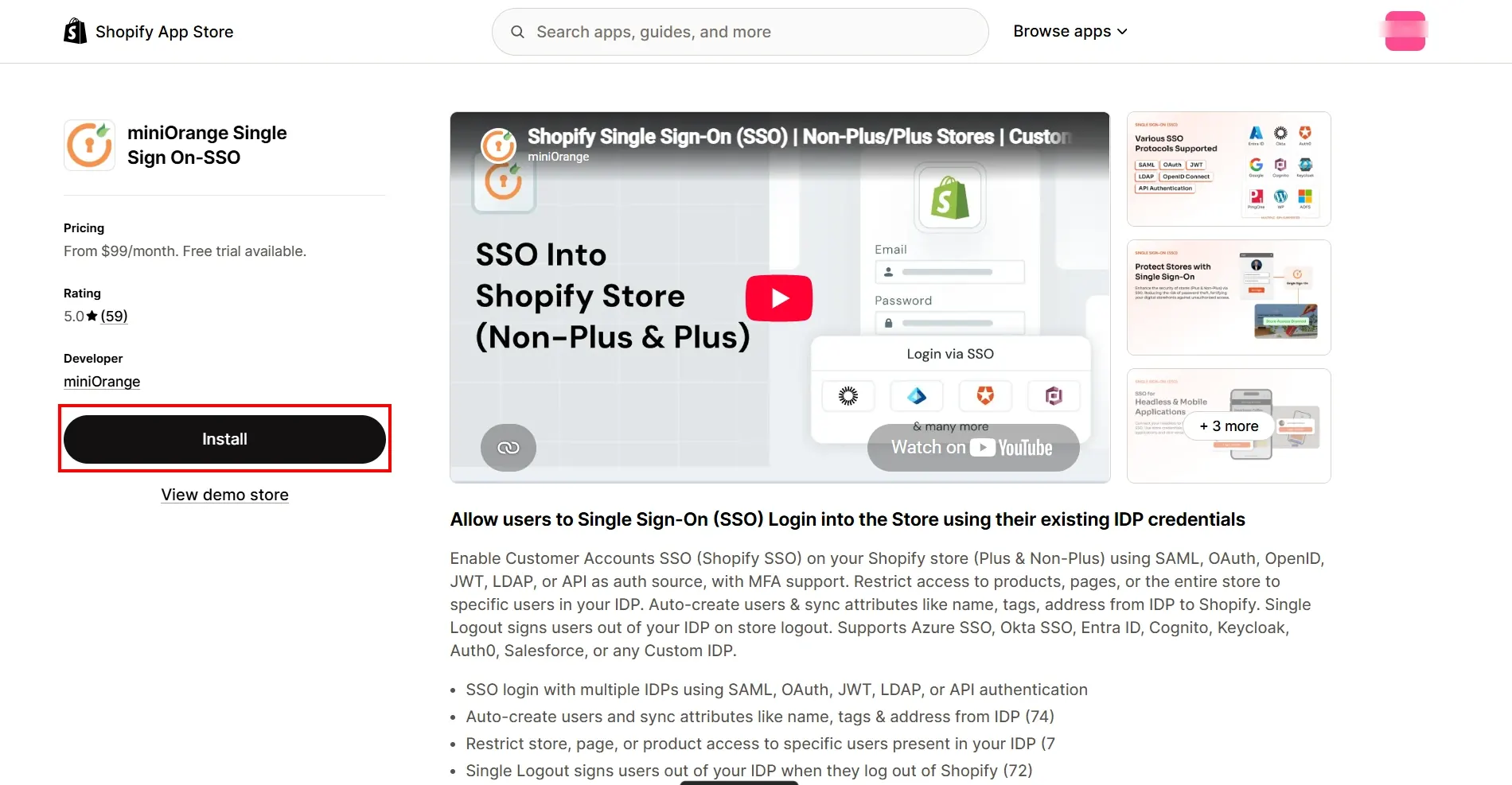
Install the miniOrange Single Sign On-SSO application from the Shopify App Store. Once installed, open the application from your Shopify admin dashboard to begin configuring SSO.
Step 2: Select the SSO Protocol Supported by Your IdP
Choose the authentication protocol supported by your Identity Provider. The miniOrange Shopify SSO application supports protocols such as SAML, OAuth, JWT, and OpenID Connect (OIDC).
Step 3: Configure the Shopify SP and IdP Settings
Exchange the necessary configuration details between Shopify, acting as the Service Provider (SP), and your Identity Provider. This may include metadata URLs, callback URLs, and other required configuration information to establish a secure connection between the two systems.
Step 4: Test the SSO Connection
Click on the Test Connection option to verify that the Shopify store and Identity Provider are connected correctly.
Once the connection is successful, your Shopify SSO configuration is complete.
Basic Components of Shopify SSO (IdP, SP, Broker)
To understand how Shopify SSO login works behind the scenes, it's important to know the three core components involved: the Identity Provider (IdP), Service Provider (SP), and the Identity Broker.
- Identity Provider (IdP): This is the system responsible for storing and verifying user credentials such as usernames, passwords, or email IDs. When a user initiates a Shopify login, the IdP confirms whether the user is valid and authenticated. Common third-party IdPs include miniOrange, Entra ID (formerly Azure AD), Okta, AWS Cognito, and Salesforce. These platforms help simplify Shopify eCommerce login for customers, vendors, and internal users by centralizing credential management.
- Service Provider (SP): The Service Provider refers to the Shopify store itself. It holds the resources (products, content, etc.) a user is trying to access. When a user attempts to log in to Shopify, the store (SP) reaches out to the configured IdP to validate the user’s credentials. Once approved, the SP allows access.
- Identity Broker: An Identity Broker acts as a bridge between different types of IdPs and SPs. For instance, if your Shopify Plus login needs to connect to a legacy system using SAML while your IdP uses OAuth, the broker helps establish compatibility. This is useful when dealing with varied authentication protocols or multiple business systems.
These components work together to resolve common Shopify challenges around user access and create a unified login experience for all types of users.
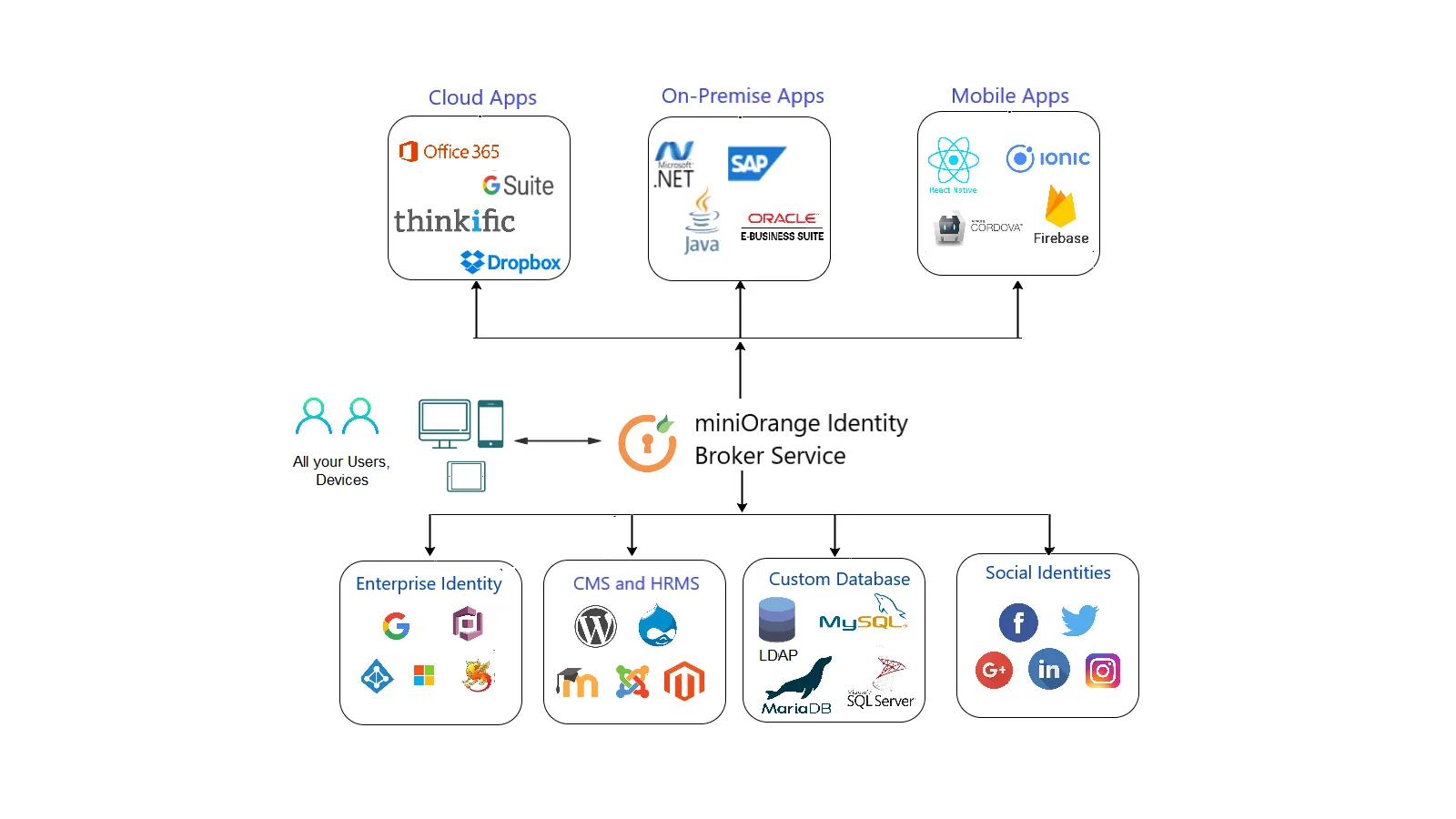
By looking at the above diagram, we can see that miniOrange Identity Broker connects different Identity Providers with different Service Providers, regardless of the authentication protocol being used.
Use Cases: Shopify Single Sign-On (SSO)
From startups to large enterprises, businesses often operate across multiple platforms and need a simplified login experience. Here's how different types of SSO use cases come into play:
- Businesses using internal systems, CRMs, or external identity providers that want to allow customers or employees to log into a Shopify store or mobile app without creating new accounts.
- Organizations that want to use Shopify as an Identity Provider to authenticate users into other business apps or third-party platforms via Shopify OAuth integration, as well as other protocols like SAML or OpenID.
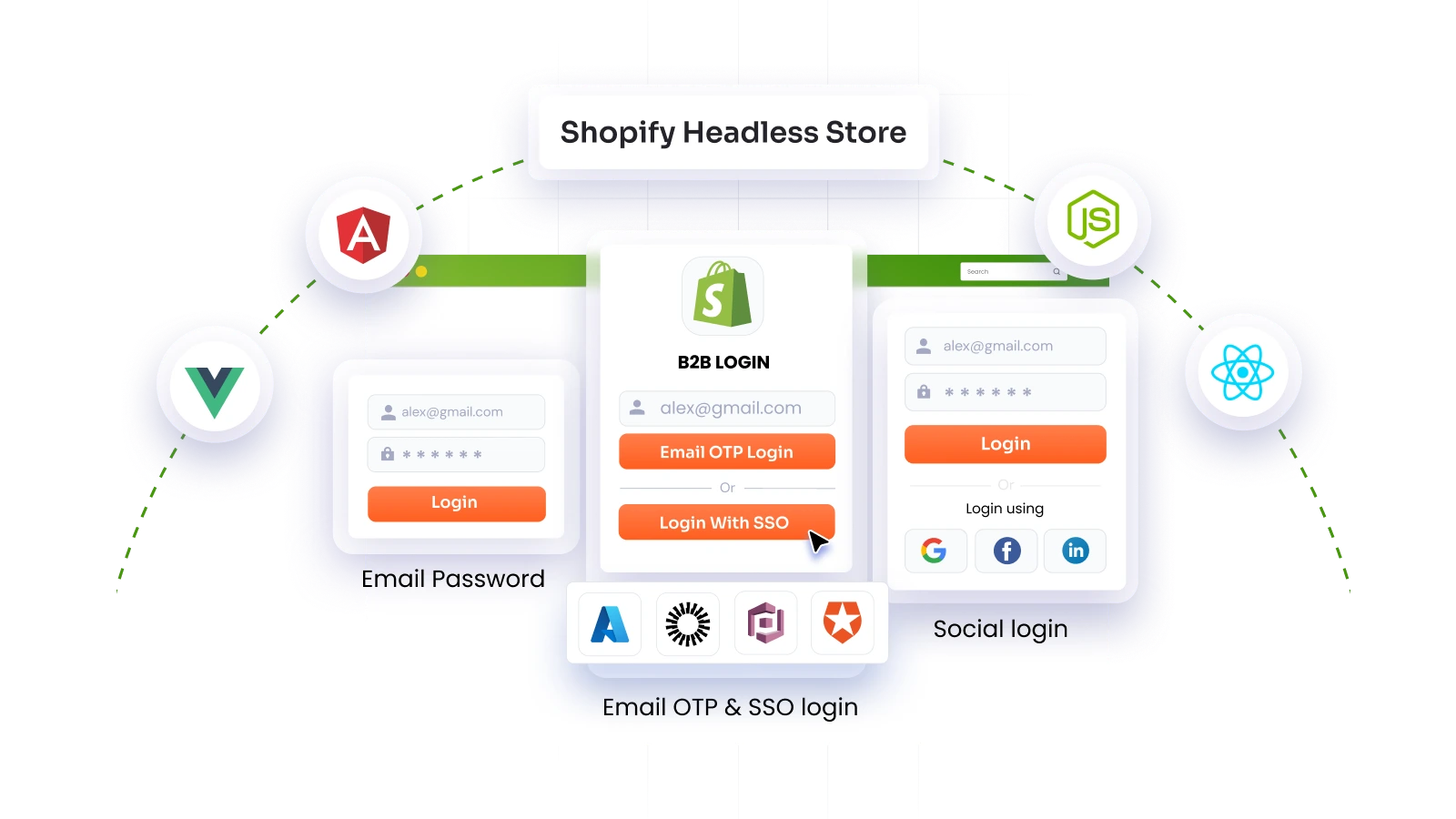
- Merchants that want to offer Shopify social login options, enabling users to sign in with Google, Facebook, or Apple while keeping customer accounts secure and centrally managed.
- Enterprises needing restricted store access or content visibility, where users log in to Shopify through different identity providers and are granted conditional access to specific products, pages, or collections based on the login source.
- Content management platforms (CMS) or learning management systems (WordPress, Moodle, or Canvas) requiring seamless login with Shopify stores, using Shopify as either the Identity Provider or the Service Provider.
These use cases address a range of business needs, from customer access and user onboarding to mobile app authentication, helping merchants overcome login-related Shopify challenges without compromising on user experience. You can also book a demo to walk through your specific setup with our team.
Key Benefits of Implementing SSO on Shopify Stores
- The solution supports major authentication protocols, including SAML, OAuth, OpenID Connect, and JWT, allowing integration with different identity providers and platforms.
- You can integrate multiple identity providers (IdPs), even if they use different authentication protocols. In multi-site environments, SSO can be configured to navigate users to the right store based on their configured IdP.
- Implement adaptive authentication that evaluates the user’s device, location, and time of access to provide an added layer of protection across your Shopify login flow.
- Assign user roles tailored to your business needs. Whether it’s internal teams or external users, role-based access ensures the right people access the right data.
- Add another layer of security during login into Shopify by enabling MFA. Users can verify their identity using various methods, enhancing protection against unauthorized access.
- Reduce risk with rules that restrict access based on IP address, device type, location, and login time, ideal for securing sensitive operations on your Shopify eCommerce login.
How will Single Sign-On Help to Overcome Shopify Login Challenges?
For growing businesses, managing multiple stores, platforms, and user types can quickly become overwhelming. Single Sign-On eliminates repetitive logins and fragmented user data by letting users log in with Shopify once and gain access to every connected application or storefront, whether it’s another website, internal dashboard, or mobile app.
With Shopify SSO login, users no longer need to remember multiple credentials. A single set of credentials will let them authenticate across the connected ecosystem, saving time, reducing errors, and enhancing user experience.
Frequently Asked Questions (FAQs)
What are the common Shopify login challenges faced by growing businesses?
Businesses expanding into B2B or multi-brand models often face Shopify login problems such as duplicate accounts, lack of role-based access, no centralized identity management, and difficulties onboarding external users like collaborators or vendors. Login with Shopify using an SSO solution solves these challenges by unifying authentication across users and platforms.
Is Shopify SSO login compatible with Multipass and other login flows?
Yes. miniOrange supports Shopify Multipass login for Shopify Plus stores and offers SSO login functionality using OAuth, SAML, and OpenID protocols for other Shopify plans too. This ensures you can enable a secure, unified Shopify store login experience regardless of your subscription plan.
Can I enable one‑click social login on Shopify?
Absolutely. Our Shopify SSO solution supports one-click login using existing user credentials from popular social providers such as Google, Facebook, LinkedIn, and many others. Whether you’re simplifying access for regular customers or offering social login options for faster onboarding, Single Sign-On ensures a smooth experience while still giving you control over who can access your store.
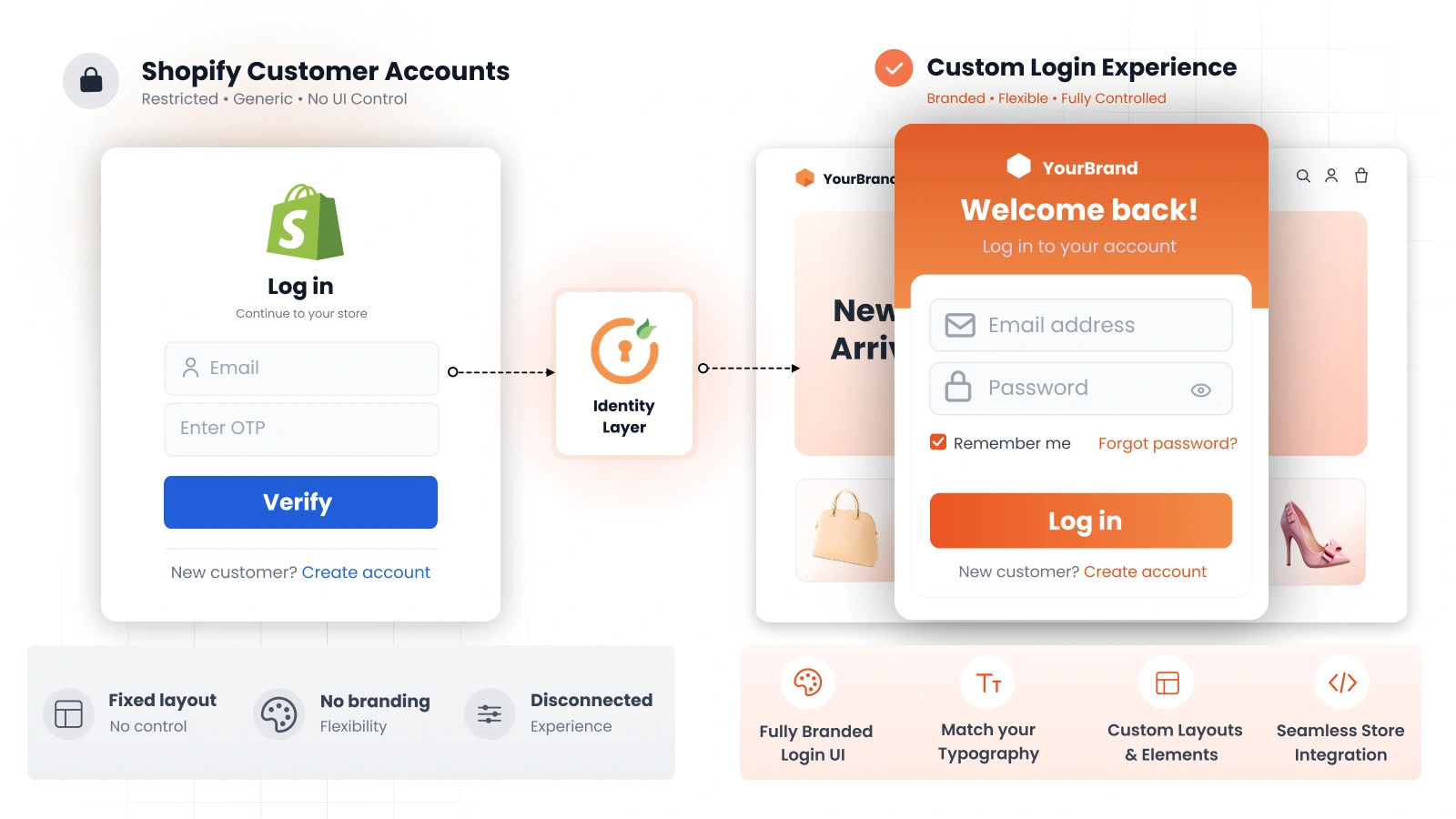
Can I customize the Shopify store login experience based on the user type?
Yes. You can tailor your Shopify store login flow with miniOrange. Whether it’s enabling Shopify collaborator login for vendors or setting up Shopify social login for consumers, the experience can be adapted based on your audience. You can even redirect different user types to specific dashboards or store sections after login.
Can I use Shopify SSO login for partners and customers?
Yes. Shopify SSO can be configured to authenticate not just internal users, but also Shopify partners and other external stakeholders like distributors or B2B customers. With miniOrange’s SSO solution, you can connect existing customer accounts or external directories like Entra ID or Okta to your Shopify store, enabling secure access for all user types across B2B and D2C setups.
Conclusion
Single Sign-On plays a crucial role in simplifying access while maintaining enterprise-grade security.
miniOrange’s Single Sign-On solution supports standard protocols such as SAML, OAuth 2.0, OIDC, and JWT, works across Shopify Plus and non-Plus stores on Legacy as well as Customer Accounts, and enables authentication for Shopify B2B and D2C environments alike.
SSO also allows your Shopify store to act as an Identity Provider (IdP), making it easier to unify access across connected CMS, LMS, or other stores. In short, if you're scaling across platforms, regions, or user types, implementing a robust SSO framework can simplify authentication and access management.
Looking to implement SSO for your Shopify store? You can book a demo to explore tailored solutions for your setup.

Leave a Comment