

If you use ChatGPT and WordPress every day, you've probably switched between the two more times than you can count. Write in one window. Copy the content. Open WordPress. Paste it. Format it. Publish it.
A ChatGPT and WordPress integration brings those tools together, so ChatGPT can work with your site as part of the same workflow. Let's look at the different ways to connect ChatGPT to WordPress and what each one offers.
Quick Answer: How to Connect ChatGPT to WordPress?
The easiest way to connect ChatGPT to WordPress is with an MCP (Model Context Protocol) server plugin. It takes only a few minutes to set up.
- Install an MCP server plugin, such as the miniOrange MCP Server plugin
- Create an identity for ChatGPT
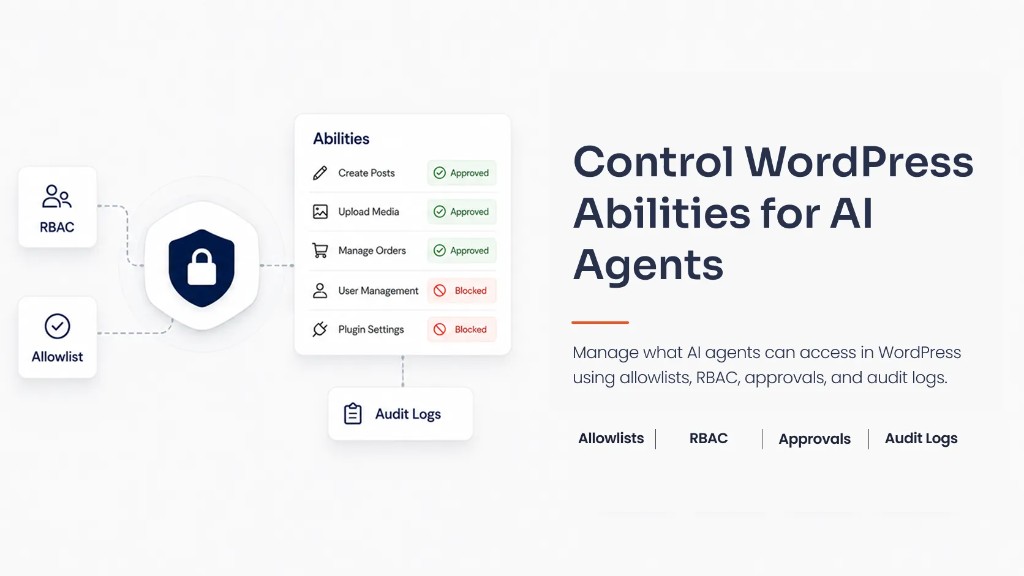
- Choose the WordPress abilities ChatGPT can access
- Copy your MCP Server URL
- Add the URL in ChatGPT and approve the connection
Once connected, ChatGPT can create draft posts, edit pages, search content, and perform other tasks you approve directly in WordPress.
What Is ChatGPT WordPress Integration?
ChatGPT and WordPress integration use the Model Context Protocol (MCP) to let ChatGPT access specific capabilities of your WordPress website. It exposes selected WordPress Abilities or Tools, so ChatGPT can discover what your site supports and perform tasks such as creating posts, updating pages, or searching content. You control which Abilities ChatGPT can access based on the permissions you assign.
For example, ChatGPT can help you:
- Create, edit, publish, and organize WordPress content
- Manage WooCommerce products, orders, and customers
- Update SEO settings and sitemap information
- Moderate comments and manage users and roles
- Manage forms and view form submissions
- Update site settings such as your site title, homepage, and permalinks
- Monitor site health, WordPress version, and other website details
These are only some of the most common examples. You can do much more with ChatGPT and WordPress integration.
3 Common Ways to Connect ChatGPT to WordPress
There are three common ways to use ChatGPT with WordPress.
| Feature | Plugin Way (MCP) | API Key Way | Copy and Paste |
|---|---|---|---|
| What ChatGPT Can Do | Create and edit real content | Write content in your dashboard | Generate content outside your site |
| Cost | Free plugin | Pay for OpenAI API usage | Free |
| Setup Time | About 10 minutes | About 5 minutes | None |
| Coding Required | No | No | No |
| WordPress Version | 6.9 or newer | Any | Any |
| Best For | Real work inside WordPress | Writing drafts | Occasional content creation |
Each method gives you a different experience. Here's what you get with each one.
Plugin Way (MCP)
An MCP server plugin lets ChatGPT securely interact with your website. After you choose the abilities it can access, ChatGPT can create drafts, edit pages, search your content, and perform other approved tasks without leaving the chat.
API Key Way
This method connects an AI plugin in WordPress to OpenAI using an API key. You can generate blog posts, product descriptions, and other content directly inside your WordPress dashboard. However, ChatGPT cannot access your website or perform actions such as creating posts or editing pages automatically. This option works well if your primary goal is AI-assisted writing.
Copy and Paste
You can also generate your content in ChatGPT, copy the response, and paste it into the WordPress editor. This requires no plugin or configuration, but you handle formatting, editing, and publishing yourself.
What You Need to Connect ChatGPT to WordPress
Before you begin, you'll need a few things for the setup.
WordPress 6.9 or Newer
The MCP integration uses features introduced in WordPress 6.9. To check your version, sign in to your WordPress dashboard and look at the version number in the bottom-right corner. Update your site if you're using an older version.
A Live Website With HTTPS
Your website should be live and use HTTPS (https://). Local development sites and private staging environments aren't supported.
Administrator Access
You'll need an administrator account to install plugins, configure settings, and approve the connection.
A ChatGPT Account
Sign in to your ChatGPT account and open Settings → Plugins → Browse Plugins. If this section is unavailable, your current plans or workspace may not support plugins. You may need to upgrade from the Free plan to a paid ChatGPT plan, such as Plus, Pro, Business, Enterprise, or Edu, or ask your workspace administrator to enable plugin access.
The miniOrange Secure MCP Server Plugin
Install the miniOrange Secure MCP Server plugin on your WordPress site. This plugin creates a secure connection between ChatGPT and your website.
Using WordPress.com? Plugin support depends on your hosting plan. Check that your plan allows custom plugins before you continue.
How to Connect ChatGPT to WordPress Using MCP
The MCP method takes only a few steps.
Step 1: Install the MCP Server Plugin
Install and activate the miniOrange Secure MCP Server plugin from your WordPress dashboard.
Step 2: Register the AI Agent
Open the MCP Server plugin settings and register ChatGPT as an AI agent. This creates a verified identity for ChatGPT before it connects to your WordPress site.
Step 3: Allocate Abilities Based on User Roles
Assign the WordPress abilities ChatGPT can access based on the user role. You can control which actions each role can perform, such as creating posts, editing pages, or searching site content
Step 4: Copy Your MCP Server URL
Open the plugin settings and copy your site's MCP Server URL. ChatGPT uses this URL to discover the WordPress abilities available on your site.
Step 5: Add Your Website to ChatGPT
Open ChatGPT, create a new MCP connection, and paste your MCP Server URL.
Step 6: Sign In and Approve Access
When prompted, sign in to your WordPress site and approve the requested access. ChatGPT can then use the abilities assigned to the connected user role.
Your setup is complete. You can now use prompts such as:
- Create a draft blog post about our summer sale.
- Update the FAQ page.
- Find all published posts about WordPress security.
ChatGPT will only perform the WordPress actions allowed for the connected user role.
Tip: If you need detailed configuration instructions, follow our complete setup guide.
How to Add ChatGPT to WordPress With an API Key
An API key is a good option if you want to generate content inside the WordPress editor. Many WordPress AI plugins connect to OpenAI through its API, allowing you to write blog posts, product descriptions, summaries, and other content without leaving your dashboard.
Unlike the MCP method, this setup doesn't let ChatGPT interact with your website or perform WordPress tasks. It simply generates content based on your prompts.
Step 1: Create an OpenAI API Key
Sign in to your OpenAI account and open the API Keys page. Create a new secret key, give it a name, and copy it to a safe place. OpenAI only displays the key once, so make sure you save it before leaving the page.
Note: OpenAI API usage isn't free. You'll need to add a billing method, and charges are based on the number of tokens your requests use.
Step 2: Install an AI Plugin
In your WordPress dashboard, go to Plugins → Add New and install a plugin that supports OpenAI API integration. Activate the plugin after installation.
Step 3: Add Your API Key
Open the plugin's settings, paste your API key into the designated field, and save your changes. Once configured, you can generate content directly from the WordPress editor using the plugin.
Step 4: Know What This Method Can't Do
An API key integration helps you generate content, but it doesn't give ChatGPT access to your WordPress site. For example, it can't:
- Create or update WordPress posts automatically
- Edit pages on your behalf
- Search your website's content
- Perform actions using WordPress abilities
If you want ChatGPT to interact directly with your WordPress site, the MCP method is the better choice.
Is It Safe to Connect ChatGPT to WordPress?
Yes, if you use a secure integration and review the permissions before approving access. ChatGPT can only perform the actions your WordPress site allows.
ChatGPT Only Uses the Permissions You Grant
You decide which WordPress abilities ChatGPT can access. If an ability isn't enabled, ChatGPT can't use it.
Every Request Is Authenticated
Before ChatGPT performs an action, your WordPress site verifies the request and checks whether it has the required permissions.
You Can Change or Remove Access Anytime
Your requirements may change over time. You can update ChatGPT's permissions or disconnect it completely whenever you want.
Review AI Activity
Many MCP server implementations include activity logs, making it easier to review AI actions, troubleshoot issues, and understand how ChatGPT interacted with your site.
ChatGPT Not Connecting? Common Fixes
If something isn't working, these quick checks usually resolve the problem.
| Issue | What to Check |
|---|---|
| Connection failed | Make sure your website is live and uses HTTPS. Local development sites and private staging sites aren't supported. |
| Site URL not supported | Verify that you've entered the correct MCP Server URL without any extra spaces or missing characters. |
| Can't find Apps in ChatGPT | Your ChatGPT plan may not support Apps yet. Check whether the feature is available for your account. |
| Connected, but ChatGPT can't perform any actions | Make sure you've enabled the required WordPress abilities in your MCP plugin. |
| The connection stopped working | Reconnect your WordPress site from ChatGPT and approve the connection again. |
| ChatGPT says it can't complete a task | The required ability isn't enabled, or your WordPress account doesn't have permission to perform that action. |
Wrapping Up
The setup you choose depends on how you plan to use ChatGPT with WordPress.
If your goal is content generation inside the editor, an API integration gives you everything you need. If you want ChatGPT to work with your website by creating drafts, updating pages, searching content, and performing other approved tasks, an MCP server provides that capability.
Whichever method you choose, take a few minutes to review the permissions you grant. Giving ChatGPT access only to the abilities it needs helps you automate routine work while keeping your WordPress site under your control.
Frequently Asked Questions
Can ChatGPT connect to WordPress?
Yes, you can connect ChatGPT to WordPress with the miniOrange Secure MCP Server plugin. It lets ChatGPT securely interact with your website while you control what it can access and do.
How can I integrate ChatGPT with my WordPress eCommerce website?
Install the miniOrange Secure MCP Server plugin, configure the permissions you want, connect your website to ChatGPT, and start using AI to help manage your WooCommerce store.
Is it safe to connect ChatGPT to WordPress?
Yes, the miniOrange Secure MCP Server plugin helps keep your website secure with authentication, permission controls, approval workflows, and audit logs.
Can AI delete my WordPress posts?
No, AI can perform only the actions you allow. If you do not grant delete permissions, ChatGPT cannot remove your posts or pages.
Does the miniOrange Secure MCP Server plugin work with Claude and Cursor?
Yes, the miniOrange Secure MCP Server plugin works with ChatGPT, Claude, Cursor, and other AI assistants that support the Model Context Protocol (MCP).
Will the miniOrange Secure MCP Server plugin slow down my website?
No, the plugin processes requests only when an AI assistant connects. It does not affect your website's front-end performance or visitor experience.
Which is the best MCP server plugin for WordPress?
If you are looking for the best MCP server for WordPress, try the miniOrange Secure MCP Server plugin. It lets you connect AI assistants like ChatGPT and Claude to WordPress and control access to WordPress Abilities based on user roles and permissions. Have questions about your use case or whether a specific integration is supported? Reach out to us at aisupport@xecurify.com.
Leave a Comment