
Your sales representative logged into Outlook from a coffee shop laptop that isn't enrolled, isn't encrypted, and hasn't seen a security patch in eight months. Should Microsoft 365 let that sign-in through just because the password was correct?
That single question is why conditional access exists. Passwords tell you who someone claims to be. They say nothing about whether the device behind that login is safe to trust with your company's email, SharePoint files, or Teams chats. The gap between "correct password" and "safe device" becomes the biggest blind spot in enterprise security.
Conditional access fills in this gap. It sits between your users and your Microsoft 365 apps, checking device health and identity signals in real time before granting access. When paired with Mobile Device Management (MDM), it becomes the enforcement layer that turns Zero Trust from a slide-deck concept into something that actually blocks bad logins.
This blog breaks down how it works, why it matters, and how to apply it correctly across every device platform your team uses.
Conditional Access for Microsoft 365: An Overview
Office 365 conditional access is a policy-based access control that evaluates a device and user before allowing entry to Microsoft 365 apps like Outlook, Teams, SharePoint, and OneDrive.
Instead of a simple yes/no login gate, it applies if-then logic: if the device meets your compliance rules, access is granted; if not, it's blocked, limited, or challenged with extra verification.
Here's how it plays out for a real user:
- When someone signs in to a supported Office 365 mobile app, that app checks in with Microsoft Entra ID (formerly Azure Active Directory) to see if a conditional access policy applies to them.
- If the device isn't yet enrolled and marked compliant, the app prompts the user to enroll in MDM before it lets them proceed.
- No manual IT intervention required. The system handles verification automatically, every single time someone tries to sign in.
Microsoft 365 apps are cloud-based by design, which means they're reachable from any device, anywhere, at any hour. That convenience is also the risk. Conditional access is what makes that convenience safe by tying access to device trust rather than just user credentials.
Why Is Conditional Access Important for Your Organization?
A stolen password is common. A stolen password combined with an unmanaged, unencrypted device is a breach waiting to happen. Conditional access for MS 365 is what stands between the two.
1. It Enforces Zero Trust in Practice, Not Just in Policy
Zero Trust only works if something actually checks device posture before every access attempt. Conditional access is that enforcement mechanism, evaluating device platform, compliance state, and location together rather than trusting a single static credential.
2. It Reduces the Blast Radius of Stolen Credentials
Phishing kits and credential stuffing attacks are cheap and common. When a stolen password alone isn't enough to get into Outlook or SharePoint because the device also has to pass a compliance check, attackers hit a wall they can't easily script around.
3. It Protects Data Without Slowing Down Legitimate Users
Well-configured policies are invisible to compliant users. Someone on a managed, encrypted, patched laptop signs in exactly as they always have. This keeps productivity intact while tightening security. The friction only shows up for devices that actually pose a risk.
4. It Gives Complete Visibility Into Device Risk
Compliance isn't checked once at enrollment and forgotten. Compliance policy evaluation continuously reports device status back to the organization. So a device that drifts out of compliance today loses trust today, not weeks later during an audit.
5. It Supports Regulatory and Audit Requirements
Frameworks like the CIS Microsoft 365 Foundations Benchmark specifically call for requiring a managed, compliant device before granting access to organizational resources. Having conditional access in place isn't just good hygiene; it's often a documented control auditors expect to see.
How Does Conditional Access Work With MDM?
Conditional access doesn't operate in isolation. It relies on MDM to actually enroll devices, assess their configuration, and report compliance status back to the identity provider. Think of MDM solution as the data source and conditional access as the decision engine that acts on that data.
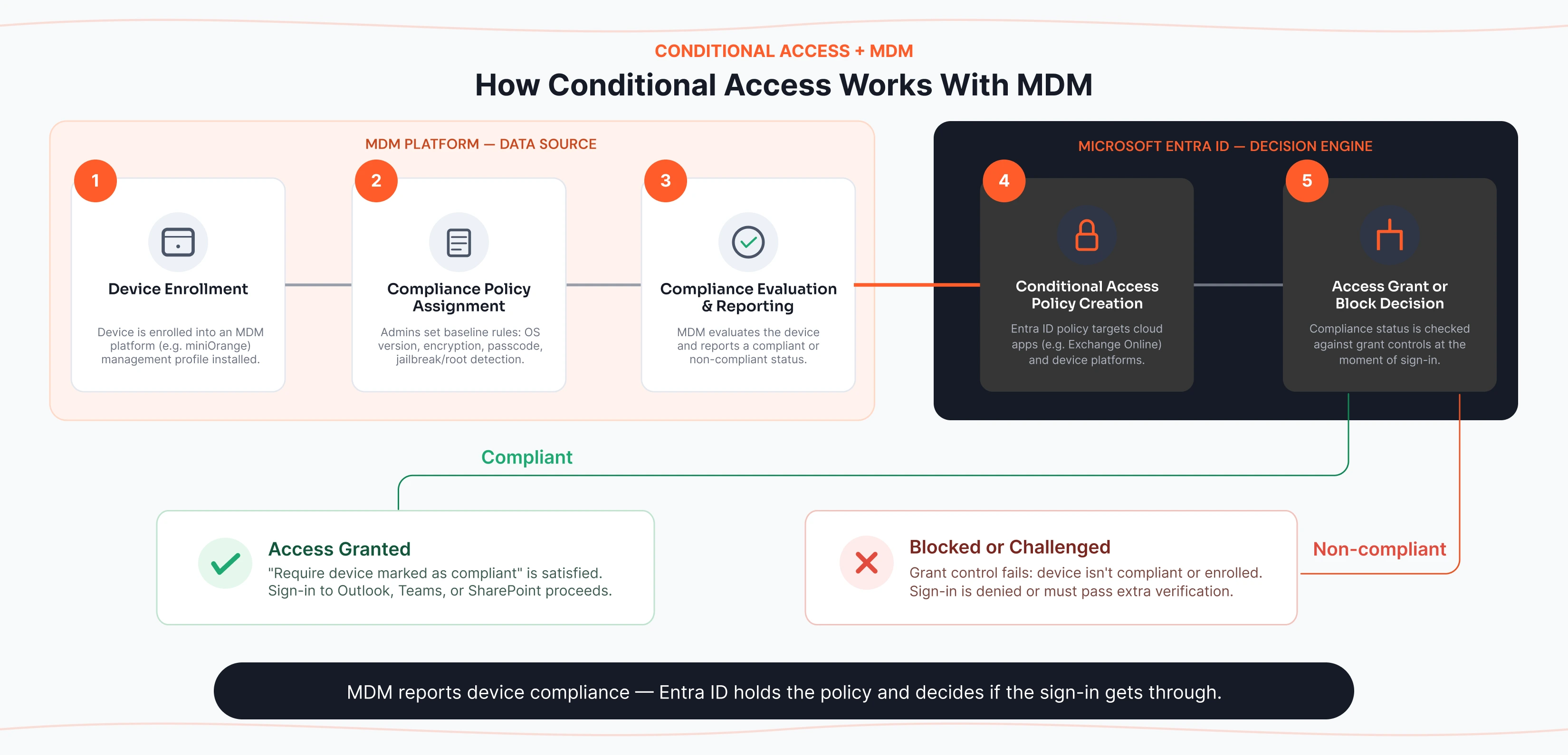
1. Device Enrollment
The device is enrolled into an MDM platform such as miniOrange, which installs a management profile and establishes the organization's ability to monitor and configure it.
2. Compliance Policy Assignment
IT admins create device compliance policies defining the baseline: minimum OS version, disk encryption, passcode requirements, and jailbreak/root detection, among others.
3. Compliance Evaluation and Reporting
The MDM platform evaluates the device against those policies and reports a compliant or non-compliant status to the organization.
4. Conditional Access Policy Creation
Admins build a conditional access policy, targeting specific cloud apps (like Office 365 Exchange Online) and specifying device platforms to include.
It's worth noting that conditional access isn't a standalone MDM feature; it's an Identity and Access Management (IAM) policy decision, created and enforced entirely within Microsoft Entra ID, the identity provider behind every Microsoft 365 app.
MDM's role stops at reporting device compliance status; Entra ID is what actually holds the policy and decides whether a sign-in gets through. That's why conditional access policies live and get audited in Entra ID, not in the MDM console.
5. Access Grant or Block Decision
When a user attempts to sign in, there's a check of the compliance status against the policy's grant controls, most commonly "Require device to be marked as compliant," and either allows, blocks, or challenges the sign-in accordingly.
How Conditional Access Protects Microsoft 365 Apps
Once configured, conditional access doesn't just gatekeep logins. It actively shapes how, when, and from where your Microsoft 365 environment can be touched, closing off entire categories of attack paths.
1. Blocking Non-Compliant Devices Automatically
Any device that fails a compliance check, whether due to missing encryption, an outdated OS, or a failed jailbreak scan, gets blocked from Office 365 apps without IT having to manually intervene.
2. Filtering Access by Device Platform
Admins can scope policies to specific operating systems, applying stricter rules to, say, Android and iOS while handling Windows devices differently based on how each platform is typically used.
3. Segregating Managed From Unmanaged (BYOD) Devices
Using device filters, organizations can specifically target unmanaged devices, excluding compliant devices from a policy.
4. Enforcing Approved Client Apps Only
Policies can require that access to Microsoft 365 data only happens through approved, managed client apps rather than native or unsanctioned apps that lack the same data protection controls.
5. Blocking Legacy and Unmanaged Sign-in Paths
Rules can specifically target mobile devices attempting Azure AD access without MDM enrollment, blocking that path entirely while still permitting browser-based sessions under separate controls.
6. Requiring MFA on Risk Signals
Policies can be layered so Multi-Factor Authentication (MFA) is only enforced when risk indicators appear, such as an unfamiliar sign-in location, rather than forcing it on every single login.
7. Restricting Sign-In to Managed Devices Only
For high-sensitivity roles or data, admins can configure conditional access to only specific identities. Only these identities would be permitted to authenticate from devices already enrolled and marked compliant in MDM. This blocks sign-in attempts from any personal or unmanaged device entirely.
This is a stricter control than typical BYOD exceptions, since it removes the option to sign in from an unmanaged device altogether rather than just adding friction like MFA.
It's a good example of IAM enforcing identity-to-device binding. It helps to decide which identities are trusted enough to sign in at all, rather than MDM simply restricting what a device can do once it's already in.
Conditional Access for Different Device Platforms
Every device platform has a different enrollment flow, different compliance signals, and slightly different enforcement behavior. Getting conditional access right means tailoring policies to how each platform actually reports and manages compliance.
1. Android Devices
Android devices enrolled through standard MDM can have Exchange ActiveSync activated automatically, which is required for conditional access to function correctly on native mail clients.
Admins commonly build device-based policies scoped specifically to Android, targeting Office 365 Exchange Online and requiring both "device marked as compliant" and "approved client app" before granting access.
2. iOS/iPadOS Devices
Like Android, iOS and iPadOS devices get Exchange ActiveSync activated automatically upon MDM enrollment, streamlining compliance enforcement for native mail apps.
Conditional access policies frequently group iOS with Android for mobile-specific rules, since both platforms typically face higher exposure through BYOD scenarios compared to corporate-issued Windows machines.
3. Windows Devices
Windows devices are commonly required to be Microsoft Entra hybrid joined or marked compliant as a precondition for authentication, a control specifically recommended in the CIS Microsoft 365 Foundations Benchmark.
Because Windows devices are more likely to be corporate-owned and centrally managed, policies here often lean toward stricter default enforcement rather than the more permissive BYOD-style exceptions applied to mobile platforms.
FAQs
1. What is conditional access in MDM?
Conditional access in MDM is a security control that grants or restricts access to corporate apps based on whether a device meets defined compliance rules, such as encryption, patch level, and enrollment status, verified in real time before access is allowed.
2. How does conditional access protect Microsoft 365 apps?
It protects Microsoft 365 apps by blocking sign-ins from devices that fail compliance checks, restricting access to approved client apps, and applying platform-specific rules across Android, iOS, and Windows.
3. Can MDM block Microsoft 365 access?
Yes, when a device is not enrolled in MDM or fails to meet compliance requirements, conditional access policies tied to that MDM data will mark it non-compliant and block sign-in to Microsoft 365 apps like Outlook and SharePoint.
4. What happens when a device becomes non-compliant?
Once a device falls out of compliance, whether due to a missed patch, disabled encryption, or a failed security check, conditional access automatically restricts or revokes its access until the device returns to a compliant state.
5. Can conditional access work with BYOD devices?
Yes, organizations can apply device filters to specifically target unmanaged or personal devices.
6. What device compliance policies can be used with conditional access?
Common compliance policies include minimum OS version requirements, disk encryption, passcode enforcement, and jailbreak or root detection.
7. How does conditional access relate to IAM?
Conditional access is an enforcement layer within IAM. While IAM handles authentication (verifying who a user is) and authorization (what they're allowed to access), conditional access adds real-time, context-aware rules on top, such as device compliance, location, and risk level, before granting that access.
About the Author

Content Writer
With a background in Journalism and extensive experience in SaaS and cybersecurity content writing, Chaitali Avadhani has contributed to creating various forms of impactful content pieces across multiple verticals. At miniOrange, her role is to craft SEO-friendly and lead-generating content around Identity and Access Management (IAM) products and cybersecurity as a whole.
Leave a Comment