

A field employee's laptop crashes, or a server in another office needs a patch, or a remote worker gets locked out of their workstation. For all these situations, the IT team needs to get in, fix it, and move on, without being there.
Remote Desktop Protocol (RDP) is Microsoft's answer to that problem. It's a network protocol that lets you connect to another computer over a network and control it as if you were sitting right in front of it. You see the remote machine's screen, move the mouse, run applications, and access files, all in real time.
Remote Desktop Protocol (RDP) has been around since 1996, introduced with Windows NT 4.0 Terminal Server Edition. It was built to let lightweight business devices connect to more powerful Windows servers, helping businesses consolidate computing resources and cut hardware costs.
In this blog, we will explore how Remote Desktop Protocol (RDP) works, its key features, limitations, and alternatives. But first, let's try to understand what the Remote Desktop Protocol (RDP) is used for.
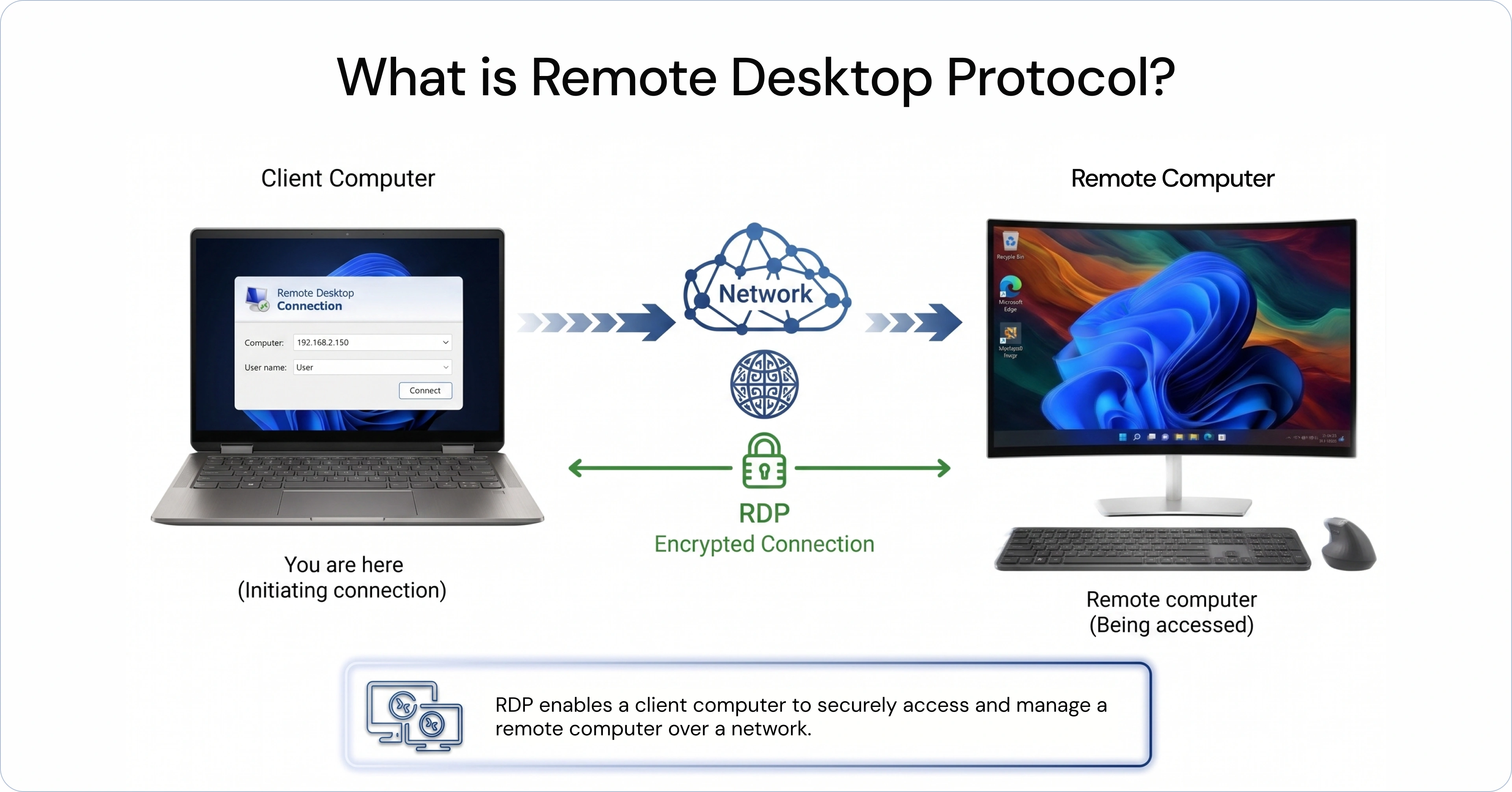
What is RDP Used For?
Remote Desktop Protocol (RDP) is primarily used to access and remote control a computer or server from another location over a network. It allows users to connect to a remote system as if they were physically present, making it a key tool for IT operations, remote work, and system management.
Here are the key reasons why IT teams use RDP:
1. Remote Access to Enterprise Systems
IT teams use Remote Desktop Protocol (RDP) to provide secure remote access to enterprise systems without requiring physical presence. It allows controlled access to desktops and workstations across locations, ensuring employees can work without compromising security. From an IT standpoint, this reduces dependency on physical infrastructure while maintaining centralized control.
2. IT Support and Troubleshooting
RDP enables IT teams to remotely access user devices and servers to diagnose and resolve issues in real time. This eliminates the need for on-site support and significantly reduces response time. Faster troubleshooting means less downtime and more efficient support operations.
3. Server and Infrastructure Management
Remote Desktop Protocol is widely used to manage servers across on-premise and cloud environments. IT administrators can configure systems, apply updates, and monitor performance remotely. This becomes critical in distributed environments where physical access to servers is limited or impractical.
4. Controlled Access to Business Applications
IT teams use RDP to provide access to applications hosted on centralized systems. Instead of installing software on multiple devices, applications can be accessed securely through remote sessions. This simplifies application management and ensures consistency across users.
How Does Remote Desktop Protocol (RDP) Work?
Remote Desktop Protocol (RDP) works by creating a secure connection between a client device (the one you are using) and a remote system (the one you want to access). It allows you to view and control the remote machine's desktop as if you were physically sitting in front of it.
Here's how the process works step by step:
Step 1: User Initiates a Remote Connection
The process starts when a user or IT admin enters the IP address or hostname of the remote system using an RDP client. This request is sent over the network to the target machine.
Step 2: Authentication
The remote system verifies the user's identity using credentials such as username and password. In secure setups, this may also include multi-factor authentication or network-level authentication (NLA). Only authorized users are allowed to proceed.
Step 3: Session Setup
Once authenticated, the remote system creates a session for the user. This session acts like a virtual desktop environment where the user can interact with the system.
Step 4: Data Transmission
All communication between the client and the remote system is encrypted, which means the data is converted into a secure format while being transmitted. This ensures that sensitive information like login details and session activity cannot be easily read or intercepted by unauthorized users during the connection.
Step 5: Session Management and Control
During the session, users can access files, run applications, and manage system settings based on their permissions. IT teams can also monitor, control, or terminate sessions when required.
In simple terms, Remote Desktop Protocol (RDP) works by streaming the remote computer's screen to your device while sending your inputs back to that computer, all over a secure connection.
Key Features of RDP
Remote Desktop Protocol (RDP) offers several features that make it useful for IT teams managing remote systems and infrastructure. It enables secure access, centralized control, and efficient management of devices across locations. These capabilities make it a reliable tool for handling remote operations without increasing complexity.
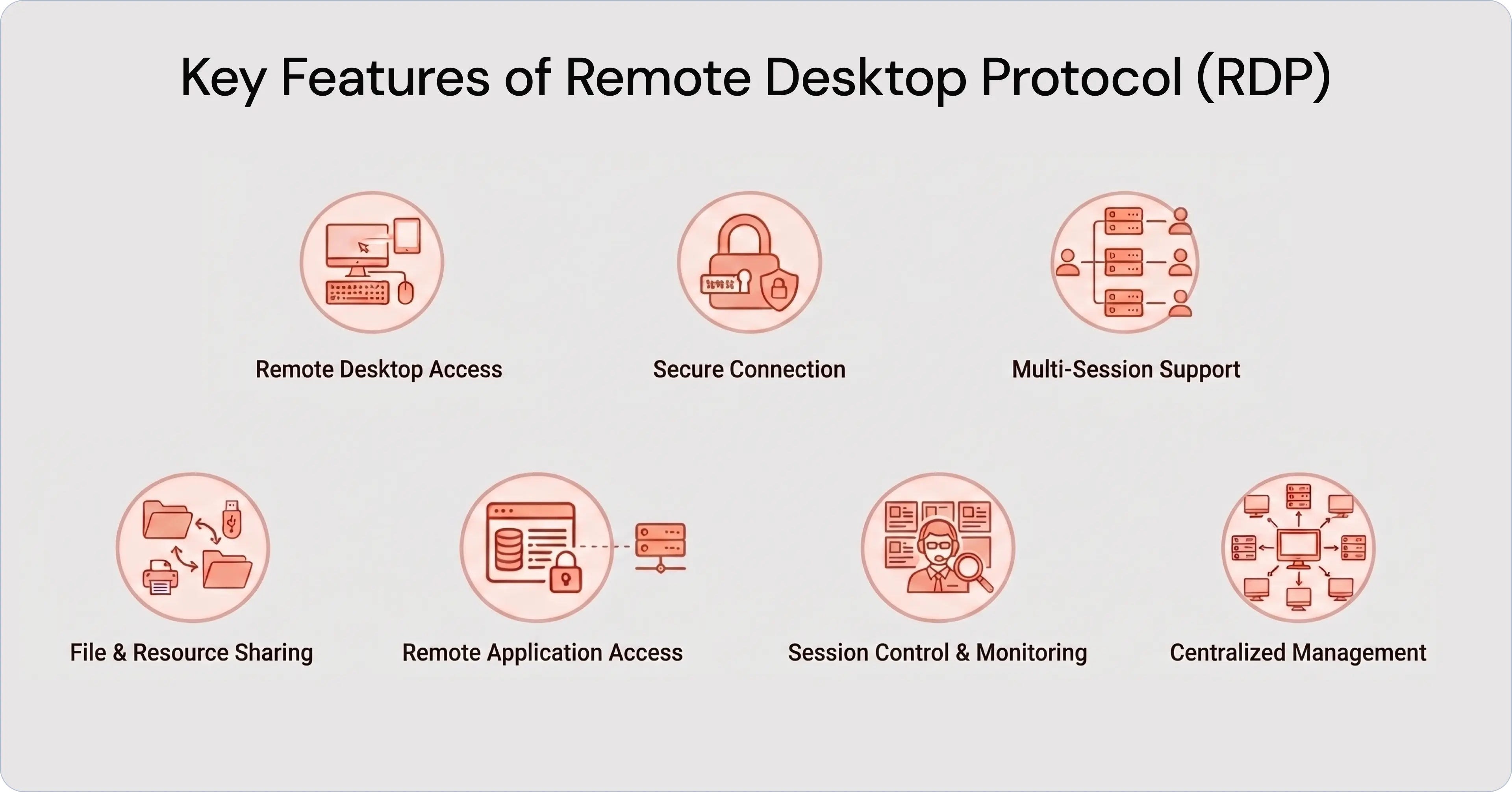
Here are some of the key features of RDP:
- Remote Desktop Access: RDP allows users and administrators to access a remote computer's desktop from another device. This includes full access to files, applications, and system settings as if they were physically present.
- Secure Connection: RDP uses encryption to protect data transmitted between the client and the remote system. This helps keep login credentials, session activity, and sensitive data secure during remote access.
- Multi-Session Support: RDP supports multiple remote sessions on a single server. This is useful in enterprise environments where multiple users need to access shared systems or virtual desktops simultaneously.
- File and Resource Sharing: RDP allows users to transfer files between local and remote systems. It also supports the sharing of local resources like printers, drives, and clipboard data during a session.
- Remote Application Access: Instead of accessing the entire desktop, RDP can be configured to run specific applications remotely. This helps IT teams provide controlled access to business applications without exposing the full system.
- Session Control and Monitoring: IT administrators can monitor active sessions, disconnect users, or terminate sessions when needed. This helps maintain control and security across remote connections.
- Centralized Management: RDP supports centralized environments where multiple systems or virtual desktops are managed from a single location. This simplifies administration and improves visibility for IT teams.
Limitations of Remote Desktop Protocol: Why is it Not Enough?
Remote Desktop Protocol (RDP) is useful for remote access, but it was not designed to handle modern enterprise device management and security needs. As organizations scale, rely on multiple operating systems, and adopt hybrid work, RDP starts showing clear limitations.
1. Limited to Windows-Centric Environments
RDP is primarily built for Windows systems, which makes it restrictive in diverse environments. Modern enterprises use a mix of Android, iOS, macOS, and Linux devices alongside Windows. This creates gaps in management and forces IT teams to rely on additional tools. As a result, there is no unified control across all endpoints.
2. Security Vulnerabilities
RDP is a frequent target for cyberattacks such as brute-force attacks and ransomware delivery, especially when exposed to external networks. Weak configurations or compromised credentials can make it an easy entry point for attackers. While it can be secured with additional configurations, it does not offer built-in, comprehensive protection for modern threat scenarios. This increases the risk surface if not managed carefully.
3. Performance and Network Dependency
RDP performance depends heavily on network quality and bandwidth. Slow or unstable connections can lead to lag, poor responsiveness, and interrupted sessions. This can impact productivity, especially for remote teams or users working across regions. It also makes RDP less reliable for consistent, everyday operations.
4. Platform and Hardware Restrictions
Not all Windows editions support incoming RDP connections. Windows 10 Home can initiate sessions but can't host them. Only Pro and Enterprise editions support that. Older hardware and end-of-life OS versions won't run modern RDP reliably, which means your legacy systems, often the ones most likely to need IT support, are also the hardest to reach.
5. Licensing and Session Caps
Standard Windows limits RDP to 1 concurrent session per machine. Scaling to multiple users or teams can become complex and expensive. Organizations with large distributed workforces hit those caps fast. This makes it harder to support growing organizations without adding additional layers of infrastructure.
What are the Alternatives to Remote Desktop Protocol (RDP)?
RDP works well for basic remote access, but it starts falling short in modern environments. IT teams today deal with multiple devices, operating systems, and distributed teams, which requires more flexibility and control. There are two main categories of alternatives to Remote Desktop Protocol (RDP) worth considering:
1. Remote Access Software
Remote access tools are built for quick, ad-hoc remote access. They're easier to set up than RDP, work across more platforms, and don't need the same network configuration. An IT support agent can connect to a device in minutes.
However, these tools are built for one-to-one sessions. They allow access to a single device at a time but do not provide visibility or control across all endpoints. They don't support device lifecycle management, policy enforcement, or centralized monitoring. This makes them useful for quick support tasks, but not for managing devices at scale.
2. UEM Solutions
Unified Endpoint Management (UEM) solutions like miniOrange cover everything RDP does for Windows, while enabling multi-OS management across the full range of endpoints an enterprise actually runs, including Android devices, iPhones, tablets, kiosks, digital signage, rugged devices, and more.
Instead of just connecting to a system, IT teams can monitor, control, and manage devices across platforms from a single console. This includes remote screen view, device control, application management, configuration updates, and troubleshooting.
UEM solutions allow IT teams to enforce policies and maintain control even after a remote session ends. This ensures devices remain secure and compliant at all times.
For enterprises managing hundreds or thousands of endpoints across multiple locations and operating systems, UEM provides the level of control and visibility that basic remote access tools cannot offer.
Simplify Your Remote Device Management Needs with miniOrange UEM
Remote access is a daily IT requirement now. When a device goes down or a user is locked out, the team needs to respond fast, and physical access to that device usually isn't an option.
RDP handles Windows desktops reasonably well in controlled environments. But modern enterprise environments run on a lot more than Windows desktops. Smartphones, tablets, kiosks, shared devices, and on field rugged devices are all under the IT team's responsibility, and RDP doesn't reach them.
This is where miniOrange UEM can help.
miniOrange UEM gives IT teams a single platform to manage and remotely support all these endpoints. Instead of relying on Remote Desktop Protocol (RDP) for limited use cases, IT teams get complete visibility and control across their entire endpoint environment.
miniOrange UEM is a strong alternative to RDP because it goes beyond basic remote access and provides full control across devices and operating systems, with features like:
- Remote cast and control: IT teams can view and control Android devices in real time, while iOS devices support screen viewing. This makes it easier to understand issues without relying on user explanations.
- Remote troubleshooting: IT teams can diagnose and fix problems instantly, reducing downtime and shortening support cycles. They can see exactly what's happening on the device and take action immediately.
- Multi-OS remote management: IT teams can manage Android, iOS, Windows, and other devices from a single console. This removes the limitations of Windows-only tools and brings everything under one platform.
- Remote OS and application updates: IT teams can push updates across devices without manual intervention. Android updates can be applied silently, while iOS updates follow user-approved workflows.
- Remote wipe and lock capabilities: IT teams can instantly secure lost or stolen devices with remote lock and remote wipe capabilities to prevent sensitive data exposure and reduce security risks.
Having all of this in one platform reduces tool sprawl and improves efficiency. IT teams spend less time switching between systems and more time resolving real issues. It also provides clear visibility into device health, usage, and compliance across the entire fleet.
For organizations managing devices across multiple operating systems and locations, miniOrange UEM offers a more complete and scalable approach than traditional remote access tools.
Frequently Asked Questions (FAQs)
1. What does RDP stand for in computers?
RDP stands for Remote Desktop Protocol. It's a Microsoft-developed protocol that enables remote access to and control of Windows machines over a network.
2. What's the difference between Remote Desktop Connection and Remote Desktop Protocol?
RDP is the protocol, the technical standard governing how remote desktop data is transmitted. Remote Desktop Connection is a Windows application that uses the protocol to start a session. RDP is the language; Remote Desktop Connection is one app that speaks it.
3. How does RDP differ from cloud computing?
RDP connects you to a specific machine and lets you operate it remotely. Cloud computing gives you access to pooled resources without tying you to one physical server. With RDP, you're always working on a particular device; with cloud, the hardware is abstracted away.
4. How does the connection process work in RDP?
The client sends a request to port 3389 on the server. They negotiate encryption, authenticate the user, and establish a session. From there, screen updates flow server-to-client; keyboard and mouse input flow client-to-server, across separate channels within the same connection.
5. How to set up a Remote Desktop Protocol connection?
Enable RDP via Settings > System > Remote Desktop on the server machine. On the client, open Remote Desktop Connection, enter the server's IP or hostname, and authenticate. For anything internet-facing, restrict port 3389 via firewall and add MFA before enabling access.
6. Is RDP safe to use over the internet?
It can be, with the right controls. RDP encrypts sessions by default, but that doesn't protect against brute-force attacks or credential theft. At minimum: enable MFA, restrict port 3389 to known IPs or VPN, and turn on NLA.
7. What are the main benefits of using RDP?
RDP keeps data on the server, so nothing gets copied to the user's local device. It also encrypts the session by default, requires no VPN, and gives IT teams full remote control for support and server administration without being on-site.
8. What devices does miniOrange MDM Remote Cast & Control support?
It supports Android (including rugged devices), iOS (view-only in most cases), Windows, and macOS. If you manage a mixed fleet, it covers all of them from a single console.
Leave a Comment