

Knowing how to set up a VPN on Android is no longer a nice-to-have for IT teams. It is a baseline security control, the same way screen locks and app whitelisting are.
The tricky part is that there are three different ways to do it: manually through Android’s built-in settings, through a dedicated VPN app, or centrally through a Mobile Device Management (MDM) platform. Each of these methods has its place, but only one of them scales without turning your helpdesk into a full-time VPN support desk.
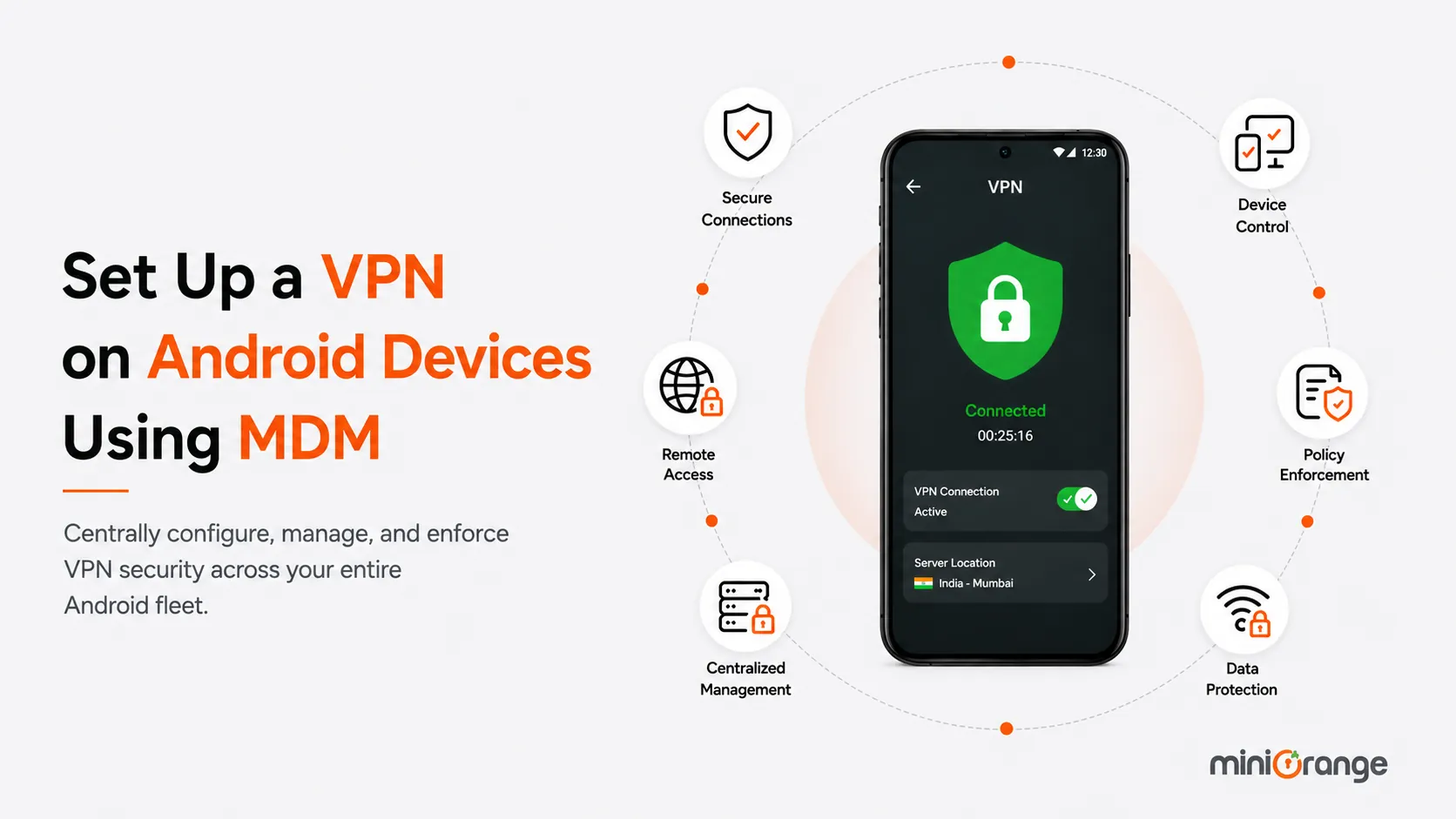
This article walks through all three approaches, explains when to use each one, and shows why MDM is the method most growing businesses eventually land on.
Why Should You Set Up a Virtual Private Network (VPN) on Android?
A VPN wraps your device's internet traffic in an encrypted tunnel, so nobody sitting on the same network, or watching from an ISP (Internet Service Provider), can see what data is moving or where it is headed.
For businesses that manage employee-facing or field devices, deciding to set up a VPN on Android devices touches security, compliance, and productivity all at once.
1. For Using Public Wi-Fi Securely
Employees, vendors, or contractors often connect to open Wi-Fi networks at airports, cafes, or hotels. These networks rarely encrypt traffic on their own, which means anyone with basic packet-sniffing tools nearby could intercept login credentials or session data.
A VPN solves this issue. It encrypts the connection before it ever touches the public network.
2. To Protect Business Data
Emails, CRM records, financial reports, and internal chats all travel across the network every time an employee opens an app. Without encryption, that data is exposed the moment it leaves the device.
A VPN encrypts the traffic so that even if it’s intercepted, it’s unreadable to anyone without the decryption key.
3. For Safe Remote Access for Employees
Hybrid and remote teams need reliable access to internal tools, whether that’s an ERP system, a shared drive, or a ticketing platform.
A VPN gives the employee the same secure path into company infrastructure that they’d have sitting inside the office, without exposing that infrastructure directly to the open internet.
4. To Prevent Data Interception
Man-in-the-Middle attacks work by inserting an attacker between the device and the destination server, often on networks the user trusts by default.
VPN encryption makes this kind of interception significantly harder because the attacker only sees encrypted traffic without the ability to make sense of it.
5. To Access Internal Company Resources
Many organizations keep internal files, admin dashboards, and legacy applications behind a firewall, reachable only from the corporate network.
A VPN extends that private network to any Android device, letting employees reach those internal resources securely from anywhere, without opening the resources to the public internet.
6. To Maintain Compliance and Reporting
Regulations like GDPR, HIPAA, and India's DPDP Act expect organizations to protect sensitive data in transit.
A properly configured VPN, paired with logging and reporting from an MDM console, gives compliance teams an audit trail they can use to demonstrate that mobile access to company data is being managed according to organizational requirements.
How to Set Up a VPN on Android Manually
Android has had a built-in VPN client for years, so if you're dealing with a handful of devices or just testing a connection before a wider rollout, you don't need to install anything extra.
Here's how to set up a VPN on your Android device using the native settings menu.
Step 1: Open Settings and Find the VPN Menu
Go to Settings, then tap Network and Internet. On some Samsung devices, this is labeled Connections. Depending on your Android version and device manufacturer, you may need to tap Advanced or More Connection Settings to find the VPN option.
Step 2: Add a New VPN Profile
Tap the plus icon in the top corner, or tap the three-dot menu and select Add VPN Profile if there's no visible plus sign. This opens a form where you'll enter the connection details.
Step 3: Enter the VPN Server Details
Fill in a name for the profile, then select the VPN type. Android's native client supports PPTP, L2TP/IPSec, and IKEv2/IPSec, depending on the device and OS version.
You'll need the server address and, if applicable, an IPSec identifier or pre-shared key, which your network administrator or VPN provider should supply.
Step 4: Save and Authenticate
Tap Save once all fields are filled in. Then tap the new profile, enter your username and password, and select Connect. Once the connection succeeds, you'll see a key-shaped icon in the status bar confirming the VPN is active.
Step 5: Test the Connection
Before rolling this out to a whole team, check that internal resources load correctly and that the device's IP address reflects the VPN server, not the local network. A quick test now saves a support ticket later.
Manual setup works fine for a one-off configuration, but it has an obvious limitation: someone has to physically do this on every device, and any employee can disable or delete the profile whenever they want. That's a problem the moment you're managing more than a few phones.
How to Set Up a VPN Using a VPN Provider App
For organizations that rely on a specific enterprise VPN vendor, such as Cisco AnyConnect, Palo Alto GlobalProtect, or Pulse Secure, installing a dedicated app usually gives a smoother experience than the native Android client, along with support for additional protocols.
Here's the general process for setting up a VPN on Android with a provider app.
Step 1: Download the VPN From Google Play
Search for your organization's approved VPN app in the Google Play Store and install it. If your company uses Managed Google Play, the app may already be available through your work profile.
Step 2: Sign in With Your Credentials
Open the app and log in using the credentials issued by your IT team or VPN provider. Some apps support certificate-based authentication instead of a username and password, which removes the need for employees to remember another login.
Step 3: Import or Configure the Connection Profile
Depending on the app, you may need to import a configuration file, such as an OVPN file for OpenVPN, or the app may pull the settings automatically once you sign in. Follow the in-app prompts to complete this step.
Step 4: Choose a Server or Connection Point
If your VPN provider offers multiple gateway locations, select the one closest to your office or data center for the best performance.
Business VPNs typically route to a single corporate gateway rather than offering the multiple options you'd see in a consumer VPN.
Step 5: Connect and Verify
Tap Connect, then confirm the connection request when Android prompts you to allow the VPN app to intercept network traffic. Once connected, test access to an internal resource to confirm everything is routing correctly.
App-based setup gives better protocol support and often a friendlier interface than the native client, but it still depends on the employee to install the app, log in correctly, and keep the connection active.
On a handful of devices, that's manageable. Across a fleet of fifty, one hundred, or a thousand Android phones, it becomes a recipe for an inconsistent security posture.
How to Set Up a VPN on Android Using MDM
Once you've decided that manual configuration and provider apps won't scale across your device fleet, the next step is pushing the VPN through your MDM console. While the exact menu names differ slightly from platform to platform, the underlying workflow is nearly identical across mobile device management solutions.
Here's the general process for setting up a VPN on Android using MDM.
Step 1: Log in to Your MDM Console
Access your MDM platform's admin dashboard using your administrator credentials. This is the central point from which you'll build, assign, and monitor VPN profiles across every enrolled Android device.
Step 2: Approve or Add the VPN Application
If your organization uses a third-party VPN client such as Cisco AnyConnect, Pulse Secure, or Palo Alto GlobalProtect, add it to your MDM's app repository first, often through Managed Google Play. Some platforms require you to explicitly approve the app before it can be pushed to devices.
Step 3: Create a New VPN Profile or Policy
Navigate to the policy or profile management section, usually under a name like Device Profiles, Policies, or Configuration Profiles, and create a new VPN configuration. Give it a clear connection name so your team can identify it later among other profiles.
Step 4: Enter Connection and Server Details
Specify the connection type, such as native Android VPN or a third-party app, then enter the VPN server address, port, and protocol. If you're using a custom VPN app, you'll typically select its package name so the MDM knows which app should carry the VPN traffic.
Step 5: Configure Authentication
Set up how devices will authenticate with the VPN server. Most MDM platforms let you push authentication certificates directly to the device instead of relying on manually entered usernames and passwords, which reduces both setup friction and credential risk.
Step 6: Enable Always-On VPN and Lockdown Mode
Turn on Always-On VPN so the device automatically connects the moment it has network access, without waiting for the user to open an app.
Pair this with Lockdown Mode, which blocks all internet traffic if the VPN connection drops, closing the gap that would otherwise let unencrypted traffic slip through.
Step 7: Assign the Profile to Devices or Groups
Select which devices, device groups, or organizational units should receive this VPN configuration. This lets you roll out different VPN settings to different teams, for example, a stricter lockdown policy for finance devices versus a lighter policy for general staff.
Step 8: Publish and Verify
Push or publish the profile to the assigned devices. Most MDM consoles show a deployment status for each device, confirming whether the VPN profile applied successfully, so you can catch and resolve any failures without waiting for a user to report a problem.
Why MDM Is the Smarter Way to Deploy VPN Across Your Android Fleet
Manual setup and provider apps both put the burden of configuration on the end user, and that's exactly where things break down at scale. An MDM platform removes the guesswork by pushing VPN configurations directly to enrolled devices, with no employee input required.
Here's what changes when VPN deployment moves to MDM.
1. Centralized Configuration
IT admins build the VPN profile once, inside the MDM console, specifying the server address, protocol, and authentication method.
That profile then gets pushed to every enrolled Android device or device group in one action, instead of repeating the setup on each phone individually.
2. Always-On VPN Enforcement
Many Android MDM platforms support Always-On VPN, a setting that forces the device to route all traffic through the VPN tunnel and blocks internet access entirely if the VPN connection drops.
This closes the loophole where an employee simply turns the VPN off to save battery or bypass restrictions.
3. Certificate-Based Authentication
Rather than relying on usernames and passwords that can be phished or shared, MDM platforms can push authentication certificates directly to the device.
This ties VPN access to a specific managed device rather than a memorized credential.
4. Per-App VPN and Lockdown Mode
Many MDM solutions let admins restrict VPN usage to specific business apps, known as per-app VPN, so personal apps on the same device don't route through the corporate tunnel.
Lockdown mode goes further, blocking any traffic that isn't going through the VPN at all.
5. Consistent Compliance Reporting
Since every device pulls its VPN configuration from the same managed profile, IT and compliance teams get a single, auditable record of which devices have VPN active, which don't, and when configurations were last updated.
That's a much easier story to tell an auditor than trying to confirm settings on each device by hand.
6. Zero End-User Setup
Employees never have to touch a configuration screen. The moment a device enrolls in the MDM platform and receives its assigned profile, the VPN is already in place.
That eliminates the most common source of support tickets: someone who typed the server address wrong or skipped a required field.
For any organization managing more than a handful of Android devices, MDM-based VPN deployment isn't just more convenient. It's the only method that keeps security consistent across every device without relying on individual employees to get every step right.
How to Set Up a VPN on Android Devices Using miniOrange Android MDM
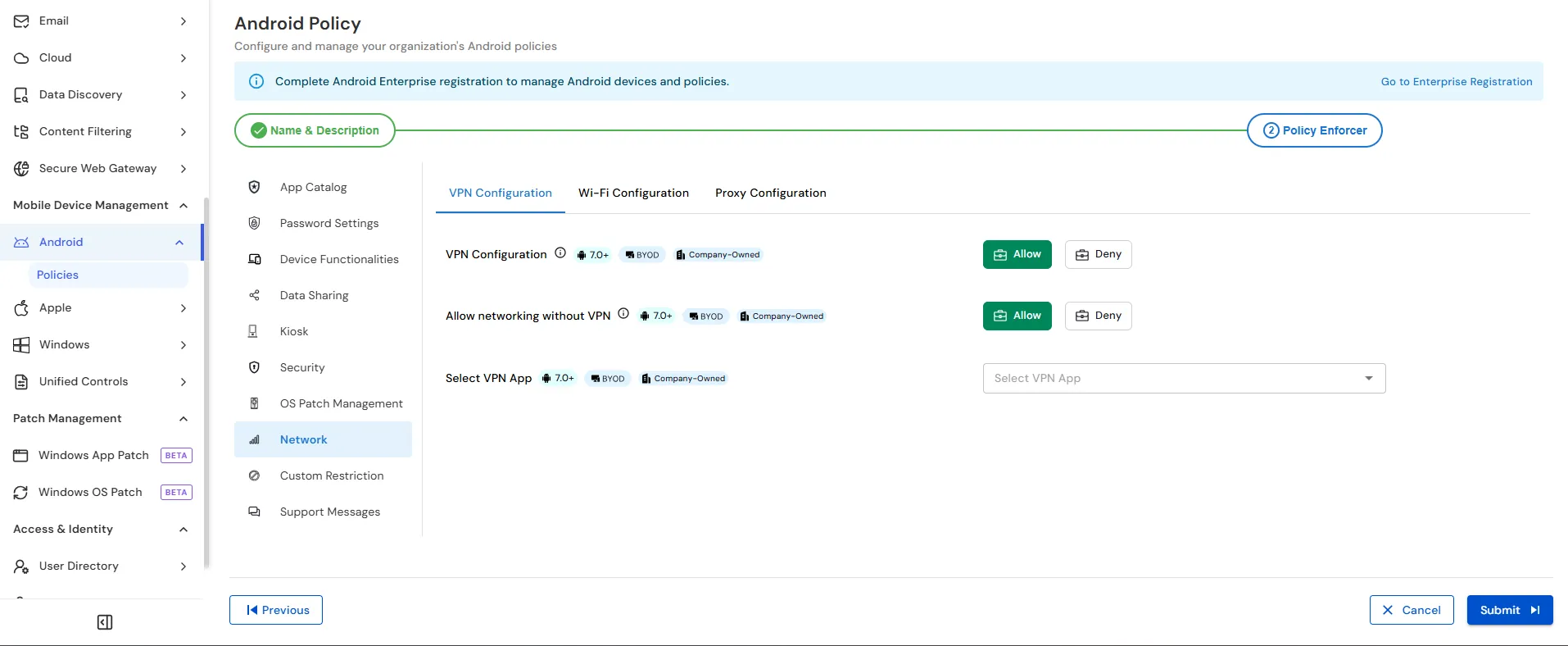
miniOrange's UEM console gives IT admins a dedicated Network tab inside the Android Policy builder, purpose-built for pushing VPN, Wi-Fi, and proxy settings to enrolled devices.
Here's how to configure it step by step.
Step 1: Create a New Android Policy
From the left sidebar, go to Mobile Device Management, then Android, then Policies.
Start a new policy and complete the first stage, Name and Description, giving the policy a clear label such as Corporate VPN Policy so your team can identify it later among other Android policies.
Step 2: Open the Network Tab
In the left-hand panel of this stage, select Network from the list of configuration categories.
This opens three sub-tabs: VPN Configuration, Wi-Fi Configuration and Proxy Configuration.
Step 3: Enable VPN Configuration
Under the VPN Configuration sub-tab, you'll see a toggle labeled VPN Configuration, tagged for Android 7.0 and above, and applicable to both BYOD and company-owned devices.
Click Allow to enable VPN policy enforcement for devices assigned to this policy.
Step 4: Decide Whether to Allow Networking Without VPN
Directly below, the console shows an Allow Networking Without VPN setting.
Choose Deny if you want to block all internet access on the device whenever the VPN connection isn't active, which is effectively miniOrange's version of lockdown mode.
Choose Allow only if you want to permit general browsing when the VPN is off, which is not recommended for devices handling sensitive business data.
Step 5: Select Your VPN App
In the Select VPN App field, choose the VPN client your organization uses.
This app must already be approved in your app catalog before it appears here.
Step 6: Save and Assign the Policy
Once all three Network settings are configured, save the policy and assign it to the relevant device groups.
Step 7: Publish and Confirm Deployment
Publish the policy from the console and monitor the deployment status.
Once the policy pushes successfully, the VPN configuration applies automatically to every assigned Android device, with no manual setup required from the employee.
Wrapping Up
Setting up a VPN on one Android device is simple. Keeping it configured correctly across an entire fleet is where most IT teams struggle, and that's exactly the gap MDM closes.
With a platform like miniOrange, VPN enforcement stops depending on individual employees and becomes a policy you control centrally, verify instantly, and prove compliance whenever it counts.
Start small with a pilot group, confirm the lockdown behavior works as expected, then scale it across every device with confidence.
FAQs
1. How do I set up a VPN on Android?
You can set up a VPN on Android in three ways: manually through Android phone Settings, by installing a dedicated VPN provider app from the Google Play Store, or by having your IT team push a VPN profile through an MDM platform.
2. Does Android have a built-in VPN?
Yes. Android includes a native VPN client that supports PPTP, L2TP/IPSec, and IKEv2/IPSec protocols, depending on the Android version and device.
3. Can I set up a VPN without an app?
Yes. Android's built-in VPN client lets you configure a connection manually without downloading anything.
4. Which VPN protocol is best for Android?
For most business use cases, IKEv2/IPSec offers a strong balance of speed and security, and it is well supported by Android's native client.
5. Can Android MDM automatically configure a VPN?
Yes. Most Android MDM platforms can push a complete VPN profile, including server details, authentication certificates, and connection type, to enrolled devices without any action from the employee.
Leave a Comment