
If you’ve managed Jira for a while, you've probably seen permissions grow more complex over time. You might have accounts that were granted temporary access during a migration but are still retaining it today. Or maybe contractors whose access was never revoked.
You can clean that up. But with hundreds of users and projects, it’s going to take forever.
Things become even more complicated when you're preparing for a SOC 2, ISO 27001, or SOX access review. Auditors want to know who has access to a Jira project, whether that access has been reviewed, whether it still makes sense, and whether you can prove someone made those decisions.
This isn’t challenging because Jira permissions are broken. It's because permissions accumulate over time without a structured Jira access review process.
In this guide, we’ll cover everything from the risks of unmanaged accounts to building a sustainable Jira permissions audit process that keeps your environment secure and audit-ready.
Built for Jira Access Reviews and Audit Readiness
From miniOrange, a trusted Atlassian Marketplace security vendor.
Get complete project, user, and group access visibility, automatic risk detection, access path analysis, and one-click export for audit-ready reporting.
Why Can't Jira's Native Tools Run an Access Review?
Jira's Audit Log and Permission Helper are built to record events and check individual permissions, not to run a review. The Audit Log records configuration changes as they occur; the Permission Helper tests one user against one work item. Neither produces a project-level list of who currently has access, flags what's risky, or creates a certification record.
What is an Access Review, and Why is It Different From an Audit Log?
A Jira access review is a formal, systematic evaluation of user permissions across your entire Jira instance.
An Audit Log, on the other hand, records administrative changes after they happen. It provides historical events, not a current picture of access.
Jira’s Permission Helper also has limitations. It's useful for troubleshooting access problems, but it's designed to investigate one user at a time.
When auditors evaluate controls like SOC 2, ISO 27001, and SOX, showing them an activity log is not enough. They require explicit proof that you reviewed active permissions and removed unnecessary access.
On a growing Jira instance, unreviewed access leads directly to audit findings. You might find departed contractors with access to sensitive projects or standard users holding project admin rights.
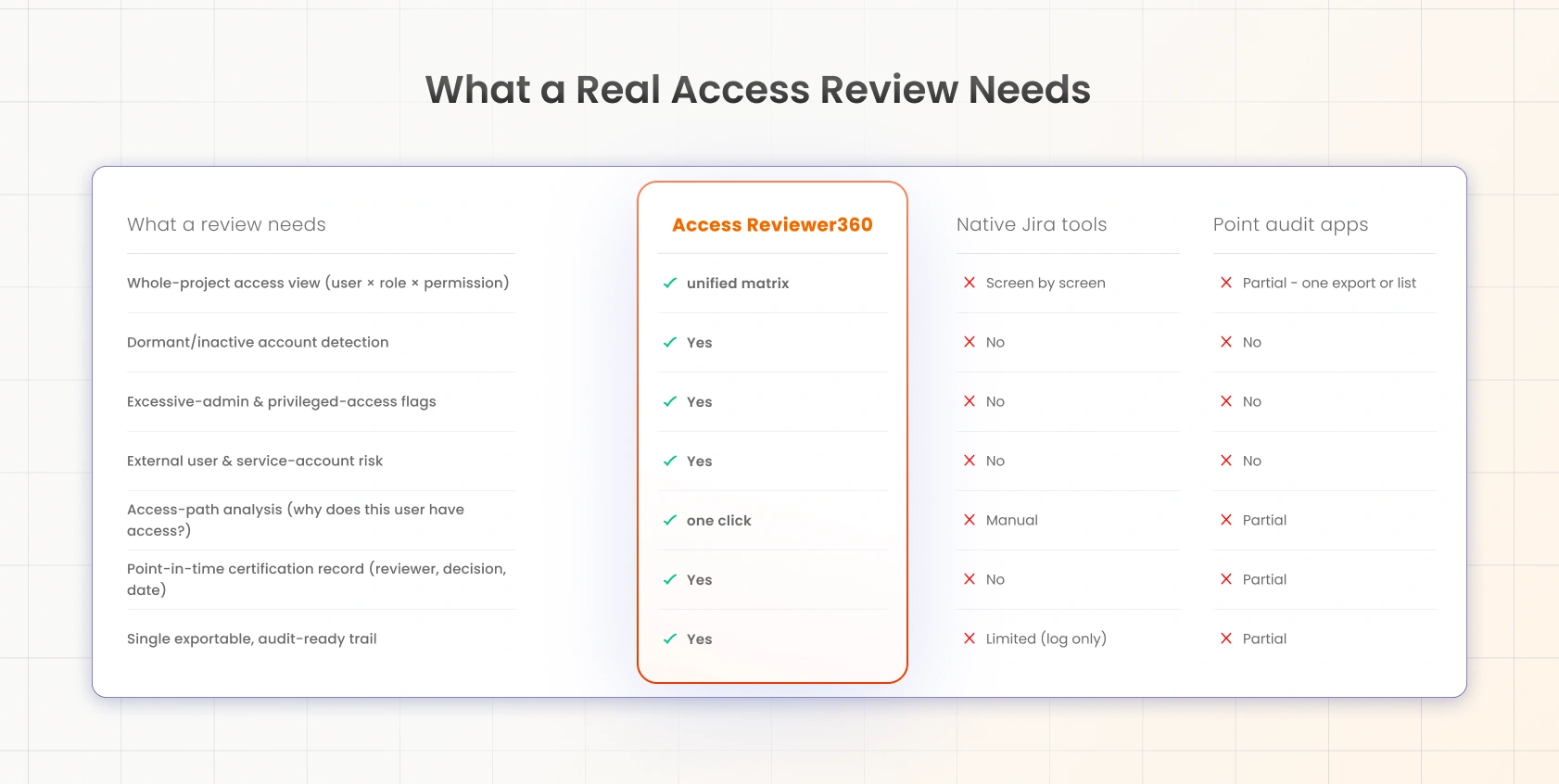
What a Real Access Review Needs
To understand who has access to a Jira project, you need a tool built specifically for governance. Here is how native tools, point audit apps, and Access Reviewer360 compare:
The Four Access-Review Challenges (and How to Solve Them)
As your Jira instance grows, four main permission problems emerge. Here is how to address each challenge directly.
1. Scattered Access vs. Complete Visibility
Conflict: For most organizations, project roles, permission schemes, and group memberships are spread across multiple admin screens. To gather complete Jira project access visibility, you have to cross-reference multiple settings pages, which is time-consuming and error-prone.
The Solution: Access Reviewer360 aggregates projects, roles, and group memberships into a single dashboard. You can view access by project, by user, or by group. Instead of jumping between settings screens, you see all effective permissions in one place.
2. Unreviewed Access vs. Automatic Risk Detection
The Challenge: Inactive users, over-privileged admins, and external contractors retain access long after they need it. That usually gets highlighted during audits.
The Solution: The app automatically flags every dormant account, excessive admin, external user, and unmonitored service account. It organizes findings by risk level so you can fix critical security gaps immediately.
3. Unknown Grant Sources vs. Clear Access Paths
The Challenge: During audits, you might have to explain how users have received access to sensitive projects. You have to reconstruct the path through permission schemes, project roles, and group memberships.
The Solution: Access Reviewer360 simplifies this process with access path analysis. From any finding, you can trace exactly how a user's permission was granted. The access path shows the chain from the user through the relevant group or direct assignment into the project role, associated permission scheme, and finally the project where the permission becomes effective.
4. Manual Spreadsheets vs. Exportable Evidence
The Challenge: Manual reviews tracked in spreadsheets leave no official record of who approved the access or when. When the next audit cycle starts, you must begin the entire process over again.
The Solution: Every review action, approval, and suppression is saved automatically with timestamps and reviewer details. You can export complete records in CSV or JSON formats whenever an auditor requests evidence.
What Does Running a Jira Access Review Actually Look Like?
There are four Jira access certification steps: Map, Detect, Monitor, and Export.
Map: Open the access matrix to view rights across your instance. Filter by project, user, or group to establish your baseline posture.
Detect: Let the app surface risk flags automatically. Identify inactive users, high-privilege administrators, external emails, and service accounts.
Monitor: Track ongoing administration updates, login events, and integration activity between formal review periods.
Export: Download an audit-ready compliance report that documents every decision, reviewer, and timestamp.
What Risks Does Automatic Scanning Detect?
Automatic scanning detects risks that manual permission checks often miss. These include:
- Dormant and Inactive Accounts: Flags users that have been inactive for a configured period while still retaining project access.
- Excessive Administrators: Highlights projects that carry too many project admins.
- External User Exposure: Identifies contractors or external groups with access to sensitive projects (such as HR, Legal, or Finance).
- Service Accounts and Automation Users: Surfaces non-human identities, bots, and integration scripts.
- Group Sprawl and Overly Broad Roles: Reveals large groups that grant excessive permissions across multiple projects, helping you enforce strict segregation of duties.
How to Set Up Access Reviewer360 for Jira
Follow these steps to install Access Reviewer360:
- Install Access Reviewer360 directly from the Atlassian Marketplace.
- Open the access matrix and choose your view: By Project, By User, or By Group.
- Set thresholds for inactive days, admin limits, and external keywords. Enable your policies and run your scan.
- Open the Project Access tab to see who holds each project role, including direct users and groups. Review these assignments to identify unnecessary or excessive access.
- Open the Jira Activity section to review administrative and access-related changes in your Jira environment. Use this information to understand changes that may affect your access review.
- Review the flagged risks, record your decisions, create remediation tickets where necessary, and export the governance report for audit and compliance purposes.
Which Compliance Frameworks Expect Periodic Access Reviews?
Periodic user access reviews are a common governance control across several major compliance frameworks. While each framework has different requirements, they all emphasize reviewing access regularly and maintaining evidence of those reviews.
- SOC 2: Requires periodic user access reviews to prove systems stay secure over time.
- ISO 27001: Mandates regular access rights reviews under Annex A controls.
- SOX: Expects quarterly reviews of user permissions for financially significant apps.
- PCI DSS: Requires strict access limits and documented reviews for cardholder data environments.
- GDPR: Requires documented control over who can access personal data to prevent leaks.
Who Needs a Jira Access Review?
Access reviews aren't just for organizations preparing for audits. They’re also for teams maintaining Jira projects. Here's how different teams use Jira access reviews in practice.
Jira and Jira Service Management Administrators
Access Reviewer360 gives you one place to review project access by project, user, or group. This is more convenient and efficient, as you don’t have to switch between multiple screens.
Security, Compliance, and GRC Teams
Access Reviewer360 helps produce SOC 2 / ISO 27001 / SOX access-review evidence by combining scan findings, remediation actions, suppressions, and audit history into an exportable review record.
IT Governance Teams
Regular user access review Jira processes help governance teams verify that permissions continue to follow least privilege principles and support segregation of duties by ensuring users don't retain unnecessary access over time.
Atlassian Partners and Managed Service Providers
Running manual permission reviews across every client instance quickly becomes repetitive and difficult to standardize for Atlassian partners. Access Reviewer360 helps deliver structured, repeatable access reviews for client environments.
Why Choose Access Reviewer360?
Jira gives you the building blocks for managing permissions.
Access Reviewer360 helps you review and govern them. It gives you a complete view of project access across your Jira instance, highlights governance risks that deserve attention, explains how permissions were granted, and keeps a record of every review decision you make.
It does not replace your current Jira setup; it places a clear, intelligent control panel right on top of it.
The app combines several governance capabilities into one workflow:
- Instant Access Clarity: See real effective permissions across users, groups, and projects without touching a single permission scheme.
- Proactive Risk Detection: Let automated rules bring dormant accounts, external exposure, and excessive admins to light before they affect compliance.
- Complete Audit Evidence: Trace every permission back to its source and export timestamped, reviewer-backed certification logs with one click.
Rather than replacing Jira's permission model, Access Reviewer360 builds on it by making permissions easier to govern. If you're trying to answer who has access to a Jira project, reduce manual review effort, or prepare for your next audit, it provides the centralized visibility that Jira's native tools don't offer on their own.
Frequently Asked Questions
1. How do I see who has access to a Jira project?
Open Access Reviewer360's "By-Project" view to see every user and group with access to that project, their role, and how they got it. There’s no need to manually check multiple permission settings.
2. What is a Jira access review, and how is it different from the Audit Log?
A Jira access review is a point-in-time evaluation of who currently has access to Jira projects and whether that access is still appropriate. The Jira Audit Log records administrative events after they occur. It doesn't provide a project-wide list of current access or document review decisions.
3. Does Jira have a built-in tool for periodic access reviews?
No. Jira's native Audit Log and Permission Helper record events and check individual permissions, but neither produces a project-level access review or a certification record an auditor can use.
4. How do I find dormant or inactive users in Jira?
You have to set up a policy in Access Reviewer360 to identify dormant project access and inactive accounts based on configurable inactivity thresholds. These findings appear automatically during scans, making them easier to review than checking activity manually across multiple projects.
5. How can I detect excessive project administrators in Jira?
You can configure a policy to set the maximum number of administrators for each project. During scans, Access Reviewer360 flags projects that exceed that threshold so you can review administrator assignments and determine whether they remain appropriate.
6. Is Access Reviewer360 useful for SOC 2 or ISO 27001 audits?
Yes. The app maintains exportable records of findings, reviewer decisions, remediation actions, suppressions, and timestamps. This helps organizations maintain evidence for periodic access reviews required by security and compliance programs.
7. Can I see every project a single user can access?
Yes. The “By User” view shows every project a user can access across your Jira instance, along with the roles or groups that grant that access.
8. Does it track service accounts and automation users?
Yes. The Apps & Automations section helps identify non-human identities, including service accounts, bots, and automation users, so you can review the permissions they hold and determine whether those permissions remain necessary.
9. Can I export Jira access-review reports for an auditor?
Yes. You can export scan findings, permissions data, and governance records to support internal reviews, compliance reporting, or audit preparation.
10. How is this different from miniOrange's access request and approval app?
The two products address different stages of the access lifecycle.
Access Governance Automation focuses on requesting, approving, and provisioning access.
Access Reviewer360 helps you review and audit access that has already been granted by identifying risks, documenting review decisions, and maintaining audit-ready records.
Gain Complete Control Over Your Jira Permissions
Don’t wait for an auditor to expose hidden permission risks in your Jira instance.
About the Author

Senior Content Writer
Chinmay has extensive experience in writing thought leadership and marketing content for B2B IT companies. He specializes in cybersecurity, AI, ERP, CRM, and custom software development, creating content that not just informs, but sells.
Leave a Comment