- Home
- Access Reviewer360 - Project Access, Roles & Audit for Jira

Access Reviewer360 - Project Access, Roles & Audit for Jira — Setup Guide
This guide takes a Jira administrator from an empty install to a first reviewed scan. Follow steps 1–5 in order; everything after them is a reference you can come back to as you widen the review.
Access Reviewer360 answers three practical questions about your Jira Cloud site:
- Who has access to what?
- Is that access still appropriate?
- What did you do about it?
With evidence you can hand to an auditor.
 Try it for free
Before you begin
| Requirement | Details |
|---|---|
| Your Jira role | You must be a Jira administrator to install and open the app |
| Jira plan | Jira Cloud (any plan) |
| Jira Service Management | Optional — used for a few organisation-aware signals; not needed for core functionality |
Access Reviewer360 is Runs on Atlassian certified. It reads your Jira site directly through Atlassian’s platform and never calls the Atlassian Organisation API, so setup requires no external credentials at any point.
Step 1: Install the app
- Open the Access Reviewer360 - Project Access, Roles & Audit for Jira listing on the Atlassian Marketplace and click Get it now — or search “Access Reviewer360 - Project Access, Roles & Audit for Jira” from Apps → Explore more apps inside Jira.
- When the install finishes, open Apps → Access Reviewer360. You land on the Overview page.
That is the whole setup. Because the app is Runs on Atlassian certified, it already has the access it needs the moment it is installed — there is no separate connection or credentials screen to complete.
Step 2: Configure a policy
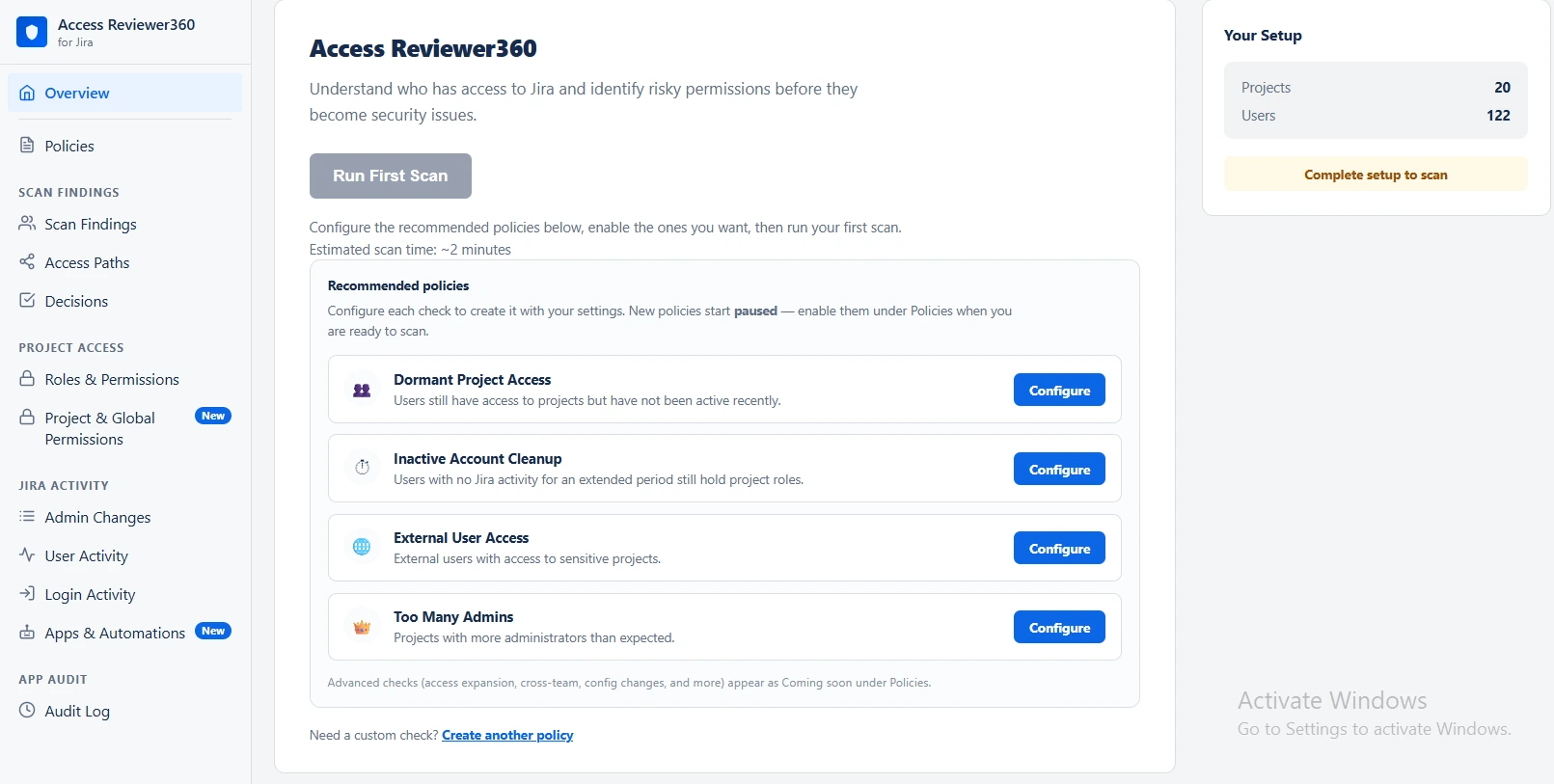
A policy is the rule a scan checks — for example, “flag dormant project access” and “warn when admin access is over-assigned.” At least one policy must be enabled before the first scan can run, so the Overview page starts you here.
- On Overview, pick a recommended policy card and click Configure.
- Review the thresholds and save. The policy is created and paused.
- Click Enable on the card. Once one policy is active, Run First Scan unlocks.
You can start with Dormant Project Access and Too Many Admins — both need only a single number and give useful results on the first scan. Add the rest once you have seen how your site reads. Full settings for each policy are in the policy reference.
Step 3: Run your first scan
- Click Run First Scan on Overview — on later visits, the button is Run Scan, top right.
- Wait for it to finish. The app reads projects, roles, groups, users, and recent activity to build a snapshot of your site.
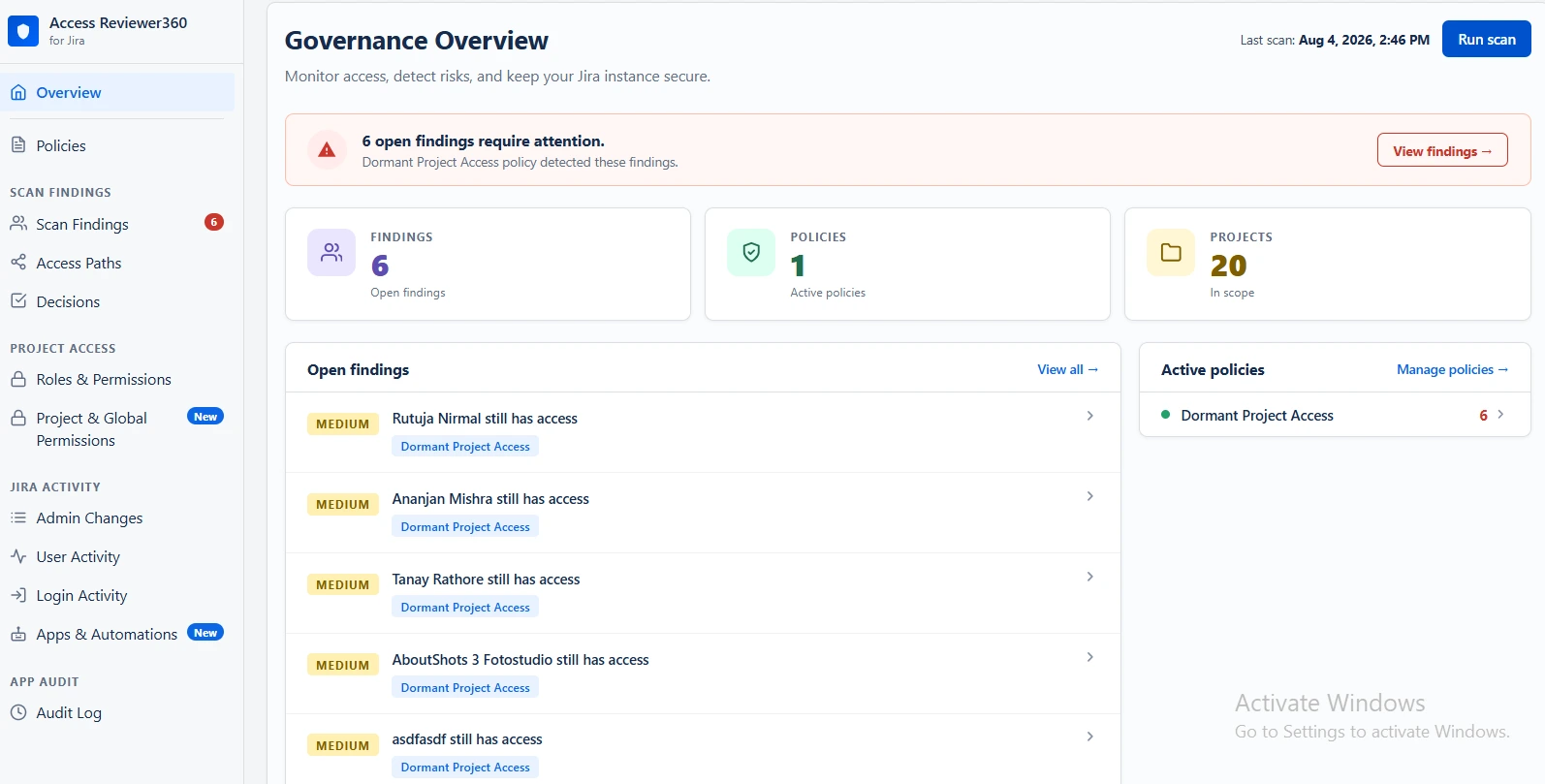
When the scan completes, Overview reports the count of findings, the High / Medium / Low breakdown, how many policies are enabled, how many projects were scanned, and the last scan time.
Every screen in the app reads the last completed snapshot rather than querying Jira live, which is why they stay fast and never slow Jira down. Re-scan after you change access in Jira to confirm a finding has cleared.
What Overview shows from here on
- An open-findings alert when risks need attention
- Summary counters for findings, policies, users and projects
Step 4: Review the findings
Open Scan Findings from the sidebar. The summary cards split the queue into total pending, high risk (attend to now), medium (review soon), and low (informational).
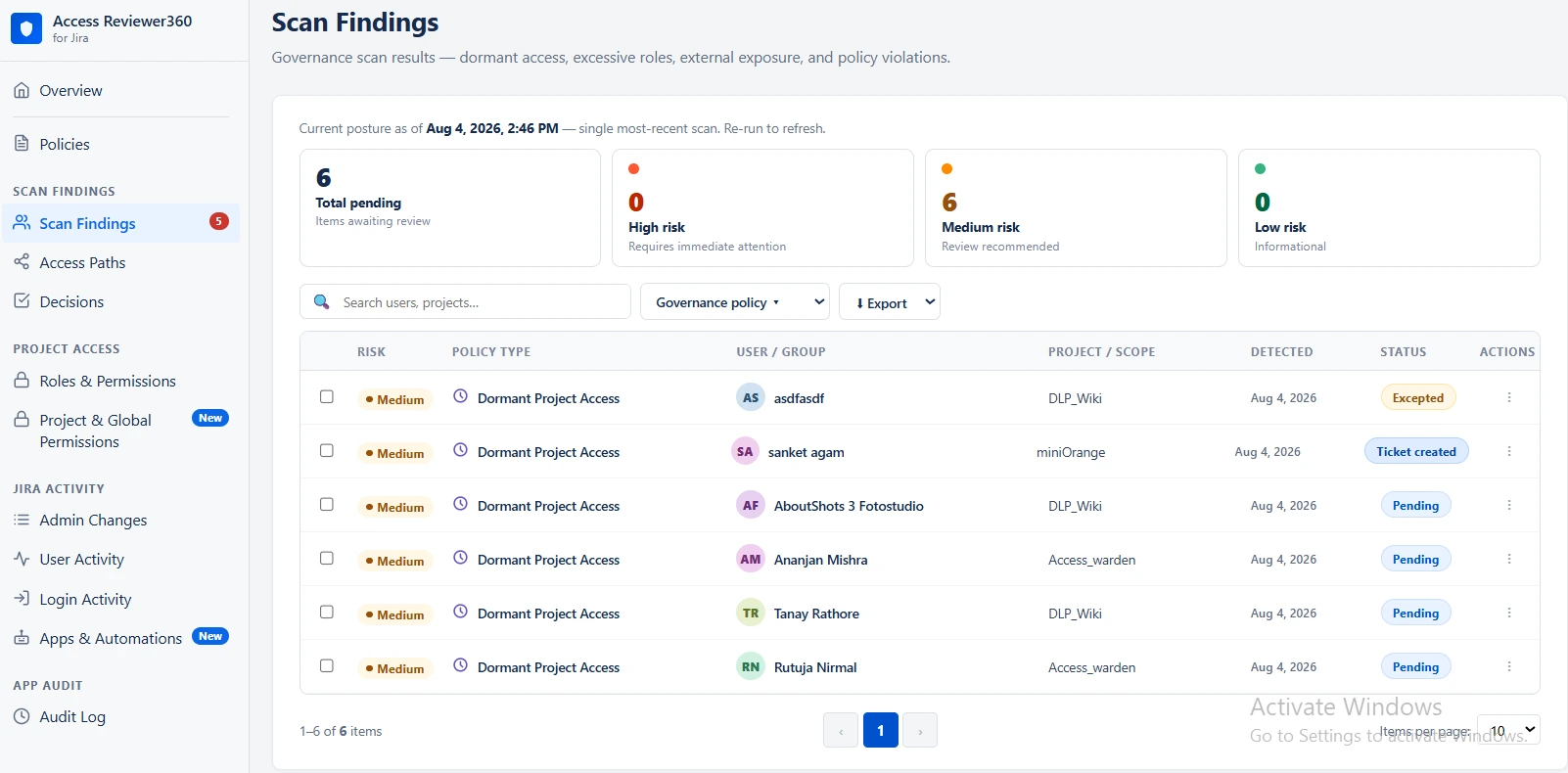
| Column | What it tells you |
|---|---|
| Risk | Severity of the finding |
| Policy type | Which policy produced it |
| User / Group | The affected identity |
| Project / Scope | Where the risk exists |
| Detected | When it was seen |
| Status | Pending · Ticket created · Partially revoked (n/total) · Resolved · Excepted |
Narrowing the list
- Search for a user, project or group
- Governance policy filter to isolate one rule
- Risk level filter for High, Medium or Low
- Top tabs to switch between grouped severity views
- Export to download the current view as CSV or JSON
Step 5: Act on a finding, and record the decision
Every finding has three actions on its row. Whichever you choose, the decision is recorded — which is what turns a scan into an audit trail.
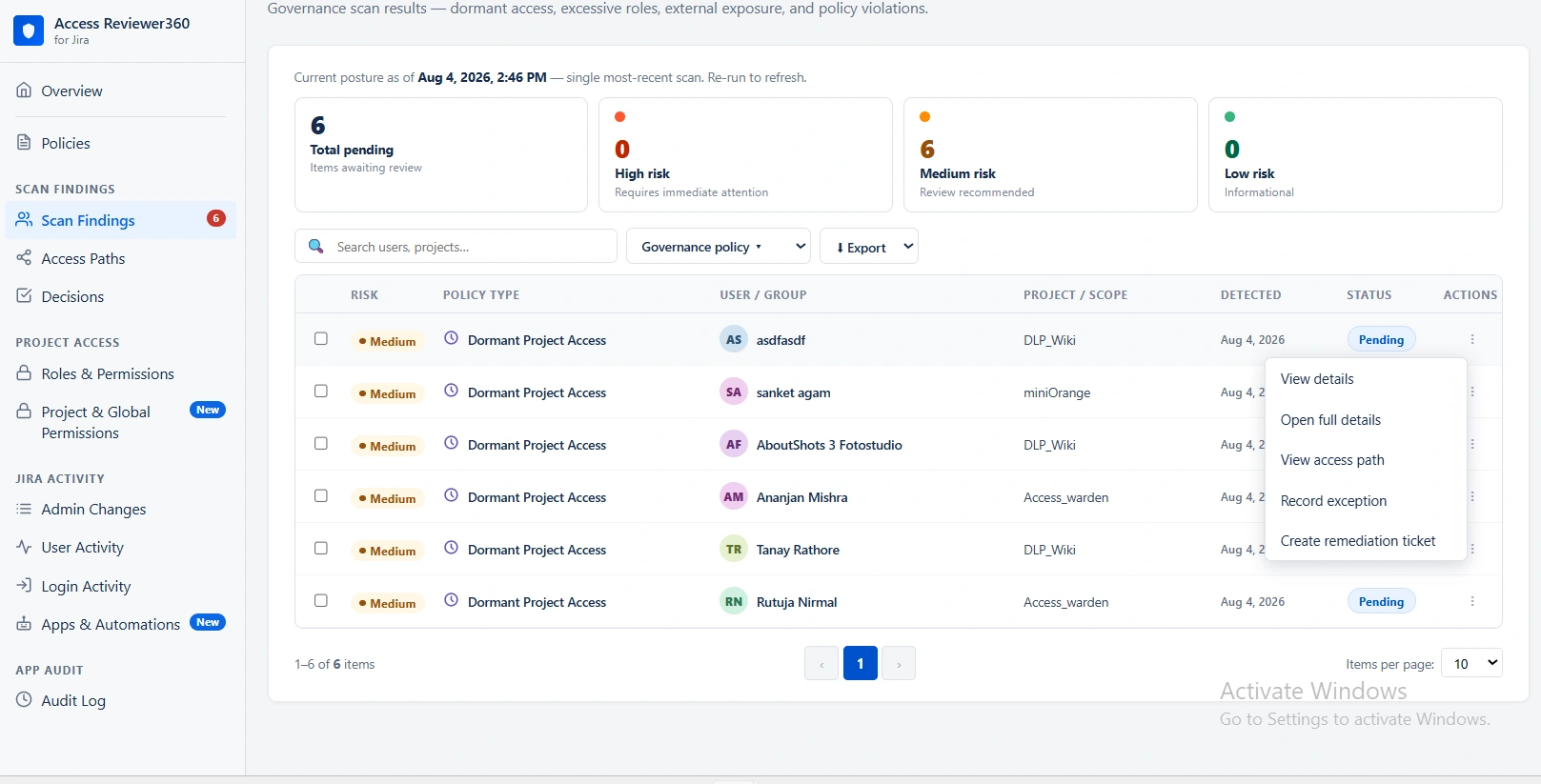
| Action | Effect |
|---|---|
| Create ticket | Creates a Jira issue for investigation or remediation |
| Revoke access | Removes the access directly from Jira — either the project role assignment or the group membership — without leaving the app |
| Exceptions | Records the finding as an accepted risk until the suppression expires |
| View access path | Shows how the access was granted |
The Decisions page then tracks both outcomes.
Revoke access
Available when the finding points to a specific project role or group membership.
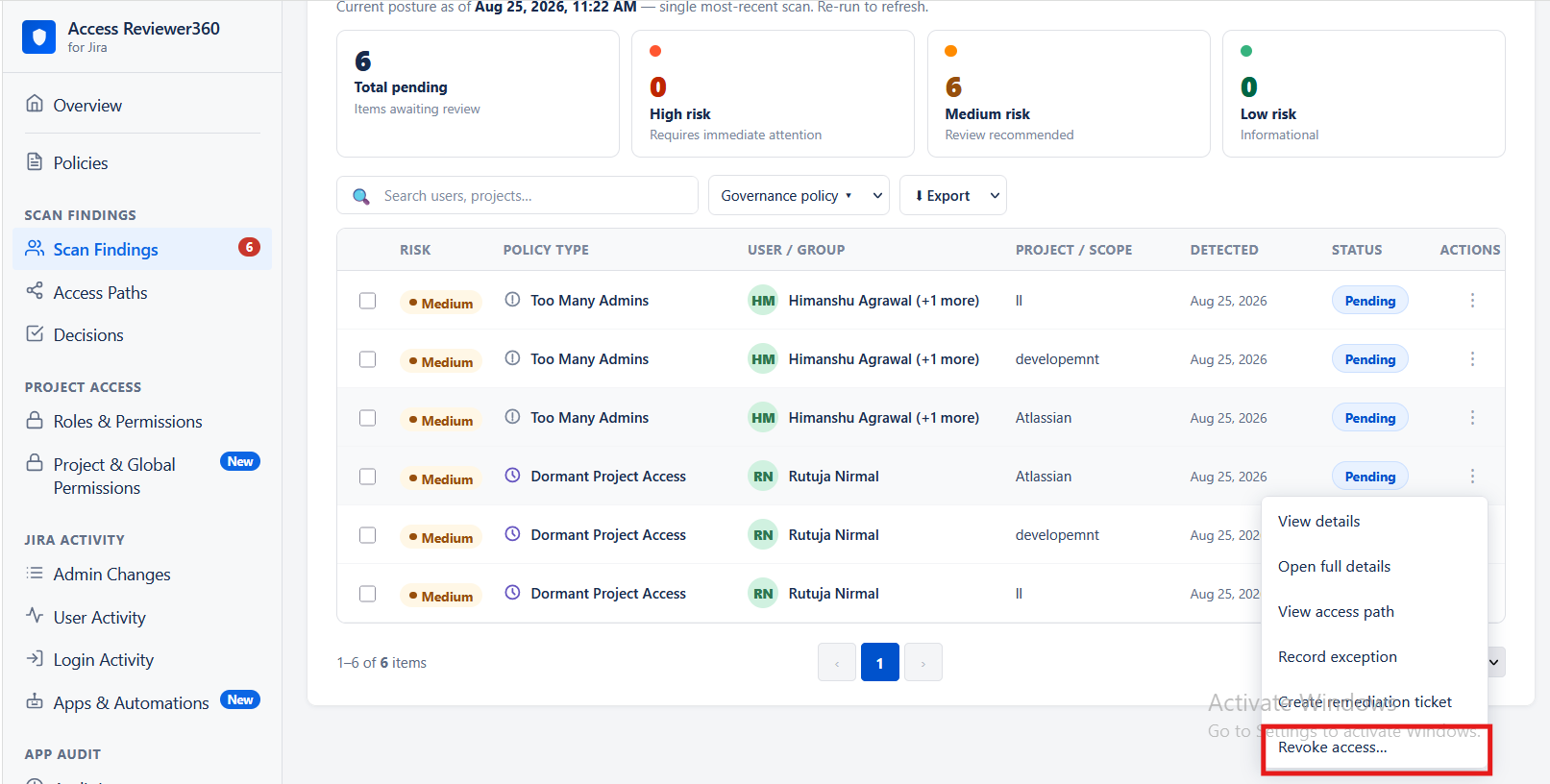
- Direct or via group: The dialog shows how the access was granted. Removing a user from a group may affect their access across multiple projects.
- Also removes access to: Shows other projects that may be affected before you confirm.
- Permissions: Project role removal requires Jira admin access. Removing a user from a group requires org or site admin permission.
- SSO/SCIM groups: If the group is managed by an identity provider, a future sync may add the user back.
- Ticket-only findings: External or organization membership, permission scheme findings, and Too many admins currently support ticket remediation only.
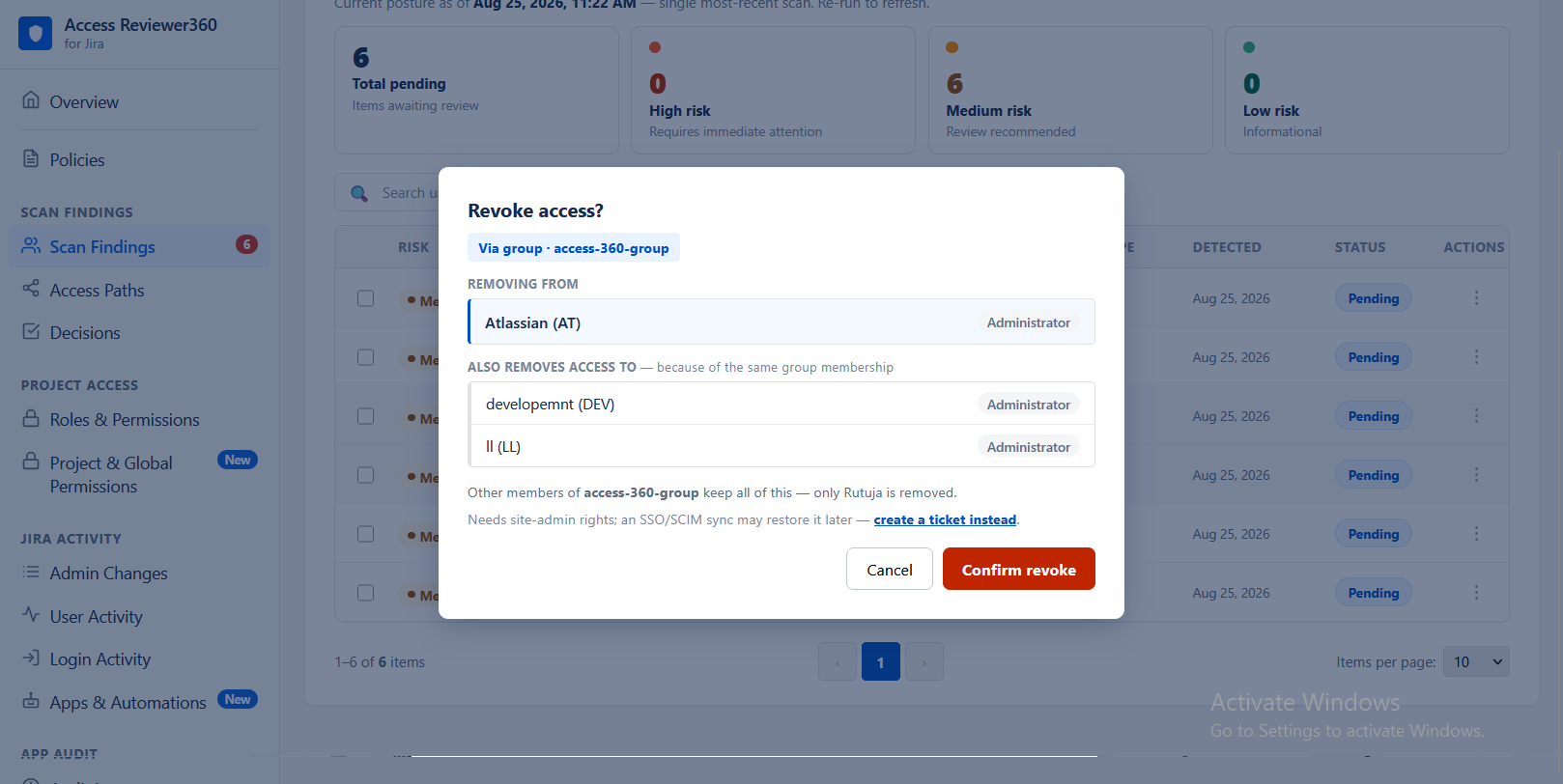
The Decisions page tracks both direct revocations and remediation tickets.
Access paths
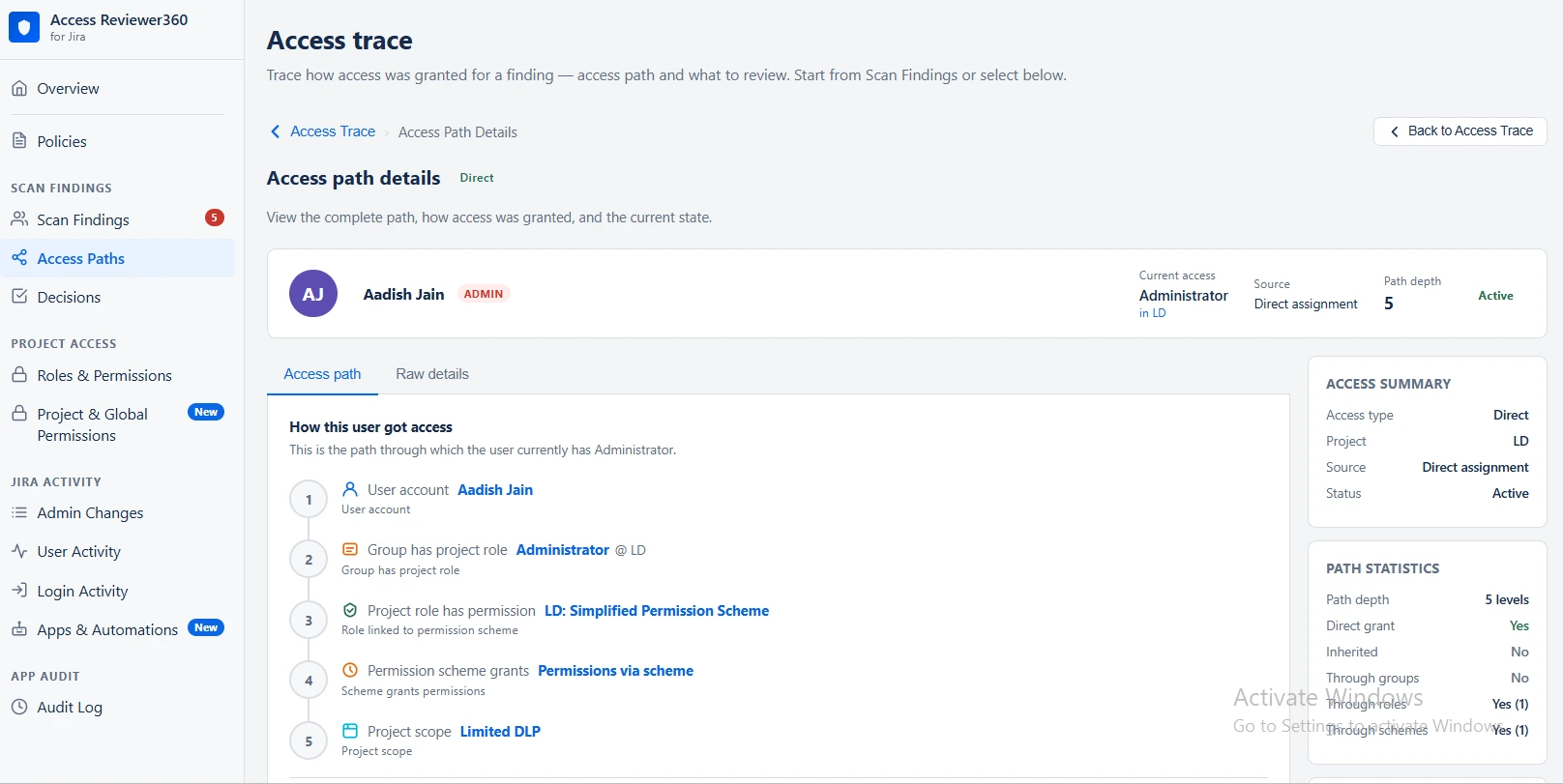
The access trace answers the question a reviewer always asks next: how exactly did this user get this access?
- Open Scan Findings.
- Click the three-dot menu on a finding.
- Select View access path.
| Step | What it represents |
|---|---|
| 1 — User account | The user being traced |
| 2 — Group has project role | The group, or direct assignment, linking them to a role |
| 3 — Role has permission | The permission scheme tied to that role |
| 4 — Scheme grants | The permissions the scheme grants |
| 5 — Project scope | The project where the access lands |
The summary panel states the access type, project, source and current status; path statistics tell you whether the chain is direct, group-based, role-based or scheme-based. At the foot, What Can This User Do? lists the effective permissions they actually hold on that project.
Decisions
Active suppressions
Each row carries the finding, the policy that generated it, the project-and-user scope it covers, and the reason you entered.
An open-ended suppression can hide a real risk indefinitely and will raise questions at audit. Suppressions never auto-renew: when one expires the finding returns and must be reviewed again with a fresh reason.
Remediation tracker
Every ticket and direct revoke is tracked here. A Resolved row without a Jira ticket link means the access was removed directly.
| Status | Meaning |
|---|---|
| Ticket created | A remediation ticket is open |
| Partially revoked (n/total) | Some access grants have been removed |
| Resolved | The access has been fully removed or the linked ticket was resolved |
If no Jira project was configured when a ticket was created, the tracker shows an FG-STUB- placeholder instead of a Jira issue key. It is updated once the actual ticket is created.
Status updates automatically. Direct revocations are marked Resolved immediately, while ticket status is updated when the linked Jira issue is moved to Done.
Policy reference
Policies in the sidebar are where you define what the app looks for. Each policy can be enabled, paused, or reconfigured at any time; changes apply from the next scan.
Dormant project access
Finds: users who still hold a project role but have shown no activity in that specific project for a long time. Access commonly survives team changes, role changes, and project handoffs.
- Click Configure on Dormant Project Access.
- Choose the projects where the plugin should look for dormant access.
- Set the inactivity threshold in days.
-
Select the types of activity that indicate a user is active:
- Comments Added
- Issue Created or Updated
- Status Transitioned
- Worklog Added
- File Attachment Added
- Exclude groups, users, or service accounts you want.
- Save.
Inactive account cleanup
Finds: Jira accounts that are deactivated or have had no activity for an extended period but still hold project roles.
- Click Configure on Inactive Account Cleanup.
- Set the inactivity threshold in days.
- Save.
External User Access
Finds: Contractors, vendors, partners, and other external users who have access to projects you consider sensitive. You can define external users based on groups or email domains.
To configure External User Access:
- Click Configure under External User Access.
- Select the projects that should be considered sensitive.
- Define external users using either of the following:
- Select an external user group.
- Enter external email domains.
- To identify users from your organization as internal users, select the Internal user domains checkbox and enter your company’s email domains.
- Click Save to apply the configuration.
The app uses these settings to identify external users who have access to the selected sensitive projects.
Too many admins
Finds: projects where more people hold administrator-level access than you consider acceptable.
- Click Configure on Too Many Admins.
- Choose the projects to evaluate for admin count.
- Set the maximum admins allowed per project, then save.
A few checks carry a “Coming soon” badge. Two of them — Unmanaged Global Admin and Dormant Global Admin Login — depend on Atlassian Organisation API data this app deliberately does not fetch, so treat them as roadmap-only rather than imminent. Dormant Global Admin is Jira-derived and simply not released yet.
Permission Scheme Direct Grants
Finds: Permission schemes where access is granted directly to a group, a specific user, or any logged-in user, instead of through a project role.
These grants can affect every project using the same permission scheme. Also, a user or group with direct access through the scheme may not appear when you're only reviewing the project's roles.
- Click Configure on Permission Scheme Direct Grants.
- Review what the check looks for and save the configuration.
This check runs across all permission schemes on your Jira site, so there is no project-level scope to configure.
What you'll see: Each finding shows the permission being granted, such as Browse Projects, along with all projects using that permission scheme. This makes it easier to understand what else could be affected before making changes.
Remediation: This is currently a ticket-only finding. Revoke access isn't available because changing a permission scheme directly can affect every project using it.
The finding includes guidance on how to fix the issue in Jira, such as converting the grant to a project role or splitting the permission scheme. Use Create ticket to assign the remediation to the person responsible for managing the scheme.
Roles & permissions
A searchable view of permission assignments across the whole site. Enter it from whichever angle fits your question — all three views read the same inventory, so they never contradict each other.
- By Project — which roles exist here and how many people are in each. Use it to spot projects with too many admins or roles with no members at all.
- By User — everything one person can reach, wherever it lives.
- By Group — how far a group’s access spreads. Use it to audit contractor and vendor groups before making changes.
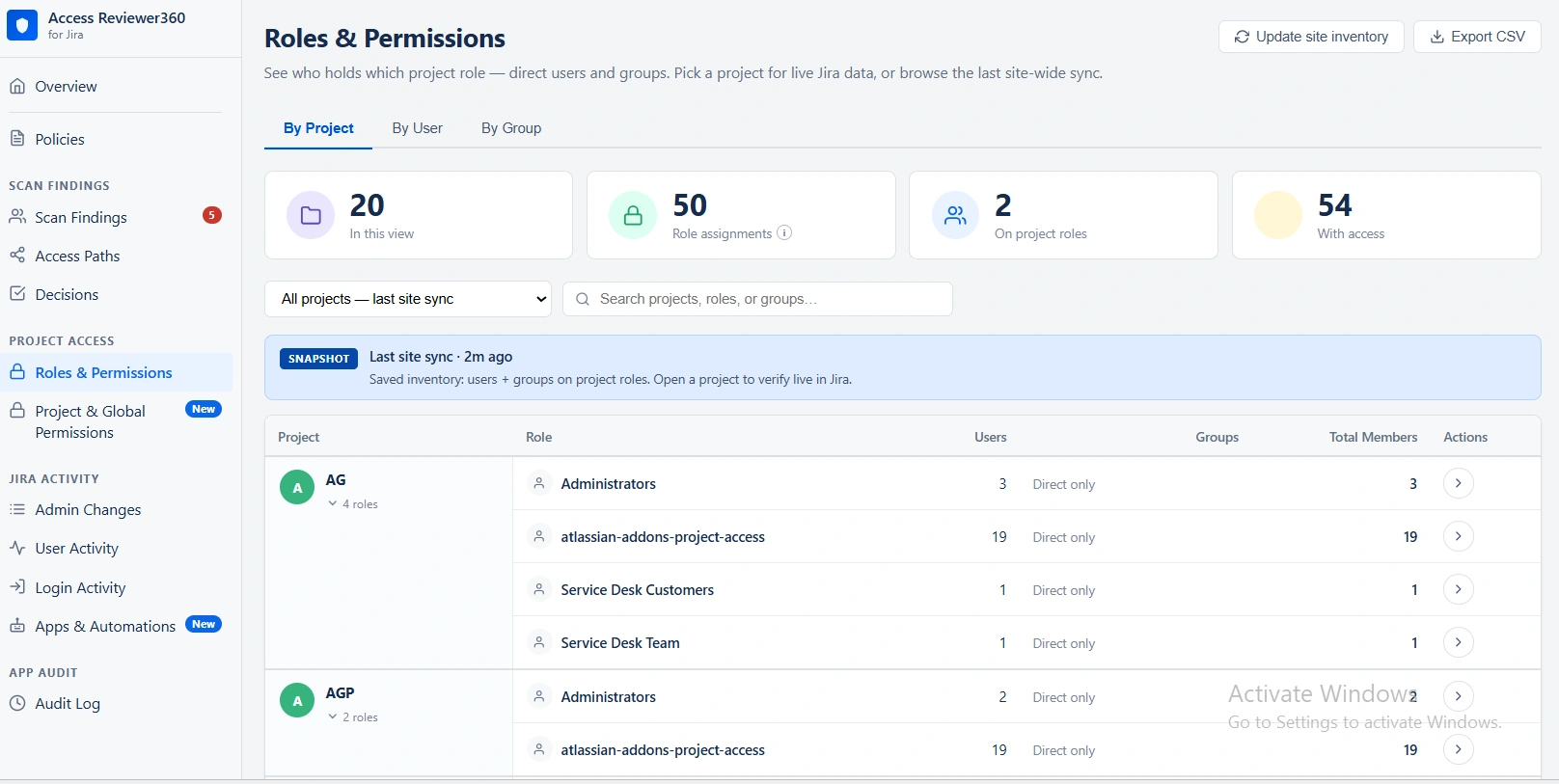
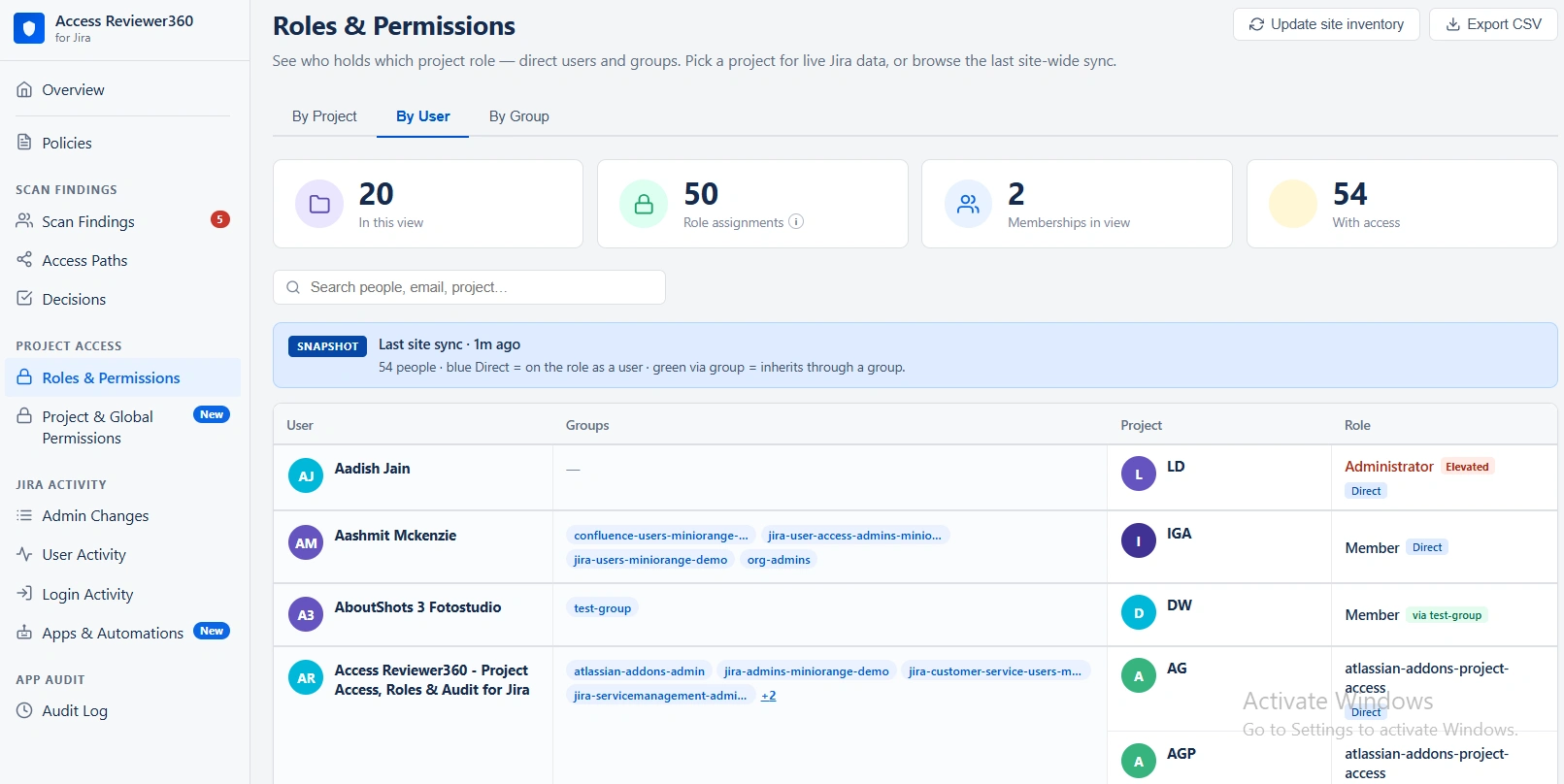
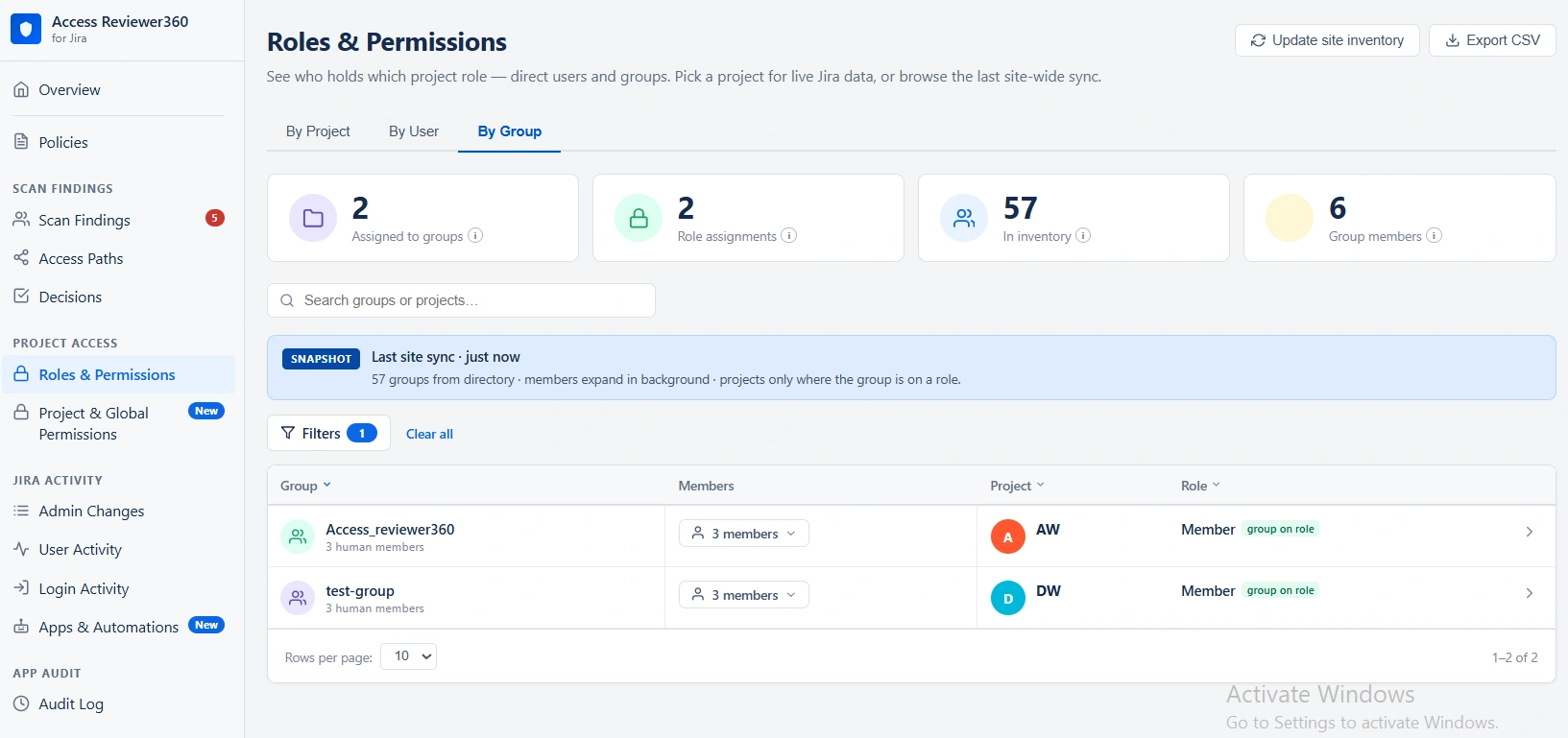
Most access in Jira arrives through a group rather than a direct assignment, so the Via Group column tells you which it was — a dash means direct.
| User tag | Meaning |
|---|---|
| Active | Recent Jira activity |
| Dormant Nd | Inactive for a measured stretch — “Dormant 200d” means 200 days |
| No activity in N+ days | Nothing found in the audit lookback window (365 days by default). A lower bound, not an exact figure — the user may be far more dormant than N days |
Export CSV downloads the full view for compliance or offline analysis.
Project & global permissions
Who actually holds this permission — not just who sits in a role that sounds like it should?
A role name is a label an admin picked; it is not the permission Jira enforces. Two projects can both have an “Administrators” role — on one, that role is what grants Administer Projects; on the other, the same permission was handed straight to a group with no role involved at all. Roles & permissions would show you the role, but not that second grant. This screen catches it, because it starts from the permission and works backward instead of starting from a role and hoping nothing was granted around it.
Two ways to ask, depending on scope
- By Project Permission answers it project by project. Pick a permission — say Administer Projects — and you see every project that grants it, including the ones that grant it to nobody. That last part matters: you are seeing full coverage, not only the projects where something turned up.
- By Global Permission answers site-wide. Pick a permission such as Administer Jira, or check all of them at once, and see every user — and every app — that Jira itself confirms holds it right now.
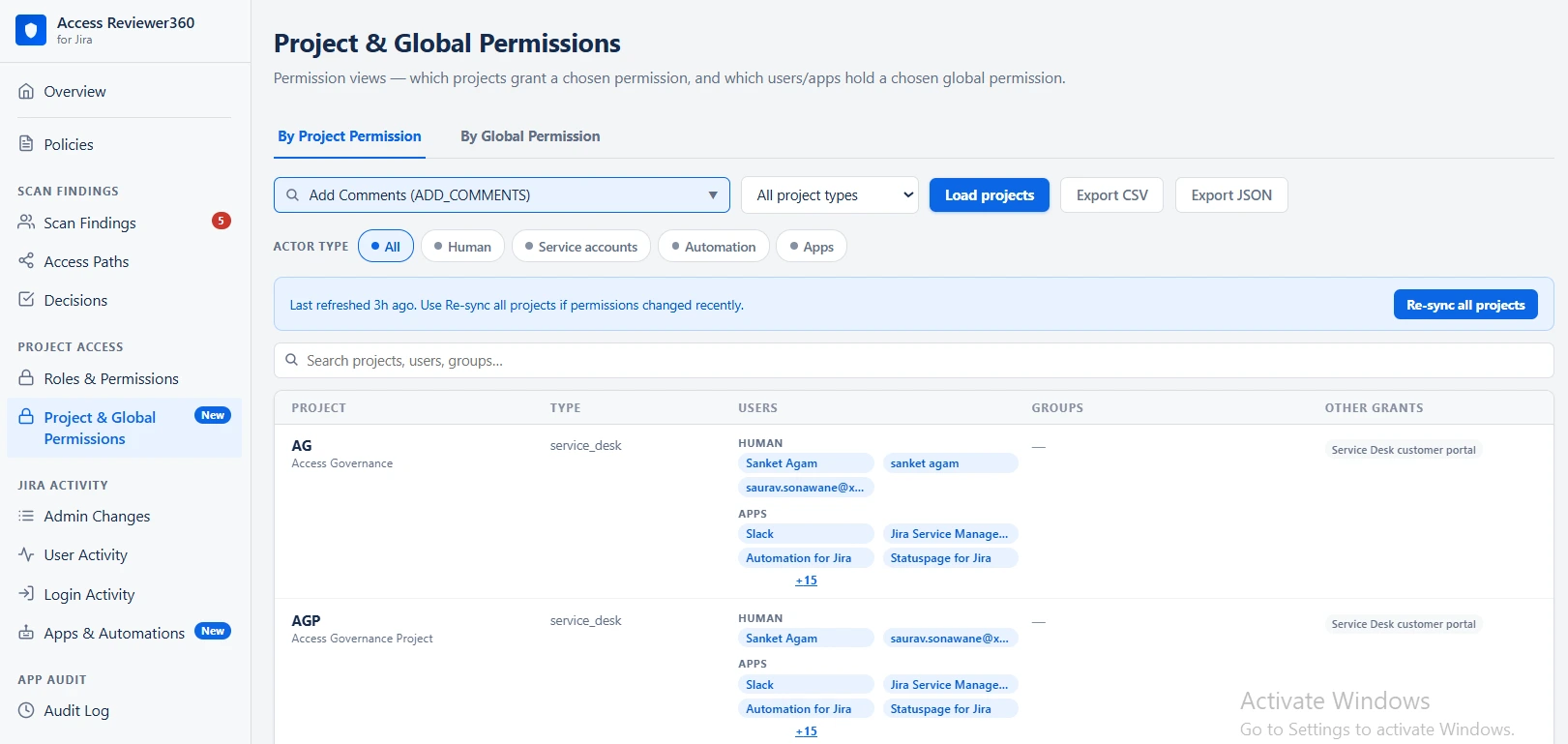
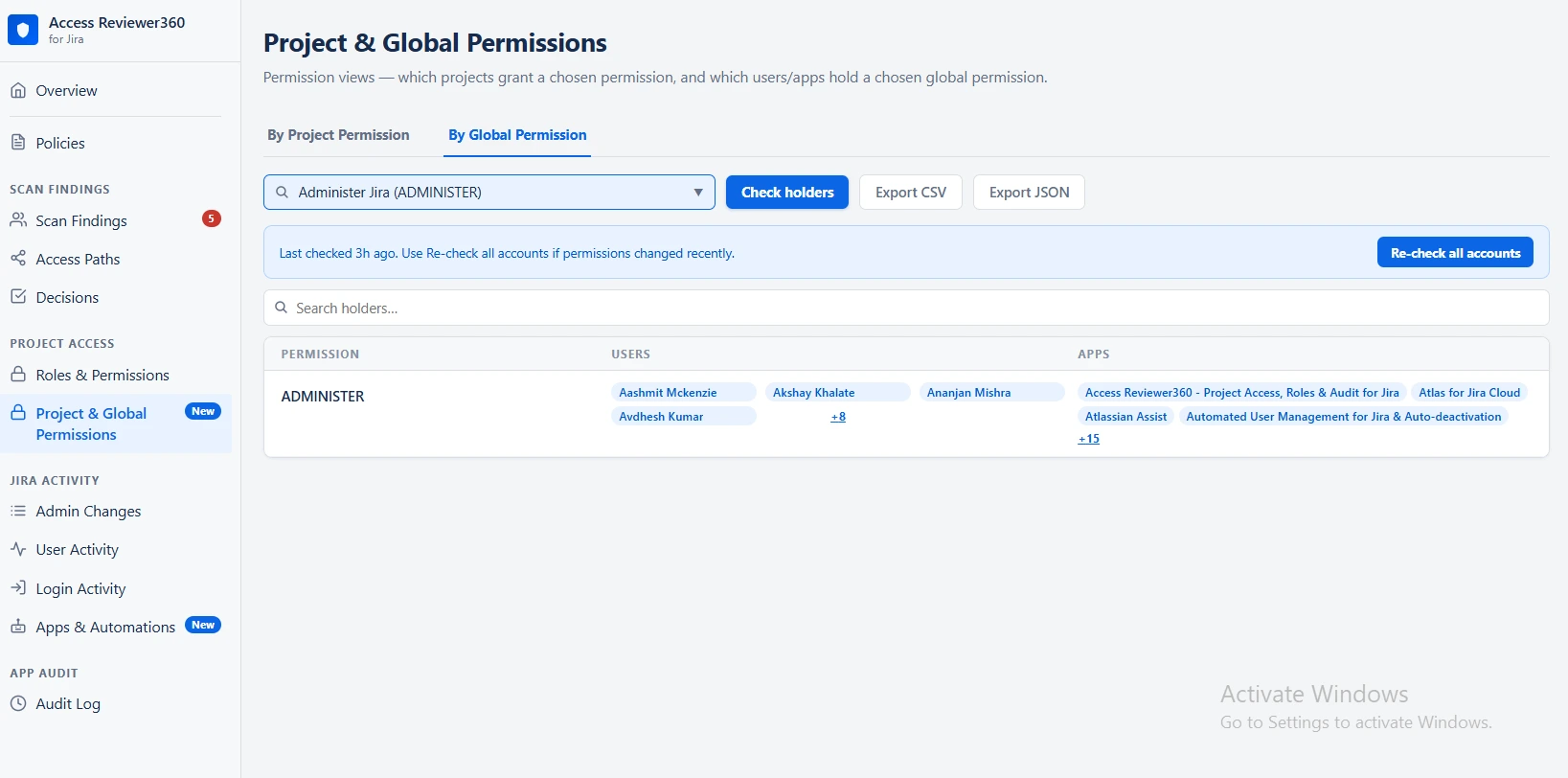
What you’ll see for each grant
Not every permission grant resolves to a tidy list of people, and this screen doesn’t pretend otherwise.
| Grant type | What shows up |
|---|---|
| Project role | The role’s real actors — the same people you’d see in Roles & permissions |
| Group | The group’s members, once expansion has caught up — otherwise just the group name, never a stale guess at membership |
| User | That one person |
Export CSV downloads the full view for compliance or offline analysis.
Admin changes
A timeline of administrative actions in Jira — role assignments, group membership changes, workflow edits, configuration updates.
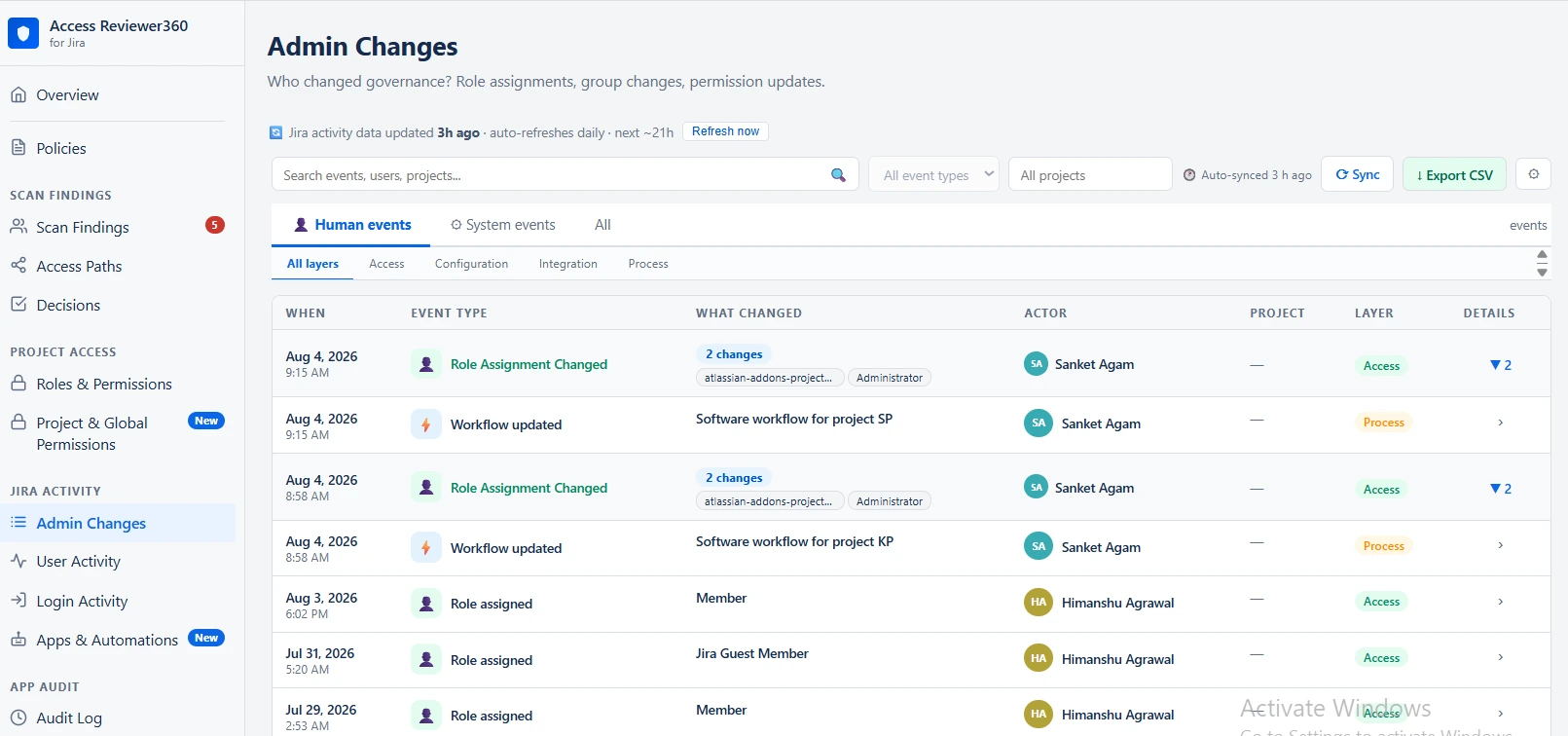
| Filter | How to use it |
|---|---|
| Search | By user, project or event description |
| Event type | Narrow to one kind of change |
| Project | Focus on a single project |
| Human / System / All | Separate user-driven events from automated ones |
| Governance layer | Access, Configuration, Integration or Process |
Events are colour-coded by category: blue for access (role assigned, user created, group membership added), purple for configuration (custom field, screen), orange for process (workflow, transition). Use Sync to pull the latest audit records immediately, and Export CSV when you need evidence for a review.
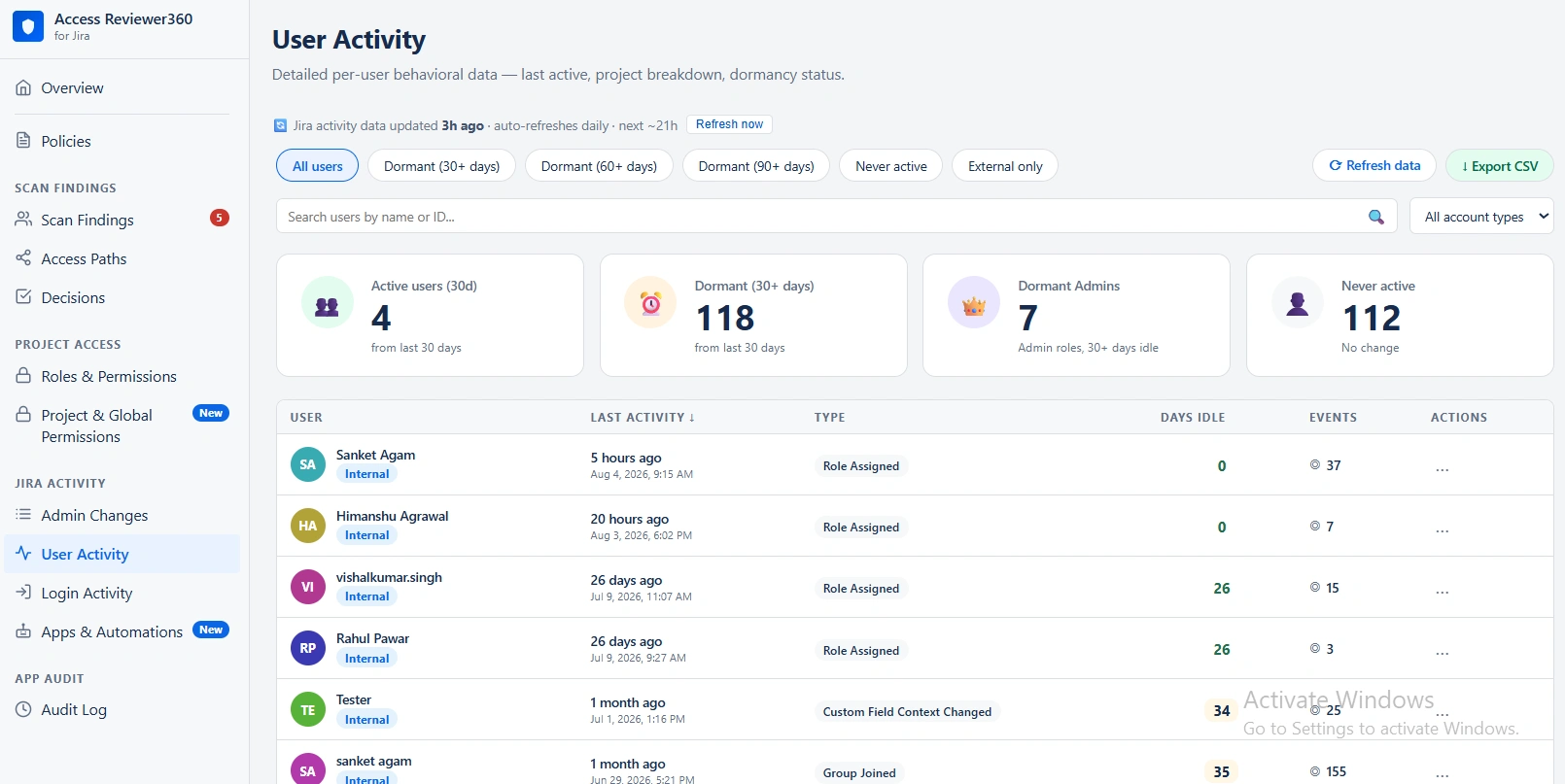
User activity
How active each user is, measured through comments, status updates, worklogs and issue changes. Search by name or email to validate whether a dormancy finding matches real behaviour. Data refreshes hourly; Refresh Data forces it now.
Login activity
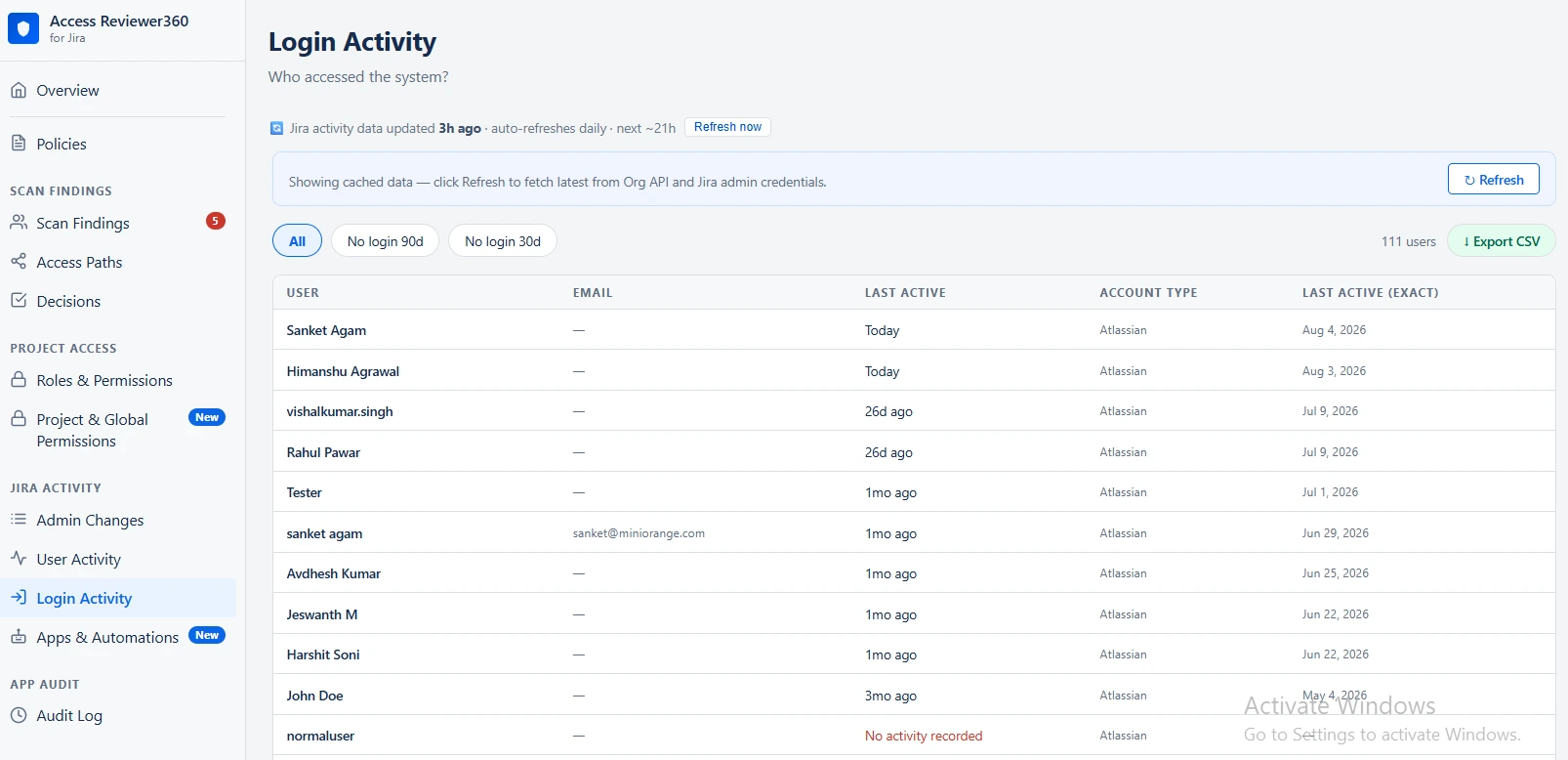
An advanced view over the same Jira-derived signal as User activity. There is nothing to connect and nothing to configure.
This is not SSO or identity-provider login data. Runs on Atlassian certification means the app only ever talks to your Jira site — it never calls the Atlassian Organization API and never asks for an admin-level cross-product credential. There is no API key to generate.
What you see is each user’s most recently detected Jira activity — issue changes, comments, worklogs — filtered by how long ago it happened, so you can answer “who hasn’t touched Jira in 30 or 90 days?”
Read the No login 90d / No login 30d tabs as “no detected Jira activity,” not “no SSO login.” True last-login timestamps would require external network access outside Jira, which would mean giving up Runs on Atlassian certification for every customer — so it is not supported. A user who has genuinely stopped using Jira still surfaces here as inactive.
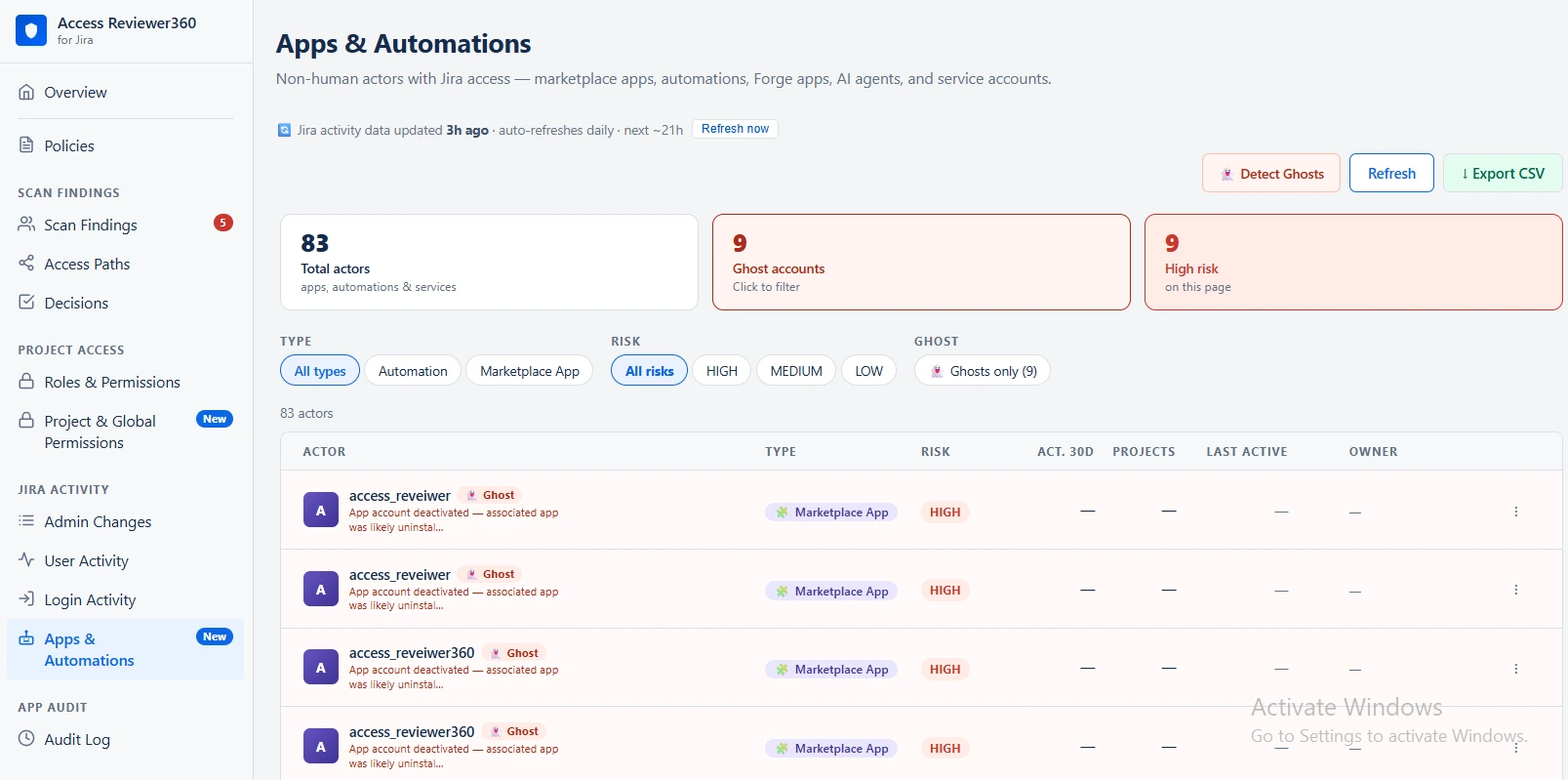
Apps & automations
Non-human identities — bots, service accounts, automation users — collected in one place, because they accumulate permissions quietly and are rarely reviewed.
- Review the identified non-human accounts
- Check which projects and roles each one holds
- Create remediation issues for unnecessary admin-level access
- Refine the recognition patterns in policy settings if an account is mis-classified
This is the fastest section to run a least-privilege review against.
App audit
The audit log records actions taken inside Access Reviewer360 itself — scans, policy changes, remediations, suppressions.
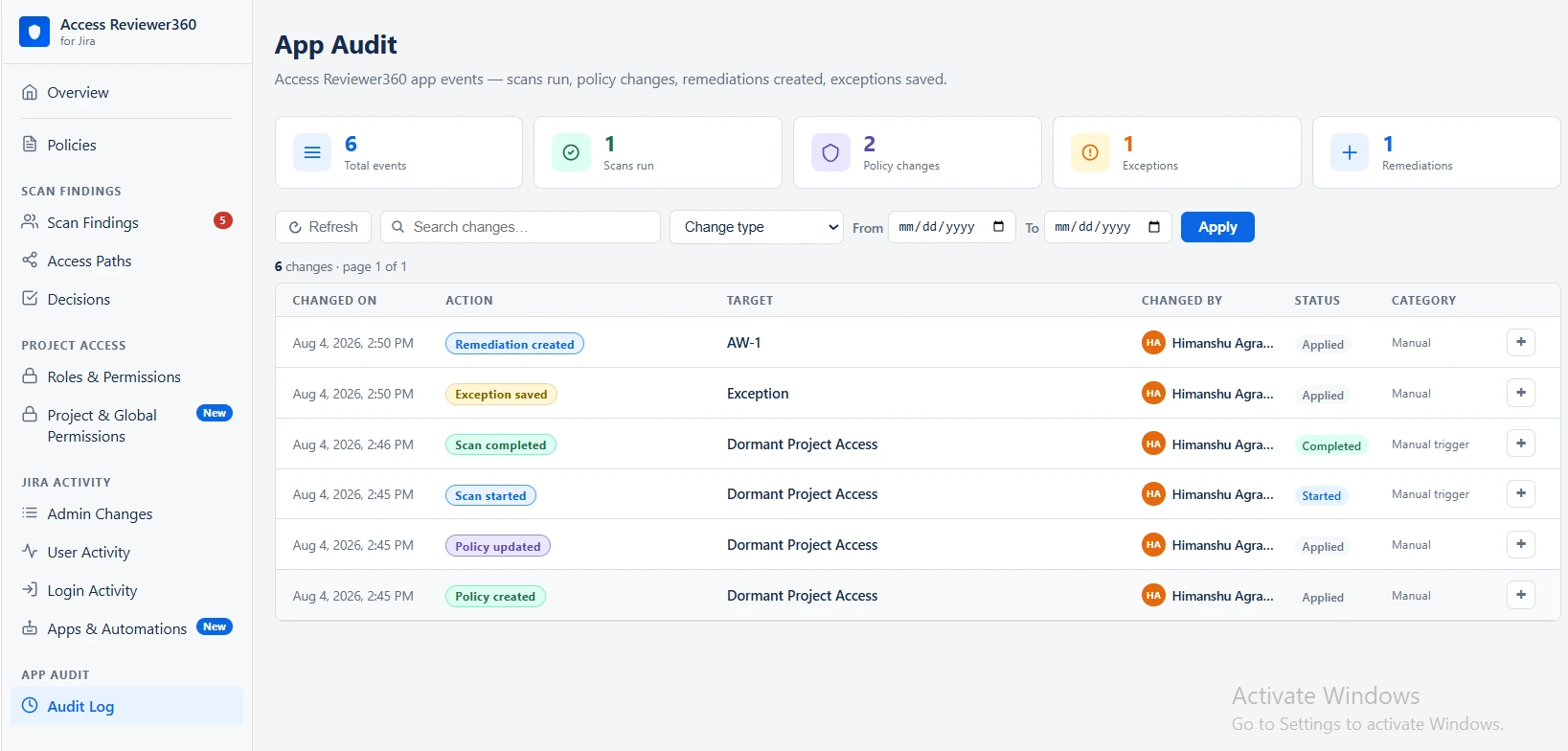
| Counter | What it counts |
|---|---|
| Total events | All logged actions |
| Scans run | Scans triggered |
| Policy changes | Policy creates, updates and deletes |
| Exceptions | Saved suppressions |
| Remediations | Remediation tickets created |
For a compliance pack, export both Scan Findings and the App Audit log: the first shows what risks existed, the second shows what was done about them.
Quick reference
| Section | The question it answers |
|---|---|
| Overview | What is my current risk posture at a glance? |
| Policies | Which checks are running, and how are they configured? |
| Scan Findings | What risks did the last scan find? |
| Decisions | What has been done about findings? |
| Roles & Permissions | Who has access to what across Jira? |
| Access Paths | How exactly did this user get access? |
| Admin Changes | Who changed what, and when? |
| User Activity | Who is active, and who is dormant? |
| Login Activity | Who has gone quiet, based on Jira activity? |
| Apps & Automations | Do non-human accounts have too much access? |
| App Audit | What actions were taken inside the app? |
Need help?
- Support portal: miniorange.atlassian.net/servicedesk
- Email: atlassiansupport@xecurify.com
- Marketplace: marketplace.atlassian.com — search “Access Reviewer360”
Access Reviewer360 is built and maintained by miniOrange. Your Jira governance data remains within the Atlassian platform.
Did this page help you?