Want to customize your login & logout pages?
By default, Jira and Confluence use the standard login page for user sign-in. The plugin allows admins to customize the login and logout pages, helping create a more consistent and branded sign-in experience for users.
For this example, we will configure custom login and logout pages for Confluence.
Step 1: First, we will configure a customized login page. To achieve this, navigate to the "Look and Feel" tab under the "SSO Settings".
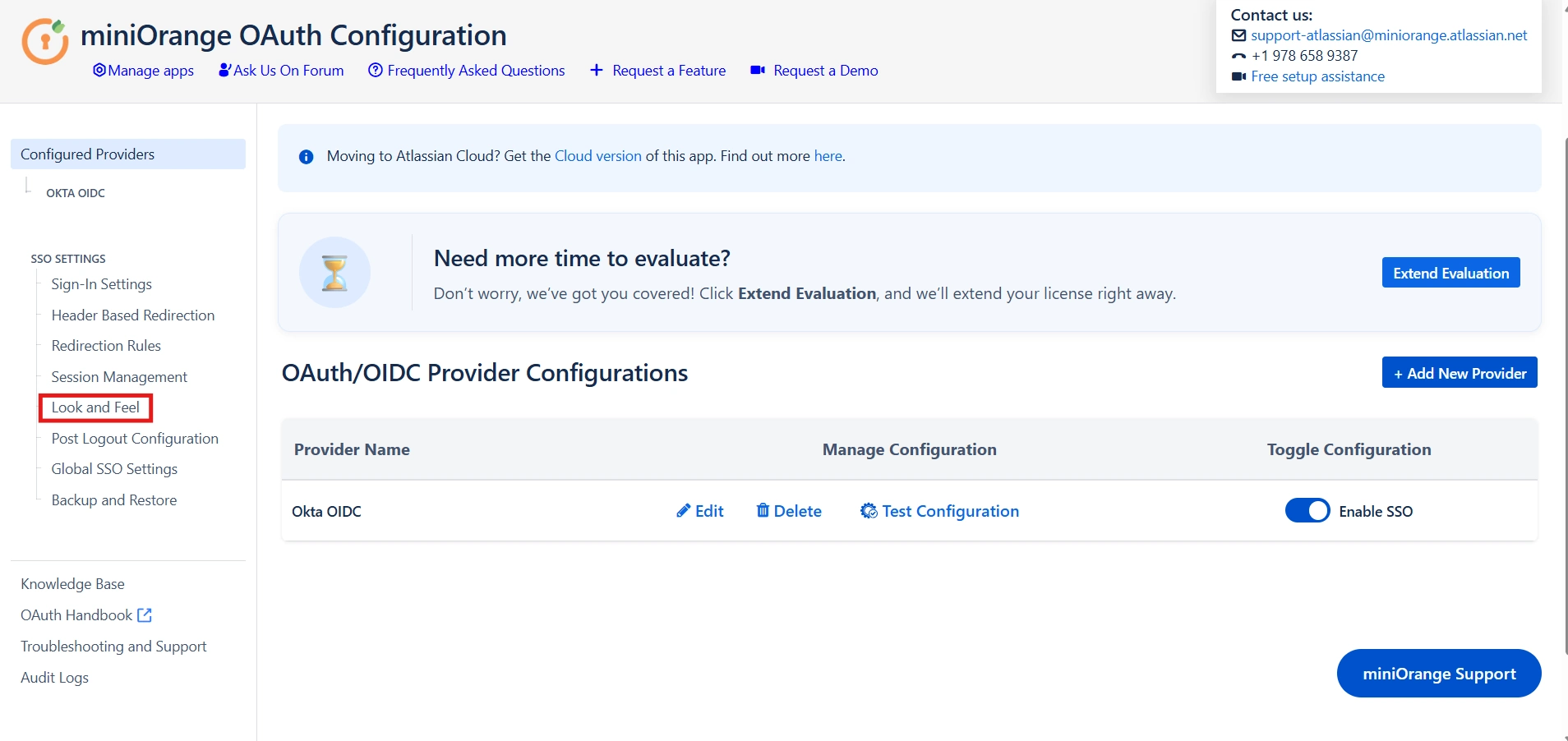
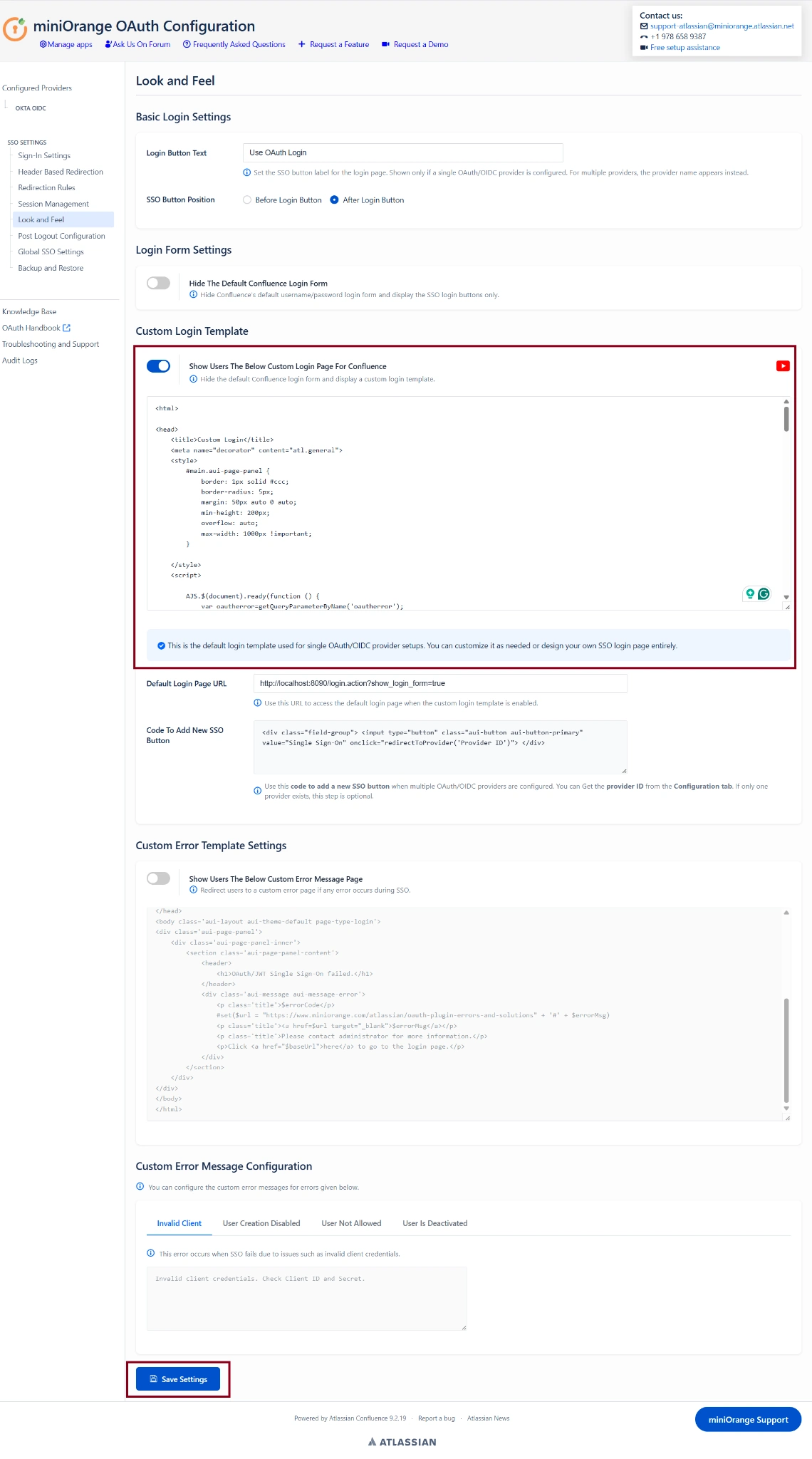
Step 2: Now, to configure a Custom Login Page:
- Enable the "Show Users The Below Custom Login Page For Confluence" option under the Custom Login Template section.
- Once enabled, the login template editor will become active and display a default template.
- Modify the template as needed to match your organization's branding and design requirements.
- Use the sample code provided below the editor to add new SSO login buttons, if required.
- After making the desired changes, click "Save Settings" at the bottom of the page to apply the custom login page.
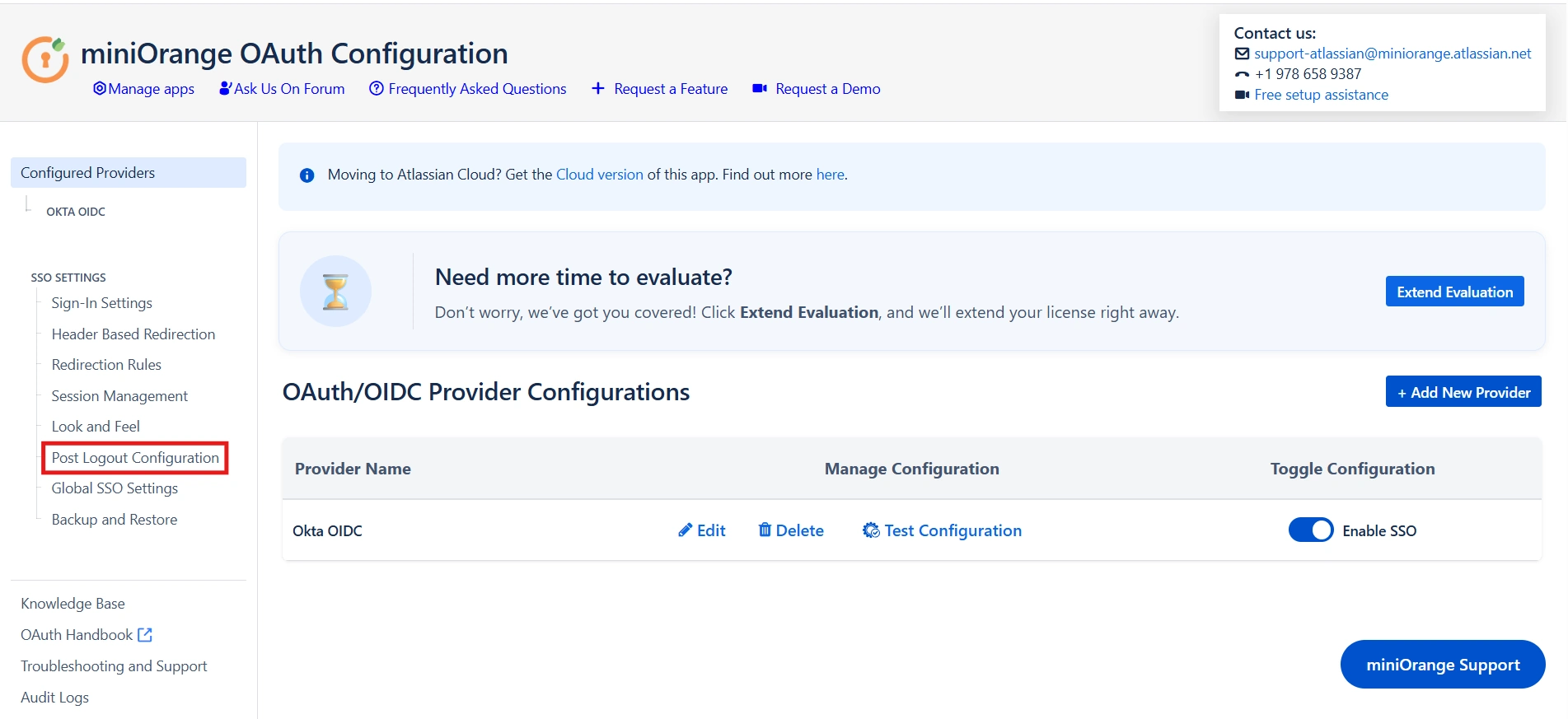
Step 4: To configure a customized logout experience, navigate to the "Post Logout Configurations" tab under the "SSO settings".
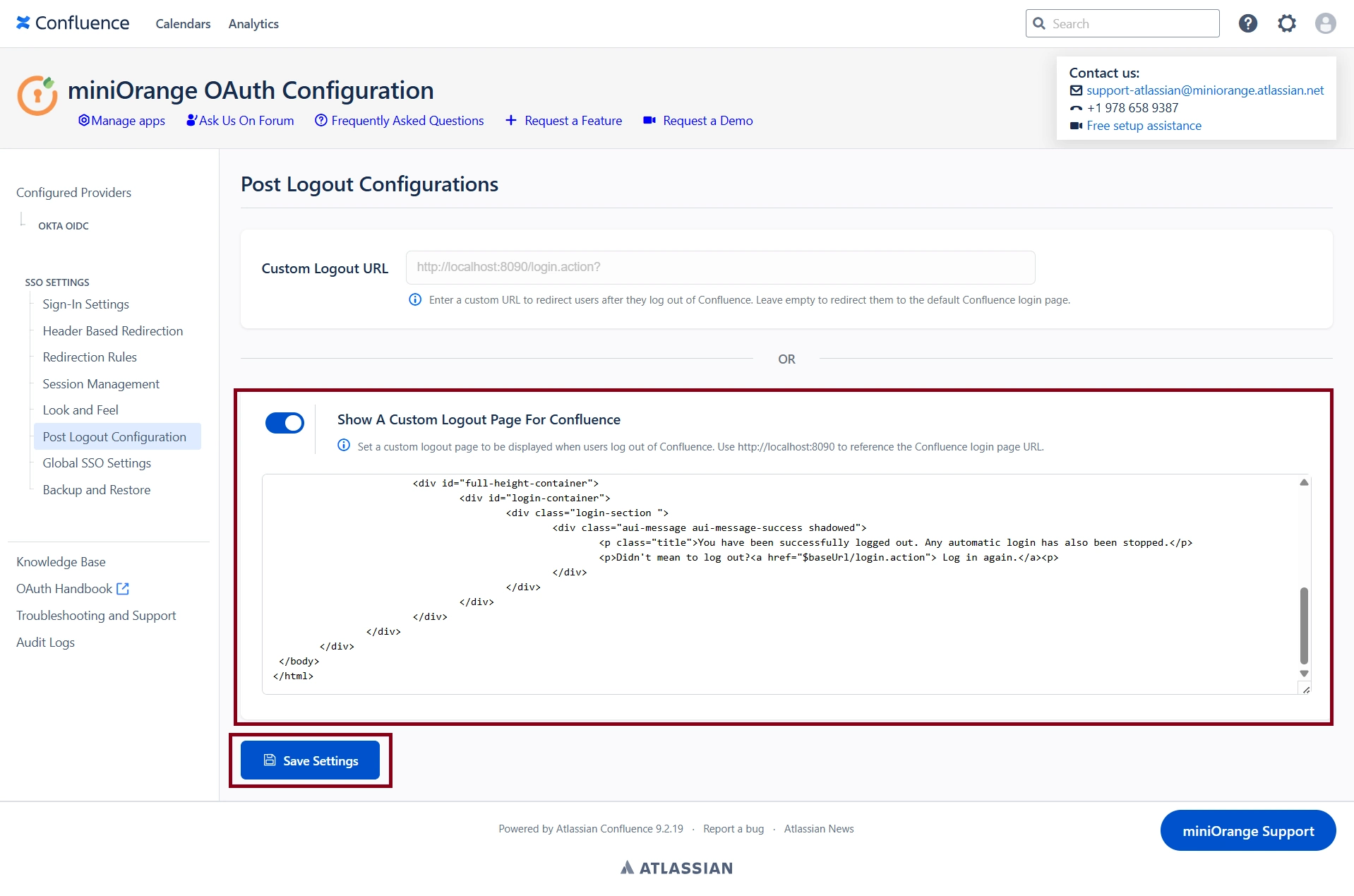
Step 5: To Configure a Custom Logout Page
- Enable the "Show A Custom Logout Page For Confluence" option.
- Once enabled, the logout page editor will become active and display a default template.
- Modify the template as needed to match your organization's branding and requirements.
- If no changes are made, the default template will be shown to users.
- After completing the customization, click "Save Settings" at the bottom of the page to apply the changes.
The customized login and logout templates have now been successfully configured. Below are examples showcasing the default and customized login page experience, along with the customized logout page.
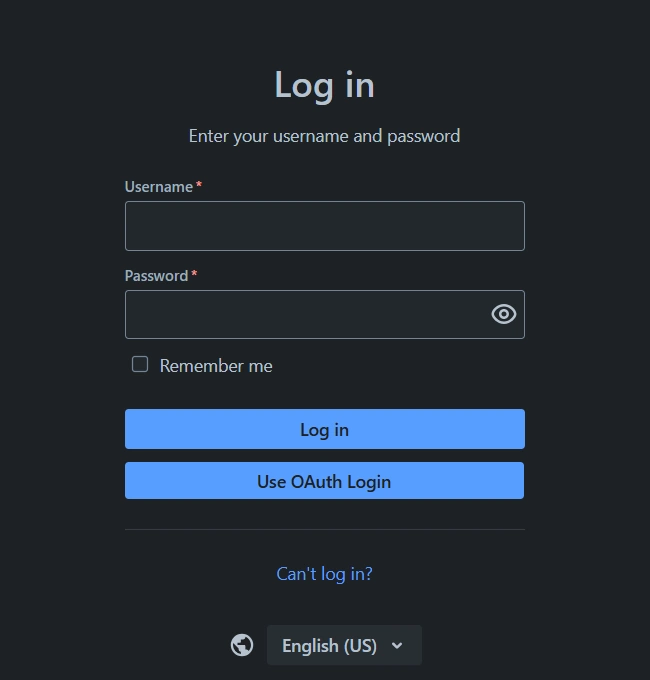
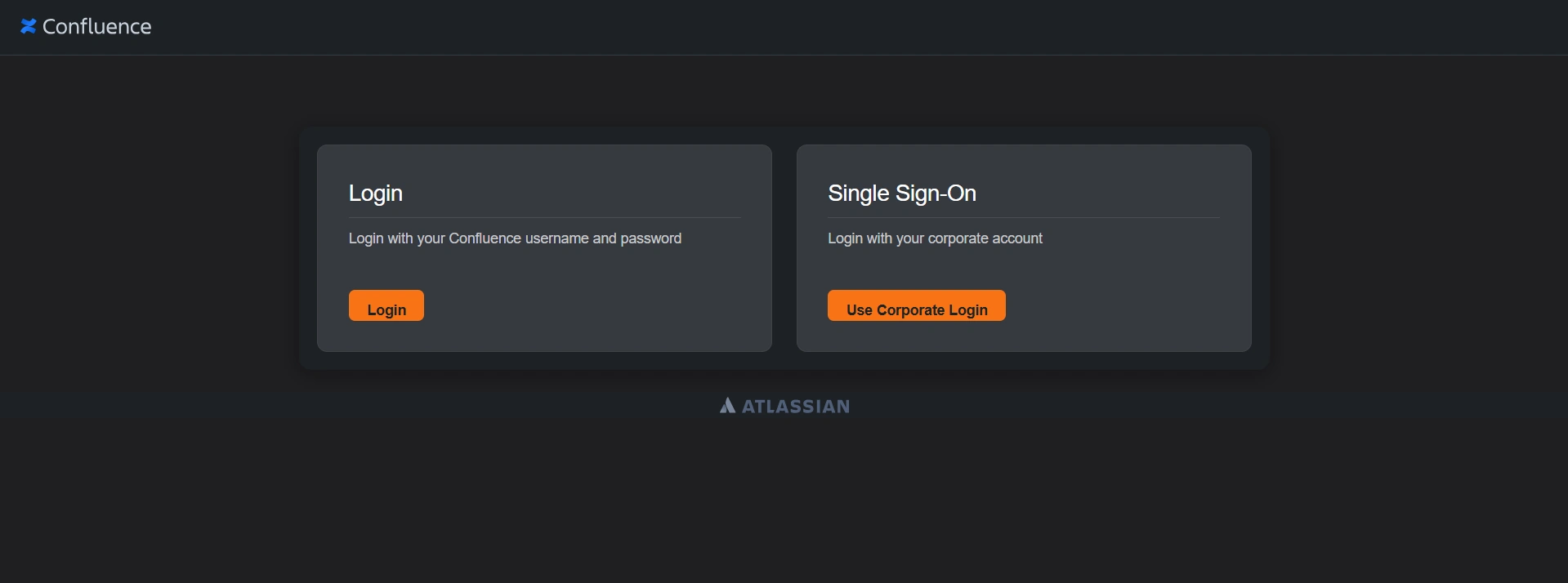
After the SSO user logs out, the logout experience will appear similar to the example shown below.
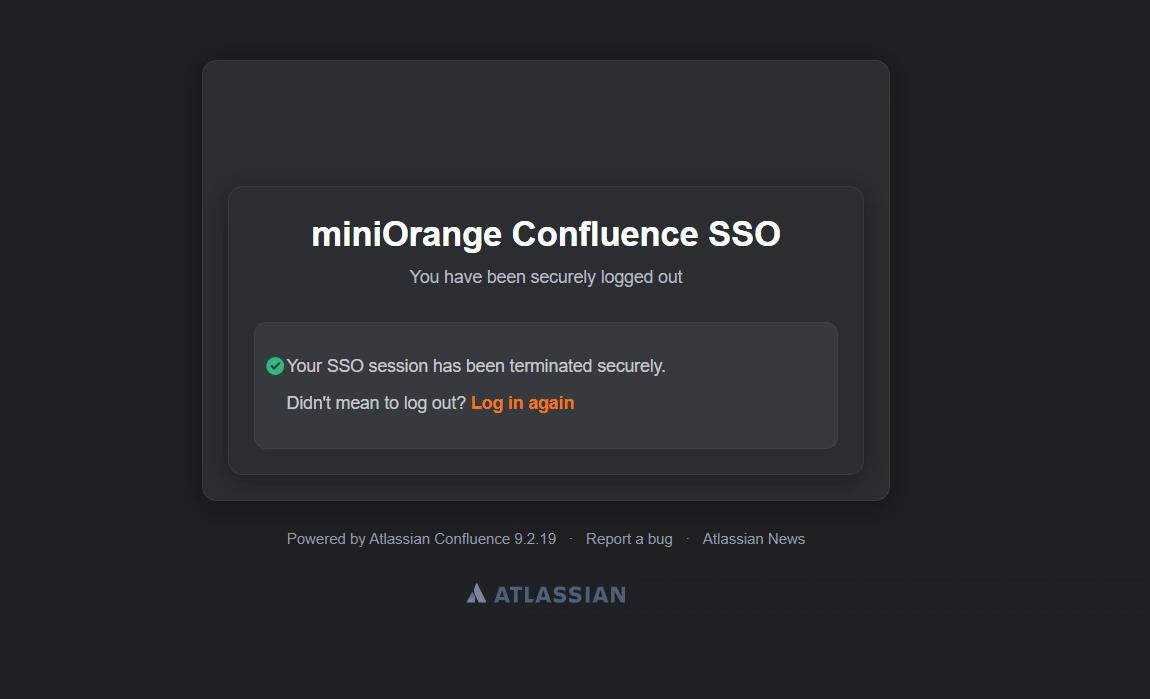
Success confirmation: Here, we have successfully configured and verified the customized login and logout templates, providing a branded and seamless authentication experience for users.