Part 2: Setup miniOrange with Keycloak
Step 1. Configure miniOrange as SP in Keycloak
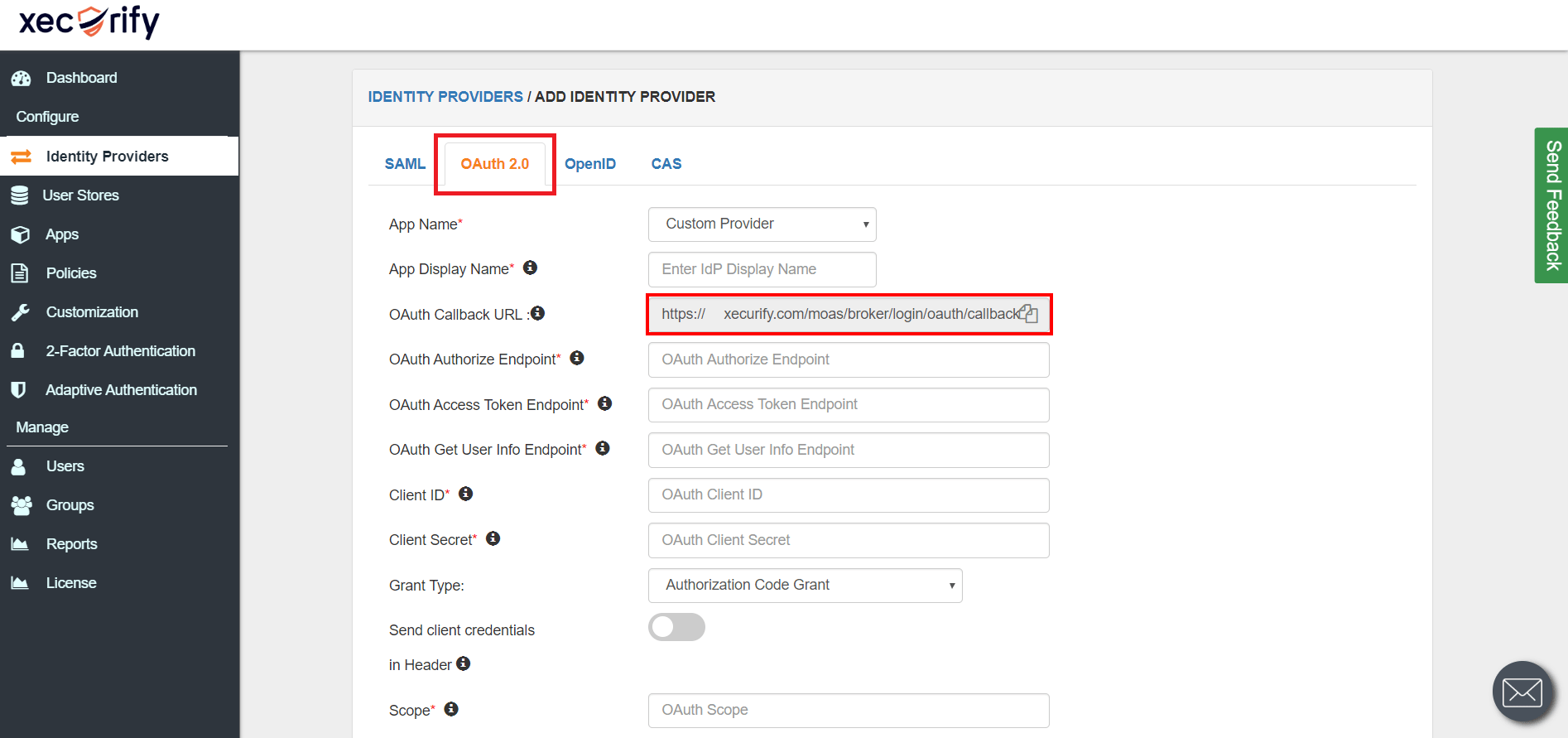
Obtain the following steps to get callback url.
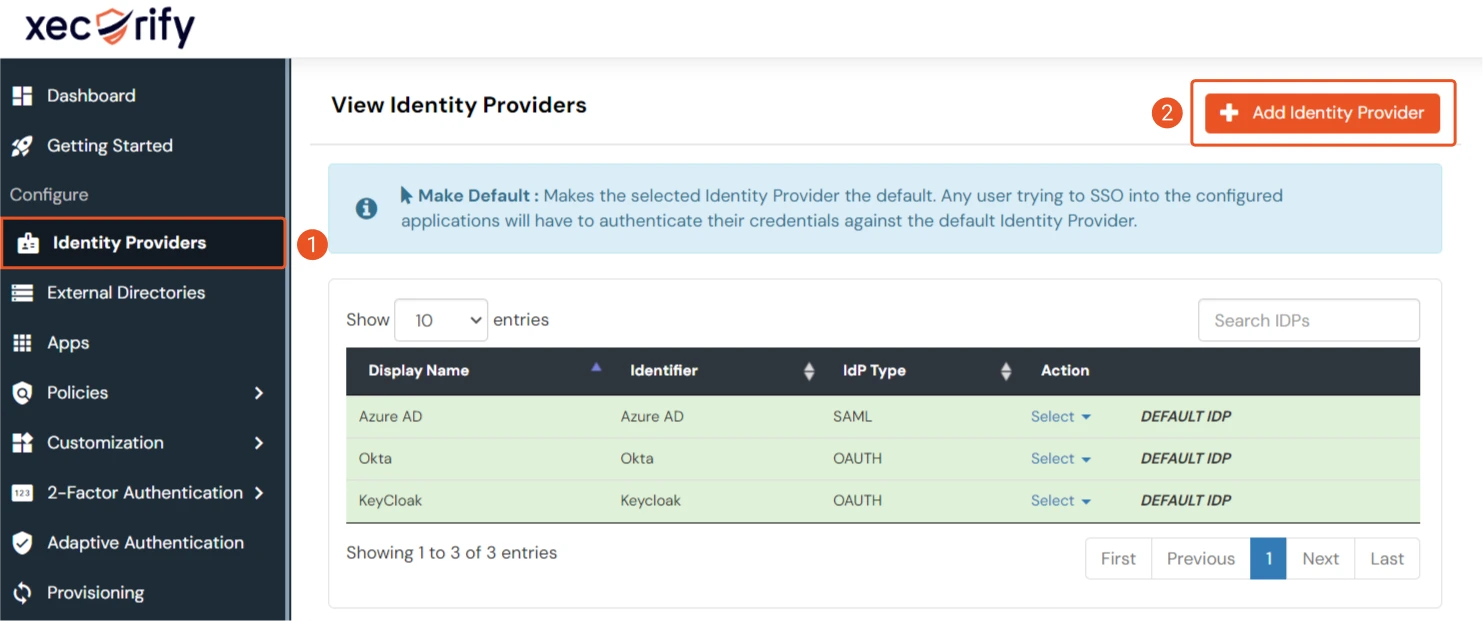
- Go to miniOrange Admin Console.
- From the left navigation bar, select Identity Provider.
- You will get the callback URL here, keep it handy this would be required in next steps.
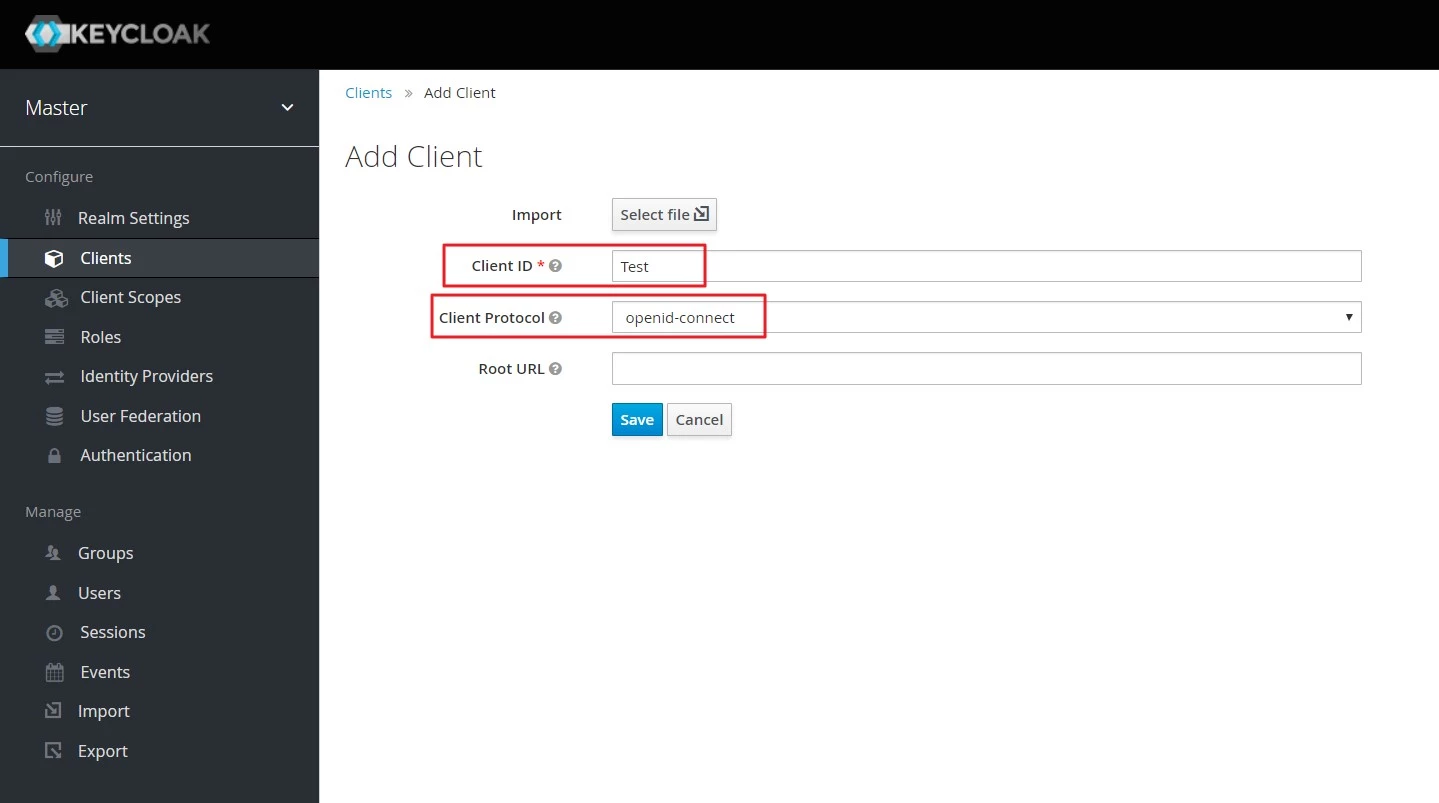
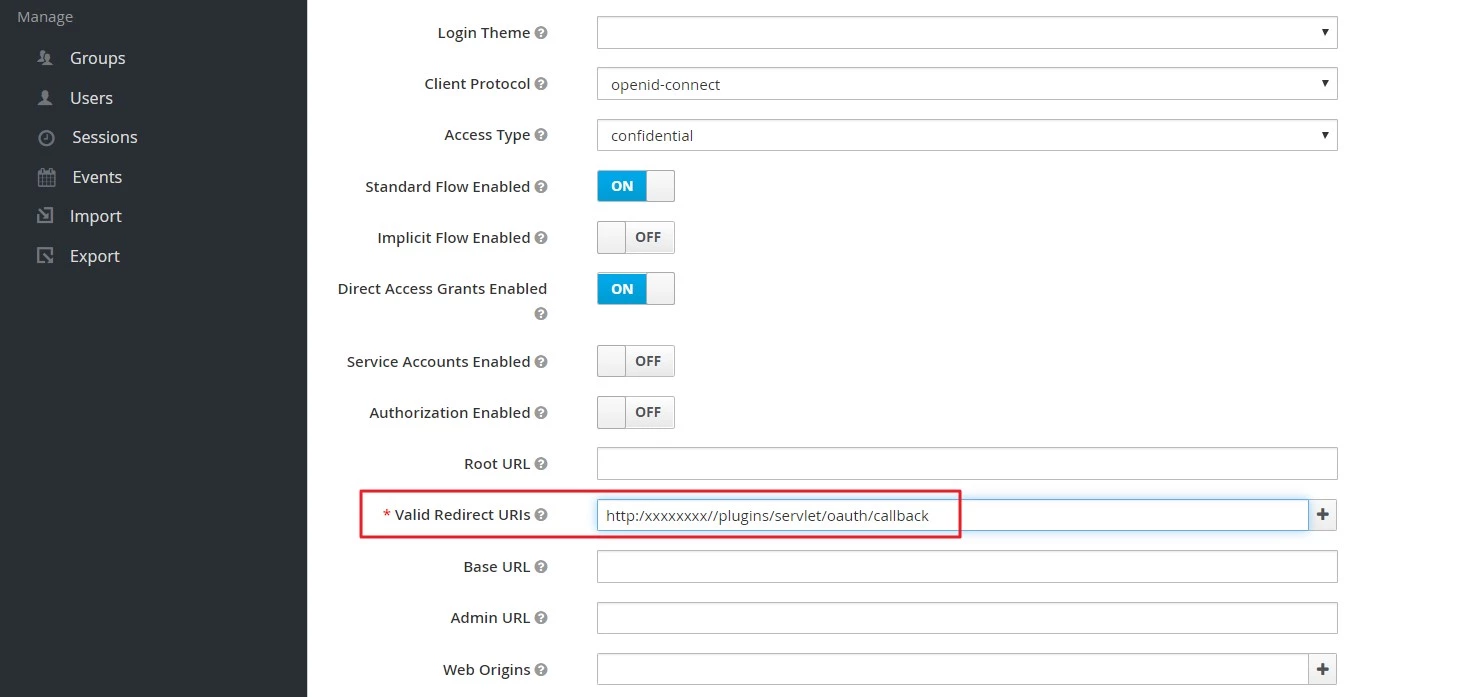
- Create openid client : Login to your Keycloak server. Go to the Clients and click on Create button. Enter client id and select openid-connect as client protocol and select Save.
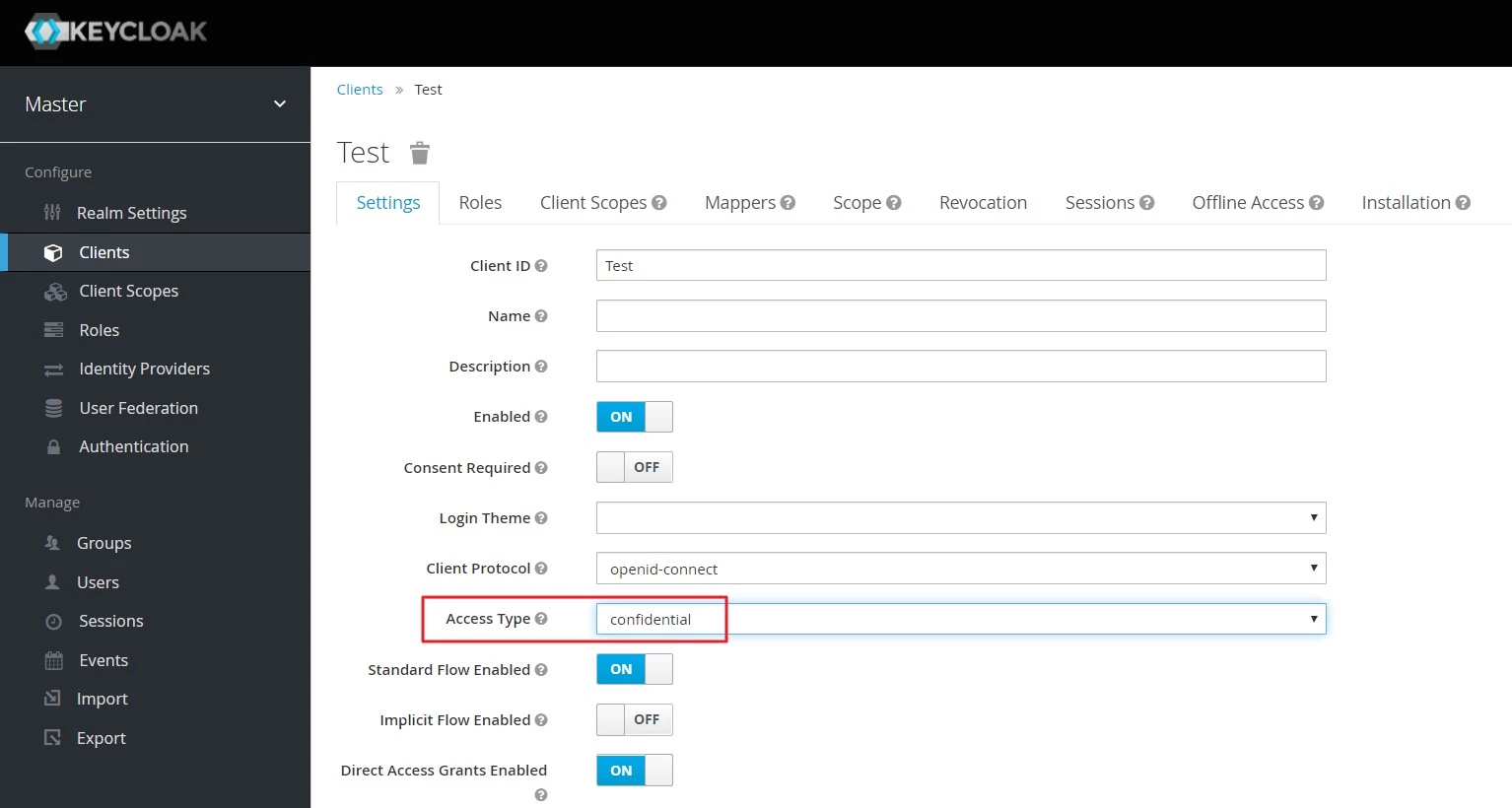
- Change Access type: After client is created change its access type to confidential.
- Enter Valid Redirect URIs :
- Copy the Callback URL from plugin and insert into Valid Redirect URIs field.
- Click on SAVE.
- Keycloak Group Mapper:
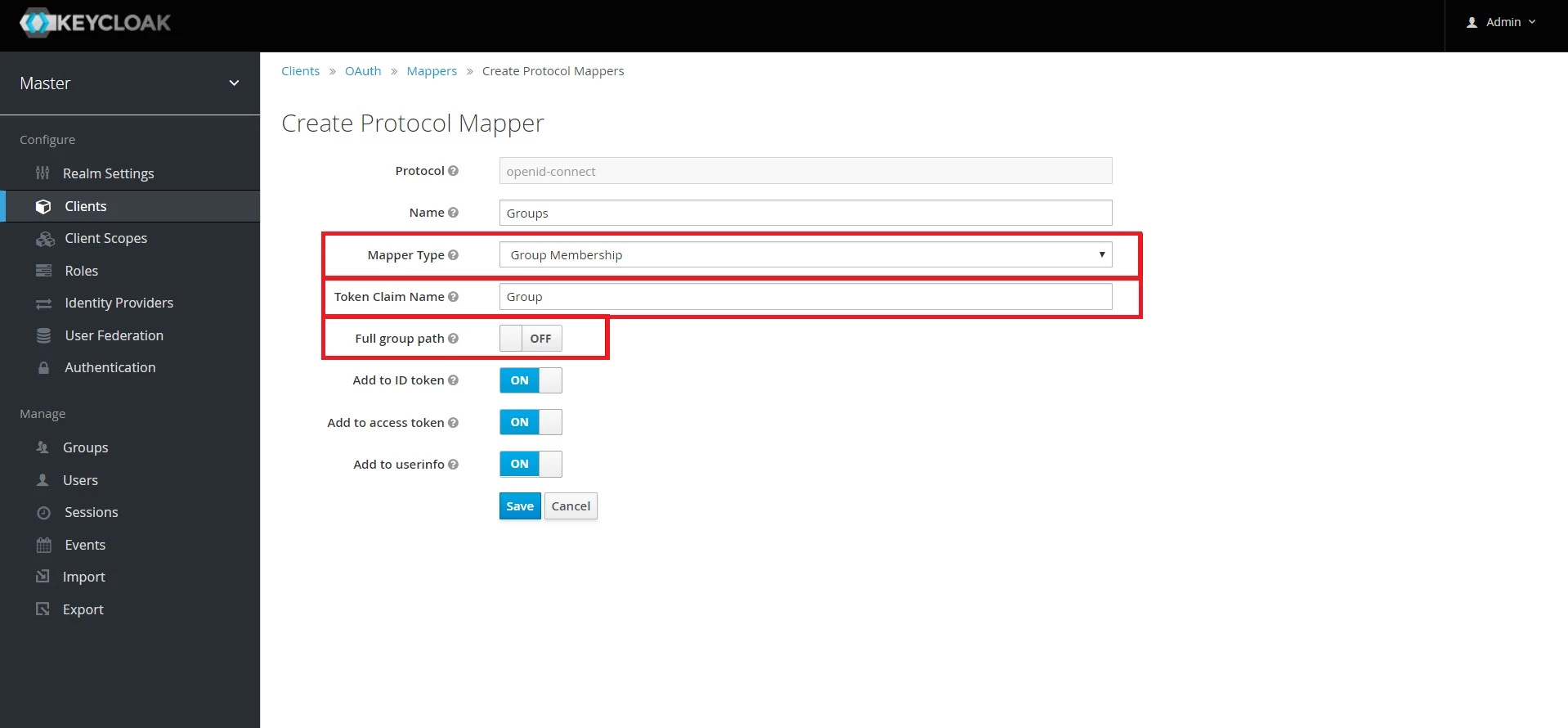
- Now, if you want to fetch the user groups you will have to map the client and group membership.
- For that, navigate to the Clients and select the client Id you created, then go to the Mappers tab and click on Create.
- Provide Name, select Mapper Type as Group Membership and enter the Token Claim Name i.e attribute name corresponding to which the groups will be sent.
- Turn off Full group path else group mapping will fail. And then click on Save.
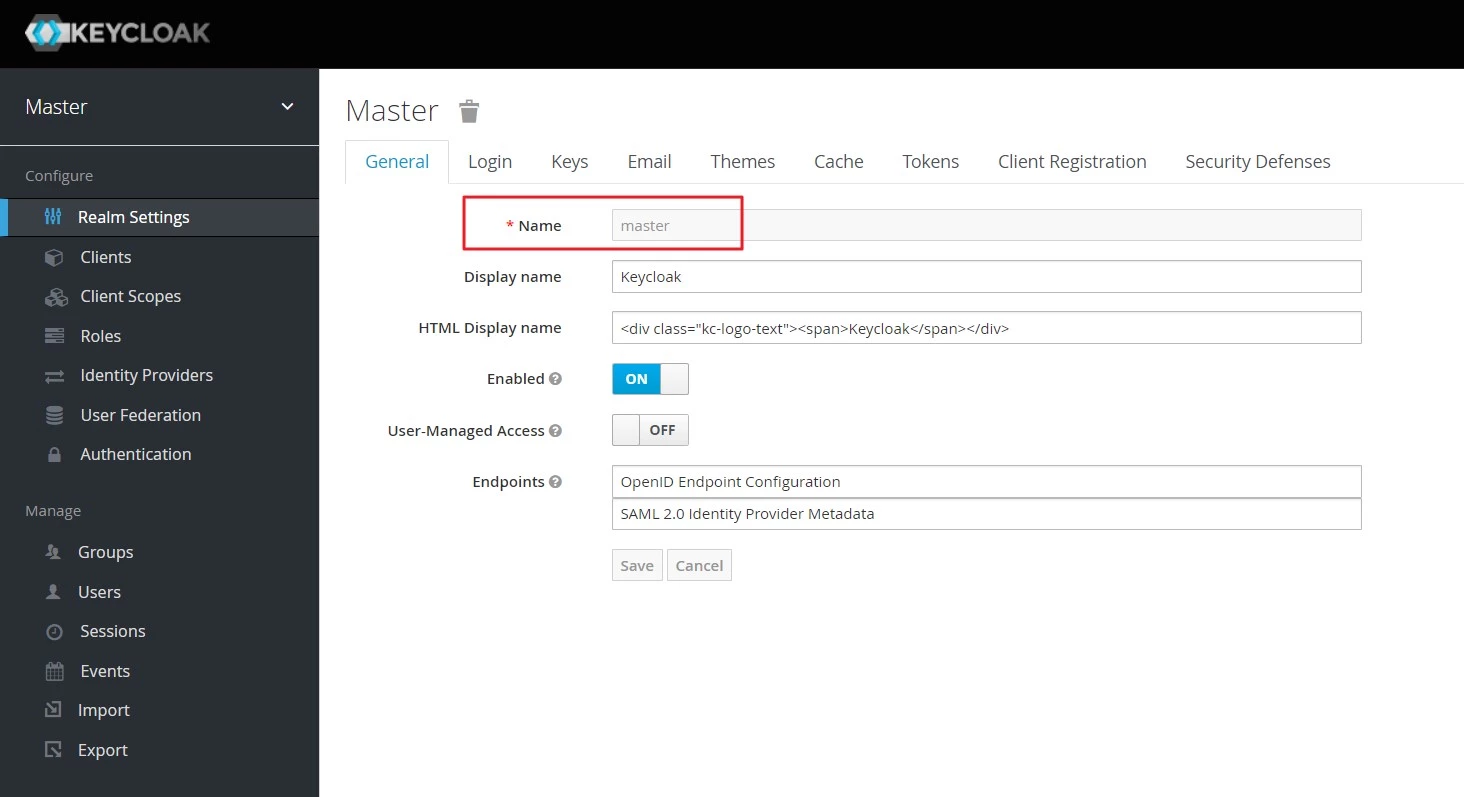
- Realm name: You need a realm name when you set up Keycloak as an OAuth provider, kindly copy it. For example in this case it is Master
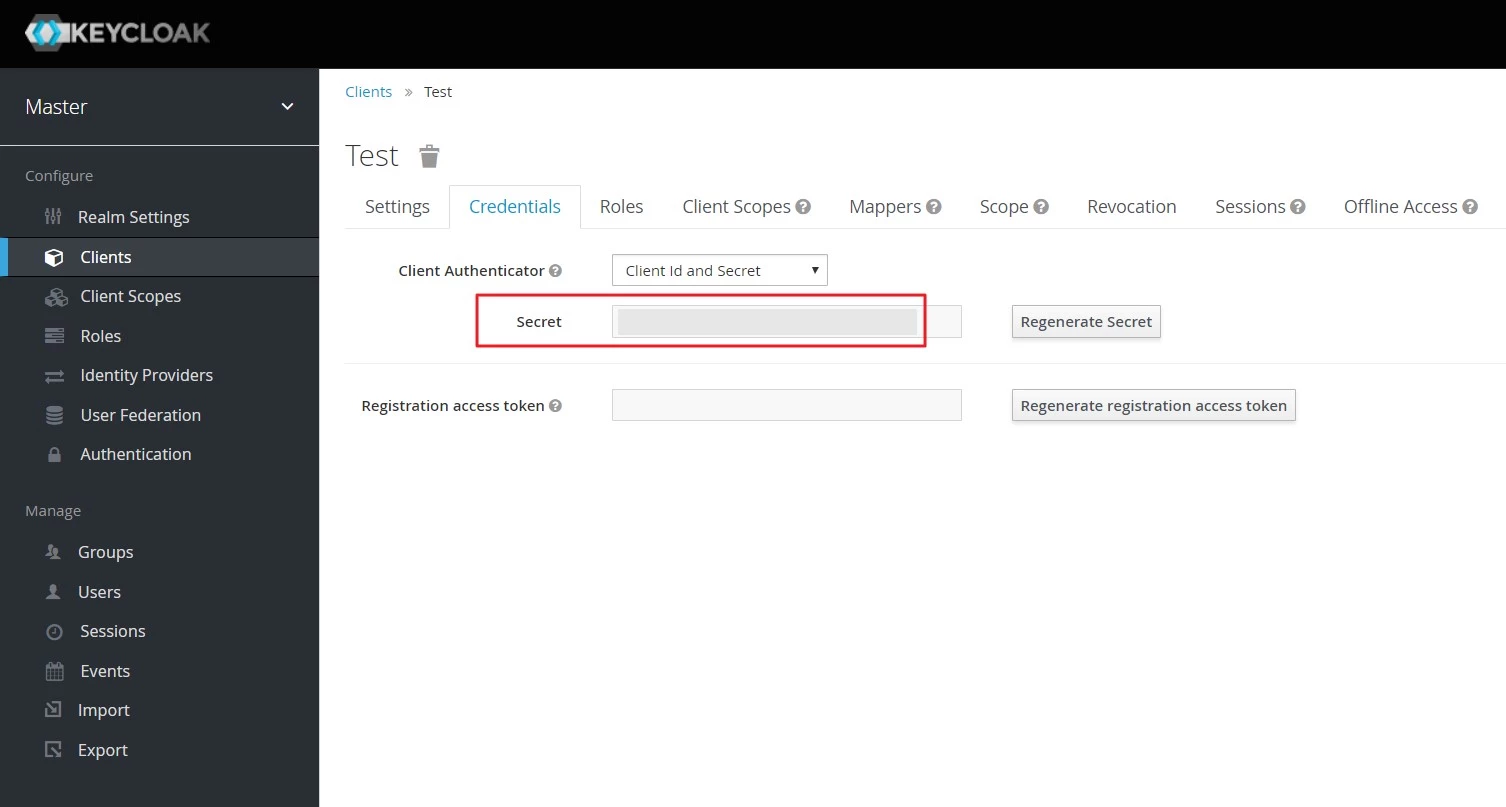
- Get Client Secret: To get Client Secret Navigate to Clients, select Client Id and navigate to the Credentials tab.
Step 2. Configure Keycloak in miniOrange.
- Go to miniOrange Admin Console.
- From the left navigation bar select Identity Provider.
- Select OAuth
- Enter the following values.
- Now you can click on Save.
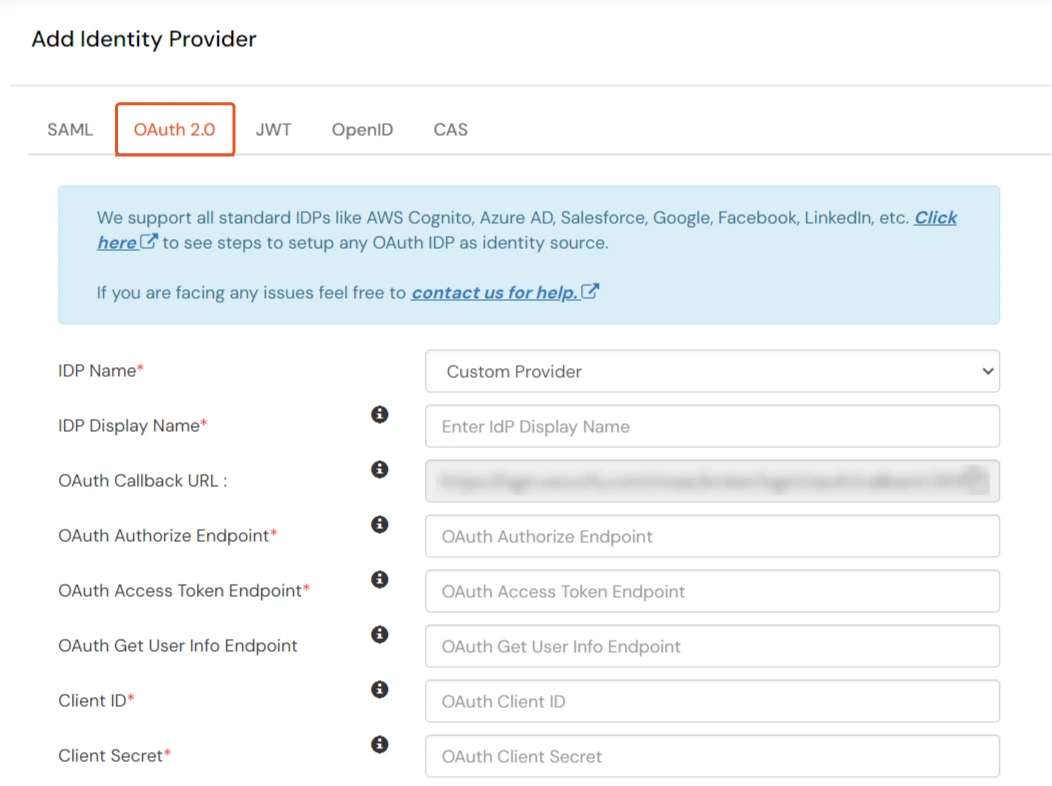
| IdP Name | Custom Provider |
| IdP Display Name | Choose appropriate Name |
| OAuth Authorize Endpoint | https://{keycloak-app-domain}/oauth2/authorize | OAuth Access Token Endpoint | https://{keycloak-app-domain}/oauth2/token | OAuth Get User Info Endpoint (optional) | https://{keycloak-app-domain}/oauth2/userInfo |
| Client ID | This value can be obtained from the above steps |
| Client secret | This value can be obtained from the above steps |
| Scope | openid |
Step 3. Test connection between miniOrange and Keycloak
- Go to the miniOrange Admin Dashboard.
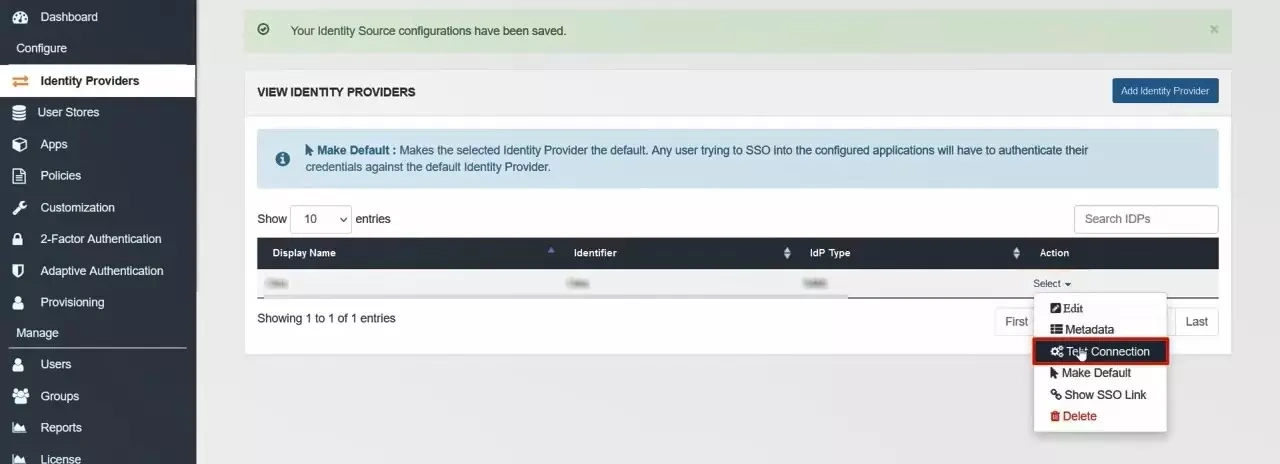
- Go to Identity Providers tab. Then click on select button under the app you just created. Then click on Test Connection.
- A new popup login window will open. Enter your credentials and login.
- Now you will see TEST SUCCESSFUL in a new popup window. If not, then check if you have missed any of the above step.