

Credential abuse is the common vector in 13% of data breaches. Cybercriminals can gain access to sensitive organizational data through weak, stolen, or reused passwords belonging to employees or customers.
Single sign-on (SSO) and Multi-Factor Authentication (MFA) are industry-standard solutions for addressing these issues, and they can help to mitigate security threats.
But external Jira Service Management (JSM) customers often authenticate differently.
If Jira's built-in 2FA is enforced for everyone, employees who are already authenticating through an IdP may be prompted for MFA twice.
If it is disabled, customer portals may be left without MFA protection.
This guide will walk you through how to secure the accounts of both your employees (Internal Users) and JSM customers (External Users) in your Data Center instance.
The Authentication Challenge in Jira and Jira Service Management
Most organizations manage two very different user groups inside Jira DC environments.
Internal Users: Employees, Admins, and Agents
These users typically include:
- Jira administrators
- Developers
- Service desk agents
- Employees
- Internal stakeholders
Their authentication flow usually looks like this:
Identity Provider → SSO → MFA → Jira
Authentication is commonly managed through:
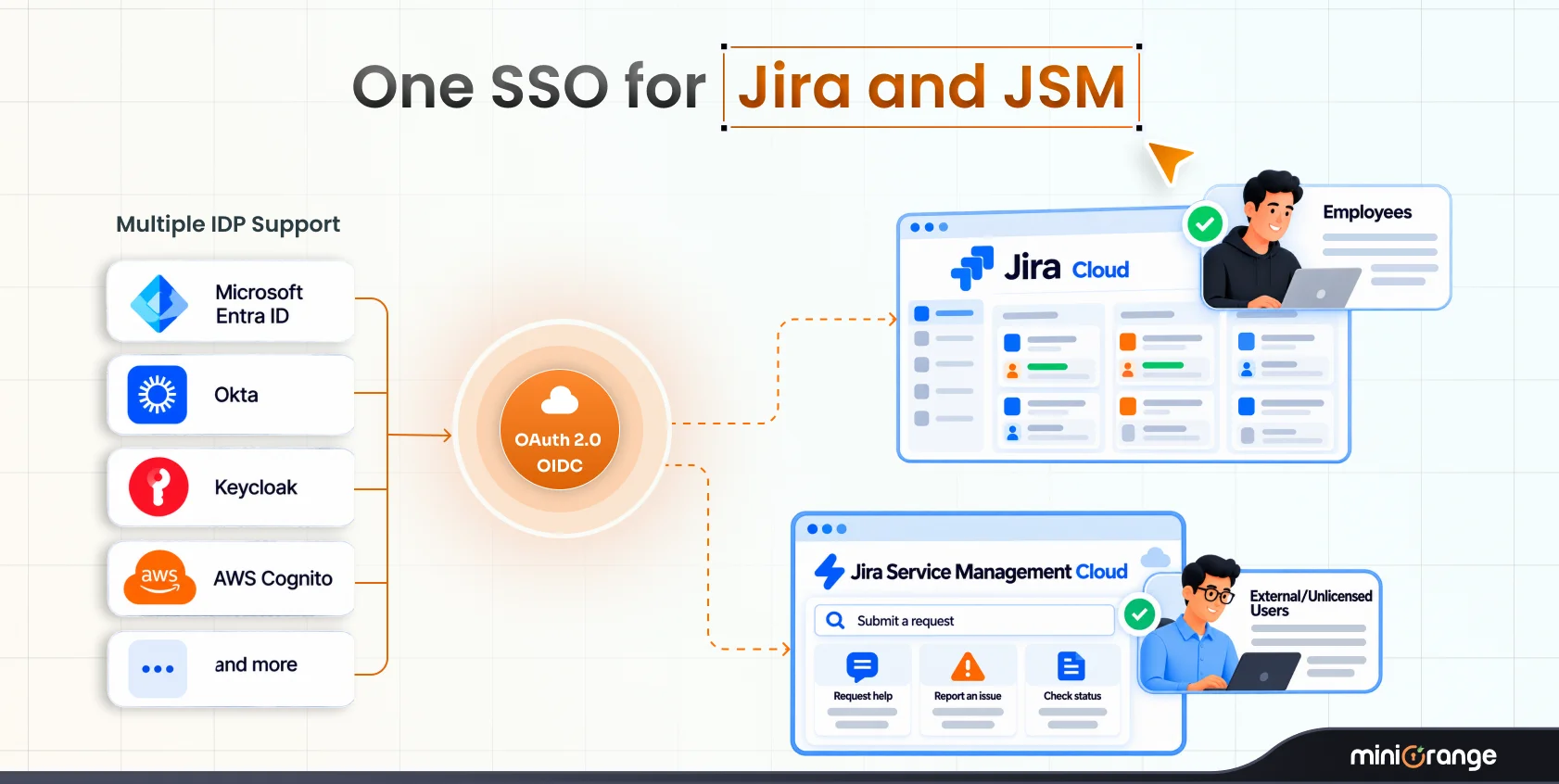
- SAML SSO
- OAuth/OIDC SSO
- Corporate Identity Providers
Examples include:
- Okta
- Microsoft Entra ID
- Google Workspace
- OneLogin
- Ping Identity
Since MFA is already enforced at the IdP level, internal users are already protected.
External Users: JSM Customers
JSM customer portals often serve:
- Customers
- Vendors
- Contractors
- Partners
- External support requesters
These users may not authenticate through your corporate IdP.
As a result, admins face a common challenge:
How do you secure customer portal access without forcing employees to complete MFA twice?
How to Secure Your Customers with 2FA?
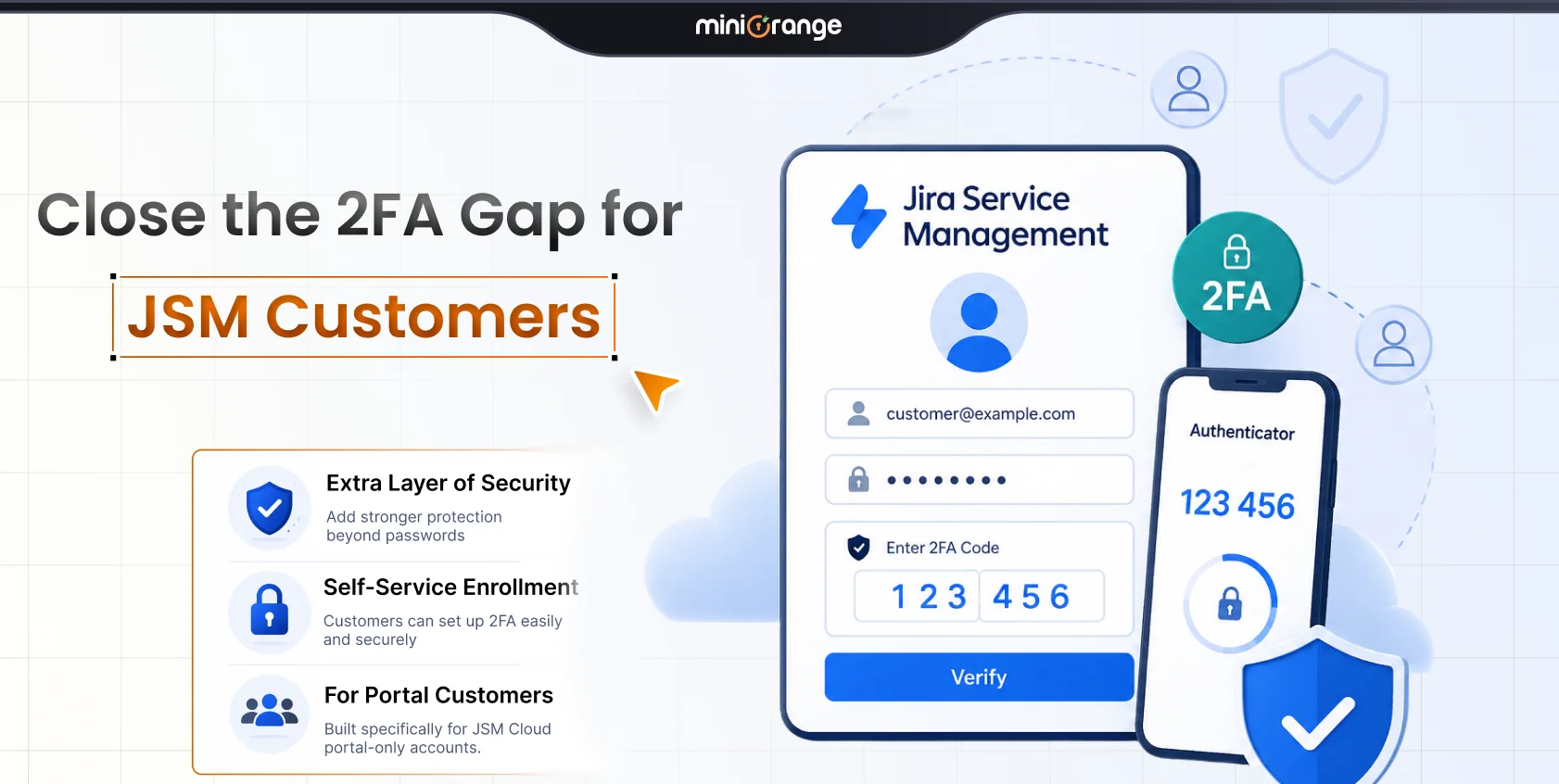
The miniOrange Two-Factor Authentication app for Jira Data Center allows you to selectively enforce Jira 2FA for external customers. Instead of enabling MFA for everyone, you can target:
- Specific users
- User groups
- Customer-only accounts
- Service desk users
- IP-based access conditions
You can enable Jira 2FA for customers while exempting employees.
Supported Authentication Methods
You can choose from 9+ authentication methods:
- Mobile Authenticator
- YubiKey Hardware Token
- Duo Push Notification
- WebAuthn (FIDO2)
- OTP Over Email
- OTP Over SMS
- Security Questions
- Out of Band Email
- Backup Codes
You can also configure primary and backup authentication methods.
Step 1: Install and Configure Jira 2FA
Install the miniOrange Two-Factor Authentication app for Jira Data Center.
After installation:
- Open basic configuration.
- Select your preferred 2FA methods.
- Enable required authentication options.
- Configure backup methods.
You can choose which methods are available across the organization.
Step 2: Create Customer-Only MFA Policies
The app supports granular enforcement policies.
You can:
- Enable 2FA for specific customer groups
- Enforce MFA for portal users
- Exclude employee groups
- Manage policies individually or in bulk
Example policy:
Enable 2FA for:
portal-customers
Skip 2FA for:
employees
jira-admins
service-desk-agents
This prevents duplicate verification for internal users already authenticating through SSO.
Step 3: Configure User Experience and Recovery Option{#step-3-configure-user-experience-and-recovery}
You can configure settings that reduce user friction and minimize support overhead:
Remember Device
You can allow trusted devices to bypass repeated verification for a configurable period. This reduces authentication fatigue for returning users.
Backup Authentication Methods
Provide fallback authentication using backup codes or secondary authentication methods. This prevents users from getting locked out.
User Flow Controls
Admins can configure:
- Primary authentication method enforcement
- Method selection at login
- User self-reconfiguration
- Additional method registration
Step 4: Validate Login Flows
Before production rollout, test authentication across user types.
Validate:
Employee Login Flow
Employee → IdP Login → MFA → SSO → Jira
No additional Jira MFA challenge.
Customer Login Flow
Customer → Jira Login → 2FA Verification → Portal Access
Security remains enforced where it matters most.
Advanced Authentication Policies for Jira
The miniOrange 2FA for Jira app supports advanced policy configurations so you can set different authentication rules for users.
Skip 2FA on SSO
This is one of the most valuable capabilities for mixed environments.
Users who authenticate through SSO, be it SAML or OAuth/OIDC, can bypass 2FA. This avoids duplicate MFA enforcement for employees.
IP-Based Conditional Authentication
You can apply location-aware policies.
For example, admins can whitelist trusted office IP ranges so users logging in from those locations can bypass 2FA.
Group-Based Authentication Rules
You can set different security policies for different user groups.
| Group | Authentication Method |
|---|---|
| Employees | WebAuthn / IdP MFA |
| Customers | Email OTP |
| Admins | Hardware Token |
| Contractors | TOTP |
You can restrict 2FA methods per group.
One-Time Validation Across Atlassian Applications
Encountering 2FA for every Atlassian app can create friction. There's a way to simplify this.
With one-time validation, users who validate once for any app can access connected Atlassian apps without repeated 2FA prompts.
Common Jira 2FA Deployment Use Cases
The miniOrange Jira 2FA solution supports multiple real-world deployment models.
2FA for Customers + SSO for Employees
Employees authenticate through: SSO + IdP MFA
Customers authenticate through: Jira-native 2FA
2FA for All Users
Protect everyone with centralized Jira MFA policies.
Agent-Only MFA
Enforce 2FA specifically for:
- Service desk agents
- Support teams
- Privileged operational users
Remote Access MFA
Require MFA only for users logging in outside trusted environments.
Conclusion
Security doesn't have to be synonymous with friction and inconvenience.
With miniOrange, you can choose both security and a good user experience.
With the right configuration, you can:
- Secure JSM customers with 2FA
- Allow employees to continue using SSO + IdP MFA
- Avoid duplicate authentication prompts
- Implement flexible, policy-driven authentication controls
What you need is a targeted approach to Jira authentication to secure access without adding complexity.
Try the miniOrange 2FA for Jira app on the Atlassian Marketplace →
Frequently Asked Questions
1. Can I enable Jira 2FA only for Jira Service Management customers?
Yes. The miniOrange Jira 2FA app allows admins to enable 2FA for a specific subset of users, including:
- Jira Service Management customers
- Portal-only users
- External users
- Selected groups or individual accounts
You can enforce 2FA for customers while excluding employees or service agents.
2. How do I skip Jira 2FA for employees using SSO?
You can use the Skip 2FA on SSO feature.
If employees authenticate through a supported SSO flow, such as SAML or OAuth/OIDC, they can bypass Jira-native 2FA after successful Identity Provider authentication.
This prevents duplicate MFA challenges for internal users already protected by IdP MFA.
3. Can I restrict JSM customer portal access based on groups or organizations?
Yes Admins can configure:
- Portal Access Mapping
- Organization Mapping
- IDP Group Restrictions
- Email-domain-based mapping
This ensures only authorized users can access specific Jira Service Management portals.
Leave a Comment