
As Shopify stores scale, product visibility needs to be more controlled; merchants handling different customer types often prefer not to expose products to everyone. Whether you’re managing B2B catalogs or exclusive offerings, the ability to restrict products by customer tags in Shopify becomes essential.
While customer tags are useful for categorization, Shopify doesn’t provide built-in functionality to link those tags with product visibility. This creates a gap where sensitive or restricted products remain accessible to unintended users. To bridge this, merchants turn to custom logic or apps that enable tag-based access control.
Why Do Merchants Want to Hide Products in Shopify?
Merchants typically need to restrict product access when managing multiple customer segments within a single store. Instead of creating separate storefronts, they use restriction rules to control product accessibility more efficiently. Common scenarios include:
- B2B and B2C hybrid stores: Show bulk pricing or exclusive products only to tagged B2B customers while keeping retail users restricted.
- Member-only access: Lock specific products or discounts so only subscribed or registered users can view them.
- Early access and VIP launches: Provide specific customers with access to new or limited-edition products before public release.
- Limited or sensitive inventory control: Restrict high-demand or approval-based products to prevent overselling or misuse.
- Product testing: Release new items to a small group of customers to gather feedback before a full launch.
These use cases highlight the need for structured access control beyond Shopify’s default capabilities.
Does Shopify Natively Support Product Restrictions by Customer Tags?
The short answer: not fully. Shopify does allow you to assign tags to customers, but it does not provide a built-in mechanism to restrict products by customer tags in Shopify at the catalog level.
Out of the box, Shopify’s visibility controls are limited to:
- Publishing or unpublishing products from sales channels
- Using collections to organize products
- Basic login requirements for customer accounts
However, none of these options allow you to conditionally show or hide products based on whether a customer has a specific tag (e.g., "B2B" or “VIP”). In practice, this means:
- Tagged customers can still access product pages if they have the link
- Products remain visible in collections unless additional logic is applied
- There is no native rule engine to enforce tag-based access control
While Shopify Plus offers more flexibility through scripts and customization, even that does not directly solve frontend visibility based on customer tags.
As a result, merchants looking to limit product visibility based on customer tags must rely on custom Liquid logic or third-party apps to implement proper access control.
Best Practices When Restricting Shopify Products by Customer Tags
Implementing product restrictions using customer tags requires consistency, validation, and ongoing monitoring to avoid unintended exposure. The following practices help ensure your setup remains reliable and scalable:
- Use consistent tag naming
Define a clear and standardized tagging convention (e.g., vip, wholesale, member-tier-1) and stick to it across your store. Inconsistent or duplicate tag formats can lead to misconfigured rules and incorrect product visibility. - Combine customer tags with product tags
Don’t rely on customer tags alone. Tag your products (e.g., vip-only, b2b-exclusive) and map them logically with customer segments. This dual-tagging approach ensures more precise control and simplifies rule management. - Test restrictions using preview accounts
Create multiple test accounts with different tag combinations to validate how restrictions behave. Check visibility across product pages, collections, and search results to ensure rules are applied consistently in all scenarios. - Monitor search indexing
Restricted products can still be indexed by search engines if not handled properly. Use noindex tags, restrict sitemap inclusion, or control access at the application level to prevent unintended discovery through external search. - Avoid exposing restricted product URLs
Even if products are hidden in the UI, direct URLs can bypass weak implementations. Ensure that unauthorized users are blocked or redirected when attempting to access restricted product links, rather than simply hiding elements on the page.
Following these practices helps you move from basic visibility control to a more structured access management approach, reducing the risk of product exposure and improving overall storefront integrity.
Method 1 - Hide Products Using Customer Tags and Liquid Code
For merchants who prefer a native setup, Liquid customization provides a flexible way to control product visibility based on customer tags by adding conditional checks in their theme.
Step 1: Create Customer Tags
Start by tagging your customers based on access levels:
- Go to Shopify Admin > Customers and open a customer profile
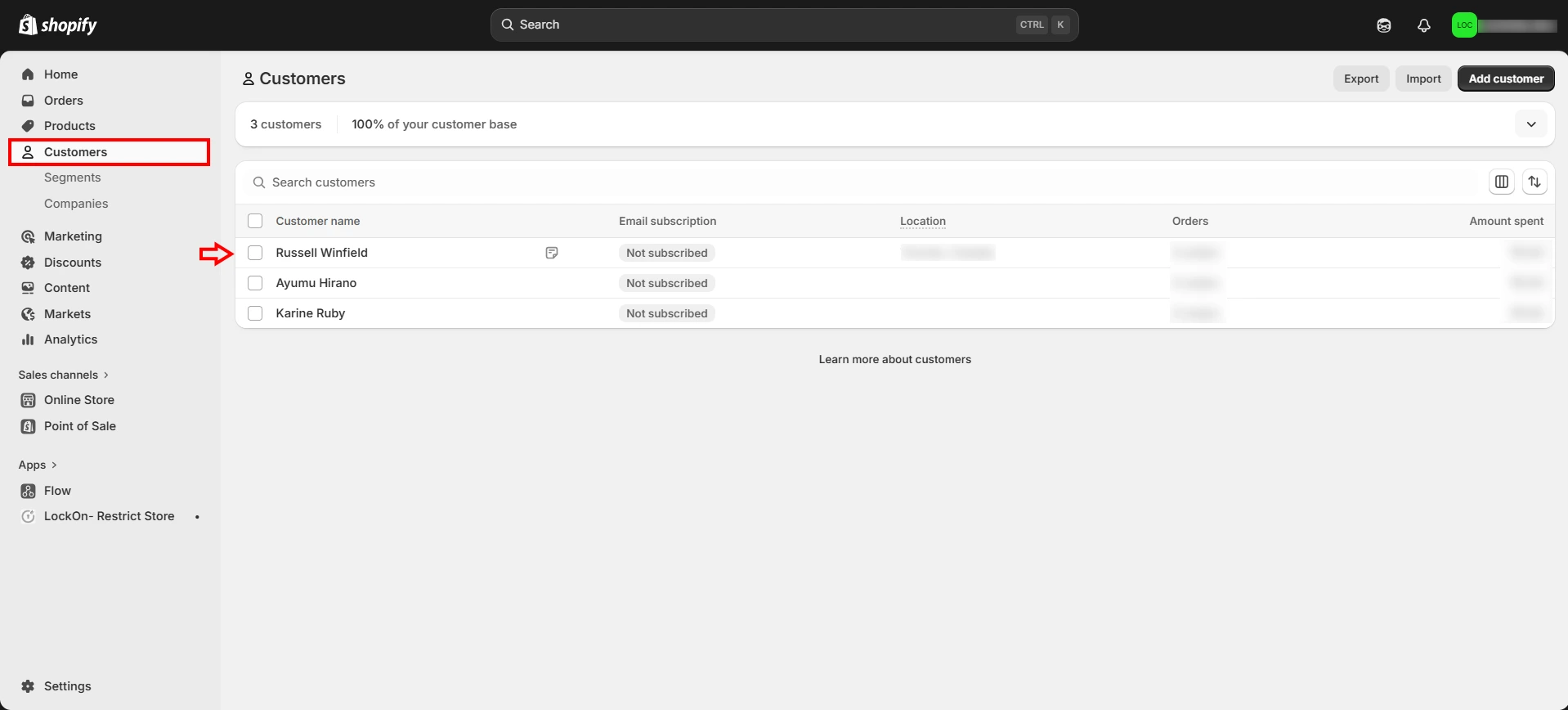
- Add tags like vip, B2B, or member
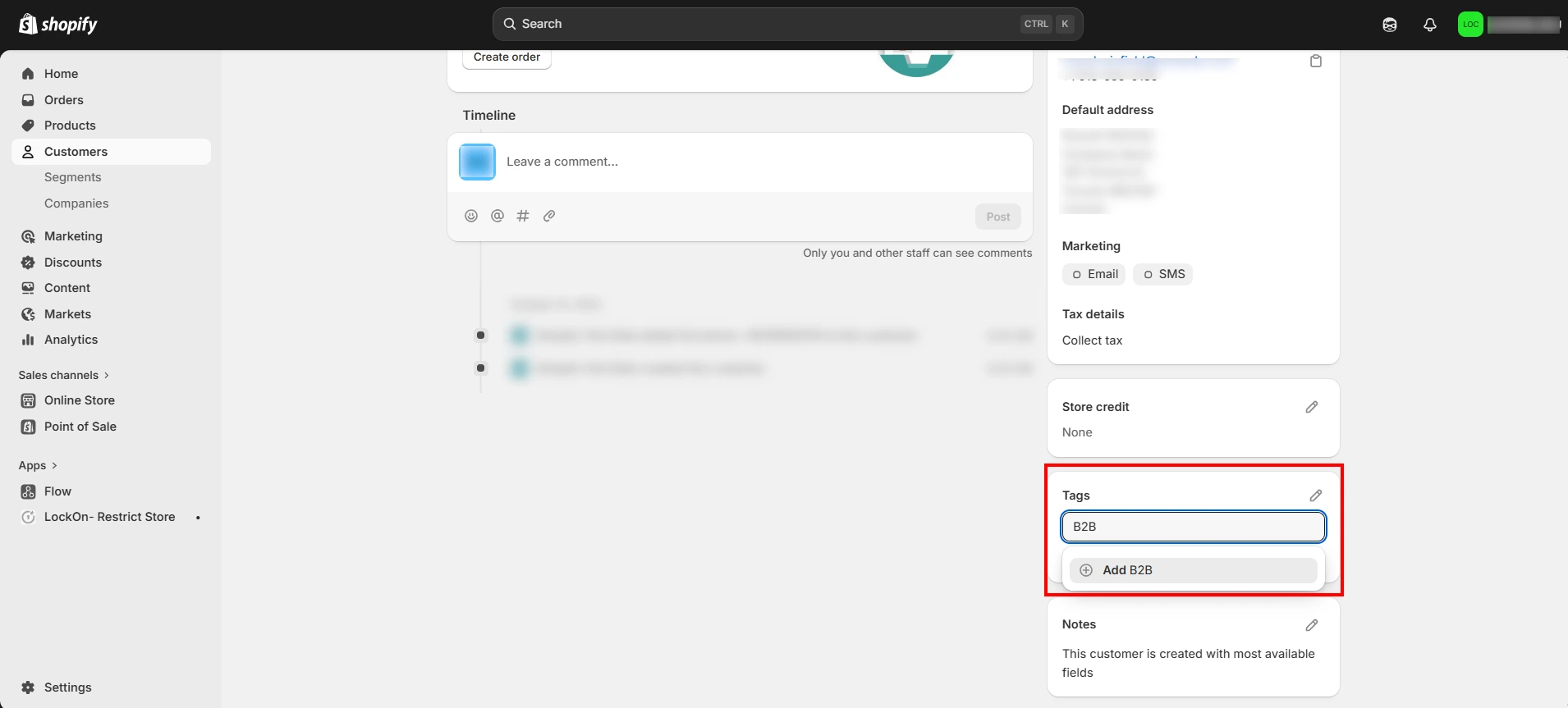
- Save your changes
These tags will act as the condition for product visibility.
Step 2: Edit Theme Code Using Liquid
Before making changes, duplicate your theme for backup. Then:
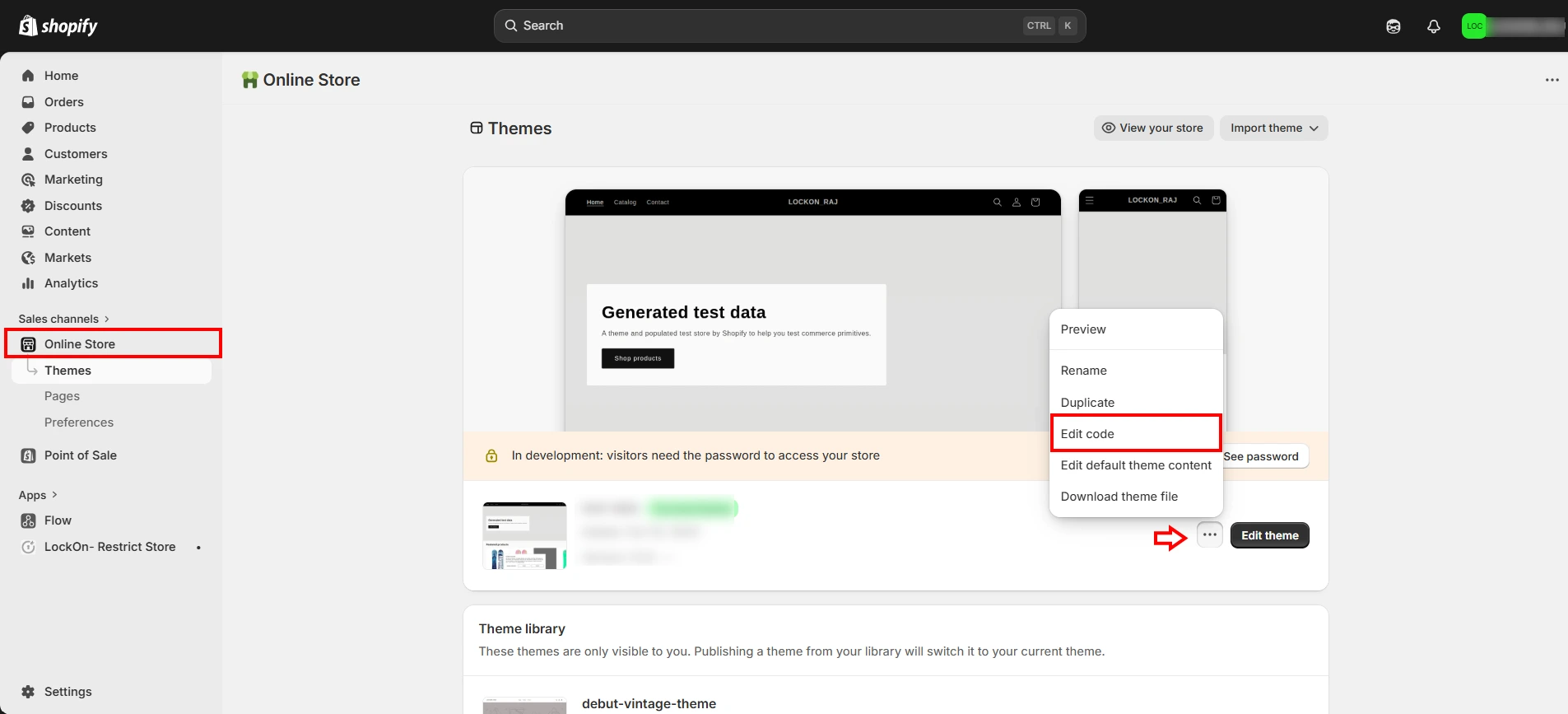
- Go to Online Store > Themes > Edit Code
- Open your product template (usually product.liquid or main-product.liquid)
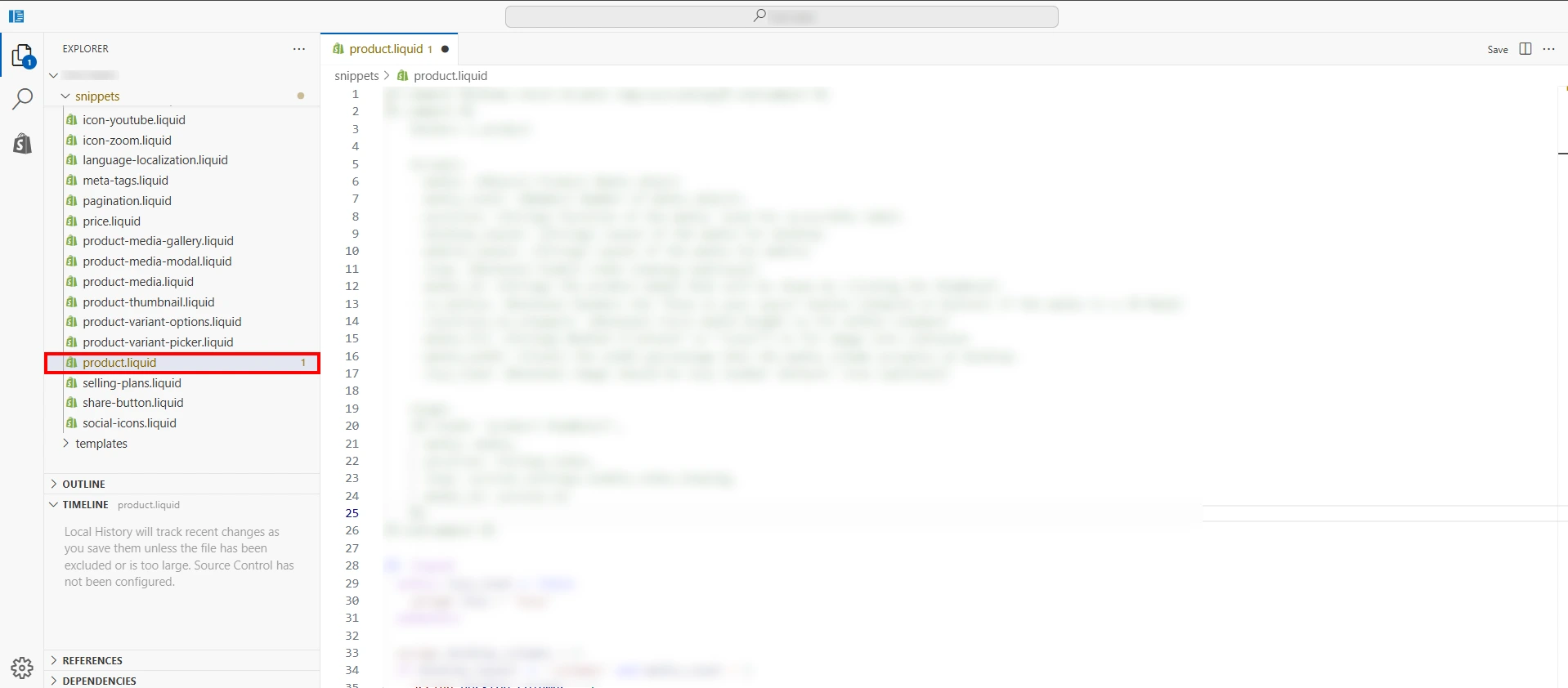
Here, you can add conditional logic that checks:
- If a customer is logged in
- If their tags match the required access level
Based on this, you can:
- Show full product details (price, add-to-cart) to eligible users
- Display a restricted access message or hide key elements for others
You can also define reusable logic in your main theme file to keep things consistent across pages.
Step 3: Hide Products from Collections & Search
Hiding the product page alone isn’t enough. You also need to:
- Modify product card templates (used in collections)
- Add conditions to prevent restricted products from appearing to unauthorized users
Typically, this involves checking:
- Product tags (e.g., vip-only)
- Customer tags (e.g., B2B)
If the tags don’t match, the product is excluded from the listing.
This method allows you to restrict catalog visibility without external tools. However, it requires testing across logged-in and logged-out states to ensure restrictions work as expected.
Limitations of Shopify Native Method
While using Liquid to control product visibility is effective at a basic level, it has several important limitations that you need to account for before relying on it as a complete solution.
- Not true access control (visual hiding only): Liquid conditions only control what is displayed on the frontend. If someone has a direct product URL, they can still access the page unless additional restrictions are applied. This means the method does not fully restrict products by customer tags in Shopify; it only obscures them.
- Products remain accessible unless unpublished: To fully prevent access, you may need to remove restricted products from the Online Store sales channel. However, doing this can interfere with how and where those products are intended to appear.
- Theme dependency and complexity: This approach relies heavily on your theme structure. Modern themes (like JSON-based ones) are easier to work with, but older or heavily customized themes may require deeper changes across multiple files.
- Maintenance overhead: Every time you update your theme or modify layouts, you may need to reapply or adjust the logic. This increases long-term maintenance effort, especially for non-technical users.
- Risk of inconsistent visibility: If conditions are not applied consistently across product pages, collections, and search results, restricted products may still appear in some areas.
In short, the native method is useful as a workaround, but not as a secure or scalable solution for strict product access control.
Method 2 - Hide Products by Customer Tags Using a Shopify App
When your requirements go beyond basic customization, using a dedicated content restriction app becomes a more effective approach. Unlike Liquid-based workarounds, such apps are designed to restrict products by customer tags in Shopify with proper access control, not just visual hiding.
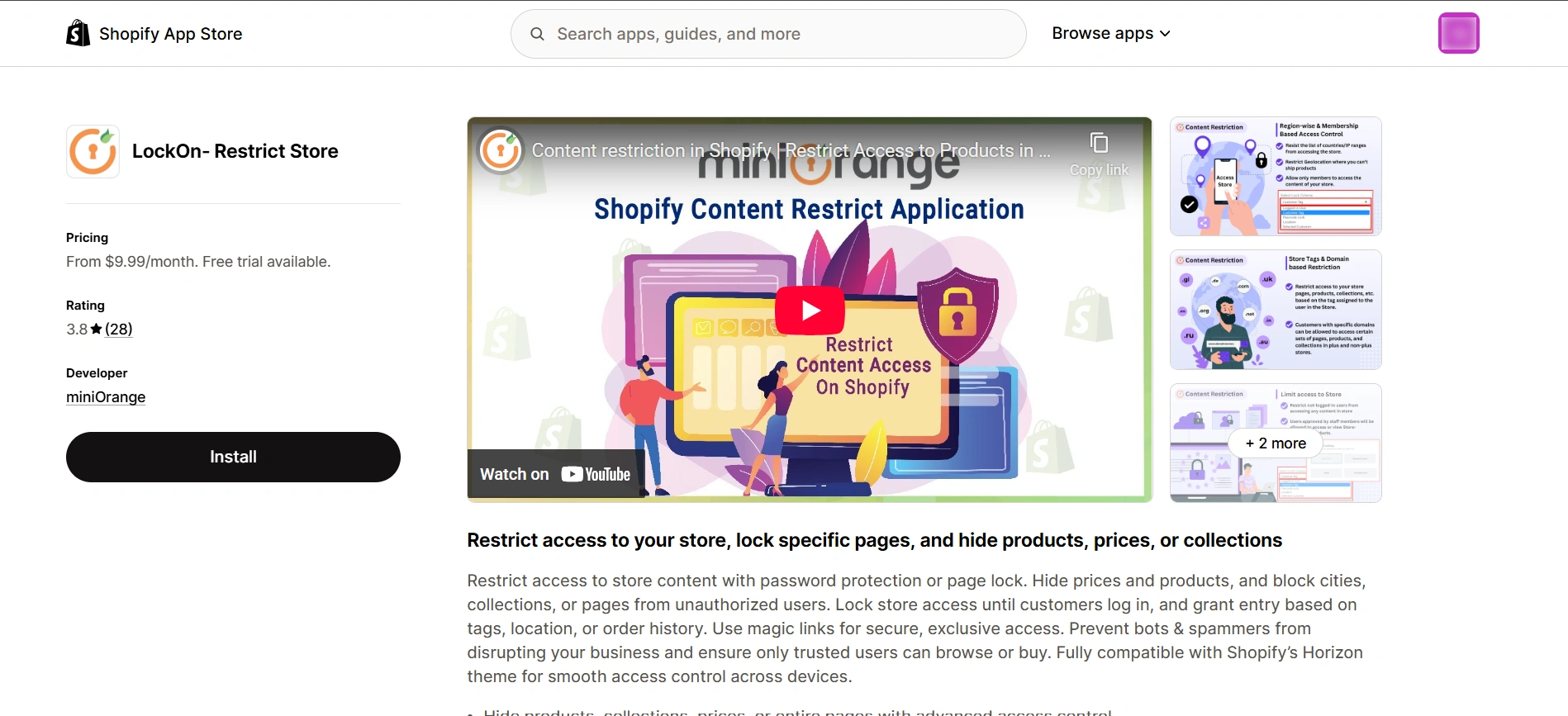
The Shopify LockOn - Restrict Store Content app from miniOrange allows you to lock products, collections, pages, and even entire sections of your store based on conditions like customer tags, login status, or location. This removes the gaps you typically face with native methods, such as direct URL access or inconsistent visibility.
Step-by-Step Guide On How to Hide Products Using an App
Step 1: Install the LockOn Application
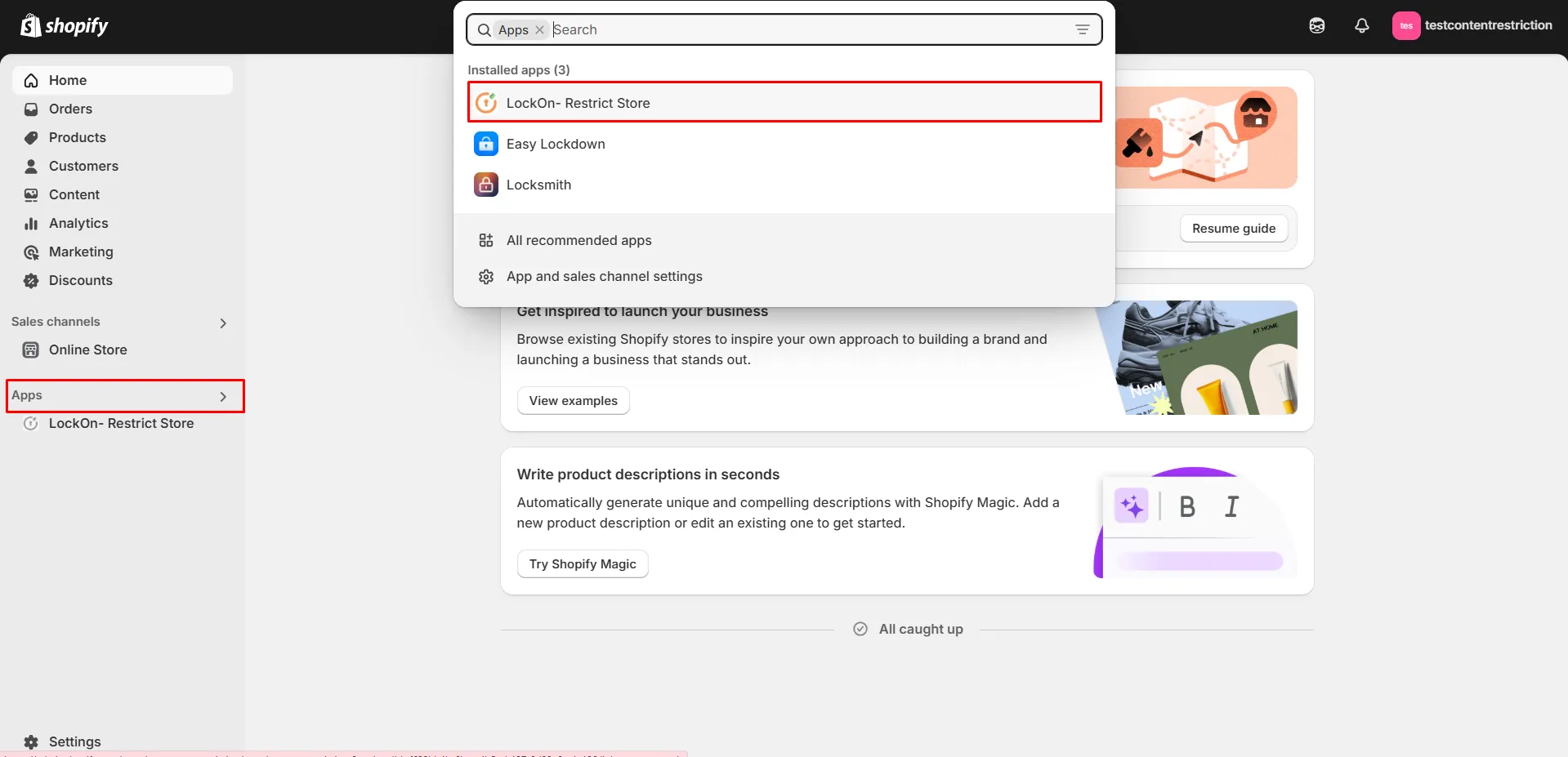
Install the LockOn - Restrict Store application on your Shopify store and open it from your admin.
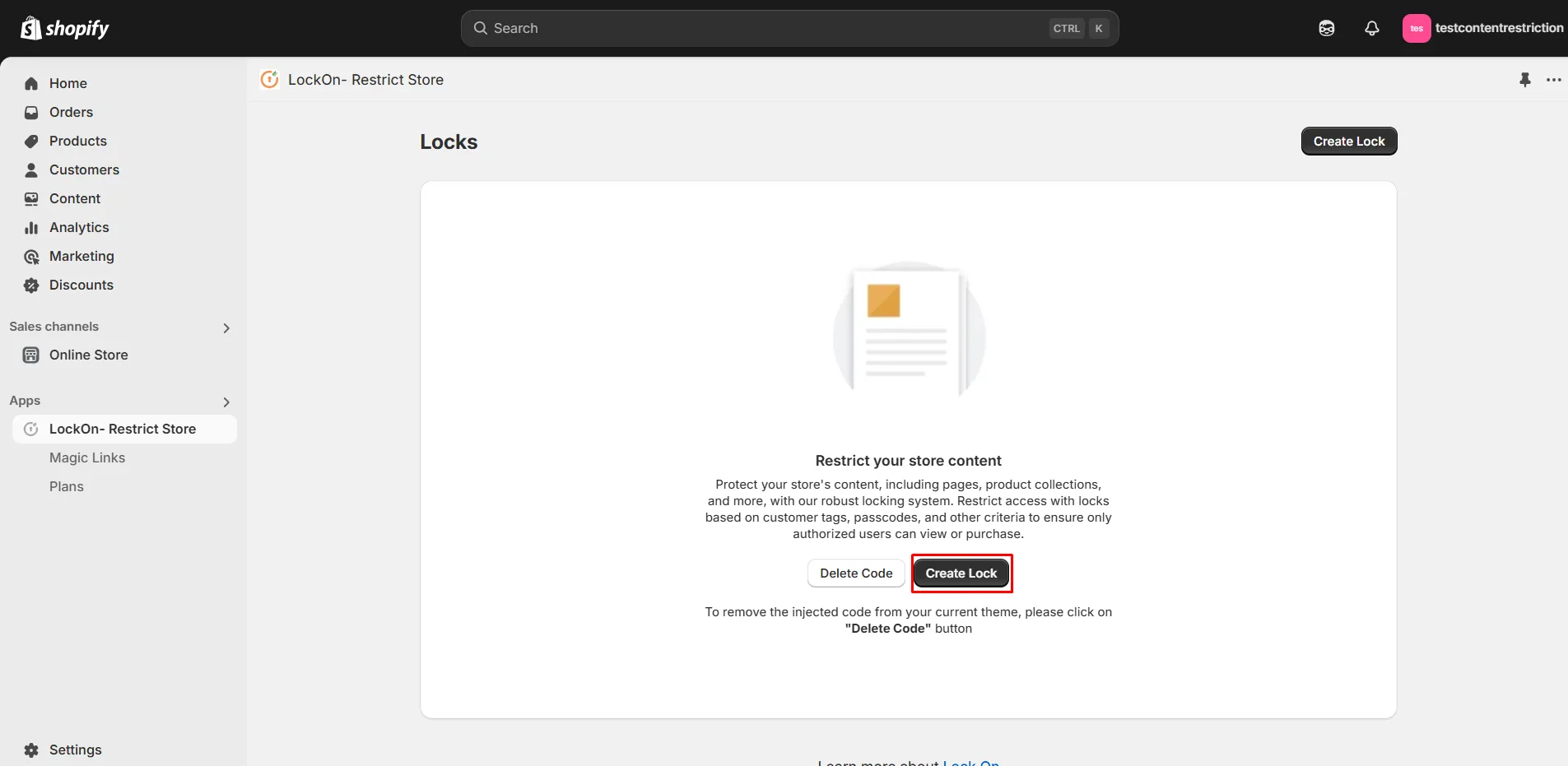
Step 2: Create a Lock
Start by creating a new “lock” inside the app dashboard. This acts as a rule that defines what content should be restricted and under what conditions.
Step 3: Select What to Lock
Choose the specific content you want to restrict:
- Individual products
- Entire collections
- Pages or blog content (if needed)
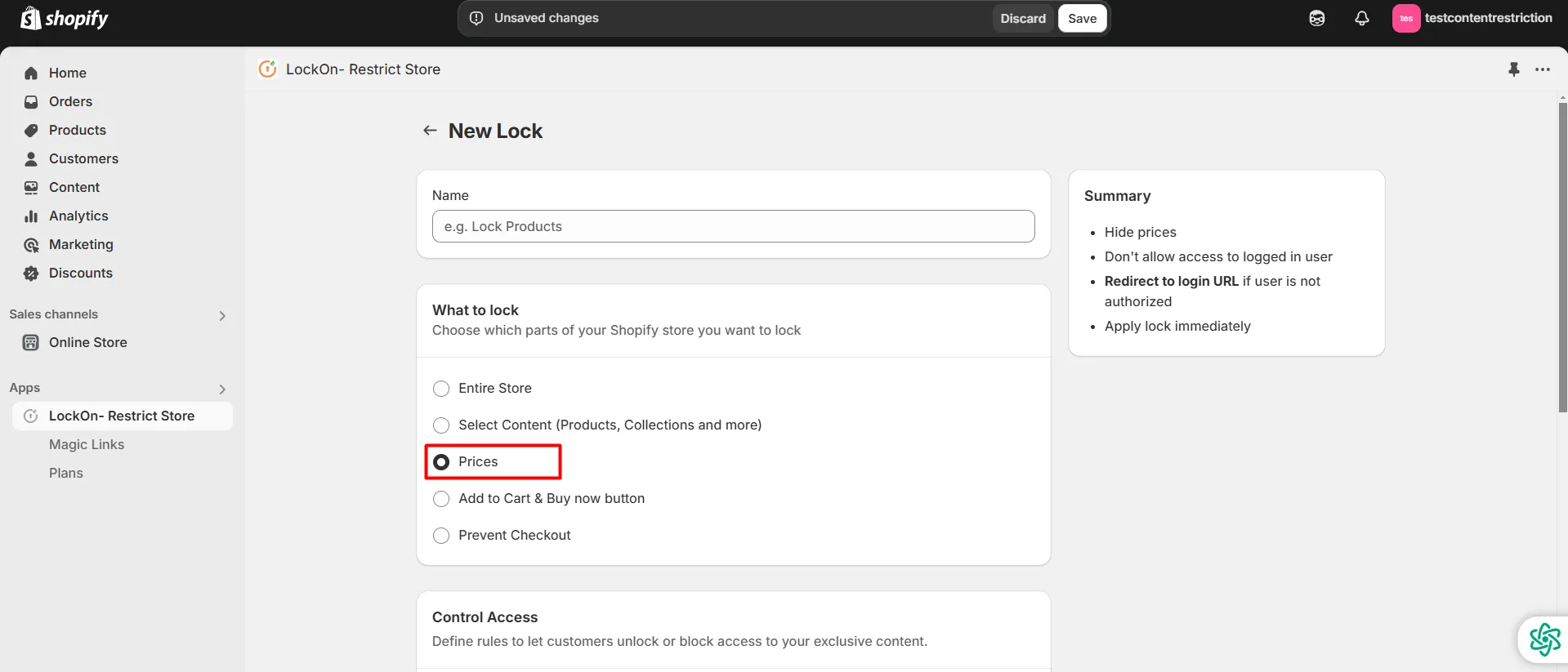
This gives you more flexibility compared to theme-level edits.
Step 4: Define Access Criteria
Set the condition for access:
- Select Customer Tags as the criteria
- Define which tags (e.g., vip, B2B) are allowed or restricted
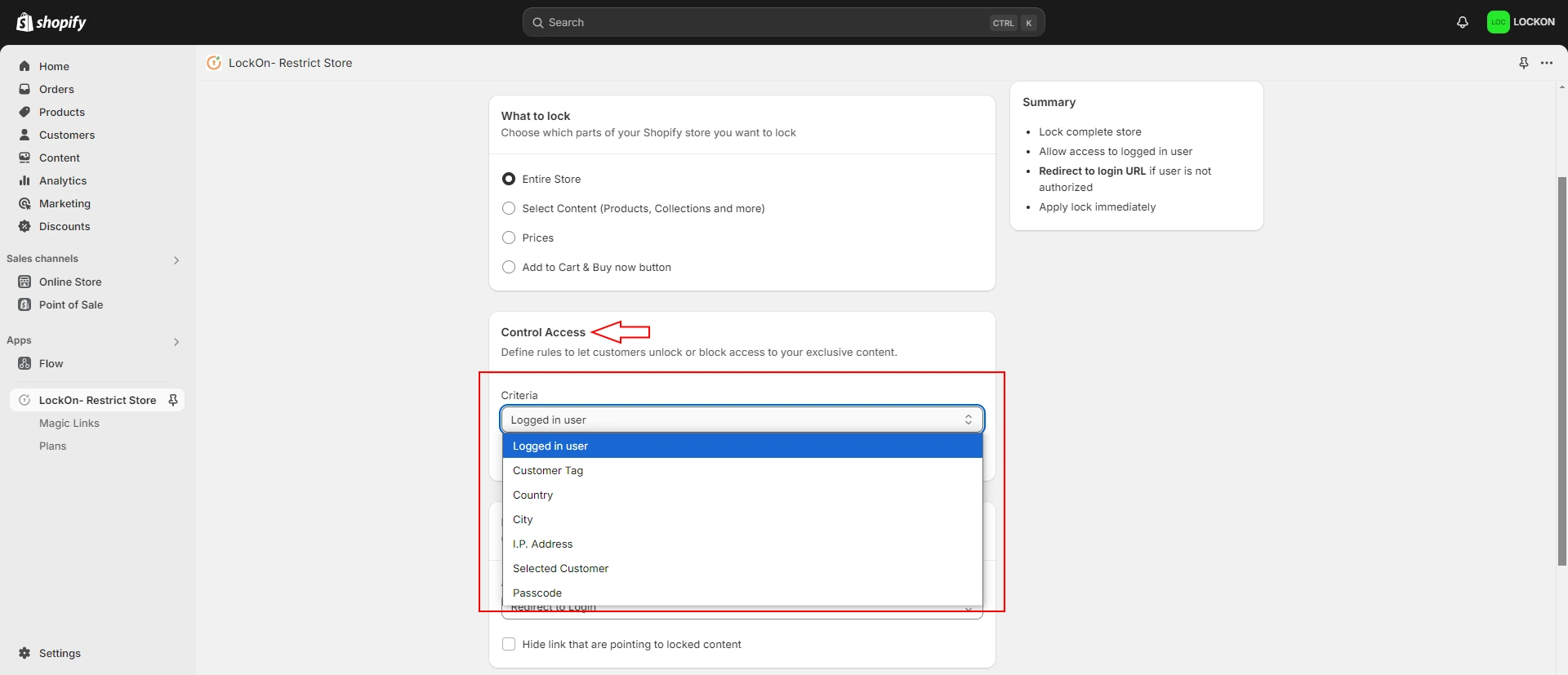
This ensures only the intended users can view or interact with the selected products.
Step 5: Configure Unauthorized Access Behavior
Decide what happens when a user doesn’t meet the criteria:
- Redirect to the login page
- Show a custom message
- Redirect to another page
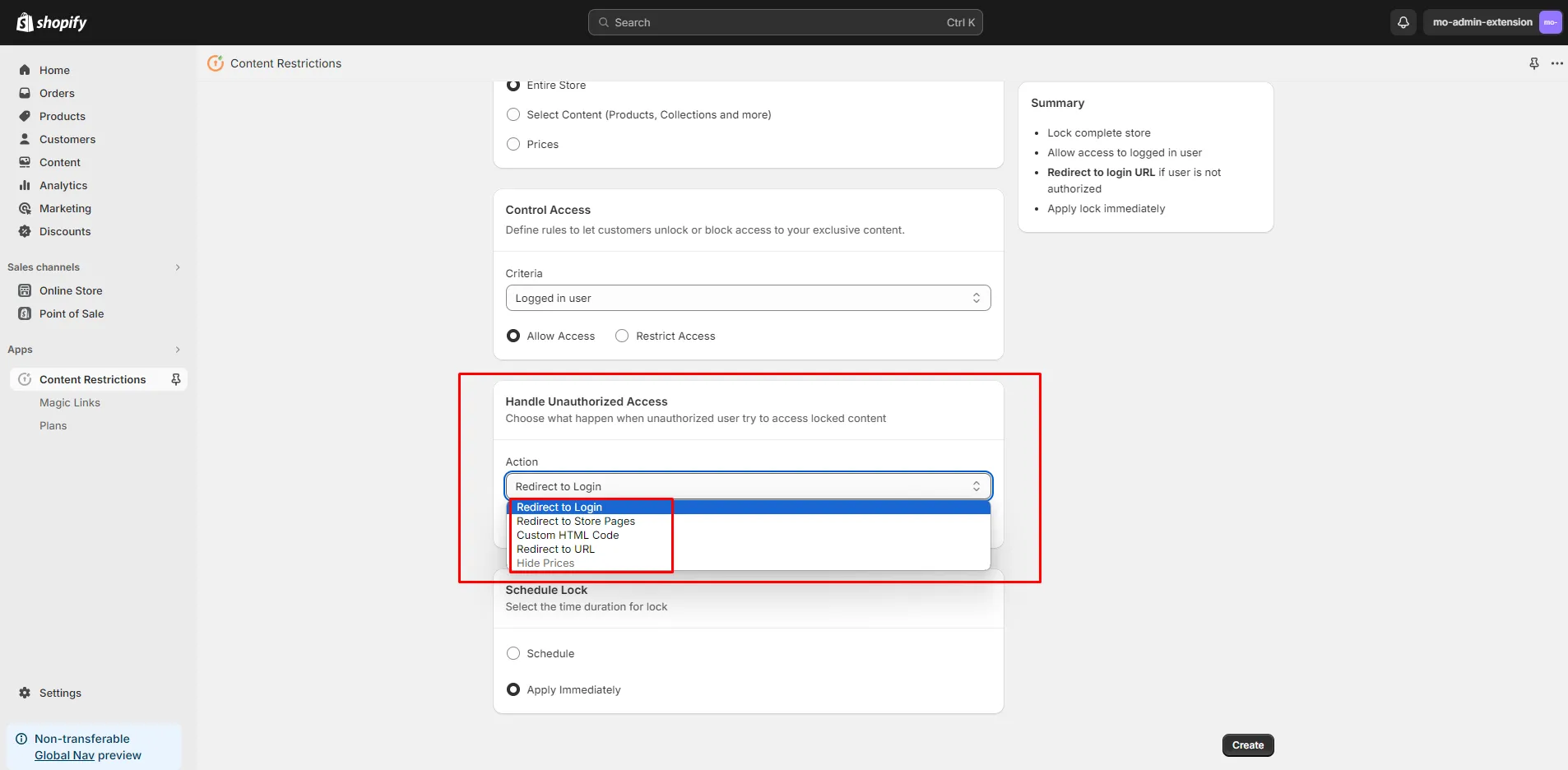
This is a key advantage over Liquid, where control is limited.
Step 6: Activate or Schedule the Lock
You can apply the restriction immediately or schedule it for specific timeframes (useful for launches or limited campaigns).
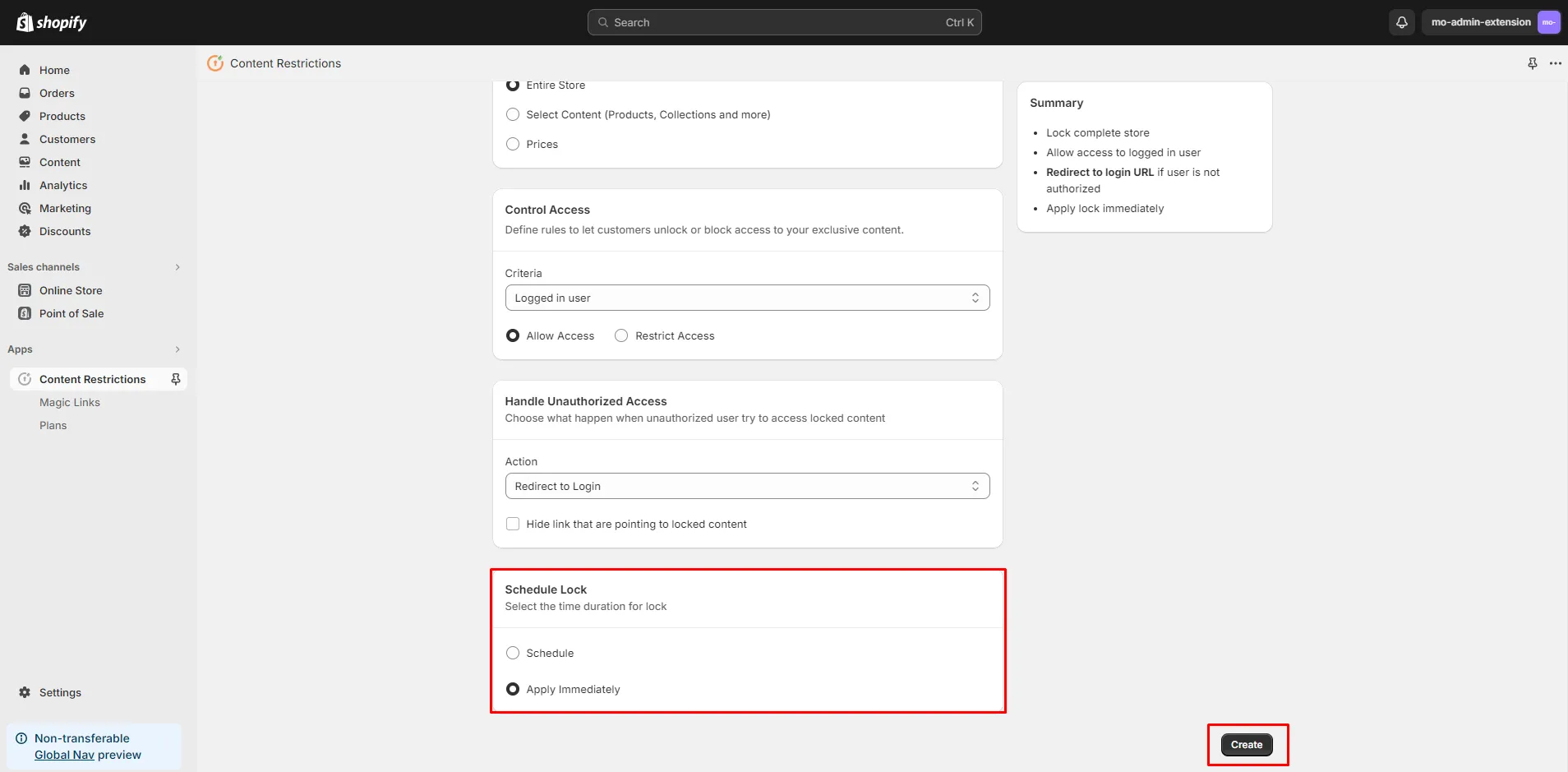
The app-based approach is significantly more robust than native customization. It not only helps you control product visibility based on customer tags, but also enforces real access control, reduces manual effort, and minimizes the risk of unintended product exposure.
When Should You Use Apps Instead of Liquid?
Liquid-based customization works for basic scenarios, but it starts breaking down as your requirements become more complex or operationally demanding. In the following cases, relying on a dedicated content restriction app is the more practical and scalable approach to controlling product visibility:
- Large catalogs Managing visibility rules across hundreds or thousands of products using Liquid becomes difficult to maintain. Apps allow you to apply rules in bulk without editing multiple theme files.
- Multiple customer groups If you’re segmenting users into tiers like wholesale, VIP, members, or region-based groups, maintaining rule logic can become complex. Apps provide structured rule management, making it easier to handle overlapping conditions.
- Strict security requirements Liquid only controls frontend visibility, not actual access. If preventing unauthorized access (like via direct URLs) is critical, apps can enforce true access control at a deeper level.
- Non-technical teams managing the store Liquid requires familiarity with theme code and ongoing maintenance. Apps offer a no-code interface, enabling even marketing or operations teams to manage store restrictions without developer dependency.
- Frequent promotions or product launches If you regularly run early-access campaigns, limited drops, or time-based visibility rules, apps allow you to schedule and modify restrictions quickly without touching code.
In short, once your business requirements involve scale, multiple conditions, or strict access enforcement, continuing with Liquid becomes inefficient and risky. An app-based approach provides better control, flexibility, and long-term maintainability.
Shopify Native vs App-Based Solution
| Criteria | Shopify Native Method (Liquid Code) | miniOrange LockOn - Restrict Store Content |
|---|---|---|
| Type of Restriction | Visual hiding only (UI-level) | True access control (access is blocked based on defined rules) |
| Direct URL Protection | Products accessible via direct links | Fully protected. Unauthorized users are blocked |
| Setup Process | Manual (Requires editing multiple theme files) | Guided (configured through a structured UI) |
| Technical Expertise | Knowledge of Liquid and theme structure is required | Not required (no coding involved) |
| Coverage Across Store | Needs separate implementation (product page, collections, search) | Unified (rules apply across products, collections, pages, etc.) |
| Flexibility of Conditions | Limited (depends on custom logic written manually) | Advanced (supports restrictions based on customer tags, login status, location, etc.) |
| Scalability | Limited (becomes complex with more products and rules) | High (designed to manage multiple rules and large catalogs) |
| Maintenance Effort | High (requires updates after theme changes) | Low (independent of theme updates) |
Frequently Asked Questions (FAQs)
Do I need to be a developer to hide products using customer tags?
It depends on the method you choose. The native approach using Liquid requires basic knowledge of Shopify theme code and file structure. If you’re not comfortable editing code, using an app is the more practical option to restrict product access by customer tags since it allows you to set up tag-based restrictions through a UI without technical involvement.
Will hiding products also hide them from search engines?
When you use Liquid to limit product access, it only affects product visibility on the frontend. The product pages can still be accessed via direct URLs and may still be indexed by search engines unless you take additional steps (like removing them from the Online Store channel or applying SEO restrictions). App-based solutions offer better control but may still require SEO-specific configurations.
Can I restrict products in Shopify based on customer groups?
Natively, Shopify allows you to group customers using tags, but it doesn’t enforce product visibility based on those tags by default. To properly restrict products by customer tags in Shopify, you need either custom Liquid logic or a dedicated app that applies rule-based access control across your store.
Conclusion
As your Shopify store grows, managing product visibility becomes a business-critical decision, not just a technical one. Whether you’re handling B2B pricing, exclusive launches, or segmented catalogs, the ability to hide products based on customer tags directly impacts customer experience, pricing control, and operational efficiency.
While native Liquid-based methods offer a flexible starting point, they fall short when it comes to true access control and long-term scalability. If your requirements involve strict restrictions or multiple customer segments, relying solely on native workarounds introduces risk and maintenance overhead.
A dedicated solution like miniOrange LockOn-Restrict Store Content helps enforce true product-level access control without modifying theme code.
Want to eliminate visibility gaps and enforce true product-level access control? Explore our content restriction solution to learn how to implement access rules at every touchpoint, not just on the surface.
Leave a Comment