
In Shopify, “locking” your store doesn’t refer to a single built-in function. It can mean different things depending on your objective.
For some merchants, it’s as simple as password-protecting the entire storefront during maintenance or pre-launch phases. For others, it involves restricting access to specific products, collections, or pages, especially in B2B or wholesale scenarios where pricing and inventory should only be visible to approved customers.
In these cases, knowing how to lock your Shopify store becomes an operational requirement, not just a technical option.
Why Merchants Lock Their Shopify Store
Merchants lock their Shopify store to control visibility based on how their business operates. Different scenarios require different levels of access restriction, and leaving everything publicly accessible often creates avoidable issues.
Here are the most common use cases:
- B2B and Wholesale Access
Wholesale stores often operate with tier-based pricing, bulk discounts, or exclusive catalogs. Making this information public can disrupt pricing strategies. Locking B2B-specific products or collections ensures that only approved buyers can view and purchase these items. - Store Maintenance and Updates
During design changes, inventory updates, or backend fixes, customers may encounter inconsistent information or errors. Temporarily locking the Shopify website prevents exposure to incomplete updates and maintains a stable user experience. - Private Sales and Controlled Campaigns
Instead of making discounts or offers publicly available, merchants may restrict access to specific users through passwords or customer tags (VIP, member). This allows for targeted campaigns without affecting the broader audience. - Geo-restrictions and Market Control
In some cases, merchants need to limit store access based on location. This could be due to regional pricing strategies, shipping limitations, or compliance requirements. Locking a Shopify store by geo-location helps enforce these constraints effectively.
To handle these requirements effectively, you can use a combination of native features and more advanced methods.
Method 1 - Lock Your Shopify Store with Password Protection
If you’re looking for a quick way to control access, Shopify’s built-in password protection feature is a straightforward option. It allows you to restrict your entire storefront with a single password, making it useful for pre-launch phases, maintenance, or private access.
How to enable password protection:
1. Access your Shopify admin: Log in to your Shopify dashboard using your store credentials.
2. Go to Online Store settings: From the left sidebar, click on Online Store, then select Preferences.
3. Activate password protection: Scroll down to locate the Password protection settings. Enable the option that restricts access to your storefront.
4. Create a secure password: Enter a password that visitors will need to access your store. It should be strong enough to prevent easy guessing.
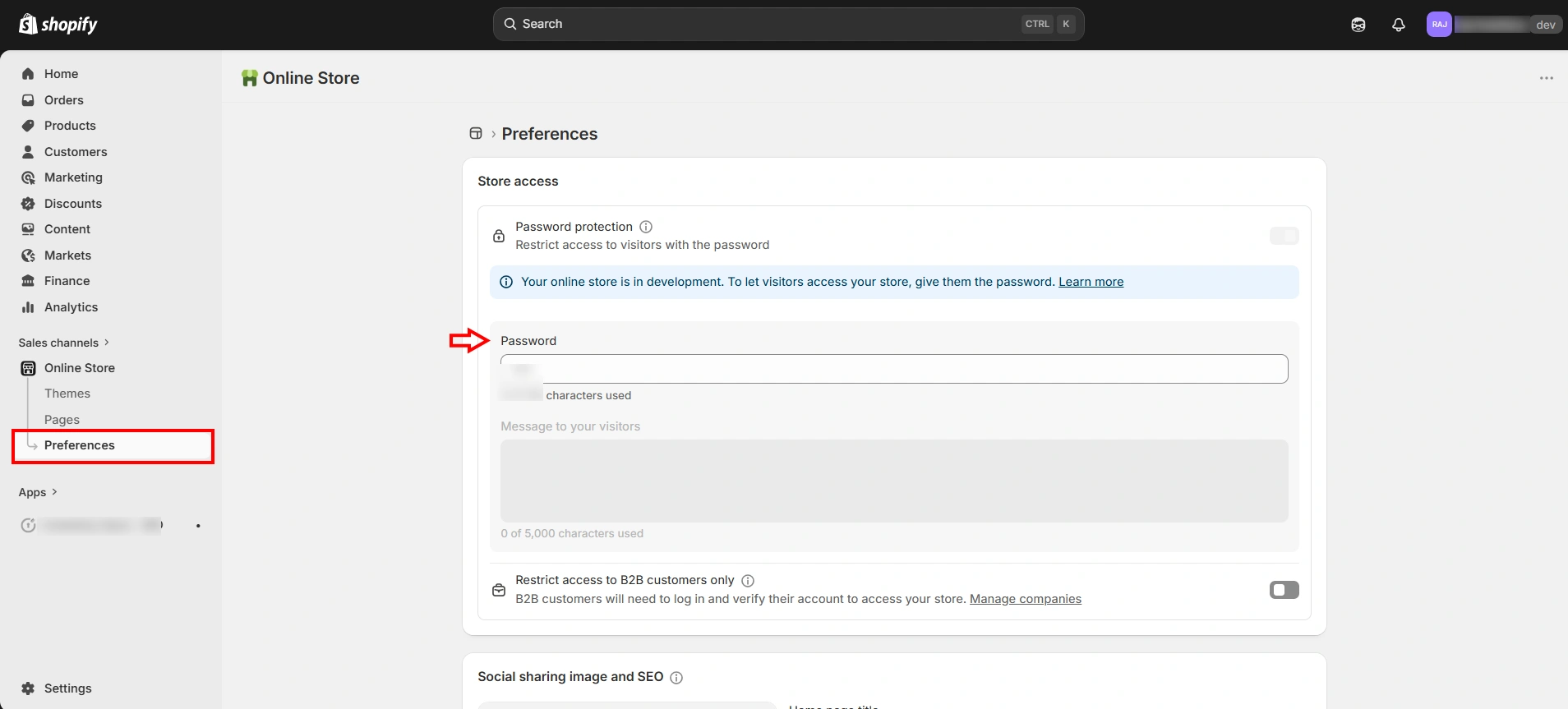
5. Add a visitor message (optional): Include a short message for users who land on the password page. This can be used to indicate whether the store is under maintenance, launching soon, or accessible only to selected users.
6. Save your settings: Click Save to apply the changes. Your store is now locked behind a password.
Once enabled, anyone visiting your store will be prompted to enter the password before they can view any content.
Method 2 - Pause or Deactivate Your Shopify Store
If you’re not actively selling but don’t want to permanently shut down your store, Shopify gives you the option to pause or deactivate it. This is another way to effectively lock your Shopify store, especially when you don’t need customers accessing or placing orders for a period of time.
Shopify offers a Pause and Build plan, which allows you to keep your storefront live for viewing while disabling checkout. This is useful if you’re working on updates or planning a relaunch without completely taking your store offline.
How to temporarily pause/deactivate your store:
1. Go to your Shopify admin settings: Log in and navigate to your store dashboard. Click on Settings at the bottom left of your admin panel.
2. Access the Plan section: Select Plan to view your current subscription details.
3. Review and manage app subscriptions: Before making changes, cancel any active paid app subscriptions to avoid ongoing charges.
4. Choose your preferred option: Select whether you want to fully deactivate your store or switch to the Pause and Build plan. Shopify will prompt you to choose a reason for your decision.
5. Enter password to confirm: Verify your action by entering your login credentials.
6. Check for confirmation: Once completed, you’ll receive an email confirming that your store has been paused or deactivated.
When to Use This Method
This approach works best when you need to lock your Shopify website for a longer duration, such as during a business pause, seasonal closure, or major restructuring. Unlike password protection, this method directly impacts store operations by disabling checkout or fully deactivating the store.
Can You Lock Specific Products or Collections in Shopify?
If your goal is to lock specific parts of your Shopify store rather than the entire storefront, Shopify’s native features fall short. There’s no built-in way to directly restrict access to individual products, collections, or pages. However, there are two practical approaches merchants use to achieve this.
Option 1: Liquid Code Customization (Advanced)
For more control, you can modify your theme using Liquid to restrict visibility based on whether a customer is logged in. This approach works for basic scenarios where you want to lock a Shopify website section based on login status.
However, it requires careful implementation. Errors in Liquid code can affect how your store functions, so this method is better suited for those comfortable with theme customization or working with a developer.
Option 2: Use a Shopify Application
For more flexibility, merchants may opt for content restriction apps to lock a Shopify store at a granular level. These solutions allow you to create rules based on customer tags, login status, or other conditions, making it easier to manage access across products, collections, or pages without editing code.
This becomes particularly useful when you need more structured control, such as restricting access for B2B customers or creating member-only sections within your store.
Limitations of Shopify’s Native Locking Options
Shopify’s native features work for basic access control, but present certain limitations when business requirements become more specific. This becomes clearer when you look at common merchant scenarios:
- If you’re running a wholesale or B2B store, you’ll likely need to show different pricing or catalogs to different customers. That requires controlling visibility at a customer level rather than at the storefront level.
- If you want to lock specific products or collections, the requirement shifts toward selectively controlling what different users can see instead of restricting access to the entire store.
- For VIP access or member-only sales, the focus is on creating exclusive entry points where only certain customers can view or purchase specific items.
- During store updates or phased launches, you may want parts of the store accessible while keeping others restricted, instead of blocking everything behind a single password.
- If you’re operating across regions, geo-based access control becomes important for managing availability, pricing, or compliance requirements.
These scenarios point to a common pattern: access control needs become more granular as the store grows. At that stage, relying only on native settings or manual adjustments starts to limit how effectively you can manage visibility.
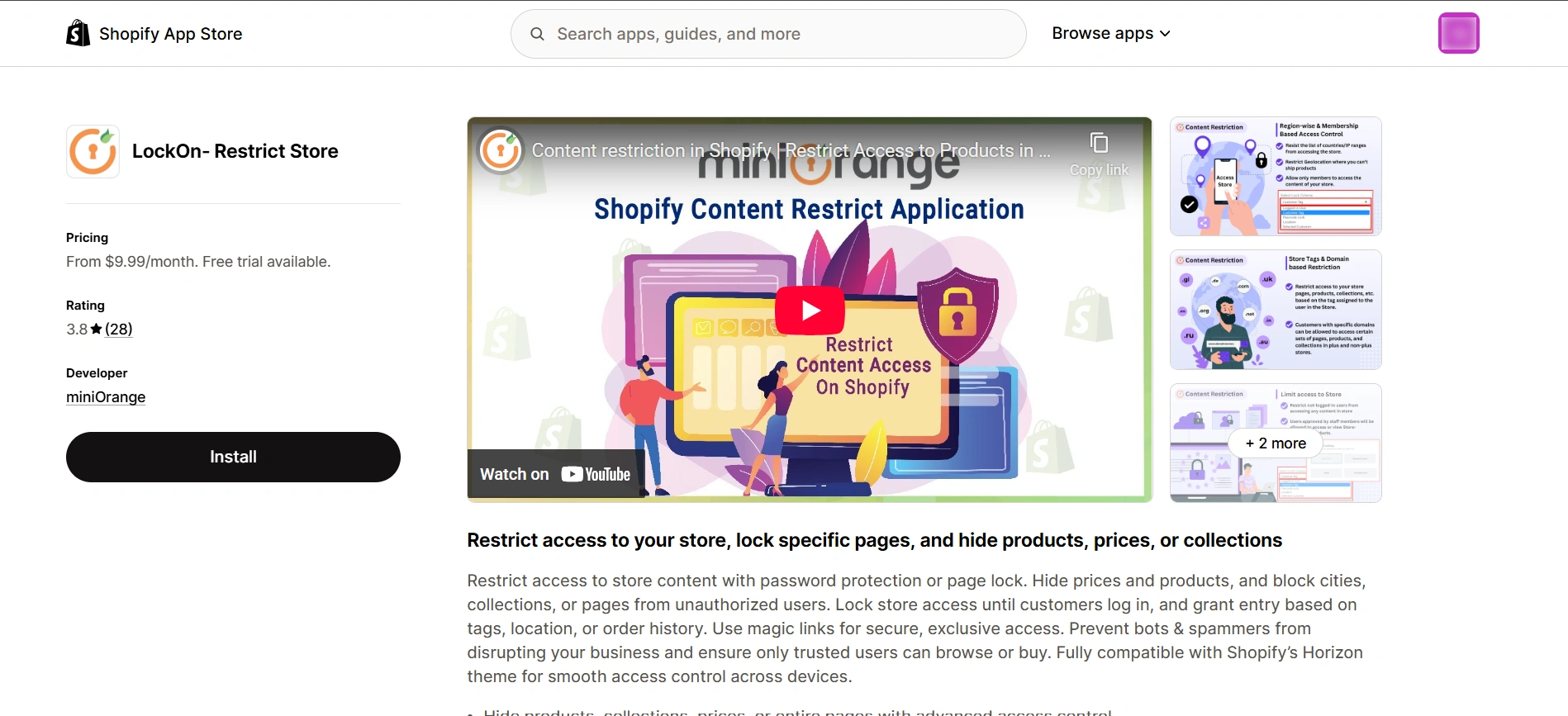
This is typically where merchants begin exploring more dedicated solutions that are built for structured content restriction. For instance, apps like LockOn - Restrict Store Content from miniOrange can help manage store visibility at a more precise level without relying on workarounds or manual effort.
How to Lock Your Shopify Store Using Our App (Step-by-Step)
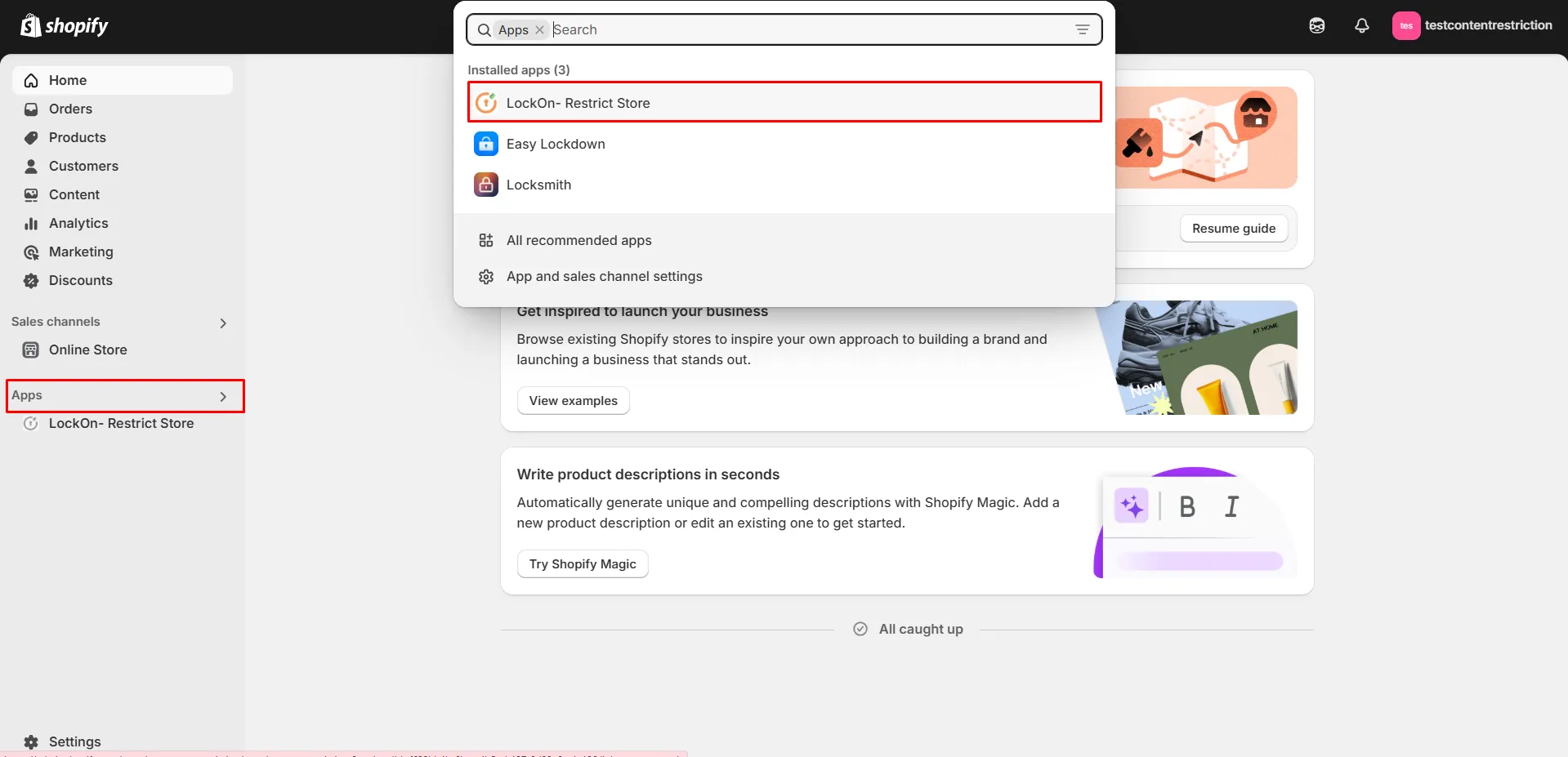
Step 1: Open the App and Create a Lock
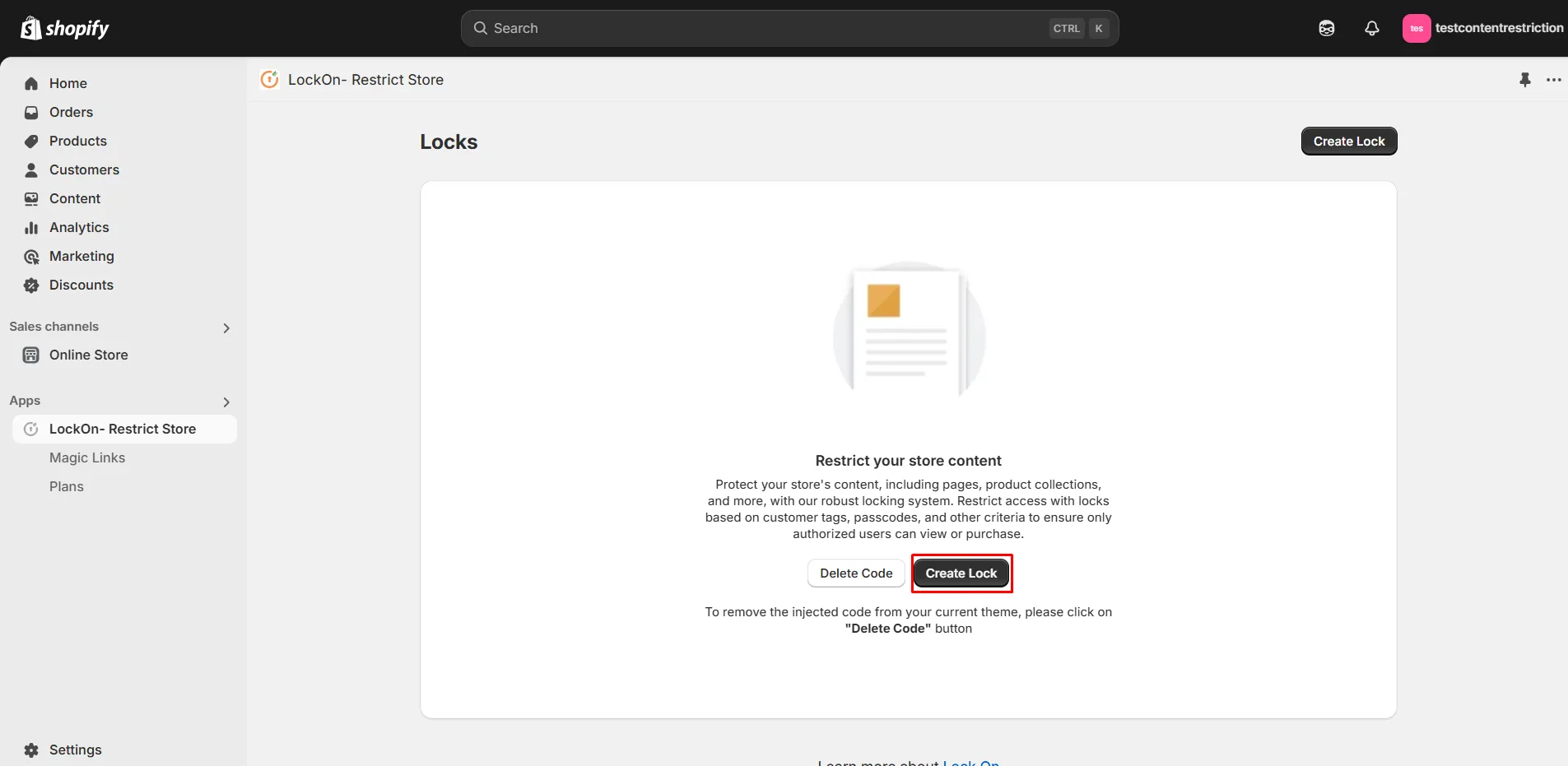
From your Shopify admin, go to Apps > LockOn - Restrict Store Content and click on Create Lock. This opens the configuration screen for a new restriction rule.
Step 2: Create & Name Your Lock
Create and enter a clear, identifiable name for the lock (e.g., “Wholesale Access” or “Private Collection”).
Step 3: Choose What You Want to Lock
Select the part of your store you want to restrict. This could include:
- Entire store
- Specific products or collections
- Pages, blogs, or variants
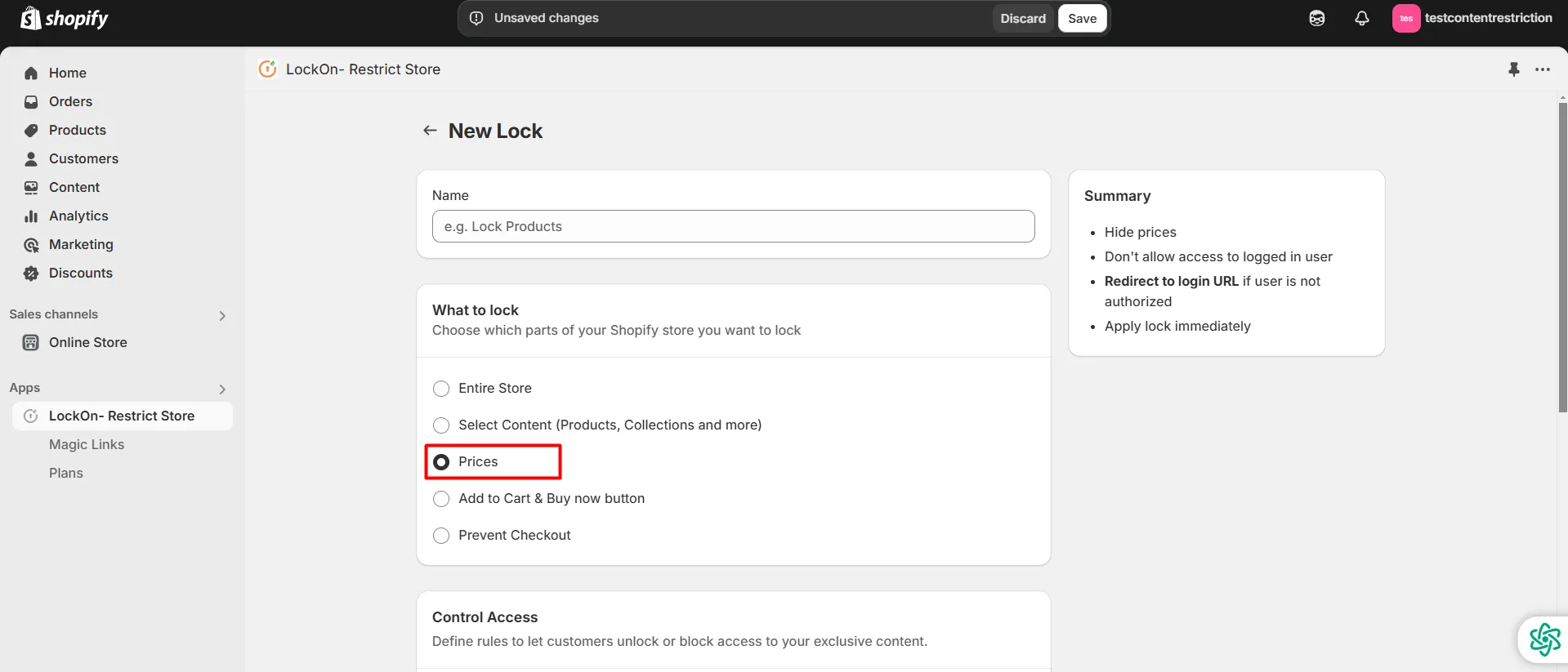
This is where you define whether you want full store restriction or more granular control. Choose the option based on your use case.
Step 4: Define Access Conditions
Under the Control Access section, choose how access should be controlled. Common criteria include:
- Logged-in customers
- Customer tags (useful for B2B or wholesale segmentation)
- Location (country, state, city)
- IP address
- Email domain or specific customers
- Passcode-based access
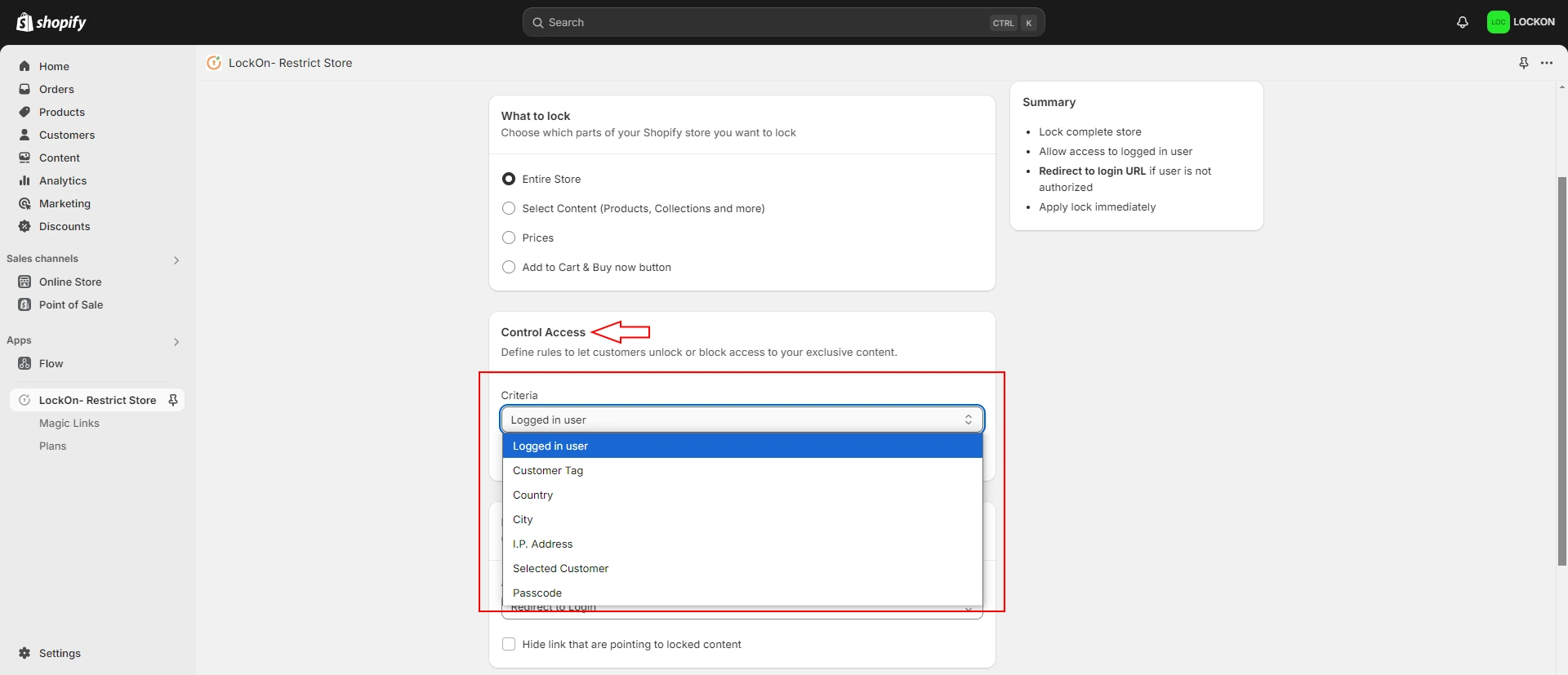
You also decide whether to allow or restrict users based on the selected condition.
Step 5: Set Behavior for Unauthorized Users
Define what happens when someone tries to access locked content without permission. You can:
- Redirect them to a login page
- Send them to another page or URL
- Display a custom message or HTML content
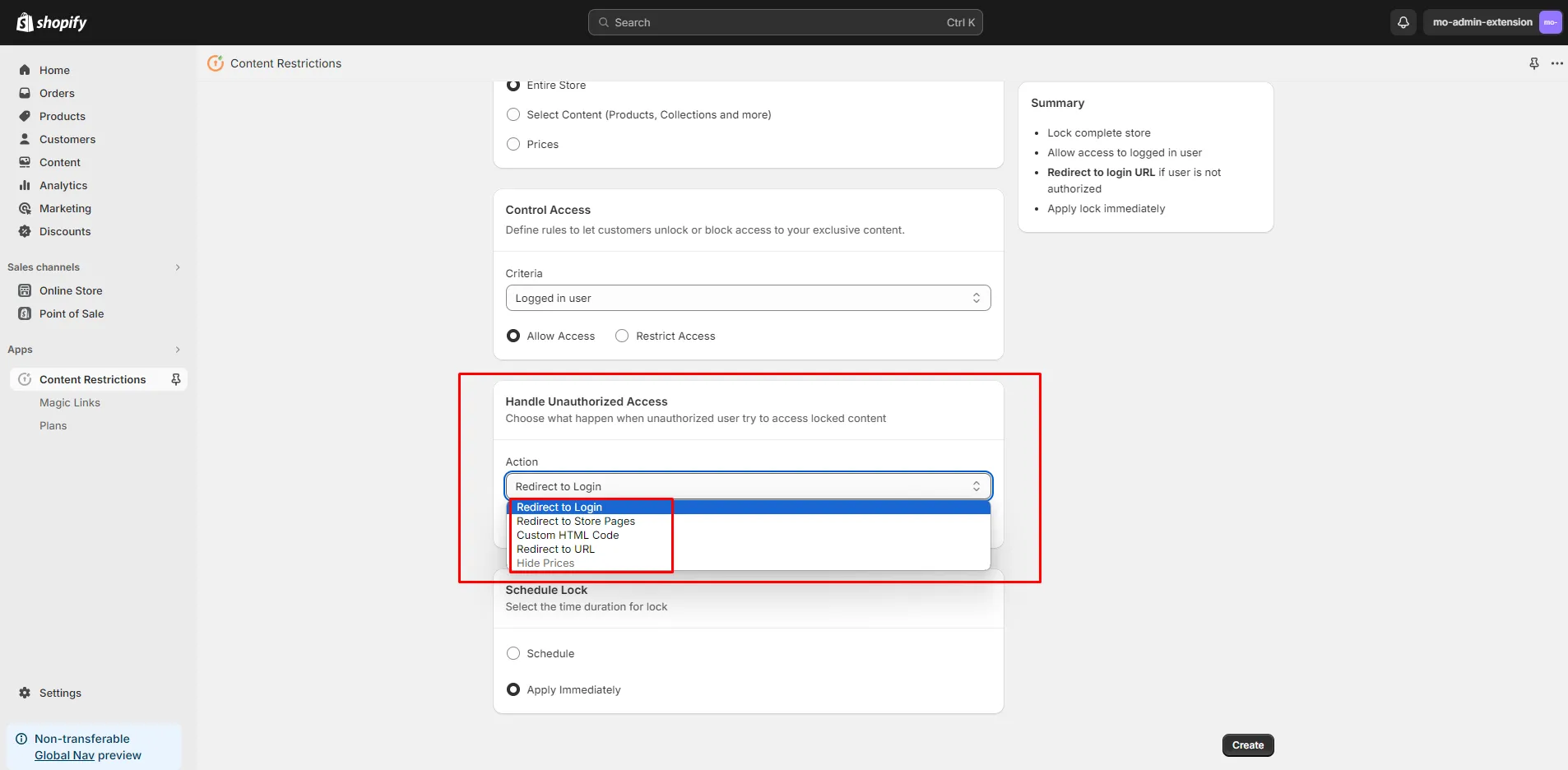
This ensures the experience stays controlled instead of abruptly blocking users.
Step 6: Configure Timing (Optional)
You can apply the lock immediately or schedule it. This is useful for:
- Timed product launches
- Limited-access sales
- Temporary store restrictions
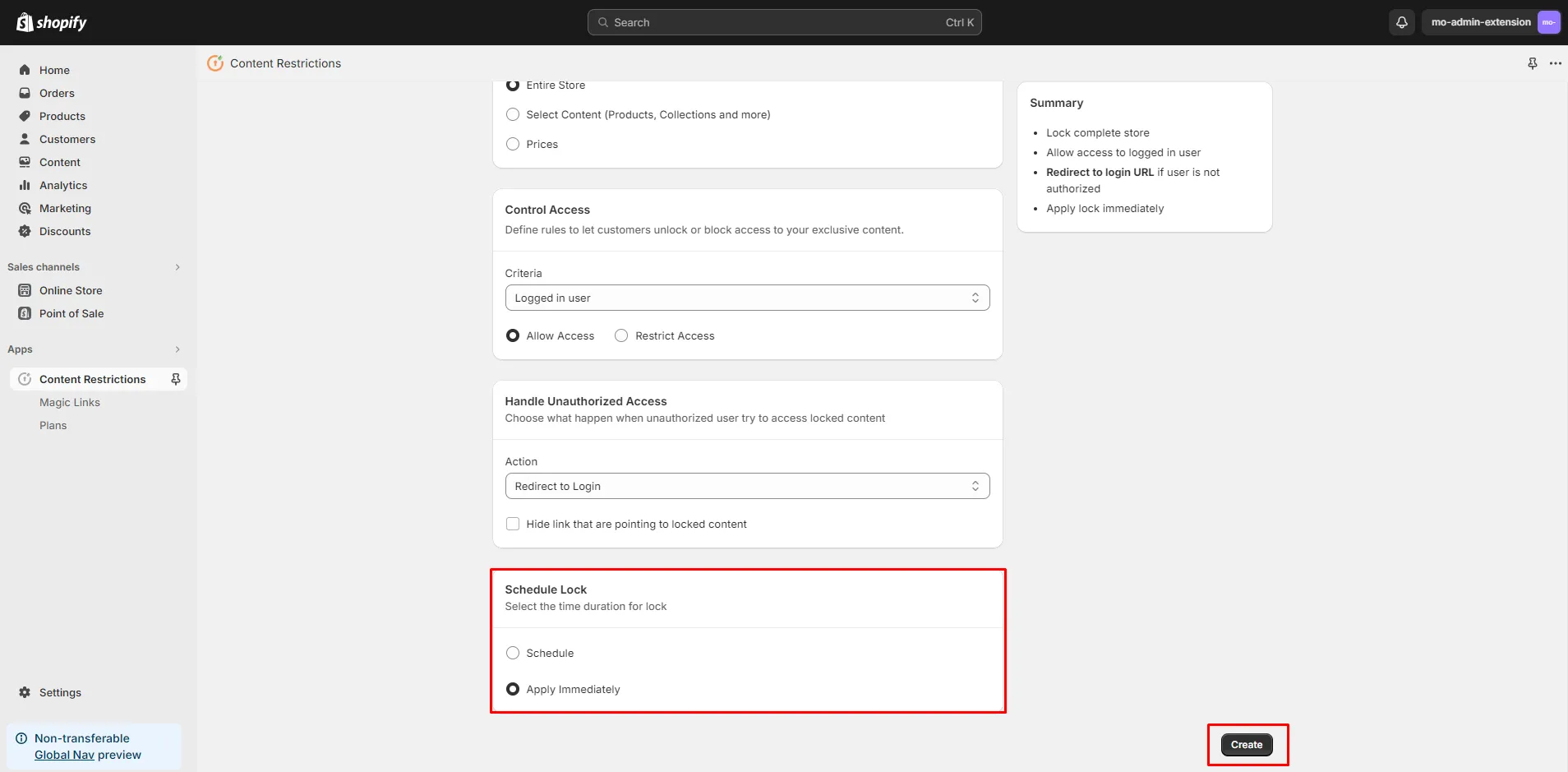
Step 7: Save the Lock
Click Save to activate your configuration.
Shopify Native vs App-Based Solution
| Criteria | Shopify Password Protection | miniOrange LockOn - Restrict Store Content |
|---|---|---|
| Coverage | Lock entire store (via password protection) | Lock entire store, specific products, collections, pages, or checkout actions |
| Level of control | No selective control | Granular access control at content and user levels |
| User segmentation | Not supported | Supports restrictions based on customer tags, logged-in users, specific customers |
| B2B Scalability | No segmented access | Built for controlled catalog and pricing visibility for B2B-specific content |
| Section-level restriction | Not possible | Restrict specific sections of the store for partial visibility |
| Time-based control | Not available | Supports time-based or scheduled restrictions |
Frequently Asked Questions (FAQs)
How do I lock my Shopify store temporarily?
You can use Shopify’s built-in password protection to lock your Shopify website during maintenance or pre-launch. Alternatively, the Pause and Build plan lets you keep the store visible while disabling checkout. Both methods can be implemented depending on whether you want full restriction or limited access.
Can I lock only specific products on Shopify?
If you're trying to lock a Shopify store at a product level, Shopify’s native features won’t support it directly. You can use Liquid code to restrict visibility based on login status, but this is limited and requires technical effort. For more structured control, an app-based approach will allow you to lock specific products, collections, or pages without any dependency on coding.
Can I lock my Shopify store for wholesale customers only?
Yes, but this requires customer-level access control rather than store-level restriction. B2B businesses usually need to show different pricing, catalogs, or products only to approved buyers. This is typically handled by restricting visibility based on login status or customer tags. Shopify’s native features don’t support this directly, so implementing this setup requires a more flexible access control system, which can be achieved via a suitable content restriction app.
Can I create a members-only Shopify store?
Yes, you can lock a store on Shopify to create a members-only experience. A simple way is to use password protection, but this applies the same access to everyone. A more effective approach is restricting access based on logged-in users, so only selected customers can view certain products or pages. This allows you to maintain exclusivity without limiting the entire storefront.
What is the best way to lock a Shopify store for private sales?
The best way to lock your Shopify store for private sales depends on how targeted the campaign is. A shared password works for broader access, but it lacks control. If you want to limit visibility to specific users, you need to restrict access based on login or customer segmentation. This ensures your private sale remains controlled while still allowing a seamless buying experience.
Is there a way to automatically lock products for non-logged-in users?
Yes, you can partially lock your Shopify store by using Liquid code to hide products from non-logged-in users. This is a basic way to control visibility without restricting the entire site. However, it requires manual implementation and may not scale well. For more advanced setups, merchants typically opt for rule-based access control through a content restriction app to restrict store access for different user types.
Conclusion
Controlling access in Shopify becomes more nuanced as your store expands. What starts as a simple restriction often turns into managing visibility across different customer groups, products, or collections. At that point, the focus shifts from just locking the storefront to maintaining consistent access rules across the entire buying experience.
Shopify’s built-in options are useful for basic scenarios, but they don’t offer the level of control required for selective store visibility. Managing these cases through manual methods can quickly become difficult to maintain, especially as your catalog or customer segmentation grows, and the need to lock a Shopify store at a more granular level becomes more apparent.
A more structured approach allows you to define access rules clearly and apply them without constant intervention. Solutions like miniOrange’s LockOn - Restrict Store Content are designed to support this by giving you controlled, rule-based visibility across your store, without adding operational complexity.
Looking to manage store access more effectively?
Explore our content restriction solution or connect with our team to get started.
About the Technical Expert

Team Lead
Ameya Tammewar is the e-commerce Team Growth Lead at miniOrange, with 5+ years of experience in cybersecurity solutions. She specializes in building security features for platforms like Shopify and WordPress, developing applications that secure e-commerce businesses globally. Her work spans software development, team leadership, and cross-functional collaboration with marketing to deliver solutions that meet the needs of online businesses worldwide.
About the Author

Content Writer
As a seasoned content specialist, Saloni Walimbe specializes in bridging the gap between intricate cybersecurity frameworks and the end-user. With extensive professional experience and a postgraduate degree in Marketing, she has a proven track record of navigating highly technical industries like IT and market research. At miniOrange, she focuses on creating streamlined, strategic narratives that simplify the complexities of the cybersecurity landscape, ensuring mission-critical information is both professional and easy to digest for a global audience.
Leave a Comment