

Ever handed your smartphone or tablet to an employee or colleague and immediately worried they’d tap something they shouldn’t or change important settings? These moments can quickly turn into distractions, mistakes, or even security risks.
Guided Access can be your safety net on Android drives.
In this blog, we’ll break down what Guided Access means on Android, how it works, and how you can enable it easily. Let’s dive in!
What is Guided Access on Android Devices?
Guided Access in simple terms is a concept that helps lock a device to just one app and limits what users can do. It restricts access to features like settings, notifications, navigation buttons, and more.
While the term “Guided Access” originates from Apple’s iOS, it has become a widely recognized phrase for similar functionality across other devices. On Android, this capability is provided by a feature called App Pinning, which essentially replicates the concept of Guided Access. The feature is particularly useful but offers limited functionality and is not suitable for most business cases.
Does Android Have Guided Access?
While iOS provides this feature under the proprietary name “Guided Access,” Android users can implement this using solutions like Mobile Device Management (MDM) for enterprise-grade control. These tools leverage Android's device management APIs to provide the control and customization you need. It might seem redundant to add extra software for features already present on the device, but there’s a practical reason behind it.
For instance, if you’re configuring multiple devices, an MDM solution makes the setup process far more efficient. It provides a centralized platform to monitor and manage all your devices.
However, a standard MDM may not be sufficient if you’re looking for precise control over your Android work devices. For scenarios like preventing screen recording, limiting file transfers, or personal email restriction, you’ll require a solution like miniOrange Android MDM security thats designed specifically for such use cases and gives detailed control over your devices.

Uses of Guided Access for Android devices
1. Managing Student Focus in Educational Settings
Schools can use guided access features on their classroom Android devices to maintain student focus during lessons. Pinning the screen to a specific educational app or learning tool helps prevent students from accessing non-relevant apps, games, or social media during class.
2. Product Demos and Kiosk Operations
Businesses often use tablets and smart devices for product demonstrations or as part of interactive kiosks. App pinning ensures that customers remain within the intended app, preventing misuse or unintended device use on demo devices.
How to Enable Guided Access on Samsung Devices?
While Samsung devices don't feature Guided Access like Apple products, they do offer a comparable function known as Screen Pinning (or Pin Windows).
Here's a straightforward guide on how to enable and utilize this feature on Samsung devices running Android.
Steps to Enable and Use Screen Pinning
- Open Settings: Start by navigating to the "Settings" app on your Samsung Android device.
- Access Security Settings: Tap on "Security and Privacy," then select "Other security settings."
- Enable Pin App: Look for the "Pin App" option and toggle it on.
- Pin Your App: Choose the app you wish to pin. To do this, tap the recent apps button or swipe up from the bottom of the screen and hold. Then, tap the icon above the app and select 'Pin this app.'
Once you've pinned the app, it will remain on the screen and cannot be closed unless you unpin it by holding the swipe up or recent button.
Limitations of Android Screen Pinning Over Guided Access
While Android's Screen Pinning feature is helpful for basic app restriction, it falls short when compared to the more robust Guided Access experience available on iOS. Here are the key limitations to keep in mind:
A) No separate passcode protection
Screen Pinning doesn't support a dedicated password or PIN. Anyone familiar with the unpinning steps can exit the pinned app, which weakens security in shared or public-use scenarios.
B) Limited control over device functions
Even when an app is pinned, users can still adjust the volume, lock the screen, or interact with certain system areas. This lack of control can be problematic for business-critical use cases like kiosks or demos.
C) Manual setup and poor scalability
Apps must be pinned individually, and if the app is unpinned, it needs to be manually re-enabled. Managing this across multiple devices quickly becomes time-consuming and impractical, especially for unattended or large-scale deployments.
In short, while Screen Pinning offers a simple way to restrict app access on Android and Samsung devices, it is best suited for individual or temporary use. For organizations that need stronger controls, automation, and scalability, more advanced alternatives to Guided Access are often required.
miniOrange Android MDM Solution: The Best Alternative to Guided Access
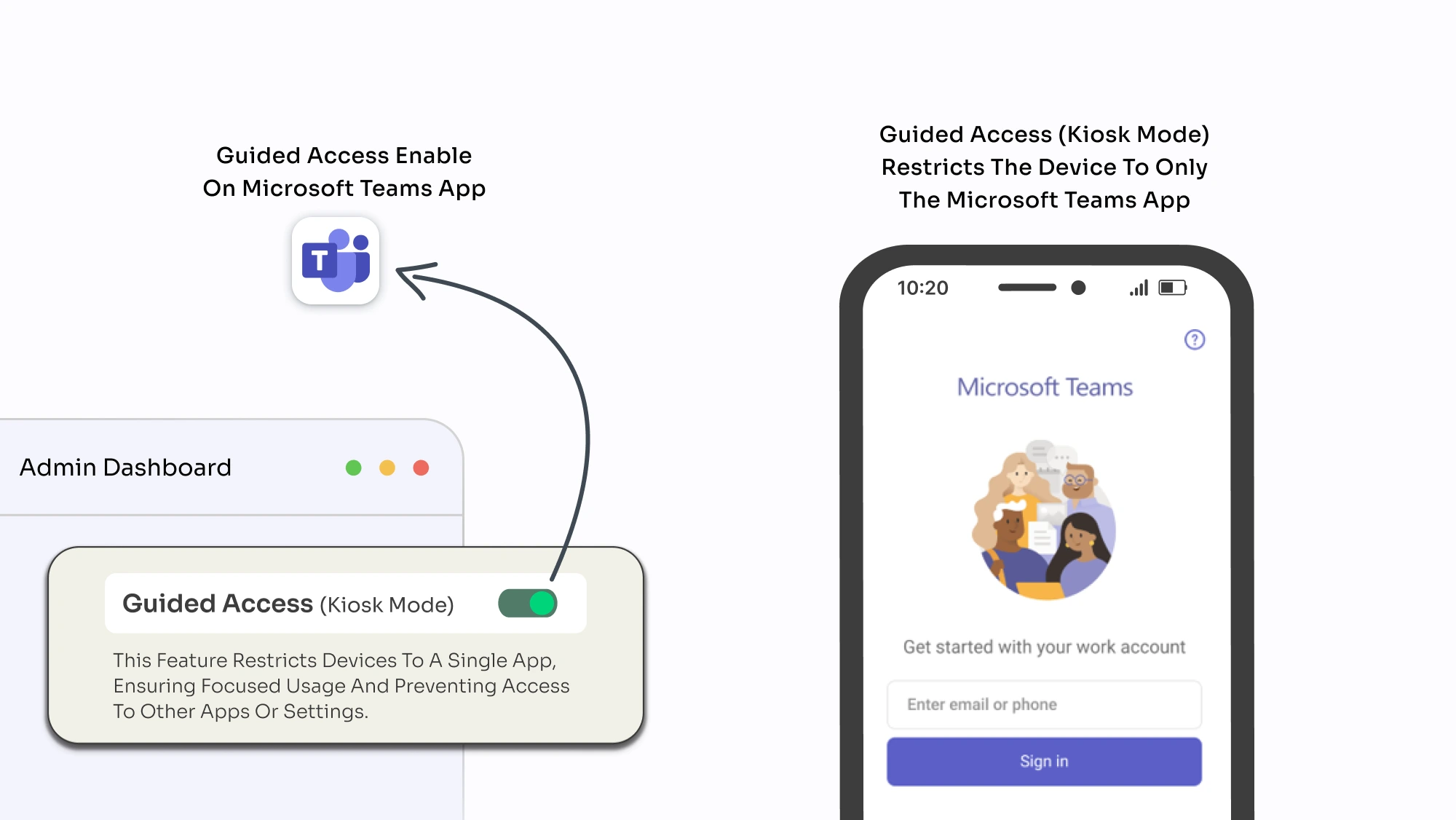
For organizations that need more than basic app locking, a Mobile Device Management (MDM) solution offers a far more powerful and scalable approach. miniOrange Android MDM enables IT teams to remotely manage, secure, and monitor Android devices from a single dashboard, while enforcing compliance and protecting sensitive data across the device lifecycle.
By implementing Guided Access–style controls on Android through miniOrange MDM, businesses gain flexibility, stronger security, and easier administration.
Here are the key benefits:
1. Effortless deployment at scale
Unlike manual app locking, miniOrange MDM allows bulk enrollment and configuration of devices in Kiosk Mode. This makes it ideal for BYOD, COPE, and COSU environments, significantly reducing setup time for large or distributed teams.
2. Granular settings and restrictions
Native Guided Access alternatives on Android offer limited control. With MDM, administrators can remotely manage Wi-Fi, Bluetooth, screen recording, brightness, task managers, status bars, and even physical buttons, preventing unauthorized actions or device misuse.
3. Support for both public and enterprise apps
miniOrange MDM supports silent app installation, web apps, and app locking to specific URLs or Play Store apps. It also manages the full app lifecycle, including updates and removals, without user intervention.
4. Simplified remote troubleshooting
Many work devices are unattended or used by non-technical users. With unattended remote access, IT teams can quickly diagnose and fix issues without disrupting users or requiring physical access to the device.
5. Stronger device and data security
To address risks like device loss or theft, miniOrange MDM provides advanced security features such as remote wipe, corporate wipe, and location or IP-based restrictions, ensuring business data stays protected at all times.

How Does Guided Access Work on Android Using miniOrange MDM?
miniOrange MDM delivers Guided Access on Android through Kiosk Mode, following a clear and controlled workflow that ensures devices stay focused, secure, and easy to manage.
1) Define the intended device usage
IT administrators first decide how the Android device should be used. Whether it's a single app for a kiosk, a set of work apps for employees, or a task-specific setup for classrooms or field teams. This helps determine the level of restriction required.
2) Create and configure a policy in miniOrange MDM
Using the miniOrange MDM dashboard, administrators create a policy that specifies which app or apps are allowed. This policy acts as the rulebook for how the device should behave.
3) Enable Kiosk Mode (Guided Access)
Within the policy, Kiosk Mode is enabled to lock the device to the approved app(s). Once active, the device is prevented from accessing the home screen, system settings, notifications, or any unapproved applications.
4) Apply the policy to enrolled devices
The configured policy is remotely pushed to enrolled Android devices. There's no need for manual setup on each device, everything is enforced automatically from the central console.
5) Device operates in a locked, focused state
After the policy is applied, users can only interact with the permitted app(s). They cannot exit the app, change settings, or misuse the device, ensuring a distraction-free and secure experience.
6) Ongoing management and updates
Administrators can modify policies anytime, add or remove apps, adjust restrictions, or disable Kiosk Mode. Changes are instantly reflected on devices, allowing organizations to stay flexible while maintaining control.
Summary
Guided Access on Android continues to evolve from a simple, user-level feature into a powerful enterprise capability. While options like Screen Pinning work well for personal or temporary use, organizations need a more reliable and scalable approach. This is where Kiosk Mode powered by miniOrange MDM stands out, offering deeper control, stronger security, and centralized management for Android devices.
If you're ready to take full control of your Android devices and deliver a secure, seamless user experience, explore what miniOrange MDM can do for your organization.
Reach out to us at uemsupport@xecurify.com to get started with a smarter, enterprise-ready device management solution.
Leave a Comment