
Most Jira teams have the deactivation side figured out. When users go inactive, you pull them from licensed groups, reclaim the seats, and keep your Atlassian licenses under control. The trouble starts on the return trip. The moment a cleaned-up user needs Jira again, someone in IT has to verify them, find the right group, and re-add them by hand, often several times a week for the same kind of request.
That manual step is where the savings quietly leak back out. Every returning user turns into a small ticket, and every ticket adds delay for the person waiting to get back to work.
The Automated User Management app for Jira by miniOrange closes that gap. Its automated access restoration feature lets returning users request access from the Jira Service Management portal, Slack, or Microsoft Teams, then grants it automatically based on rules you configure once. No queue, no manual group assignment, no admin in the loop.
Where the effort actually piles up
Manual restoration is rarely one big problem. It is a handful of small, recurring ones that compound as you scale:
- Restoring access by hand does not scale: Re-adding people to license groups one request at a time is slow and thankless.
- The same request lands again and again: Access restoration is repetitive by nature, which makes it a prime candidate for automation.
- Waiting drains productivity: Every idle hour spent waiting on a group assignment is output your organization paid for and did not get.
- Multi-channel requests get inconsistent: When people ask through chat, email, and tickets, keeping the handling and access logs uniform gets hard.
The feature folds all of that into one automated path, no matter where the request originates.
What automated access restoration does
The idea is simple: stop treating access restoration as a manual queue and start treating it as a rule.
When someone requests access, the app quietly handles the full sequence:
- It receives the request, whether it came from the Jira Service Management portal, Slack, or Microsoft Teams.
- It verifies the request and identifies who is asking.
- It checks that person against the eligibility rules you set up, based on their email domain or their existing group membership.
- It adds qualifying users to the correct licensed group, which is what restores their Jira product access.
The user asks, the app checks the rules, and access comes back, usually in minutes. An administrator never has to open the request.
If you want to see how this fits into the wider user lifecycle, from detecting inactivity to reclaiming licenses, miniOrange documents the full flow in the Automated User Management handbook.
What sets it apart
A lot of tools can automate a slice of this. This feature stands out because it owns the whole round trip and meets users where they already work:
1. Hands-free automation
Once a valid request is received, restoration runs to completion on its own. Requests no longer sit in a review queue, and no one has to manually confirm eligibility or reassign a group.
2. Flexible group mapping to fit your structure
Access can be restored in one of two ways: by the user's email domain, or by their existing group membership. Domain-based mapping suits organizations that provision access by company or business unit, while group-based mapping suits teams that already manage entitlements through well-defined groups.
3. Your choice of request channel
Admins decide how requests come in, the Jira Service Management portal, Slack, or Microsoft Teams, and users request access exclusively through that one channel, which drives the same underlying automation.
4. Chat requests still generate a governed ticket
Requests submitted through Slack or Microsoft Teams are handled through Jira Service Management (JSM) chat integration. The integration creates a standard JSM request, and the app processes it only after the ticket is created, using the same validation and approval workflow as requests submitted through the JSM portal.
That handoff is the quiet win. Users get the ease of asking in chat, and you keep the tracking, consistency, and auditability of a formal ticketing process. Convenience on the surface, rigor underneath.
This sits alongside the app's other lifecycle capabilities, such as scheduled cleanup and access revocation for inactive users and automatic suspension of dormant accounts, so the same app that reclaims a seat can also hand it back.
How to Set It Up
Configuration happens in the app's Auto-Activate Users section through a short guided wizard. Here is the shape of it.
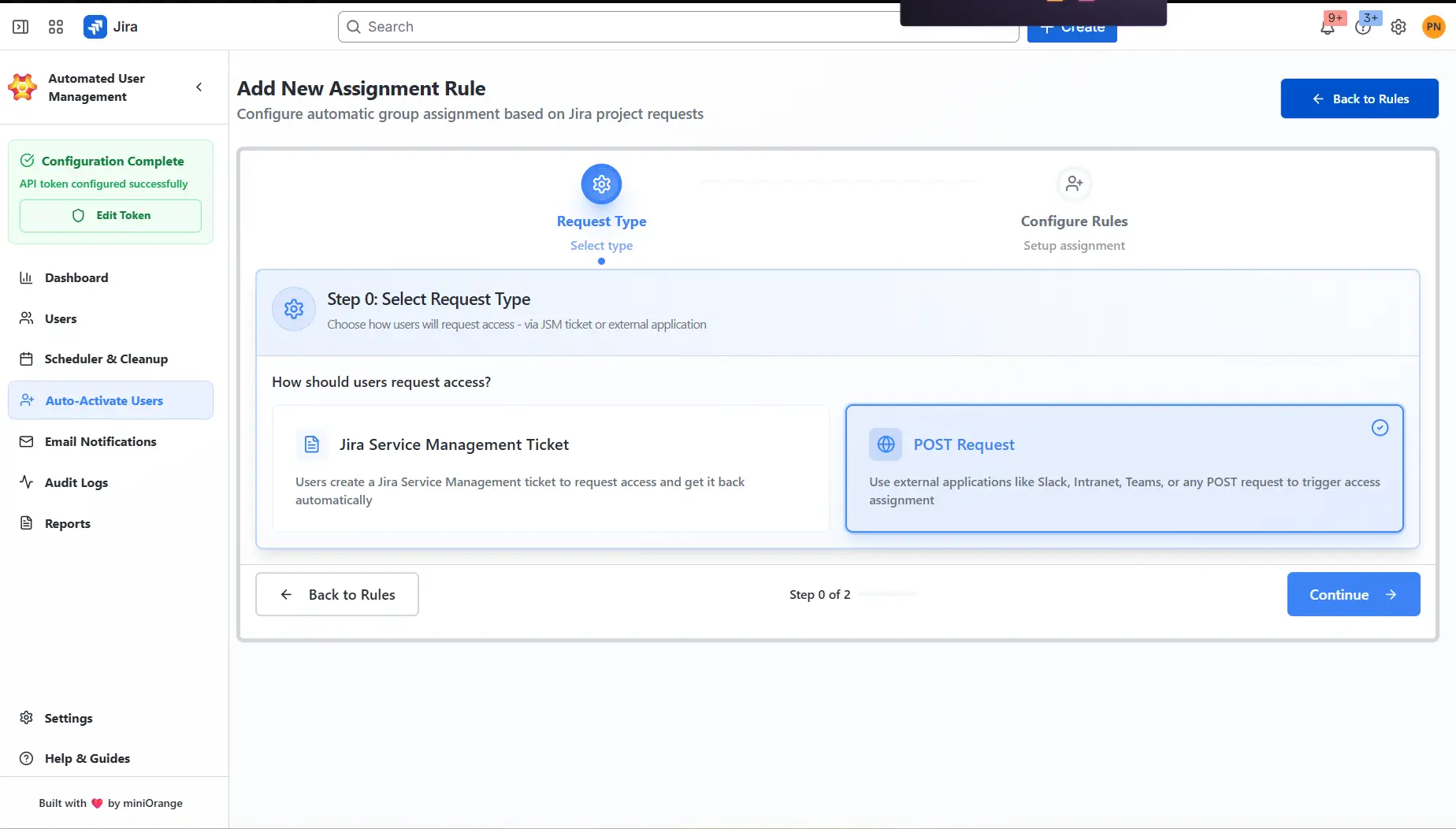
Step 1: Pick how users will request access
The wizard opens with one question: how should users request access? You get two choices.
- Jira Service Management Ticket. Users raise a JSM ticket to request access, whether through the portal, Slack, or Microsoft Teams, and get it restored automatically.
- POST Request. Use an intranet or any other system capable of sending a POST request to trigger the assignment.
Selecting POST Request is what opens the door to Slack and Teams. Because those channels send a POST request the app listens for, you can wire up access requests from just about any tool that can fire a webhook, not only the two named platforms.
Choose your request type and continue.
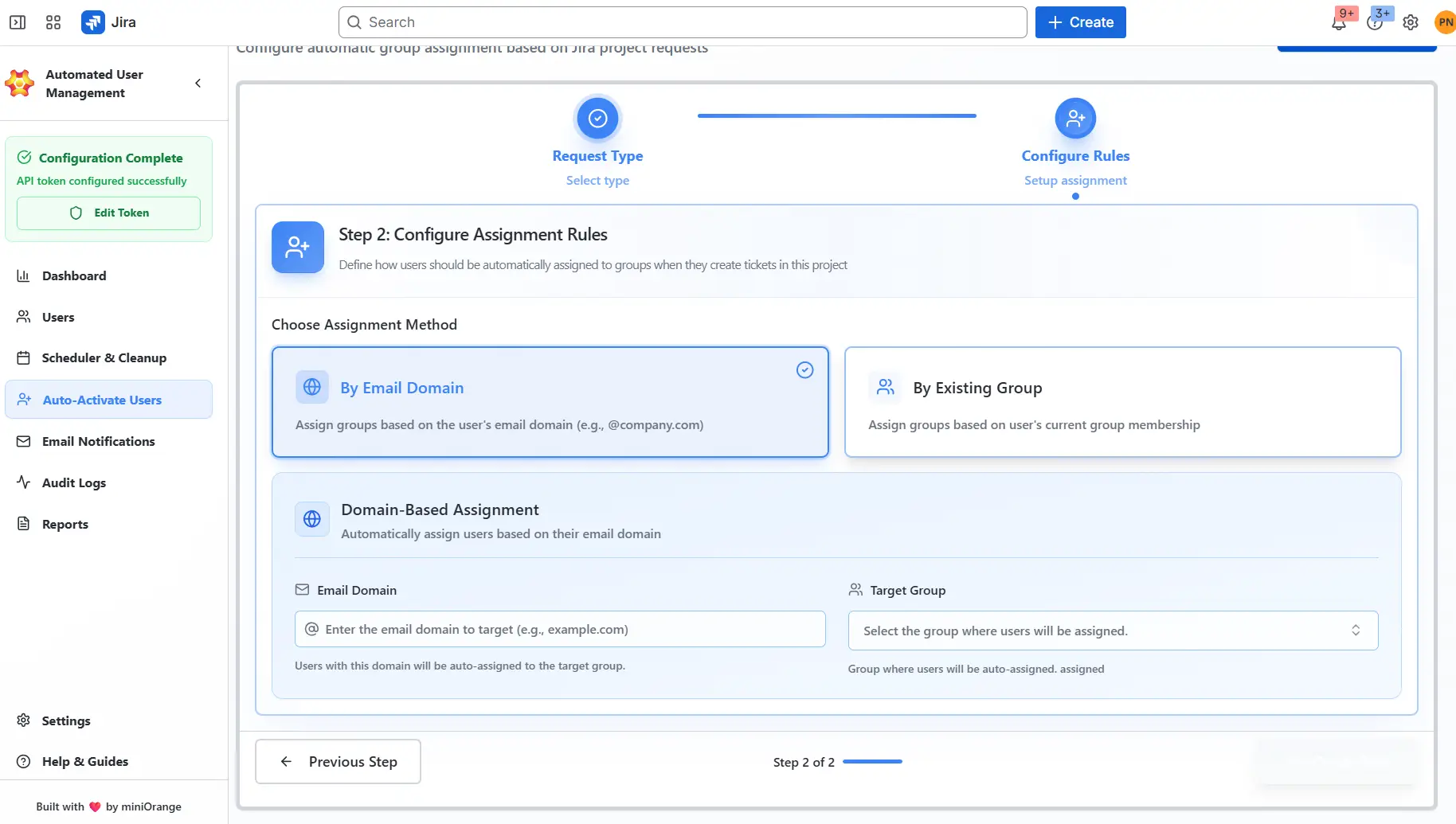
Step 2: Define the assignment rules
Next you decide how users get matched to the right licensed group. Two methods are available.
- By Email Domain. Assign groups based on a user's email domain, for example everyone on @company.com.
- By Existing Group. Assign groups based on the user's current group membership.
Pick domain-based assignment and you fill in two fields:
- Email Domain. The domain you want to target, such as example.com. Anyone with that domain gets routed to the target group.
- Target Group. The licensed group where matching users land. This is the group that grants Jira product access.
Set the domain and target group, save, and the rule goes live.
Step 3: Let it run
Once saved, the workflow operates on its own. From then on:
- A user submits a request through the portal, Slack, or Teams.
- The app validates it and identifies the user.
- It matches the user against your domain or group rules.
- Eligible users are added to the configured license group automatically.
- Jira access is restored, with no admin step in between.
Configure it once. It keeps running.
The Business Impact of Auto Restoration of Access
Automating access restoration is not simply an administrative convenience. By closing the gap between reclaiming a seat and handing it back, the feature lets you pursue cost control and user productivity at the same time, rather than trading one for the other. The following outcomes are where that shift shows up most clearly:
1. Zero-touch restoration
Administrators are no longer the bottleneck for returning users. Because the app assigns the correct licensed group automatically based on your rules, IT is freed from repetitive group management and can redirect that time toward higher-value initiatives.
2. Faster productivity for users
Returning users regain access in minutes through self-service rather than waiting on a manual review cycle. That speed translates directly into recovered working time, which matters most for contractors, returning employees, and anyone facing a deadline the moment they come back.
3. Consistent, auditable governance
Whether a request arrives through the portal, Slack, or Microsoft Teams, it follows one automated and fully tracked path. Every restoration is validated against the same rules and recorded the same way, giving you a clean audit trail and a defensible, repeatable process for compliance and security reviews.
4. A better experience for everyone involved
Users request access through whichever channel is most convenient for them, and administrators get their time back. The feature aligns two goals that usually pull against each other, satisfying the people who need access quickly and the teams responsible for managing it responsibly.
Conclusion
License optimization and user productivity used to feel like opposite ends of a seesaw. Reclaim seats and you create admin work. Keep everyone licensed and you overspend. Automated access restoration removes the seesaw entirely. You can reclaim unused licenses without hesitation and still make getting access back a frictionless, self-service moment, because reactivation is fully automated and available from the tools your team already uses every day.
IT stops being the bottleneck. Users stop waiting. And every request, wherever it starts, flows through the same consistent, auditable Jira Service Management workflow.
Ready to see it in your own environment? You can try the app for free on the Atlassian Marketplace.
Frequently asked questions
Q. Do users have to open the Jira Service Management portal?
No. That is the point of the multi-channel design. Users can request access from Slack or Microsoft Teams without ever visiting the portal. A JSM ticket is still created in the background so the request stays tracked and auditable.
Q. How does the app decide who is eligible?
Eligibility runs on the rules you configure: either the user's email domain or their existing group membership. Only users who match your rules get added to the target licensed group, so restoration stays controlled rather than open to anyone.
Q. Does a Slack or Teams request skip our audit trail?
No. Every chat request triggers the same underlying JSM workflow and generates a corresponding ticket. Whether the request comes from the portal or a chat message, it is processed and logged the same way.
Q. Which tools can trigger a request beyond Slack and Teams?
Because the POST Request option accepts any incoming POST call, you can connect an intranet portal, an internal form, or effectively any system that can send a webhook. Slack and Teams are the common choices, but they are not the only ones.
About the Author

Content Writer
Pallavi Narang is a content writer with more than 4 years of experience. She specializes in driving brand awareness and lead generation through compelling storytelling and strategic marketing campaigns. With a background in SaaS, cybersecurity, and data analytics, Pallavi excels in translating complex concepts into engaging narratives. Outside of work, she is either learning new languages or reading.
Leave a Comment