
Customer engagement plays a major role in how businesses retain users and build lasting relationships. Whether it’s a retail store, a logistics operation, or a healthcare facility, the way people interact with devices directly impacts efficiency and experience.
This is where kiosks come in. Modern businesses increasingly rely on POS and kiosk-driven interactions to simplify workflows and improve customer satisfaction. From self-service checkouts and visitor management systems to delivery tracking tablets, kiosks create structured and distraction-free environments.
As digital adoption grows, kiosk mode has become a key technology enabling these experiences. It allows organizations to control how devices are used while ensuring security and consistency.
In this blog, we will explore what kiosk mode is, how it works, the benefits it offers, real-world use cases, and how businesses can enable kiosk mode across their devices.
What is kiosk mode?
Kiosk mode is a device lockdown feature that restricts a smartphone, tablet, or computer to specific apps, websites, or functions. Instead of behaving like a regular consumer device, the system operates in a controlled environment designed for a single purpose.
For example, an Android kiosk mode setup may lock a tablet into a delivery app, while an iPad kiosk mode configuration may run a visitor check-in application. In both cases, users cannot exit the assigned experience or access unrelated features.
Kiosk mode is widely supported across platforms, including Android kiosk mode, iOS kiosk mode, and browser-based kiosks. Businesses use it to convert general-purpose devices into focused tools that drive operational consistency and reduce misuse.
At its core, kiosk mode ensures that devices do only what they are intended to do.
How does kiosk mode work?
Kiosk mode works by restricting device functionality at the operating system level. Instead of allowing open access, administrators define rules that control how users interact with the device.
This typically includes app whitelisting, where only approved applications can run. Navigation buttons, system settings, and notifications may also be disabled to prevent users from leaving the kiosk interface.
In Android kiosk mode, devices can be locked into single-app or multi-app workflows using system policies. Similarly, iOS kiosk mode uses guided restrictions to keep devices focused on predefined experiences.
More advanced deployments rely on a kiosk mode solution or mobile device management platform. These tools allow IT teams to configure restrictions remotely, enforce policies, and monitor device usage across large deployments.
This combination of OS-level lockdown and centralized control is what makes kiosk mode scalable for enterprise environments.
Different types of kiosk mode
Different business scenarios require different levels of restriction. That’s why kiosk mode is typically deployed in three main forms.
Single app mode
Single app mode locks a device into one dedicated application. Users cannot switch apps, access settings, or navigate outside the assigned workflow.
This is commonly used for:
- Point-of-sale terminals
- Exam tablets
- Ticket scanning devices
- Self-check-in systems
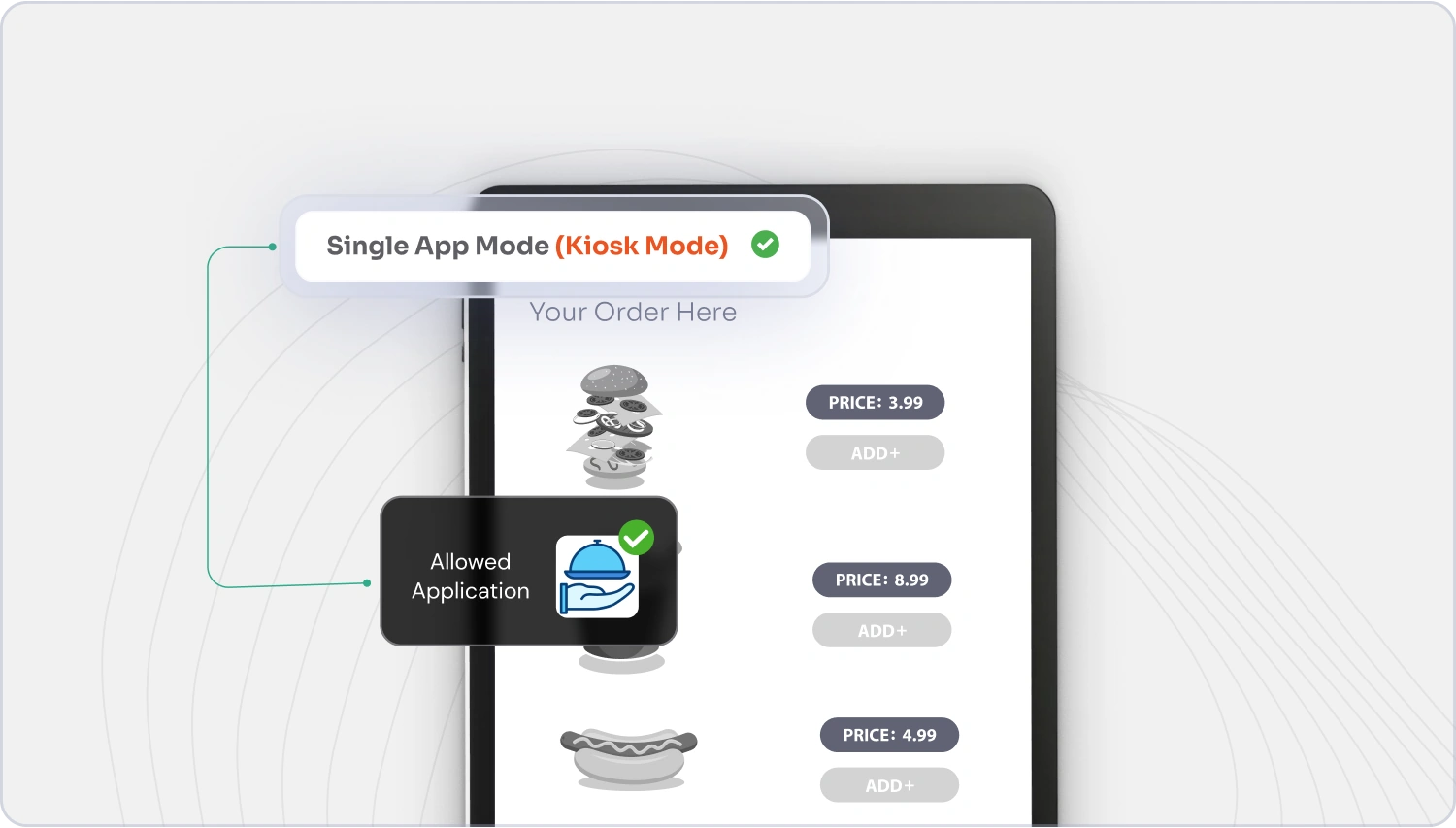
Single app kiosk mode is ideal when devices are tied to a single function and require strict control.
Multi-app mode
Multi app kiosk mode allows access to a limited set of approved applications while still preventing unrestricted device usage.
For example, a warehouse tablet may allow:
- Inventory management apps
- Barcode scanning tools
- Internal communication platforms
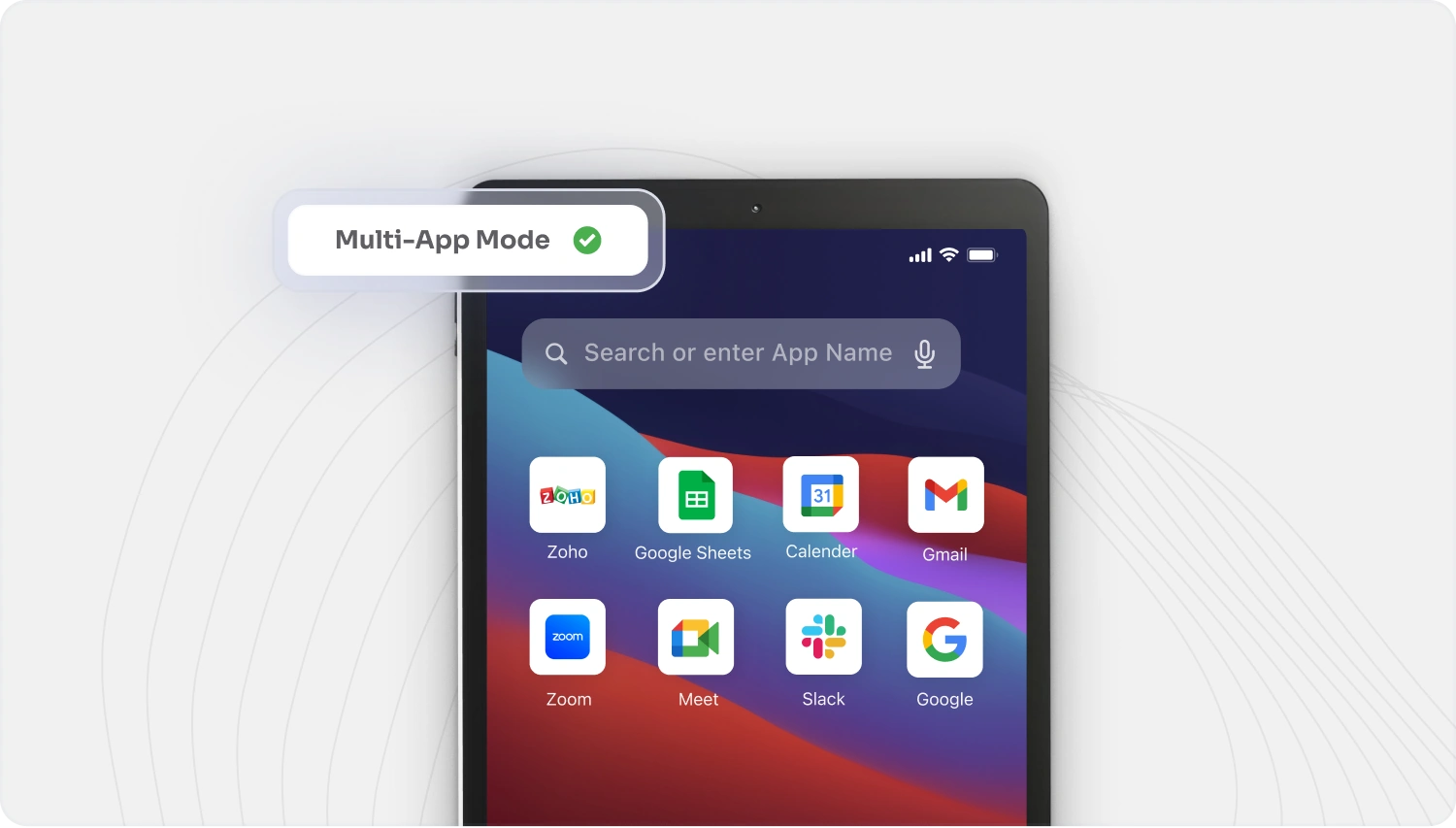
This approach is common in enterprise Android kiosk management scenarios where flexibility is needed without compromising control.
Browser mode
Browser kiosk mode restricts devices to a secure web browsing experience. Instead of running native apps, users interact with pre-approved websites.
This is widely used for:
- Digital signage
- Public information kiosks
- Self-service ordering systems
- Feedback collection stations
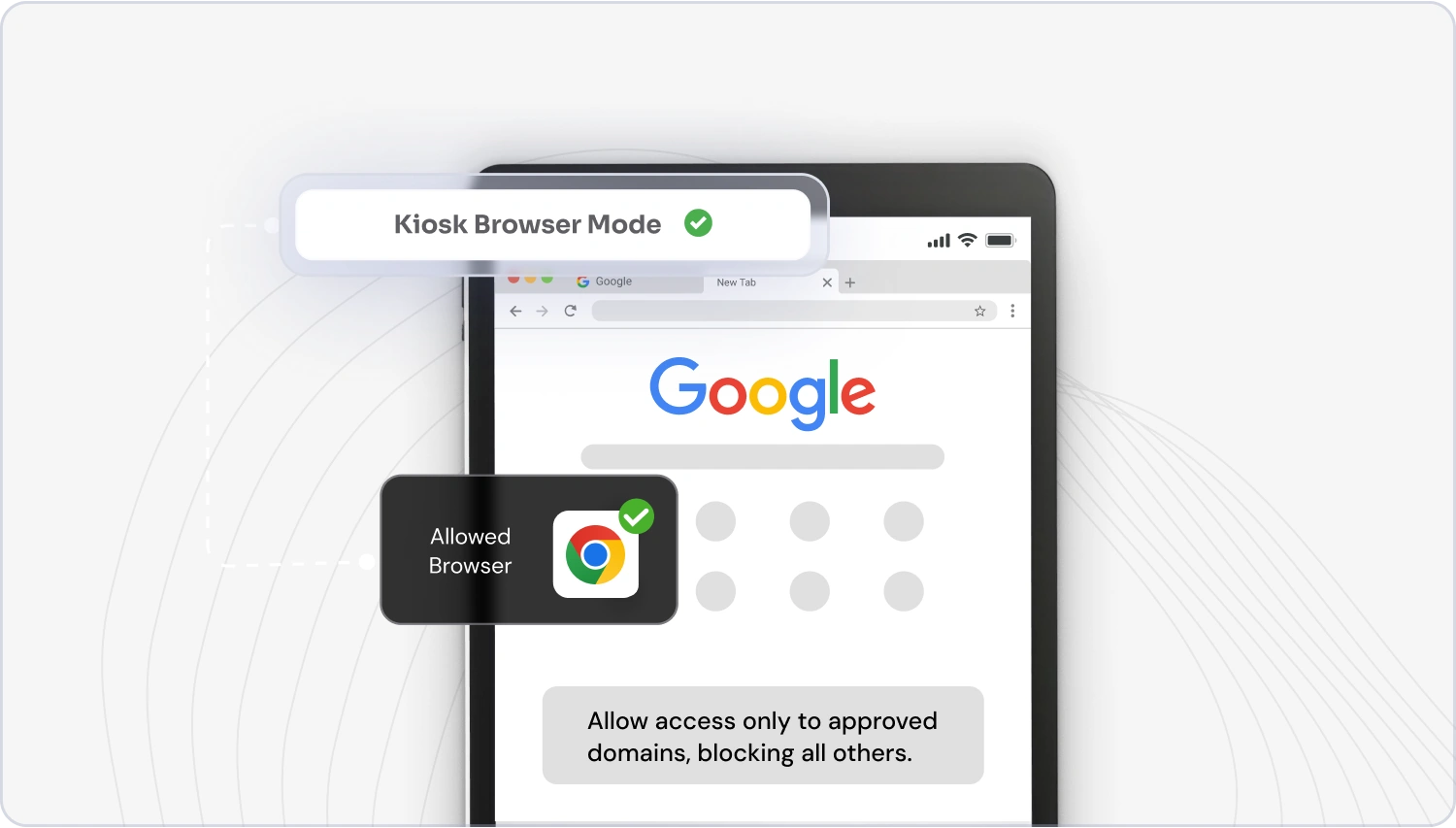
Administrators often combine browser kiosk mode with URL whitelisting to ensure users only access trusted web destinations.
Benefits of using kiosk mode for business
Adopting kiosk mode goes beyond simple device restrictions. It introduces measurable improvements in security, efficiency, and user experience.
1) Increased operational efficiency
By limiting devices to specific tasks, kiosk mode removes distractions and ensures users stay focused. Employees no longer switch between apps unnecessarily, and workflows become faster and more predictable. This is especially useful operations where speed and consistency directly impact performance.
2) Improved security and compliance
One of the biggest advantages of kiosk mode is enhanced security. By restricting access to approved apps and settings, businesses reduce the risk of unauthorized usage, malware installation, or accidental data exposure. In regulated industries, kiosk mode also supports compliance by ensuring devices follow predefined usage policies.
3) Enhanced customer experience
Kiosk devices deliver faster, more intuitive interactions. Whether it’s a hotel check-in kiosk or a retail product catalog, users engage with focused interfaces designed for a specific purpose. This leads to shorter wait times, fewer errors, and better customer satisfaction.
4) Scalability and flexibility
Kiosk mode scales easily from small deployments to enterprise fleets. Organizations can start with a few devices and expand to hundreds or thousands as needs grow. Modern kiosk mode solutions also support remote configuration, allowing IT teams to manage distributed deployments without physical access.
5) Cost reduction
By preventing unauthorized usage and reducing device tampering, kiosk mode lowers maintenance and support costs. Devices last longer, troubleshooting efforts decrease, and unnecessary data consumption is minimized. Over time, these efficiencies translate into significant operational savings.
How to enable kiosk mode?
There are multiple ways to configure kiosk mode depending on the platform and deployment needs. For Android kiosk mode, devices include a built-in feature called Android Screen Pinning. For iOS kiosk mode, Apple provides a native option known as Guided Access. Beyond these native methods, businesses can also enable kiosk mode using a dedicated kiosk software or an MDM platform.
Native Methods
These built-in options provide basic device lockdown without requiring additional software.
- Android Screen Pinning allows users to lock a device into a single app temporarily, making it useful for short-term Android kiosk mode scenarios.
- Guided Access on iOS enables similar restrictions on iPad kiosk mode and iPhone kiosk mode, allowing devices to stay focused on a single application.
While useful for basic scenarios, these native kiosk methods are best suited for personal or small-scale deployments. They can often be bypassed through restarts or manual exits and lack centralized management. This makes it difficult to monitor devices, enforce policies, or maintain visibility across deployments.
MDM-Based Kiosk Mode
This is why organizations typically move to a dedicated kiosk mode solution powered by mobile device management. MDM-based kiosk mode provides the control and scalability that native settings lack.
With an MDM platform, businesses can:
- Enable kiosk mode remotely across multiple devices from a central dashboard
- Enforce consistent lockdown policies across departments, roles, or locations
- Monitor device health and usage in real time for better visibility and control
- Apply updates and configuration changes remotely without physical access
- Strengthen security with advanced controls like remote wipe, app restrictions, and policy enforcement
In environments where consistency, scalability, and security are critical, using an MDM platform is widely considered the most effective way to enable and manage kiosk mode on business devices.
Read More : How to Set Up Kiosk Mode on Samsung Tabs
Kiosk mode use cases across industries
Kiosk mode is widely adopted across industries where controlled device usage is essential. Here are some of the industry use cases of kiosk mode:
- Transport and Logistics: Delivery fleets use Android kiosk mode to lock tablets into route tracking and proof-of-delivery apps. This ensures drivers follow structured workflows without distractions.
- Retail: Retailers deploy kiosk mode for self-checkout systems, digital catalogs, and point-of-sale terminals. Locked devices prevent access to non-business apps while maintaining a seamless shopping experience.
- Education: Schools and universities use kiosk mode to secure exam tablets and classroom devices. Students can only access approved learning apps, ensuring focus and academic integrity.
- Healthcare: Healthcare providers rely on kiosk mode for patient check-in systems and clinical workflows. Controlled access helps protect sensitive data and supports compliance requirements.
- Manufacturing: On factory floors, kiosk devices standardize quality inspections, reporting tools, and operational dashboards across shifts. Workers interact with consistent interfaces, improving accuracy and productivity.
- Hospitality: Hotels and restaurants use kiosk mode for guest check-ins, service requests, and staff tools. This creates consistent experiences while keeping devices secure.
Simplify kiosk lockdown and management with miniOrange MDM
Kiosk mode becomes more powerful when paired with centralized device management. This is where MDM solutions add real value. miniOrange MDM enables businesses to deploy and manage kiosk mode across Android and iOS from a single console, enforcing policies, monitoring usage, and updating configurations remotely.
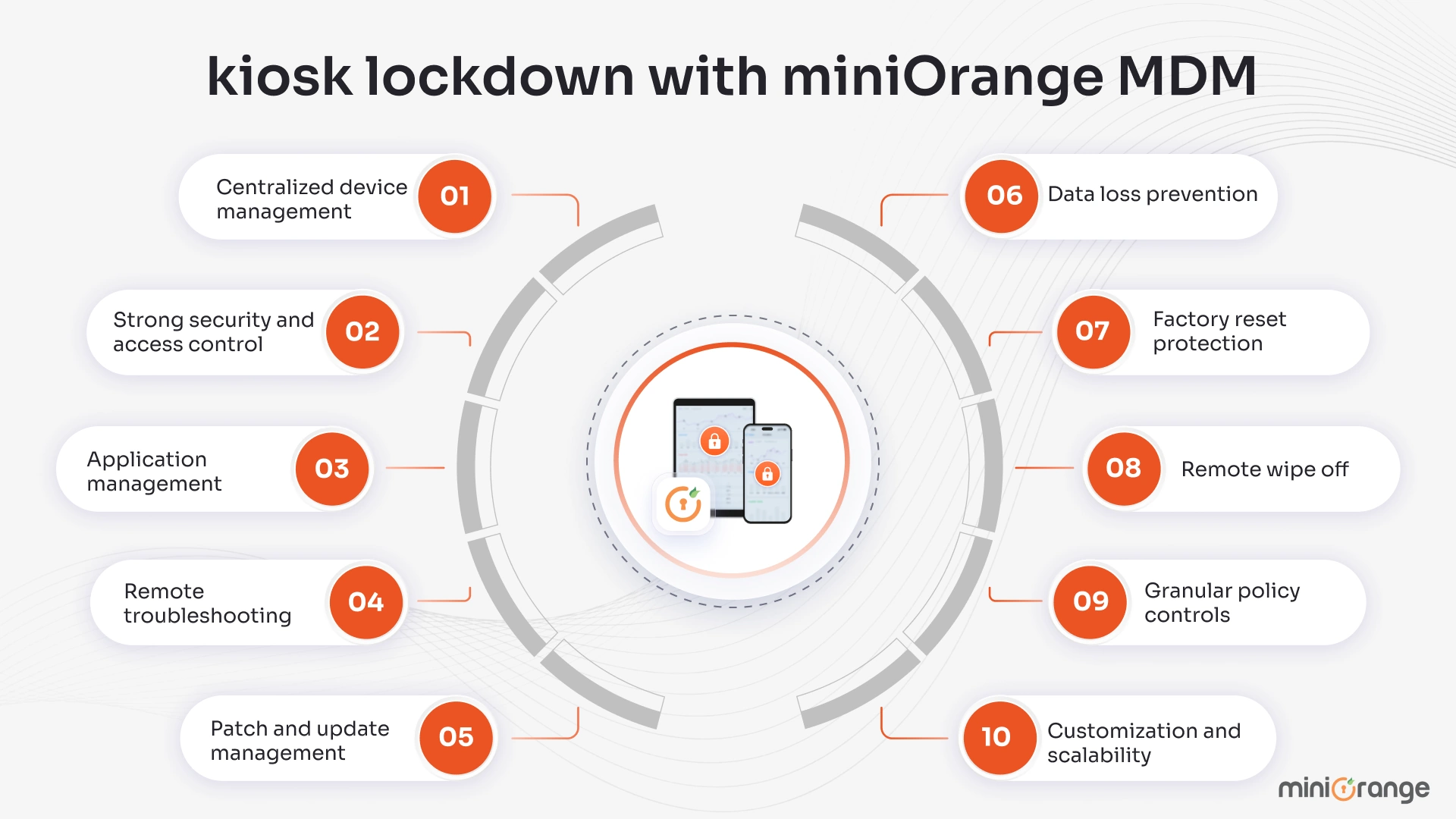
Here’s why miniOrange MDM is the best choice for secure kiosk lockdown:
- Centralized device management: Manage all kiosk devices from a unified dashboard with remote visibility and control. Push changes, monitor compliance, and apply updates without physical access.
- Strong security and access control: Restrict device settings, disable navigation controls, wi-fi configurations, and prevent unauthorized changes to keep devices locked into intended workflows.
- Application management: Deploy, update, and manage applications centrally. Allow only approved apps while blocking unauthorized ones.
- Remote troubleshooting: View live device screens remotely to diagnose and resolve issues faster, reducing downtime and support effort.
- Patch and update management: Control OS and patch updates centrally and schedule them during maintenance windows to avoid disruptions.
- Data loss prevention (DLP): Protect sensitive data with built-in controls that reduce the risk of accidental or intentional leakage.
- Factory reset protection (FRP): Block unauthorized factory resets to prevent misuse and maintain device ownership.
- Remote wipe off: Remotely erase data from lost, stolen, or retired devices to keep sensitive information protected.
- Granular policy controls: Apply fine-grained policies based on roles, departments, or device groups.
- Customization and scalability: Customize kiosk layouts, icons, and wallpapers to match your brand and scale deployments from a few devices to large fleets with ease.
With miniOrange MDM, businesses can streamline kiosk deployments across Android and iOS while staying fully in control of their devices.
Frequently Asked Questions
1. What is Android kiosk mode?
Android kiosk mode is a device lockdown feature that restricts an Android phone or tablet to specific apps, websites, or workflows. It transforms a regular device into a purpose-built kiosk by preventing access to system settings, notifications, and unauthorized applications.
2. What does kiosk mode mean for a device?
Kiosk mode means limiting how a device can be used by locking it into a controlled environment. Instead of allowing full access like a regular smartphone or tablet, the device runs only approved apps or websites.
3. How does kiosk mode help protect data?
Kiosk mode protects data by restricting access to system settings, external apps, and unauthorized actions. It prevents users from installing apps, copying data, or changing configurations that could expose sensitive information.
4. What do you need to configure kiosk mode?
Basic kiosk mode can be configured using built-in features like Android Screen Pinning or iOS Guided Access. However, for business deployments, organizations typically use a kiosk solution or MDM platform for centralized control.
5. Do you need an MDM solution to enable kiosk mode?
An MDM solution is not always required for basic kiosk mode, but it is strongly recommended for business use. MDM platforms enable remote kiosk setup, policy management, real-time monitoring, and stronger security, making them ideal for enterprise deployments.
Leave a Comment