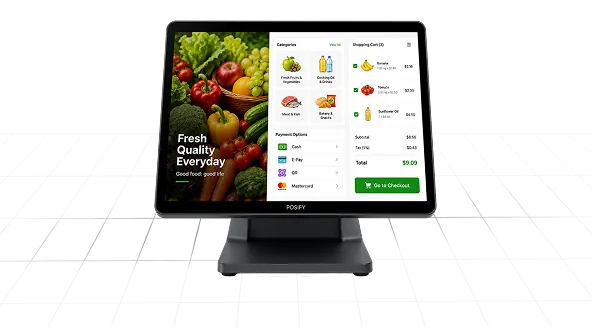
Single-App Mode
Lock devices to one app or website, and prevent users from exiting or switching apps. Launch the app automatically, and block hardware keys and unwanted device actions for a full-screen kiosk experience.
Need Help? We are right here!

Search Results:
×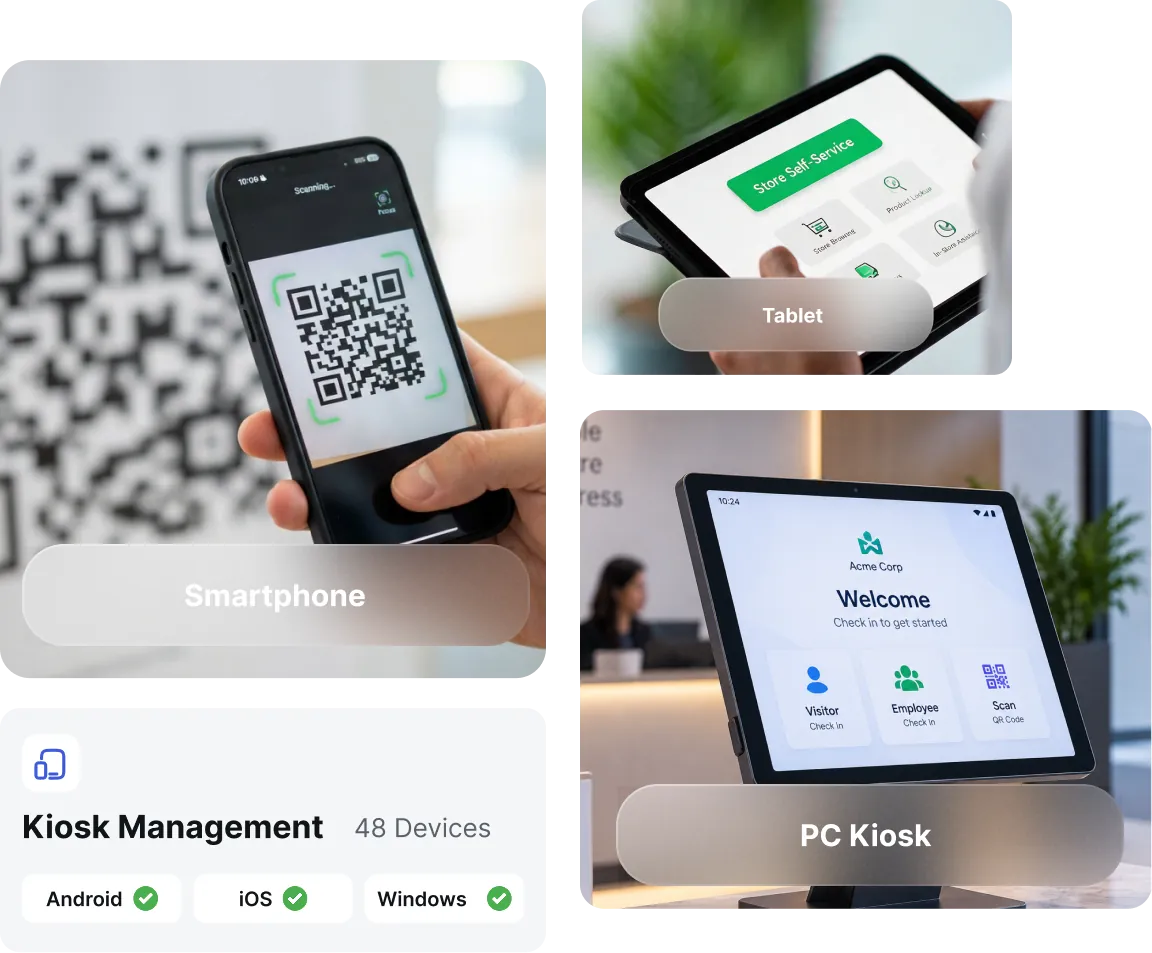
Stop juggling separate tools for every device type. Give IT admins a single console to lock, configure, and update kiosk devices,
no matter which operating system runs underneath.

Lock company-owned Android devices into single-app or multi-app kiosk mode. Restrict access to system settings, hardware buttons, and unapproved apps.
Read More
Secure iPhones and iPads in supervised mode with restrictions built for shared and dedicated devices. Allow approved apps, control accessibility, and lock the screen to a single app.
Read More
Restrict sign-in access, lock down desktop navigation, and confine Windows 10 and 11 devices to a single app or a curated app set.
miniOrange Kiosk Solution supports both single-app lockdown for dedicated, one-task devices and multi-app configurations
for shared devices that need a curated set of tools.
Lock devices to one app or website, and prevent users from exiting or switching apps. Launch the app automatically, and block hardware keys and unwanted device actions for a full-screen kiosk experience.
Allow only approved applications, and block unauthorized apps and settings. Restrict app switching and device navigation, and maintain full control over system features and device functionality.
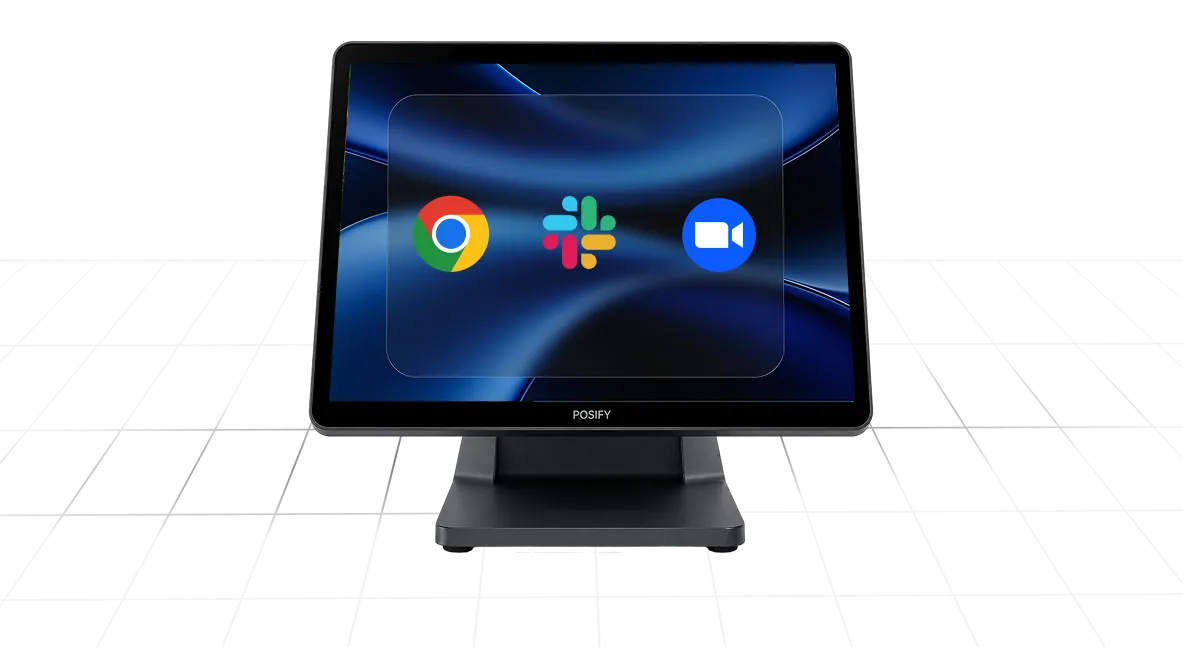
Get a granular set of controls that go beyond basic app locking, giving IT teams the precision they need to run one of the best kiosk software solutions.

Lock devices to a specific default URL, block unwanted sites, and control browser navigation buttons for fully restricted web-based kiosks.

Allow or deny power, volume, and ringer button access so end users can't shut down, mute, or interrupt the kiosk session midway.

Enable, disable, or restrict navigation to the Home Button only to stop users from exiting the kiosk app or accessing other screens.

Show the full status bar, disable it entirely, or display system info only, keeping the kiosk screen clean and free of distractions.

Block access to device settings so kiosk configurations can't be changed or tampered with directly on the device.

Disable system-level error prompts and pop-ups to keep the kiosk display clean during customer-facing or unattended use.

Allow or deny Zoom, VoiceOver, Voice Control, Speak Selection, and AssistiveTouch to meet accessibility requirements on supervised iOS devices.

Allow or deny device touch input for use cases like digital signage where no user interaction is needed.

Define specific user logon names permitted to access kiosk sessions on shared or Windows kiosk devices.
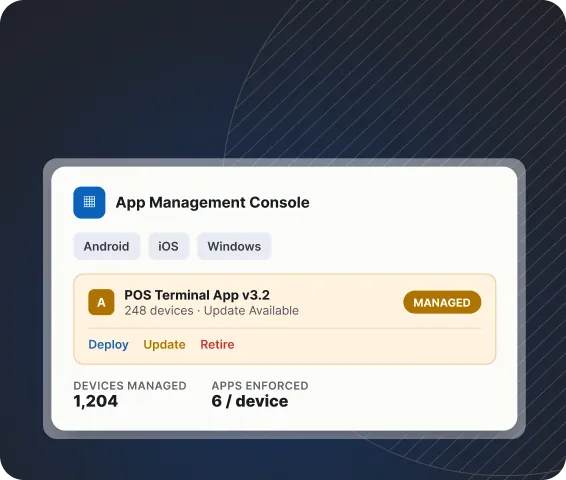
Leverage kiosk application software to deploy and manage business applications across Android, iOS, and Windows kiosk devices from a single console.
There are no separate app stores or manual installs required. Push updates, retire outdated apps, and enforce which apps are allowed on each device without ever touching the hardware.
A kiosk management solution includes remote tools that let IT teams diagnose and resolve most issues without ever touching the device.
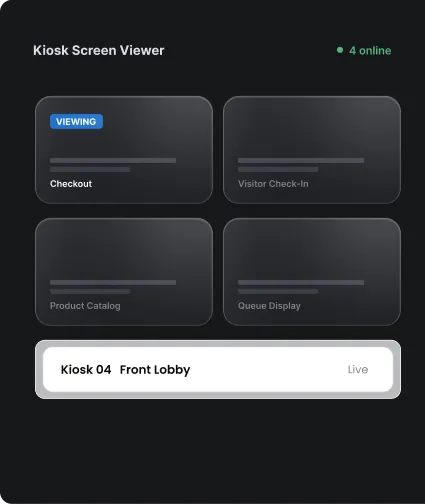
See exactly what's happening on any kiosk, without leaving your desk.
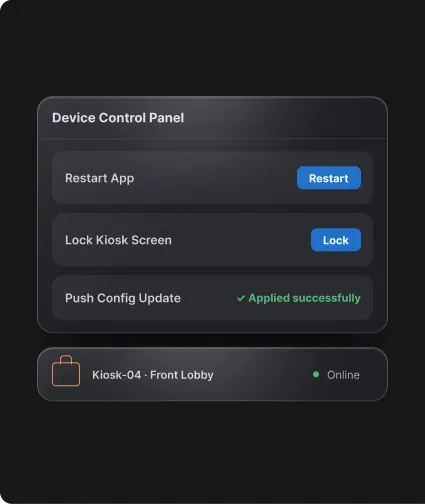
Take control of any kiosk device, from anywhere.
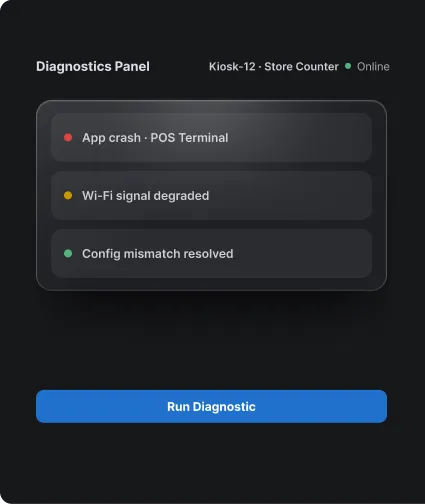
Diagnose and resolve kiosk problems before they turn into downtime.
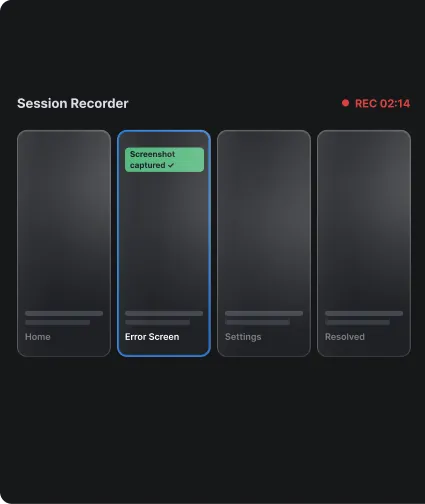
Document every remote fix for accountability and training.
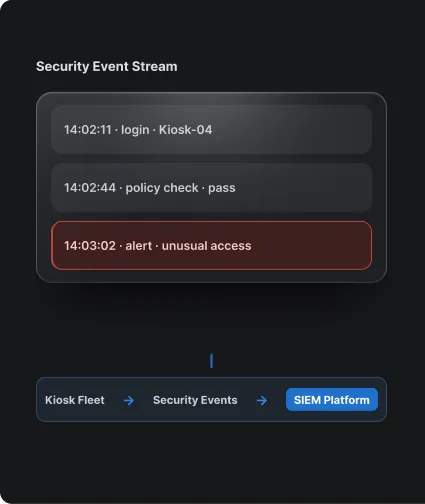
Feed kiosk activity and security events directly into your SIEM platform.
From classrooms to checkout counters, kiosk software keeps shared and public-facing devices locked, focused, and easy to manage; no matter the industry.





Configure kiosk policies, approve apps, and roll out settings through a straightforward admin console.
Remote troubleshooting and security controls resolve issues before they become downtime; this, in turn, eliminates operational delays.
Get dedicated, 24/7 support for macOS, Windows, and Android from a team that understands kiosk deployments, so critical problems get answered fast.
Manage kiosk devices across Android, iOS, and Windows. Configure, deploy, and monitor every kiosk profile from a single dashboard, regardless of OS.
Kiosk management software is a tool that lets IT administrators lock devices into a restricted mode, allowing access only to approved apps, websites, or system functions.
Enroll the device in a kiosk management solution like miniOrange, create a kiosk policy specifying single-app or multi-app mode, select the approved application or app set, and push the policy to the device remotely. The device locks into kiosk mode automatically once the policy applies.
Kiosk mode reduces device misuse, prevents unauthorized app access, cuts support costs through remote management, and creates a consistent experience for customers or employees using shared devices.
Pricing depends on the number of devices, platforms managed, and features required, such as remote control or ITSM integration. Contact miniOrange for a custom quote based on your deployment size and use case.
Yes, miniOrange offers a free trial of its kiosk software so teams can test lockdown features, app management, and remote controls before committing to a plan.
Yes, miniOrange's kiosk platform includes remote screen viewing, remote device control, and remote troubleshooting, so IT teams can monitor and manage kiosk devices without physical access.
Single-app kiosk mode locks a device to one application only, whereas multi-app kiosk mode allows access to a curated set of approved apps.