Make sharing Confluence Pages/Spaces easy and secure for external users. Just set up single sign-on (SSO) on your links. SSO ensures that only authorized users access shared content. Follow the simple instructions below to explore our setup guide for sharing SSO-enabled links with your external users.
Download And Installation
- Log into your Confluence instance as an admin.
- Click on Apps from the header then navigate to Find new apps.
- Locate Share Confluence with External Users (Secure Share).
- Click on Try it free to begin a new trial of Share confluence with external users.
Pre-requisite
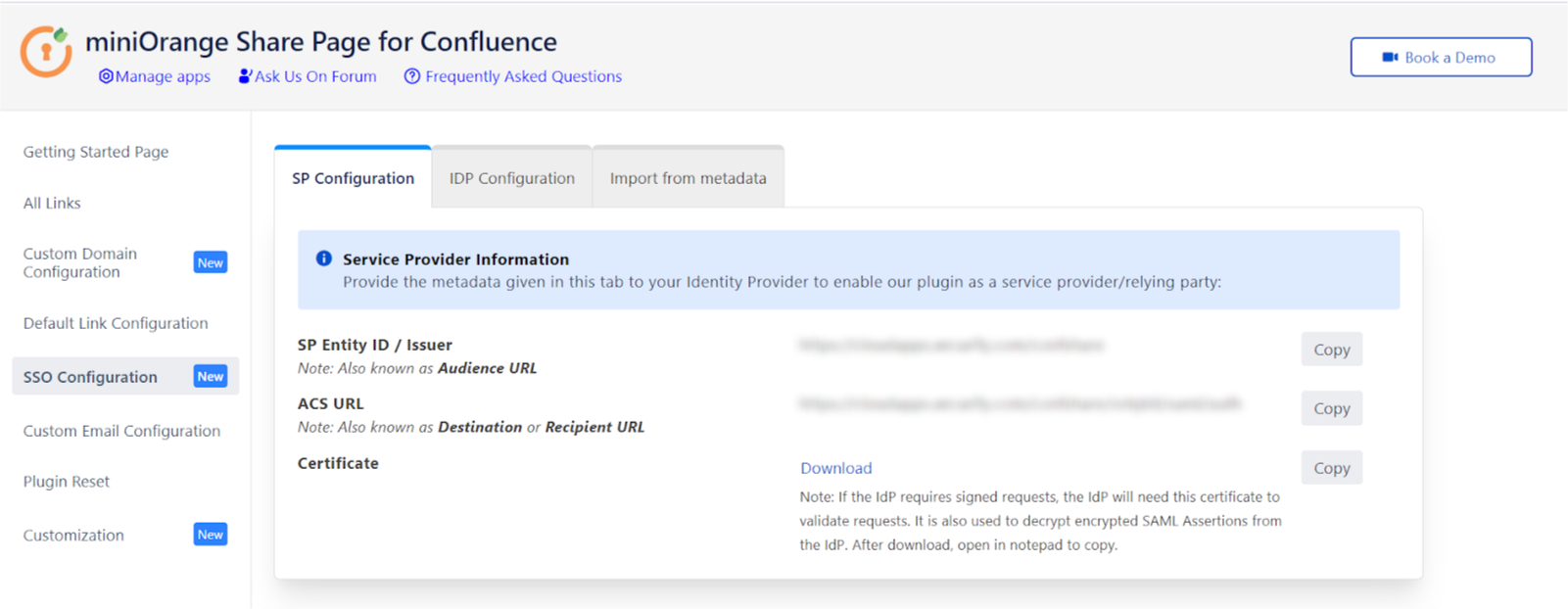
- We will need the SP entity id and ACS URL from the plugin.
- To get this information, go to Apps -> Share confluence with external users
- Then click on SSO Configuration -> SP Configuration
Step 1: Set Up Okta as Identity Provider
With the plugin installed, you can move on to setting up Okta as an IDP.
 1.1: Okta IDP Configuration
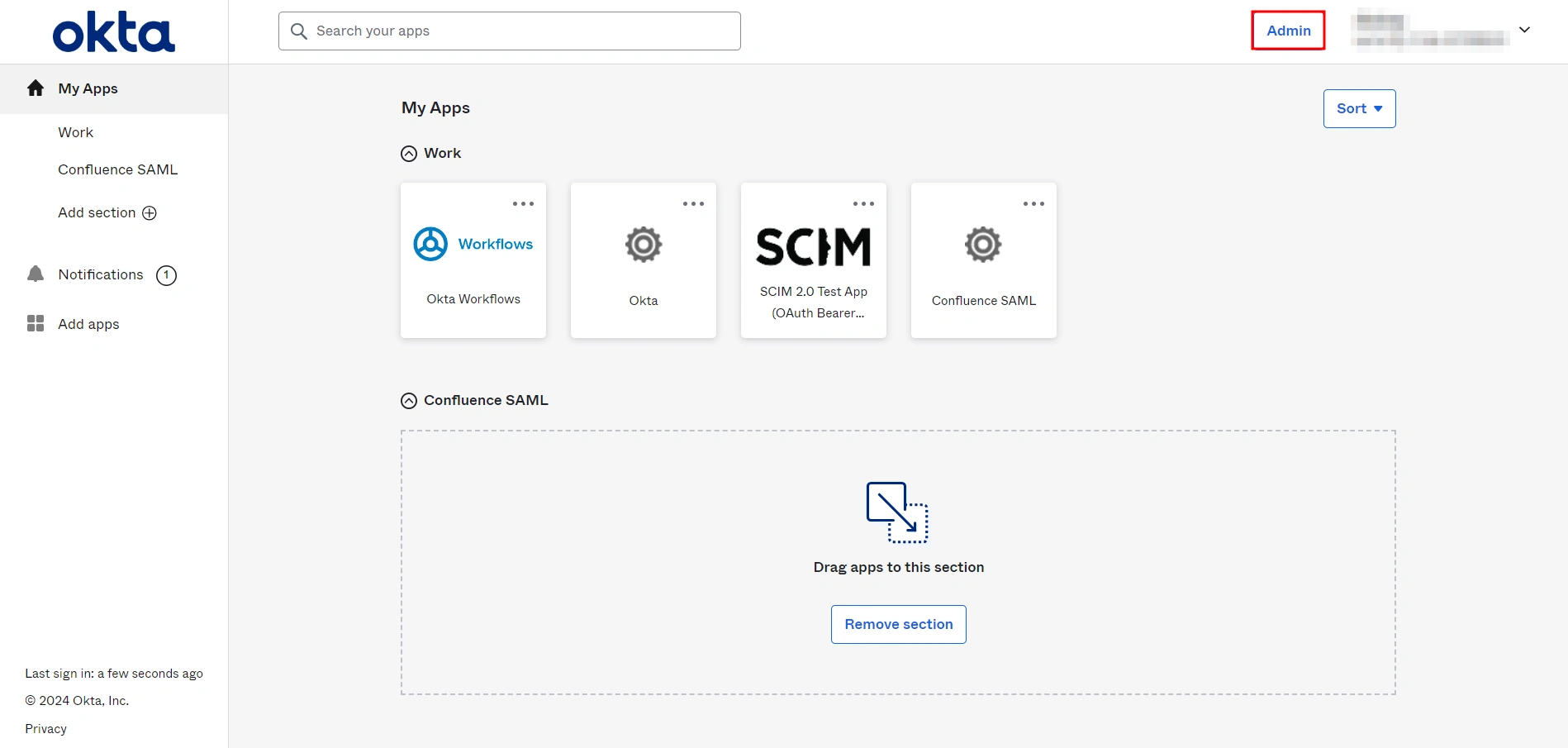
- Log into Okta Admin Console.
- For developer account, switch to Classic UI to configure app.
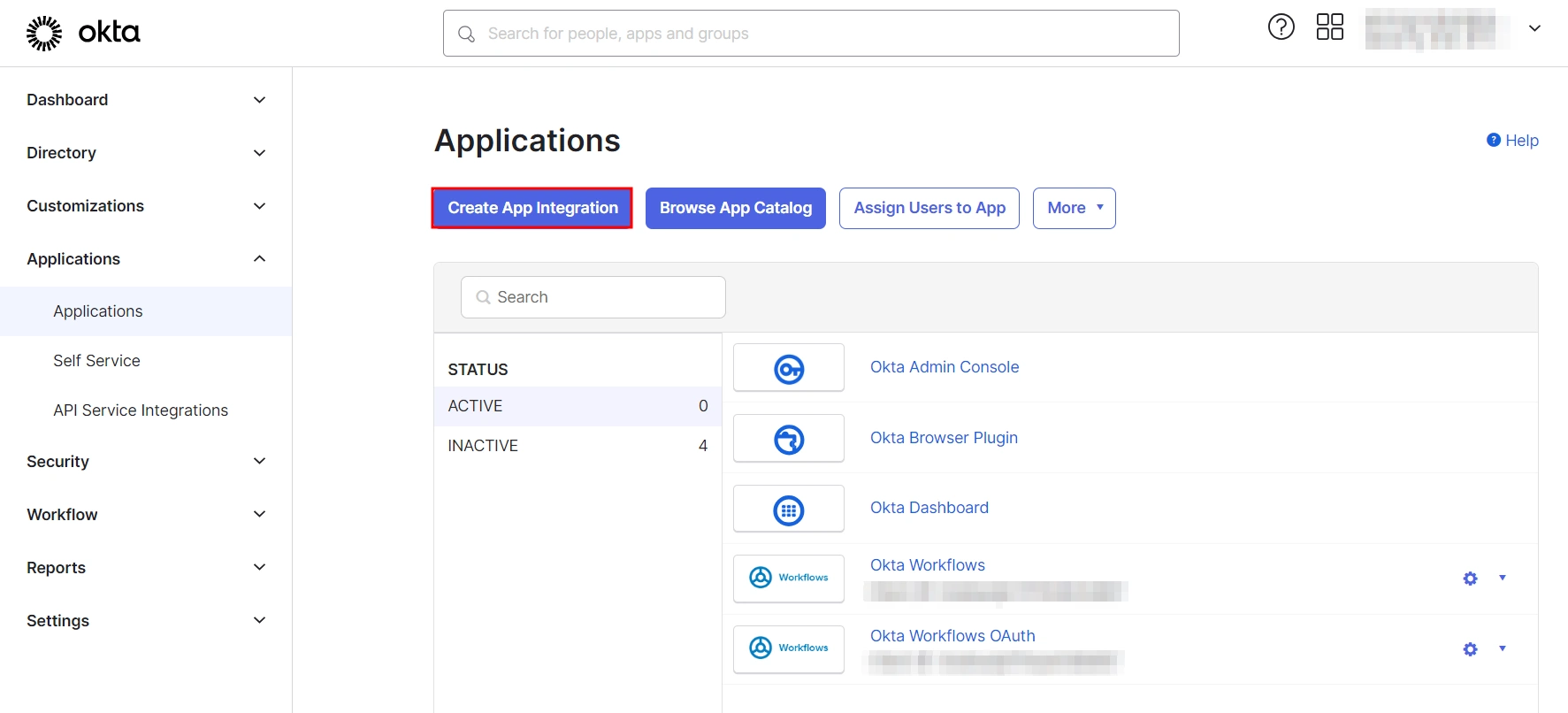
- In the left hand menu, go to Applications → Applications and then click on Create App Integration.
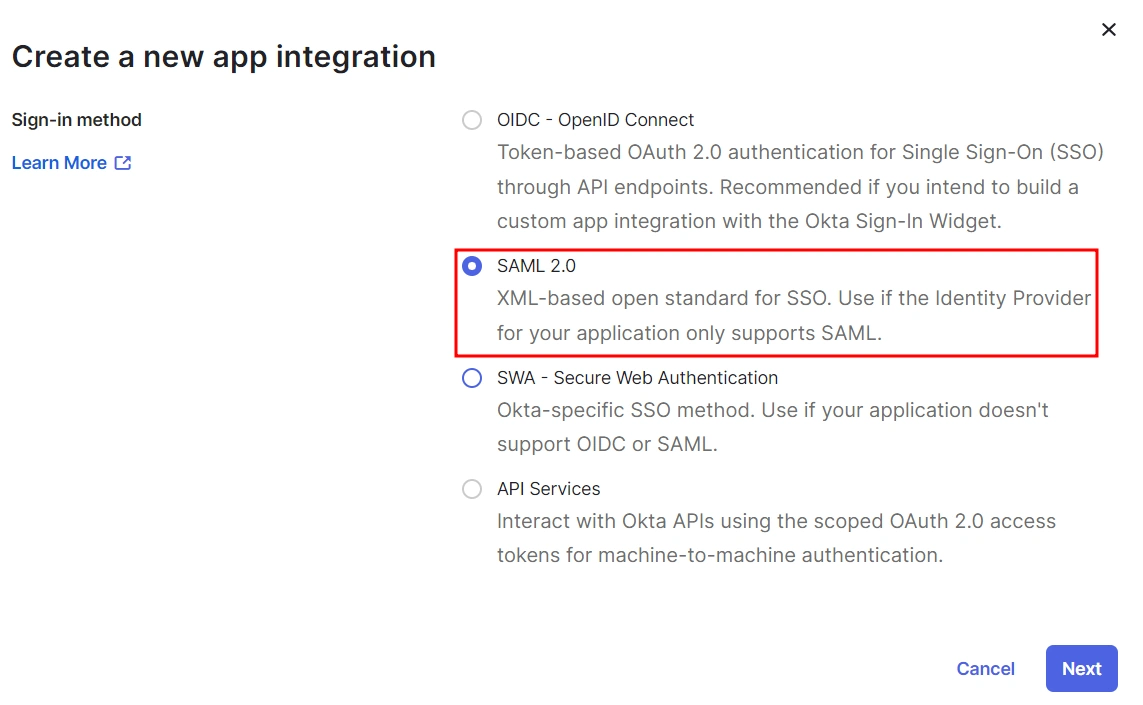
- Select SAML 2.0 as Sign on method and click Next.
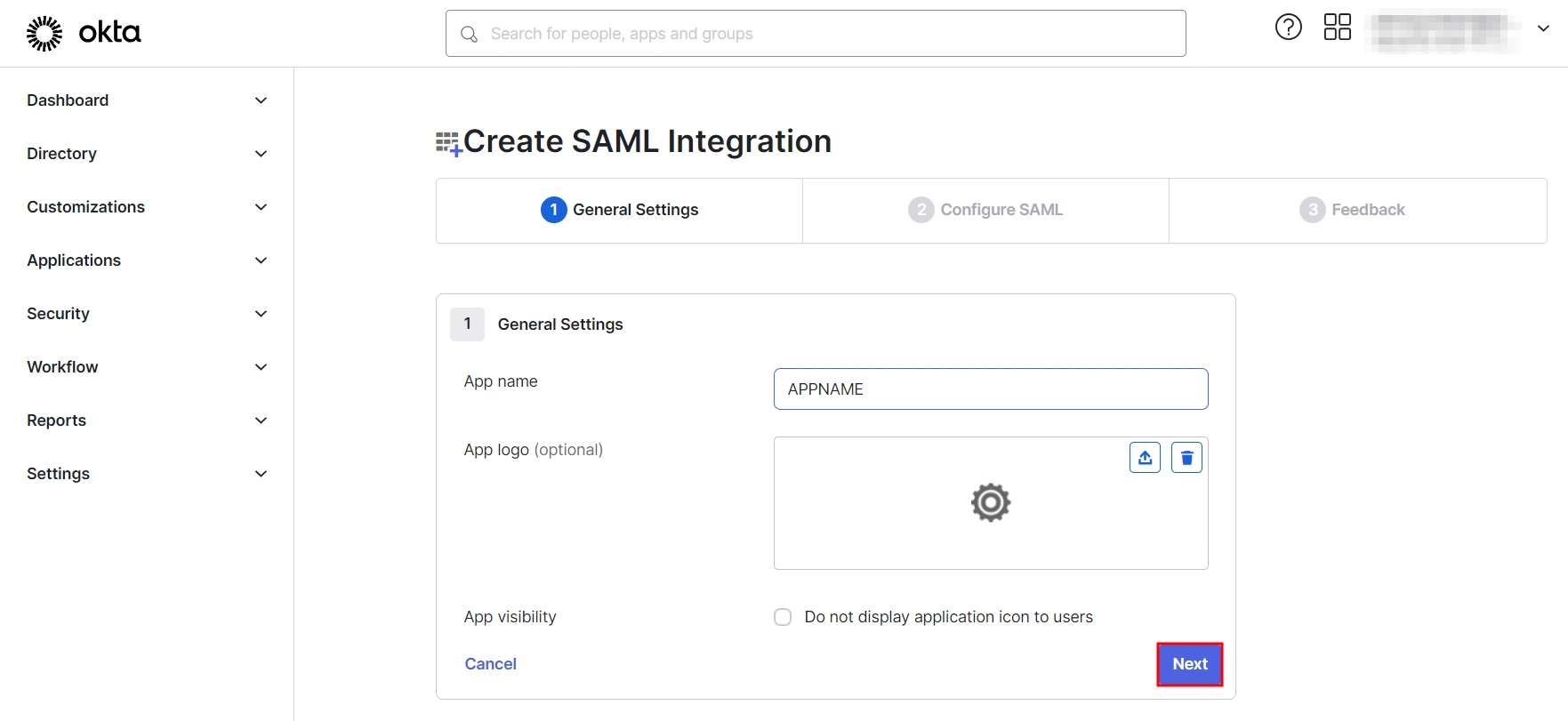
- In General Settings, enter the app name and click on Next.
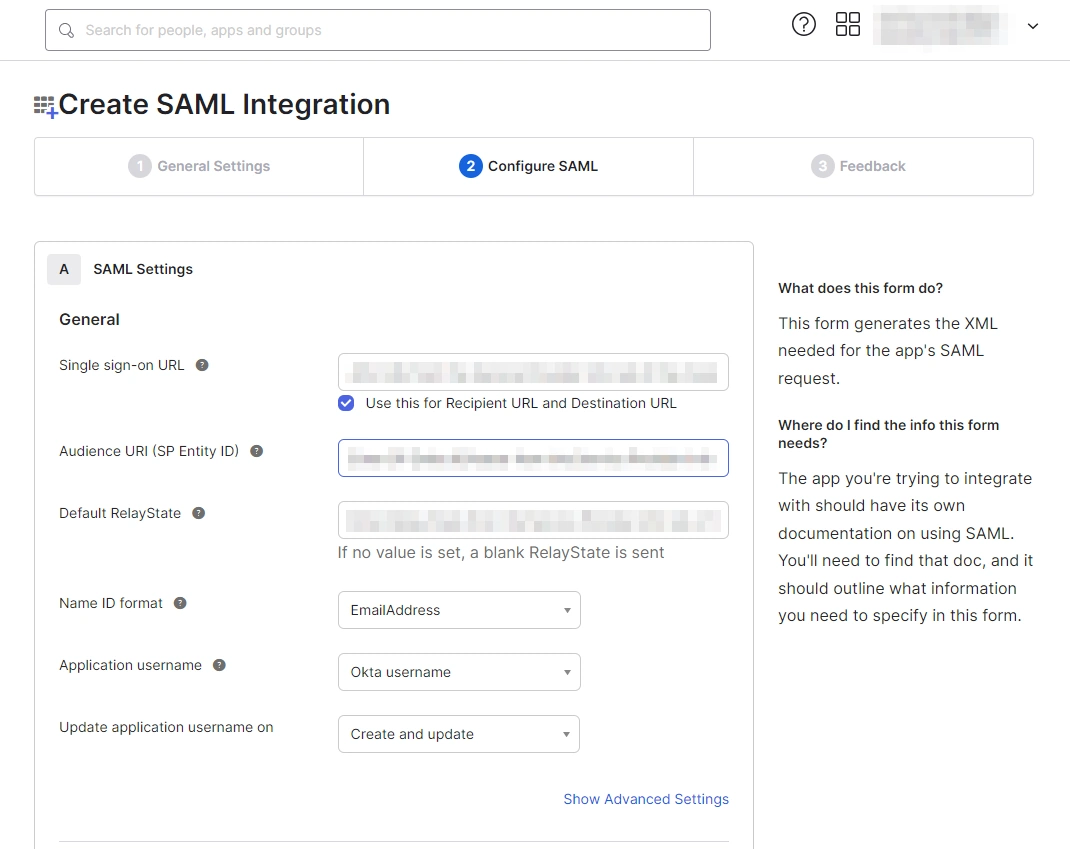
- Set up SAML parameters in the Configure SAML tab. You will find all the required information inside the SP Information tab of your plugin. The table below will help you map the right data to the fields.
- Next, scroll down inside the Configure SAML tab and fill out Attribute Statements and Group Attribute Statements (this step is optional).
- Here’s how you can populate these fields:
Follow the steps provided below:
| Single Sign On URL | Enter ACS (Assertion Consumer Service) URL from the Service Provider info tab of the plugin. |
| Audience URI (SP Entity ID) | Enter SP Entity ID/Issuer from the Service Provider info (or SP Information) tab of the module. |
| Default Relay State | Enter Relay State from the Service Provider info tab of the module. |
| Name ID Format | Select EmailAddress as the Name ID Format from the dropdown list. |
| Application Username | Set Application Username to Okta username. |
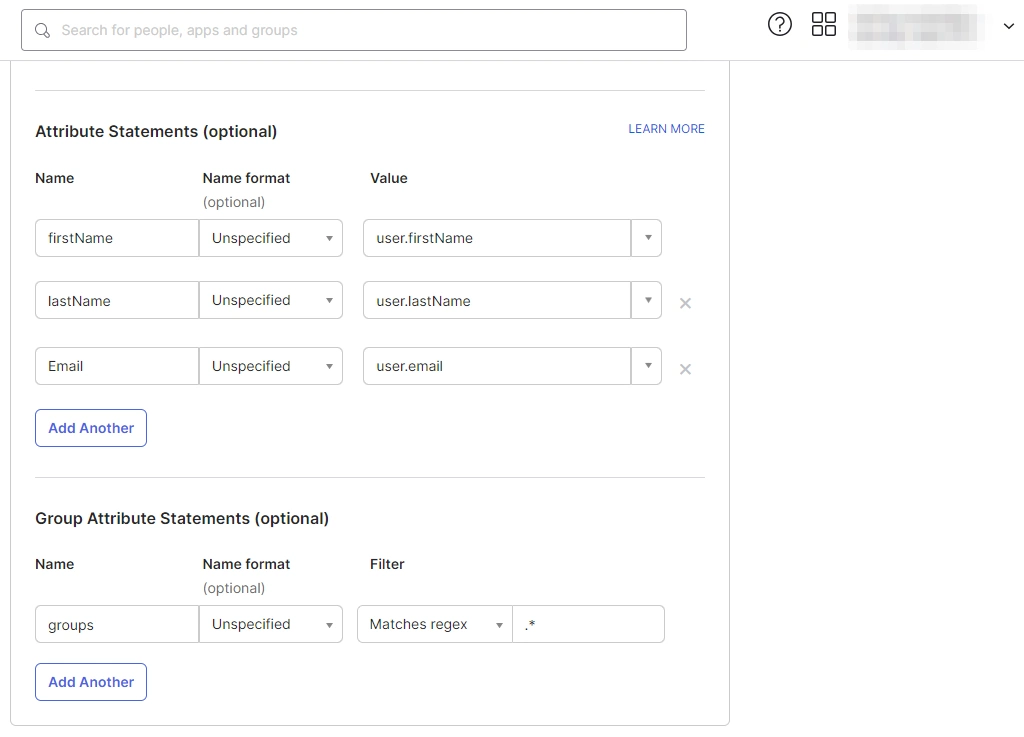
a. For Name, enter "firstName" and select user.firstName from the value dropdown.
b. For Name, enter "lastName" and select user.lastName from the value dropdown.
c. For Name, enter "Email" and select user.email from the value dropdown.
d. Under Group Attribute Statements, enter "groups" for Name and select Matches regex from the Filter dropdown and enter ".*" in the adjacent textbox.
1.2: Assigning Groups/People
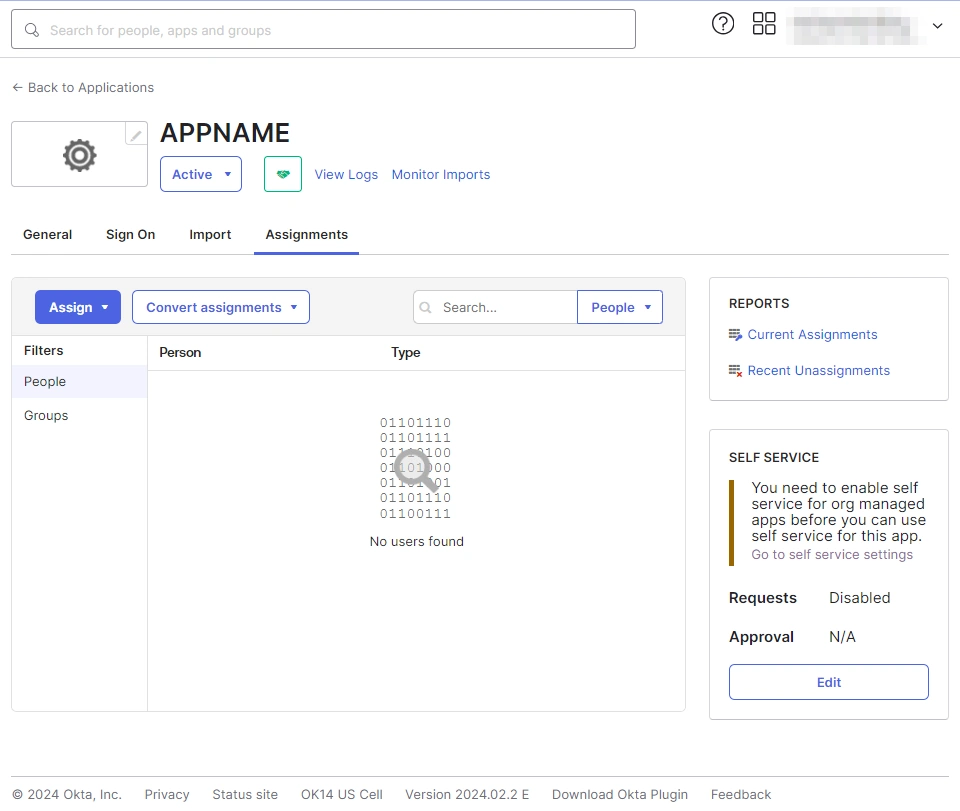
- After creating and configuring the app, you will be redirected to the Assignment Tab in Okta.
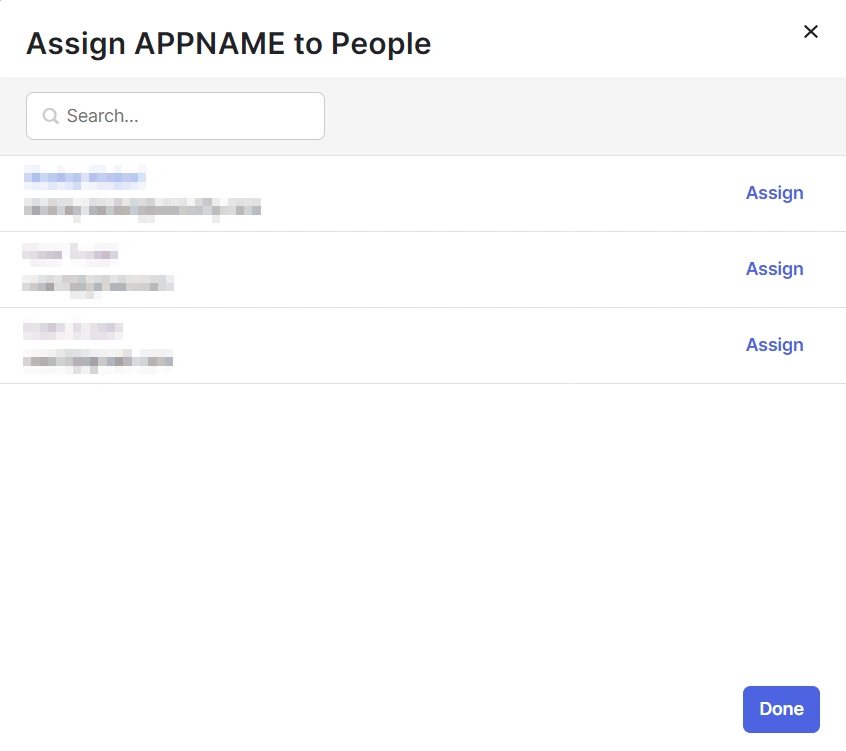
- Here, select the people and groups that you want to be able to log in through the app. You can do this by clicking Assign and selecting Assign to People to give access to specific people.
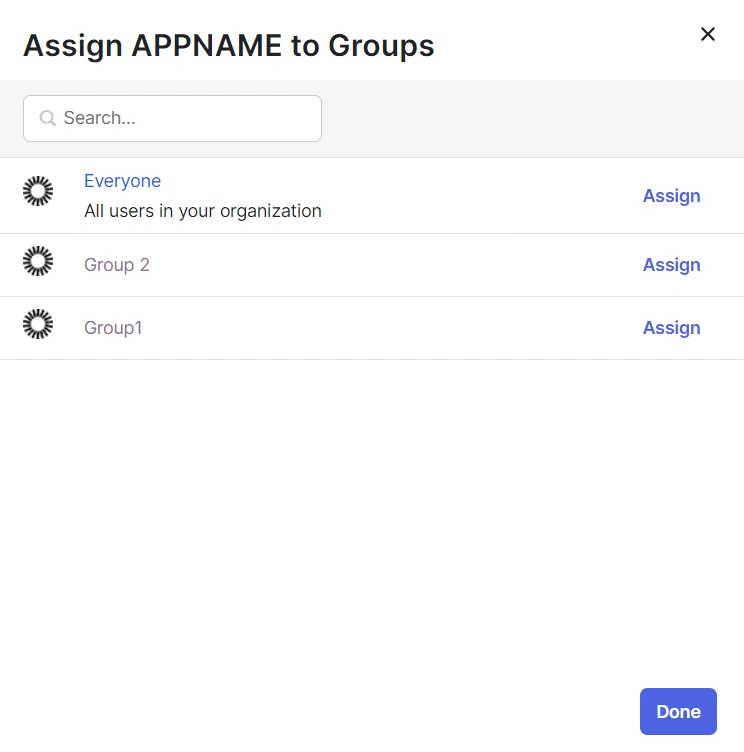
- You can also select Assign to Groups to give access to a specific group.
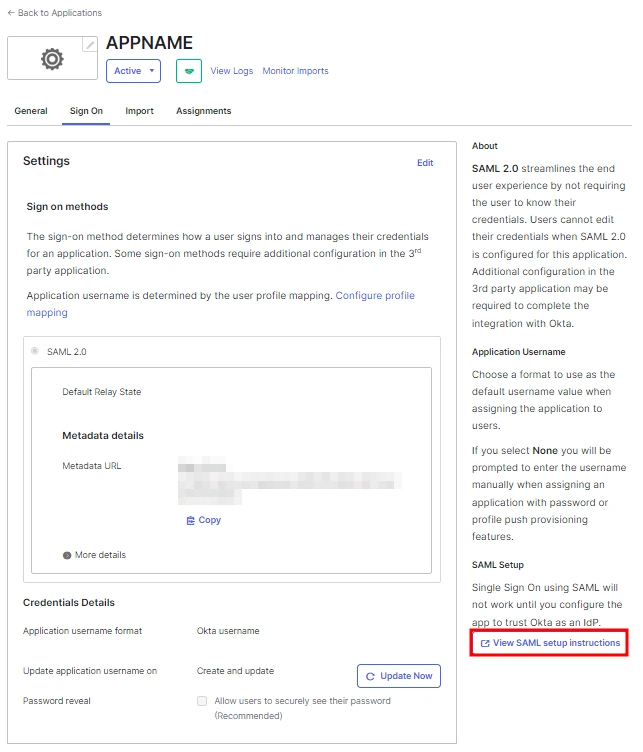
- Once you’re done assigning people and groups to your app, go to the Sign On tab.
- Here, click on View Setup Instructions to get the SAML Login URL (Single Sign on URL), Single Logout URL, IDP Entity ID, and X.509 Certificate. You will need these to configure the Service Provider.
1.3: Fetching Metadata URL
- Log into your Okta Admin Console
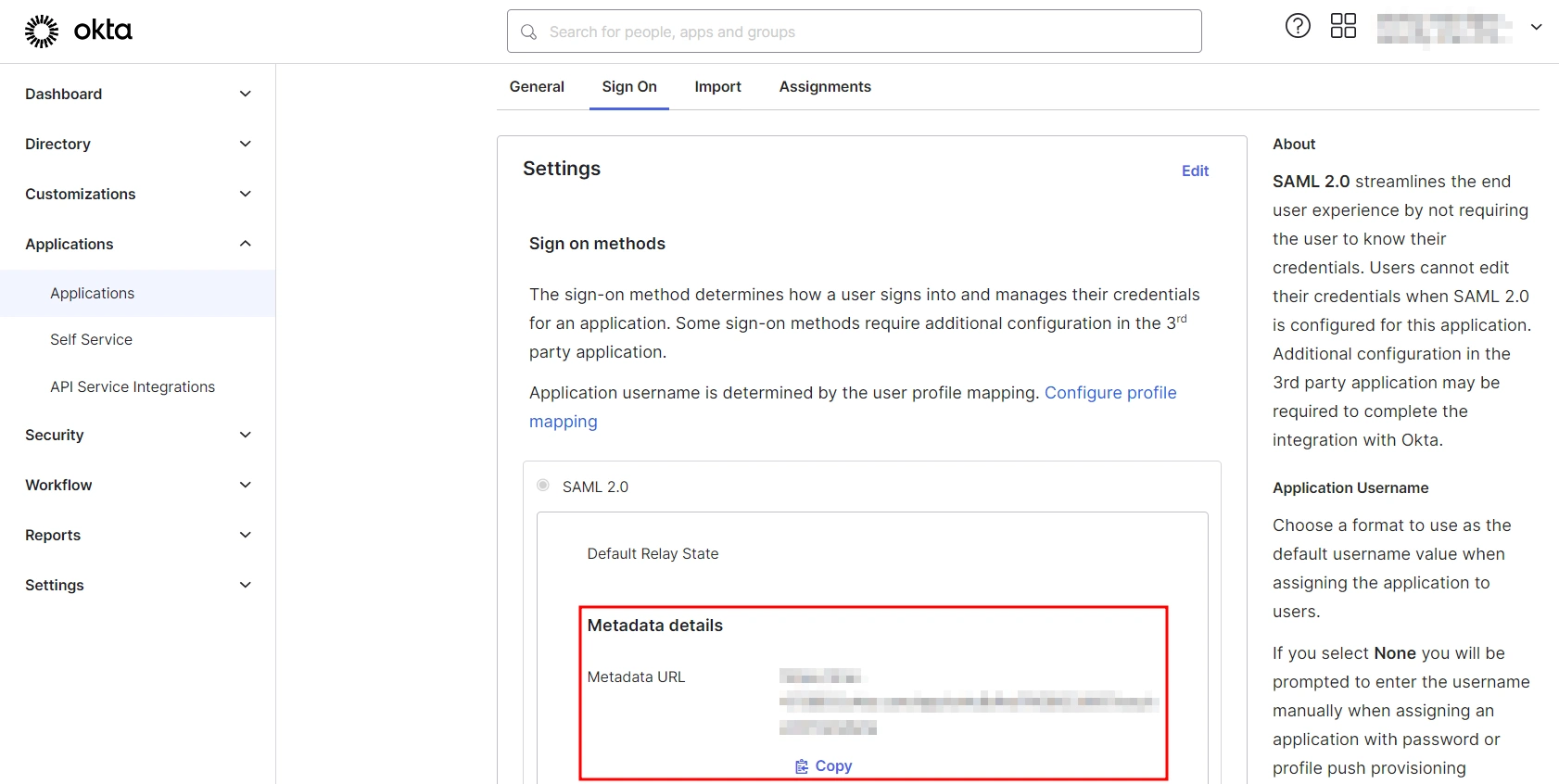
- Navigate to Applications → [Your Application Name] → Sign On
- You will find the metadata URL under the Metadata details section.
- You can either leave this window open in another tab or copy and paste the URL to a note while setting up the service provider.
One important component you’ll require while setting up your service provider is the metadata URL of your Identity Provider.
You can follow these steps to find the metadata URL for your Okta Application:
Step 2: Setup Confluence as Service provider
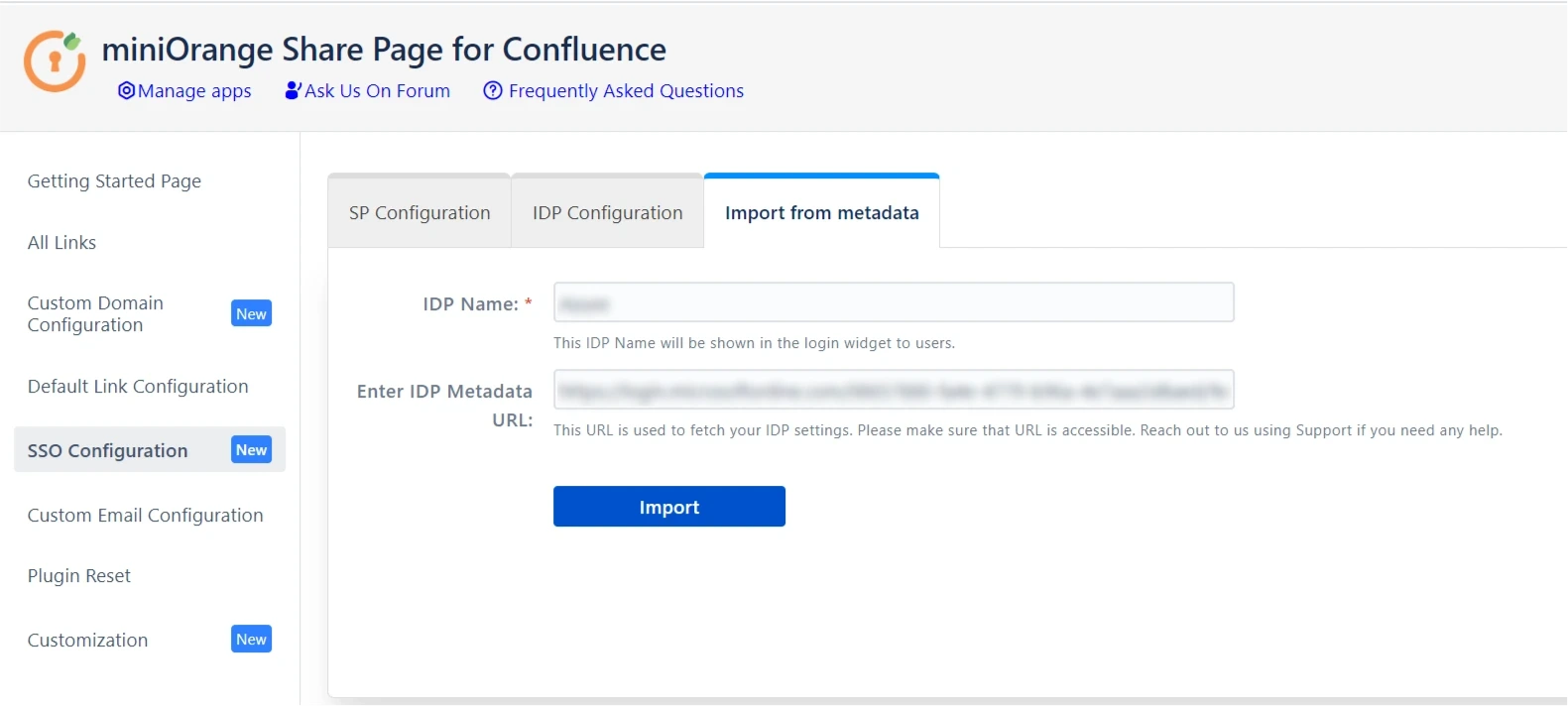
- Click on Import from the Metadata tab.
- Enter IDP name and metadata URL copied from IDP
- Click Import
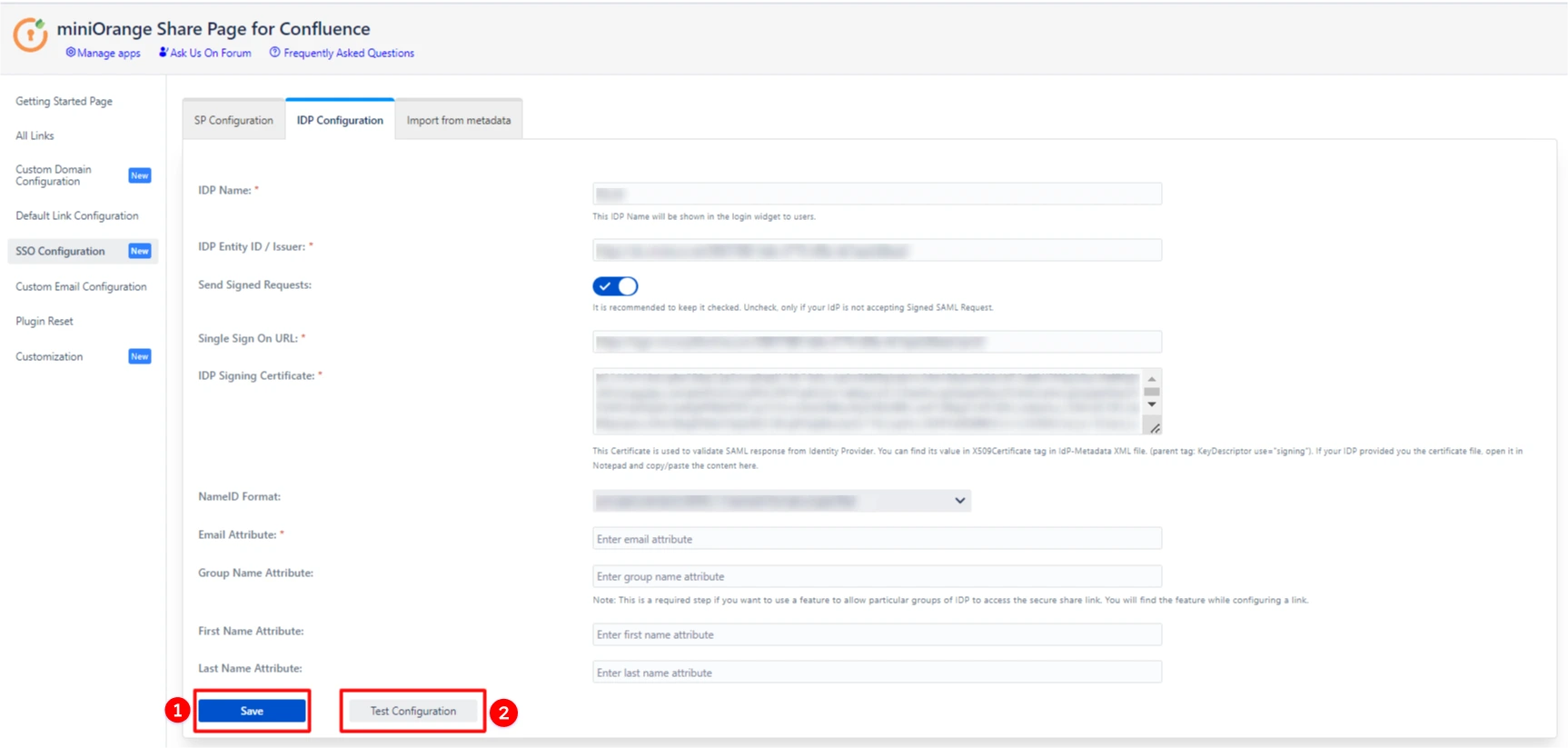
- To configure the IDP manually, you will need to have the following details from your IDP's metadata.
- IDP Entity ID
- Single Sign On URL
- X.509 Certificate
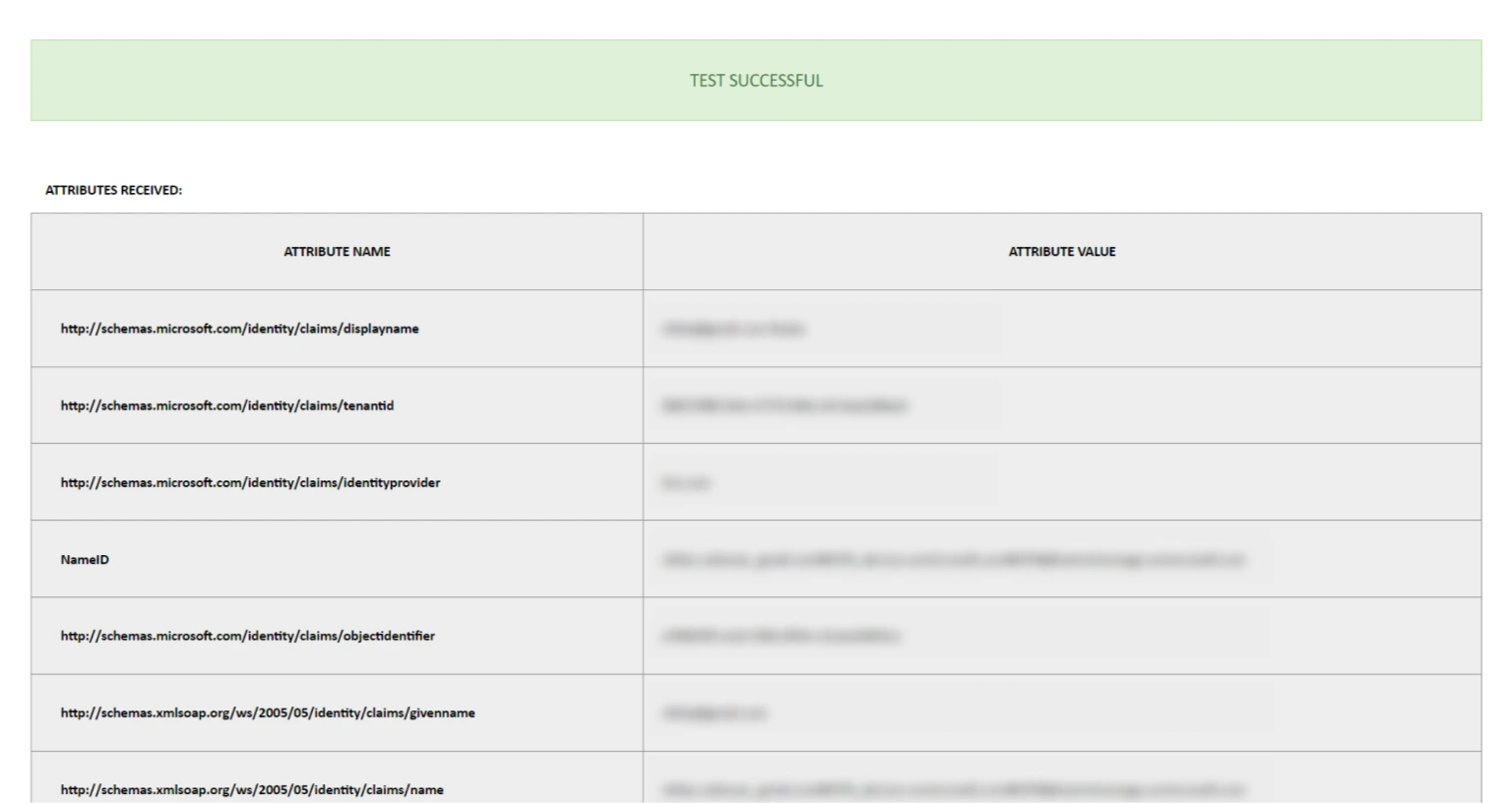
- Once you have added the IDP metadata, click on Save. If the IDP has been added successfully, Click on the Test Configuration button to test if the IDP was added successfully.
- You will see all the values returned by your IDP to Confluence in a table. If you don't see value for First Name, Last Name and Email, make the required settings in your IDP to return this information.
- Note : Setting up an email attribute is a must to access the Confluence Secure Share link.
- If the test configuration is failed, please verify the IDP metadata details in the IDP Configuration tab.
A. By Metadata URL :
B. Manual Configuration :
If you are having trouble configuring the SSO, please contact us at support-atlassian@miniorange.atlassian.net or raise a support ticket here.
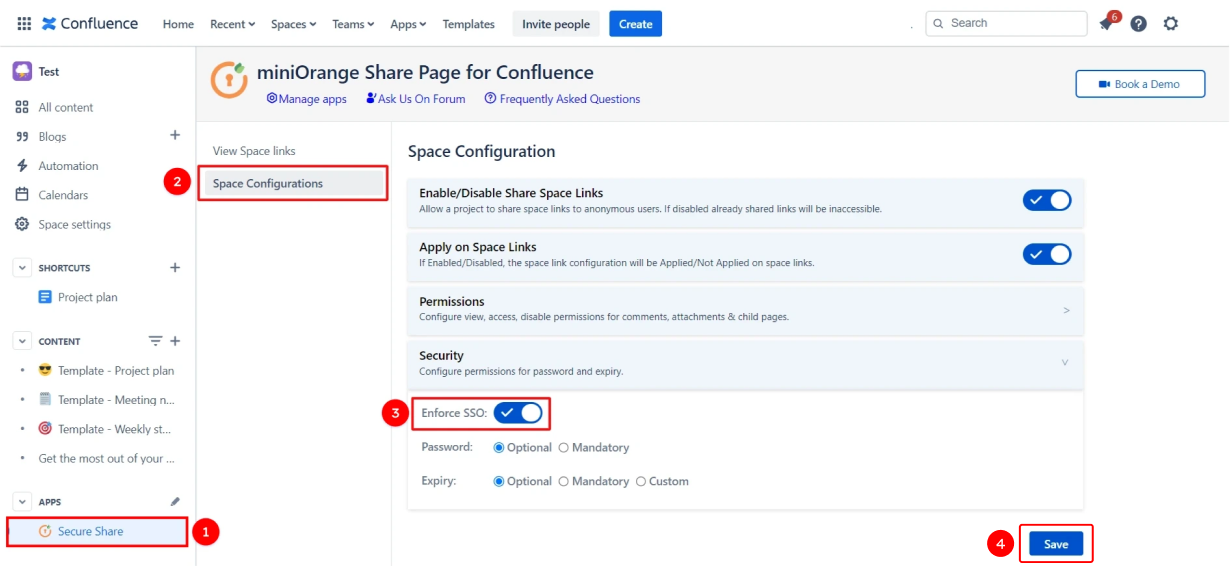
Step 3: Enable SSO for your Confluence Space
- Using our plugin you can enforce SSO on the specific Confluence spaces. To enable the SSO for secure share links of a particular space, go to the space and then select Secure Share from the sidebar.
- Now you can create and share Confluence page/space links to external users with an extra security layer.
- To learn more about creating and configuring a shared link please refer this page - Share Confluence with External Users
Step 4: Authorize link access based on Identity Provider groups (Optional)
- Prerequisite: You must configure the group attribute in the SSO Configuration tab to use this feature.
- Refer these steps to find the SSO Configuration tab.
- Just like we found an email Attribute previously, we will find a group attribute.
- Go to the IDP Configuration tab. Scroll down and click on Test Configuration.
- You will see all the values returned by your IDP in a table. If you don't see value with groups, make the required settings in your IDP to return group names.
- Once you see all the values in Test Configuration, keep the window open and go to the IDP Configuration tab again.
- Enter the Attribute Name of a group against Group Name Attribute.
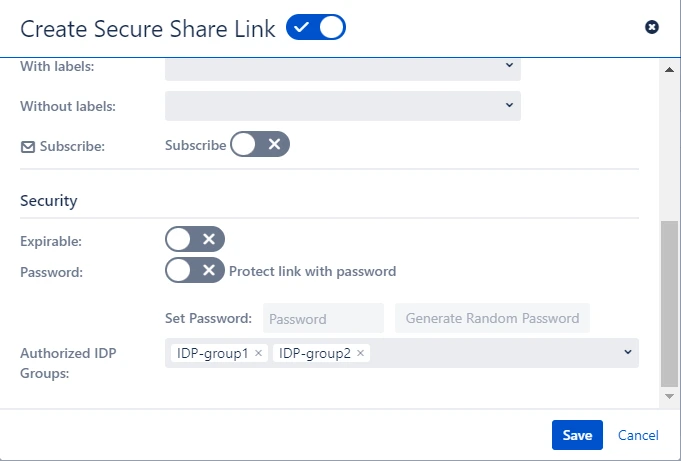
- Go to the link configuration of the existing link or create a new Confluence link.
- Enter the names of the groups to which you would like to grant access.
- That’s it! Now only those users will be able to access the link who are members of the IDP-group1 and IDP-group2.
Finding Group Attribute
To control the link access to specific groups:
Recommended Add-Ons

Jira Secure Share (Cloud)
Create & share secure links for Jira issues allowing end-user to access the issue without login.
Know MoreConfluence OAuth SSO (Cloud)
OAuth/OpenID Connect (OIDC) Single Sign On(SSO) allows users to login into Jira and Confluence with OAuth 2.0 and OpenID compliant applications
Know MoreSAML/OAuth SSO for JSM Customers
External customers can now log in via SSO to your Jira Service Management portals with our exclusive solution, SAML/OAuth SSO for JSM Customers.
Know MoreBitbucket Git Authentication App | Kerberos/NTLM Apps | Word/PDF Exporter | WebAuthn | SonarQube SSO | Jenkins SSO
If you don't find what you are looking for, please contact us at support-atlassian@miniorange.atlassian.net or raise a support ticket here.
Need Help? We are right here!


