- Home
- SCIM Provisioning
- SCIM Provisioning Documentation
- miniOrange Users & Groups Provisioning for Jira Cloud with Entra ID

Jira Cloud Users & Groups Provisioning: Azure AD / Entra ID Sync Guide (SCIM)
miniOrange Users & Groups Provisioning for Jira synchronizes users, groups, and attributes from various identity providers (IdPs) with the Jira Cloud directory. By managing user accounts directly in Microsoft Entra ID (previously known as Azure AD), the administrator only needs to maintain accounts in one place, reducing the administration time required to create users and groups in Atlassian modules such as Jira Cloud.
 Try it for free
Before you begin
- You need admin access to both your Jira Cloud site and your Microsoft Entra ID portal.
- Know whether you are syncing Licensed Users or Portal Customers.
Download and Installation
- Log into your Jira instance as admin.
- Under Apps section, click on Explore more apps.
- Search for miniOrange SCIM.
- Click Try it free to begin a new trial of the app.
- After installation, locate the miniOrange Users & Groups Provisioning For Jira app and click to open it.
1: Admin Setup Configuration
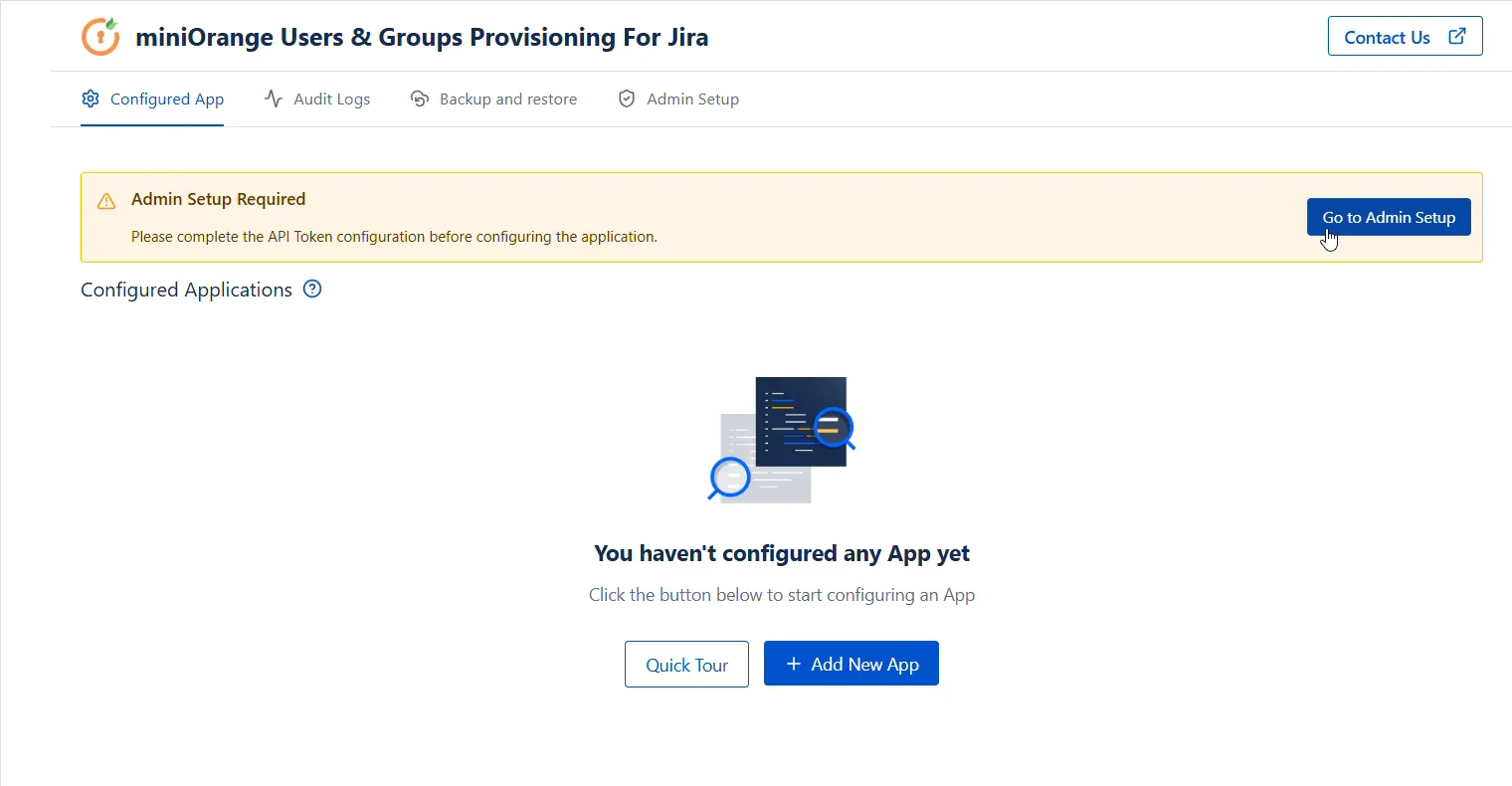
Upon installing the miniOrange Users & Groups Provisioning For Jira app, the admin needs to configure the Admin Token and API Key to complete the admin setup and start the provisioning process.
Part A: Configure Atlassian API Token
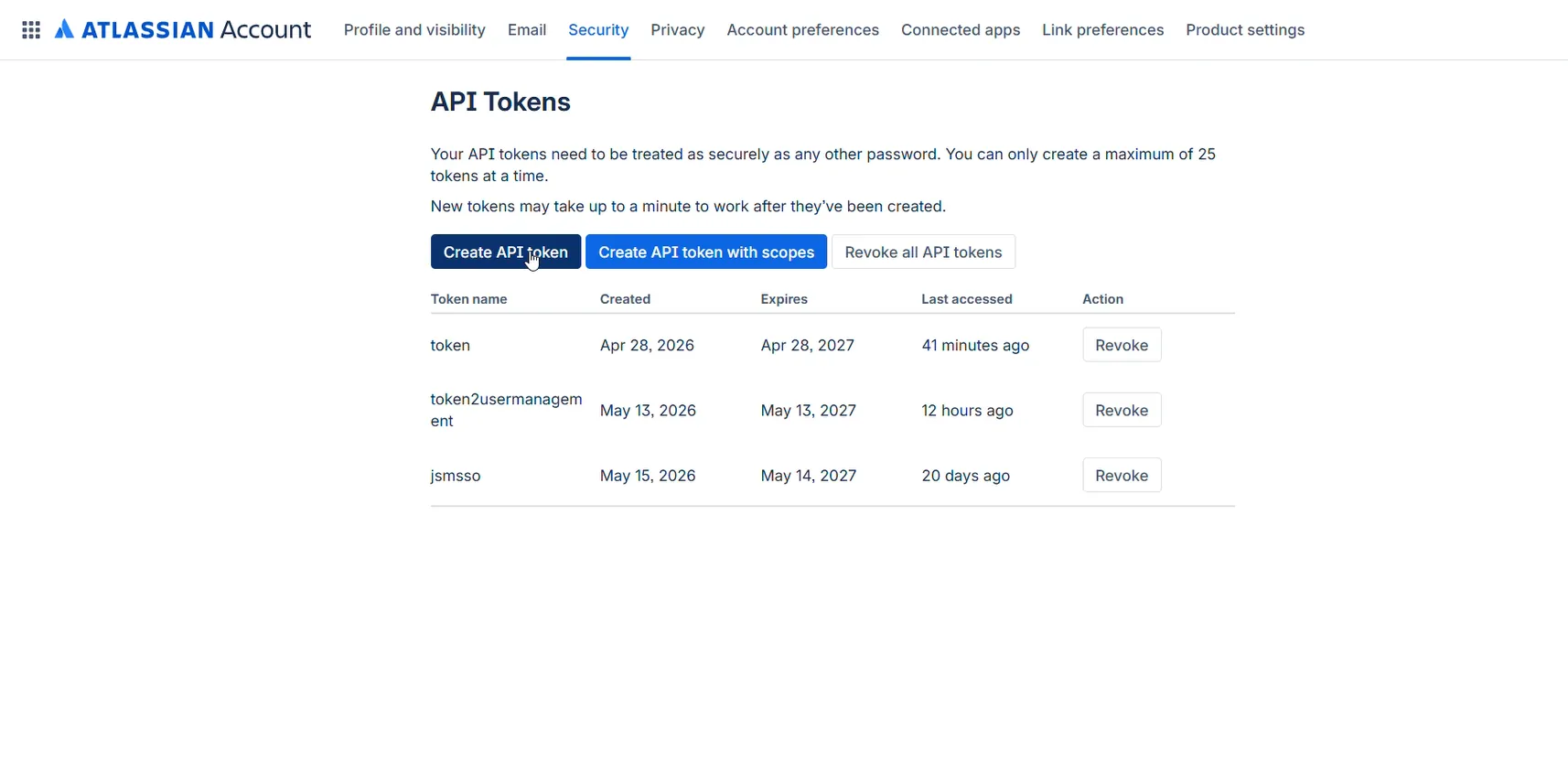
- Go to Atlassian Account and login with your admin account.
- Create API Token without scope and save at a safe place.
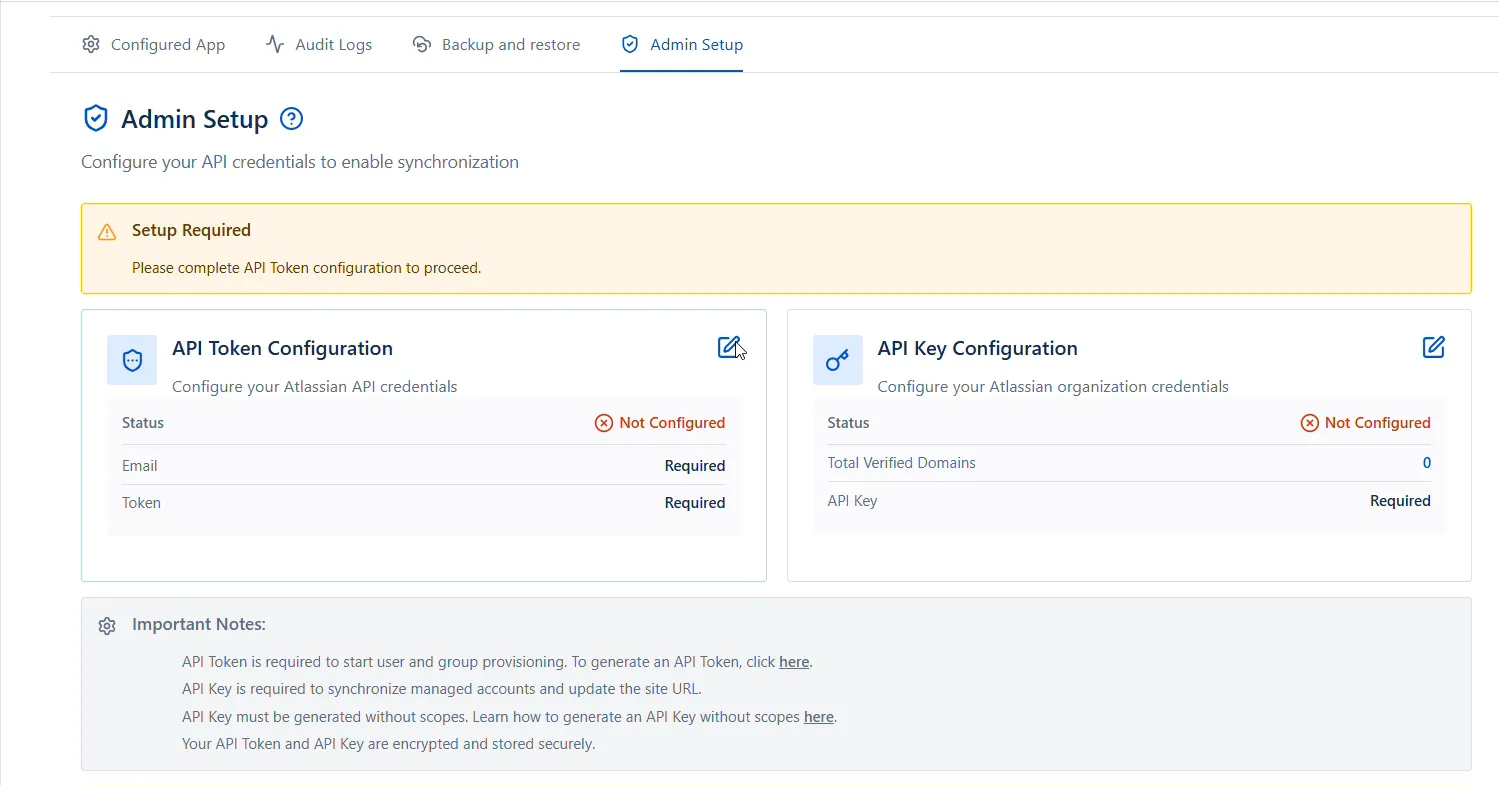
- Go to Admin Setup page inside plugin and edit API Token Configuration (using pencil button)
- Enter your Atlassian admin Email Address, API Token, and expiry date of API Token.
- Click on Save Token.
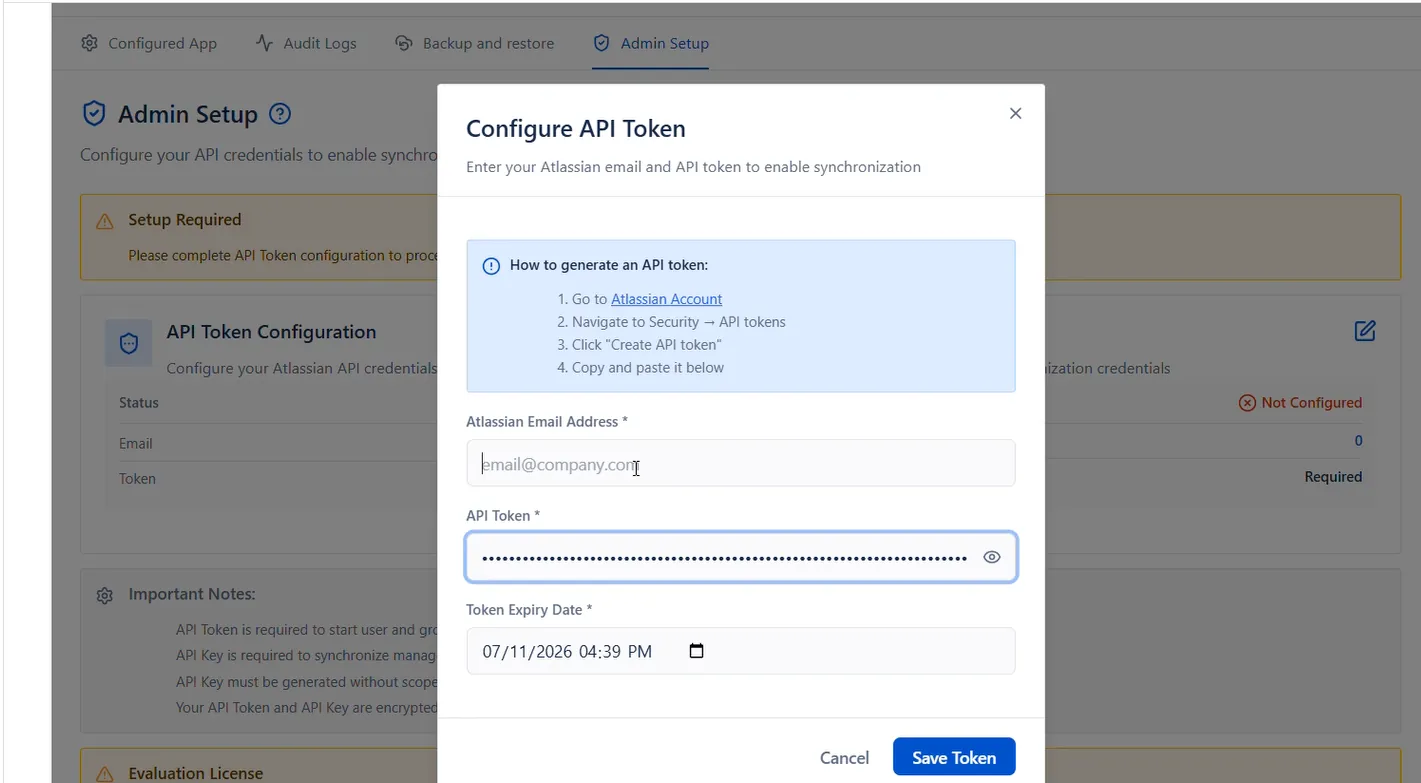
Part B: Configure Atlassian API Key
- Go to Atlassian Administration
- Select your organization if you have more than one.
- Navigate to Organization settings → API Keys
- Click "Create API Key" and select "API keys without scopes"
- Go to Admin Setup page inside plugin and edit API Key Configuration (using pencil button)
- Enter API Key and click on Save API Key button.
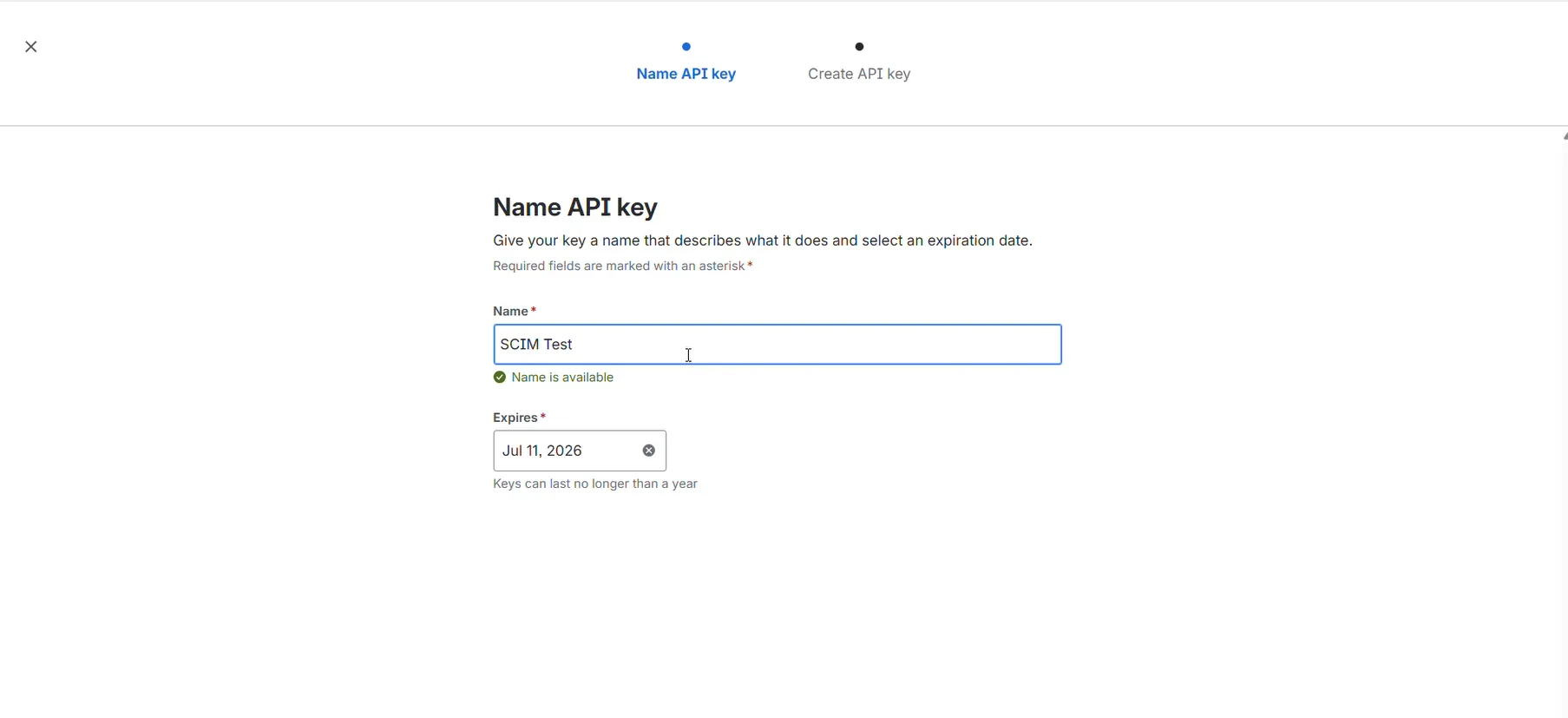
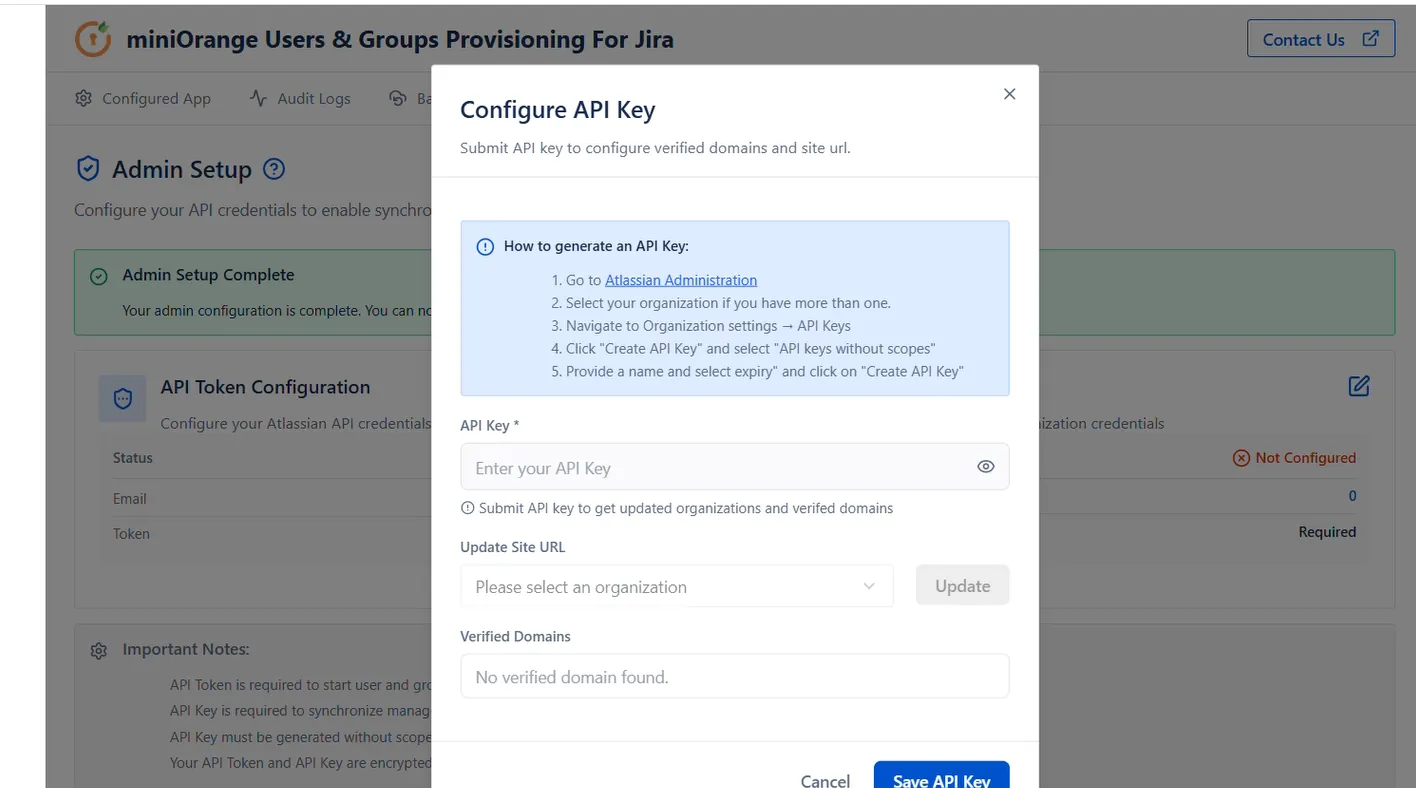
Once these configurations are fully processed, your core administrative setup is complete and ready for application configuration.
2: Service Provider Configuration (Jira)
After completing the administrative setup, the admin needs to configure the service provider (Jira App) to establish a connection with the identity provider (e.g., Azure).
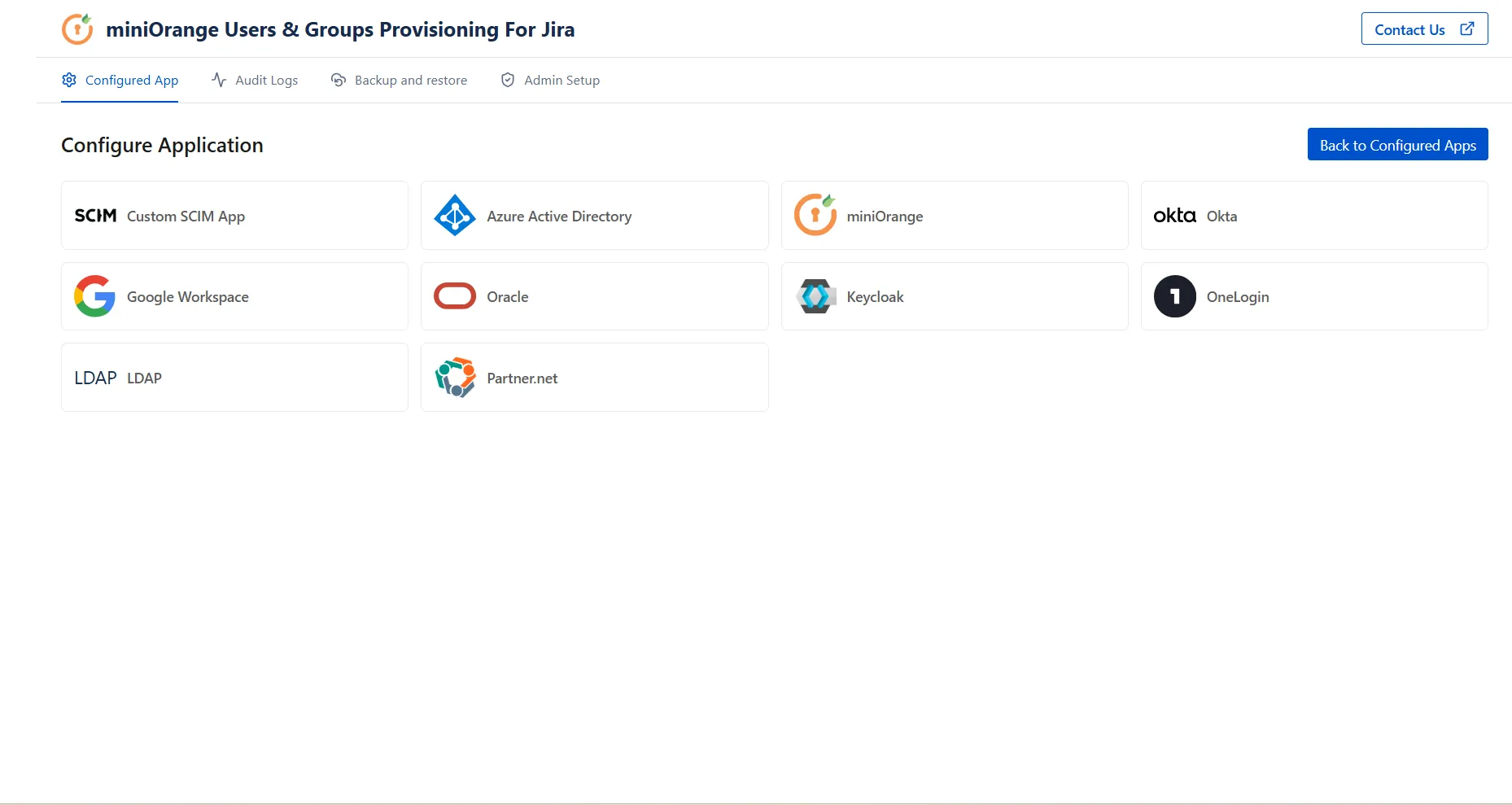
To configure the service provider, go to the plugin configuration page, click the + Add New App button, and select the desired identity provider from the provider list.
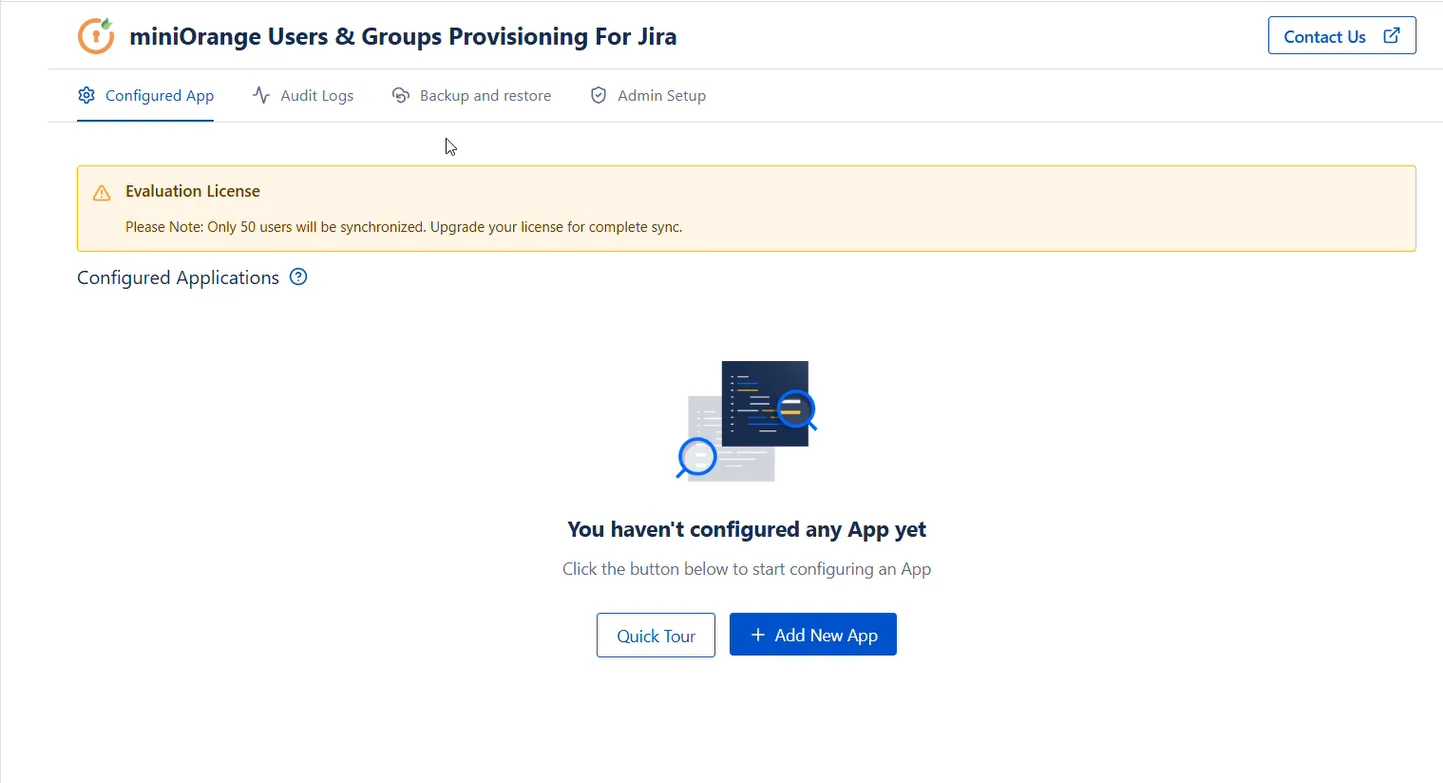
Case 1: Synchronize Licensed Users
- Select Azure as the IDP from the providers list.
- In the Application Configuration section, enter a distinct identifier in the Application Name field (e.g., SCIM App).
- Select Licensed as the user sync type to provision IDP users as licensed users in the Jira directory.
- Keep a note of SCIM Base URL and Bearer Token in a safe place and click Next to head to the provisioning operation section.
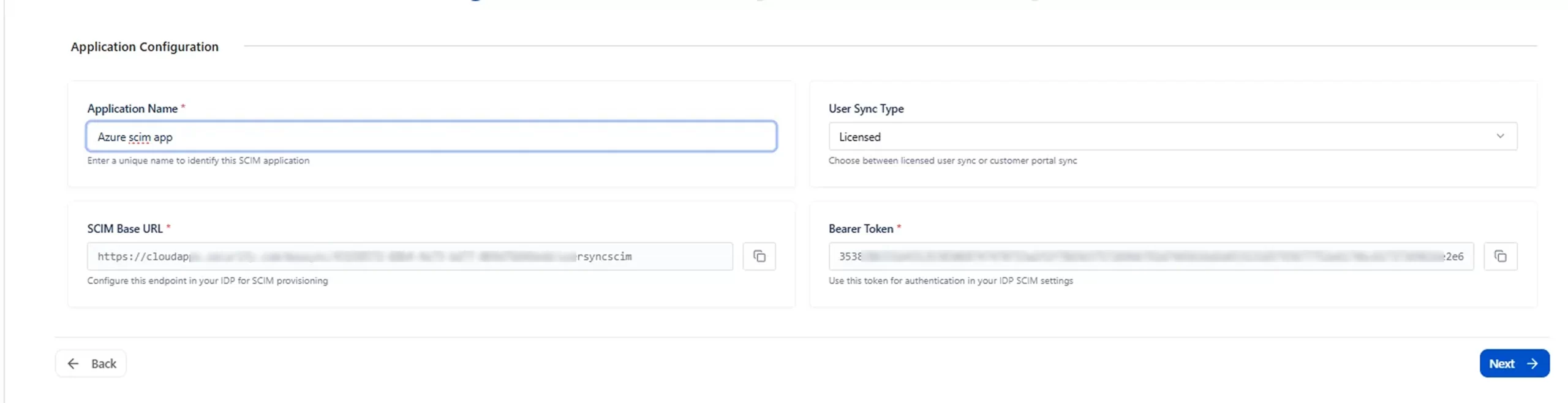
In the Provisioning Operations section:
User Operations:
- Enable Import Users toggle to provision users in the Jira directory. Ensure the Import Users toggle is switched ON.
- In the Deactivated User Action dropdown, select the action that should be taken when a user is unassigned or deactivated in Azure.
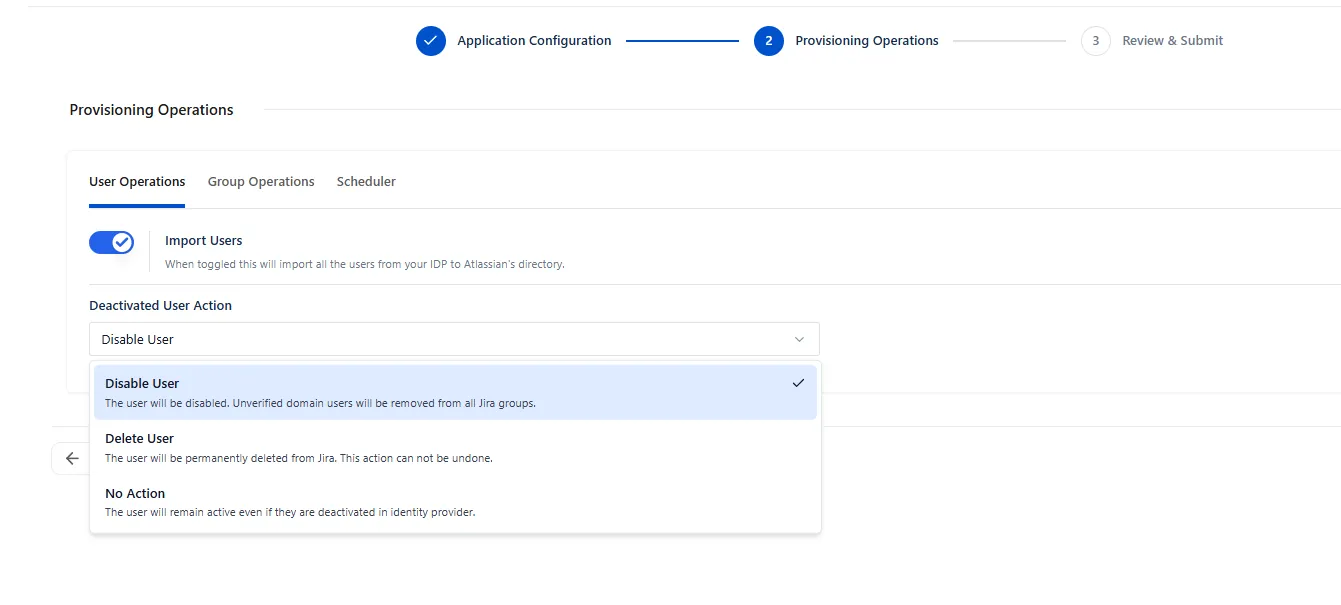
Group Operations:
- Switch to Group Operations and enable Import Groups.
- Group operations can be performed either with On-the-Fly Group Mapping or Manual Group Mapping.
1. On the Fly Group Mapping:
- Use this tab to automatically create groups from the IdP in Jira Cloud if they don't already exist, and assign users to the corresponding groups.
- You can enable the Apply Regular Expressions on Group Names option to transform group names using Regex patterns before mapping them to Jira groups.
- Use the Filter Incoming Groups section to filter the group names received from the identity provider.
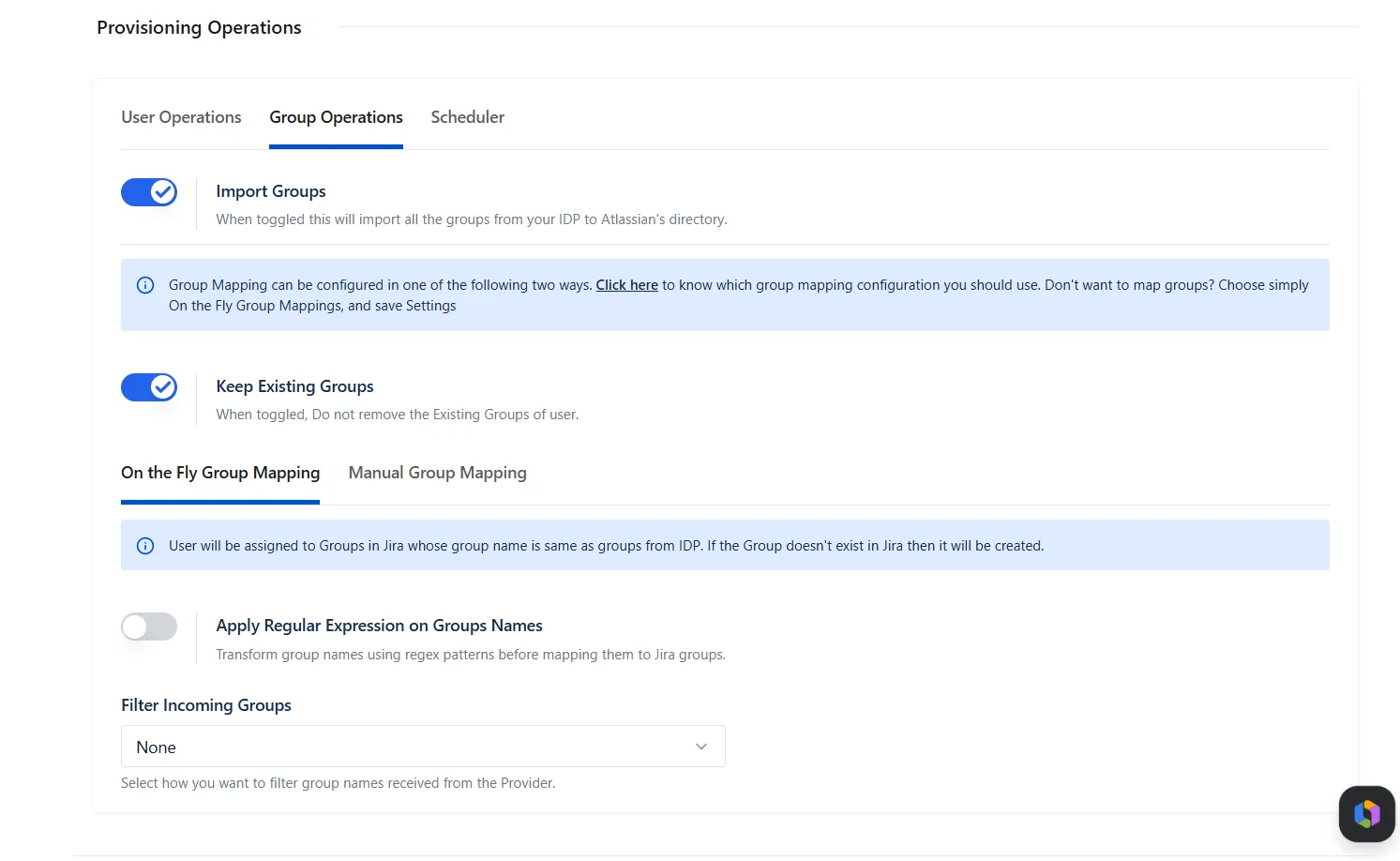
2. Manual Group Mapping:
To map groups from your IdP to Jira's native groups, select this tab. When the sync executes, the users from respective groups of the IdP will be mapped to Jira groups as per configuration.
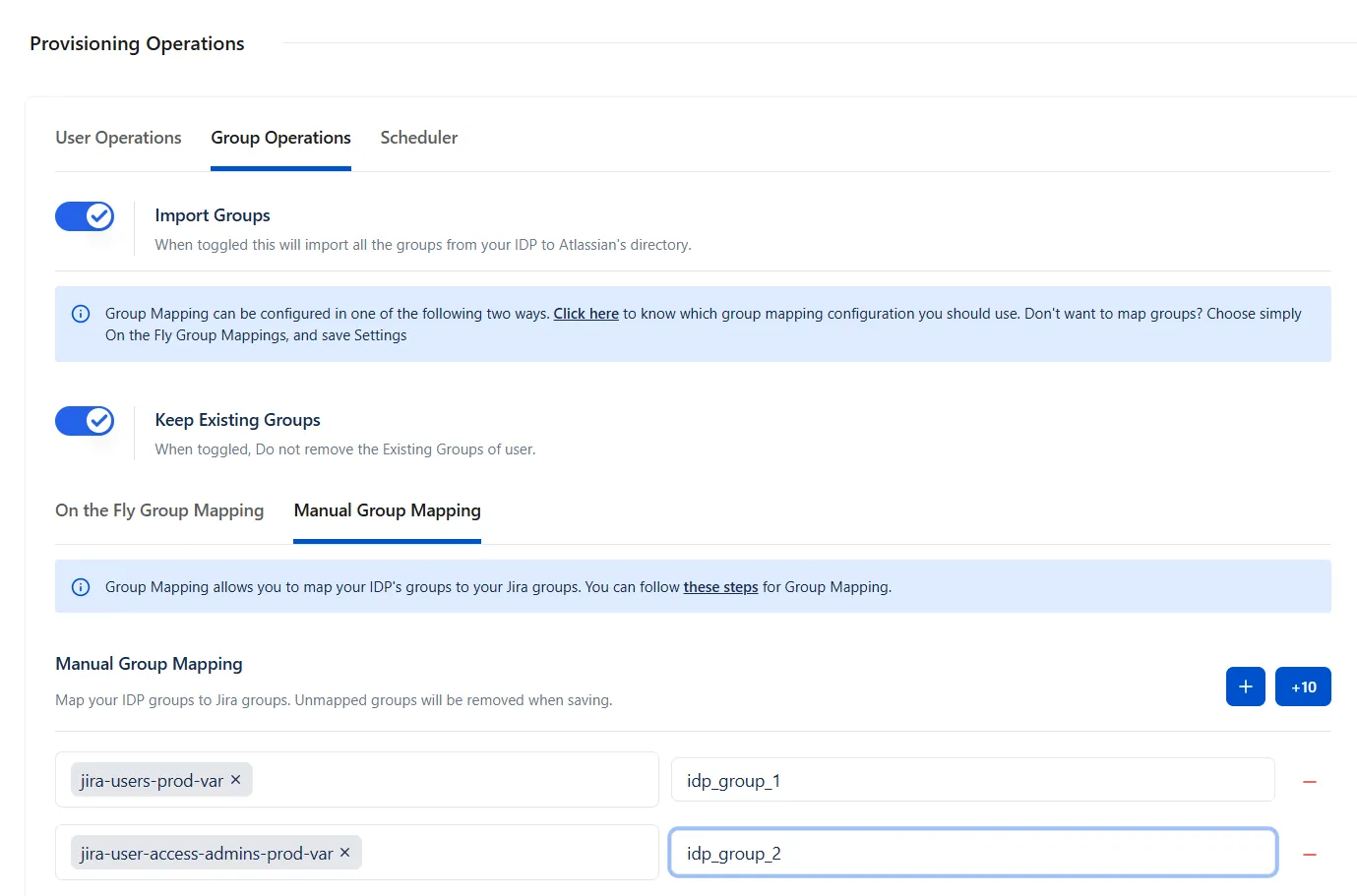
Keep Existing Groups
This setting controls how a user's Jira group memberships are managed during provisioning and deprovisioning performed by by the Identity Provider (IdP).

Enabled:
- For any new user added to IdP groups, it will be added to Jira groups. But if users are removed from IdP groups, Jira group memberships are preserved in the Jira directory.
- Example: Current Jira groups: jira-software-users, jira-administrators. Groups received from Azure: developers, employees. Resulting Jira groups: jira-software-users, jira-administrators, developers, employees No existing Jira group memberships are removed.
Disabled:
- During provisioning, deprovisioning, or user unassignment, all existing Jira group memberships are removed except those specified in the Exclude Groups list. During provisioning, the user is subsequently assigned only to the groups received from the Identity Provider (IdP).
-
Example: Current Jira groups: jira-software-users,
jira-administrators, support-team. Groups received from Azure:
developers, employees.
Excluded groups: jira-administrators. Resulting Jira groups after provisioning: jira-administrators, developers, employees.
After provisioning, the groups jira-software-users and support-team are removed because they are not received from the IdP and are not included in the exclusion list.
Exclude Groups: Use the Exclude Groups option to specify Jira groups that should never be removed during provisioning or deprovisioning operations, such as jira-administrators or org-admins. These groups will always be retained regardless of the user's group assignments in the IdP.
Case 2: Synchronize Portal-Only Customers
- Select Azure as the IDP from the providers list.
- In the Application Configuration section, enter a distinct identifier in the Application Name field (e.g.,SCIM APP).
- Select Portal Customers as a user sync type to provision IDP users as Portal customers in the Jira directory.
- Keep note of the Customer Base URL and Bearer Token in a safe place and click Next to head to the provisioning operation section.
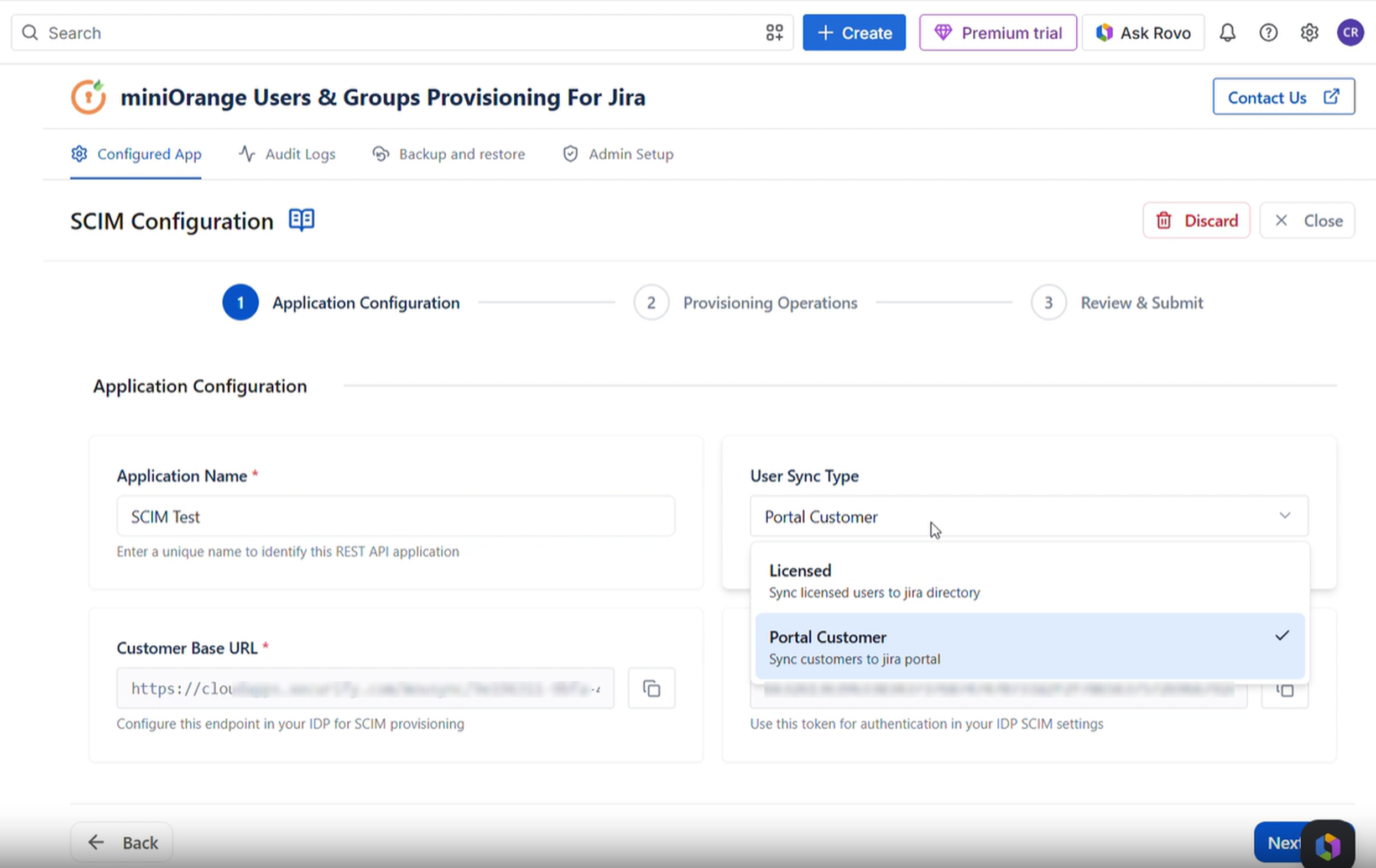
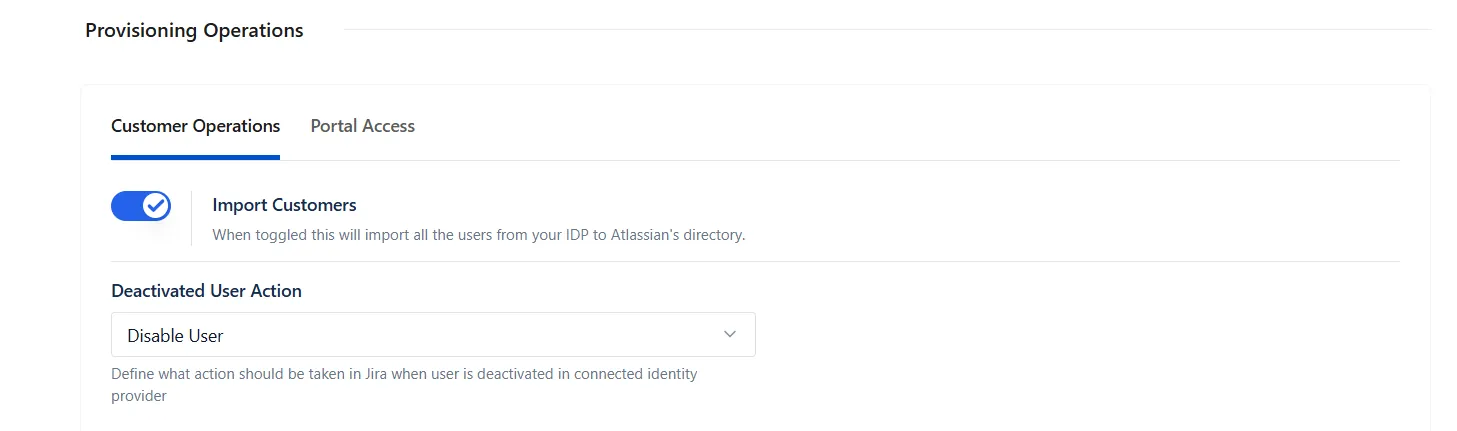
In the Provisioning Operations section:
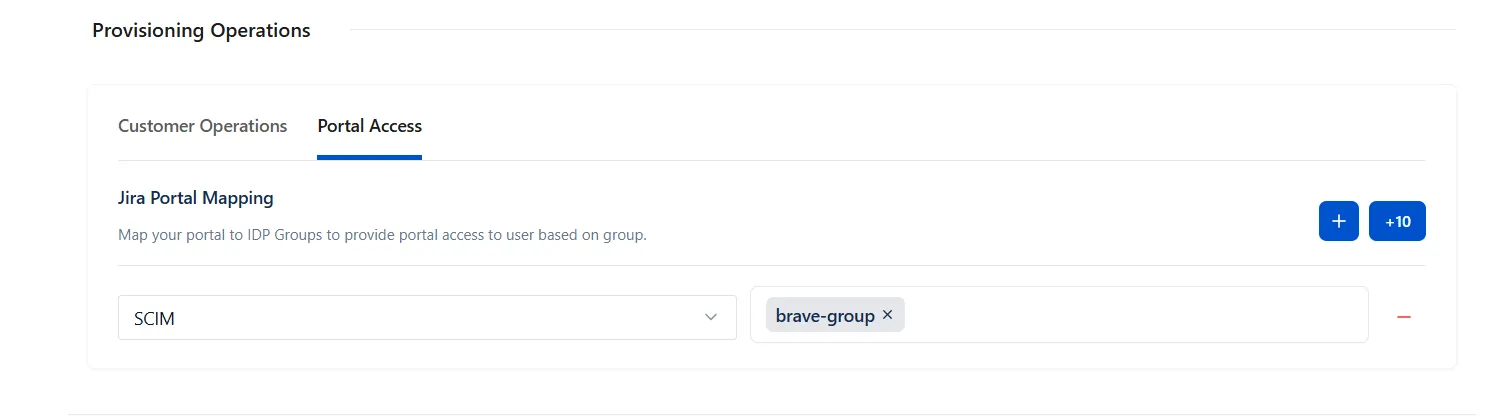
- Enable the Import Customers toggle to provision users in the Jira directory.
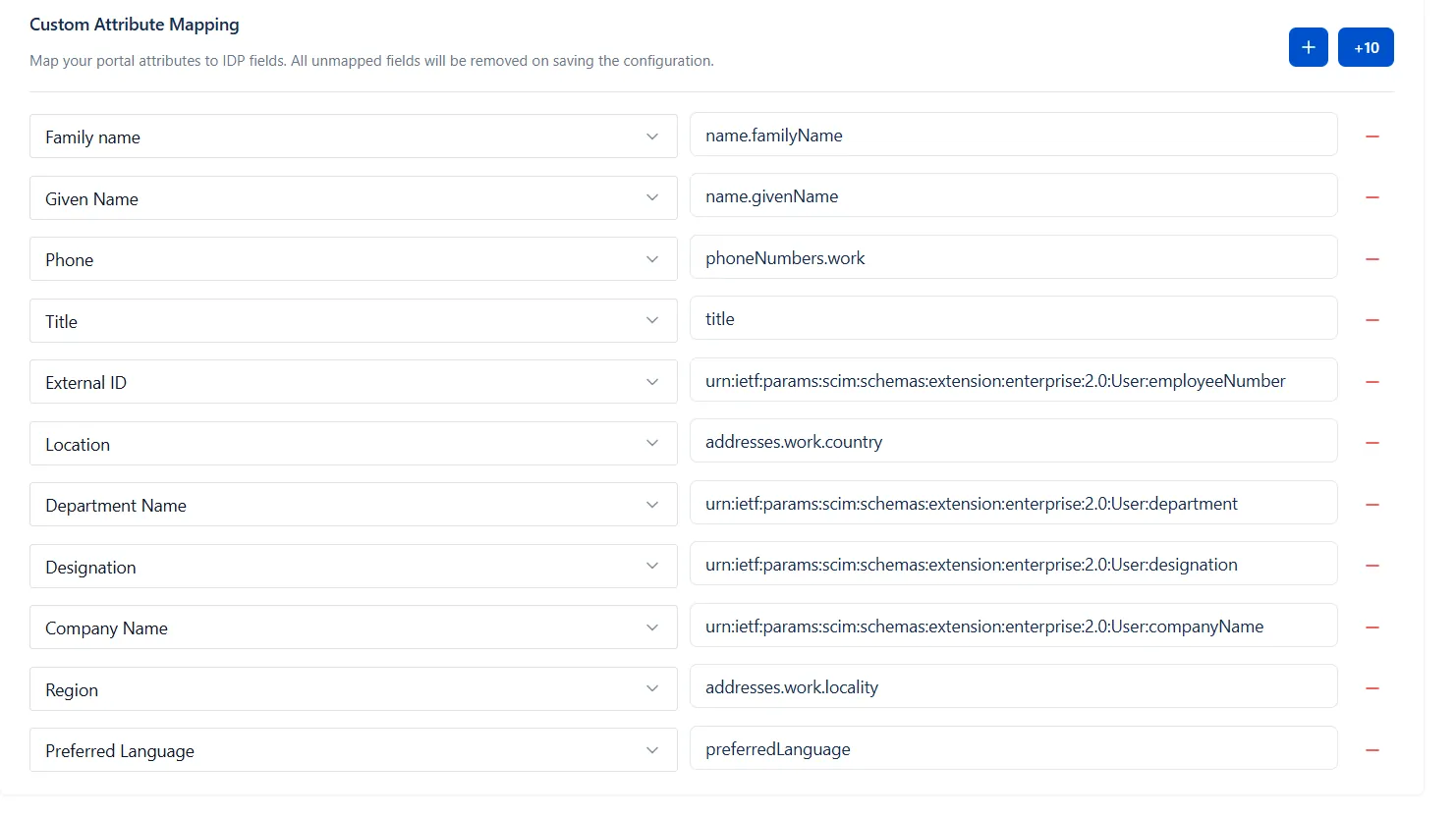
- Map the attributes from the IDP that you want to sync so they appear in the customer profile.
- Map Jira portal with Groups available inside IdP.
- Configure available options based on your use case and requirements.
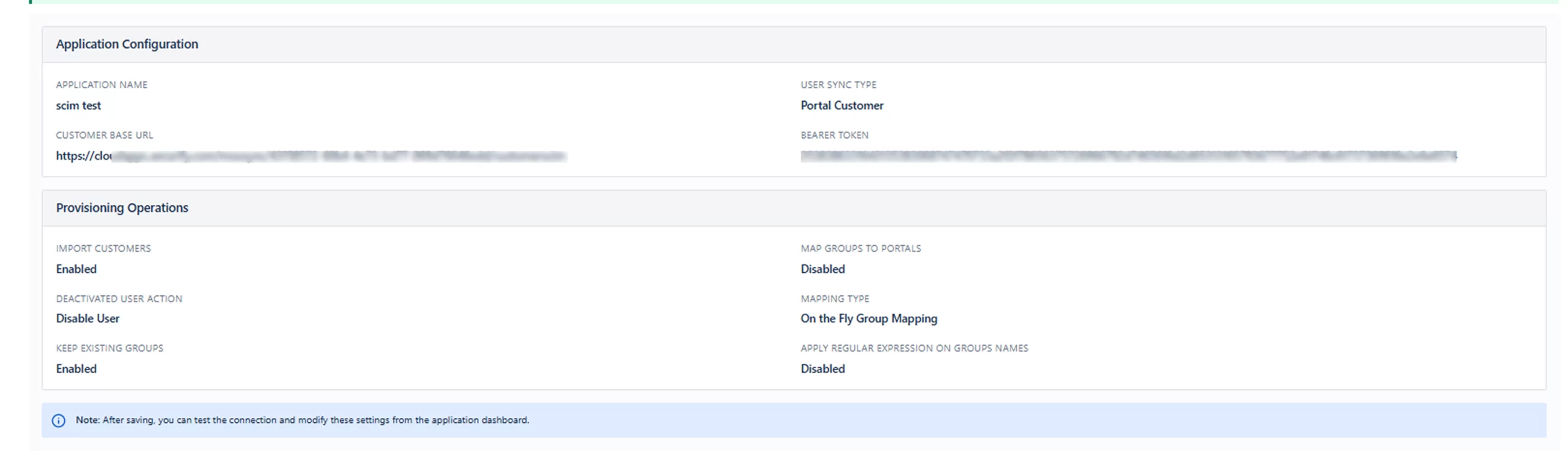
- Click Next, review the configurations, and save.
Review & Submit
- Once satisfied with the setup overview, click the Save Configuration button in the bottom-right corner to save your integration profile.
3: Identity Provider Configuration
Now switch to Entra ID to configure the connection using the SCIM Base URL (or Customer Base URL) and Bearer Token copied in Step 2. The steps are the same for both sync types; only the credentials you paste in differ.
- Sign in to the Microsoft Entra admin center (https://entra.microsoft.com) as a user with at least the Application Administrator role.
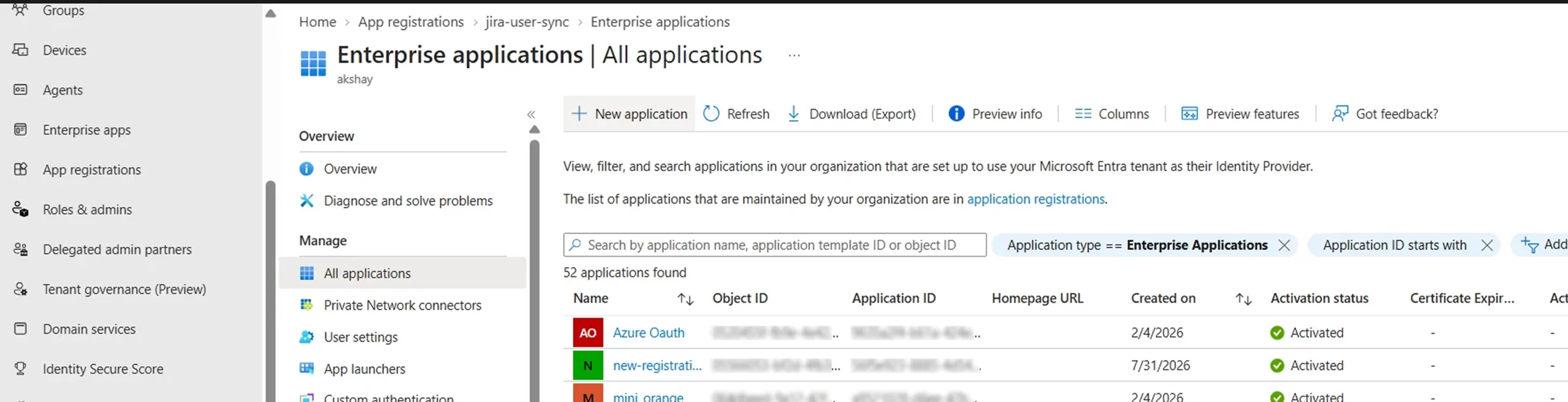
- Navigate to Identity → Applications → Enterprise applications and click + New application.
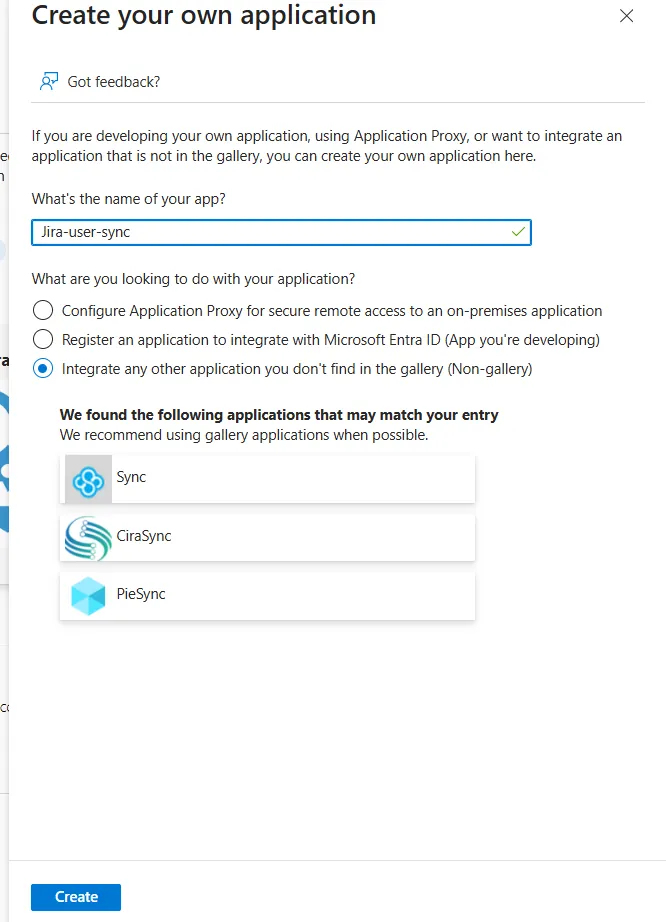
- Click Create your own application, enter a name (e.g., Jira SCIM Provisioning), select Integrate any other application you don't find in the gallery (Non-gallery), and click Create.
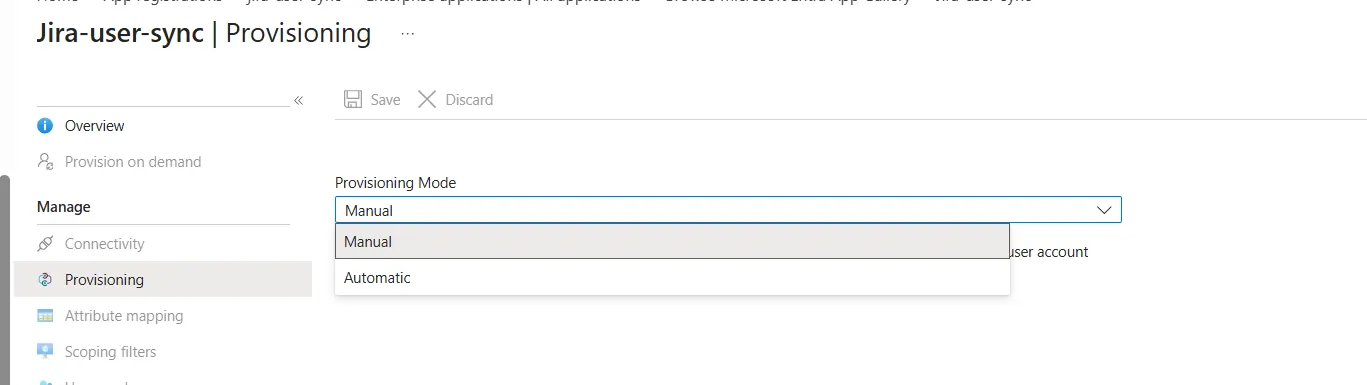
- Open the newly created application, go to Provisioning (under Manage), and click Get started.
- Set Provisioning Mode to Automatic.
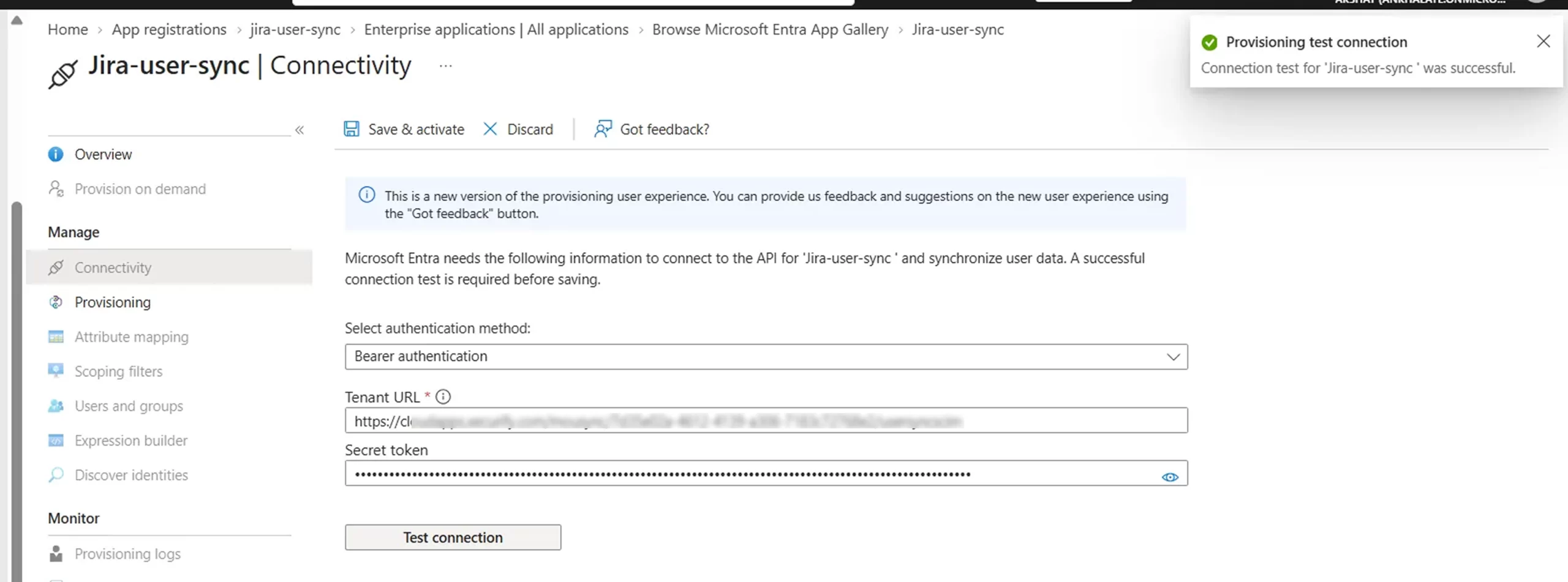
- Under Admin Credentials, enter the credentials you copied in Step 2:
- Licensed user sync: enter the SCIM Base URL as the Tenant URL and the Bearer Token as the Secret Token.
- Portal customer sync: enter the Customer Base URL as the Tenant URL and the Bearer Token as the Secret Token.
- Click Test Connection. If the connection is established, a success message is displayed. Click Save.
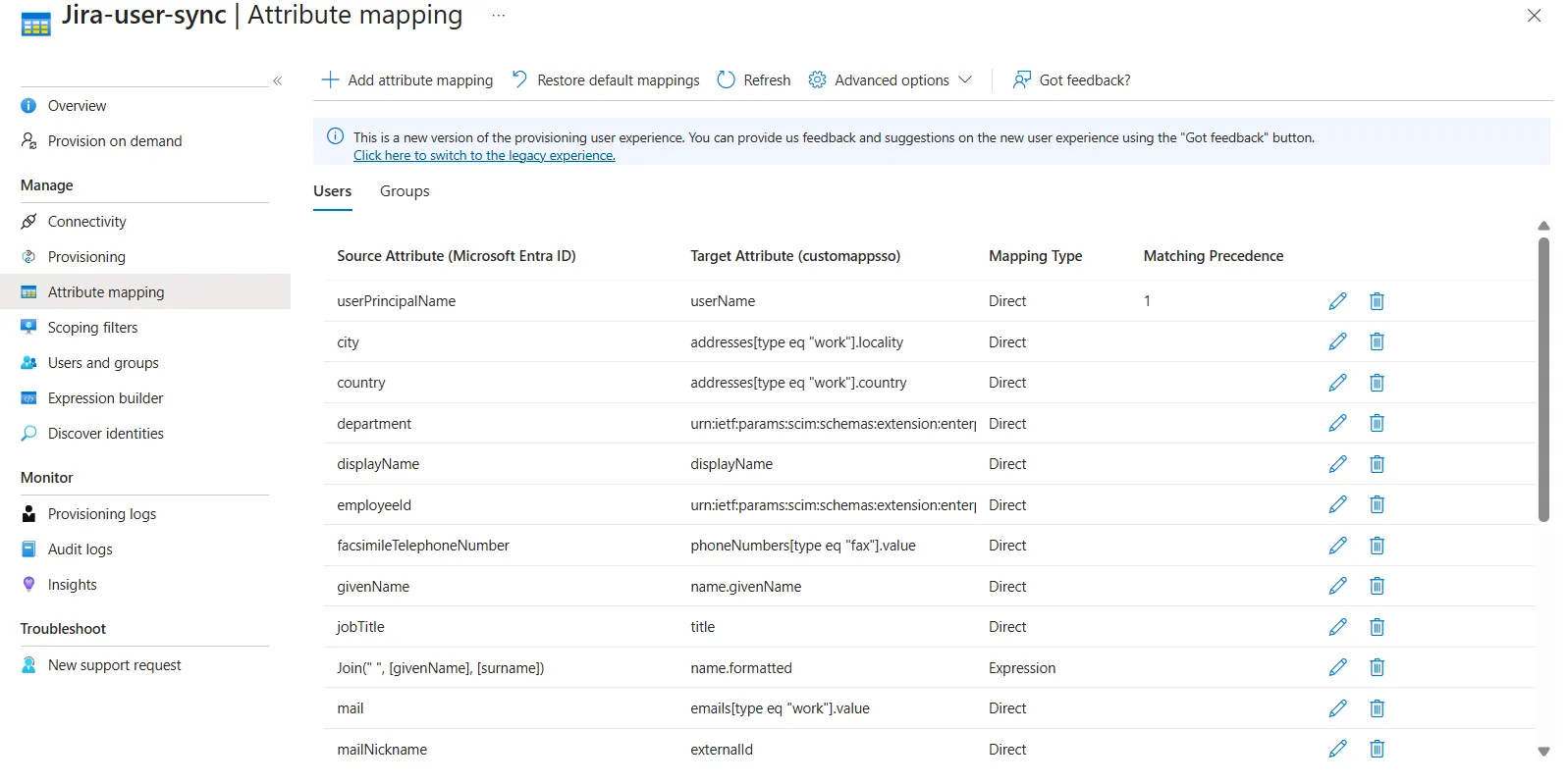
- Under Mappings, open Provision Microsoft Entra ID Users (and Provision Microsoft Entra ID Groups, if you're syncing groups). Confirm the mapping is set to Enabled, and that the Entra ID attributes you want to sync are mapped to their SCIM equivalents. For portal customer sync, make sure any attribute you configured under Attribute Mapping in Step 2 is also mapped here; otherwise, it will not appear on the customer profile.
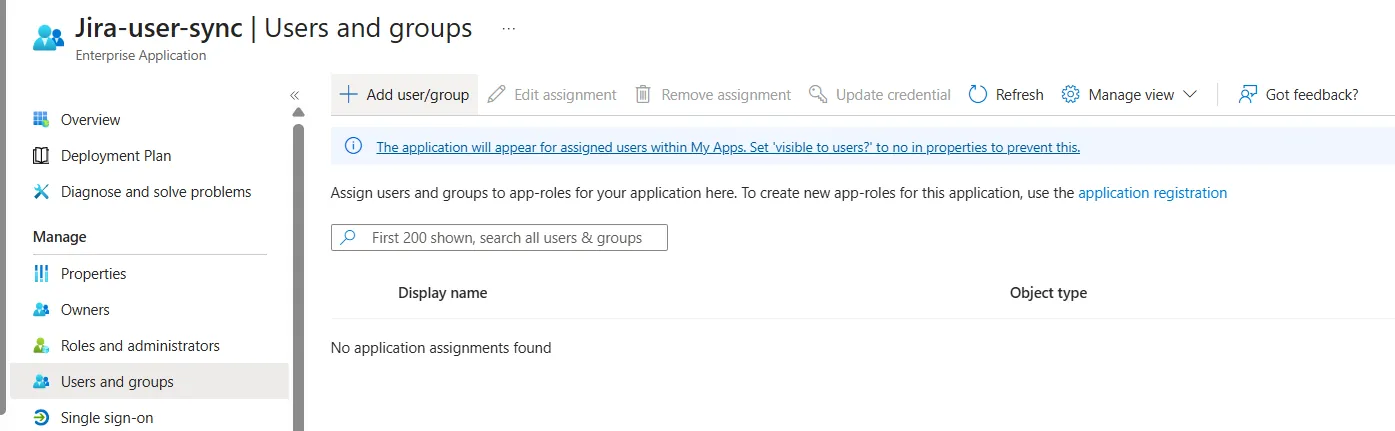
- Go to Users and groups, click Add user/group, and assign the users and/or groups you want provisioned into Jira. Assigning a group is enough — Entra ID syncs the group's members directly once the Group mapping above is enabled; there's no separate step to push memberships.
- Licensed user sync: the groups you assign here are what On-the-Fly or Manual Group Mapping acts on in Step 2.
- Portal customer sync: assign the Entra ID groups you mapped to portals in Step 2 so that customers land in the right service desk.
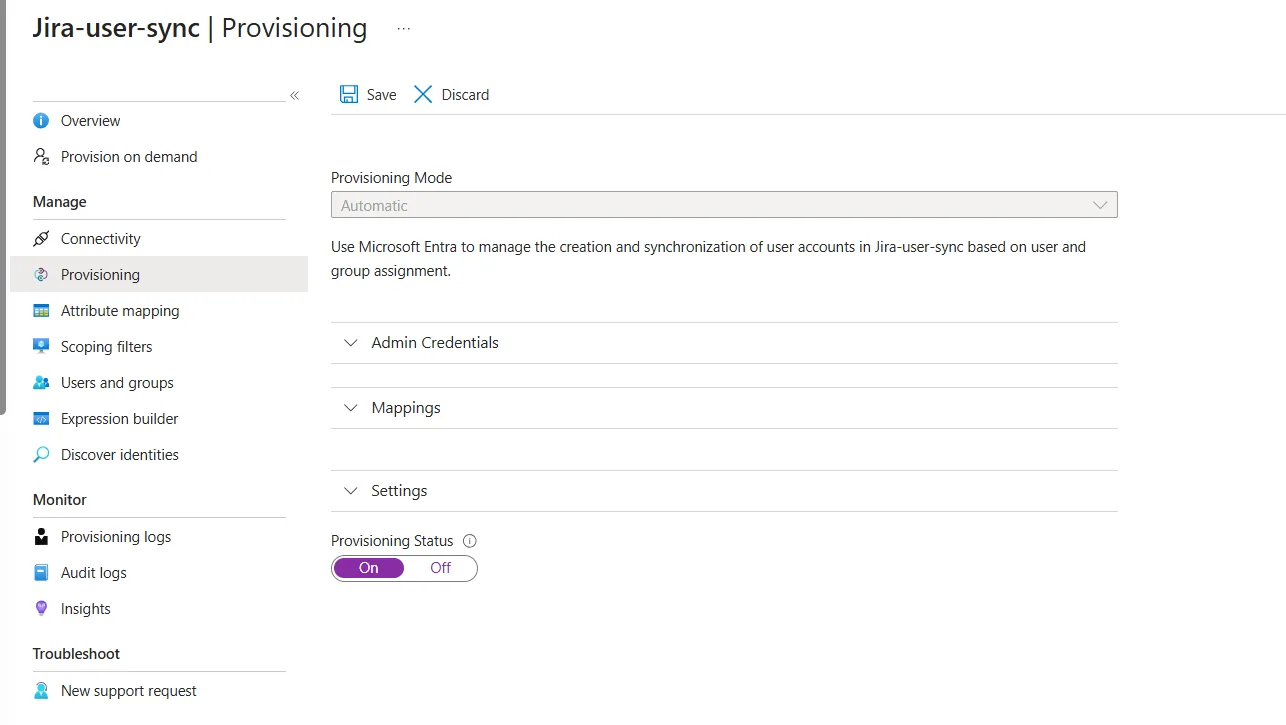
- Back on the Provisioning overview page, set Provisioning Status to On and click Save to start the sync.
Verification
- The app profile will appear on your main dashboard.
- Trigger On Demand Provision or let the SCIM sync cycle trigger as per schedule.
- In Jira, navigate to User Management and confirm that users and groups from Azure appear in the directory. You can also review sync activity under the Audit Logs tab of the Plugin app.
The miniOrange Users & Groups Provisioning For Jira app is now successfully set up with Microsoft Entra ID (previously known as Azure AD) via SCIM.
Did this page help you?