

Microsoft found that multi-factor authentication cut the risk of account compromise by 98.56%, even when the attacker already had the password. By default, the customers who sign in to your Jira Service Management (JSM) help center don't have it.
Every ticket in your portal holds something a customer trusted you with: attachments, invoices, logs, and sometimes credentials. Breaches also increasingly start with a vendor. In Verizon's 2026 Data Breach Investigations Report, 48% of breaches involved a third party, up from 30% a year earlier. To your customers, your help desk is one of those vendors.
This guide explains why JSM customers aren’t asked for a second factor and what Atlassian’s built-in tools can and can’t do. It also shows how miniOrange’s 2FA for JSM Cloud app helps you add 2FA to every customer login.
Why Don't JSM Customers Get Prompted for Two-Step Verification?
Your organization's authentication policies do not govern portal-only customer accounts. Enforced two-step verification only applies to managed accounts on domains you have verified. External customers who sign in to your help center with an email and password are not included, so they are never asked for a second factor.
Customers can reach your help center with one of three kinds of accounts.
| Portal-only account | External Atlassian account | Managed Atlassian account | |
|---|---|---|---|
| Typical user | External customers who only raise requests | Customers who already have an Atlassian account from another company | Your employees, agents and admins |
| Where they sign in | Your help center, with email and password | The standard Atlassian login | The standard Atlassian login |
| Covered by your authentication policies | No | No | Yes |
| Covered by Guard external user security | No | Yes | Not applicable |
Most external customers are in the first column, and Atlassian's native security settings don't reach it.
Can You Enforce 2FA for JSM Customers With Atlassian's Built-in Tools?
Partly. With Atlassian Guard, you can add single sign-on for portal-only customers, and require an email passcode or SSO for customers who use external Atlassian accounts. There's no native way to require an authenticator app, security key or other second factor for portal-only customers.
Option 1: SSO for Portal-Only Customers With Atlassian Guard
With Atlassian Guard Standard, you can connect an identity provider (such as Okta or Microsoft Entra ID) and let portal-only customers sign in through it. If that identity provider requires MFA, your customers get MFA. Atlassian doesn't count these customers toward your Guard bill.
Where it stops: your customers need accounts in an identity provider you manage. That works if you onboard a set of partners into your own Okta tenant. It doesn't work for a public help center where anyone can sign up, or for business clients who use their own identity providers.
Atlassian docs: Configure SAML single sign-on for portal-only customers
Option 2: Convert Customers Into Managed Atlassian Accounts
If your "customers" are your own employees, for example, on an internal IT help desk, they can use Atlassian accounts on your verified domain. Your authentication policies, including two-step verification, then apply.
Where it stops: you can only manage accounts on domains you own. A customer at another company can't become one of your managed accounts.
Atlassian docs: Enforce two-step verification
Option 3: External User Security for Customers With Atlassian Accounts
Some customers sign in to your help center with an Atlassian account they already have, one you don't manage. Atlassian calls these external users. With Guard, you can require them to verify their identity with a one-time passcode sent to their email, or with single sign-on through your identity provider.
Where it stops:
- It only applies to customers with Atlassian accounts. Portal-only customers aren't included.
- The passcode is email-based only. Authenticator apps, WebAuthn and hardware keys aren't options.
- Requiring SSO means the users count toward your Guard bill. A non-billable policy only allows the email passcode.
Atlassian docs: What is external user security?
Summary of Native Options
| Option | What you need | Who it covers | Main limitation |
|---|---|---|---|
| Guard SSO for customers | Atlassian Guard Standard and an identity provider | Portal-only customers in your identity provider | No coverage for customers outside it |
| Managed accounts | A verified domain | Employees on your domain | No coverage for external companies |
| Guard external user security | Atlassian Guard | Customers with external Atlassian accounts | Email passcode or SSO only; no portal-only coverage |
Option 1 is the most useful of the three, because it gives portal-only customers an SSO sign-in. Its only gap is that someone has to supply the identity provider and the second factor. That is the gap our app fills, as the section below explains.
Why Add MFA to a Customer Portal at All?
If your help center only handles general questions, a password may be enough. For many teams, though, the portal holds more than it seems.
- Sensitive attachments. Contracts, invoices, logs, screenshots, and sometimes credentials that customers paste in by mistake.
- Account history. One compromised login exposes every request that customer has raised, not just the latest one.
- Reused passwords. Customers often use the same password elsewhere. If another service leaks it, your portal is exposed too.
- Security reviews. Customers in finance, healthcare and government, and their auditors, increasingly ask how portal access is protected and where authentication data is stored.
A second factor means a stolen password on its own isn't enough to get in.
Which 2FA Methods Work Best for External Customers?
Offer one easy default, such as email codes or an authenticator app, plus a stronger option like a security key for customers who want it. Always give customers backup codes so a lost phone doesn't lock them out.
External customers vary a lot in how technical they are, so a single required method rarely fits everyone.
| Method | Security | Effort for the customer | Needs a smartphone | Good fit for |
|---|---|---|---|---|
| Authenticator app (TOTP) | High | Low after setup | Yes | Most business customers |
| Email code (OTP) | Moderate | Very low | No | Non-technical customers |
| WebAuthn / FIDO2 | Very high | Low | No (uses device or browser) | Security-conscious customers |
| Hardware key (YubiKey) | Very high | Low, but needs the key | No | Regulated industries |
| Security questions | Low | Low | No | Backup only |
| Backup codes | Depends on storage | Low | No | Account recovery |
To choose a default:
- For a broad, non-technical audience, email codes cause the least friction. Bear in mind that email codes are only as secure as the customer's email account.
- For technical or regulated customers, make an authenticator app or WebAuthn the default.
- Treat security questions as a fallback, not a main method.
How to Enable 2FA for JSM Customers in Cloud
Install 2FA for JSM Cloud, connect it to Atlassian Guard Standard, choose your methods and switch it on. Customers set up their second factor the next time they sign in.
How the App Works
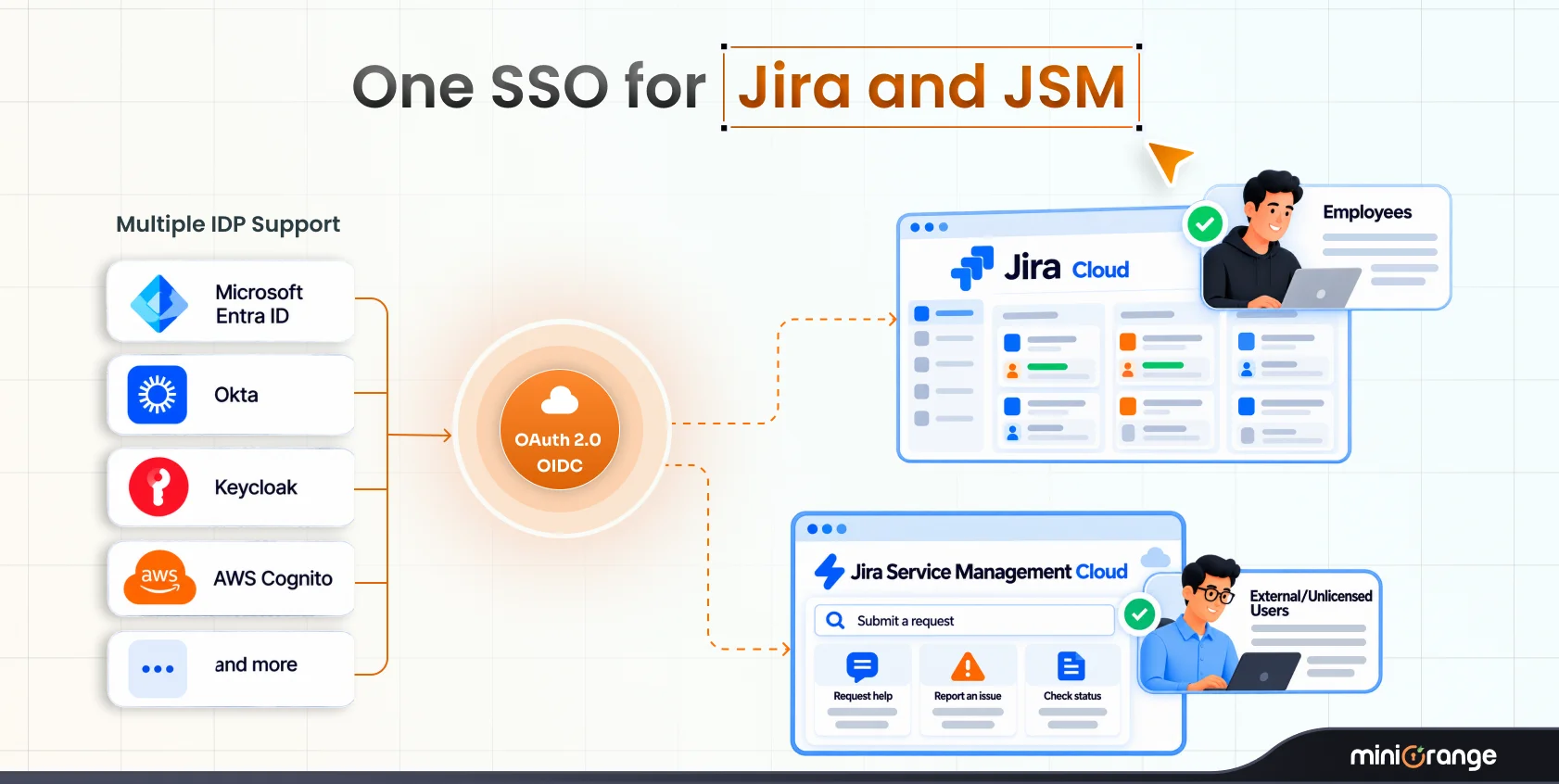
The app builds on Option 1 above. In Atlassian Guard, you set the app as the identity provider for portal-only customers and turn off email and password login. Customers then sign in to your help center through the app, which asks for their second factor before letting them in.
This removes Option 1's limit. Customers don't need accounts in your own Okta or Entra ID tenant, and new customers who sign up on your portal appear in the app automatically. If you already use an external identity provider, the app connects to it and adds 2FA on top.
What You Need
- Admin access to your Jira Cloud site and Atlassian Admin
- An active Atlassian Guard Standard subscription. Atlassian offers a 30-day free trial, and portal-only customers who sign in through SSO don't count toward your Guard bill.
- The 2FA for JSM Cloud app from the Atlassian Marketplace
Supported Methods
- Authenticator apps, including Google Authenticator, Microsoft Authenticator, Authy, Duo, LastPass, FortiToken, Aegis and FreeOTP
- One-time codes sent by email
- WebAuthn (FIDO2)
- YubiKey hardware tokens
- Security questions
- Backup codes
Customers can add any of these as a backup to their main method.
How to Roll Out Customer 2FA Without a Spike in Support Tickets
Tell customers before it starts, make the first-login screen easy to follow, prepare a recovery process before enforcing, and start with one group before expanding.
Most rollout problems come from customers being surprised, not from the 2FA itself.
1. Tell customers before you switch it on
Send a short email about a week ahead, and add a banner to your help center. Say what's changing, when, and what customers need to do. Link to a help article they can find on their own.
2. Make the first login easy to follow
The enrollment screen is the first time most customers see 2FA on your portal. Before launch, check that:
- The screen explains in one sentence why the extra step exists.
- The default method is the easiest one for your audience. In the app, you only switch on the methods you want customers to see.
- Customers are prompted to save their backup codes before they continue.
3. Plan for lost phones before launch
Decide now how a customer who loses their device gets back in:
- Backup codes they saved during setup
- A second method, such as email codes
- An admin reset. In the app, Reset MFA clears the customer's setup and asks them to enroll again at their next sign-in.
Be careful with admin resets. "I lost my phone, please remove my 2FA" is a common line in account takeover attempts, so confirm the customer's identity through a separate channel first.
4. Start with one group
Turn on 2FA for a small set of customers first, such as your largest accounts or those handling sensitive data. In the app, you can import your customer list and enable 2FA for selected customers in bulk. Review the audit log for failed attempts, fix any problems, then enforce 2FA for everyone.
Frequently Asked Questions
1. Can I enable 2FA for JSM customers but not for agents?
Yes. Agents use managed Atlassian accounts, which follow your organization's authentication policies. Our app applies 2FA to portal-only customer logins on the help center, so the two don't overlap.
2. Does Atlassian Guard cover portal-only customers?
Only through single sign-on, and only for customers in an identity provider you connect. Guard's external user security covers customers with Atlassian accounts, not portal-only accounts.
3. Do I need Atlassian Guard to use 2FA for JSM Cloud?
Yes, but your customers won’t add to your Guard bill. Portal-only customers who sign in through SSO don’t count toward Guard billing, and Atlassian offers a 30-day free trial if you don’t have Guard yet. The app works through Guard Standard’s single sign-on for portal-only customers, so your organization needs an active Guard Standard subscription.
4. Does customer 2FA work alongside SSO for employees?
Yes. Employees keep signing in through your identity provider, and customer 2FA only affects help center logins.
5. Can business customers sign in with their own identity provider?
Yes, with the Advanced edition. You can connect several SAML or OAuth/OIDC identity providers, and domain-based routing sends each customer to the right one. The app adds 2FA for those customers individually.
Summary
Atlassian’s two-step verification protects your team’s accounts, not portal-only customers. Atlassian Guard gets you partway: SSO for customers in your identity provider, and email passcodes for customers with external Atlassian accounts. To require a real second factor for every portal-only customer, use our 2FA for JSM Cloud app. It plugs into Guard’s customer SSO and handles the 2FA step. Choose methods that suit your customers, test the enrollment flow, plan for account recovery, and roll out in stages.
Leave a Comment