
When you connect Claude or ChatGPT to Jira, the assistant inherits the exact permissions of the person who authenticated it. This can be productive but also raises security risks.
If a developer has access to sensitive information, the AI can access it too. It can not only read but also edit and delete the data.
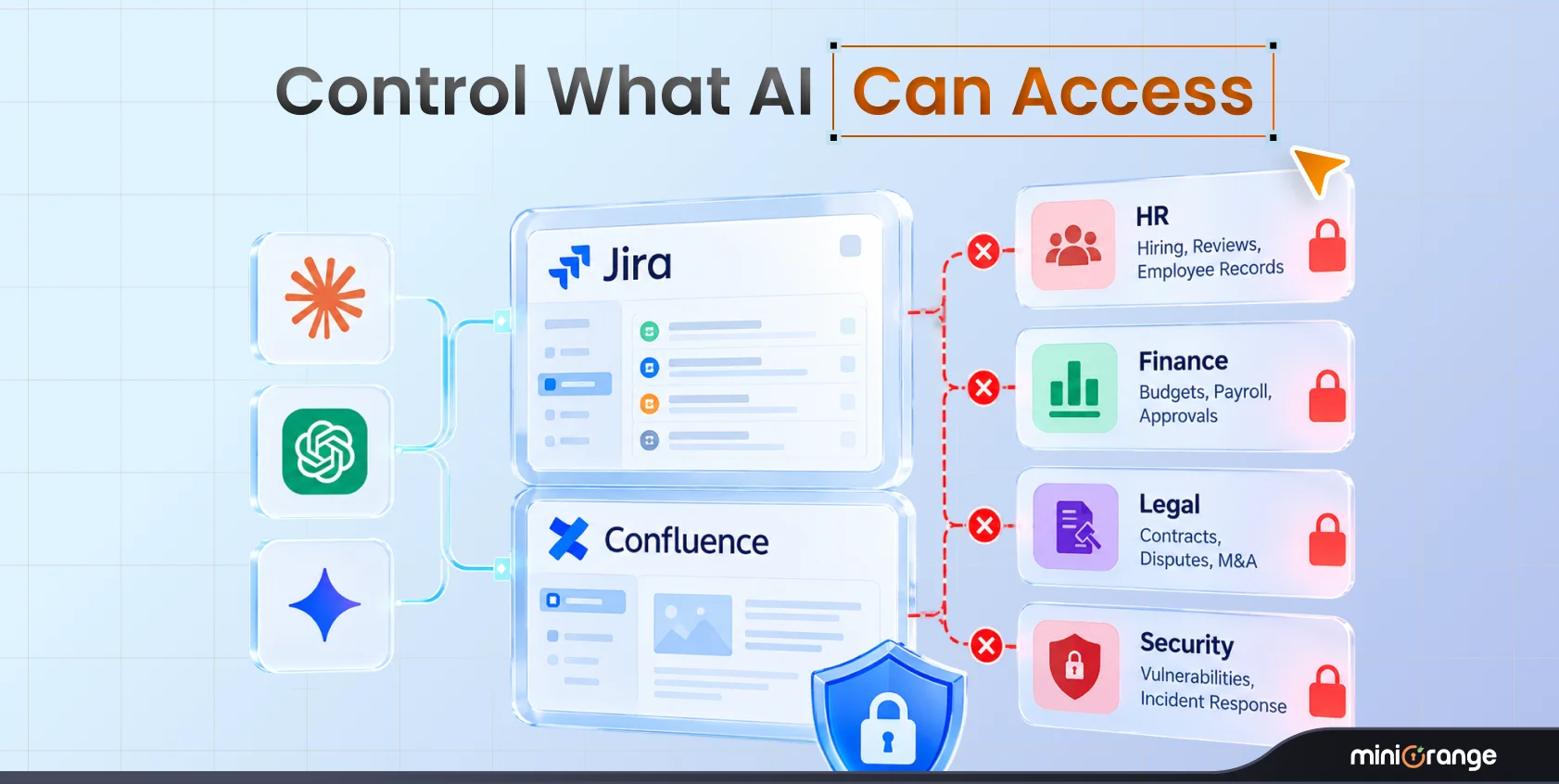
Your AI tools do not need universal access to perform their jobs. Getting AI agent permissions in Jira right means controlling what your AI assistant needs to access and which actions it should be allowed to perform. You have to separate the AI’s access from your employee’s access.
Let's look at how you can set these boundaries for Claude and ChatGPT across Jira and Confluence.
Why AI Access Should Not Be the Same as User Access
Human team members exercise judgment and bear direct accountability, which AI models do not. If a senior developer has access to sensitive data, so does their AI agent; then an unconstrained prompt can easily pull that data into a public summary.
To stay safe, the right approach to connect Claude to Jira securely is to follow a least-privilege AI agent strategy and grant the assistant only the narrow scope it needs.
Common Mistakes Businesses Make With AI Agents
Most businesses make these mistakes when integrating AI agents:
- Inheriting Full User Permissions: Granting an assistant the full administrative reach of the user who authenticated it.
- Leaving Delete Enabled: Trusting conversational models with unrecoverable delete endpoints.
- Skipping the Audit Trail: Operating without an immutable activity log that captures exact request arguments and user identities.
What Claude and ChatGPT Can Do in Jira
AI assistants interact with Atlassian using Model Context Protocol (MCP) tool calls. To configure sensible ChatGPT Jira permissions, you need to understand read vs. write access across five fundamental actions:
| Action | What it means | Access type |
|---|---|---|
| Fetch and search | Find issues, retrieve details, and search available information. | Read |
| Create | Create new Jira issues or other supported content. | Write |
| Update | Change existing issue fields or other supported content. | Write |
| Comment | Add comments to issues or pages. | Write |
As evident, every action carries varying levels of risk and should be treated accordingly.
A Simple Way to Think About AI Permissions
To make things simple, begin with three practical access profiles and decide which one fits each AI workflow.
| Permission | Permitted Operations | Operational Risk |
|---|---|---|
| Read Only | Allow required read and search tools; block tools that create, update, comment, or delete content. | Low |
| Read & Write | Allow the required read tools and approved create, update, and comment tools. Restrict deletion separately. | Moderate |
For pilot rollouts and sensitive spaces, read-only AI Jira access provides maximum protection with zero disruption.
What Should You Allow and What Should You Block?
Fetching context and writing comments are generally safe activities. For instance, creating tickets can save time. But it can clutter backlogs if unmonitored. Updating existing content also requires monitoring, as an incorrect prompt can rewrite critical data.
Delete operations are the riskiest of them all. You should block AI delete Jira calls across most user tiers and assistants.
Set Permissions by Team and Project
Enforce rules using a targeted user group policy and a clear Jira project scope. For example, you could allow the developers group to create issues in approved engineering projects while blocking access to finance projects.
You could also allow AI to search an engineering documentation space in Confluence but not HR documentation.
These restrictions should be placed only on the AI, not the employee. The developer should continue working on projects they are authorized to access directly in Jira.
How to Set AI Permissions in Jira and Confluence
The smartest approach is to put a governance layer between the AI assistant and your Atlassian environment rather than relying on users' existing permissions alone.
The miniOrange AI Agent Governance for Jira & Confluence app provides this layer through a governed MCP connection. It evaluates AI tool calls against your configured policies and records allowed and blocked activity.
Here’s how you can get started:
Step 1: Install the App
Install Claude & ChatGPT Governance and Access Control for Jira from the Atlassian Marketplace. Open the app and go to the Getting Started page to retrieve your MCP server URL.
Step 2: Configure Rovo MCP
Add the app's callback URL to the Rovo MCP server's allowed domains. Then turn off Allow Atlassian-supported domains to prevent AI clients from using a native connection that bypasses the gateway's policies and logs.
Step 3: Connect Claude or ChatGPT
Add the generated MCP server URL as a connector in your AI client and complete the Atlassian sign-in. Each person should sign in individually if you need group-based or space-based rules.
Step 4: Define Your Access Policy
Choose a default decision: Allow or Deny. Allow permits operations unless a rule blocks them. Deny blocks operations unless a rule allows them. Then add rules for the AI client, user group, operation, and Jira project or Confluence space. Save the policy. Changes take effect on the next AI request.
Step 5: Review the Audit Log
Use the Activity Log to see which user initiated a call, which AI assistant made it, what operation ran, whether the request was allowed or blocked, and what result it returned.
For detailed instructions, follow the miniOrange AI governance setup guide.
FAQs
1. What can Claude do in Jira?
Claude can search issues using JQL, retrieve issue details, create tickets, update custom fields, transition statuses, and write comments.
2. Should AI agents have write access in Jira?
Give AI agents write access only when the workflow requires it. You might allow an assistant to create issues or add comments while blocking updates and deletion.
3. How do I give Claude read-only access to Jira?
Configure your AI access policy to allow the required fetch and search operations while denying create, update, comment, and delete operations with the miniOrange Claude & ChatGPT Governance and Access Control for Jira. You can scope these rules to specific user groups and Jira projects. This creates a read-only AI Jira workflow without removing the user's own Jira permissions.
4. What permissions should ChatGPT have in Jira?
Give ChatGPT the permissions its intended workflow requires. For issue summaries, start with read access. If a team needs ticket creation or comments, allow those operations only within approved projects. Deny deletion by default unless a specific use case justifies it.
5. How do I control what Claude can do in Jira?
Connect Claude through the miniOrange Claude & ChatGPT Governance and Access Control for Jira app, configure a default Allow or Deny decision, and create rules based on the AI client, user group, operation, and Jira project or Confluence space. Review the Activity Log to verify how the policy applies to real requests.
About the Author

Senior Content Writer
Chinmay has extensive experience in writing thought leadership and marketing content for B2B IT companies. He specializes in cybersecurity, AI, ERP, CRM, and custom software development, creating content that not just informs, but sells.
Leave a Comment