
Android screen pinning is a built-in feature that locks a device to a single app until someone exits it manually. IT managers in retail, logistics, and field operations run into it a lot, usually when they need a quick fix for a shared device.
It works for that, but it hits a wall fast when you try to manage it at any scale.
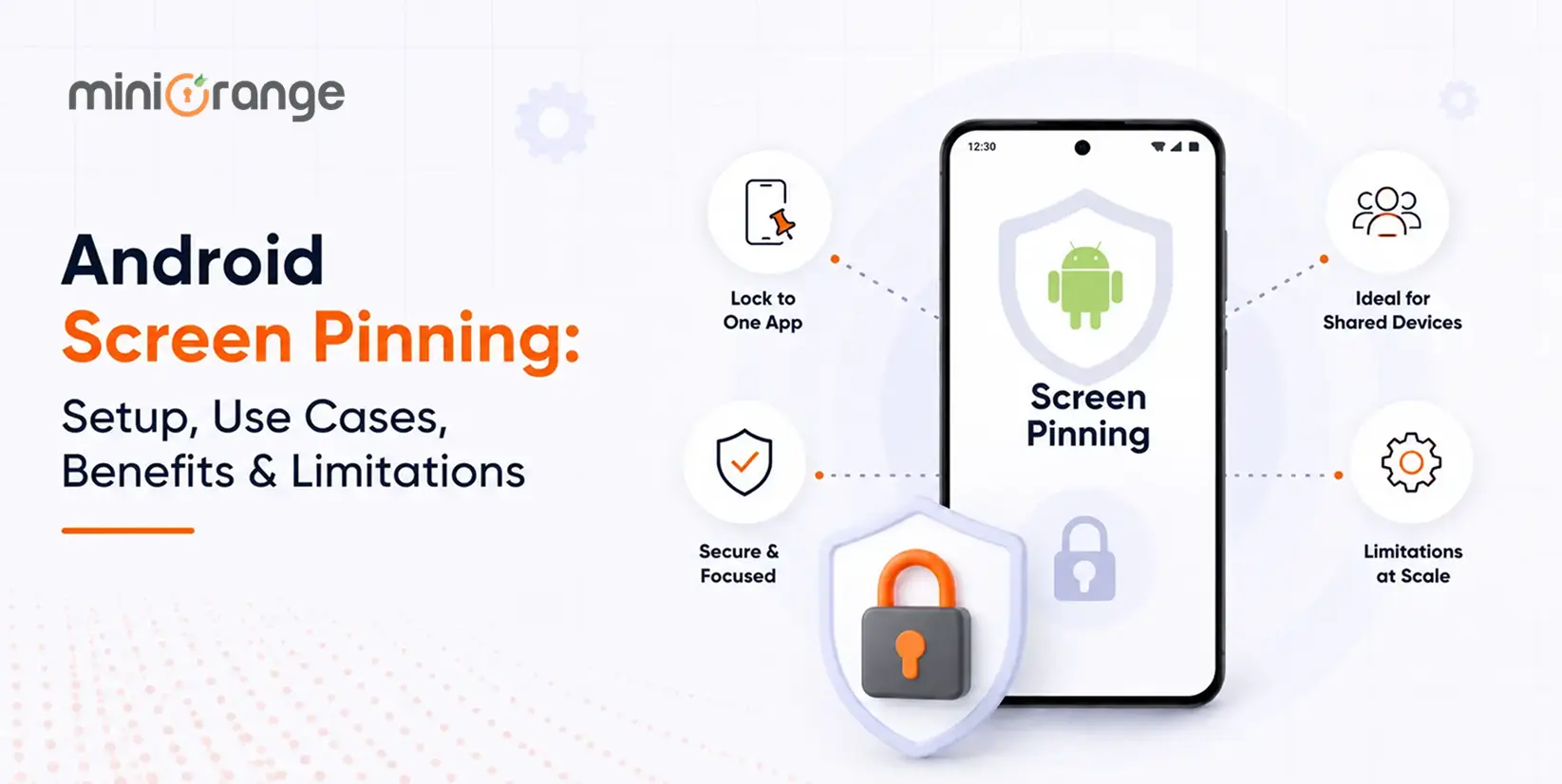
Android screen pinning is a built-in Android feature that locks a device to one app until someone manually exits it. For personal use, it's genuinely handy. For businesses trying to manage shared or dedicated-use devices, Android screen pinning comes up constantly as a "can't we just use this?" question.
The short answer is: sometimes. But it has hard limits that show up fast in any real deployment. This guide covers how screen pinning works, how to set it up, and when & where it stops being the right tool.
What is Android Screen Pinning?
Android screen pinning (also called Android app pinning) is a native Android feature available on Android 5.0 (Lollipop) and above. It locks the device to one app, blocking the home button, notification shade, and app switcher until the user manually exits.
The most important thing to understand about it is that screen pinning is a user-side action. The person holding the device turns it on themselves. No IT team configures it, no policies push it, and no admin console manages it. The user does it.
That distinction matters a lot once you get past personal use.
How Android Screen Pinning Works on Your Device
When screen pinning is active, the device is locked to one app at the OS level. The user can't open the app drawer, pull down the notification shade, tap Settings, or switch to another app. The Home button stops responding entirely.
Android enforces this through system-level restrictions, not the app itself. So it doesn't matter what the pinned app does or doesn't allow internally. The lockdown sits above it.
A user can't tap a link inside the pinned app to open a browser, switch to a recently used app, or access any system setting. The device is, for all practical purposes, a single-purpose tool until someone exits.
A PIN, pattern, or password can be required on exit if it was configured before pinning. Without it, anyone who knows the exit gesture can unpin the device freely. This is worth paying attention to in shared-device scenarios because the security of screen pinning is only as strong as the exit requirement you set up before activating it.
The pin holds until someone deliberately unpins it or the device reboots.
What Android Screen Pinning is Actually Good For
Screen pinning is genuinely useful in user-end situations. For example:
- A parent handing their phone to a kid who should only use one game.
- A retail demo device running a single product walkthrough.
- A shared tablet at a reception desk where only the check-in app is accessible.
In all these cases, it works: no cost, already on the device, and takes only a few seconds to enable. The two things it does well are temporary lockdown with no setup overhead and fast activation by whoever is holding the device.
Android Screen Pinning for Enterprise
Businesses do reach for Android screen pinning, and there are situations where it holds up. Such as:
- POS terminals running a single payment app
- Shared tablets at a reception desk
- Demo devices at a trade show, locked to one product walkthrough
There's no cost, no enrollment, and usually someone nearby if anything goes wrong. For these cases, it works. But these situations share three conditions: a small fleet, low stakes, and a trusted human close by. The moment any of these change, the gaps become real operational problems:
- No policy configurations
- No remote visibility
- Single-app only
This is where most IT teams start asking about Android kiosk mode. It's the same concept as Android screen pinning—locking devices to specific apps—but controlled by the IT team instead of the person holding the device.
How to Turn on Android Screen Pinning
The path varies by manufacturer and Android version, but here's the standard route:
- Open Settings
- Go to Security (some devices label this as Security & Location, Biometrics and Security, or Advanced Security)
- Tap Screen pinning or App pinning
- Toggle it on
- If available, enable Ask for PIN before unpinning so the app cannot be exited without your device PIN, pattern, or password
On older devices (pre-Android 10), look under Security > Advanced > Screen Pinning. If you can't find it, search for "pinning" in the Settings search bar.
How to Pin an App with Android Screen Pinning
Once screen pinning is enabled in Settings, here's how to pin an app:
Android 9 and Above
- Open the app you want to pin
- Swipe up from the middle of the screen and hold to open the Overview screen
- Tap the app's icon at the top of the app card
- Tap Pin
Android 8.1 and Below
- Open the app you want to pin
- Tap the Overview button (the square icon)
- Swipe up on the app card until you see the pin icon at the bottom right
- Tap Pin
The device is now locked to that app.
How to Unpin Screen Pinning on Android
The exit method depends more on your device's navigation style than on the Android version.
- Gesture navigation: Swipe up from the bottom of the screen and hold
- 2-button navigation: Touch and hold Back and Home simultaneously
- 3-button navigation: Touch and hold Back and Overview simultaneously
Android Screen Pinning vs. Android Kiosk Mode
Here's how screen pinning and kiosk mode compare across key features. Some of these differences are minor for personal use but become significant at scale. Use this as a quick reference before deciding which approach best fits your deployment.
| Feature | Android Screen Pinning | Android Kiosk Mode |
|---|---|---|
| Device requirement | Any Android 5.0+ device | Any company-owned device |
| Who activates it | Device user | IT admin |
| Setup time | Under 30 seconds | 5 min (after initial MDM setup) |
| No. of pinned apps | Single-app | Single & multi-app |
| Security controls | Basic | Advanced (USB, Bluetooth, hardware buttons, notification bar, & navigation buttons) |
| Remote management | ✗ | ✓ |
| Cost | Built-in feature | Needs an Android MDM solution integrated |
Why Choose Android Kiosk Mode Over Screen Pinning
Screen pinning works when one person manages one device. The problems show up at scale, and they show up fast.
1. Every Device Needs Manual Setup
No policy push exists. If you're deploying 50 shared tablets, someone physically picks up each one, navigates to Settings, and pins the app individually. There's no way to verify it's actually active across the fleet from a dashboard.
2. It Doesn't Survive a Reboot
Power the device off and back on, and screen pinning is gone. For unattended kiosks that auto-restart after OS updates, the lockdown disappears silently. Nobody knows until a user reports that the device is open.
3. The User Can Exit It
Screen pinning does require a PIN on exit, but only if someone remembered to set one before pinning. Even with a PIN, a determined user can factory reset most Android devices to remove screen pinning entirely. There's no protection against that at the device level.
4. It's Single-App Only
A field service device probably needs a work app, a maps app, and an internal communications tool. Screen pinning handles exactly one of those.
5. There's Zero Visibility
You have no way to know if a device is pinned right now, what app is showing, or whether the device is even online. The IT team finds out that something went wrong when someone calls.
MDM kiosk mode addresses all of these issues from a central console. The cost of enrollment is that the device must be company-owned and registered.
Go Beyond Android Screen Pinning with miniOrange MDM
Mobile Device Management solution’s kiosk mode feature is what IT teams reach for when screen pinning stops being enough. It works on company-owned Android tablets and phones, and the same policy engine covers iOS, Windows, and macOS if your fleet is mixed.
1. App Lockdown
Lock devices into single-app or multi-app kiosk mode. Navigation buttons, notification bar, hardware buttons, and system Settings are all controlled by policy, not by a user toggle. The lockdown persists through reboots.
2. Bulk Provisioning
Push kiosk policies to millions of devices in the time it’d take to manually configure five. Configuration changes, app updates, and policy modifications go out remotely. No physical access required.
3. Remote Cast and Control
View live device screens from the admin console. If a kiosk at a retail store stops responding at 9 PM, your IT team diagnoses and resolves it remotely without sending anyone out. Device downtime drops.
4. Content Management
Block unauthorized websites and URLs so users can’t bypass the app environment through an embedded browser link. Restrict system navigation to keep users inside the approved workflow.
5. A Branded Environment
Set a custom home screen background with your company logo and colors. Devices running miniOrange kiosk mode look like your product, not a generic Android device someone half-configured.
6. Security Controls
Block USB ports and Bluetooth connections to prevent unauthorized data transfer. Enable Data Loss Prevention (DLP) controls at the device level. Set up Factory Reset Protection (FRP), so users can’t wipe the device to escape kiosk mode. Remotely wipe a device if it is lost, stolen, or decommissioned.
Ready to move beyond screen pinning? Try miniOrange MDM free for the first 14 days!
FAQs on Android Screen Pinning
What is Android screen pinning?
It’s a built-in Android feature, available since Android 5.0, that locks the device to a single app. The user activates it manually from Settings, and it stays active until manually exited using a button combination or gesture.
How do I enable screen pinning on Android?
Go to Settings > Security > Screen Pinning and toggle it on. On some devices, it’s labeled App Pinning or found under Security > Advanced. Searching for "pinning" in the Settings search bar finds it on most Android versions.
How do I unpin screen pinning on Android?
It depends on your navigation style. For gesture navigation, swipe up from the bottom of the screen and hold. For 2-button navigation, touch and hold Back and Home. For 3-button navigation, touch and hold Back and Overview. Enter your PIN, pattern, or password if prompted. On Android 9 and below, hold the Back and Overview buttons simultaneously for 2 seconds.
Does screen pinning work on all Android devices?
The feature is available on Android 5.0 and above, but the interface and navigation method vary by manufacturer and Android version. Samsung, Xiaomi, and OnePlus devices sometimes bury it deeper in Settings or rename it.
Can Android screen pinning lock more than one app?
No. Screen pinning is single-app only. For multi-app lockdown on company-owned devices, MDM kiosk mode is the better option.
What’s the difference between Android screen pinning and MDM kiosk mode?
Screen pinning is activated by the device user with no IT involvement, doesn’t persist through reboots, and offers no remote visibility or management. MDM kiosk mode is configured by IT, pushed to enrolled devices, survives reboots, supports multi-app setups, and includes security policies. The core difference is who’s in control: the user or the IT team.
Additional Resources
About the Author

Content Writer
Stutee writes about cybersecurity and identity security, covering technologies such as MFA, IAM, PAM, and endpoint management. Her work focuses on translating what products do into why audiences should care, ensuring technical depth does not come at the cost of readers clarity.
Leave a Comment