
Hospitals and clinics are under constant pressure to move patients through the system faster without cutting corners on care and data security.
Android tablet kiosks have quietly become one of the most practical answers to that pressure, turning ordinary tablets into secure, single-purpose devices that handle everything from check-in to bedside monitoring.
This blog walks through where these kiosks fit into modern healthcare, the security risks they introduce, and how the right Mobile Device Management (MDM) approach keeps patient data safe while devices remain productive.
Why the Healthcare Sector Needs Android Kiosk Mode
Healthcare facilities see high patient volume, tight staff schedules, and strict compliance obligations, which is a demanding combination for any technology rollout. A healthcare kiosk solution built on Android kiosk mode locks a tablet to one app or a defined set of apps. Therefore, front-desk staff, patients, and clinicians only see what they need and nothing they shouldn’t.
This matters because a general-purpose tablet left unmanaged in a lobby or patient room is an open invitation for misuse. Whether that’s a patient wandering into settings, a visitor connecting to an unsecured network, or a staff member accidentally exposing a medical record on screen.
Kiosk mode removes that risk by design, not by policy memo. It also cuts costs, because a standard Android tablet paired with kiosk software often replaces expensive dedicated hardware at a fraction of the price.
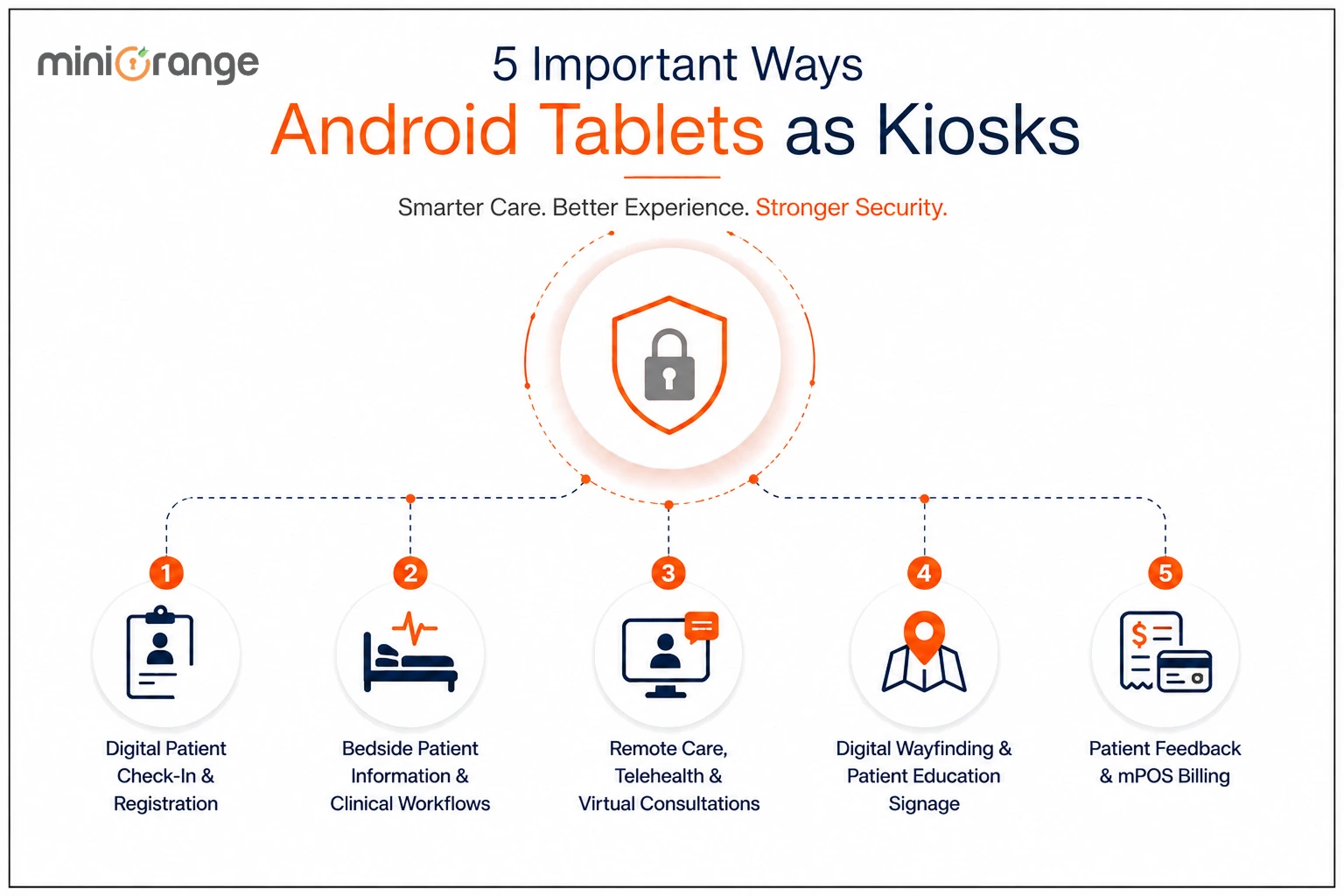
5 Important Ways the Healthcare Industry Can Use Android Tablets as Kiosks
From the front desk to the patient's bedside, Android tablet kiosks for healthcare are reshaping how facilities manage information, communication, and billing. Here are the five use cases where they deliver the clearest impact.
1. Digital Patient Check-In and Registration
Walk into most hospitals today, and you’ll notice fewer clipboards and longer stretches of quiet at the front desk. This shift is largely due to self-check-in tablets that let patients verify insurance, update contact details, and confirm appointment information without waiting for a staff member to key it in manually.
Locking the tablet to a single check-in app means patients can’t stray into unrelated functions or accidentally view another patient’s data on the same device. For facilities handling dozens or hundreds of visits per day, this alone reduces front-desk congestion and lets staff focus on patients who need more direct assistance.
2. Bedside Patient Information and Clinical Workflows
During rounds, physicians used to flip through paper charts, X-ray printouts, and medication logs stacked at the foot of a bed. An Android kiosk mounted bedside changes that entirely. It displays vitals, lab results, and treatment history on a single locked screen that updates in real time.
This is particularly valuable for patients managing chronic conditions who accumulate large volumes of diagnostic history over time. A clinician can glance at the tablet, review recent scans or medication changes, and move on to the next patient, without digging through a paper trail.
This speeds up rounds and reduces the chances of a missed detail.
3. Remote Care, Telehealth, and Virtual Consultations
Telehealth stopped being a backup option and became a core part of care delivery once patients and providers realized how much time and travel it saved. Android tablets configured in single-app kiosk mode run a secure video consultation app exclusively. This keeps the patient from accidentally closing the call or navigating away mid-session.
This setup works well for pregnant patients, seniors, and anyone managing a condition that doesn’t require an in-person visit every time. It also supports coordination between hospital-based specialists and traveling clinicians who need to check in on patients across multiple locations without requiring everyone to be in the same building.
4. Digital Wayfinding and Patient Education Signage
Large hospitals can feel like a maze even to people who visit regularly, and getting lost on the way to radiology or a specialist’s office adds stress nobody needs. Kiosks placed in lobbies and hallways, running a locked navigation app, give patients clear, step-by-step directions without pulling a staff member away from other duties.
The same hardware acts as an education tool in waiting areas and patient rooms, playing pre-and post-surgery instructional videos, dietary guidance, or recovery care plans. Because the device is restricted to that one function, there’s no risk of a patient closing the video and wandering into settings or an unrelated app.
5. Patient Feedback Collection and Mobile Point-of-Sale (mPOS) Billing
Collecting honest, timely feedback from patients is far easier with a tablet at the exit desk than with a mailed survey that gets ignored. A kiosk locked to a feedback app captures satisfaction scores and comments while the visit is still fresh in the patient’s mind. This gives administrators data they can actually act on.
The same device can function as a mobile point-of-sale terminal for billing and checkout. This lets patients settle co-pays or view itemized charges without a separate hardware purchase. Combining check-in, Electronic Health Record (EHR) retrieval, and billing on one tablet lowers the total number of devices a facility needs to manage.
Cybersecurity Challenges of Healthcare Tablet Kiosks
Deploying self-service healthcare kiosks at scale introduces a different risk profile than a single tablet used by one employee. Because these devices sit in public or semi-public spaces and often touch sensitive records, they need a security posture built around exposure, not just convenience.
1. Protecting Protected Health Information (PHI)
Any kiosk that displays patient records, lab results, or billing details is handling PHI, and that data has to stay contained to the session it’s used in.
A device that doesn’t clear cached information between patients risks exposing one person’s medical history to the next person who walks in.
2. HIPAA Compliance Requirements
Health Insurance Portability and Accountability Act (HIPAA) sets specific expectations around how PHI is accessed, stored, and transmitted. And a kiosk that isn’t configured correctly can put a facility out of compliance without anyone realizing it. This compliance applies to encryption in transit, access logging, and how quickly a device can be locked down if something goes wrong.
3. Device Tampering Risks
A tablet sitting unattended in a lobby is a target for tampering, whether that’s someone trying to root the device, install unauthorized software, or physically remove it.
Facilities need controls that automatically detect and respond to tampering attempts, as staff cannot monitor every kiosk around the clock.
4. Unauthorized Application Access
Without proper restrictions, a curious patient or an opportunistic bad actor could try to exit the kiosk app and access the device’s broader settings, browser, or app store. This paves the way for malware, unauthorized data access, or simply a device that stops functioning as intended.
5. Malware and Ransomware Exposure
Healthcare has become one of the most targeted industries for ransomware precisely because the data is valuable and the systems are often under-secured.
A kiosk connected to the same network as clinical systems can become an entry point for malicious activities if it isn’t isolated and monitored properly.
6. Shared Device Security
Kiosks used by dozens or hundreds of patients a day carry a different risk than a personal device used by one person. Sessions need to be short-lived, data needs to clear automatically, and the device needs to reset to a known safe state between users.
7. Network Segmentation
A kiosk on the same flat network as electronic health record systems or internal staff tools creates unnecessary risk if that kiosk is ever compromised. Segmenting kiosk traffic away from clinical systems limits how far a breach can spread.
Security Best Practices for Android Healthcare Kiosks
None of the risks above are reasons to avoid kiosk deployment; they're reasons to deploy with the right controls in place from day one. The following practices form the foundation of a secure, manageable kiosk fleet.
1. Mobile Device Management (MDM)
An MDM solution gives IT teams a single console to enforce kiosk mode, push configuration changes, and manage every device across multiple facilities at once, rather than configuring each tablet by hand.
2. Remote Device Monitoring
Real-time visibility into device status, battery health, and connectivity lets IT teams catch problems before they disrupt patient-facing operations, instead of finding out when a device stops working during a busy shift.
3. Application Whitelisting
Restricting a kiosk to a specific, approved list of applications closes off the possibility of unauthorized software running on a device meant for one clinical or administrative task.
4. Automatic OS Updates
Outdated operating systems carry known vulnerabilities that attackers actively look for. So, scheduling updates automatically across the fleet keeps every device patched without relying on manual intervention.
5. Certificate-Based Authentication
Issuing device certificates rather than relying on shared passwords ensures that only verified, enrolled devices can connect to hospital networks and access clinical systems.
6. Zero-Touch Enrollment
Rolling out dozens or hundreds of kiosks becomes manageable when devices can be provisioned automatically out of the box. The configurations and restrictions are applied the moment they connect, and no manual setup is required.
7. Endpoint Compliance Monitoring
Continuous checks confirm that every kiosk still meets security policy, whether that's OS version, app configuration, or encryption status, flagging any device that drifts out of compliance.
8. Remote Lock and Remote Wipe
If a device is lost, stolen, or shows signs of tampering, IT teams need the ability to lock it or wipe its data instantly from a central console, without needing physical access to the hardware.
How miniOrange MDM Supports Healthcare with Android Kiosk Mode
Healthcare IT teams need an MDM for healthcare that handles the specific demands of patient-facing devices, not a generic endpoint tool retrofitted for clinical use.
miniOrange MDM is built to manage Android kiosks at scale while keeping compliance and patient data protection at the center of every configuration.
- Hardware reliability: Support for a wide range of Android tablet manufacturers means facilities aren't locked into a single hardware vendor to run kiosk mode reliably.
- Enterprise Android support: Full compatibility with Android enterprise features gives IT teams granular control over device restrictions, work profiles, and kiosk configurations.
- Security features: Built-in application whitelisting, certificate-based authentication, and encryption controls keep PHI protected at every stage of the patient interaction.
- Remote management capabilities: A centralized console lets IT teams monitor, configure, lock, or wipe devices remotely, across one facility or an entire hospital network.
- Compliance readiness: Configuration templates and audit logging help facilities align with HIPAA requirements without building compliance controls from scratch.
- Integration with existing healthcare systems: Kiosks can connect securely to EHR platforms and billing systems already in use, so facilities aren't forced to rebuild their tech stack around a new kiosk tool.
Facilities evaluating a kiosk rollout should start by mapping which use cases matter most (check-in, bedside, telehealth, wayfinding, or billing) and then choose an MDM that supports all of them under one policy framework rather than patching together multiple tools.
FAQs
1. What is a health kiosk?
A health kiosk is a self-service device, typically a tablet or dedicated terminal, that lets patients complete tasks like check-in, form submission, or billing without direct staff assistance.
2. How can Android tablet kiosks be used in healthcare?
Android tablet kiosks support digital check-in, bedside patient information display, telehealth consultations, wayfinding and patient education signage, and feedback collection paired with mobile billing. Each use case relies on kiosk mode to restrict the device to one clinical or administrative function.
3. How to make an Android tablet work on any network?
An Android tablet can be configured for broader network access by using a carrier-unlocked device or enrolling it through an MDM platform that manages Wi-Fi and cellular profiles centrally. This ensures the tablet connects reliably across different hospital locations without manual network setup on each device.
About the Author

Content Writer
With a background in Journalism and extensive experience in SaaS and cybersecurity content writing, Chaitali Avadhani has contributed to creating various forms of impactful content pieces across multiple verticals. At miniOrange, her role is to craft SEO-friendly and lead-generating content around Identity and Access Management (IAM) products and cybersecurity as a whole.
Leave a Comment