

Windows Defender is the name many organizations, documents, and vendors still use when referring to Microsoft's built-in antivirus and endpoint security tools. Microsoft now uses names such as Microsoft Defender Antivirus and Microsoft Defender for Endpoint for its endpoint protection products.
Every Windows 10 and 11 device in your fleet already ships Microsoft Defender. Switching it on takes no effort. But keeping it configured the same way across 2,000 devices is the actual job.
Windows Defender integration with a Unified Endpoint Management (UEM) platform pulls those pieces into one place: configuration and device actions on one side, threat visibility on the other, but all in the same dashboard.
For businesses managing hundreds or thousands of Windows devices, this approach helps coordinate device configuration and endpoint protection. It also requires clear policy ownership so that UEM and Microsoft Defender settings work together without conflicting.
What Windows Defender Integration Actually Means
Windows Defender integration connects a UEM platform with supported Microsoft Defender capabilities so administrators can manage endpoint security alongside device configuration and compliance.
Without this integration, IT teams may need to switch between separate management consoles to review device settings, investigate security events, and respond to endpoint issues. Integration can bring supported tasks into a central workflow, reducing the need to manage every device individually.
Depending on the UEM platform and integration method, administrators may be able to:
- Configure security settings: Apply supported Microsoft Defender policies to managed Windows endpoints.
- Monitor security events: Monitor and report antivirus scans, threat detections, remediation actions, and Microsoft Defender security update status from a central console.
- Take device actions: Perform supported actions on endpoints when a security issue requires intervention.
- Coordinate device policies: Manage Windows configuration, application access, and device restrictions alongside endpoint protection.
The scope of these capabilities depends on the specific integration. For example, a UEM platform might support configuring selected Defender settings and viewing security events without exposing every Microsoft Defender for Endpoint investigation or response feature.
miniOrange documents Windows Defender Management capabilities in its UEM release notes. Before deployment, administrators should verify which settings, device actions, and monitoring functions their UEM version supports.
Integrating Windows Defender with Unified Endpoint Management (UEM)
Integrating Microsoft Defender with UEM involves connecting endpoint protection policies and supported security operations with the organization's device management workflow.
A typical implementation follows these steps:
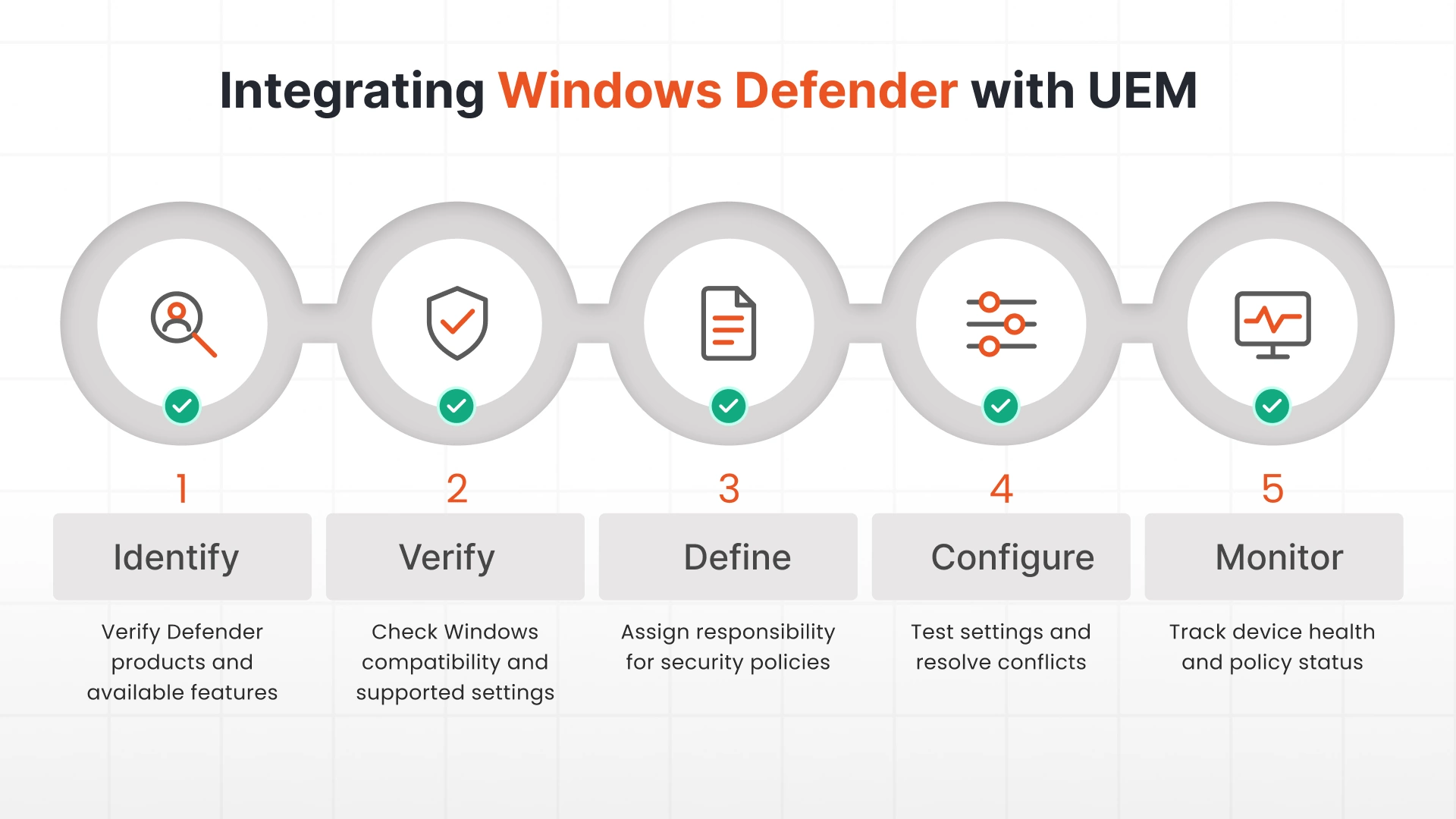
- Identify the Defender products and licenses in use: Confirm whether devices use Microsoft Defender Antivirus, Microsoft Defender for Business, or Microsoft Defender for Endpoint. Check which security capabilities are available under the assigned licenses.
- Verify UEM integration support: Check the UEM platform's supported Windows versions, Defender settings, device actions, and monitoring capabilities.
- Define policy ownership: Decide which configurations UEM manages and which are controlled through Microsoft security tools or other management systems.
- Configure and test policies: Apply settings to a small group of test devices, verify their enforcement, and check for conflicts with existing security configurations.
- Monitor deployment and compliance: Review policy status, device health, and available security events before extending the configuration to the wider device fleet.
Administrators should also confirm how policies reach managed endpoints. Depending on the deployment, settings may be applied through the UEM agent, Windows management interfaces, Microsoft security services, or other supported mechanisms.
Capabilities of Defender for Endpoint on Windows
Microsoft Defender provides several endpoint protection capabilities, but they don't all belong to the same product or license. The following functions should be assessed separately when planning Windows endpoint security management.
1. Microsoft Defender Antivirus
Microsoft Defender Antivirus detects and helps block malware, potentially unwanted applications, and other threats. Its real-time protection checks files and activities as they occur, while security settings govern functions such as scanning, threat handling, cloud-delivered protection, and network protection.
Administrators can configure supported antivirus settings through available management tools. The precise settings and management options depend on the Windows environment and existing security configuration.
2. Attack Surface Reduction (ASR)
Attack Surface Reduction rules help block activities commonly used by attackers, such as suspicious scripts, malicious document behavior, and certain application-based exploits.
Administrators can configure supported rules to reduce the opportunities available to malware and other threats. Rules should be tested before broad deployment because some may affect legitimate applications or business workflows.
3. Endpoint Detection and Response (EDR)
Endpoint Detection and Response (EDR) collects and analyzes endpoint activity to identify suspicious behavior and support threat investigation.
With an eligible Microsoft Defender for Endpoint or Microsoft Defender for Business license, security teams can access the EDR capabilities included in that product. Depending on the license, these may include investigation tools, response actions, and automated investigation and remediation.
EDR availability shouldn't be assumed for every Windows device running Microsoft Defender Antivirus. Administrators should verify the licensed feature set before planning incident response workflows.
4. Device and Peripheral Control
Device control helps organizations restrict or allow the use of supported devices and removable media according to security policy. For example, administrators may restrict USB storage to prevent unauthorized copying of sensitive files.
Peripheral management can also cover printers, Bluetooth devices, and other connected hardware through appropriate Windows and UEM policies. These controls don't necessarily belong to Microsoft Defender Device Control itself, so administrators should confirm which product manages each restriction.
Best Practices for Windows Defender Integration
A successful integration depends on consistent policy management, appropriate access restrictions, and regular checks of endpoint security status.
1. Define Clear Policy Ownership
Document which settings are managed through UEM and which are controlled through Microsoft Defender or another security management system. Assign ownership for antivirus settings, attack surface reduction rules, device restrictions, and incident response.
This prevents multiple teams or tools from attempting to enforce incompatible configurations.
2. Minimize Policy Conflicts
Review existing endpoint security configurations before applying new Defender policies. Check for overlapping settings, legacy Group Policy configurations, and policies delivered through other management tools.
Test policy changes on a limited device group first. Confirm that settings reach endpoints as expected and that the intended security controls remain active.
3. Apply Least-Privilege Access
Restrict application, device, and peripheral access according to business requirements and user roles. For example, only approved users may need access to removable storage, while administrative tools may require elevated privileges.
Use narrowly scoped exceptions for legitimate business needs and review them regularly.
4. Monitor Security and Configuration Changes
Regularly review device compliance, Defender security alerts, policy deployment status, and configuration changes. Investigate devices that stop reporting, fail to apply required settings, or show unexpected changes in protection status.
Where supported, combine UEM device information with Microsoft Defender security telemetry to help IT and security teams investigate incidents.
Even with these 4 habits in place, a few problems come up often enough to plan for.
Common Windows Defender Integration Challenges
Even when the integration is configured correctly, differences in existing policies, device capabilities, and security requirements can complicate ongoing management.
1. Policy Conflicts Between UEM and Defender
UEM, Microsoft Defender, Group Policy, and other management tools may control overlapping Windows settings. Conflicting configurations can lead to unexpected enforcement or make it difficult to determine which policy takes precedence.
How to address it: Assign a clear source of authority for each setting, remove obsolete policies where appropriate, and verify the effective configuration on test devices.
2. Device and Platform Compatibility
Windows versions, device types, and supported Defender capabilities can differ across an organization's fleet. A setting available on one device may be unavailable or behave differently on another.
How to address it: Check operating system requirements, license eligibility, and UEM support before deployment. Group devices by supported configuration where necessary, and track devices that fail to apply a policy.
3. Managing Exceptions and Access
Some users, applications, or peripherals may require exceptions to standard security rules. Poorly scoped exceptions can create gaps in protection or give users more access than their roles require.
How to address it: Document the business reason, scope, approver, and expiry or review date for each exception. Apply the narrowest restriction change that meets the requirement.
4. Visibility and Security Management
IT teams may need to consult separate consoles for device compliance, Defender alerts, and detailed threat investigations. The available information can also vary according to licensing and integration support.
How to address it: Define where each type of information is reviewed, identify which alerts require escalation, and establish a process for investigating discrepancies between UEM status and Defender security information.
5. Coexistence With Third-Party Antivirus
Organizations migrating from another antivirus product must account for how Microsoft Defender Antivirus behaves when a third-party antivirus product is installed and registered with Windows Security Center.
Depending on the operating system, product, and configuration, Microsoft Defender Antivirus may switch to passive mode or otherwise change its active protection behavior. Administrators should verify the actual state rather than assume that both antivirus products are providing active real-time protection.
How to address it: Check Microsoft's documented coexistence requirements, confirm which antivirus product is active, and validate the protection status after deployment. Avoid running multiple active real-time antivirus engines unless the products and configuration explicitly support that arrangement.
Windows Defender Integration and Compliance
Windows Defender integration can help organizations enforce endpoint security requirements and collect information for compliance reviews. However, auditors want to know that protection is deployed and that you can prove it’s running. And so, compliance depends on the full set of technical controls, operational procedures, evidence, and applicable requirements. Defender alone doesn't establish compliance with a regulatory framework.
The major frameworks will ask for:
- HIPAA: 64.308(a)(5)(ii)(B): It calls for procedures to guard against, detect, and report malicious software. HHS says the Security Rule requires measures that help prevent malware, including ransomware.
- PCI DSS v4.0: Requirement 5 expects anti-malware on in-scope systems that stays active and maintained.
- ISO 27001:2022: Annex A 8.7 covers protection against malware.
Here’s how the integration maps to the evidence those controls usually need:
| Compliance Area | What it Covers | What to Put in Place |
|---|---|---|
| Endpoint Security Policy Enforcement | Antivirus, attack surface reduction, and device security, applied through supported Defender and UEM policies | Map settings to internal requirements; log exceptions and non-compliant devices. |
| Data Protection and Removable Media Controls | Removable media limits that reduce unauthorized copying and malware from external storage. | Add Endpoint DLP policies where sensitive data needs inspecting. |
| Security Monitoring and Evidence | Alerts, endpoint status, policy reports, and investigation records. | Define what to retain, where it lives, and who reviews it. |
| Consistency with Internal Security Policies | Endpoint settings mapped to policies on malware, application execution, removable media, device access, and incident response. | Assign owners for review exceptions and non-compliant devices; recheck when requirements change. |
Windows Defender and UEM supply evidence for these controls. Their policies handle supported device restrictions.
But compliance also depends on written policy, training, incident response and the scope your auditor sets, and Endpoint DLP covers this.
Secure and Manage Windows Endpoints Centrally
Manage Windows device configurations and supported endpoint security settings through a central UEM workflow. With the miniOrange UEM solution and 24/7 support, IT teams can review supported Windows Defender Management capabilities alongside their broader device management requirements.
FAQs
1. What is the difference between Microsoft Defender and Windows Defender?
Windows Defender is the older name associated with Microsoft's Windows security products. Microsoft now uses names such as Microsoft Defender Antivirus for malware protection and Microsoft Defender for Endpoint for broader endpoint security capabilities. The exact features available depend on the product and license.
2. Can Windows Defender integrate with third-party SIEM tools?
Yes. Microsoft Defender security data can be sent to supported security information and event management (SIEM) platforms through available connectors and data integration methods. Microsoft Sentinel has a native connector. Splunk, IBM QRadar, and Elastic can ingest Defender data directly.
3. Does UEM replace the need for Microsoft Defender for Endpoint?
No. They do different jobs. Defender for Endpoint detects, blocks, and investigates threats on each device. UEM deploys and manages Defender's settings across your fleet and shows what it finds. If all you need is baseline antivirus, Defender Antivirus is already built into Windows.
4. Is Microsoft Defender Antivirus included with Windows?
Microsoft Defender Antivirus is built into supported Windows versions. Its availability and behavior depend on the Windows edition, configuration, and whether another antivirus product is installed. Broader capabilities, such as those provided by Microsoft Defender for Endpoint, may require separate licensing.
5. What license is required for Microsoft Defender for Endpoint?
Microsoft Defender for Endpoint Plan 1 provides core endpoint protection, while Plan 2 adds EDR and advanced investigation capabilities. Microsoft Defender for Business includes EDR for organizations with up to 300 users. Check Microsoft's licensing documentation for current entitlements.
6. What is the difference between Microsoft Defender for Business and Microsoft Defender for Endpoint?
Microsoft Defender for Business targets small and medium-sized businesses with up to 300 users and includes EDR capabilities. Microsoft Defender for Endpoint targets broader enterprise security needs, with features varying by plan. The right choice depends on your organization's size, security requirements, and licensing needs.
Leave a Comment