
Let's be honest about something most DLP vendors won't say out loud: you can lock down every file, every USB port, every outbound email, and someone can still just take a picture of their screen and walk away with your data.
No exfiltration alert catches that, and no file transfer log can note it.
It's a blind spot that most security and IT teams hardly ever build a policy around, because until recently, there wasn't much you could do about it. But that's changed.
Screenshot blocking and dynamic watermarking are how you actually cover it.
What Is Screenshot Blocking in DLP?
Screenshot blocking stops users from capturing what's on their screen, whether that's through the Print Screen key, the Windows Snipping Tool, a third-party recording app, or screen sharing during a call.
In miniOrange's DLP dashboard, it lives under Endpoints > Info Protection > Screenshots, and it works in three modes:
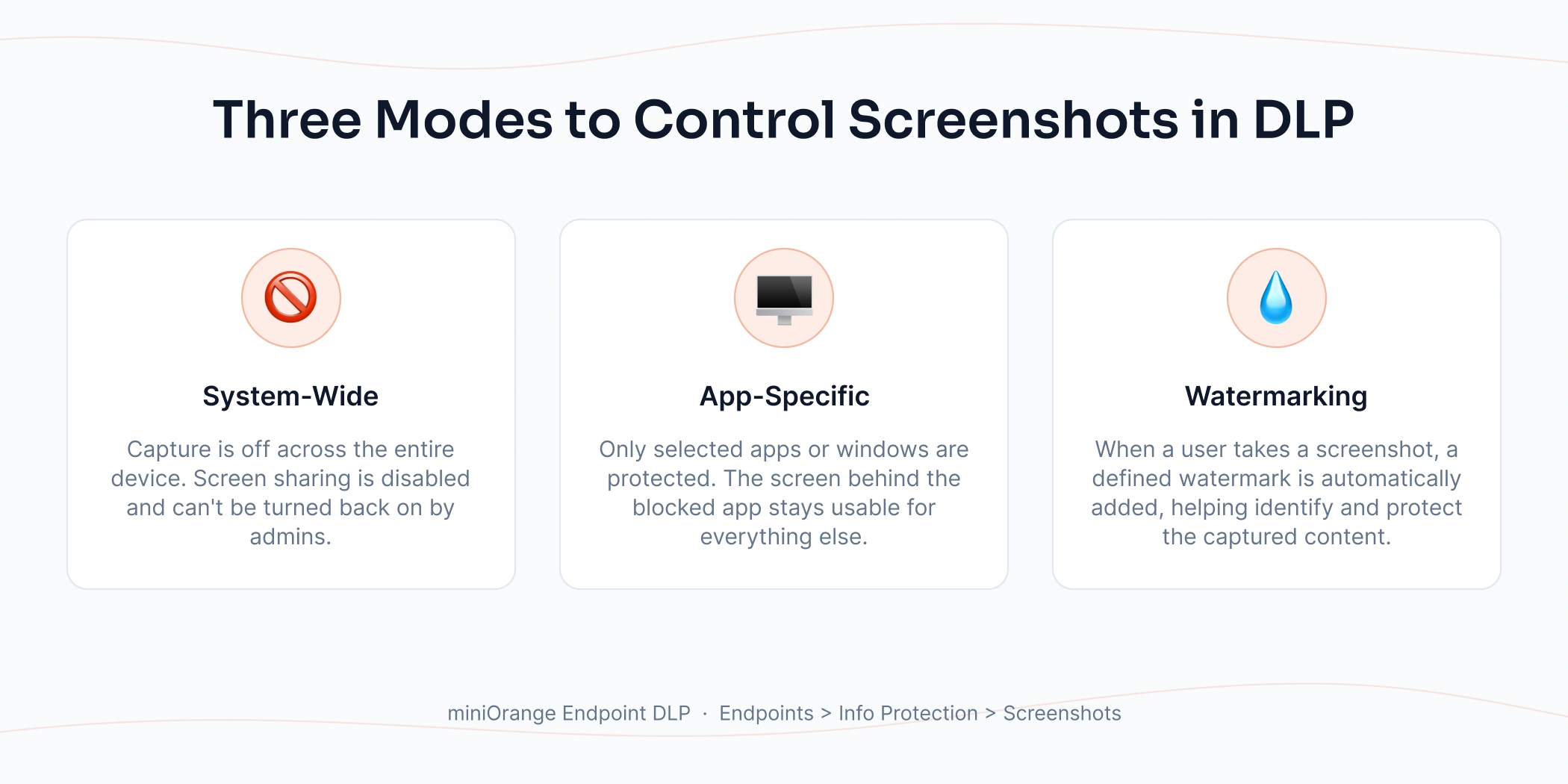
- System-Wide: Screenshot capture is off across the entire device. Screen sharing is disabled by default here, and admins can't turn it back on. This is the strictest setting, built for high-sensitivity roles. In this case, if a user opens the snipping tool, the screen would go black immediately.
- App-Specific: Only certain apps or windows are protected. Everything else on the device works normally. This is the setting most teams reach for first, since it protects the CRM or the patient record system without locking down the whole machine.
- Watermarking: More on this in a second, because it's a different kind of control entirely. In this case, when a user takes a screenshot, a defined watermark would appear on the screenshot.
That covers the capture methods that a DLP agent can actually see.
- The keyboard shortcuts
- The snipping tool
- The recording app
- The screen-sharing feature
But it doesn’t cover someone pointing a phone at their monitor. A computer has no way to know a phone is pointed at it, so it can't blank the screen the way it does for a snipping tool. The only way to physically prevent that kind of capture is to control the room: managed environments, device checks at the door, no phones allowed.
Note: “No Phones Allowed” won’t hold up for remote teams or anyone sharing sensitive data with an external partner, so it’s worth naming a limit that pretending a software closes it.
What blocking doesn't address is a different, more common problem: screenshots you actually want to allow. Blocking every app system-wide kills legitimate work. Someone needs to screenshot a chart for a client email or paste a screenshot into an internal ticket.
But then, if you turn off blocking for that app, you get no record of who captured and shared what. That's what dynamic watermarking is for.
What Is Dynamic Watermarking in DLP?
Dynamic watermarking is not a static "Confidential" stamp sitting on a document. It's a watermark that's generated in real time, at the moment a screenshot is taken, and it only ever appears on the captured image. It doesn't show up on the screen while someone's actually working. Nothing gets in the way of daily use.
The text is customizable. Most teams set it to the user's email address, plus the date and timestamp. Some pull in a device ID or a sensitivity label if the content warrants it. Whatever combination you choose, the moment someone captures a screen showing protected content, that identifying information gets burned into the image.
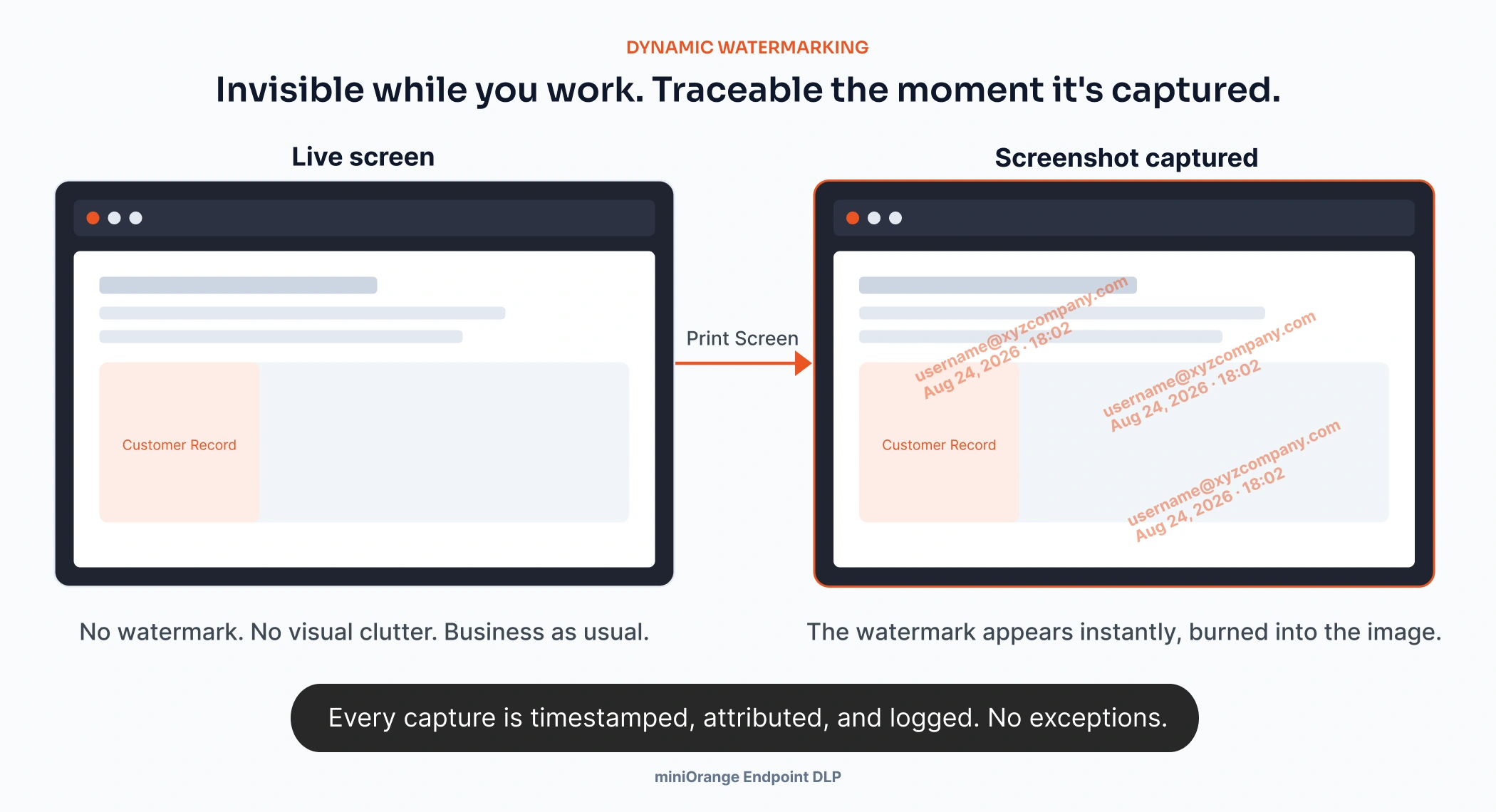
This is similar in spirit to what Microsoft rolled out for sensitivity labels in Purview, where a document displays the signed-in user's email as an overlay specifically to deter screenshot sharing. The difference is that miniOrange applies this at the DLP layer across whatever's on screen, not just inside Office files.
Most people won't screenshot something that has their name and the exact time stamped on it. That's the deterrent. And if someone does anyway, you're not guessing who did it.
The reporting side backs this up. Every watermarked screenshot event generates a log:
- Was it a screenshot, screen recording, or screen sharing?
- Which screen was captured, when, and what application was open at that moment?
If a leaked screenshot surfaces somewhere it shouldn't, that log tells you exactly where it came from.
Key Benefits of Screenshot Blocking and Dynamic Watermarking
Put these two controls (screenshot blocking and dynamic watermarking) together, and you get coverage that neither one delivers on its own.
1. Reduce Screen-Based Data Leakage
Employees who know a screenshot will carry their name and timestamp will think twice before capturing something they shouldn't. And because blocking can be executed app-by-app as well, you're not disabling screenshots across the whole company just to protect a bunch of specific documents.
Sales can still screenshot a deck slide and attach it to an email to a client. That's behavioral control, and it's often the most effective kind.
2. Improve Accountability
Blocking stops most captures before they happen. Watermarking covers what blocking doesn't: the screenshots you choose to allow for legitimate work. When a leaked image, recording, or screen share actually carries a watermark, you're not starting the investigation from zero.
However, dynamic watermarking doesn't work for a photo or recording taken from an external camera. In such cases, static watermarking, which keeps a persistent, always-visible watermark on the screen rather than displaying one only when content is captured, is what you need.
And when sensitive information does get out, the impact can be costly. IBM's Cost of a Data Breach Report 2026 places the global average cost of a data breach at USD 4.99 million. In the prior year's report, malicious insider attacks were the costliest initial threat vector, with an average breach cost of USD 4.92 million.
But if you apply static watermarking everywhere and all the time, it would greatly hinder the workflow of your users. Therefore, for organizations balancing data protection with usability, dynamic watermarking is often the practical middle ground.
- Block the highly sensitive apps and screens
- And dynamic watermark everything else
3. Compliance-Ready Audit Trails
HIPAA, PCI DSS, and internal data governance policies increasingly expect organizations to show not just what data exists, but who accessed it and how. Screenshot logs with timestamps and watermark metadata give auditors exactly that, without putting a "CONFIDENTIAL" banner in front of employees all day. The watermark only appears on the captured image, so nothing gets in the way of daily work.
Use Cases: Screenshot Blocking and Dynamic Watermarking
1. Financial and Customer Data
Trading floors and back-office teams work with account numbers, balances, and transaction histories all day. App-specific blocking on the core banking platform stops casual screenshots, while watermarking covers anything that gets through on a personal device.
2. Intellectual Property and Confidential Documents
Case files, client contracts, and privileged communications sit on screen for hours at a time in legal and professional services. A firm handling M&A due diligence, for example, can apply system-wide blocking to deal room access and rely on dynamic watermarking for anything reviewed outside that environment.
The same logic covers engineering teams. CAD files, architectural diagrams, and IDE windows often can't be fully locked down without breaking someone's workflow. So app-specific blocking on the repository or design tool, paired with watermarking everywhere else, strikes the right balance.
3. Healthcare and Regulated Information
A nurse or billing coordinator has a patient record open on screen, and clinical teams regularly need to screenshot part of a record to share with a colleague or paste into internal messaging.
Blocking that outright breaks real workflows. Watermarking mode keeps screenshots functional while stamping every one with user IDs and timestamps, which matters directly for HIPAA accountability if one ever surfaces somewhere it shouldn't.
4. Remote and Hybrid Teams
Once employees are outside the office, physical controls like "no phones in the room" stop applying entirely. That goes double for VDI sessions, where someone might be viewing sensitive data through a virtual desktop on an unmanaged personal device. Watermarking is one of the few controls that still work when the room itself isn't controlled.
Best Practices for Screenshot Protection with DLP
A few things worth getting right when you roll this out:
- Start with app-specific blocking on your highest-risk systems before considering system-wide. It's far less disruptive and easier to get buy-in for.
- Turn on watermarking broadly, even on lower-risk apps. It's invisible during normal use, so there's little reason not to.
- Review and monitor screenshot capture events and watermark logs on a schedule, not just after an incident. Patterns show up before leaks do.
- Pair this with your existing clipboard, USB, print, and network DLP policies. Screenshot protection covers one leak path. It's not a replacement for the rest of your DLP stack.
What to Look for When Choosing a DLP Solution
At a minimum, any solution you look at should be easy to set up, work consistently across devices, stay out of the way of daily work, and make a leak easy to track back to its source. Those are the basics. Where vendors actually start to differ is in the details underneath them.
| What to check | Why it matters |
|---|---|
| Native to the DLP platform? | Many vendors sell screen watermarking as a separate product from their core DLP solution. That's overhead your security team carries for the life of the contract. |
| Can you customize the watermark content? | Email addresses and timestamps cover most cases, but some teams need device IDs, sensitivity labels, or session info. Check how flexible the watermarking is. |
| How in-depth are the logs? | "We log screenshot attempts" isn't the same as logging which windows were open, what device was used, and when. The second one is what actually helps during an investigation. |
| Does it work offline? | Remote and hybrid employees aren't always connected to the corporate network. Policies that only enforce when the agent can reach a server leave gaps exactly when you need them closed. |
Where miniOrange Fits
miniOrange's Endpoint DLP solution includes screenshot blocking and dynamic watermarking as part of the same platform that already handles USB control, printer restrictions, and network policies, not as a separate add-on.
You get system-wide or app-specific blocking, watermark text you control down to the field, and reporting that ties every capture attempt back to a device, a user, and a timestamp. It works whether your team is on-prem, hybrid, or fully remote.
About the Author

Content Writer
Stutee writes about cybersecurity and identity security, covering technologies such as MFA, IAM, PAM, and endpoint management. Her work focuses on translating what products do into why audiences should care, ensuring technical depth does not come at the cost of readers clarity.
Leave a Comment