
Every IT admin who has ever deployed company-owned Android devices in the field knows this moment: a kiosk device goes dark mid-shift, a delivery tablet reboots itself in a customer's hands, or a digital signage screen goes black because someone held down the power button a second too long.
These circumstances are not hypothetical edge cases. They are the kind of interruptions that quietly erode operational efficiency and trust.
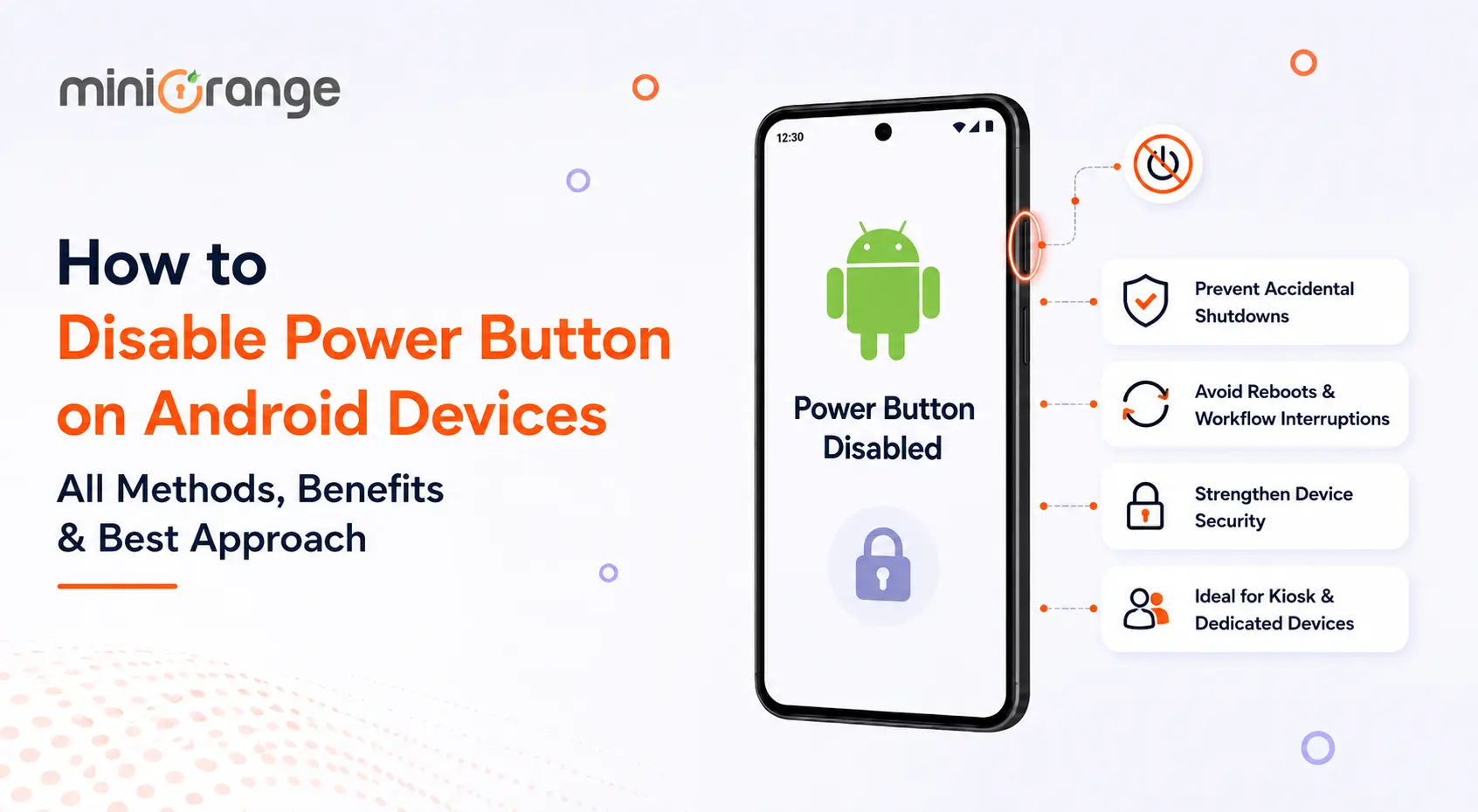
If you are managing a fleet of Android devices for retail, healthcare, logistics, or education, knowing how to disable power button on Android is not a nice-to-have. It is a foundational piece of your device security strategy.
This guide walks you through why it matters, how it is done, and what the smartest approach looks like at scale.
Why Disable Power Button on Android?
When Android devices are deployed in kiosk mode or locked down for a single business purpose, the power button remains physically accessible to anyone who picks up the device. That means employees, customers, or anyone else can accidentally or intentionally:
- Power off the device, interrupting critical workflows like POS transactions or check-in terminals.
- Trigger a reboot, which can clear app sessions or temporarily pull devices out of management.
- Access the power menu, which often reveals options like Emergency Mode or screenshots that bypass intended restrictions.
- Exploit hardware key combinations to exit kiosk lockdown, a well-known bypass method on Android devices.
In healthcare, a device going offline mid-consultation creates real risk. In retail, a self-service kiosk shutting down means a queue building up at the counter. In warehouses, a handheld scanner reboot means a shipment delay. The stakes are operational, financial, and in some industries, regulatory.
Disable power button on Android, and remove human error and deliberate misuse from the equation entirely. It shifts device lifecycle control from the end user to the IT team, which is exactly where it belongs.
Four Ways to Disable Power Button on Android Devices
There is no single universal method to disable power button on Android. The right approach depends on your deployment scale, device type, and how much control you actually need. Here is a breakdown of every available option.
1. Native Settings
Android does not offer a direct toggle to disable the power button through its default settings. However, some OEMs, particularly Samsung and Sony, include enterprise-grade controls within their custom firmware.
On certain Samsung devices, you can navigate to Settings > Accessibility or use the built-in Device Admin features to limit what the power button triggers. This is a fragmented approach, though, as it varies wildly across Android versions and device brands.
Best for: Single-device use cases or testing environments where you want a quick, no-cost fix.
Limitation: Not scalable, not consistent across device fleets, and often limited to hiding the power menu rather than fully disabling the hardware key.
2. Third-Party Button Remapping Apps
Apps available on the Google Play Store allow users to remap or disable hardware keys, including the power button. These tools can reassign what the power button does at the software level, such as redirecting it to launch a specific app instead of triggering a shutdown.
Examples include Button Mapper and similar utilities that work without root on modern Android versions.
Best for: Individuals or small businesses looking for a lightweight, quick solution.
Limitation: These apps can be uninstalled by users, offer no central management, and provide no audit trail. For enterprise use, they are a band-aid, not a policy.
3. Hardware Key Disabling via Root Access
Rooting an Android device gives you full system-level access, which includes modifying how hardware keys behave at the kernel level. With root, a developer can entirely remap or suppress the power button using tools like Tasker (with root permissions) or custom scripts.
Best for: Developers, tech enthusiasts, or highly specific custom deployments where you have full control of the hardware.
Limitation: Rooting voids the device manufacturer's warranty, introduces significant security vulnerabilities, triggers Google SafetyNet failures, and makes the device ineligible for enterprise APIs like Android Enterprise. For any legitimate B2B deployment, root access is a non-starter.
4. Disable Power Button Using MDM Solution
This is the enterprise-grade method, and the one IT teams at scale actually use. A Mobile Device Management (MDM) solution enforces restrictions through Android Enterprise APIs or OEM-specific SDKs, meaning no rooting, no manual configuration, and no dependency on user cooperation.
Through an MDM, IT admins can push a Restrictions Policy to managed devices that disables the power menu entirely. When a user presses the power button, nothing happens from a shutdown perspective. The device stays on. The kiosk keeps running. The workflow stays intact.
MDM solutions that support OEM frameworks like Samsung Knox, LG Gate, and Sony Enterprise SDK can go even deeper, disabling hardware key behavior at a firmware-adjacent level, giving organizations hardware-level control through a cloud console.
Best for: Any organization deploying 10 or more Android devices for a dedicated business purpose.
Limitation: Requires MDM enrollment and an active license. Fully worth it at any meaningful deployment scale.
Why is MDM the Best Way to Disable Power Button on Android Devices?
The MDM solution is a go-to approach to disable power button on Android devices. It wins on every dimension that matters to an IT admin: it is remotely enforceable, auditable, reversible, and does not require touching every device physically. You push a profile, and the policy applies across your entire fleet simultaneously.
Beyond just the power button, an MDM lets you disable hardware buttons across the board: volume keys, home button, recent apps, and more. This creates a truly locked-down Android environment where the physical device behaves exactly the way your business needs it to.
Critically, MDM solutions do this without rooting, without voiding warranties, and without leaving any security gaps that a root-based approach would introduce. IT retains remote reboot and shutdown capability through the console, so operational control is never lost. It is simply moved to the right-hand side.
Why Choose miniOrange to Disable Power Button on Android Devices?
miniOrange stands out as the go-to MDM solution to disable power button on Android devices for a few reasons that go beyond the standard feature checklist.
Zero-Touch, Over-the-Air Enforcement
There is no manual configuration, no physical device access required, and no delay between policy creation and enforcement.
Flexible Deployment
Whether your devices are running in dedicated device kiosk mode, fully managed mode, or work profile mode, miniOrange applies the right restrictions at the right layer.
Responsive Support and Transparent Pricing
Ensure straightforward licensing and a support team that responds at any time, wherever you are.
Frequently Asked Questions (FAQs)
1. Can the MDM solution disable the camera remotely?
Yes, most enterprise MDM solutions, including miniOrange, allow IT admins to disable the camera remotely through a device restrictions policy.
2. How to lock the power-off button?
The most reliable way to lock the power-off button on a managed Android device is through an MDM solution's restrictions policy.
3. Does disabling the power button improve device security?
Absolutely, and it is not just about preventing accidental shutoffs. Disabling the power button eliminates a common exploit path, making it significantly harder for unauthorized users to tamper with managed devices.
4. Can I disable USB file transfer on Android?
Yes, MDM solutions offer USB access policies that let IT admins restrict or completely block USB file transfer capabilities on managed Android devices.
Additional Resources
About the Author

Content Writer
With a background in Journalism and extensive experience in SaaS and cybersecurity content writing, Chaitali Avadhani has contributed to creating various forms of impactful content pieces across multiple verticals. At miniOrange, her role is to craft SEO-friendly and lead-generating content around Identity and Access Management (IAM) products and cybersecurity as a whole.
Leave a Comment