

A Mac can show up as enrolled in your management console and still have an overdue browser update, a missing FileVault recovery key, or an employee account with unnecessary administrator privileges. Enrollment gives IT a way to manage the device. It does not prove the device is secure.
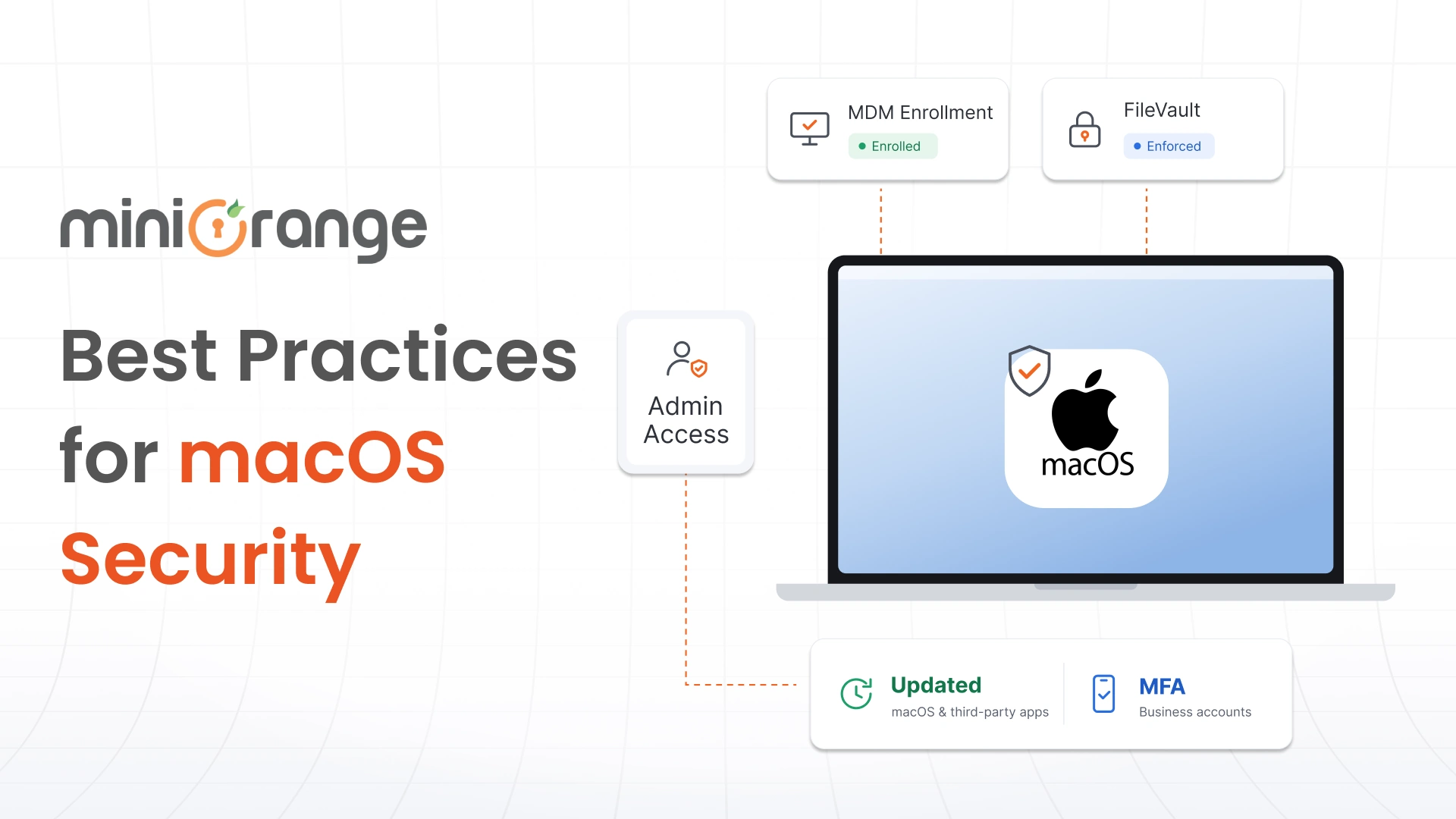
The most effective macOS security best practices start with a baseline IT can enforce and verify.
- Enroll company-owned Macs in Mobile Device Management (MDM)
- Enforce FileVault
- Keep macOS and third-party apps up to date
- Limit administrator access
Once you're done with the above, then protect business accounts with Multi-Factor Authentication (MFA) and monitor whether devices continue to meet your requirements. The goal is not to lock down every Mac the same way. It is to know which controls apply, whether they are working, and what IT should do when a device falls out of compliance.
Mandatory 10 macOS Security Best Practices IT Teams Can Enforce and Verify
The best practices for macOS security cover the full device lifecycle, from the first setup screen to reassignment or retirement. Start with a baseline for company-owned Macs, then document where shared devices, specialized teams, or employee-owned Macs need different policies.
1. Use MDM to Enforce macOS Security Policies
Use an MDM solution to apply security settings across your fleet automatically, instead of asking employees to configure their Macs manually.
Start with a core policy that covers:
- Password and screen-lock requirements
- FileVault
- Software updates
- Essential security tools
Use the CIS Benchmark for each macOS version you support as a starting point. After this, test recommendations against your business workflows before enforcing them.
Keep the common baseline small enough to maintain. If a design team needs a specific plug-in or a support team needs remote access, create a separate, scoped policy rather than weakening the baseline for everyone. Record who approved each exception, which devices it applies to, and when it expires.
After rollout, spot-check devices. A policy assigned in the console is not the same as a control confirmed on the Mac. Check the device’s last check-in and verify that the settings you care about are actually in effect.
2. Enable and Enforce FileVault Disk Encryption
FileVault protects data on a Mac’s startup volume when that volume is locked. Enable it through MDM and securely escrow each Mac’s personal recovery key. Escrow means storing a copy in an authorized management system so IT can retrieve it when recovery is necessary. Limit who can retrieve keys, audit access, and test recovery on a spare Mac before relying on it in production.
Track two things separately: whether FileVault is enabled and whether IT has a valid recovery key. A Mac can pass the first check and fail the second. That distinction matters when an employee forgets a password, or IT inherits a device that was encrypted before it enrolled.
For new deployments, also test that the intended user can unlock FileVault after a restart. Apple’s secure token and, on Apple Silicon, volume ownership requirements affect who can unlock the volume.
3. Manage Mac Enrollment and Activation Lock With Apple Business Manager
For company-owned Macs, assign devices to your MDM service through Apple Business Manager, referred to as Apple Business in current Apple deployment documentation, and use Automated Device Enrollment (ADE).
With ADE, Macs can enroll during Setup Assistant, and IT can configure the enrollment profile so users cannot remove it. Test a new Mac from unboxing through the first sign-in to confirm that it lands in the right management group and receives the expected policies.
Handle Activation Lock as a separate decision. It helps prevent unauthorized reuse of an eligible Mac, but a user-linked lock can also complicate reassignment.
For supervised Macs with Apple Silicon or the Apple T2 Security Chip, confirm which Activation Lock options your MDM supports and document how authorized staff can clear the lock. Test that process before a device is wiped, reassigned, or released from your organization.
4. Keep macOS and Third-Party Applications Updated
Give macOS and third-party apps their own patching policies. A Mac can be up to date on macOS and still run an outdated browser, VPN client, or collaboration app. Track installed versions of both the operating system and the apps your business depends on.
Use a small pilot group to test routine updates, then set a deadline for the broader rollout. Include users with different hardware and business-critical workflows so the pilot tells you more than whether the update installed.
Furthermore, define a faster path for urgent security fixes, and report devices that miss the deadline separately from devices that have not checked in. On Apple Silicon Macs, verify that your MDM has escrowed the bootstrap token where your managed update workflow relies on it for authorization.
5. Strengthen Mac Authentication and Access Controls
Give employees standard local accounts for everyday work. Reserve administrator access for tasks that need it, and use a separate administrative account or an approved, time-limited elevation workflow. If developers need elevated access for specific tasks, give them a defined way to get it rather than granting permanent admin rights across the team.
Set a screen-lock timeout and require authentication when the Mac wakes, or the screen saver starts. Keep an emergency local admin account under IT control, restrict access to its credentials, and test it before you need it.
When changing account settings, test both normal sign-in and startup after a restart. Local administrator rights, day-to-day sign-in, and FileVault unlock are separate checks.
6. Control Application Installation and Malware Exposure
Keep Gatekeeper and XProtect enabled. Gatekeeper helps evaluate downloaded software before it runs. On the other hand, XProtect detects and helps remediate known malware. These built-in protections still leave IT with a separate decision: which applications should employees be able to install or run for work?
Make approved software easy to get through a managed app catalog or direct deployment. For apps outside the catalog, set up a request process that checks:
- The publisher
- Download source
- Update mechanism permissions the app needs
Give exceptions to an owner and an expiration date. Also put browser extensions through the review process. An approved browser does not mean every extension installed in it is appropriate for company use.
7. Secure Mac Network Access and Sharing Services
Enable the macOS application firewall where your baseline requires it and review which apps need to accept incoming connections. Turn off sharing services such as Remote Login, Screen Sharing, and File Sharing unless there is a documented business need.
If support staff need remote access, scope the exception to the relevant Macs and authorized users rather than enabling it fleetwide.
Use managed Wi-Fi and VPN profiles where needed so employees do not have to configure corporate connections themselves. Before rolling out a network change, test it from both the office and a remote network.
Also test what happens when a certificate expires or a VPN profile fails. IT needs a recovery route that does not depend on the connection it is trying to fix.
8. Protect Company Data and Application Permissions
FileVault protects a locked startup volume. It does not decide what an employee or an app can do with company data after sign-in. Address that separately by defining where employees can store work files, which backup and sync tools they can use, and when files can be copied to removable storage.
Review sensitive macOS permissions such as Full Disk Access, Accessibility, and screen recording. Approve only what each app needs, and document why.
Use Privacy Preferences Policy Control (PPPC) profiles where supported. But test the actual user experience. Not every permission can be silently granted through MDM. For example, give employees clear instructions if an approved support tool needs them to authorize screen recording. Review permissions again when you replace or retire the tool.
9. Secure Business Identities With SSO and MFA
Use Single Sign-On (SSO) to centralize access to business apps through your identity provider. Require multi-factor authentication and prioritize phishing-resistant methods such as FIDO2 security keys or passkeys for administrators and other high-risk roles.
SSO and MFA solve different problems: SSO centralizes sign-in, while MFA makes a stolen password alone less useful.
Where your MDM and identity provider support Apple’s Platform SSO, pilot it with a small group before expanding it. Test first sign-in, offline access, password changes, and recovery after a restart.
Do not assume that an MFA policy for cloud apps also applies to every local Mac unlock or FileVault prompt. If you use device compliance to govern access, test what happens when a previously compliant Mac becomes overdue for an update or stops reporting.
10. Monitor Device Compliance and Prepare for Security Incidents
Build a dashboard around conditions IT can act on: FileVault status, recovery key availability, macOS and critical app versions, and last check-in. Where your tools support it, add firewall status and endpoint security agent health.
Set a threshold for stale inventory and mark a Mac that exceeds it as having an unknown status, not as compliant based on its last good report. Review any controls the dashboard cannot assess separately.
Write separate response procedures for a lost Mac and a suspected compromise. For a lost device, determine whether to revoke work sessions, remotely lock the Mac, or authorize an erase. Do not treat a queued command as proof that the device received it.
For suspected malware, involve your security team and preserve evidence before wiping. MDM helps with device administration and response actions, but it does not replace Endpoint Detection and Response (EDR), which provides security telemetry and investigation capabilities.
Common macOS Security Mistakes Businesses Should Avoid
Even teams that follow the best security practices around macOS can miss the handoffs between provisioning, support, and offboarding. These three mistakes show where a policy can look complete on paper but fail when someone needs it.
- Turning on FileVault without testing recovery: An encryption report cannot tell you whether the help desk can retrieve the right key under pressure. Test retrieval and recovery on a spare Mac, and make sure staff know who can approve access.
- Using the same policies for personal and company-owned Macs: Choose controls that match device ownership. Apple’s account-driven User Enrollment is designed for bring-your-own-device deployments and offers fewer management controls than more extensive enrollment methods. Decide what business access is appropriate rather than applying the corporate device policy unchanged.
- Treating a one-time setup check as ongoing compliance: A Mac that passed every check on its first day can fall behind on updates or stop reporting. Assign an owner to investigate stale devices, follow up on overdue patches, and close expired exceptions.
Simplify Mac Security With Centralized Device Management
miniOrange macOS MDM brings enrollment, policy enforcement, app management, and device reporting into one console.
It supports:
- Automated Device Enrollment through Apple Business Manager
- FileVault enforcement and personal recovery key escrow
- Managed app deployment
- Patch visibility
- Remote lock and erase for enrolled Macs
- Support for Platform SSO for compatible deployments
To evaluate the product, run a pilot that mirrors the work your IT team actually does. Enroll a new Mac, confirm FileVault is on and its recovery key is retrievable, deploy a required app, and enforce an update deadline.
Include a Mac that misses a check-in so you can see how the console distinguishes a stale device from a healthy one. That test tells you more than a feature checklist: It shows whether your team can go from spotting a gap to resolving it.
Frequently Asked Questions
1. What are the best macOS security practices for businesses?
Enroll company-owned Macs in MDM, enforce FileVault with recoverable keys, patch macOS and third-party apps, and limit local admin rights. Keep built-in malware protections enabled, require MFA for business accounts, and verify compliance continuously. Start with controls you can measure, such as encryption status, installed software versions, and last check-in.
2. Is macOS secure by default?
macOS includes built-in protections such as Gatekeeper, notarization checks, and XProtect. Those features help prevent and remediate malware, but they do not set your organization’s patch deadlines, escrow FileVault recovery keys, or determine which apps employees should use. Treat Apple’s protections as the starting point for a business security baseline.
3. How does MDM improve macOS security?
MDM gives IT a central way to apply settings, enforce FileVault, deploy apps and updates, and check device status. On supported Macs, it also lets authorized administrators issue remote lock or erase commands. The exact controls depend on the enrollment method, device capabilities, and MDM provider.
4. How can administrators monitor macOS security compliance?
Define what a compliant Mac looks like, then compare current device data with that baseline. Track FileVault and recovery key status, required macOS and app versions, and check-in age. Use a version-appropriate CIS Benchmark to identify settings that need additional checks, and record exceptions with an owner and an expiration date. Keep devices with stale or missing data in an unknown category until you can verify them.

Leave a Comment