
Your Android phone can run for days without a restart, but that does not always mean everything is working as it should. Apps may begin to crash, storage can fill up, the battery may drain faster, or connectivity can become unreliable. Over time, these issues can affect Android phone uptime and interrupt everyday use.
So, how do you check your phone’s uptime, and what can you do to keep it running reliably for longer? We have covered a few practical steps that can help you do both.
What is Device Uptime on Android?
Uptime on an Android phone is the total amount of time your device has been running since it was last restarted. Put simply, it shows how long the phone has stayed powered on and active without a reboot.
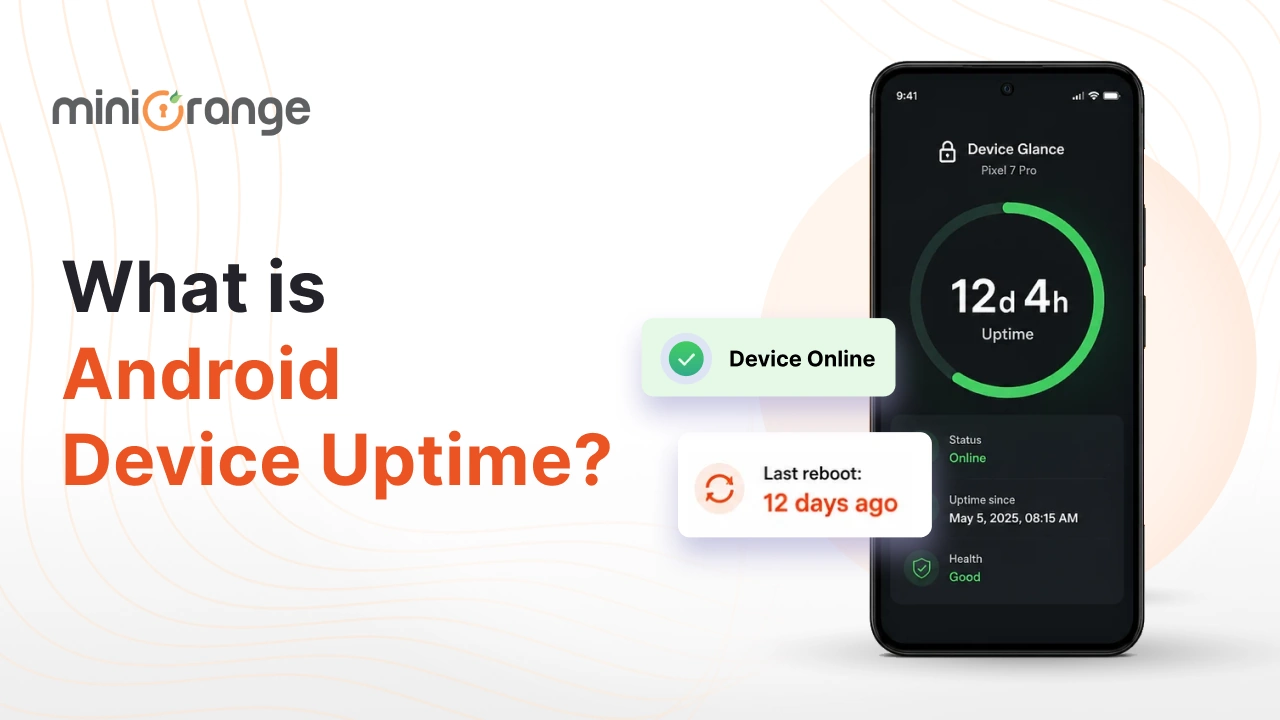
For example, an uptime of 12 days means your Android system has been running continuously for 12 days since the last restart. It does not mean you have spent 12 days using the phone. Your screen may have been off for most of that time, but the system was still running in the background.
Downtime is the opposite. It refers to the period when the phone is powered off, restarting, or otherwise unavailable for normal use. When you restart your device, the brief time it takes to shut down and boot back up counts as downtime, while the uptime counter resets and begins again once Android starts.
Checking uptime can be helpful if your phone becomes slow, apps close unexpectedly, or battery performance seems unusual. A high uptime is not automatically a concern, but restarting occasionally gives the system a fresh start by clearing temporary processes and resolving minor performance issues.
How is Android Uptime Measured and Calculated?
Android calculates uptime from the most recent system boot. A reboot resets the counter, so the value starts again after the device boots.
The calculation is straightforward:
Uptime = Current time - Last boot time
If your phone has been running since Monday morning, the uptime continues increasing until another boot occurs.
This information can help when investigating an unexpected restart. If an employee reports that a phone restarted overnight, the Android phone's uptime can help establish whether a recent boot occurred.
Looking at the device’s uptime alongside other system information can also reveal patterns. A device that repeatedly shows a short uptime may need attention, particularly when users also report freezing, crashes, or unexpected shutdowns.
How to Check the Uptime of an Android Phone Using Its Built-in Feature?
Where you find your Android phone’s uptime can vary slightly based on your phone’s brand and Android version, but the steps remain similar. On most phones, here’s what to do:
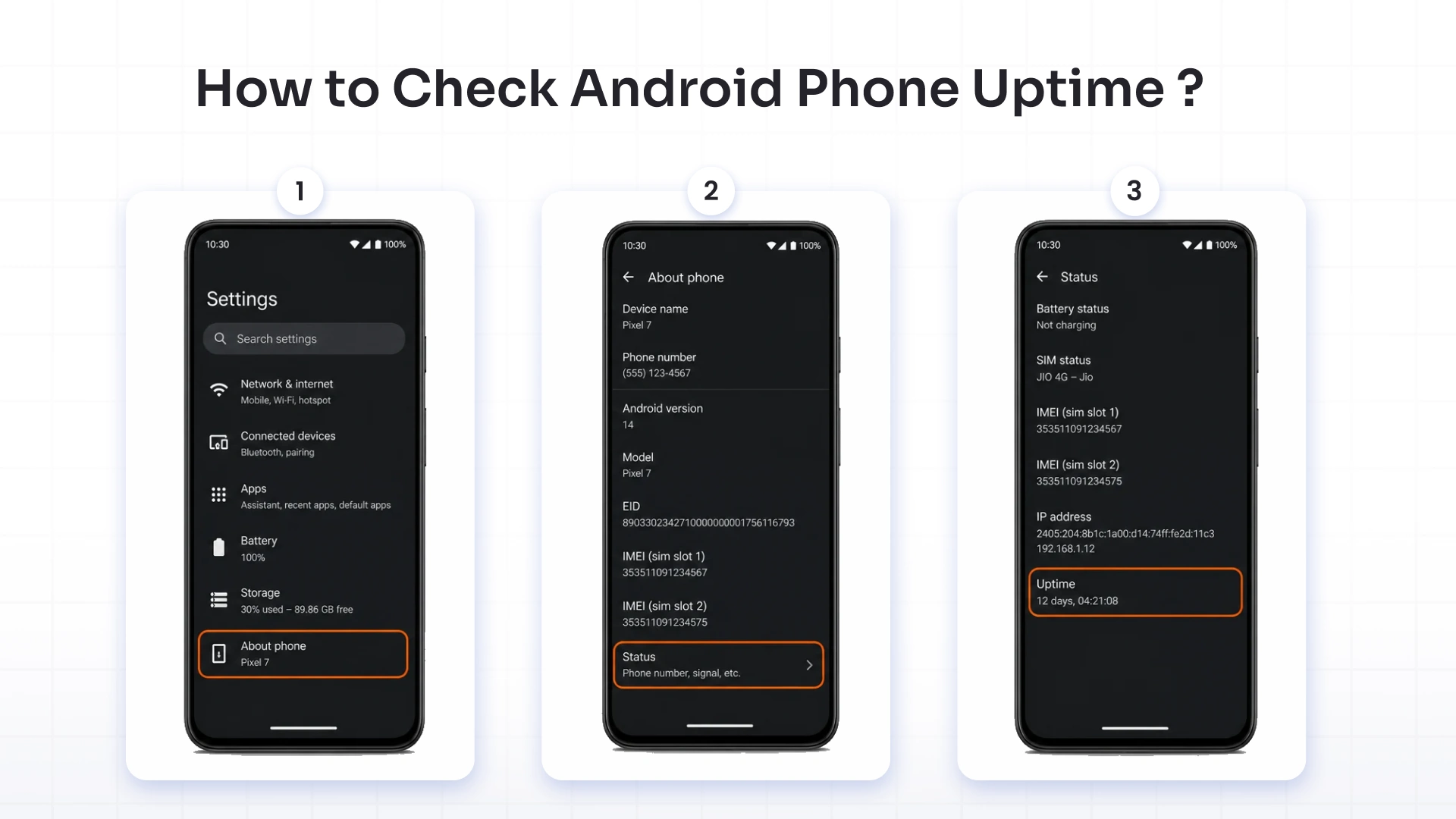
- Open Settings.
- Scroll down and tap About phone. Some brands may call it About device.
- Tap Status or Status information. On Xiaomi, OnePlus, and a few other brands, you may need to tap Detailed info and specs first, then Status.
- Scroll down until you see the Uptime value.
If your Settings menu has a search bar, type “uptime” to go straight to the relevant screen.
This built-in feature gives you a quick way to check your Android phone’s uptime on an individual device. The number shows how long your phone has been running since its last boot.
This works well when you need to check one phone. However, it becomes impractical when you have hundreds of devices across stores, offices, or field locations. A manual check on each phone takes time and makes it harder to spot patterns across the fleet.
Mobile Device Management (MDM) can help in this situation. It brings uptime and other device health information from enrolled phones into a central dashboard. This gives IT teams better visibility across the fleet, helps them spot issues faster, and can reduce unnecessary device downtime.
6 Best Ways to Increase Android Phone Uptime
A few practical changes can make a noticeable difference in how reliably an Android phone operates between restarts. These six steps can help prevent common issues, reduce interruptions, and support higher uptime.
1. Keep Apps Updated Regularly
Old app versions can contain unresolved bugs that trigger crashes, freezes, or slow response times. Turn on automatic downloads in Google Play settings, or check for pending releases once a week.
Regular updates can fix compatibility problems and help essential apps remain stable, reducing the chances of app crashes that interrupt normal phone operation.
2. Protect Battery Health
A battery under constant stress can contribute to unexpected shutdowns or forced restarts. Avoid letting the battery charge reach zero repeatedly, unplug the charger after it reaches full capacity, and keep the level around 20% to 80% when practical.
These habits support better battery performance and can improve battery life over time. Since Android phones use lithium-ion batteries, limiting unnecessary heat and excessive charge cycles can help maintain reliable operation for longer.
3. Free Up Storage Space
Limited storage space can make apps take longer to load and leave the system feeling sluggish. Remove duplicate photos, old downloads, and unused files, clear app cache from Settings when necessary, and move large files to cloud storage.
Keeping enough free space gives the system room to operate normally and can prevent storage-related slowdowns from affecting device performance.
4. Reboot Devices When Needed
A quick reboot can clear temporary files and close background processes that consume resources. You do not need to restart a phone on a fixed schedule.
When a device becomes unusually slow, an app stops responding or a temporary issue appears, a reboot can restore normal operation and prevent a small problem from causing longer downtime.
5. Install System Releases Promptly
Operating system releases can include security patches and bug fixes that address known problems. Check Settings periodically for available system updates and plan installations around business hours when the device supports critical work.
Addressing known software issues can improve stability and reduce the chance of problems that interrupt device availability.
6. Manage Devices With MDM
For businesses with a large Android fleet, MDM can help maintain higher uptime by giving IT teams centralized control over device maintenance and troubleshooting.
Teams can monitor device health, manage applications, deploy updates, and resolve issues remotely. Faster intervention can shorten interruptions and help keep business-critical devices available for longer.
How to Increase Uptime With miniOrange MDM
Uptime can drop for reasons that are easy to miss until a device stops doing its job. An unstable app, overdue update, or connectivity problem may seem minor at first, but each can lead to an interruption. miniOrange Android MDM helps IT teams manage these areas and take action before they affect device availability.
Here are some of the miniOrange Android MDM features that can help increase uptime:
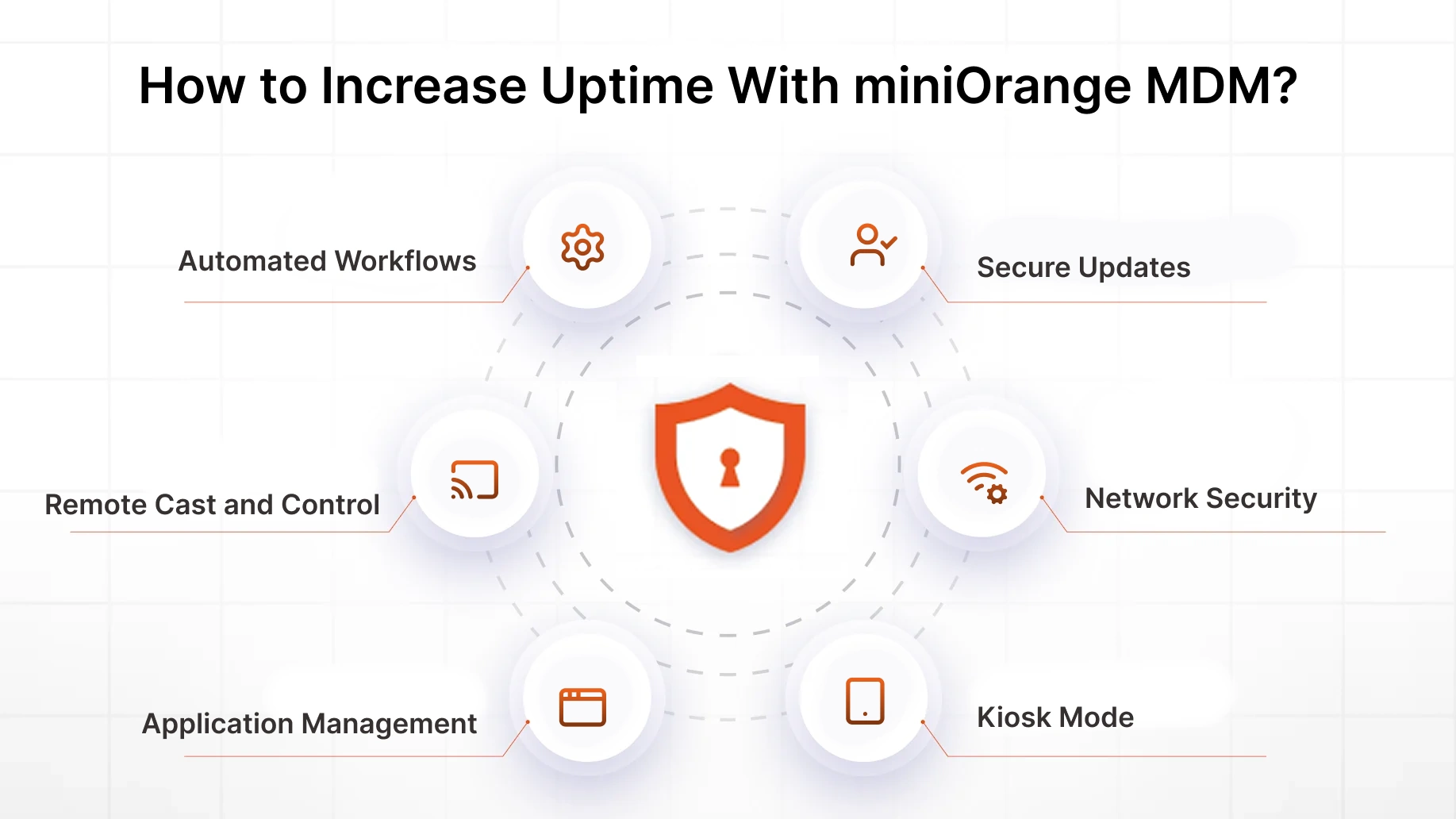
- Automated Workflows: Schedule routine actions such as device reboots, app data cleanup, and update tasks. Automation helps maintain devices at planned intervals without requiring manual checks.
- Remote Cast and Control: Access a device screen remotely to identify and resolve issues. IT teams can troubleshoot a device without waiting for physical access, which can shorten service interruptions.
- Application Management: Deploy required applications, control app access, and manage installations remotely with app management capabilities. Keep business-critical apps properly configured and up to date to reduce application-related disruptions.
- Secure Updates: Control OS update schedules and maintain approved software versions across devices. Timely fixes can address known stability issues before they affect device availability.
- Network Security: Manage Wi-Fi, VPN, and other connection settings from the platform. Consistent network configurations can help devices maintain the connectivity they need for business operations.
- Kiosk Mode: Lock devices to a single application or a defined group of apps for dedicated use cases such as PoS terminals, kiosks and digital signage. This limits unnecessary activity that could interfere with the device’s intended function.
Together, these controls help IT teams take a more proactive approach to Android device uptime. Instead of addressing every issue after it disrupts work, they can automate routine maintenance, respond to problems remotely, and maintain consistent configurations across the fleet.
FAQs
1. What does uptime mean on a phone?
Uptime on the phone shows how long a mobile phone has been running since its last restart. You can check the uptime in your phone’s settings to see how long it has been running since the last restart. It measures system activity rather than screen-on time.
2. Can a factory reset help improve a phone’s uptime?
A factory reset can help when persistent software problems cause crashes or unexpected restarts. However, resetting your phone removes personal data and settings, so try simpler fixes first. Rebooting helps with minor issues, while a factory reset is better suited to persistent problems.
3. What do “long uptime” and “short uptime” mean?
Long uptime means a phone has run for an extended period without a restart. Short uptime means it started more recently. Background processes, outdated apps, and minor software glitches can eventually affect performance. Regular reboots can clear temporary issues and help the system stay stable.
4. What are the impacts of extended device downtime?
Extended downtime can interrupt calls, apps, payments, and other business tasks. Problems with battery health, network connections, storage space, or technical errors can keep a device unavailable for longer. For business deployments, monitoring the uptime and addressing issues early can help reduce downtime and maintain optimal performance.
About the Author

Content Writer
Alankrita Shrivastava is a B2B technical content writer specializing in SaaS, cybersecurity, and WordPress security. She translates complex security concepts into clear, practical insights that support both technical decision-making and business outcomes. At miniOrange, she develops content on IAM, including SSO, MFA, and User Lifecycle Management, along with WordPress Plugin Security. She also covers broader security areas such as UEM, MDM, CASB, and DLP. Her work focuses on real-world use cases, security best practices, and solution-driven guidance that helps organizations assess risks, improve access control, and strengthen their overall IT security posture.
Leave a Comment