

We’ve all been there: you open your Jira admin panel, pull up your user list, and realize that a significant chunk of your accounts haven't been touched in months. Some belong to colleagues who left the company ages ago, while others belong to people who shifted roles and simply stopped using Jira.
These stale accounts are more than just digital clutter. They inflate your Atlassian license count (costing you money), introduce unnecessary security risks, and make it difficult to keep your Jira environment clean and compliant.
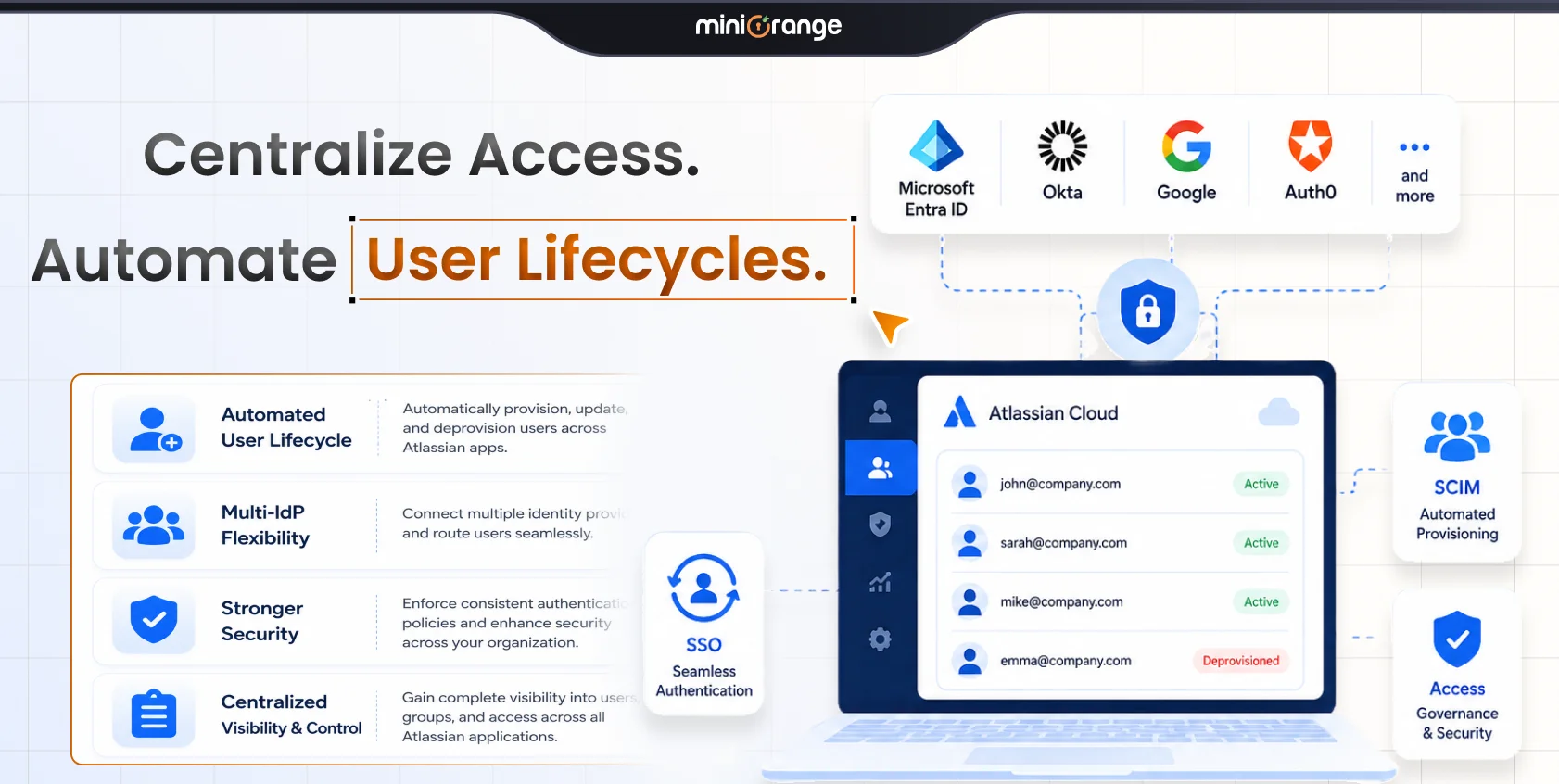
The miniOrange User Management app for Jira Cloud takes the headache out of this. It automates the entire lifecycle, from spotting inactivity and removing access to suspension, deletion, and even seamless restoration, so you can focus on more important work.
Why Inactive Users Are a Hidden Cost
Atlassian’s licensing model counts every active user account against your tier, regardless of whether they’ve logged in for six months or six minutes. For larger organizations, those unused licenses add up to a significant, unnecessary expense.
Common culprits inflating your license count:
- Offboarding gaps: Former employees whose accounts were never properly deactivated.
- Expired partnerships: Contractors or vendors who finished their projects but still have open access.
- Internal churn: Users who switched teams and no longer require access to Jira Software or Confluence.
- "Testing" clutter: Accounts created during onboarding that were never cleaned up.
Manual cleanup is slow, prone to human error, and rarely consistent. Automation is the only way to scale your license management effectively.
5 Steps to Automate User Cleanup with miniOrange
Step 1: Define Your Inactive Rules
First, let’s set the rules for what constitutes an inactive user in your organization. Head over to the Scheduler Cleanup tab in the miniOrange app and set your threshold.
- Custom Thresholds: Choose 30, 60, or 90 days, or set a custom number that fits your internal policy.
- Choose Your Action: Decide what happens when a user crosses that line: deactivate, suspend, or remove product access (Jira Software, Confluence, or Jira Service Management).
- Audit-Ready: You can opt to export user data as a CSV file every time the scheduler runs, keeping your compliance records pristine.
Once you hit save, the scheduler runs automatically in the background. No manual triggers, no stress.
Step 2: Clear Out the Dormant Accounts
Deactivating a user is a great first step, but those dormant accounts are still sitting there, taking up space. To get a truly clean instance, use the auto-delete feature.
- Set a Timer: You can set up auto-delete users who have been suspended or deactivated for an additional "X" number of days.
- The Benefit: This two-stage approach (deactivate first, then delete) gives you a safety buffer. If you deactivate someone by mistake, you have a window to restore them before the account is permanently wiped.
Step 3: Mark Protected Groups
We know that not everyone should be subject to automated cleanup. Your Org admins, C-suite executives, and key stakeholders need to keep their access, regardless of their login history.
- How it works: Simply add those specific individuals or entire groups to a Protected Group within the app.
- Result: These users are shielded from all automated deactivation, suspension, or deletion actions. You stay in control and avoid any business-critical disruptions.
Step 4: Proactive Email Notifications
Transparency is key. Before any access is revoked, it’s best practice to give the user a heads-up.
- The Workflow: The app sends an automated email notification before the inactivity deadline.
You can include an optional link in the email that allows the user to request continued access directly, reducing the chance of accidental lockouts and keeping your support queue empty.
Step 5: Seamless Access Restoration
If a user returns from leave or starts a new project and needs their access back, they shouldn’t have to wait for an admin to manually approve a ticket.
- Self-Service: Users can request access via the Jira Service Portal, email, or (coming soon) Slack or Microsoft Teams.
- Auto-Restoration: The app evaluates the request against your predefined rules (like group, domain, or role) and restores access automatically. It’s faster for the user and cleaner for you.
Before vs. After: The Transformation
| Feature | Before Automation | After Automation |
|---|---|---|
| User Status | Mix of active and ghost accounts | Only active, relevant users |
| License Cost | Inflated by unused accounts | Optimized and accurate |
| Admin Effort | High (manual audits) | Zero (set-and-forget) |
| Security | Forgotten/orphaned account risks | Tight security & access control |
| Compliance | No consistent trail | Full CSV logs & audit trails |
Why This Matters
Automating your user cleanup isn't just about keeping your user directory updated, it's a strategic move for your business:
- Reduced Costs: Reclaim Atlassian licenses immediately. The savings add up quickly for large teams.
- Tighter Security: Orphaned accounts are potential security gaps. Closing them is a vital step for meeting compliance standards.
- Efficiency: Move your admins away from repetitive housekeeping and back to high-value strategic work.
- Audit Readiness: With timestamped CSV exports and notification logs, you’ll never struggle to prove who has access to your systems and why.
Watch the Workflow in Action
Want to see how easy it is to set up? Watch the full demo walkthrough here.
Frequently Asked Questions
Q: How does miniOrange detect inactive users?
The app monitors the "last login" timestamp for every user. You set a custom threshold (e.g., 90 days), and once a user crosses it without logging in, the app triggers your chosen action.
Q: Can I exclude the managers or admins?
Yes. You can use the Protected Groups feature to exempt specific users or groups from all cleanup actions.
Q: Will users be warned before they lose access?
Absolutely. You can enable automated emails to be sent to users before the inactivity deadline. These emails can even include a link for them to request to keep their access active.
Q: How does this help with Atlassian license costs?
Since Atlassian charges per active user, every dormant account you remove or deactivate is a license you stop paying for immediately.
Q: How can a user get access back if they were deactivated?
They can request restoration through the Jira Service Portal, email, or Slack/Microsoft Teams. The app handles it automatically based on your rules.
Q: Does this work for all Atlassian Cloud products?
Yes, it covers Jira Software, Confluence, and Jira Service Management. You can even customize the rules for each product independently.
Q: Can I get a report of who is about to be cleaned up?
Yes. The app provides CSV exports during each scheduler run, giving you a defensible audit trail of every user flagged and every action taken.
Ready to optimize your Jira environment?
- Explore the miniOrange User Management app on the Atlassian Marketplace.
- Read more on why automated user management is a game changer.
- Visit miniOrange for Atlassian to see all our solutions.
Leave a Comment