
TL;DR
- Automated patch management scans, tests, deploys, and reports on updates across every device, without IT clicking through installs by hand.
- Manual patching works fine under 10 devices and quietly breaks down well before 200, especially with remote and hybrid fleets.
- Automated patch management covers both OS updates and third-party apps like Chrome, Zoom, and Adobe Acrobat, which is where most unpatched risk actually hides.
- Unpatched software is one of the most common ways attackers get into a network in the first place.
- Patch management works best as a native MDM feature rather than a bolted-on tool, since your MDM already owns the device inventory patching needs.
Every device on your network runs software. Every piece of that software needs updates eventually, including the devices.
Now multiply that across a couple hundred laptops, a rack of servers, and a dozen third-party apps everyone installed without asking IT first. Thousands of updates end up arriving on no schedule anyone controls.
Automated patch management hands that job to software built for it. Discovery, testing, deployment, and reporting all run on a schedule you set, without someone clicking through installs one device at a time.
Skip it, and the gap doesn't stay quiet for long. Attackers scan for unpatched software constantly, and a delayed update on even one endpoint can be the way in. This guide covers what automated patch management actually involves, how it works day to day, and where it fits inside a broader device and endpoint management strategy.
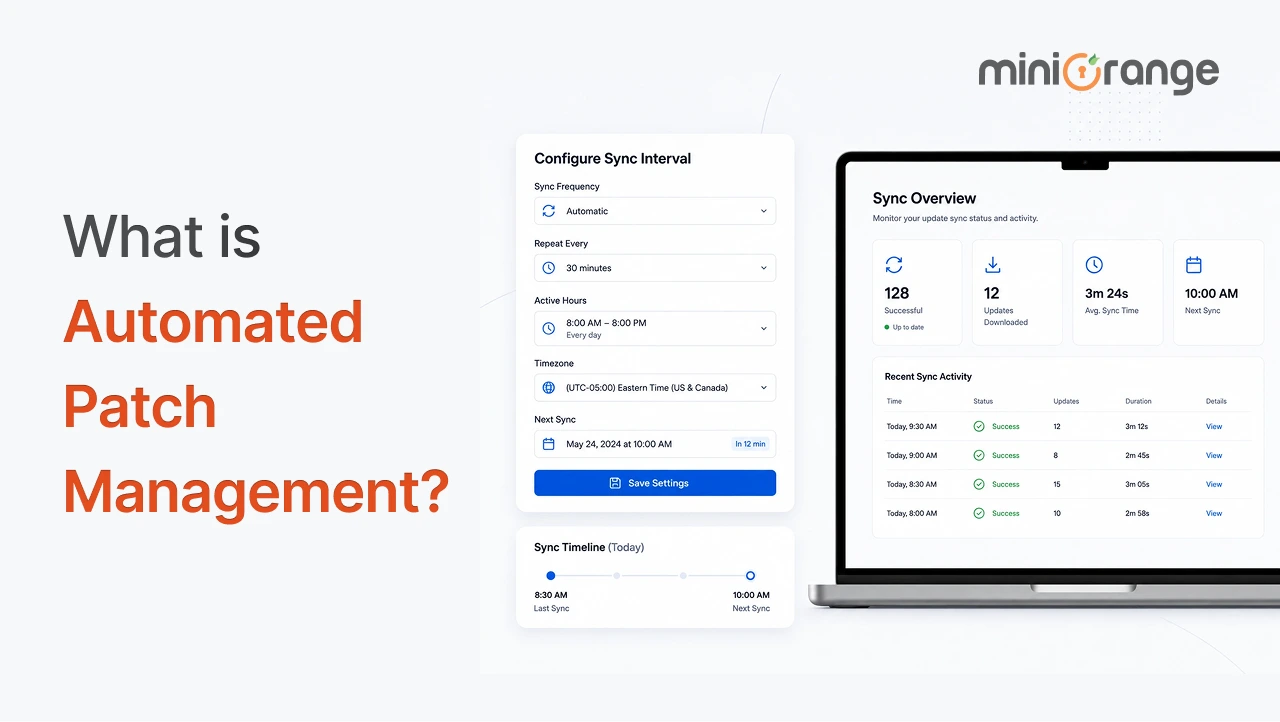
What Automated Patch Management Actually Means
Automated patch management is software finding, testing, and installing updates across your devices without a person doing it by hand.
That covers operating system patches (Windows updates, macOS updates) and updates for the third-party apps running on top of them, like Chrome, Zoom, Adobe Acrobat, and Java.
A tool built for this scans your fleet to spot what's missing, runs the patch through some form of testing or staged rollout, pushes it out on a schedule, and logs the result. You set policies once ("critical patches within 3 days of release") and the system executes them across every enrolled device from there.
This is different from clicking "check for updates" on one machine. It's centralized, and it scales to whatever size your fleet actually is, whether that's 50 devices or 5,000.
Manual vs. Automated Patch Management
IT teams tracking updates by spreadsheet or checking each machine individually run into the same three problems fast:
- They can't keep pace with release volume.
- They can't verify what actually got installed.
- They lose visibility the moment a device goes remote.
That last one matters more every year. A laptop sitting on someone's kitchen table isn't hitting the office network for a patch push.
Then there's raw volume. Microsoft alone typically ships dozens of security fixes on a single Patch Tuesday, on top of whatever third-party vendors release that same week. For a 3-person IT team checking each update against each device by hand, the math simply doesn't close, no matter how fast they move.
Patch volume has simply outpaced what any team can track by hand. Automation exists to close that gap and is therefore critical for an enterprise.
| Factor | Manual patching | Automated patch management |
|---|---|---|
| Detection | Someone checks each device or tracks versions in a spreadsheet | Scans run on schedule across every enrolled device |
| Speed | Patches often sit for weeks before anyone gets to them | Critical patches can deploy within hours of release |
| Consistency | Devices get missed, especially remote ones | Every enrolled device follows the same policy |
| Third-party apps | Usually skipped or handled case by case | Covered on the same schedule as OS updates |
| Remote and hybrid devices | Depends on network access or a physical visit | Patches regardless of where the device is |
| Reporting | Little to no audit trail unless someone builds one manually | Compliance logs generate automatically |
| IT time required | Hours per week, every week | Minutes to review reports and handle exceptions |
Manual patching works fine at 10 devices. It quietly falls apart well before 200, and automation is what lets the same 2 or 3 people on your IT team manage a fleet 10 times that size without adding headcount.
How Automated Patch Management Works
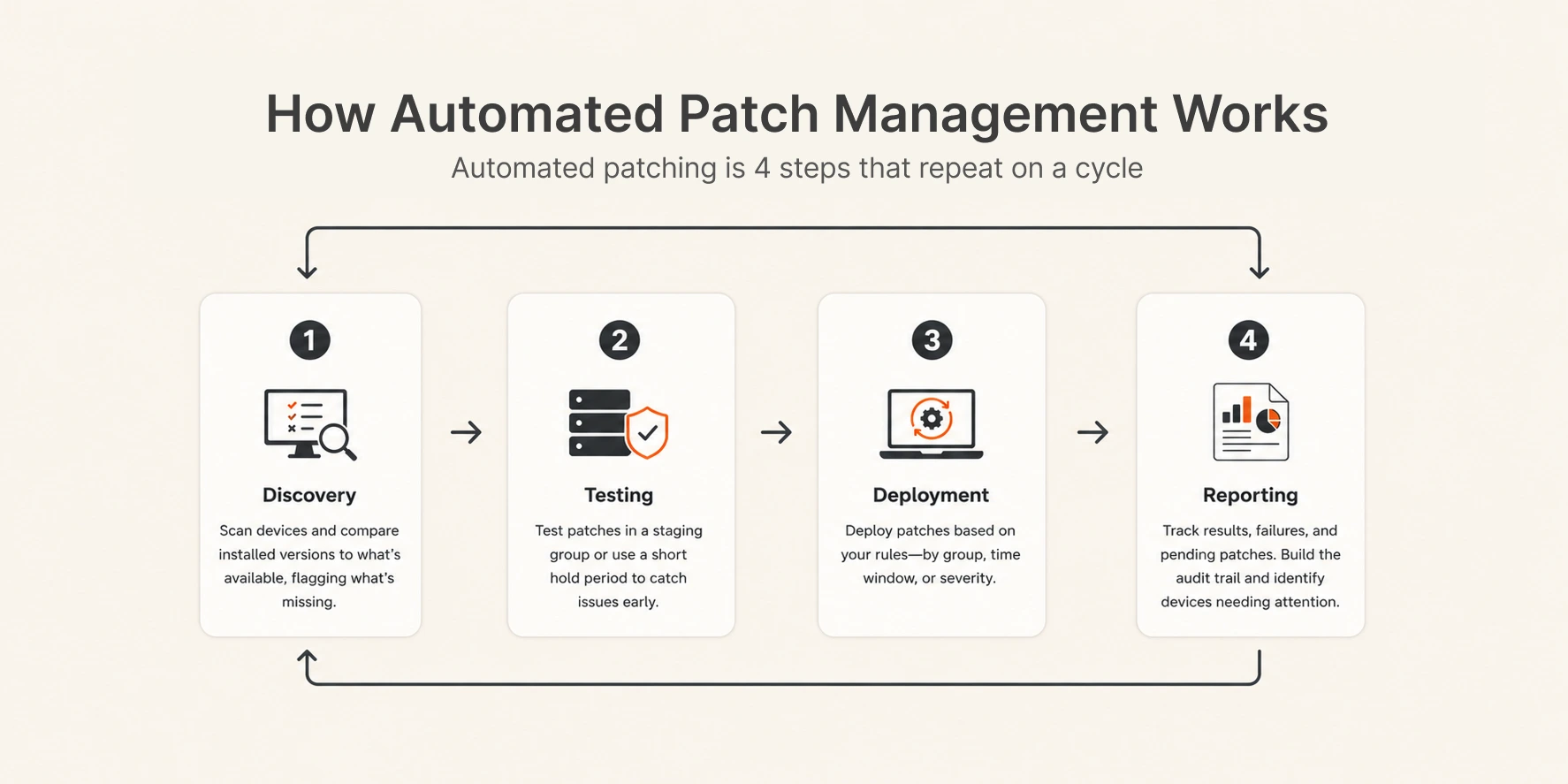
Strip away the marketing language, and automated patching is 4 steps that repeat on a cycle.
- Discovery: The tool scans every enrolled device and compares installed versions against what's currently available, flagging what's missing.
- Testing: Before a patch goes wide, it typically runs in a staging group or waits behind a short hold period, so IT can catch a bad update before it hits 500 machines instead of after.
- Deployment: Patches roll out based on rules you define, like device group, time window, or how critical the patch is. Most tools let you rank patches by severity, so a critical zero-day fix deploys within hours while a minor feature update waits for next week's maintenance window.
- Reporting: The system logs what installed, what failed, and what's still pending, and builds the audit trail your compliance team will eventually ask for. This is also where you catch the device that silently failed 3 patches in a row and needs a manual look.
None of this happens instantly the first time you turn it on. Expect a few weeks of tuning policies and testing groups before the process runs quietly in the background the way it's supposed to.
What It Actually Patches: Operating Systems and Third-Party Apps
Once that cycle is running, the next question is what it's actually covering. Two categories, and most teams handle them very differently until automation forces the issue.
Operating System Patches
Windows updates, macOS updates, and their security-critical siblings. Most IT teams already have some process here, even if it's manual, because OS vendors make noise about missing patches.
Third-Party Application Patches
Chrome, Firefox, Zoom, Adobe Acrobat, Java, and the dozens of other apps installed across a fleet that no one centrally tracks. This is where most of the actual risk hides. A fully patched Windows machine running an outdated PDF reader is still an open door.
Browser vulnerabilities make the case well. Chrome and Firefox ship security patches on a near-weekly cadence, and several of those patches close flaws already being exploited in the wild before a fix is available. An OS-only patching process would let every one of those slide.
A capable automated patch management system handles both categories from the same console, with the same scheduling logic and the same reporting. Splitting OS patching from third-party patching into two separate workflows, or two separate tools, is where a lot of environments quietly lose track of their own exposure.
Key Features to Look for in an Automated Patch Management Solution
That gap between tools is why the feature list matters more than the marketing page. Here's what actually earns the "automated" label:
| Capability | What it means in a patch management solution |
|---|---|
| Automated patch discovery | Scans devices to identify missing OS and application updates. |
| Patch deployment and scheduling | Automatically installs approved patches at specified times or maintenance windows. |
| Patch approval workflows | Allows IT admins to test or approve patches before broad deployment. |
| Third-party application patching | Updates software like Chrome, Firefox, Adobe Acrobat, Zoom, Java, etc., not just operating systems. |
| Patch compliance reporting | Shows which devices are fully patched, missing updates, or have failed installations. |
| Rollback or recovery support | Helps recover if an update causes compatibility or stability issues (if supported). |
| Remote patch management | Enables patching devices regardless of whether they're on the corporate network. |
| Policy-based automation | Applies different patching rules to different groups of devices (e.g., IT, Finance, production systems). |
| Restart management | Controls when devices reboot after installing updates to minimize disruption. |
| Alerts and notifications | Notifies admins about failed deployments, critical patches, or vulnerable devices. |
If you can only prioritize two, make it pre-deployment testing and rollback support. Everything else improves efficiency. Those two are what stop a bad patch from becoming a company-wide outage.
The Real Benefits of Automated Patch Management
Move past "faster patching," and the benefits split into three real categories: security, compliance, and time.
On security, the case is direct. With vulnerability exploitation now a leading way attackers get into networks, an environment where patches deploy within days of release instead of sitting for months closes off a huge share of that exposure. That's the difference between a known flaw sitting open for a quarter and one that's closed before most attackers even start scanning for it.
On compliance, most frameworks (HIPAA, PCI DSS, SOC 2, GDPR) require organizations to demonstrate that systems stay current. A reporting trail showing what patched, when, and on which devices turns an audit from a scramble into a five-minute export.
On time, this is the benefit teams notice first, even though it's the least interesting one to talk about. An IT admin who used to spend a Friday afternoon patching 40 laptops one by one gets that afternoon back, every week, indefinitely.
Where Automation Still Needs Guardrails: Challenges and Best Practices
Automating the patching process shifts where IT's attention goes. It moves from clicking install on every device to watching for the exceptions automation can't safely handle on its own. The majority of the exceptions or challenges for patch automation management are:
1. Compatibility Issues
A patch that works fine on 95% of devices can break a specific driver or legacy app on the other 5%. This is exactly why pre-deployment testing exists: catch it on 10 test machines, not 500 production ones.
2. Bandwidth and Timing
Pushing a 2GB update to 300 remote laptops at 9 am on a Monday is a good way to make everyone's video calls freeze. Scheduling deployment windows around business hours and network capacity avoids this entirely.
3. Legacy Systems
They are the hardest problem to automate around. If a device runs an OS the vendor stopped patching years ago (an old Windows Server build still running a line-of-business app, for example), no amount of automation fixes that. Those systems need a replacement plan, not a patching policy. At best, automation can isolate them on the network and flag them clearly so they don't get lost in a "fully patched" report that isn't actually true.
Best practices for automated patching across all these issues are:
- Start with a small pilot group before rolling a policy out fleet-wide.
- Expand in stages, not all at once.
- Keep a rollback patch ready for anything that ships wide.
- Schedule deployment windows around business hours and bandwidth limits.
- Flag unpatchable legacy devices explicitly instead of letting them sit in a "compliant" report.
Why Patch Management Works Better as a Native MDM Capability
Here's the part that changes depending on what kind of tool you're evaluating: is patch management the whole product, or one capability inside a broader mobile device management platform?
There's a real argument for the second option. Your MDM already knows which devices exist, what OS they're running, what groups they belong to, and what policies apply to them. Patch management that lives inside that same platform uses all of that context automatically, instead of syncing device inventory between two separate systems that can drift out of alignment.
This matters even more in mixed environments: Windows laptops, macOS machines, a few Linux servers, and a scattering of ChromeOS devices, all managed under one roof. An MDM built to bridge traditional and modern patching handles that mix from a single dashboard, rather than forcing IT to stitch together a Windows-only patch tool with something else for everything that isn't Windows.
It also simplifies the buying decision. Instead of adding a dedicated patch management vendor on top of your existing MDM, you're extending a platform you're already paying for and your team already knows how to use.
Picture the alternative: an admin checking device compliance in the MDM console, then switching to a separate patch tool to see what's actually installed, then reconciling the two lists by hand when they don't quite match. That reconciliation work disappears the moment patching lives inside the same system that already owns the device record.
Who Should Use Automated Patch Management?
If any of the following sound familiar, this is worth setting up now rather than after something breaks.
- IT teams past the 50 to 100 device mark. This is roughly where manual patching stops being manageable and starts eating a full day or more every week.
- Distributed and hybrid workforces. If devices spend most of their time off the corporate network, patching that depends on network proximity leaves those devices behind by default.
- Regulated industries and audit-heavy environments. Healthcare, finance, and any organization that has to show HIPAA, PCI DSS, or SOC 2 auditors a patch compliance trail benefits from reporting that builds itself instead of getting assembled the week before an audit.
- Mixed-OS or BYOD environments. Windows, macOS, Linux, ChromeOS, and personal devices enrolled under a BYOD policy all need patching, and juggling a separate process for each one is where coverage gaps start.
- Lean IT teams. Fewer hands doesn't mean fewer devices. Automation is what lets 2 or 3 admins cover a fleet that would otherwise need a much bigger team.
If none of these describe your environment yet, they usually will eventually. Device counts grow, remote work sticks around, and compliance requirements rarely get lighter.
How miniOrange Approaches Automated Patch Management
miniOrange builds patching into the MDM platform itself, using the same device inventory, groups, and policies as every other feature. It covers Windows, macOS, Linux, and ChromeOS from one dashboard, so a mixed fleet doesn't need a separate tool for the machines that aren't running Windows.
On the Windows device management side specifically, the platform adds pre-deployment testing, risk-based prioritization so the highest-severity patches move first, and compliance-ready reporting mapped to GDPR, HIPAA, SOC 2, and PCI DSS. Third-party application patching runs through the same console: schedule updates, set sync intervals, and trigger bulk actions across device groups without touching each machine individually.
It also handles the reality that devices don't all look the same. Laptops, desktops, BYOD phones, remote endpoints, kiosks, shared devices: each gets patched under policies suited to how it's actually used, not one rule applied to everything enrolled.
If you want to see the specific controls, the Windows patch management software walks through what's configurable.
Frequently Asked Questions (FAQs)
1. What is Automated Patching?
It's the process of scanning devices for missing updates and installing them automatically, without IT manually checking each machine.
2. What is Automated Patch Management?
It's the same process at a system level: automated discovery, testing, deployment, and reporting for OS and application updates, applied consistently across every device on the network.
3. How Does Automated Patch Deployment Work?
A tool scans your devices, tests patches before wide release, deploys them based on the schedule and rules you set, and logs the result. Most platforms let you define separate schedules for different device groups.
4. What is an Automated Patch Management System?
It's the software or platform running this whole process, either as a dedicated patch tool or as a feature inside a broader MDM or UEM platform.
5. Is Automated Patching Safe?
Yes, when it includes pre-deployment testing and rollback support. Skipping those two steps is where "automated" patching turns risky, since a bad patch can spread to every device before anyone notices.
6. Can Automated Patching Update Third-Party Applications?
A capable system can, yes. Apps like Chrome, Zoom, Adobe Acrobat, and Java need the same patch discipline as the operating system, and tools that only cover OS updates leave a real gap.
Additional Resources
About the Author

Content Writer
Stutee writes about cybersecurity and identity security, covering technologies such as MFA, IAM, PAM, and endpoint management. Her work focuses on translating what products do into why audiences should care, ensuring technical depth does not come at the cost of readers clarity.
Leave a Comment