
AI Agent Governance for Jira & Confluence (Claude and ChatGPT)
The miniOrange AI Governance Gateway is a policy and audit layer that sits between AI assistants and your Atlassian Cloud data. Every AI assistant connected to Jira or Confluence operates with the permissions of the user who signed in; it can reach every project they can open, every space they can read, and it can create, edit, and, comment wherever the user has access to.
Benefits
Deploying the AI Agent Governance for Jira & Confluence (Claude and ChatGPT) delivers immediate control and visibility over AI access to your Atlassian estate:
- Pre-Execution Enforcement: Denied requests stop at the gateway. Data is never retrieved from Atlassian and never reaches the model.
- Separation of User and AI Permissions: Restrict what AI can access and do without altering any user's existing Jira or Confluence permissions. An engineer with access to 100 projects keeps all 100; the AI acting for them can be limited to the 80 that were approved.
- Granular Governance: Combine AI client, user group, operation, and project or space in a single rule to target exactly the surface you want to control.
- Complete AI Audit Trail: Every tool call is recorded with the requesting user, the assistant that made the call, the operation, the decision, and the result.
- Consistent Policy Across Clients: Any MCP-compatible assistant connecting through the governed endpoint is subject to the same policy set and writes to the same log.
- Atlassian-Native Deployment: 100% Built on Forge. miniOrange cannot access or store your Atlassian instance data.
Key Features
The app is built on four pillars that together turn AI access into a deliberate decision rather than an inherited default:
1. Access Policy Engine
- Default Decision: Define a baseline of Allow or Deny, plus an ordered list of rules.
- All-Fields Matching: A rule matches only when all of its fields match the request.
- Deny Wins: When several rules match, Deny overrides Allow, so a block is never undone by a more permissive rule.
- Immediate Effect: Saved policy changes apply on the very next AI request, no restart or reconnection.
2. Per-Operation Control
- Specific Tools: Select an individual tool such as createJiraIssue or updateConfluencePage.
- Wildcards: Use * for everything, or create*, update*, search*, and get* for operation classes.
- Live Tool List: Use Refresh tools to pull the current tool list from the connected environment.
3. Group, Project, and Client Targeting
- Group-Based Policy: Target rules at one or more Atlassian groups, or at any user. Multi-group targeting means a single rule can cover administrators, developers, and contractors without duplication.
- Project and Space Scoping: Restrict a rule to specific Jira projects or Confluence spaces, or leave it as Any space. Scoping affects the AI only; a user's direct access is unchanged.
- AI Client Targeting: Apply a rule to a named client such as Claude AI, or to any assistant connecting through the gateway.
4. Monitoring and Audit
- Activity Log: One row per AI tool call, with search and filters for user, decision, and operation.
- Governance Dashboard: Status banner, metric cards for tool calls, block rate, active users, and write actions, plus activity trends and an allowed-versus-blocked breakdown across Today, 7 days, and 30 days.
- Guided Connection Flow: The Getting Started page issues your MCP server URL and walks through the Rovo domain allowlist step required to close the native-connection back door.
Additional Capabilities
Beyond core access control, the gateway includes safeguards for edge cases and long-term operation:
- Log Maintenance: Refresh pulls the latest entries; Clear log removes existing records when required by your retention policy.
- PII Policies (Coming Soon): A dedicated Data Protection module for detecting and controlling personally identifiable information in AI responses.
- 24/7 miniOrange Support: Setup documentation, an in-app Setup Guide link, and live expert assistance.
Pre-requisites
To ensure a smooth deployment of the AI Governance Gateway, verify the following requirements:
- Atlassian Environment: A Jira Cloud site with the app installed. Confluence spaces are governable through the same policy set.
- Administrative Privileges: Atlassian site administrator rights are required to install the app and to modify Rovo MCP server domain settings.
- Rovo MCP Server Access: Administrative access to your Rovo MCP server settings, to add the governed callback URL to the domain allowlist and to disable Atlassian-supported domains.
- AI Client Requirements: A Claude plan that includes custom connectors. If Add custom connector does not appear in Claude's settings, the plan tier does not currently support it. Any other MCP-compatible client must support custom server URLs and OAuth.
- Per-User Sign-In: Group-based and space-based rules require each person to sign in individually through the gateway. Without individual sign-in, the app cannot resolve Atlassian group membership, and those rule types cannot be evaluated.
- Licensing: A valid Atlassian Cloud license and a valid license for the miniOrange Claude Governance & Access Control for Jira app.
Getting Started
The Getting Started tab is the connection workflow. It issues the MCP server URL that AI clients connect to, walks through the one-time Rovo configuration that forces all AI traffic through that URL, and confirms the three steps required inside the AI client itself. A banner at the top notes that this is one gateway for Jira & Confluence: once Jira is governed, connecting Confluence in Jira Admin Settings → Marketplace apps → Connected apps shares the same URL, policy, and audit log.
The page presents the workflow in two numbered steps, followed by a three-card summary of the client-side connection.
1. Allow This Domain in Rovo (Required)
This is a one-time setup step, and it is the step that determines whether your governance can be bypassed. Without it, an AI client can still connect straight to Atlassian through a native Atlassian-supported domain, where no policy is checked and no action is logged.
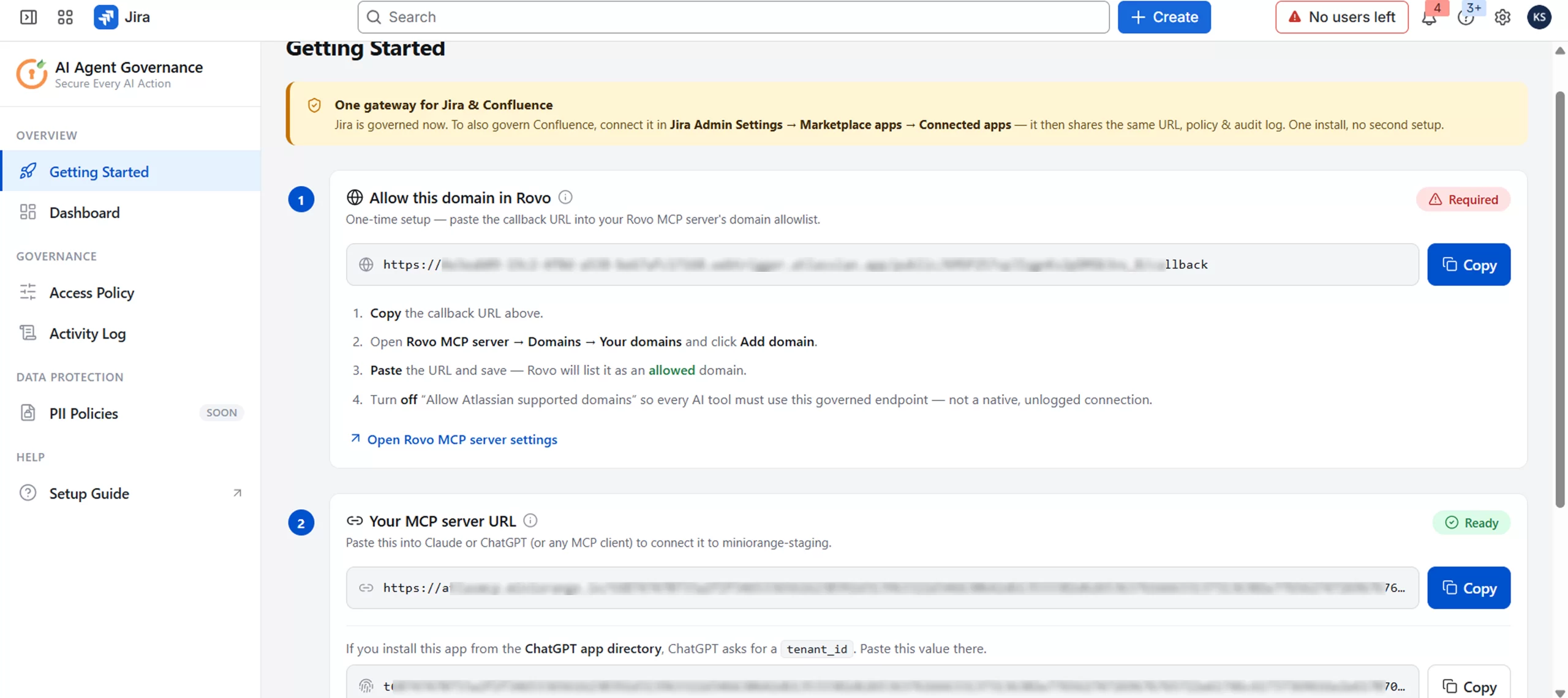
- Status Badge: Reads Required until the domain is added.
- Callback URL: The value Rovo needs, in the form https://<site-id>.webtrigger.atlassian.app/public/<token>/callback.
- Copy: Copies the callback URL.
- Open Rovo MCP server settings: Deep link to the correct Rovo configuration page.
The four steps, in order:
- Copy the callback URL from the card.
- Open Rovo MCP server → Domains → Your domains and click Add domain.
- Paste the URL and save — Rovo lists it as an allowed domain.
- Turn off "Allow Atlassian supported domains" so every AI tool must use this governed endpoint, not a native, unlogged connection.
Step 4 is the one that matters most. Until Atlassian supported domains are disabled, every AI tool retains the option of a native, unlogged connection that ignores your policy entirely.
2. Your MCP Server URL
This is your site's private endpoint for AI assistants. Claude or ChatGPT (or any MCP client) connects here instead of connecting to Atlassian directly, which is what causes every call to pass through your policy and your log.
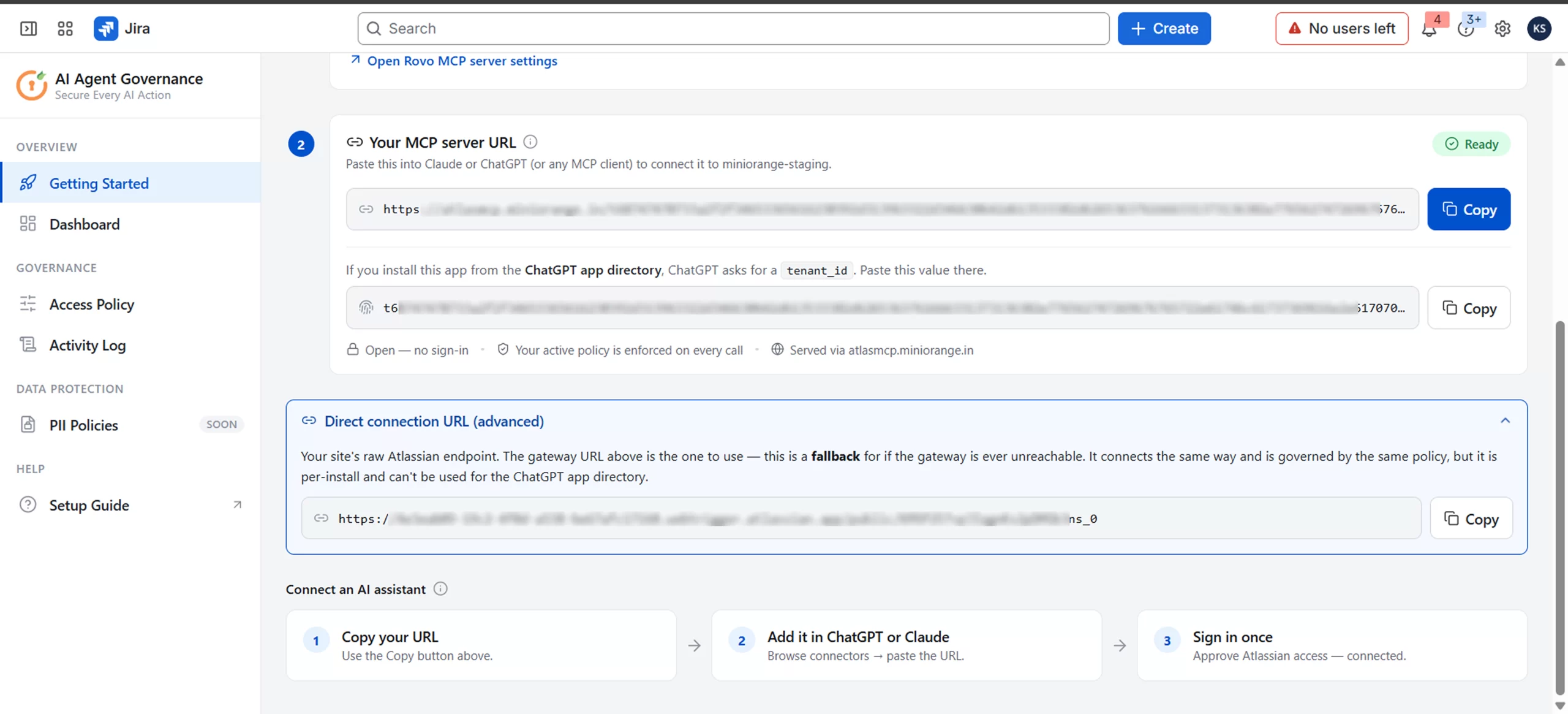
- Status Badge: Displays Ready once the app is installed and the endpoint has been provisioned. The URL is generated automatically; you never construct it manually.
- The URL: A unique address served via atlas.mcp.miniorange.ai, in the form https://atlas.mcp.miniorange.ai/<tenant_id>/mcp.
- Copy: Copies the full URL to the clipboard for pasting into the AI client.
- tenant_id (ChatGPT app directory): If you install this app from the ChatGPT app directory, ChatGPT asks for a tenant_id. A separate field on the card exposes this value with its own Copy button; paste it there.
- Open — no sign-in: Indicates the endpoint itself does not require authentication to reach. Policy is still applied to every call.
- Active policy confirmation: Confirms the current saved policy is enforced on every call.
- Served via atlas.mcp.miniorange.ai: Identifies the delivery domain for the endpoint.
- Direct connection URL (advanced): An expandable option for advanced setups that need the endpoint without the atlas.mcp.miniorange.ai layer.
Important: Group-based and space-based rules require per-user sign-in to evaluate, because the gateway needs the signed-in identity to resolve Atlassian group membership. Operation-level and client-level rules apply regardless. Plan your policy accordingly.
3. Connect an AI Assistant
The card strip at the bottom of the page summarizes the client-side work in three steps:
- Copy your URL: Use the Copy button on the MCP server URL card above.
- Add it in ChatGPT or Claude: Browse connectors and paste the URL. In Claude, open Settings → Connectors → Add custom connector, paste the URL into the Server URL field, leave advanced OAuth fields blank (the client populates them automatically), and click Add / Connect.
- Sign in once: Approve the Atlassian access prompt — connected. This establishes the identity the gateway uses to apply group rules and to attribute every logged action. Required once per connection.
Verify the connection: Ask the assistant something simple such as "Search my open Jira issues". Returned results confirm the path works end to end, and the call should appear in your Activity Log.
Benefits
- Single Governed Route: Completing the Rovo step makes the gateway the only path from an AI client to your Atlassian data.
- One Install for Jira & Confluence: Governing Confluence reuses the same URL, policy, and audit log.
- Accurate Attribution From Day One: Individual sign-in means group rules apply correctly and every action is tied to a real person from the first request.
- One-Query Verification: You confirm the path is live before writing a single rule.
Use Case
Scenario: Your security team has approved a pilot of Claude and ChatGPT with the engineering group, on the condition that no AI traffic can reach Atlassian outside the governed path.
The administrator installs the app and opens Getting Started, where the domain step shows Required. They copy the callback URL, add it to the Rovo MCP server's domain allowlist, and disable "Allow Atlassian supported domains," closing native connections entirely. With the MCP server URL now showing Ready, they distribute it to pilot participants, who each add it as a connector and sign in individually (ChatGPT users paste the tenant_id when prompted). A single test query confirms the route is live and appears in the Activity Log under the correct user, before any policy rules are written.
Use Case
Scenario: Your security team has approved a Claude and ChatGPT pilot with the engineering group, on one condition: proof that AI cannot reach Jira or Confluence outside the governed path.
Getting Started produces that proof in a single pass:
- Close the bypass: Allowlist the callback URL and turn off "Allow Atlassian supported domains," so no native, unlogged Rovo connection remains.
- Prove it in the log: A test query from Claude now appears in the Activity Log under the engineer's real identity, confirming the only route is the governed one.
- Cover Confluence too: The one-gateway setup reuses the same URL, policy, and log, so the pilot's approval extends to Confluence without a second review.
- Verify before rules exist: One query confirms the path is live and attributed, before a single policy rule is written.
Dashboard
The Dashboard provides a summarized view of recent AI activity across your Atlassian site. It is designed for a fast health check: how much AI traffic is arriving, how much of it is being blocked, who is generating it, and how much of it writes data.
A time range selector at the top toggles between Today, 7 days, and 30 days. Every metric and chart on the page respects the selection.
Listed below are the panels available and how to read them:
1. Status Banner
A single-line summary at the top of the page indicating whether anything requires attention.
- Policy enforced, nothing needs attention: Appears when no failures have occurred and the policy is applying normally.
- Supporting Text: States how many recent calls were blocked and which policy produced that outcome, for example "0 of 0 recent calls were blocked by your default-allow policy (no additional rules)."
- Chips: Show failures and the number of AI clients observed in the selected range.
The banner is useful as a daily glance: if it is green and the failure count is zero, the gateway is operating as configured.
2. Metric Cards
- Tool Calls: The total number of AI tool calls processed by the gateway in the selected range. Compares against the prior period where a baseline exists; otherwise shows "No prior-week baseline."
- Block Rate: The percentage of processed calls denied by policy, with the absolute count of blocked calls beneath.
- Active Users: The number of distinct people whose identity was attached to at least one AI call, plus how many assistants those users worked across.
- Write Actions: The count of calls that created, updated, or otherwise modified Atlassian data, shown alongside total data returned.
How to read these together: Tool calls tell you adoption. Block rate tells you whether your policy is doing anything, and whether it may be too aggressive. Write actions are the number to watch most closely, because reads are recoverable and writes are not.
3. Charts and Breakdown Panels
- Activity Over Time: A line chart plotting tool calls per day across the selected range. Use it to spot adoption trends, unusual spikes, or periods where an assistant went quiet unexpectedly.
- Allowed vs Blocked: A donut chart showing the proportion of calls allowed against those blocked, with absolute counts in the legend. A block rate of zero with a permissive default policy is expected and normal; a rate that climbs suddenly usually means a new rule is catching more traffic than intended, or an assistant is attempting operations it was not attempting before.
- AI Clients: Lists the assistants that connected through the gateway during the selected range, so you can confirm that only approved clients are in use.
- Top Operations: Ranks the tools invoked most frequently. This is the fastest way to understand what your users are actually asking AI to do, and the most useful input when you sit down to write or tighten rules.
Benefits
- Thirty-Second Status Check: Turns a governance status question into a glance rather than a log-mining exercise.
- Unapproved Client Detection: Any assistant reaching the gateway is listed, so rogue clients surface quickly.
- Evidence-Backed Write Reporting: Gives you a defensible answer on write activity, which is usually the first question security asks.
Use Case
Scenario: Two weeks into your Claude rollout, you need to report to your security team on whether AI is performing write operations against Jira and whether any policy blocks have occurred.
The administrator opens the Dashboard and selects the 7-day range. Write actions show how many calls modified data, and Block rate shows whether policy denied anything. Top operations identify which tools dominate the traffic, and AI clients confirm no unapproved assistant has connected.
For any figure that needs explanation, they click through to the Activity Log for the specific entries behind it, producing a complete report without reconstructing anything from Atlassian's general audit trail.
Access Policy
The Access Policy tab is where you decide what AI agents may do. A policy consists of a default decision plus a list of rules, and every AI tool call is evaluated against that policy before it executes.
Listed below are the settings required to define and maintain your policy:
1. How Rules Work
A rule matches when all of its fields match the request. When several rules match the same request, Deny wins over Allow, so a block is never overridden by an allow.
- AI Client: The assistant making the call. Set to Any, or to a specific client such as Claude AI.
- User Group: The Atlassian group the requesting person belongs to. Set to Any user, or to one or more specific groups.
- Operation: The tool being invoked, or a wildcard such as create*.
- xSpace / Project: Restricts the rule to named Confluence spaces or Jira projects. Any space means all. This blocks the AI only; people's own access is unaffected.
- Effect: Allow or Deny.
Sign-in requirement: Group and space rules need per-user sign-in to evaluate. A search that is not scoped to a space is denied when a space-deny rule exists, so restricted data cannot leak through an unscoped query.
2. Default Decision
The fallback applied when no rule matches the request.
- Allow: A permissive baseline. Everything is permitted unless a rule denies it. Appropriate when you want to block a small set of high-risk operations and permit the rest.
- Deny: A restrictive baseline. Nothing is permitted unless a rule allows it. Appropriate for tightly governed environments, regulated workloads, or a controlled pilot.
Choosing the default is the most consequential decision on this page, because it determines whether your rule list is an exception list or an allowance list. Deny-by-default produces a smaller blast radius but requires you to enumerate everything the AI is meant to do.
3. Rules Table
Each row is one rule, read left to right:
- AI Client: Select the assistant this rule applies to, for example Claude AI, or leave it applying to any client.
- Operation: Choose a specific tool from the dropdown, or a wildcard. The list is searchable and reflects the tools currently available in your environment.
- User Groups: Click Add to open the group search. Leave as Any user to apply to everyone, or select one or more Atlassian groups.
- Space / Project: Click Add to search Jira projects and Confluence spaces by name or key. Leave as much space to apply everywhere.
- Effect: Allow or Deny.
- Delete: The trash icon removes the rule.
Controls available on the page:
- Add rule: Appends a new row to the bottom of the list.
- Refresh tools: Re-reads the available operation list from the environment, so newly exposed tools appear in the Operation dropdown.
- Save policy: Commit your changes. The button area shows Unsaved changes until saved, then confirms Saved, Live on the next AI request.
4. Operation Selection
The Operation dropdown lists wildcards first, then individual tools alphabetically.
Wildcards:
- *, Every operation.
- create*, Every operation creates something.
- update*, Every operation that modifies existing content.
- search*, Every search operation.
- get*, Every retrieval operation.
Individual tools exposed in your environment, with representative examples:
- Jira write: createJiraIssue, editJiraIssue, transitionJiraIssue, addCommentToJiraIssue, addWorklogToJiraIssue
- Jira read: getJiraIssue, getVisibleJiraProjects, getTransitionsForJiraIssue, getIssueLinkTypes, getJiraIssueRemoteIssueLinks, getJiraIssueTypeMetaWithFields, getJiraProjectIssueTypesMetadata, searchJiraIssuesUsingJql, lookupJiraAccountId
- Confluence write: createConfluencePage, updateConfluencePage, createConfluenceFooterComment, createConfluenceInlineComment
- Confluence read: getConfluencePage, getConfluencePageDescendants, getConfluenceCommentChildren, getPagesInConfluenceSpace, searchConfluenceUsingCql
- Jira Service Management: getJsmOpsAlerts, getJsmOpsScheduleInfo, getJsmOpsTeamInfo, updateJsmOpsAlert
- Cross-product and platform: fetchAtlassian, searchAtlassian, atlassianUserInfo, getAccessibleAtlassianResources, addTeamworkGraphContext, getTeamworkGraphContext, getTeamworkGraphObject
Practical guidance: Start with wildcards for broad safety rules. Reach for individual tool names when you need precision, for example permitting searchJiraIssuesUsingJql while denying searchAtlassian, because the latter crosses product boundaries.
5. Group, Space, and Effect Selection
- Group Selection: Clicking Add in the User Groups column opens a searchable list of every Atlassian group on your site, including product access groups, admin groups, and custom groups. Because a single rule can target multiple groups, you do not need to duplicate a rule per group. Remember that group evaluation depends on per-user sign-in, if a caller has not signed in individually, group-scoped rules will not resolve for that caller.
- Space and Project Selection: Clicking Add in the Space / Project column opens a search across your Jira projects and Confluence spaces. Results display the name alongside the project key or space key so you can distinguish similarly named entries. Scoping a rule to a project restricts the AI within that project only; the user's own ability to open, edit, and work in that project through the Jira interface is completely unaffected.
- Effect: Set the rule to Allow or Deny. Because deny wins over allow whenever multiple rules match, a deny rule functions as a hard stop that cannot be undone by a more permissive rule elsewhere in the list.
- Saving: Click Save policy. The status area confirms the policy is live on the next AI request. There is no restart, no reconnection, and no delay beyond the next call.
Benefits
- Data Never Leaves Atlassian: Denied requests stop before retrieval, so sensitive project data is never fetched.
- Rules That Scale With the Team: A single universal deny on update* covers every user and every client and cannot be forgotten as headcount grows.
- Untouched User Productivity: Because only the AI is constrained, governance does not cost users any of their existing access, which removes the usual objection to AI governance proposals.
Use Case
Scenario: An engineer belongs to the developers group and has legitimate access to 100 Jira projects. Twenty of those cover security vulnerabilities, unannounced acquisitions, and confidential product initiatives. Your policy requires that AI never touch those twenty, and never modify existing content anywhere.
The administrator sets the Default decision to Allow, since most engineering work should proceed normally. They add a first rule denying update* for any client, any group, and any space, blocks edits to existing content universally. A second rule denies operation * for the developers group across the twenty restricted projects, so AI can no longer reach them at all. Optionally, a third rule denies create* in the remaining projects if the pilot is read-only. They click Save policy.
The engineer continues to open, edit, and work in all 100 projects directly in Jira; nothing about their role changes. When they ask Claude to search across their work, results from the twenty restricted projects are never retrieved, and an unscoped search is denied outright rather than returning partial results that might include restricted content.
Use Case: Tiering by Group
Scenario: An administrator, a developer, and an external contractor all use the same Jira site through the same AI client, but they should not have the same AI capability.
The administrator sets the default decision to Deny, then adds rules in this shape:
| AI Client | Operation | User Groups | Space / Project | Effect |
|---|---|---|---|---|
| Any | * | site-admins | Any space | Allow |
| Any | get* | developers | Any space | Allow |
| Any | search* | developers | Any space | Allow |
| Any | create* | developers | Any space | Allow |
| Any | get* | contractors | Approved projects only | Allow |
| Any | update* | Any user | Any space | Deny |
Admins retain broad AI capability. Developers can retrieve, search, and create but cannot modify existing content. Contractors have read-only AI access confined to the projects they are working on. The universal deny on update* sits above all of it and cannot be overridden.
Risk is matched to role rather than applied uniformly, so governance does not become a blanket restriction that pushes users toward ungoverned tools. Deny-by-default also means any tool added to the environment in future is blocked until explicitly permitted, and multi-group targeting keeps the rule count low even as the number of groups grows.
Activity Log
The Activity Log records every AI tool call the gateway processes, allowed or blocked, newest first. It is the evidence layer beneath the Dashboard's summary figures.
Listed below are the controls and record details available for investigation:
1. Search and Filters
Running along the top of the table:
- Search: Free-text search across name, tool, and arguments. Use it to find a specific person, a specific operation, or a keyword from the request itself.
- All users: Filter to a single person.
- All decisions: Filter to Allowed or Blocked entries only.
- All operations: Filter to a single tool or operation type.
- Clear log: Removes existing log records. Use with care and in line with your retention policy.
- Refresh: Pulls the most recent entries.
2. Log Columns
- Time: When the call was processed.
- User: The real person behind the AI call, with name and email.
- Source: The AI assistant that made the call.
- Operation: The exact tool that ran, for example searchJiraIssues.
- Space / Project: The Jira project or Confluence space the call targeted.
- Decision: Allowed or Blocked by your policy.
- Result: Response status and how much data was returned.
3. Entry Detail
Selecting a row opens a detail panel with the complete record of that single action:
- Who ran it: Name, email, and the Atlassian groups they belong to.
- Arguments sent: The exact parameters the assistant supplied, such as the search query or the issue fields.
- The decision: Allow or deny, and which rule produced it where the call was blocked.
- Response size and latency: How much data was returned and how long the call took.
- Atlassian audit JSON: The same event rendered in Atlassian's native audit format, for ingestion into existing tooling.
The arguments view is the detail that most distinguishes this log from a native audit trail. Knowing that a search ran is of limited value; knowing what was searched for is what makes an investigation possible.
Benefits
- Unambiguous Attribution: Every call carries the identity of the real person rather than a shared service account.
- Answers What Changed: The arguments record shows the substance of the action, not merely that something happened.
- Visibility Into Attempts: Blocked calls are logged alongside successful ones, so you can see what an assistant tried to do as well as what it managed to do.
Use Case
Scenario: A Confluence page in a governed space was modified and the change is attributed to a user who says they did not make it directly. You need to determine whether an AI assistant performed the edit, acting on their behalf.
The administrator opens the Activity Log, filters All users to the person in question, and filters All operations to updateConfluencePage. They locate the entry matching the timestamp of the change and open the row to view the arguments sent, the space targeted, the decision, and the assistant that made the call.
If the record needs to go into a SIEM or ticketing system, they switch to the Atlassian audit JSON tab and copy the JSON file, closing the investigation with a complete, attributable trail.
Use Case: Tuning a Rule That Blocks Too Much
Scenario: Your Dashboard block rate jumped after you added a new rule, and users are reporting that Claude has stopped returning useful results.
The administrator opens the Activity Log and sets the All decisions filter to Blocked, then reviews the Operation column across recent blocked entries to identify which tool is being caught. Opening a representative entry reveals exactly which rule matched.
They return to Access Policy and narrow that rule, for example by scoping it to specific projects instead of Any space, or by replacing a wildcard with a specific tool name, and save. The revised policy applies on the next request, so the fix can be verified with a single test query. Policy tuning becomes evidence-driven rather than guesswork, and the matched-rule field removes the need to reason about which of several rules produced a block.
PII Policies (Coming Soon)
The PII Policies module sits under Data Protection in the navigation and will extend governance from access control into content inspection.
Where the Access Policy tab governs which data an AI assistant may reach, PII Policies will govern what may be present in what is returned, allowing detection and handling of personally identifiable information within Jira and Confluence content surfaced to AI.
This handbook will be updated when the module becomes generally available.


