

An employee changes roles. Their manager requests access for the new job, and IT grants it quickly. That part works well. The issue appears when access from the previous role stays in place.
The same thing happens when a contractor finishes a project, an admin completes urgent work, or a team retires an application. Access often remains because nobody has checked whether it still serves a purpose.
Active Directory governance allows IT and security teams to answer three questions:
- Who has access?
- Why do they have it?
- Do they still need it?
What Is Active Directory Governance?
Active Directory governance helps a company keep track of who can access its systems and data. It ensures employees, contractors, admins, and service accounts have the right permissions for their roles and lose access when they no longer need it.
While Active Directory account management covers daily tasks such as creating accounts, resetting passwords, and adding users to groups, governance looks beyond those tasks. It checks why someone needs access, who approved it, and when the company should review it again.
Identity Governance and Administration (IGA) supports this process by helping teams track, review, and remove access when it is no longer needed.
How Active Directory Is Structured
Active Directory structure helps IT teams decide who can access what and which security rules they need to follow.
- Forest: The biggest container in Active Directory. It brings together one or more domains under the same overall environment.
- Domain: A section within the forest where users and computers follow shared rules. Domain Admins can manage this entire section, so their access needs close attention.
- Organizational Unit (OU): Think of an OU as a folder labeled “Finance,” “HR,” or “London Office.” It keeps related accounts and computers together. IT can let someone manage that folder without giving them control over everything else.
- Objects: The individual items Active Directory keeps track of, such as employee accounts, computers, printers, and groups. For an employee account, its permissions and group memberships determine what that person can access.
- Group Policy Objects (GPOs): Sets of rules that help keep users and computers secure. For example, they can require stronger passwords, lock screens, or limit software installation.
An employee might have access because IT assigned it directly or because they belong to a group, such as Finance. Checking the account alone may not tell the whole story. Access governance looks at these different sources to understand how someone received access and whether they still need it.
Why Active Directory Access Gets Hard to Manage
Access changes constantly. Employees join, move to new roles, work on projects, or leave the company. Each change can add new permissions, groups, or accounts.
Over time, it becomes more difficult to see who can access what. A user may receive access directly through a group, a cloud role, or an application setting. They may also gain access through nested groups, where one group sits inside another group and passes its permissions to members.
For example, someone may not belong directly to a finance group but may still receive finance-system access through another group. This makes a person’s effective access, or the total access they actually have, difficult to see from a basic account or group report.
1. Manual Reviews Become Slow and Outdated
As users, groups, and permissions grow, manual access reviews take longer to complete. Teams often work from spreadsheets or static reports that may not include recent role changes, new accounts, or group updates.
This becomes more complex when Active Directory spans multiple domains or forests. Reviewers may need to check access across different parts of the environment, making it difficult to get a complete and current view of permissions.
When reviewers do not have current information, unnecessary access can stay in place. This can leave sensitive systems available to the wrong users, delay the removal of risky permissions, and make audit preparation more time-consuming.
2. Role Changes Leave Old Access Behind
When employees change jobs, they often receive access to the new role. Permissions from the previous role can remain in place.
This is called privilege creep. Over time, employees may accumulate permissions that no longer match their responsibilities. This can allow someone to view confidential information, make unauthorized changes, or accidentally misuse systems they no longer need for their work.
3. Inactive Accounts Stay Active
Stale accounts, inactive accounts, and former employee accounts can remain in Active Directory after someone leaves. Some accounts may support important systems, but others may no longer have a clear purpose.
Without proper identity discovery and visibility, these accounts can remain unnoticed because teams cannot clearly see where they exist, who owns them, or what access they still hold. Orphaned accounts create additional concern because no one owns them or can explain what they access.
4. Admin Access Can Last Too Long
Admins may receive elevated permissions during a migration, system issue, or software update. Although the task may only last hours or weeks, that access can remain active long after it is needed.
This is especially dangerous in an organization’s Active Directory and Windows server environment. For example, a Domain Admin can change security policies, reset employee passwords, create accounts, access file servers, or affect systems such as email, finance, and HR platforms.
If that account is compromised or used incorrectly, it could cause a company-wide outage or expose sensitive employee and business data.
How Identity Governance Helps Clean Up Active Directory Access
dentity Governance and Administration (IGA) gives teams a clear way to manage access from the moment someone requests it until the moment it is removed. It brings users, groups, permissions, approvals, and review records together, so IT teams do not need to piece together information from several places.
A continuous access governance model follows four steps: discover, enforce, certify, and prove.
1. Discover
Teams first identify users, groups, service accounts, privileged accounts, and connected applications. They also review organizational units (OUs), group owners, and nested memberships.
This shows access that may not appear in a basic group report. Teams can see users who inherit permissions through nested groups, accounts with no clear owner, and access that no longer fits a person’s role.
2. Enforce
New access should have a clear purpose. Access requests should state what the user needs, why they need it, and how long they need it. The right manager, application owner, or data owner should handle access approvals.
This keeps permissions tied to current work. It also gives teams a clear record of how access entered the environment.
3. Certify
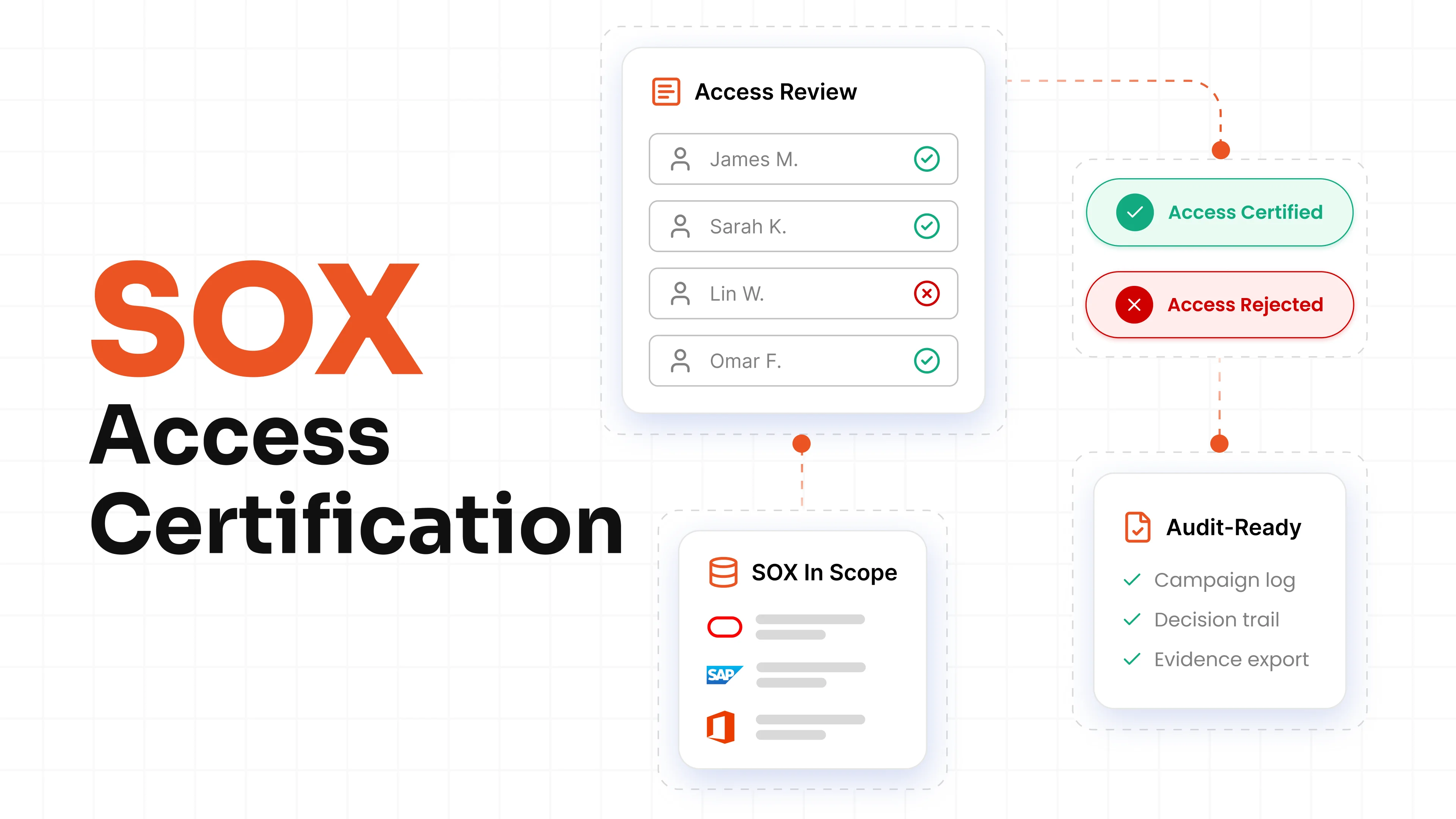
Schedule Active Directory access certification at regular intervals so managers and resource owners can review who still needs access. During AD access reviews, they can approve access, remove it, or request more information.
These reviews identify permissions left behind after role changes, contractor departures, or completed projects. They also draw attention to privileged accounts that may no longer need elevated access.
4. Prove
Teams should keep requests, approvals, review decisions, and removal records in one place. This gives security teams a clear history of each access decision.
When someone asks why a user has access, the team can show the business reason, approval, and review record instead of searching through old tickets or emails.
10 Ways to Improve Active Directory Governance
Strong Active Directory governance keeps access secure, appropriate, and manageable across the organization. The following practices help protect critical systems and maintain control over user and privileged access.
1. Update Access When Employees Join, Change Roles, or Leave
Identity lifecycle management connects HR data, or another trusted source, to access workflows. New hires receive the permissions needed for their role. When employees move roles, IT can update their access. When they leave, offboarding removes it.
This keeps access tied to a person’s current job and employment status.
2. Show Effective Access
Direct group membership does not show every permission. Users may inherit access through nested groups, delegated rights, or cloud roles.
Map effective access so teams can see how a user reaches a folder, application, or system. This can reveal access paths that basic group reports do not show.
3. Add a Business Reason to Access Requests
Ask users to explain why they need access to sensitive systems or groups. Send the request to the manager, application owner, or data owner who can approve it.
Access request management keeps access requests and access approvals clear. It also records why a person received sensitive access.
4. Set End Dates For Temporary Access
Contractors, project teams, and admins often need access for a limited period. Assign time-bound access with a clear expiry date.
When the project or task ends, the access ends too. This prevents temporary permissions from becoming long-term access.
5. Run Regular AD Access Reviews
Schedule AD access reviews based on risk. Review privileged groups, finance systems, and regulated data more often than standard collaboration tools.
Show reviewers what the permission grants, how the user received it, and when someone last reviewed it. This gives managers the details they need to keep, remove, or question access.
6. Review Stale And Orphaned Accounts
Check stale accounts for long periods without activity, expired contractor dates, and outdated employment details. Confirm why an account exists before disabling it.
Assign an owner to every active account. Strong orphaned account management prevents unknown accounts from remaining active without a clear business reason.
7. Govern Service Accounts
Service accounts support applications, integrations, and automated jobs. They can hold broad permissions and may not follow normal employee sign-in patterns.
Assign a business owner and technical owner to each service account. Document what it does, which systems it accesses, and when someone needs to review it.
8. Check for Toxic Access
Some permissions create risk when one person holds them together. For example, an employee could create a vendor and approve payments to that vendor.
Segregation of Duties (SoD) policies define permission combinations that should not belong to one person. Toxic access detection identifies these conflicts across groups, business applications, and cloud roles.
9. Govern Active Directory and Entra ID Together
Review Active Directory groups, Microsoft Entra ID roles, Microsoft 365 permissions, and connected SaaS application access in the same process.
Cloud and on-premises IGA helps teams see access across these systems, including users whose access starts in Active Directory and continues into cloud applications.
10. Keep Audit Records Ready
Store access requests, approvals, review decisions, and removal actions in one searchable location.
When auditors or security teams ask why someone has access, the team can show the request, approval, and review history without searching old emails or spreadsheets.
How to Build an Active Directory Governance Process
Building Active Directory governance starts with clear ownership and simple rules. Teams do not need to review every account and group at once. Begin with the access that matters most, then expand over time.
1. Define the Scope
Decide which systems and access types to include first. Many teams begin with Active Directory, Microsoft Entra ID roles, key business applications, and high-risk security groups.
2. Assign Access Owners
Assign an owner to each important group, application, and service account. The owner should understand what the access grants and who should have it.
3. Set Clear Access Rules
Document who can request access, who can approve it, and when teams should remove it. Include separate rules for contractors, admin rights, shared accounts, and service accounts.
4. Prioritize High-Risk Access
Give extra attention to privileged accounts, Domain Admins, groups with access to sensitive data, and applications that handle financial or customer information.
5. Set a Review Calendar
Set dates for access reviews, ownership checks, and policy updates. This prevents Active Directory access certification from becoming a last-minute task.
6. Record Exceptions
Sometimes people need access outside normal rules. Record why they need it, who approved it, and when the team should review it again.
7. Track Progress
Track ownerless groups, overdue reviews, stale accounts, and open exceptions. Review these numbers regularly to see where access needs attention.
Tip: An IGA implementation checklist can help teams stay on track as they assign owners, set deadlines, and build the governance process.
Common Active Directory Governance Use Cases
IGA can support more than periodic access reviews. Teams can use it to manage access decisions across the employee lifecycle, critical applications, and audit processes.
Manage Employee Role Changes
An employee moves from Finance to Procurement. They need access to procurement tools, but their previous finance reports, folders, and application permissions may not be needed anymore.
IGA can assign access for the new role and trigger a review of existing access. This reduces privilege creep without requiring IT teams to manually check every group membership.
Give New Employees the Right Access
A new employee may need email, collaboration tools, department folders, and access to business applications. Providing each permission manually creates delays and inconsistent access.
IGA can apply birthright access based on role, department, location, or manager. This gives new employees the access required for routine work while keeping sensitive permissions under approval controls.
Remove Access for Departing Users
When an employee or contractor leaves, access should be removed from Active Directory, Microsoft Entra ID, applications, VPNs, and shared resources.
IGA can trigger deprovisioning workflows from HR events and track whether each removal action is completed. This reduces the chance that former workers retain access to organizational resources.
Control Privileged Administrator Access
Administrators may need elevated permissions to resolve an outage, apply a patch, or complete a migration. Long-term privileged access increases the impact of account compromise or misuse.
IGA can support time-bound access, approval workflows, and post-access review. This helps teams provide elevated access when required without making broad permissions permanent.
Govern Active Directory Groups
Active Directory groups often control access to folders, applications, databases, and administrative functions. Over time, groups can become difficult to understand, especially when they include nested memberships or do not have clear owners.
IGA helps organizations map groups to users and permissions, assign ownership, and include high-risk groups in regular access certifications. This makes group-based access easier to govern at scale.
Review Service Accounts and Non-Human Identities
Service accounts, API keys, bots, and integrations can hold access for long periods. They do not follow normal employee lifecycle events, so they need separate ownership and review controls.
IGA can discover non-human identities, track their access, assign accountable owners, and include them in risk and governance workflows.
Detect Risky Access Combinations
A user may have permissions across multiple systems that create an unexpected conflict. For example, they may have access to modify financial records in one system and approve those changes in another.
IGA can monitor access combinations, apply SoD policies, score risks, and prioritize remediation for the conflicts that matter most.
Prepare for Audits
Auditors may ask who has access to sensitive resources, who approved that access, whether it was reviewed, and when it was removed. Finding this information across tickets, spreadsheets, and emails can take significant time.
IGA centralizes access requests, approvals, review decisions, policy violations, and remediation activities. This gives security and compliance teams a clearer record of how access is governed.
Why Choose miniOrange IGA for Active Directory Governance?
miniOrange IGA offers a practical way to govern access across Active Directory and connected systems. Instead of managing identities, accounts, groups, permissions, requests, and reviews separately, teams can bring them into one clear governance process.
- See Who Has Access: View user identities, application accounts, IAM groups, roles, and entitlements in one place.
- Give the Right Access: Apply birthright access and approval policies with clear ownership and business context.
- Review Access Regularly: Run access certification campaigns to check permissions and remove stale or unnecessary access.
- Track Access Activity: Identify SoD violations, review emergency access, and monitor administrative activity.
- Keep Audit Records: Track access requests, approvals, provisioning, and reviews for audits.
Schedule a demo to see miniOrange IGA in action, or request an Active Directory access review to identify stale accounts, risky permissions, and access that may no longer be required.
Frequently Asked Questions
What is Active Directory governance?
Active Directory governance helps teams manage access in Active Directory over time. In simple terms, it shows who has access, why they have it, and whether they still need it.
How is Active Directory governance different from Active Directory?
Active Directory manages users, computers, and groups. Governance builds on that by adding access approvals, regular reviews, access removal, and records for audits.
Can Active Directory governance identify access through nested groups?
Yes, it can. For example, a user may receive access through a group inside another group, even if they are not directly added to the final group. Governance helps teams trace that access path.
How do you identify stale Active Directory accounts?
First, look for accounts that have not been used recently, belong to former employees, have no clear owner, or do not match an active HR record. Then, review the account before disabling or removing it.
Should service accounts be included in access reviews?
Yes, they should. Since service accounts can keep access for a long time, each one should have a clear owner, a documented purpose, and regular reviews.
Can Active Directory and Entra ID be governed together?
Yes, they can. This allows teams to apply the same access rules, reviews, and reporting across on-premises Active Directory, Microsoft Entra ID, and connected cloud applications.
Leave a Comment