

You’ve got a new phone, but every 2FA code you need is still on the old one.
Here’s the fact that drives everything in this guide.
Authenticator codes come from a secret key stored inside the app. They don’t follow your phone number, and there’s a chance that a standard phone backup may not carry them over. That’s why a phone upgrade can lock you out of accounts you’ve used for years.
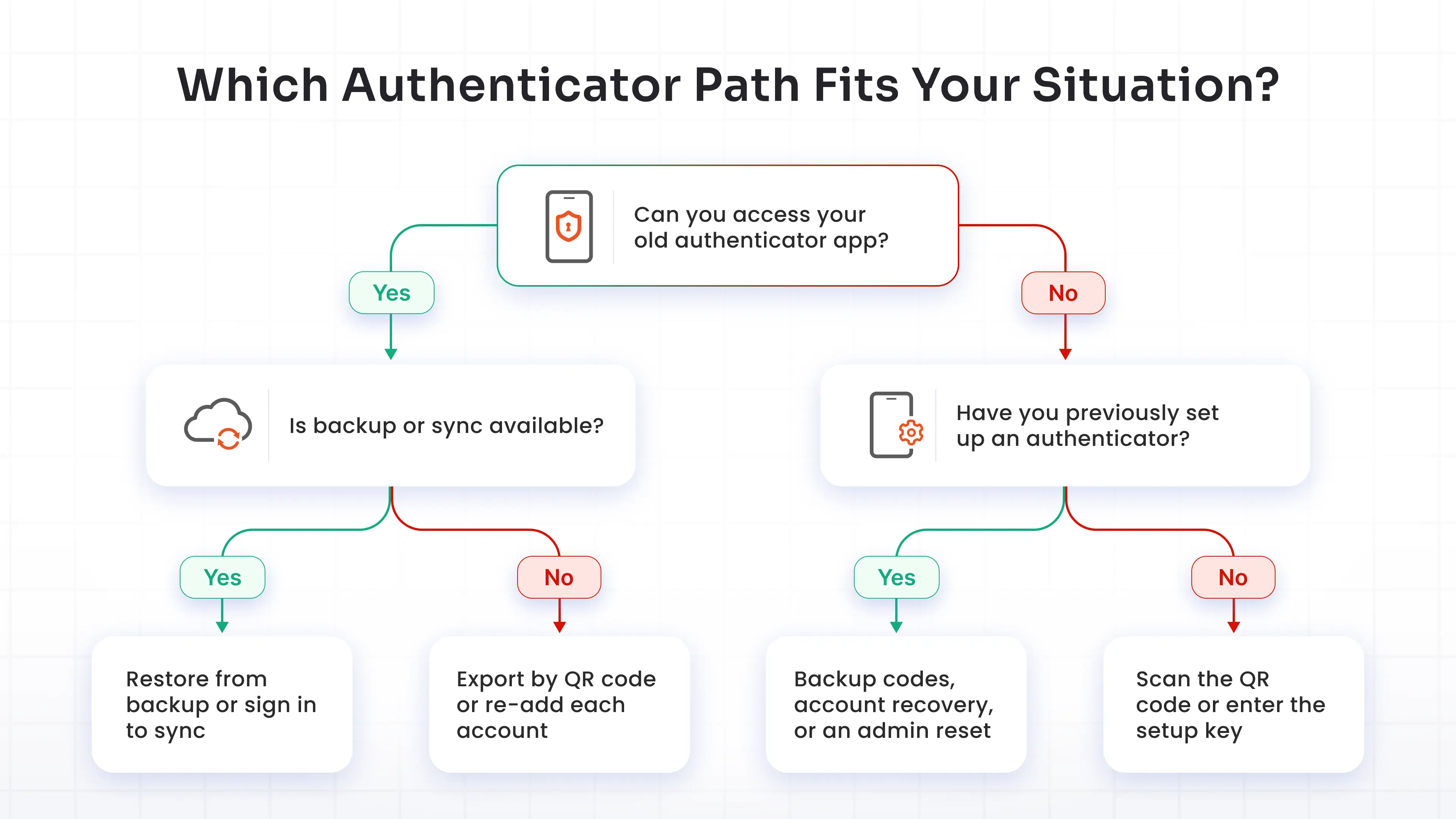
The way to get your access depends on whether you still have the old phone or not.
Below, you’ll find how to set up an authenticator app on a new phone, or a brand-new setup, plus fixes for an authenticator app code that won’t work.
At a Glance: How to Set Up an Authenticator App on a New Phone
| Your Situation | Best Method | Jump To |
|---|---|---|
| Old phone works, app has backup or sync | Restore from backup or sign in to sync | Transfer section |
| Old phone works, no backup | Export by QR code or re-add each account | Transfer and setup section |
| Old phone lost or wiped | Backup codes, account recovery, or an admin reset | No old phone section |
| Brand-new setup | Scan the QR code or enter the setup key | Setup section |
Five-Minute Checklist Before You Switch Phones
Do not wipe, reset, or trade in the old phone until every account has been confirmed on the new one. All you need is five minutes for this.
- Check which authenticator app you use and whether backup or sync is switched on.
- Save backup or recovery codes for your most important accounts (email, banking, work, password manager, etc.). Store them somewhere secure and offline.
- Add a second sign-in method where available. It could be a security key, passkey, or another verification option.
- Open the app and list every account inside it so you can tick each one off after the move.
How to Transfer Your Authenticator Accounts to a New Phone (Old Phone Still Works)
The easiest move here is to keep the same app on the new phone and use its own transfer feature. The steps are different for different apps. So here are the steps for the two most common ones and a thumb rule for the rest.
Google Authenticator: Sync With Your Google Account or Export by QR Code
Google Authenticator can sync codes through your Google account. Install the app on the new phone, sign in with the same account, and your codes will show up on their own. And because the sync follows your account, it works between Android and iPhone as well.
If you use the app without a Google account, transfer by QR code instead. Though remember to update Google Authenticator first, since Google requires the latest version for this. After that, the steps are as follows.
- On the old phone, back up the codes first or ensure that the account sync is switched on.
- On the new phone, install Google Authenticator and tap Get Started
- On the old phone, open the menu, tap Transfer codes, then Export codes. Confirm it’s you when the phone asks.
- Pick the accounts to move and tap Next. If you pick several, the old phone may show more than one QR code.
- On the new phone, open the menu, tap Transfer codes and then Import codes, and scan each QR code.
Important note: With sync on, deleting a code on the old phone deletes it from every device. Leave the old phone alone until the new one works. Check Google’s help page for Authenticator for the exact screens on Android and iPhone.
Microsoft Authenticator: Back Up and Restore
Microsoft Authenticator restores from a cloud backup. It doesn’t copy phone to phone.
- iPhone: Turn on iCloud Drive, iCloud Keychain, and iCloud Backup, then switch on the Authenticator toggle under Apple Account > iCloud > Save to iCloud
- Android: OpenAuthenticator, go to Settings, turn on Cloud Backup, and pick the Microsoft personal account that will hold the backup.
On the new phone, install the app and restore using the same recovery account. Personal Microsoft accounts and third-party accounts with a 30-second code (Amazon or Facebook, say) restore normally. But there are two things that trip people up here:
- Backups restore only to the same device type, so iPhone to iPhone and Android to Android.
- Work or school accounts come back as a name only. You'll see red text reading "Sign in to add your account," and you have to open the entry and sign in again.
Important Note: If a passkey lived only on the old phone, add a new one for the new phone authenticator before you remove the old phone. Microsoft covers all of this in its guide to transferring Authenticator to a new phone.
Other Authenticator Apps
Other apps handle this their own way. Some have encrypted cloud backup, some only export, and some do neither. Search the app's help page for "transfer" or "export" before you wipe the old phone. If the app has no transfer path, use the steps in the next section to add each account fresh.
miniOrange Authenticator users can jump to the miniOrange section.
How to Set Up Authenticator App and Add Accounts (Step by Step)
This is the universal method. It works for any app and any service; it’s how you set up 2FA the first time, and it’s your fallback when a transfer isn’t possible. Expect a minute or two per account.
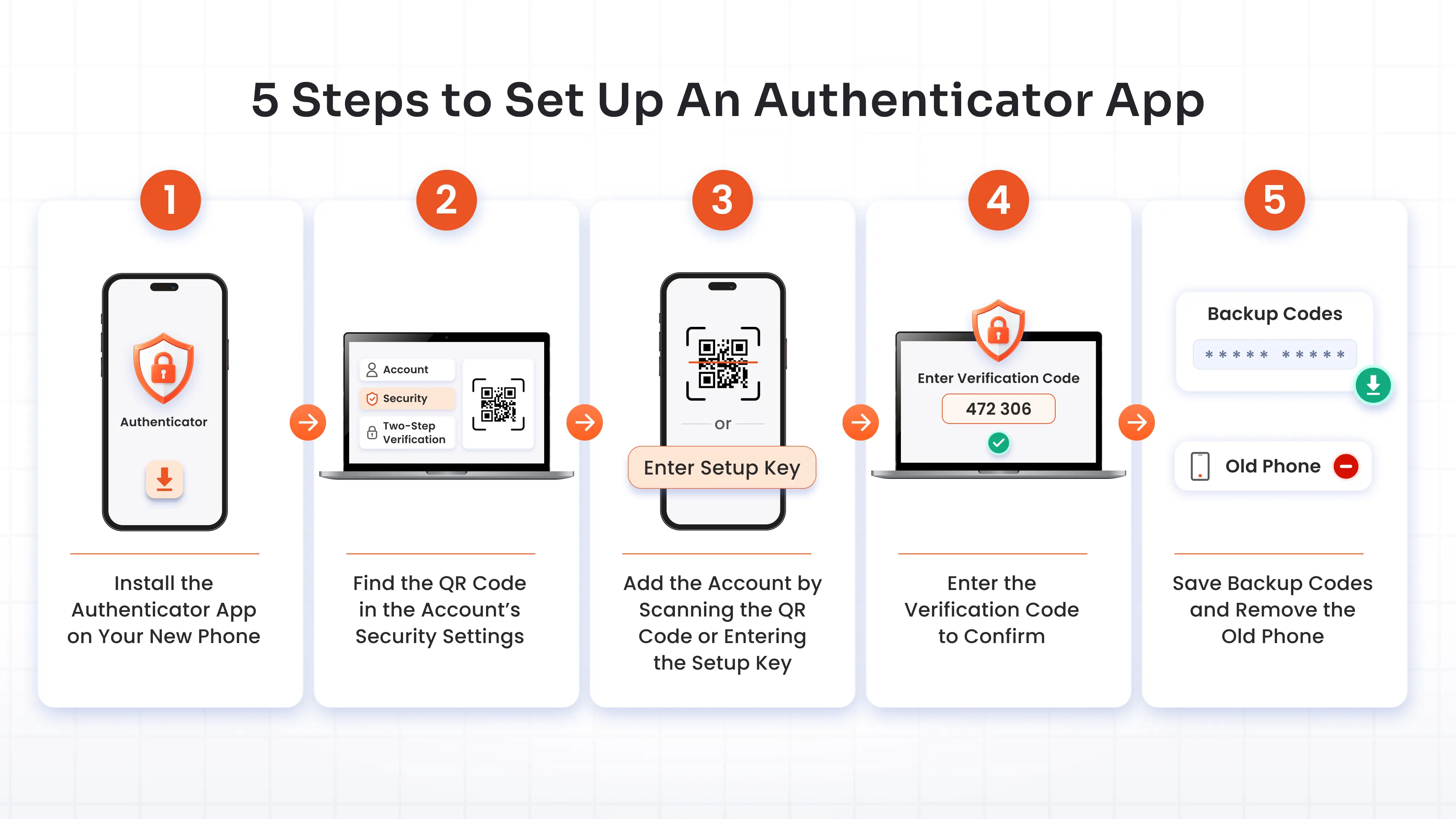
Step 1: Install the Authenticator App on Your New Phone
Download Google Authenticator, Microsoft Authenticator, miniOrange Authenticator, or your organization’s required app from the official app store. Turn on the app’s backup or sync option now, while you’re setting up.
Step 2: Find the QR Code in the Account’s Security Settings
This is how to get an authenticator QR code. Sign in to the account on a computer. Open Security, Account, or Profile, find two-step verification or multi-factor authentication, and choose an authenticator app. The service shows a QR code and usually a text setup key beneath it. If an authenticator is already registered, some services ask you to remove it first, and others let you add a second one.
Step 3: Add the Account by Scanning the QR Code or Entering the Setup Key
In the app, tap + or Add account, then scan the QR code. If the camera won’t cooperate, choose manual entry, type the account name and setup key, and select time-based. That’s all adding an account to an authenticator takes.
Step 4: Enter the Verification Code to Confirm
The app now shows a six-digit app verification code. This is a Time-Based One-Time Password (TOTP). Type it into the service before it refreshes. The service won't turn the authenticator on until the app verification code matches.
Step 5: Save Backup Codes and Remove the Old Phone
Most services show backup codes at this point. Save them in a password manager or print them and store the page somewhere safe offline. Then remove the old phone’s registration from the account, so approvals and codes stop landing on a device you no longer carry.
What If You No Longer Have Your Old Phone?
If the codes weren't backed up or synced, a new phone can't recreate them. Each account has to be recovered and set up again. It's tedious, and it works.
- Use a backup or recovery code to sign in, then register the new authenticator.
- No codes? Use another method already on the account (text message, email, security key, or passkey) to get in and re-register.
- Start with your email and main accounts. They're the ones used to reset everything else. Expect identity checks or waiting periods on some services.
If the phone was lost or stolen, erase it remotely too. With Google sync on, remove the device from your Google Account. Without sync, you have to visit each site and remove the old authenticator entry yourself. For work or school accounts, contact IT or the helpdesk, which is covered next.
Backup methods have failure modes of their own, covered in why backup authentication methods fail.
Setting Up an Authenticator App on a New Phone for Work or School Accounts
Managed accounts follow organization policy. Device registration and admin-controlled resets can block a plain re-scan, and number matching changes how push approvals work. That's why a restored work account in Microsoft Authenticator asks you to sign in again.
- Sign in with another method, or ask IT to reset your MFA.
- Remove the old device registration from your security info.
- Add the new authenticator when prompted.
- Approve a test sign-in on the new phone.
Until you remove the old phone, push approvals keep going to it. In Microsoft Entra, an admin can open the user, go to Authentication methods, and select Require re-register multifactor authentication. The next sign-in prompts setup again.
For IT teams, the real decision is self-service re-enrollment versus admin reset. Self-service should handle most phone changes. Admin reset is the safety net for the user who no longer has the old phone. The cleanest design lets users re-enroll themselves while they still hold the old phone, and reserves admin resets for lost devices.
Authenticator Code Not Working on Your New Phone? Quick Fixes
Check this table before you reset anything.
| Problem | Likely cause | Fix |
|---|---|---|
| Code rejected | The phone's clock is off | Turn on automatic date and time. Google Authenticator 7.0 and later reads the phone's clock. Some other apps have a time correction option in settings. |
| Code expired | It refreshed before you submitted it | Wait for the next code and type it right away. |
| Wrong entry | Several accounts with similar names | Check you're using the right account, and rename entries so they're easy to tell apart. |
| QR code won't scan | Low screen brightness or a blocked camera | Raise screen brightness, allow camera access, or use the setup key. |
| Push approvals go to the old phone | The old device is still registered | Remove the old device from the account's security settings. |
| Accounts missing after a restore | Wrong backup account, a different device type, or signed out | Confirm you're signed in to the account used for the backup. Microsoft backups restore only to the same device type. Otherwise, re-add each account manually. |
Best Practices: So the Next Phone Change Is Painless
Phone-change lockouts usually trace back to something skipped earlier. Set these up now, while the old phone still works, and the next upgrade is a non-event.
- Turn on backup or sync, and still keep backup codes stored offline.
- Register more than one method: a second device, a security key, or a passkey.
- Treat QR codes and setup keys like passwords. Don’t screenshot, email, or share them.
- Move your most important accounts to passkeys or security keys where they’re supported.
- Keep the old phone until each account has been tested on the new one.
These habits cover one person. Across a company, phone upgrades happen all year, and your MFA setup should have a recovery path in it.
How miniOrange Authenticator Helps Organizations Handle Phone Changes
A phone change is a recurring event for any IT team. miniOrange MFA solution supports two documented paths for it.
Self-service
The user signs in to the self-service portal, opens Setup 2FA, and picks a miniOrange Authenticator method (push notification, soft token, or QR code authentication). They click Edit, scan the QR code with the app on the new phone, and save. The end-user guide has the screens.
Admin reset
Enable "Enforce users to set up their 2FA Method on First Login" in Product Settings. Then go to Users, User List, select the user, choose Reset MFA from Select Action, and apply. At the next login, the user lands on a registration page and enrolls again. The reset clears MFA configuration only. It doesn't delete the user or change other settings. See the admin handbook.
FAQs
Can I transfer my authenticator app to a new phone without the old phone?
Only if sync or backup was already enabled. Google Authenticator synced to your Google Account, or a Microsoft Authenticator cloud backup, restores without the old phone. Otherwise, you recover each account. See what to do without your old phone.
Do my authenticator codes move automatically when I restore my phone from a backup?
Not reliably. Many apps keep their secrets out of a standard phone backup, so use the app's own sync or backup.
How do I get the QR code to add an account to my authenticator app?
The service creates it when you set up or change the authenticator in its security settings. You can't retrieve it from the app afterward. Follow Step 2 above.
Can I use the same authenticator account on two phones?
Often, yes. Scan the same QR code on both phones during setup, or use an app that syncs, like Google Authenticator. Some services tie push approvals to one device. Each extra copy is one more phone to protect.
Why is my authenticator app code not working?
Usually the phone's clock is off, the code expired, or you picked the wrong entry. The troubleshooting table has each fix.
Can I move my authenticator setup codes from Android to iPhone (or the other way)?
Yes, with Google Authenticator, through account sync or QR export. Microsoft Authenticator backups can't cross platforms, so re-add those accounts one by one.
Is it safe to take a screenshot of the QR code?
No. The QR code holds the same secret as the setup key. If you already took one, delete it everywhere it synced and re-register the account to get a new secret.
What should I do if I lose my phone and have no backup codes?
Sign in with another method on the account (text message, email, security key, or passkey), then register the new authenticator. If you have none, use the service's account recovery or ask IT for an MFA reset.

Leave a Comment