Getting started
This guide covers Project Access → Permission Audit → Project & Global Permissions, which has two tabs: By Project Permission for project-level permissions, and By Global Permission for site-wide ones.
Before you start
- You know which permission the review is about — e.g. Administer Projects, Browse Projects, Administer Jira.
- By Global Permission always runs a fresh check against Jira. On large sites it can take up to an hour; you can leave the tab and come back.
- Allow time before the review deadline — don't start the global run the morning it's due.
Why role names aren't proof
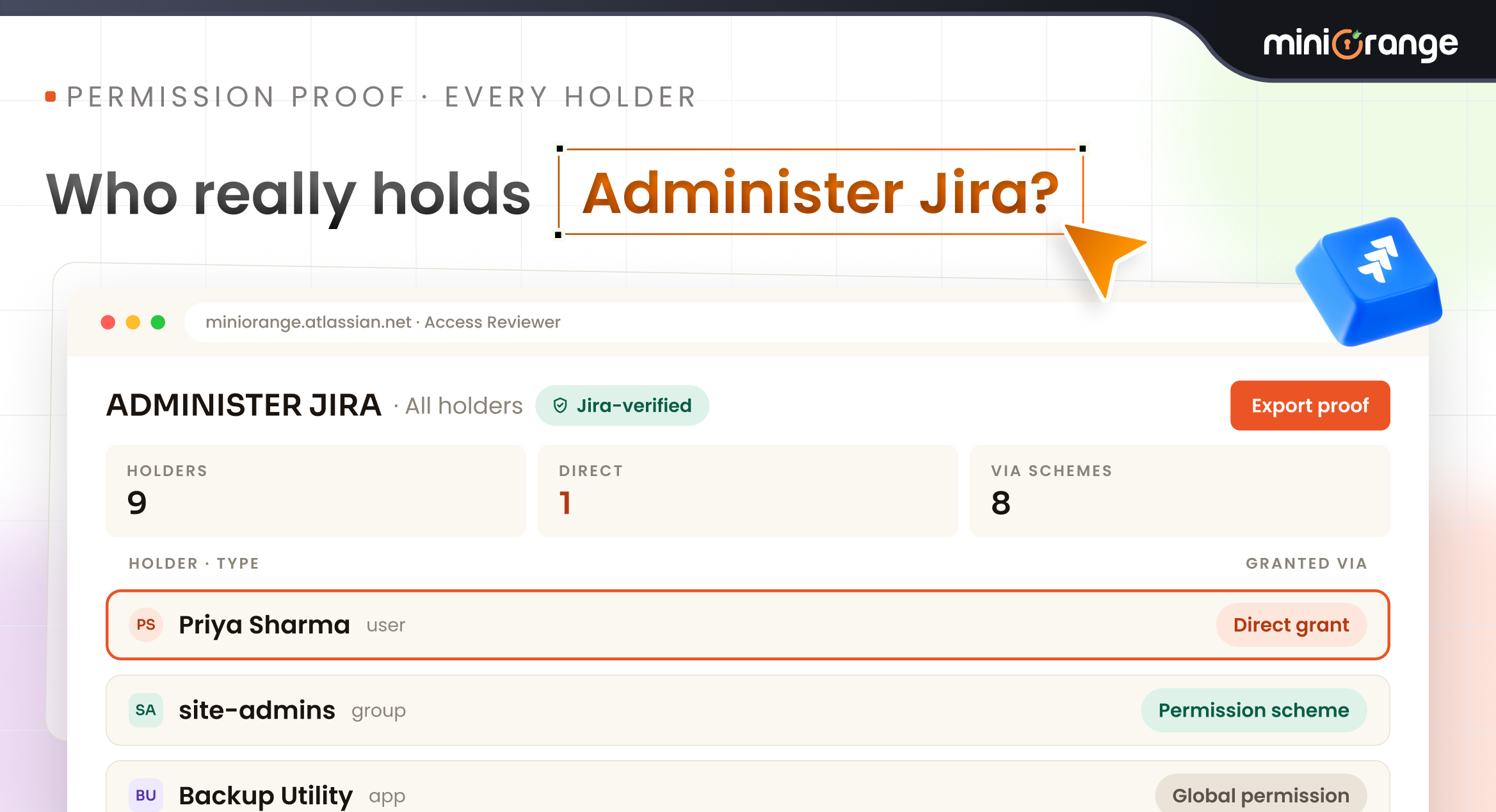
A role name is a label an administrator chose; it is not the permission Jira enforces. Two projects can each have an "Administrators" role, and one may grant Administer Projects through that role while the other grants it straight to a group with no role involved at all. Answering a reviewer with "here's who's in the Administrators role" can therefore miss people entirely.
Site-wide it's the same story: Atlassian's global permissions screen lists holders one permission at a time, with no cross-referenced report and no export — which is why Marketplace apps exist to fill the gap, one describing its job as letting admins "see which users, groups, and apps hold each global permission (Administer Jira, Browse Users, Bulk Changes, etc.)".
What Access Reviewer360 shows
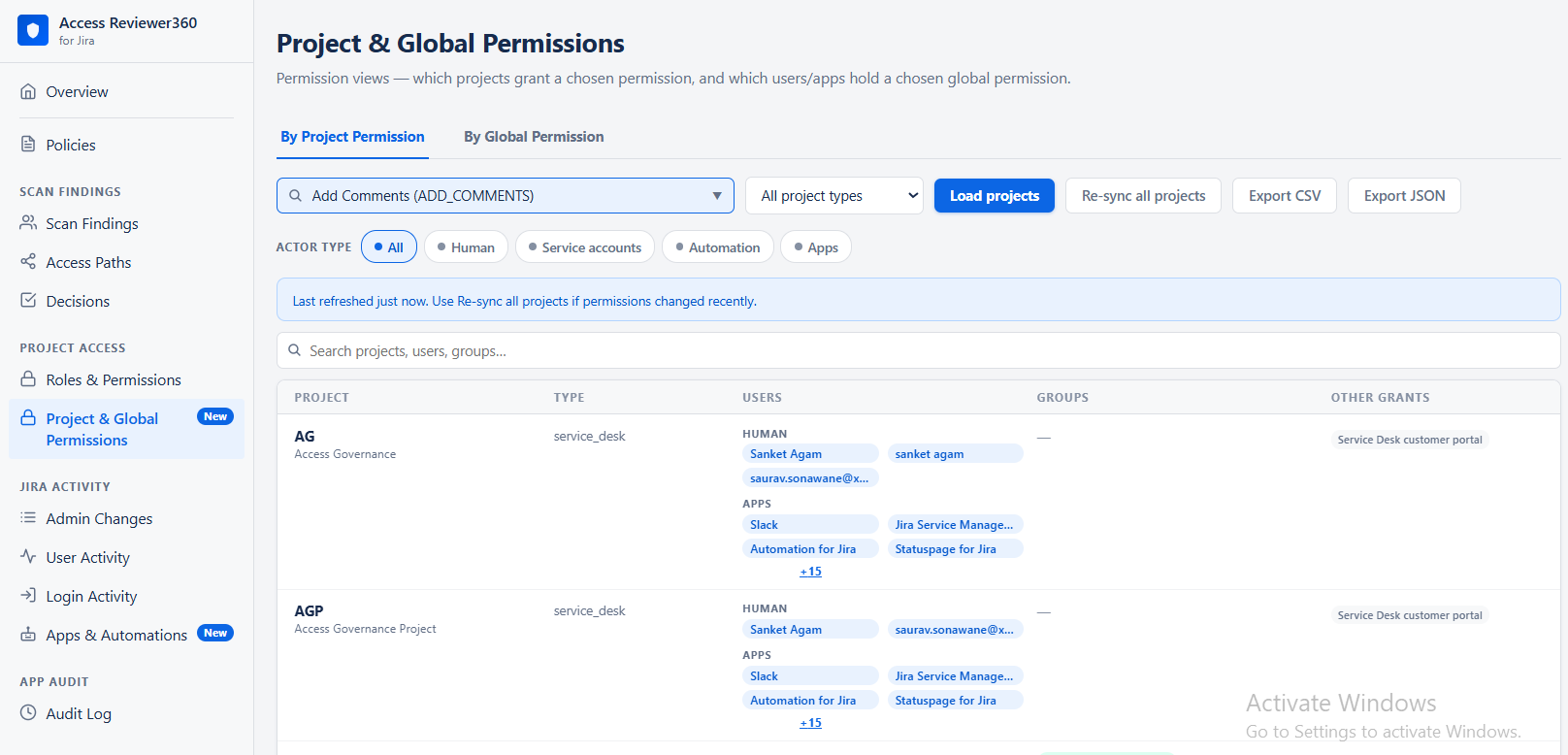
By Project Permission — pick a permission and see every project that grants it, including projects with no holder at all, so the result reads as coverage rather than a list of matches.
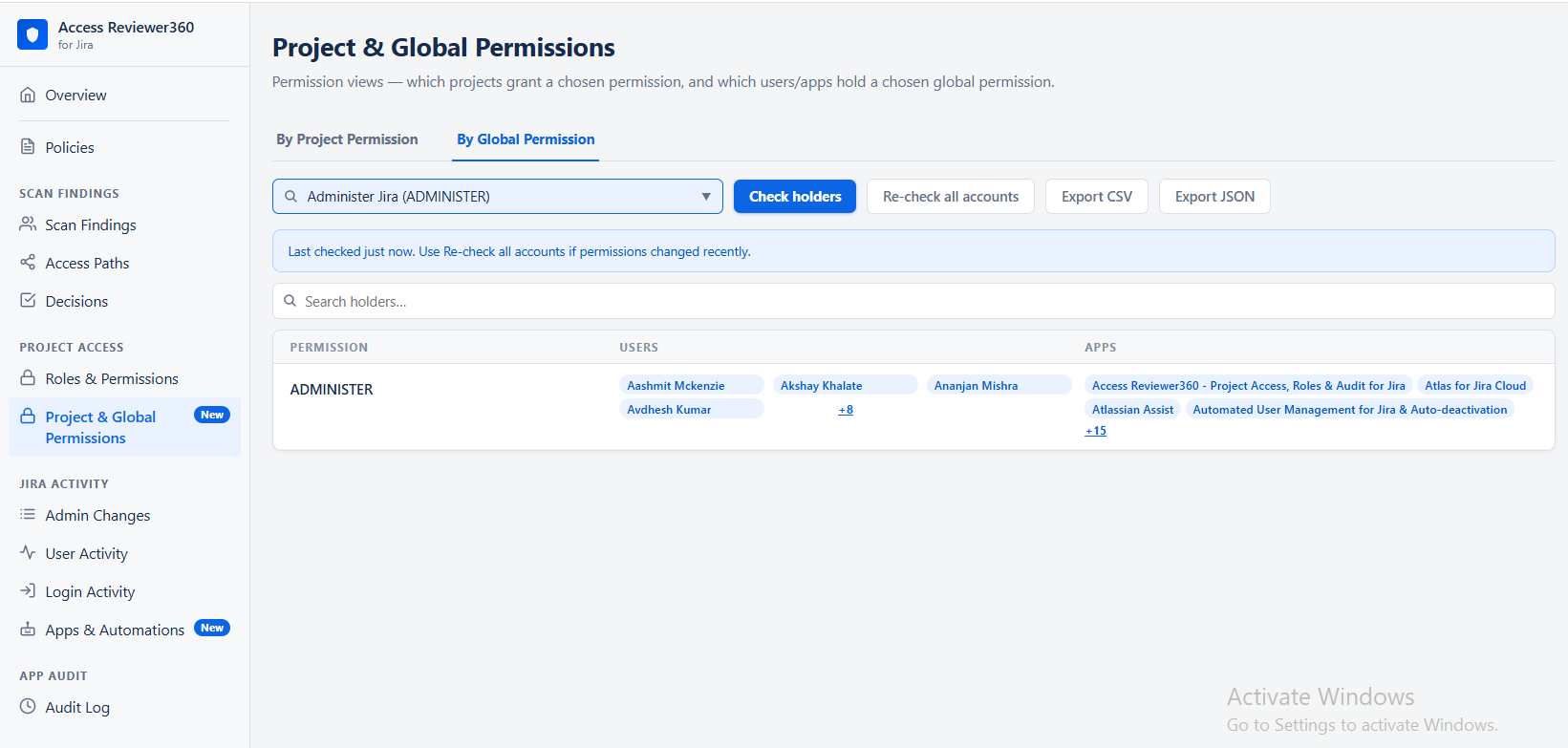
By Global Permission — pick one global permission or All global permissions, and see every user and app that effectively holds it, resolved through Jira's own permission check.
Setup, step by step
- Open Project Access → Permission Audit → Project & Global Permissions.
- By Project Permission: pick the permission, optionally filter by project type, then click Load Projects. Click Refresh if the scheme cache looks stale.
- By Global Permission: pick a permission — or All global permissions — and click Load. This always runs a fresh Jira check; large sites can take up to an hour.
- Review the Users, Groups and Apps columns for each row.
- Click Export CSV and attach it to the security review record.
Reading the results
- Holder with no role — a group granted the permission directly in the scheme. These are the people a role-based answer misses.
- Project with no holder — nobody currently has the permission there. Sometimes correct, often a scheme mistake.
- Apps holding a global permission — third-party apps count as holders of permissions like Administer Jira; reviewers increasingly ask for them by name.
Tips
- Run All global permissions once per review cycle and keep the CSV — it is the fastest answer to "show me your site administrators".
- Audit by permission, remediate by group. Fixing the scheme once beats fixing twenty project role assignments.
- Pair this with use case 1: the permission view proves what is granted, the project view proves to whom.
Contact
If you need help or want to ask questions, please contact us through miniOrange Support or via email to atlassiansupport@xecurify.com