- SP Entity ID
- ACS URL
 Prerequisites:
Copy these values from the Service Provider Info tab of the Plugin.
Instructions:
Note: Enterprise app configuration is the recommended option for SAML. If you do not have Azure subscription or using free account please setup App Registration Configuration.
To perform Single Logout using Microsoft Entra ID (Previously known as Azure AD), the Atlassian instance (E.g. Jira,Confluence) must be https enabled.
Microsoft Entra ID setup through Enterprise Applications
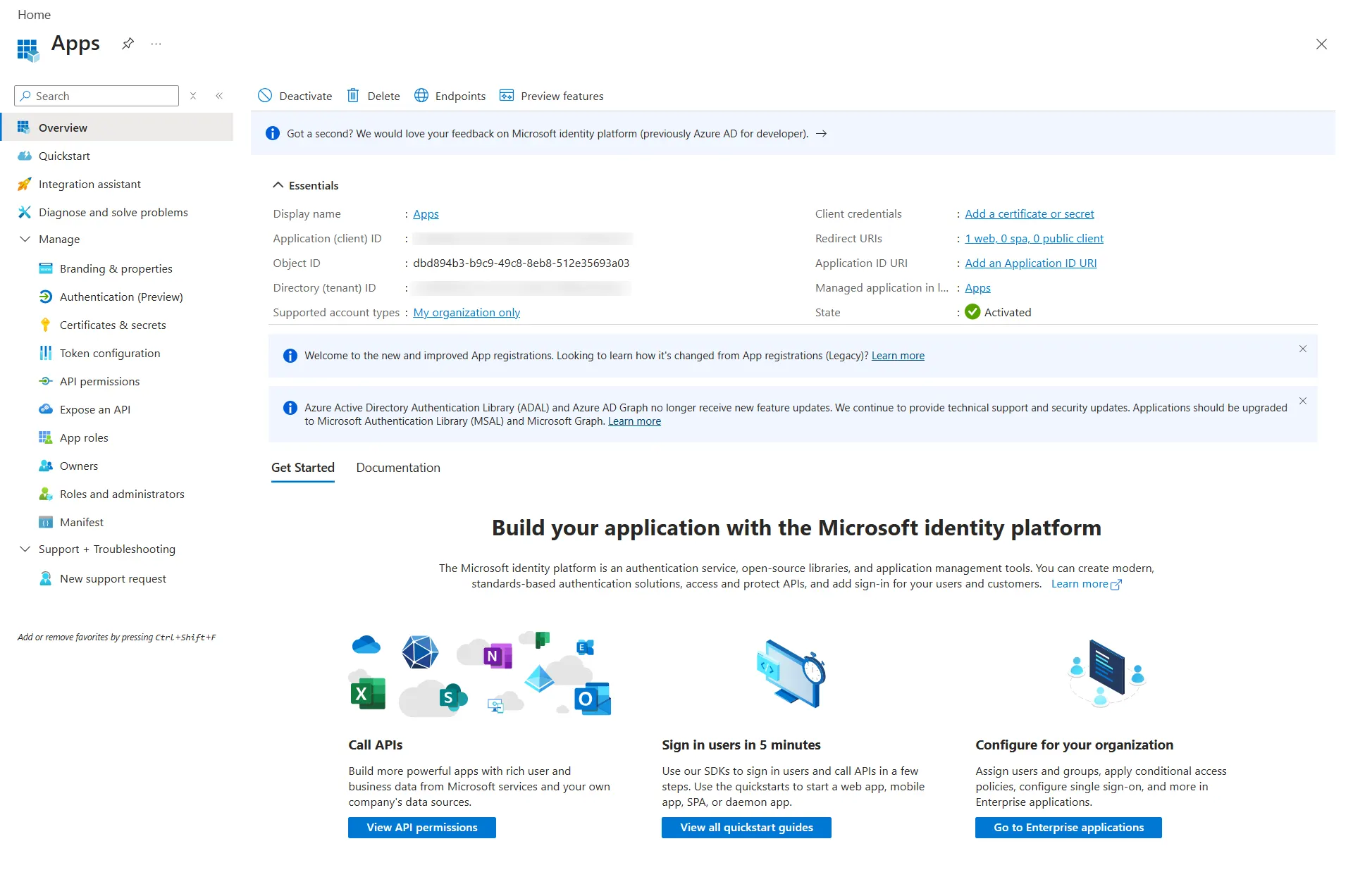
Microsoft Entra ID setup through App Registrations
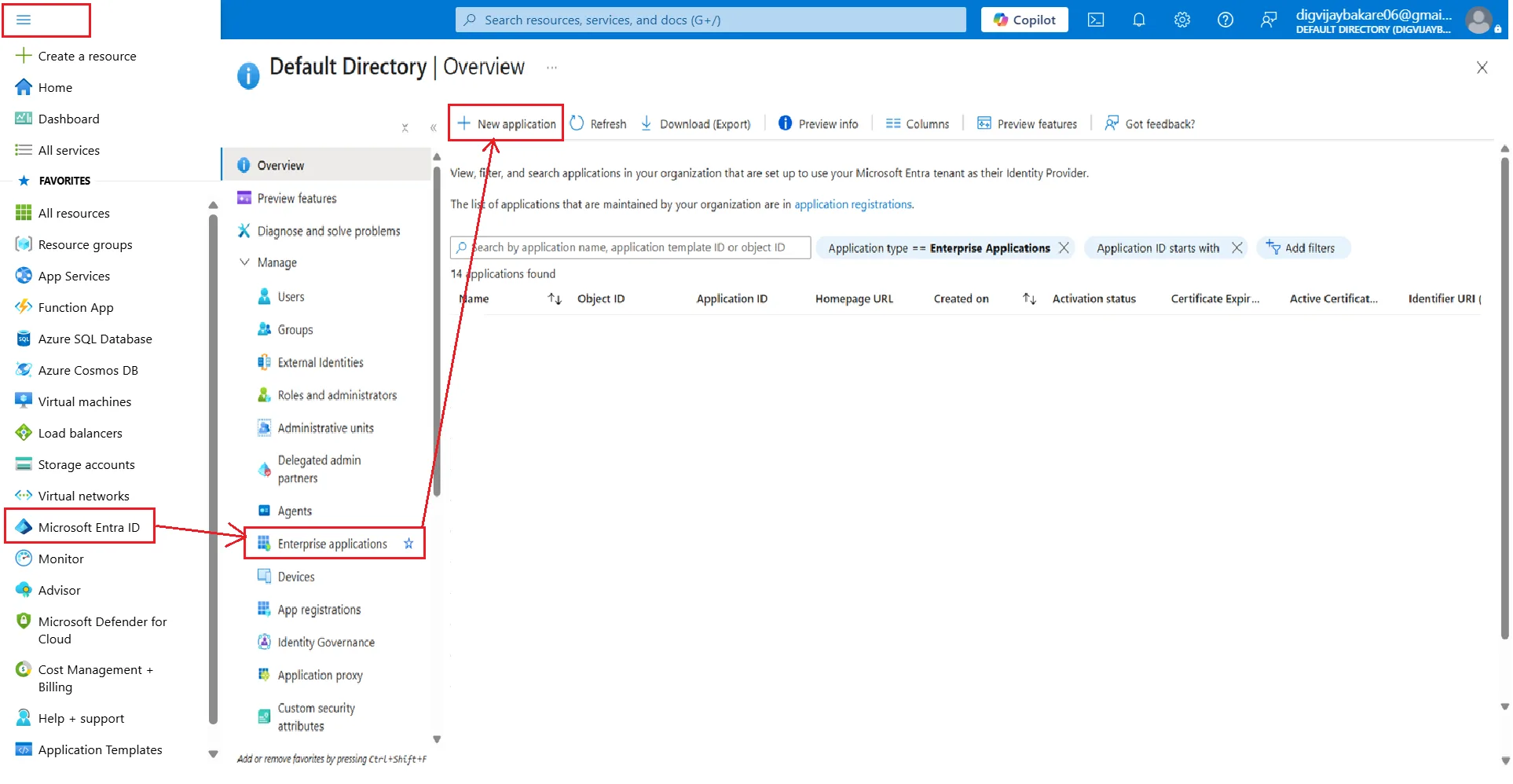
- Log in to Microsoft Entra ID (Previously known as Azure AD) Portal
- Select and Microsoft Entra ID Enterprise Applications New Application.
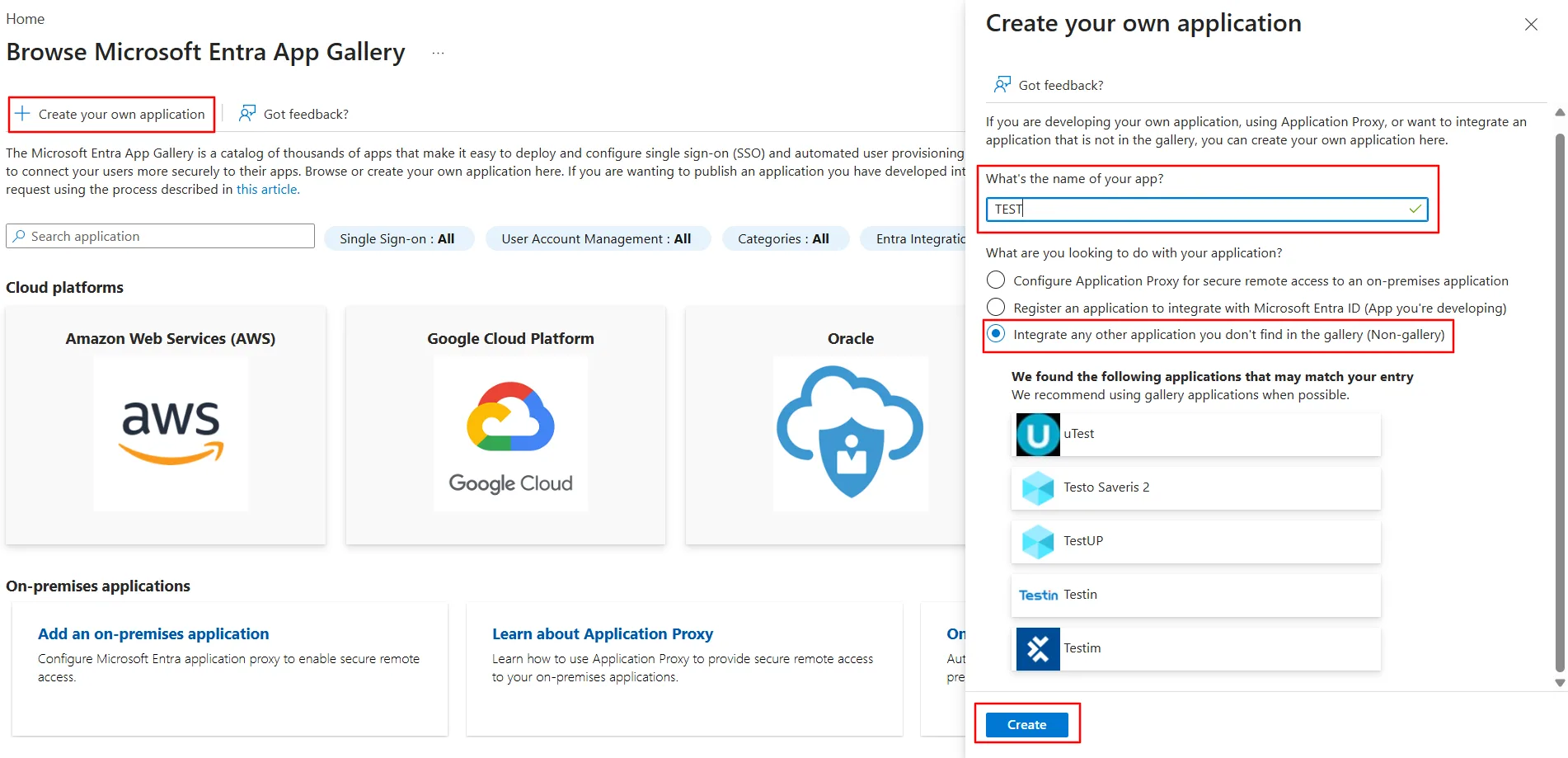
- Click on Create your own application. Then enter the name for your app, select the Integrate any other application you don't find in the gallery (Non-gallery) checkbox and click on Create button.
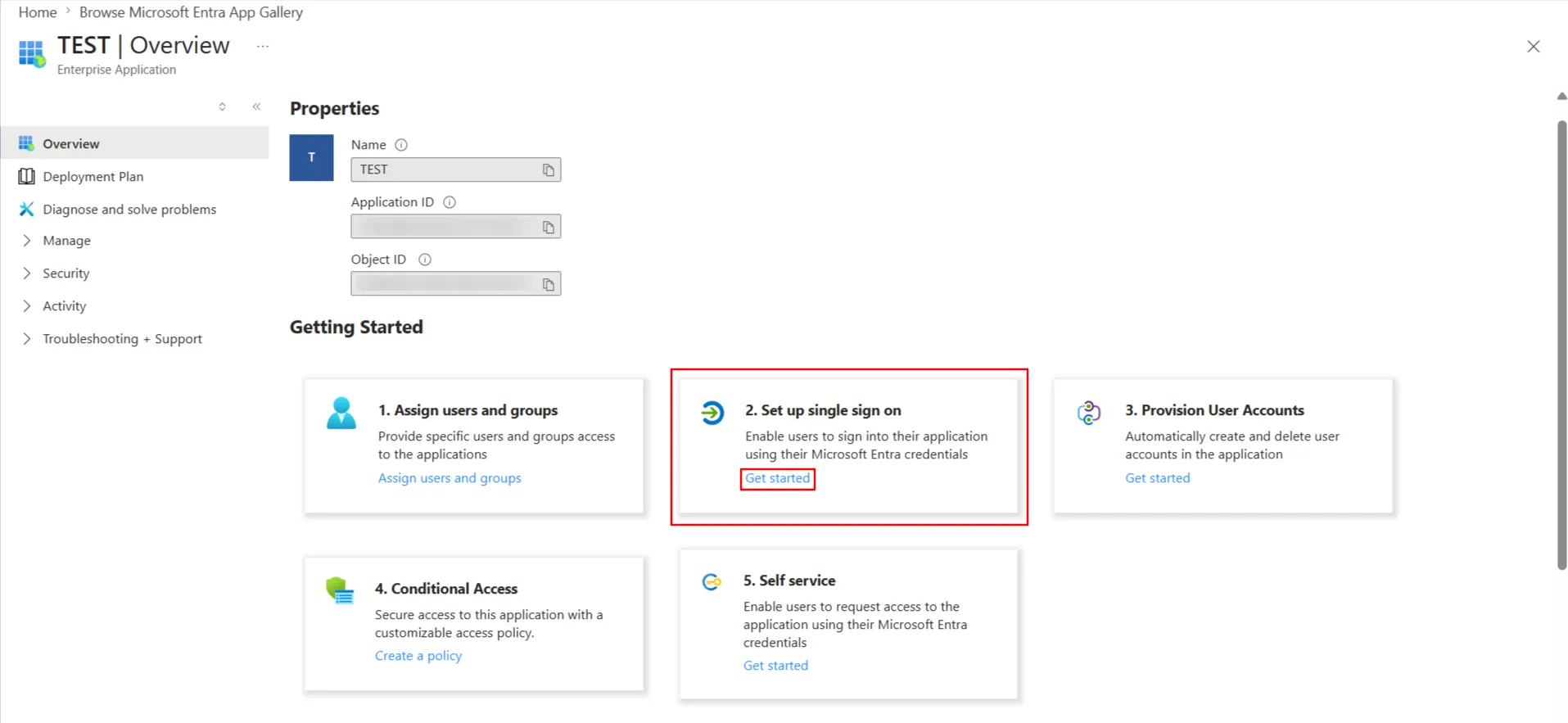
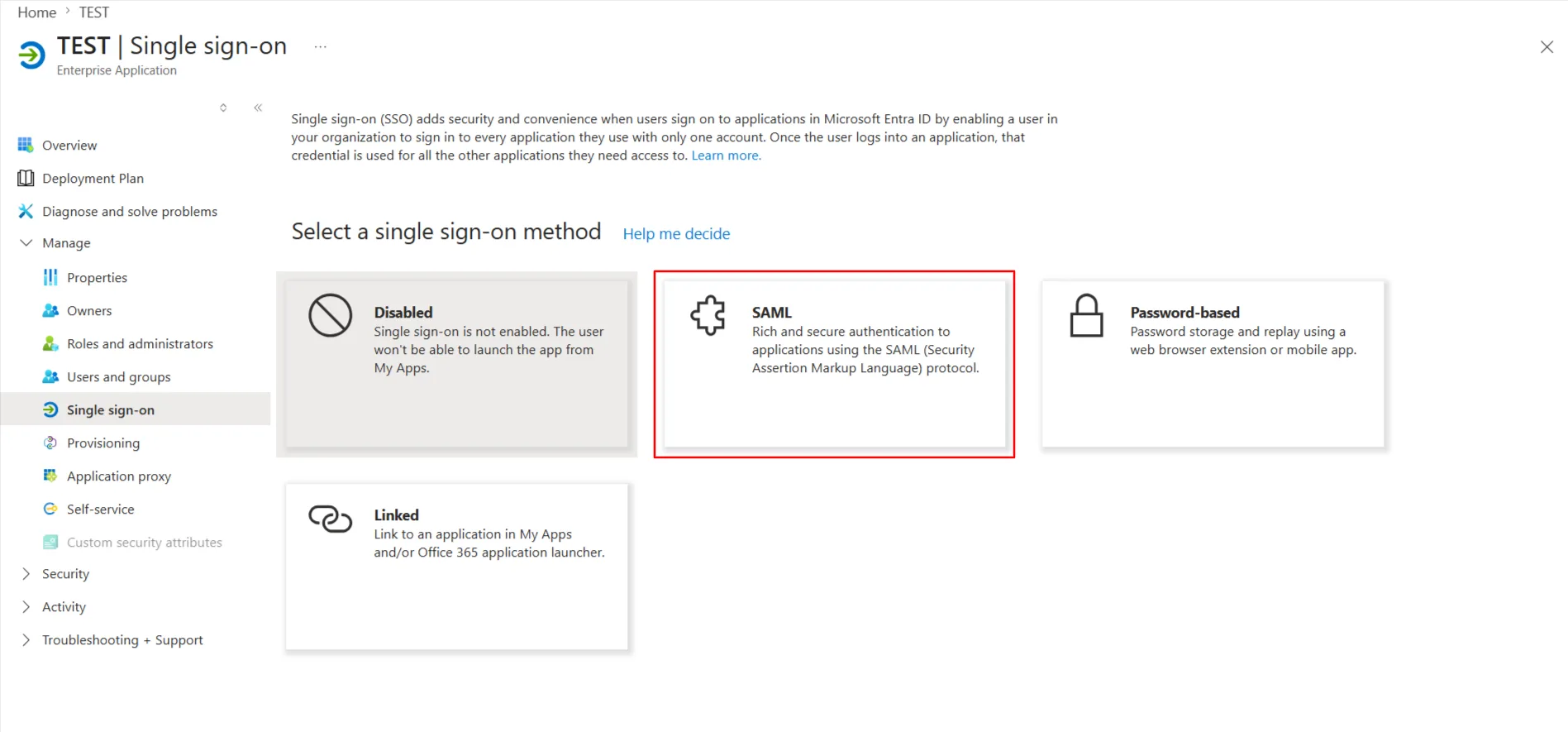
- Click on Set up Single sign-on.
- The next screen presents the options for configuring single sign-on. Click on SAML.
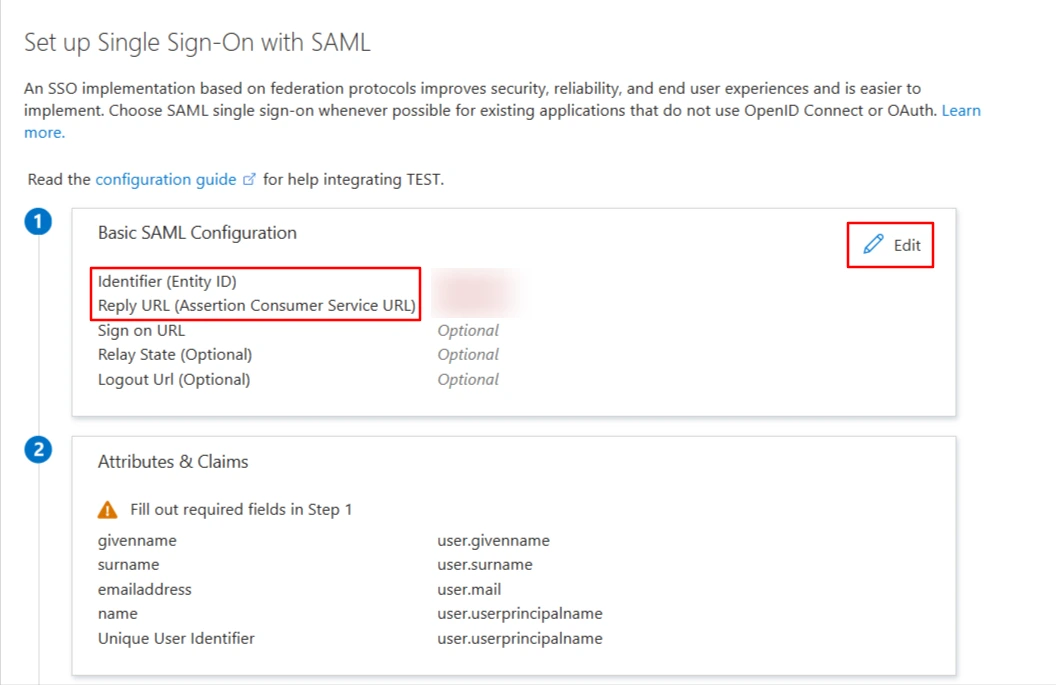
- Edit the option 1 :Basic SAML Configuration to configure plugin endpoints.
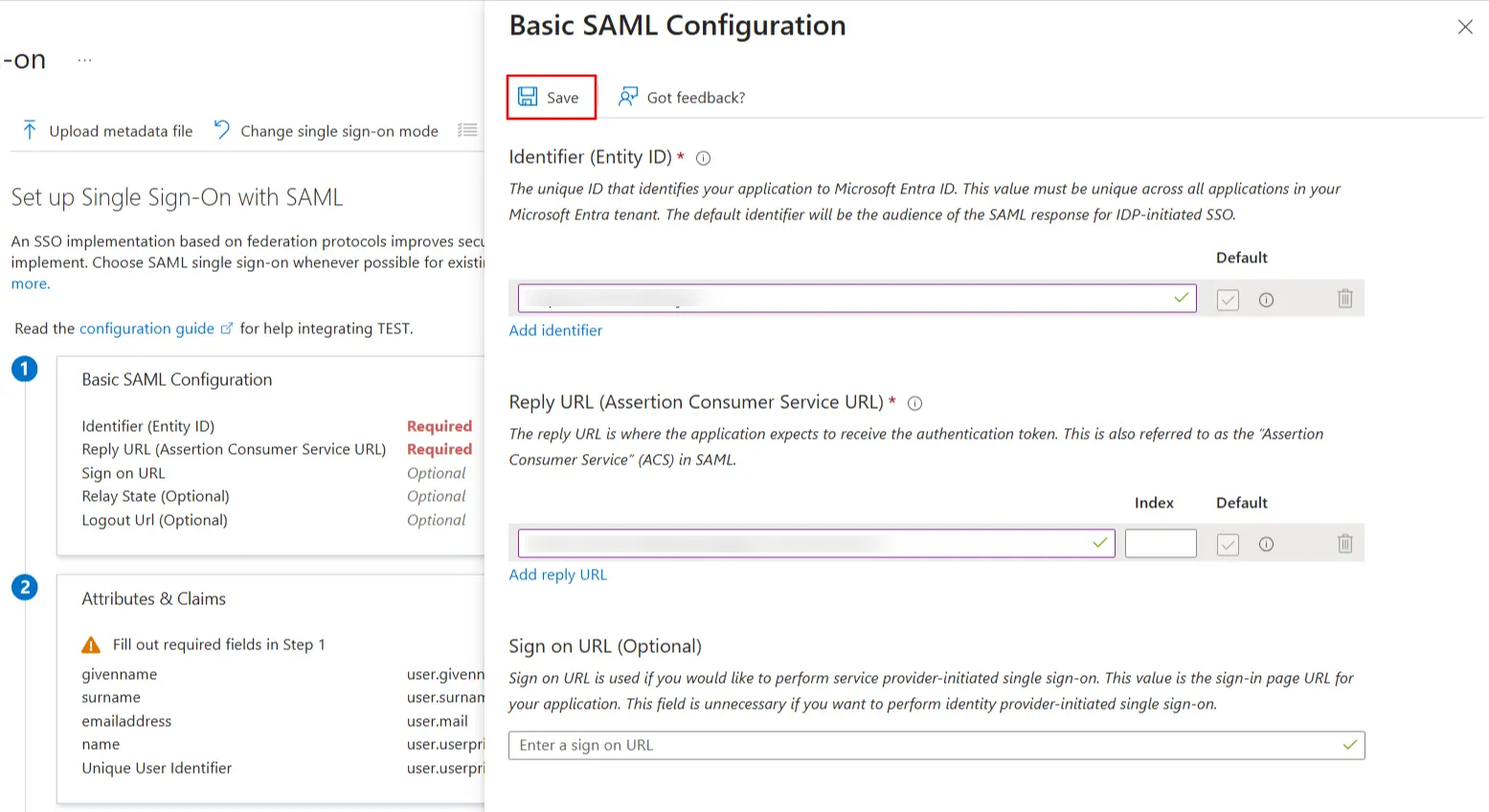
- Enter the SP Entity ID for Identifier and the ACS URL for Reply URL from Service Provider Info tab of the plugin.
- Click on Save icon.
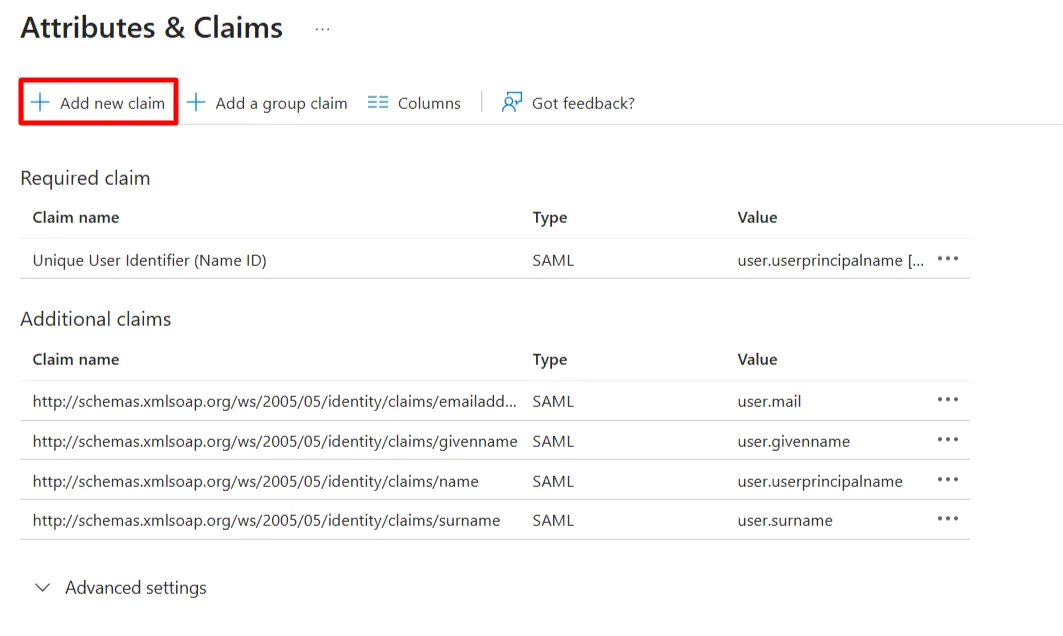
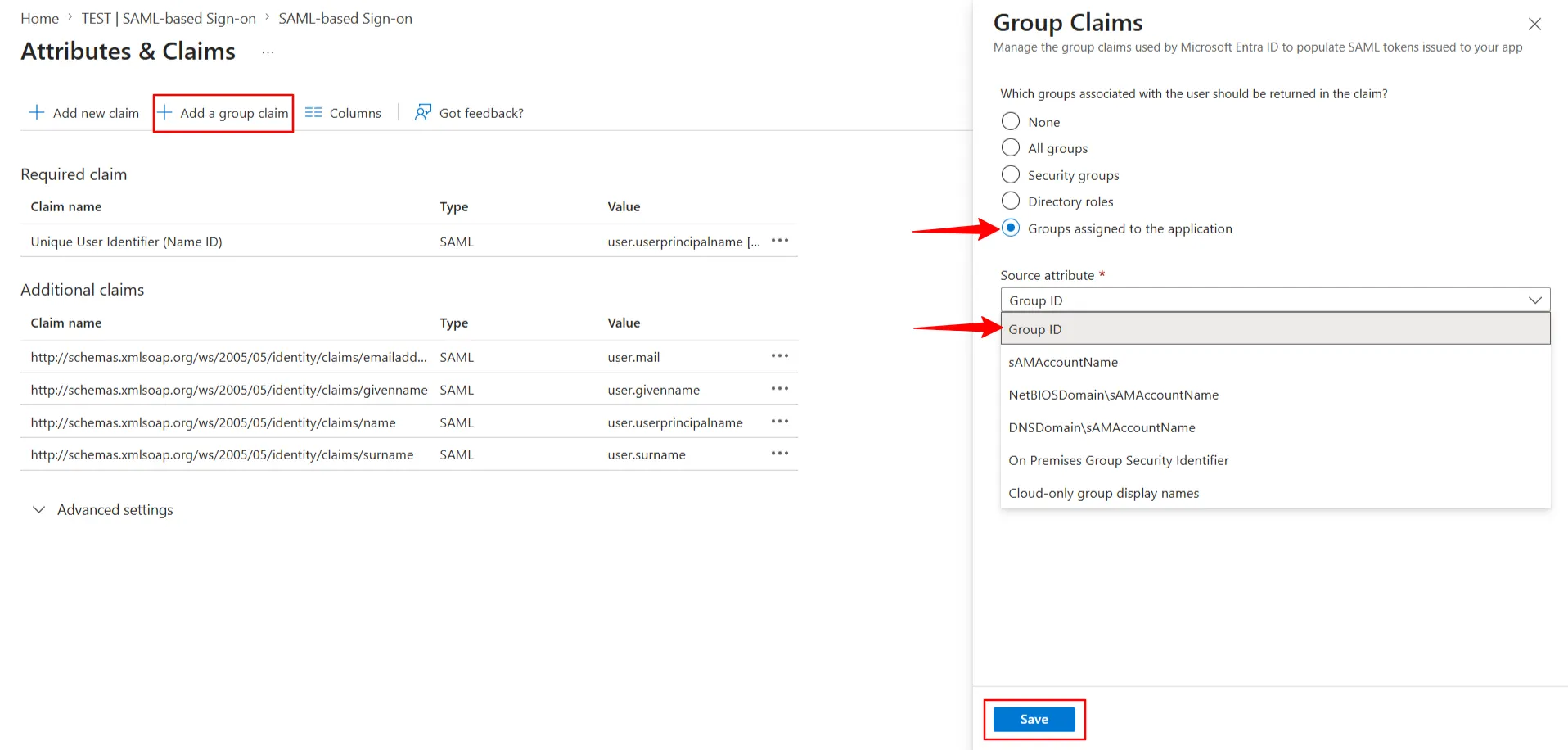
- By default, the following Attributes will be sent in the SAML token. You can view or edit the claims sent in the SAML token to the application under the User Attributes & Claims tab.
- You can add attribute using Add new claim.
- You can add group attribute claim using Add a group claim.
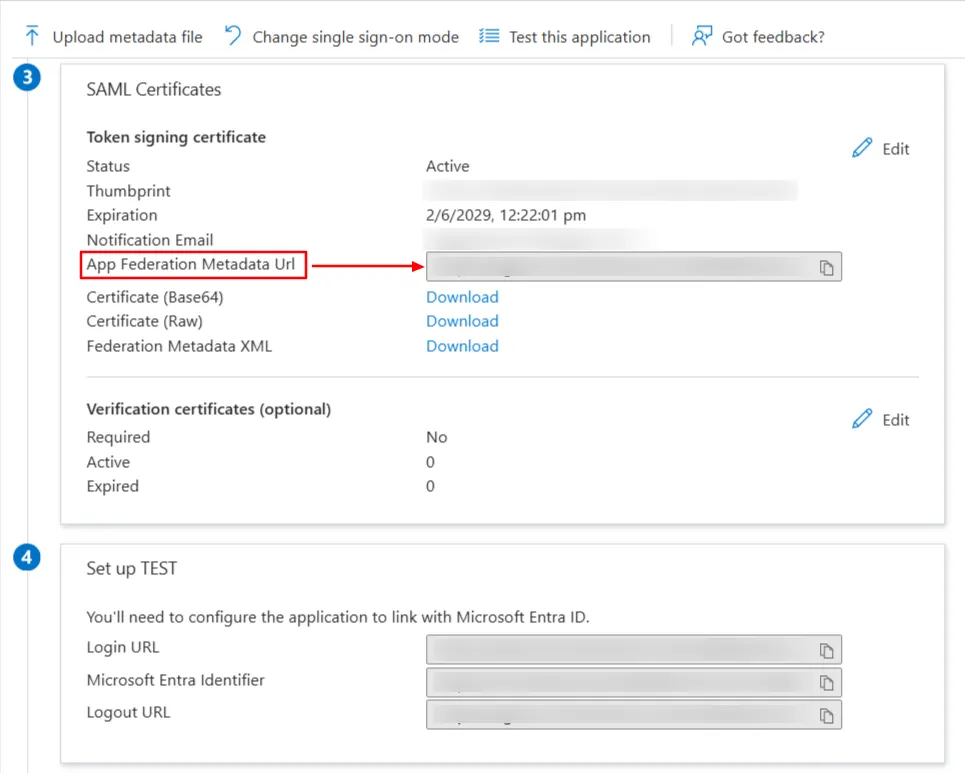
- Copy App Federation Metadata Url from setup tab.
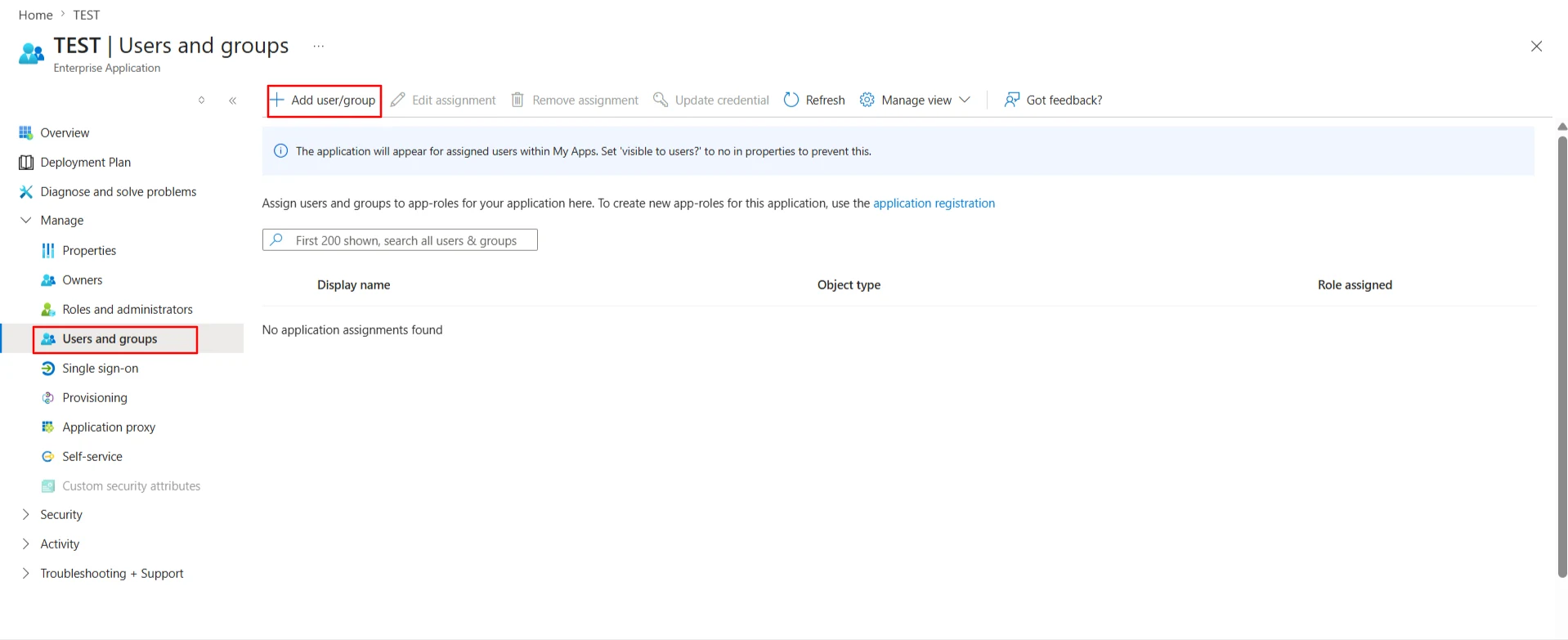
- Click on User and groups from the applications left-hand navigation menu. The next screen presents the options for assigning the users/groups to the application.
- Log in to Microsoft Entra ID (Previously known as Azure AD) Portal
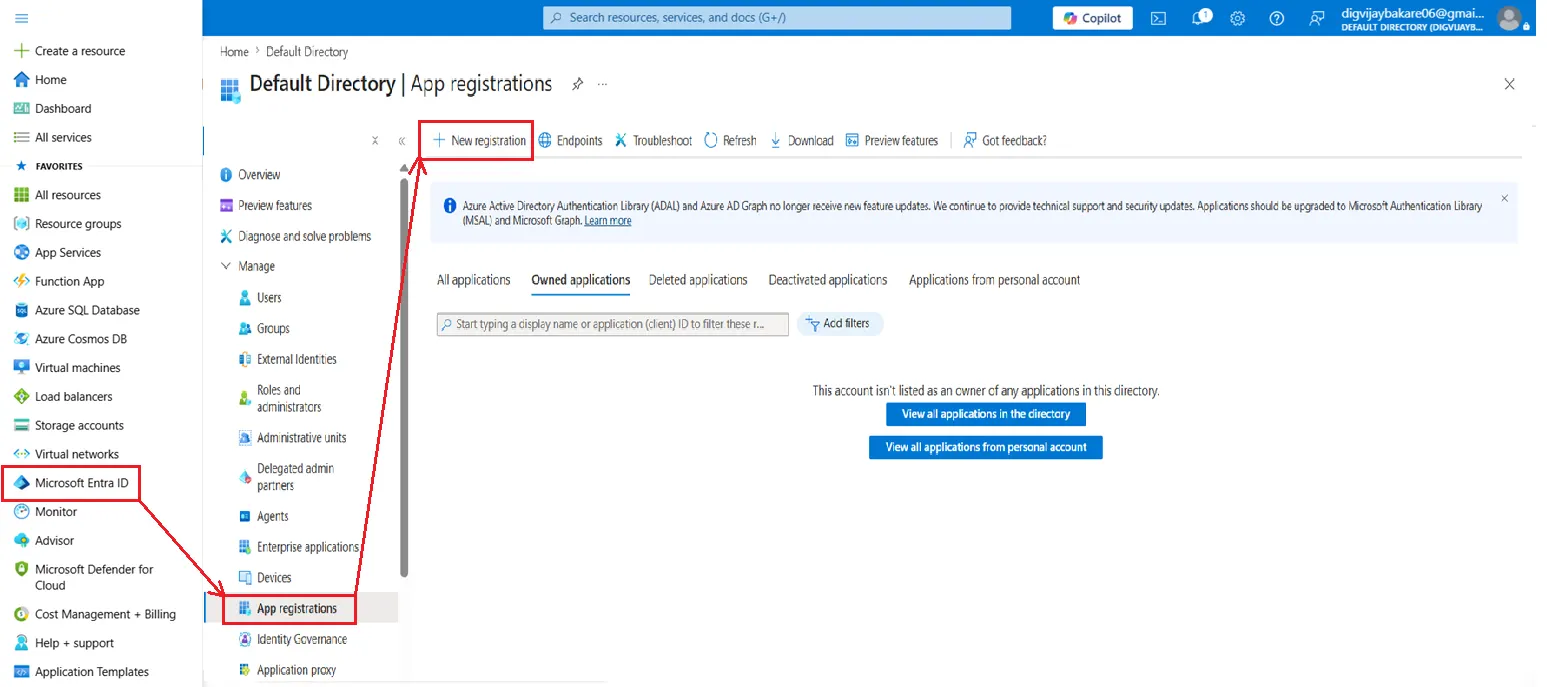
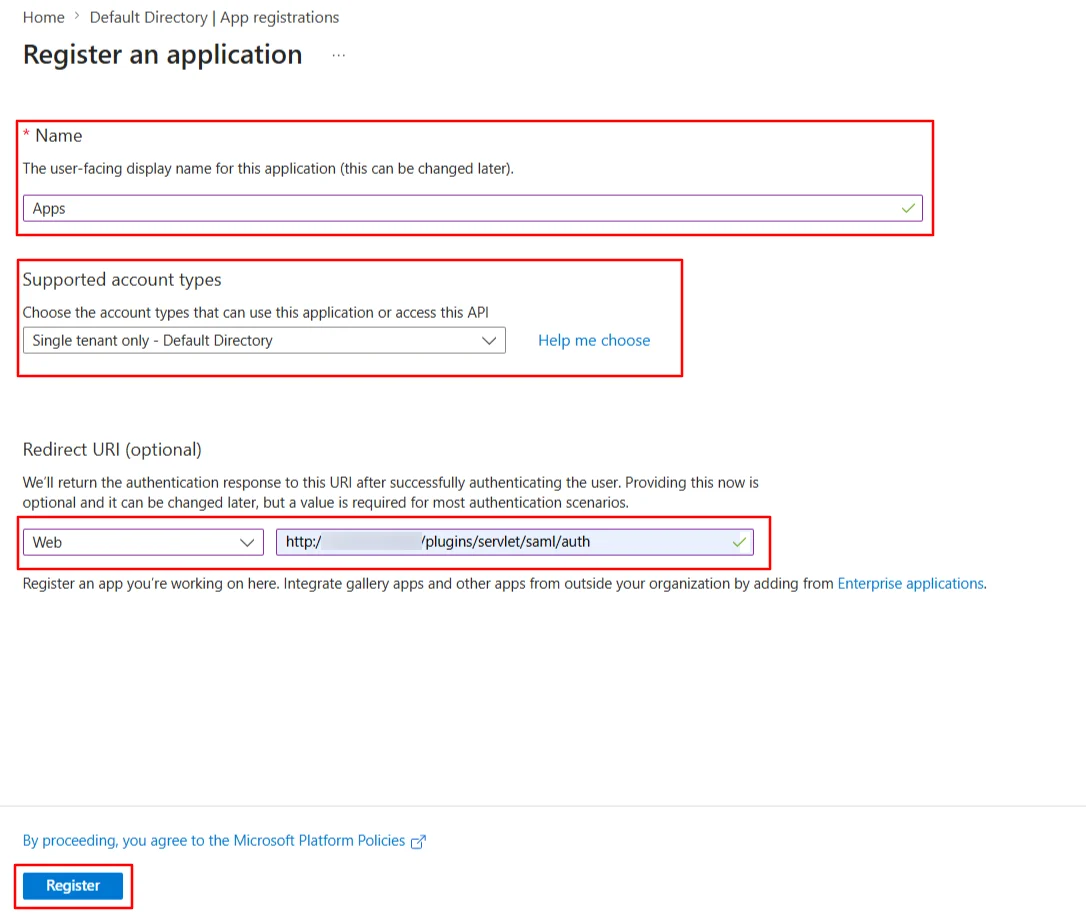
- Select and Microsoft Entra ID App Registrations. Click on New Application Registration.
- Assign a Name and choose the account type. In the Redirect URI field, provide the ACS URL provided in the Service Provider Info tab of the plugin and click on the Register button.
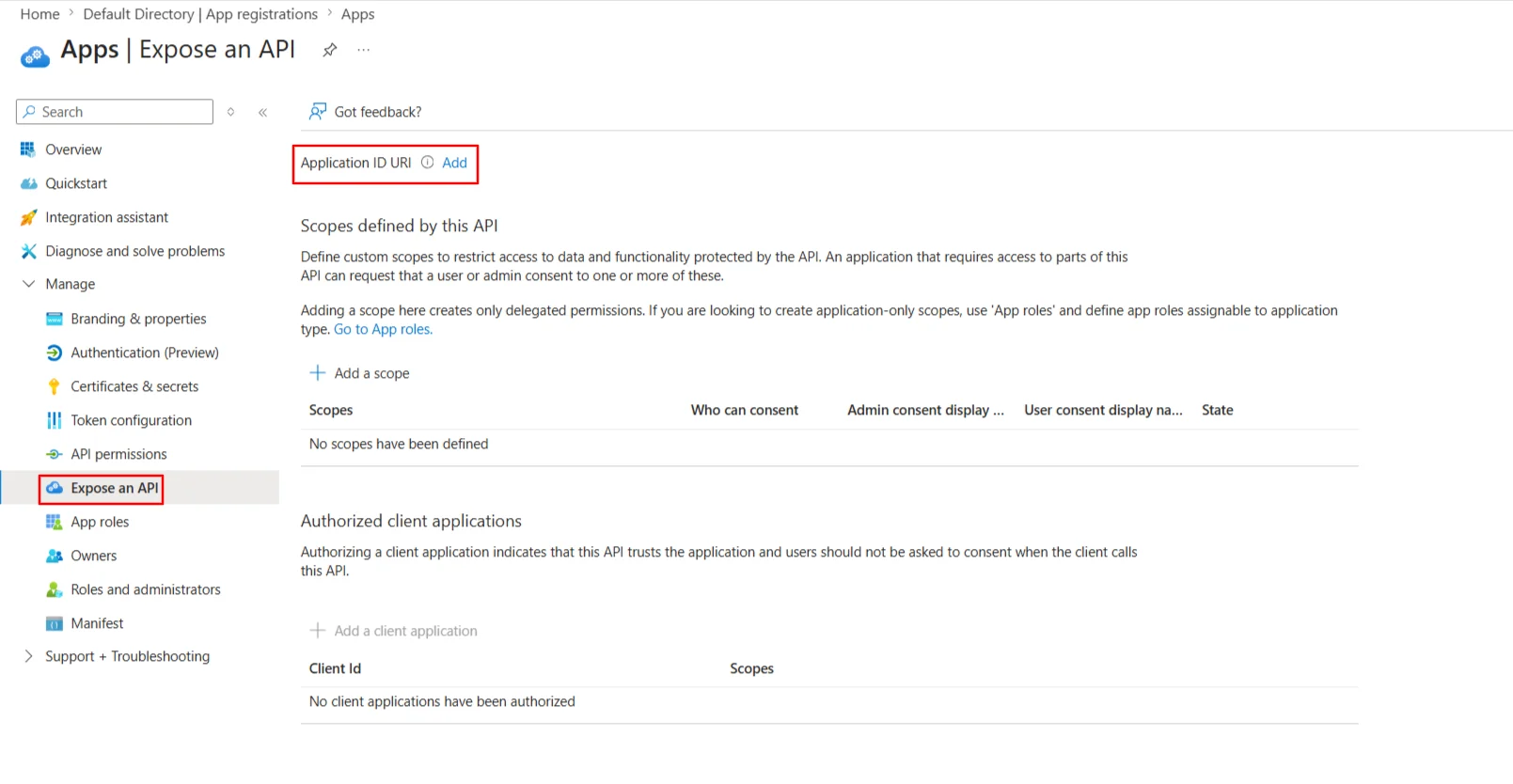
- Now, navigate to Expose an API menu option and click the Set button and replace the APPLICATION ID URI with the plugin's SP Entity ID
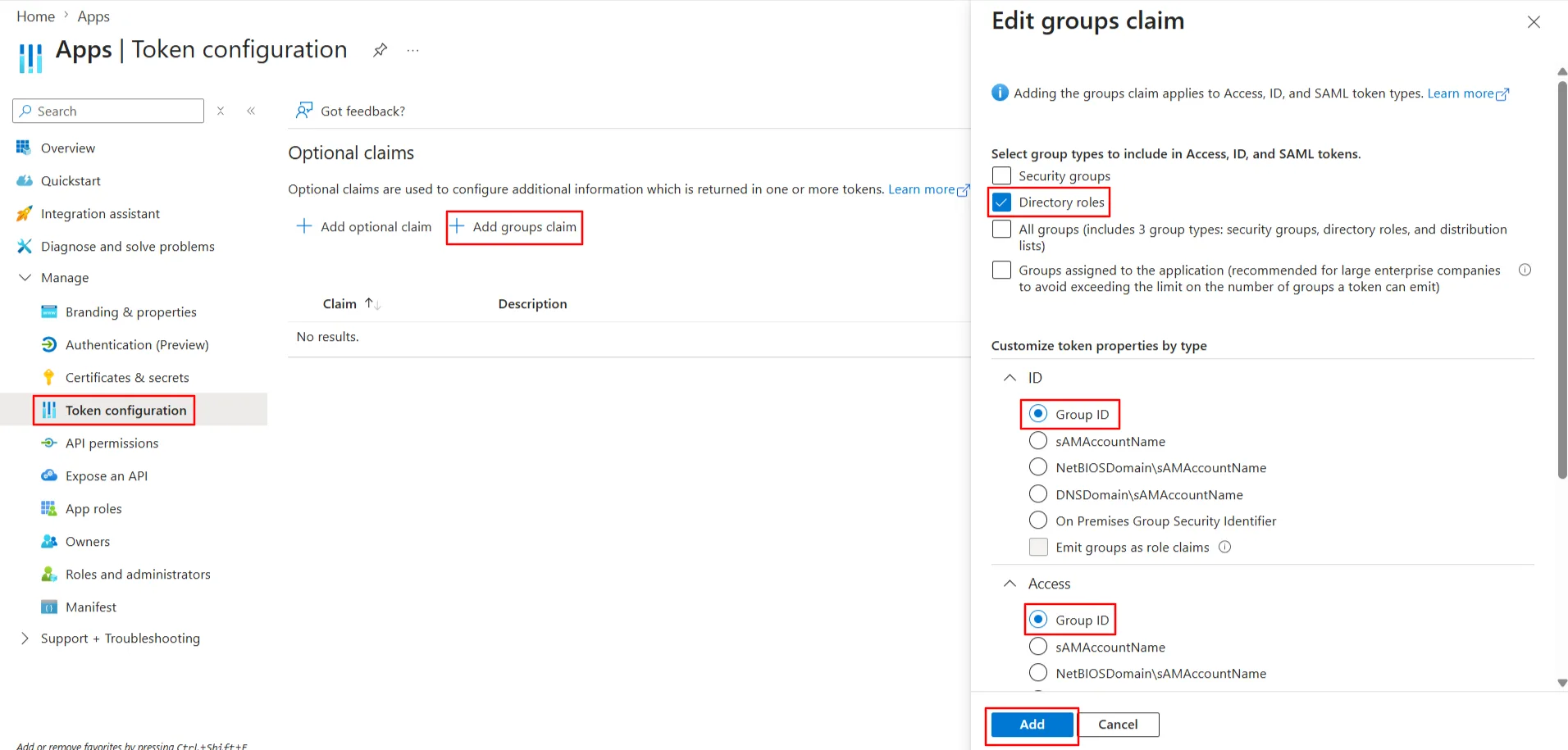
- By default, some Attributes will be sent in the SAML token. If you're not getting group information. Then, add Token configuration for Group information.
- Click on Add groups claim
- Copy the Federation Metadata URL given below. Replace the '{tenant_ID}' part (overview tab) with your Directory/Tenant ID. This will be required while configuring the SAML plugin.
| Federation Metadata URL | https://login.microsoftonline.com/{tenant_ID}/federationmetadata/2007-06/federationmetadata.xml |