
Access Reviewer360 for Jira
Access Reviewer360 shows you who can do what across your Jira site, traces how each person got there, records what you decided about every risk, and produces the evidence an auditor asks for — all from one admin screen, without your data ever leaving Atlassian.
Where to find it
Install Access Reviewer360 from the Atlassian Marketplace and it appears in Jira's top navigation bar. It opens as a full-page screen with a section list down the left. Only Jira administrators can open it.
Your data never leaves Atlassian
The app is Runs on Atlassian certified: it talks only to your own Jira site through Atlassian's platform, declares no external network access, and never calls the Atlassian Organization API. The access inventory, scan history and its own audit log are stored in Forge-hosted storage inside your site's data-residency region, and all of it is deleted when you uninstall.
It is read-only by default. The only things it ever writes into Jira are issues you explicitly request with Create ticket or Create Remediation Issue, and access you explicitly remove with Revoke access. It never changes a permission, role, group or user record on its own.
How it works: the scan
Everything you see in Scan Findings tab comes from a scan — a snapshot of your site's access configuration and recent activity. Screens read the last completed snapshot, so they stay fast and never slow Jira down.
- Open Overview. The top of the page shows the last scan time, or that no scan has run yet.
- Click Run Scan (top right). The app reads projects, roles, groups, users and recent activity.
- When it finishes you get a count of findings, a High / Medium / Low breakdown, which policies are enabled, and how many projects were scanned.
The Roles & Permissions inventory is separate from the governance scan: By Project live-verifies from Jira, while the other views use the last successful inventory sync. Activity data and admin changes refresh automatically every hour.
The sections at a glance
| Section | What it answers |
|---|---|
| Overview | What is my current risk posture at a glance? |
| Policies | Which checks are running, and how are they configured? |
| Scan findings | What risks did the last scan find? |
| Decisions | What have I done about them — suppressions, tickets and direct revokes? |
| Roles & permissions | Who has access to what across my entire site? |
| Access paths | How exactly did this person get this access? |
| Project & global permissions | Who actually holds this permission — role-based or not? |
| Jira activity | Who changed what, who is active, and who has gone quiet? |
| App audit | What governance actions have been taken inside the app? |
Two honest limits worth knowing up front
- Inactivity is an activity signal, not a login time. “Dormant 200d” means the user's last recorded issue action — comment, status change, worklog — was 200 days ago. It is a strong indicator, but a privacy-safe app cannot see exact last-login times, so confirm in User Activity before removing anyone's access.
- Two kinds of access cannot be read. Issue-security level membership and certain global permissions fall outside what Jira's permission-scheme API exposes to a privacy-safe app. Where that matters, the screen points you to the right native Jira admin page.
Overview
What is my current risk posture at a glance?
The Overview is your dashboard and the place you start a scan. It shows the last scan time, four recommended pre-built checks, an alert banner when open findings need attention, and summary counters for Findings · Policies · Users · Projects.
| Recommended policy | Status |
|---|---|
| Dormant Project Access | Active — already running in your scans |
| Inactive Account Cleanup | Not yet configured — click Configure |
| External User Access | Not yet configured — click Configure |
| Too Many Admins | Active — already running in your scans |
Policies
Which checks are running, and how are they configured?
A policy is a rule the scan applies — “flag any user inactive in this project for more than 60 days”, “alert me if more than 3 people administer the same project”, “warn me if a contractor account has admin rights”. Results only appear for policies you have switched on. A policy that is enabled but never configured doesn't run with silent defaults or errors out; it simply produces no findings until you save its settings.
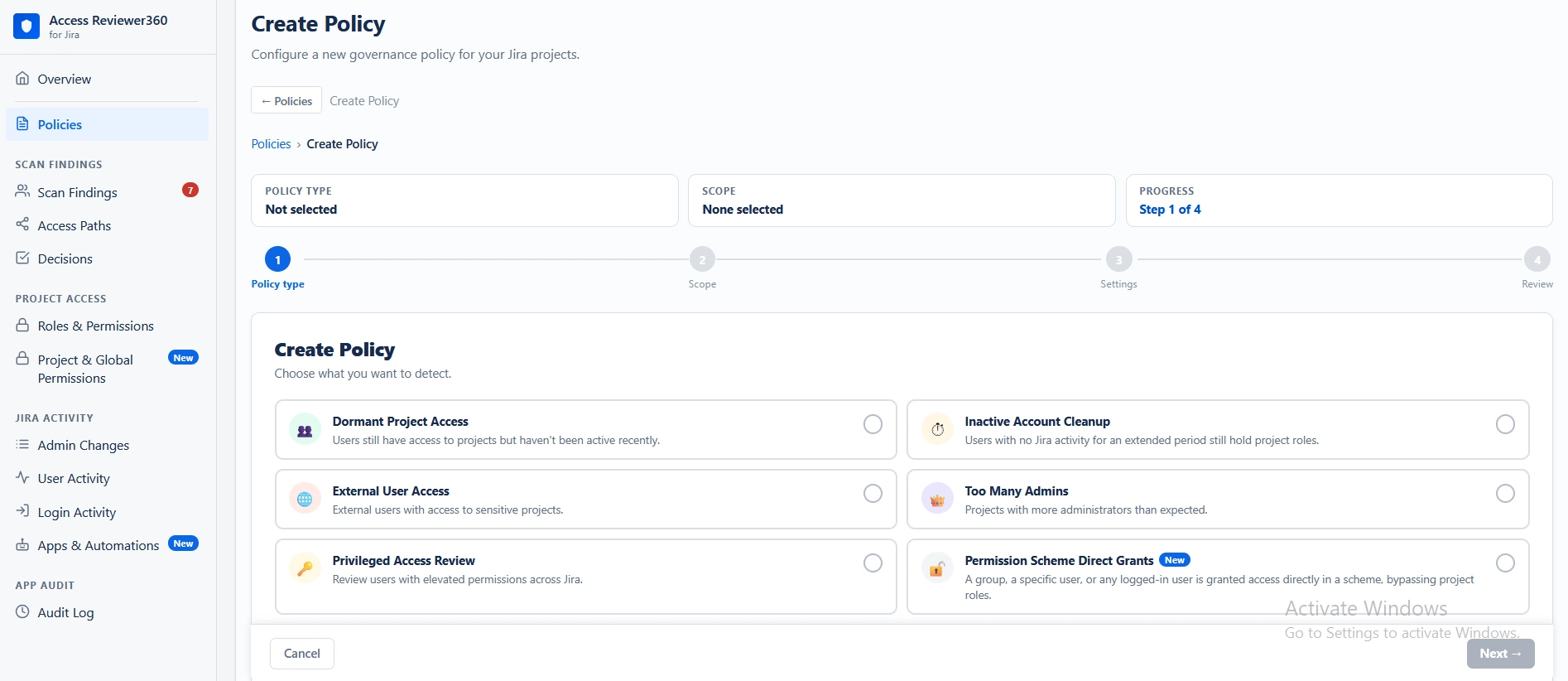
Dormant Project Access
Finds users who still hold a role on a project but haven't acted in it for a long time — they moved teams or left, and the access was never removed. Click Configure, set the days of inactivity (default 60), and Save.
Inactive Account Cleanup
Finds accounts that are deactivated, or long inactive, yet still hold project roles — a disabled account still listed on three projects is a compliance issue at audit time. Set the inactivity threshold and Save.
External User Access
Find contractors, vendors and partners with access to projects you consider sensitive. Select External user groups, add External email domains or internal email domains, then Save.
Too Many Admins
Flags projects with more administrators than you allow. Every project admin can change access, workflows and permission settings, so a small number limits the blast radius of one compromised account. Set the maximum per project (default 3) and Save.
Permission Scheme Direct Grants
Flags permission schemes that give access directly to a group, a specific user, or any logged-in user instead of through a project role. Because the same scheme can be used by multiple projects, changing one of these grants can affect every project sharing that scheme.
A few further checks appear under a Coming soon badge. Two of them — Unmanaged Global Admin and Dormant Global Admin Login — depend on Atlassian Organization API data this app intentionally does not fetch, so treat them as permanently roadmap-only. A third, Dormant Global Admin, is Jira-derived and simply not released yet. This is also where you tune Automation Actor Patterns used by Apps & Automations.
Scan findings
What risks did the last scan find?
Summary cards across the top: Total pending (awaiting a decision), High risk (immediate attention), Medium (review soon), Low (informational).
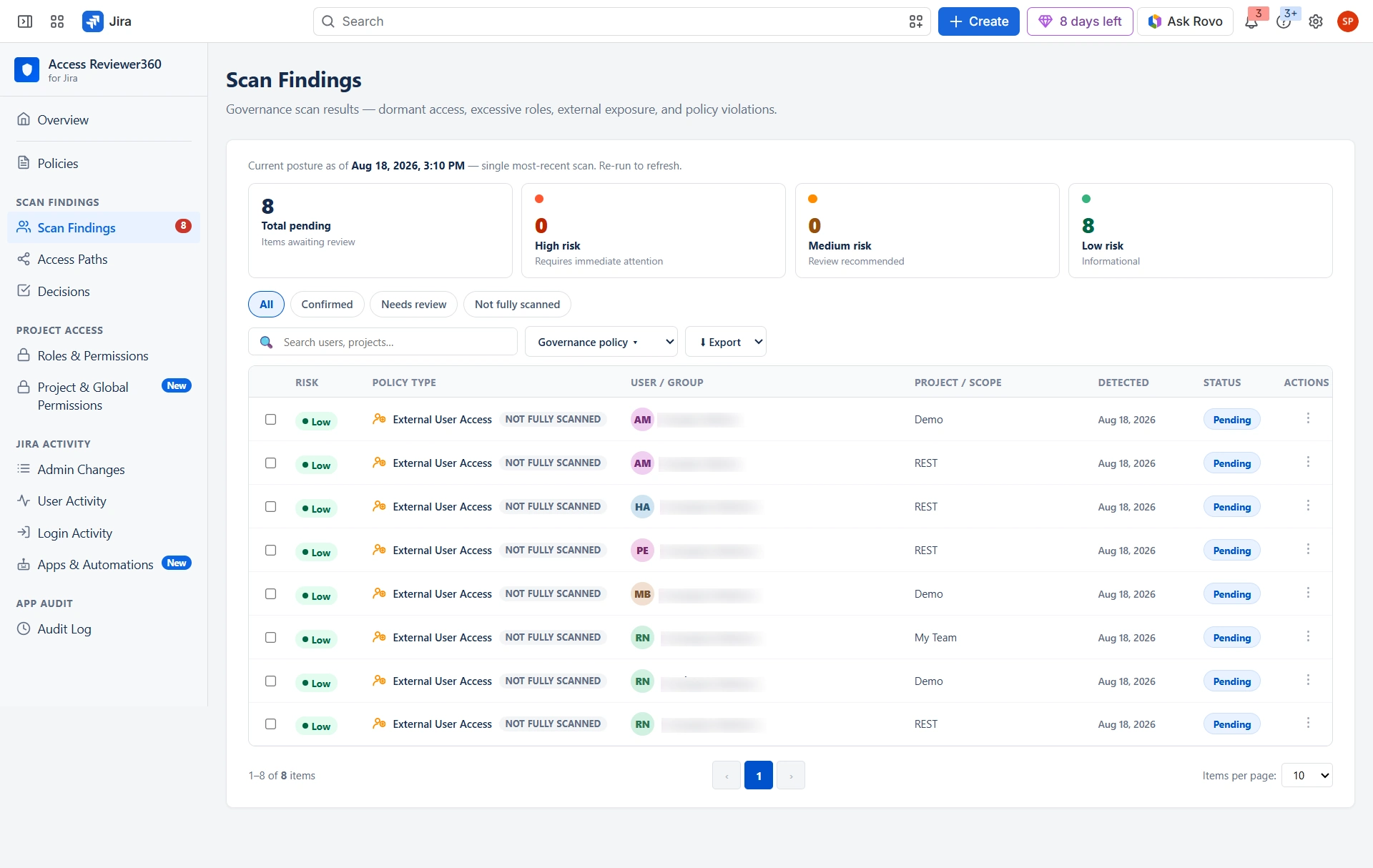
| Column | What it tells you |
|---|---|
| Risk | High (red dot), Medium (orange dot), Low (green dot) |
| Policy Type | Which check found it |
| User / Group | Who is affected — first name and “+N more” when several share it |
| Project / Scope | Where the risk exists |
| Detected | When the finding was first seen |
| Status | Pending or Ticket created |
Narrow the list with the search box, the governance-policy dropdown, the risk-level dropdown, or the All / High / Medium / Low tabs. Export downloads everything as CSV or JSON.
The three-dot menu on any row offers Create ticket (raise a Jira issue for your team), Revoke access (remove the access directly from Jira when the finding maps to a specific role or group membership), Record Exceptions (record an accepted risk so it stops reappearing until the suppression expires) and View access path (see how the access was granted).
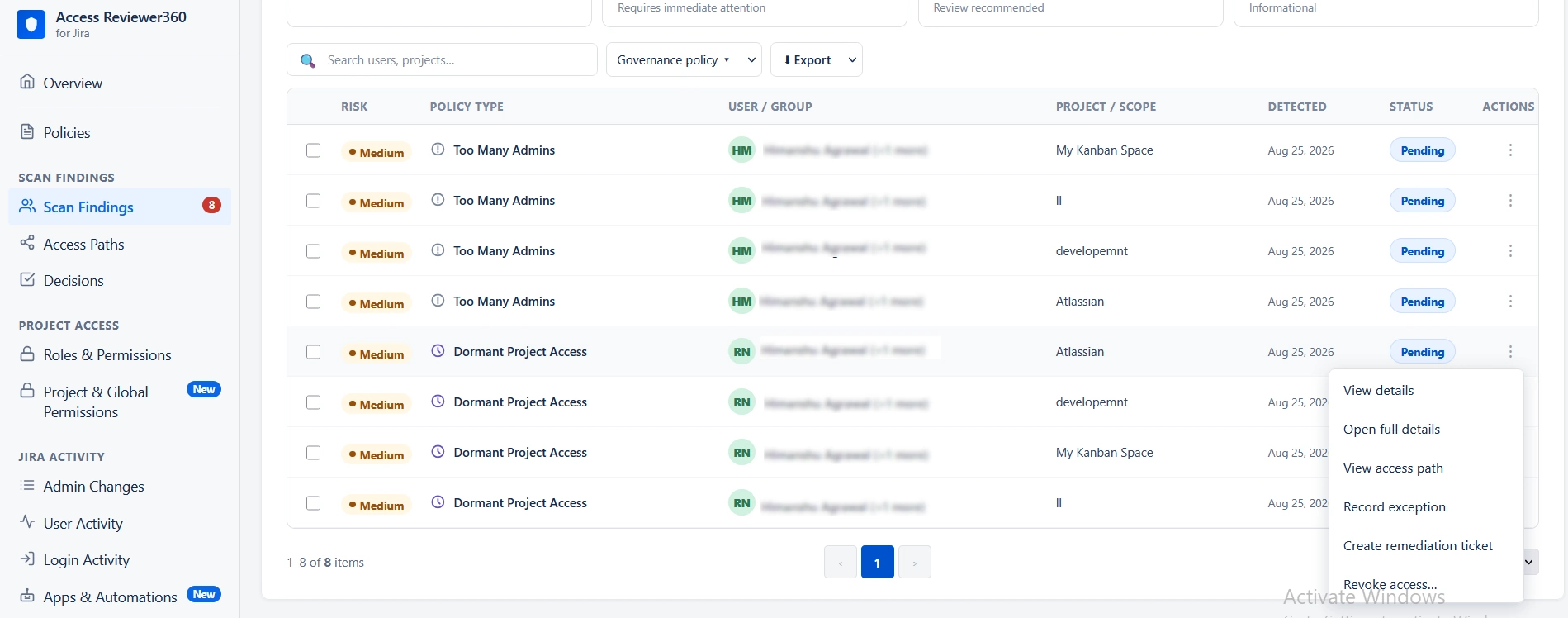
Every finding has three or four actions on its row. Whichever you choose, the decision is recorded — which is what turns a scan into an audit trail.
| Action | What it does |
|---|---|
| Create ticket | Creates a Jira issue for investigation or remediation |
| Exceptions | Records the finding as an accepted risk until the suppression expires |
| View access path | Shows exactly how the access was granted — see Access paths |
| Revoke access | Removes the access directly from Jira — either the project role assignment or the group membership — without leaving the app |
Revoke access
Revoke access is available when the finding points to a specific access grant, such as a project role assignment or group membership. Some findings don't have a single grant that can be removed directly and remain ticket-only.
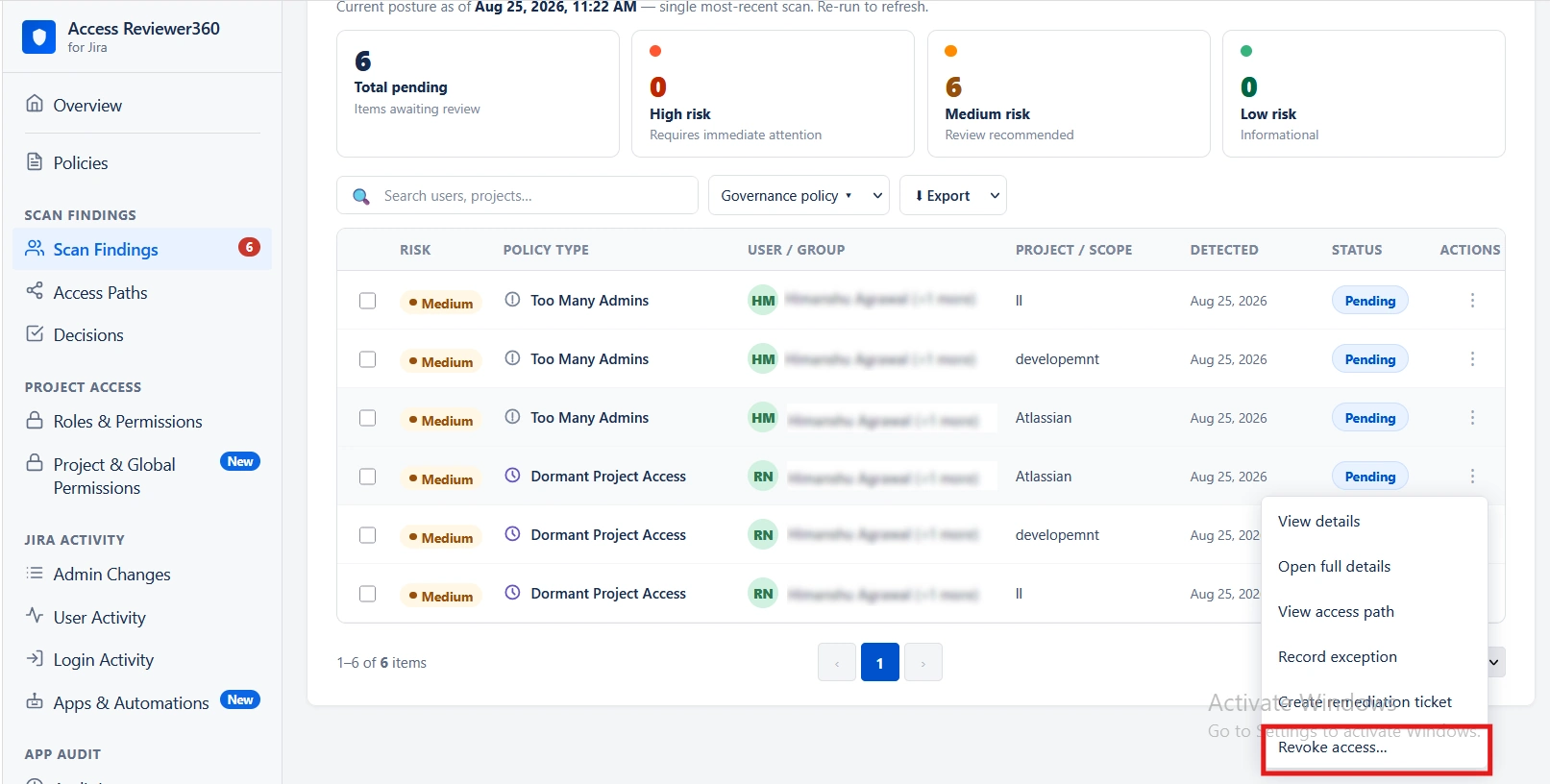
- Direct assignment vs. group membership. The dialog shows how the access was granted: Direct assignment or Via group · [group name]. Removing a user from a group changes their group membership, so it can affect their access across multiple projects.
- Blast radius. If the same group also gives the user access to other projects, those projects are listed under Also removes access to before you confirm the change.
- Permission requirement. Removing a user from a project role requires Jira admin access. Removing a user from a group requires org/site administrator permission through admin.atlassian.com. If you only have Jira admin access, use Create ticket so someone with the required permission can take action.
- SSO/SCIM-managed groups. If a group is managed by an identity provider, a future directory sync may add the user back. The dialog shows this warning for every group revoke. It does not check whether a particular group is actually managed by an identity provider.
- Findings that stay ticket-only. External or organization membership, permission-scheme-level findings, and Too many admins don't support direct revocation at the moment. For these findings, Create ticket is the available option.
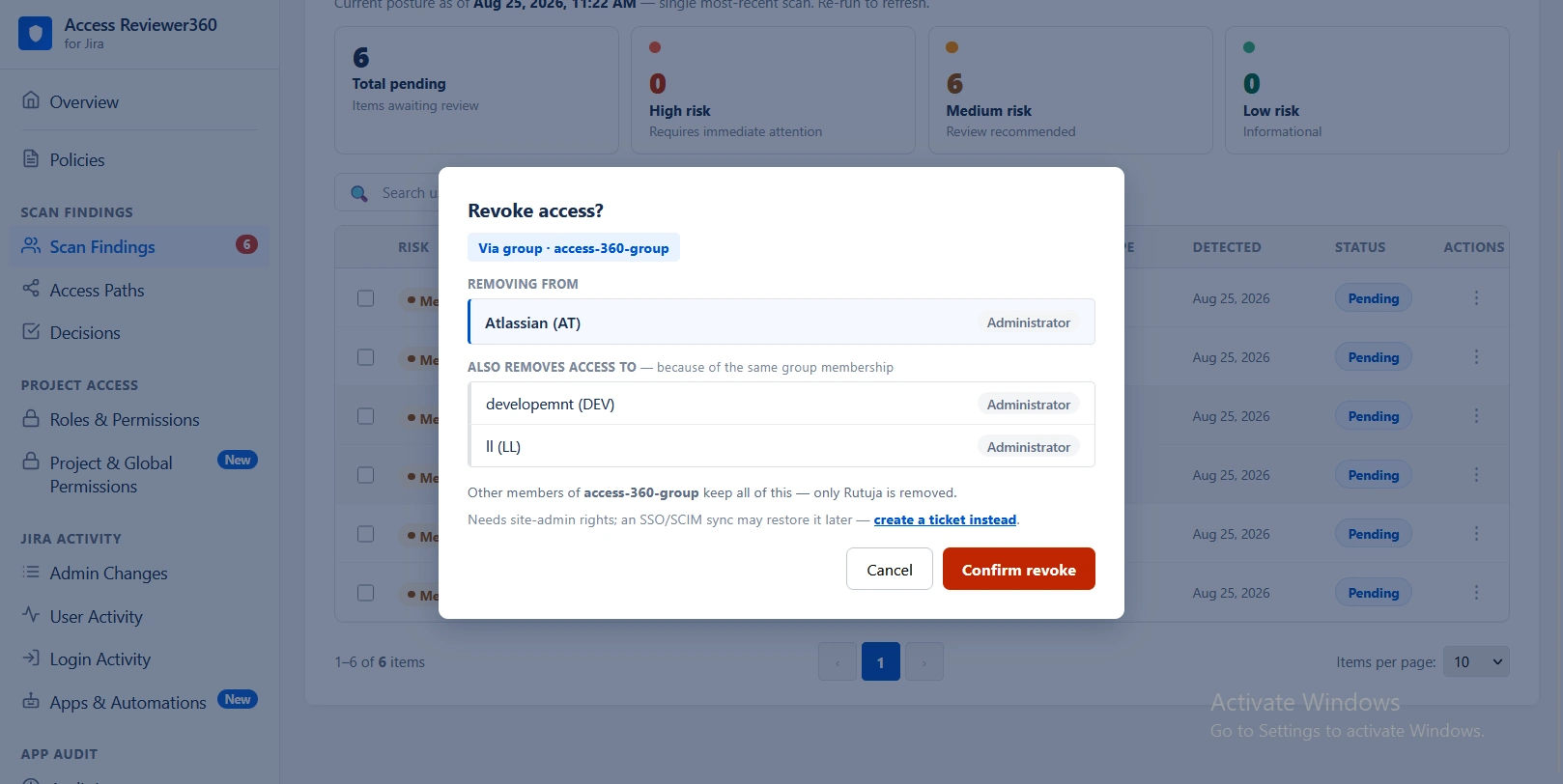
The Decisions page tracks revoke outcomes along with remediation tickets.
Access paths
How exactly did this user get this access?
Rather than just naming the person, the access trace shows the chain that granted the access: user account → group (or direct assignment) holding a project role → the permission scheme that role belongs to → the permissions that scheme grants → the project where it lands.
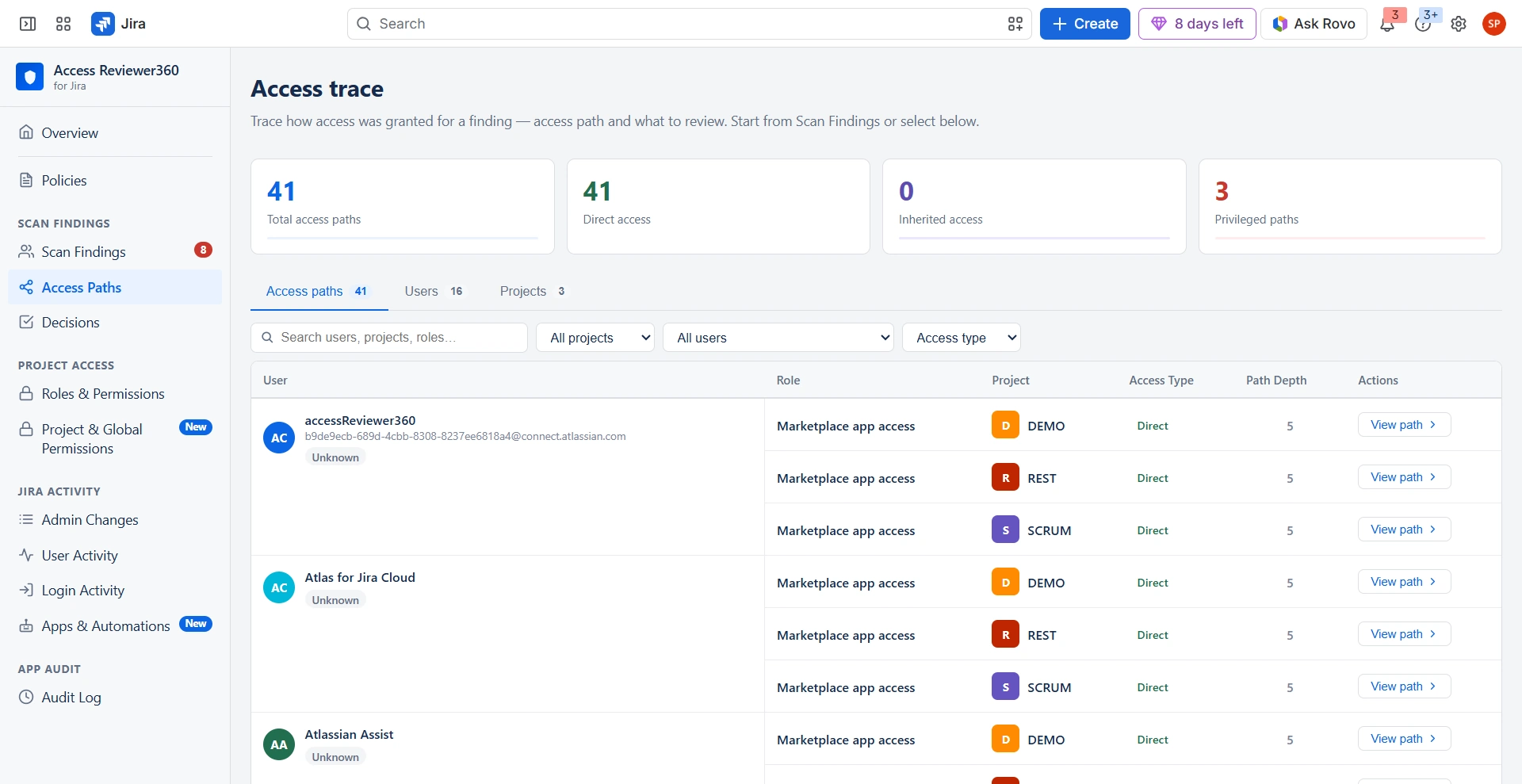
The Access Summary panel states the access type (Direct or Inherited), the project, how it was granted and whether it is active. What Can This User Do? at the foot of the page lists the resolved Jira permissions the user actually holds there — browse, create, edit, administer.
To reach it from a risk: Scan findings → three-dot menu on the row → View access path.
Decisions
What have I done about findings?
Active Suppressions
Lists every finding you chose to accept, with the policy it came from, the project-and-user scope.
It covers, and the reason you entered. Always set an expiry: a suppression without one can hide a real risk indefinitely, and will raise questions at audit. Suppressions never auto-renew — when one expires the finding returns and must be reviewed and re-suppressed with a fresh reason, so long-lived risk acceptance can't go unexamined.

Remediation tracker
Every remediation ticket and direct revoke is tracked here. If a row is marked Resolved and there is no Jira ticket link, it means the access was removed directly rather than through a Jira ticket.

| Status | Meaning |
|---|---|
| Ticket created | A Jira remediation ticket has been created and is still open |
| Partially revoked (n/total) | Some, but not all, of the finding's access grants have been removed |
| Resolved | The access has been removed, either through direct revocation or by resolving the linked Jira ticket |
If a ticket could not be created because no Jira project was configured, the row shows a placeholder reference starting with FG-STUB- instead of a real Jira issue key. The action is still tracked here, and the placeholder is updated once a Jira project is configured and the ticket is created.
Resolution happens automatically. There is nothing you need to update manually. A direct revoke marks the row as Resolved immediately. For a ticket, the row is updated the next time this page loads and finds that the linked Jira issue has been moved to Done.
Project access
Where does every user, group and project role actually connect — across the whole site?
Project Access is your live map of who can reach what. Instead of opening each project's People page one at a time, three linked views let you start from whichever thread you are holding: a project, a person, a group, or a permission itself.
| View | Answers |
|---|---|
| Roles & permissions | Which roles exist, and who's really in them — by project, by user, or by group |
| Project & global permissions | Who holds a permission — not just a role label — including grants with no role at all |
| Access paths | Exactly how a specific person got their access, step by step |
Every view is exportable to CSV, so the same screen that answers the question also produces the evidence.
Roles & permissions
Who has access to what across my entire Jira site?
In native Jira, answering that means stitching together three separate screens. Here it is one page, which you can enter from whichever angle fits the question you are actually asking:
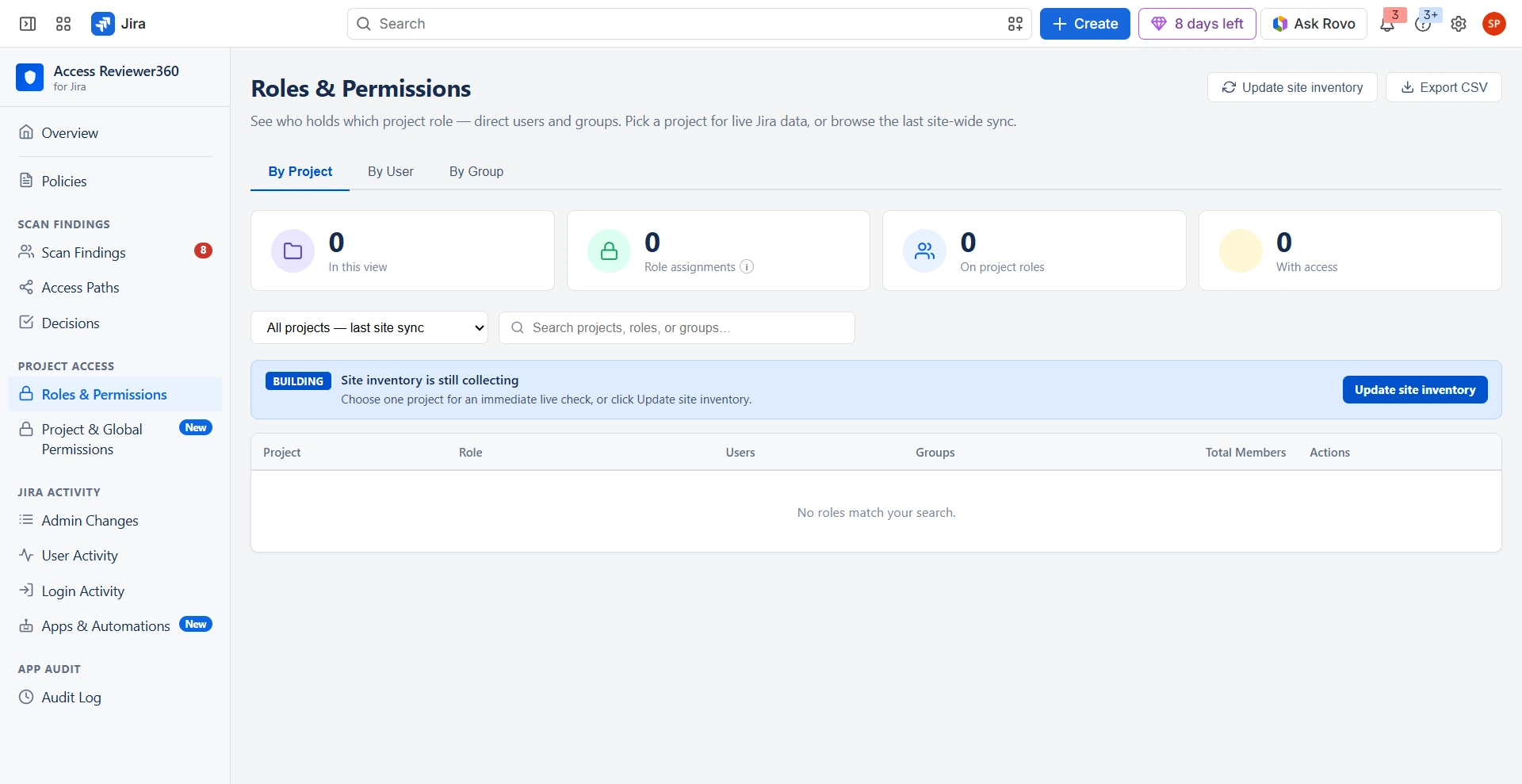
- By Project — who is in each role on a given project.
- By User — everything one person can reach, wherever it lives.
- By Group — how far a group's access actually spreads.
All three read the same inventory, so nothing you find in one view contradicts another.
One detail worth knowing up front: most access in Jira isn't handed to a person directly — it arrives through a group. This screen expands those groups for you, so you are reading real people rather than a group name you would otherwise have to go look up. Wherever a role appears, the Via Group column says whether it came through a group or was assigned directly; a dash means direct.
How fresh is what you're looking at?
By Project reads live from Jira every time. By User and By Group read the last full sync, so it helps to know what state that sync is in.
| State | What it means | What to do |
|---|---|---|
| Building | A sync just started — either the first one, or one you kicked off with Refresh | Give it a few minutes; large sites take longer. Still Building after 30 minutes: refresh once more, then contact support |
| Partial | Most of the site came through, but a few projects or groups didn't — usually a temporary hiccup on Jira's side | Click Refresh inventory. If it stays Partial, tell support which project keys are affected |
| READY | Everything is current as of the timestamp shown | Nothing — the timestamp tells you exactly how fresh it is |
Opening up a specific person
In By User, every person carries a tag so you have context before deciding whether they are a risk.
| Tag | What it's telling you |
|---|---|
| Active | They have done something in Jira recently |
| Dormant Nd | No activity for a measured stretch — “Dormant 200d” means 200 days |
| No activity in N+ days | Nothing turned up in the lookback window (365 days by default). Treat it as a floor, not the real number — they may be far more dormant than that |
Click into anyone and you get two panels, best read in order.
Member of shows the groups actually granting their access — and since access almost always flows through groups, this is usually the one thing you would change. Project access then lays out, project by project, which permissions and roles they hold and what grants each one, with the project name linking straight into Jira. Read Member of first to know what to fix, then Project access to see everywhere that fix will land before you touch anything.
Whatever you are looking at, Export CSV turns it into something you can hand to security or compliance without reformatting.
Project & global permissions
Who actually holds this permission — not just who sits in a role that sounds like it should?
A role name is a label an admin picked; it is not the permission Jira enforces. Two projects can both have an “Administrators” role — on one, that role is what grants Administer Projects; on the other, the same permission was handed straight to a group with no role involved at all. Roles & permissions would show you the role, but not that second grant. This screen catches it, because it starts from the permission and works backward instead of starting from a role and hoping nothing was granted around it.
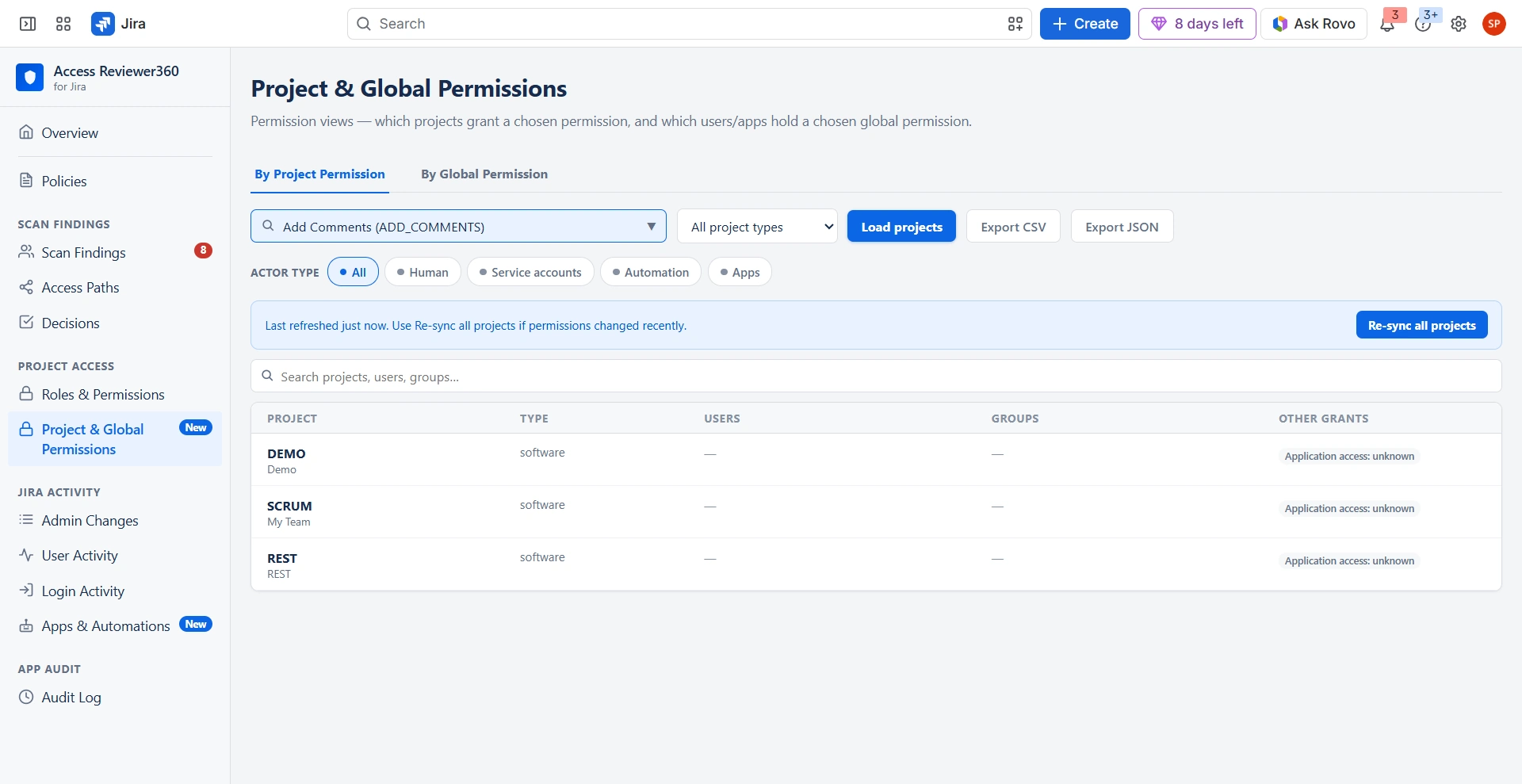
Two ways to ask, depending on scope
By Project Permission answers it project by project. Pick a permission — say Administer Projects — and you see every project that grants it, including the ones that grant it to nobody. That last part matters: you are seeing full coverage, not only the projects where something turned up.
By Global Permission answers it site-wide. Pick a permission such as Administer Jira, or check all of them at once, and see every user — and every app — that Jira itself confirms holds it right now.
What you'll see for each grant
Not every permission grant resolves to a tidy list of people, and this screen doesn't pretend otherwise.
| Grant type | What shows up |
|---|---|
| Project role | The role's real actors — the same people you'd see in Roles & permissions |
| Group | The group's members, once expansion has caught up — otherwise just the group name, never a stale guess at membership |
| User | That one person |
| Reporter, Assignee, Anyone, Application access, custom field, service desk customer portal | A label, and only a label — there is no fixed list of people behind “the reporter,” so none is invented |
If Jira returns a grant type the app hasn't seen before, it appears labelled unrecognized rather than quietly folded into something it might not be. A wrong guess here is worse than an honest “we don't know.”
One more thing: team-managed projects don't use classic permission schemes at all, so they come back empty here. That is expected, not a gap in the data — there is simply nothing to read.
As everywhere else, Export CSV turns whatever you're looking at into something you can hand off for review.
Jira activity
Who changed what, who is active, and who has gone quiet?
Admin changes
A timeline of every administrative action on your site — role assignments, user creation, workflow changes, permission scheme edits. Filter by search, event type, project, Human / System, or governance layer (Access · Configuration · Integration · Process). Refreshes hourly; Sync pulls the latest immediately and Export CSV downloads the log.
| Colour | Category and examples |
|---|---|
| Blue | Access — role assigned, user created, group membership added |
| Purple | Configuration — custom field changed, screen modified |
| Orange | Process — workflow updated, transition added or removed |
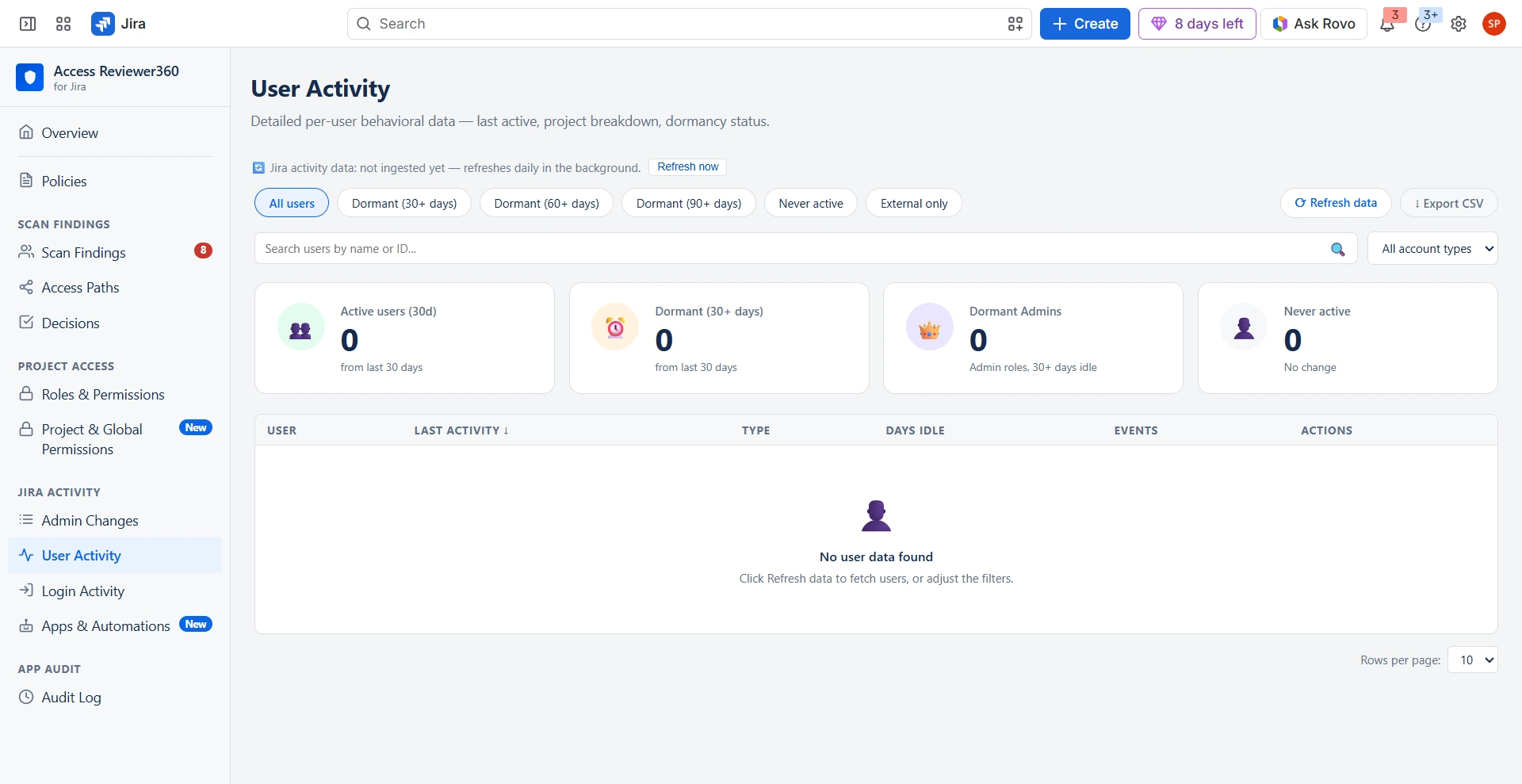
User activity
How active each user actually is — last comment, status update, worklog or change. This is the data behind dormancy detection: “Dormant 200d” means the last recorded action was 200 days ago, and “No activity in 365+ days” means nothing was found in the lookback window. Refreshes hourly; Refresh Data updates it now.
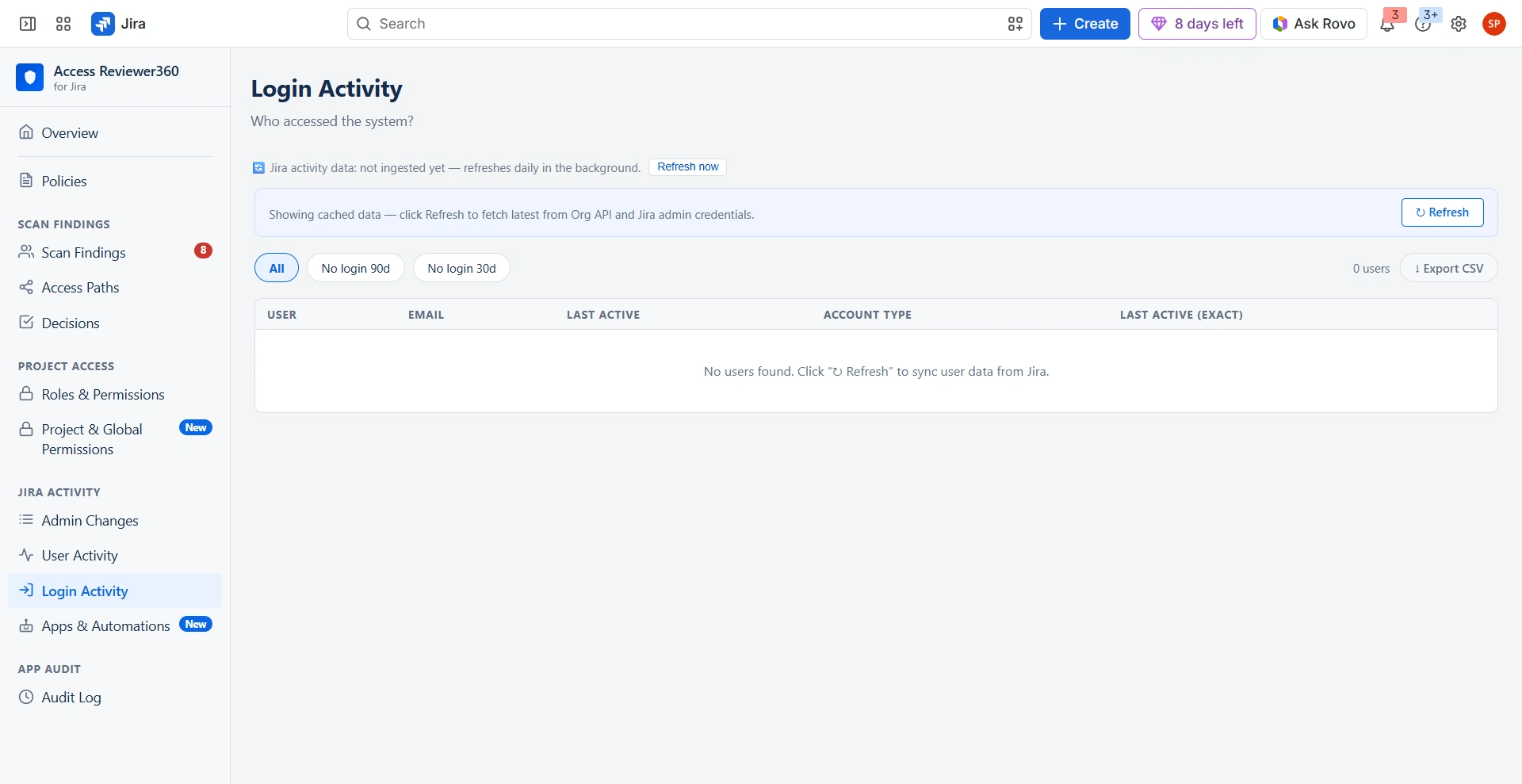
Login activity
An advanced view over the same Jira-derived signal as User activity — not a separate connection, and nothing to configure. Use the No login 90d / No login 30d tabs to answer “who hasn't touched Jira lately?”, reading them as “no detected Jira activity”, not “no SSO login”.
Why not real login data?
True last-SSO-login timestamps require the Atlassian Organization API, which needs external network access outside Jira. Supporting it would mean giving up Runs on Atlassian certification for every customer, not just the ones who'd use the feature. If someone has genuinely stopped using Jira, that shows up here as inactivity anyway.
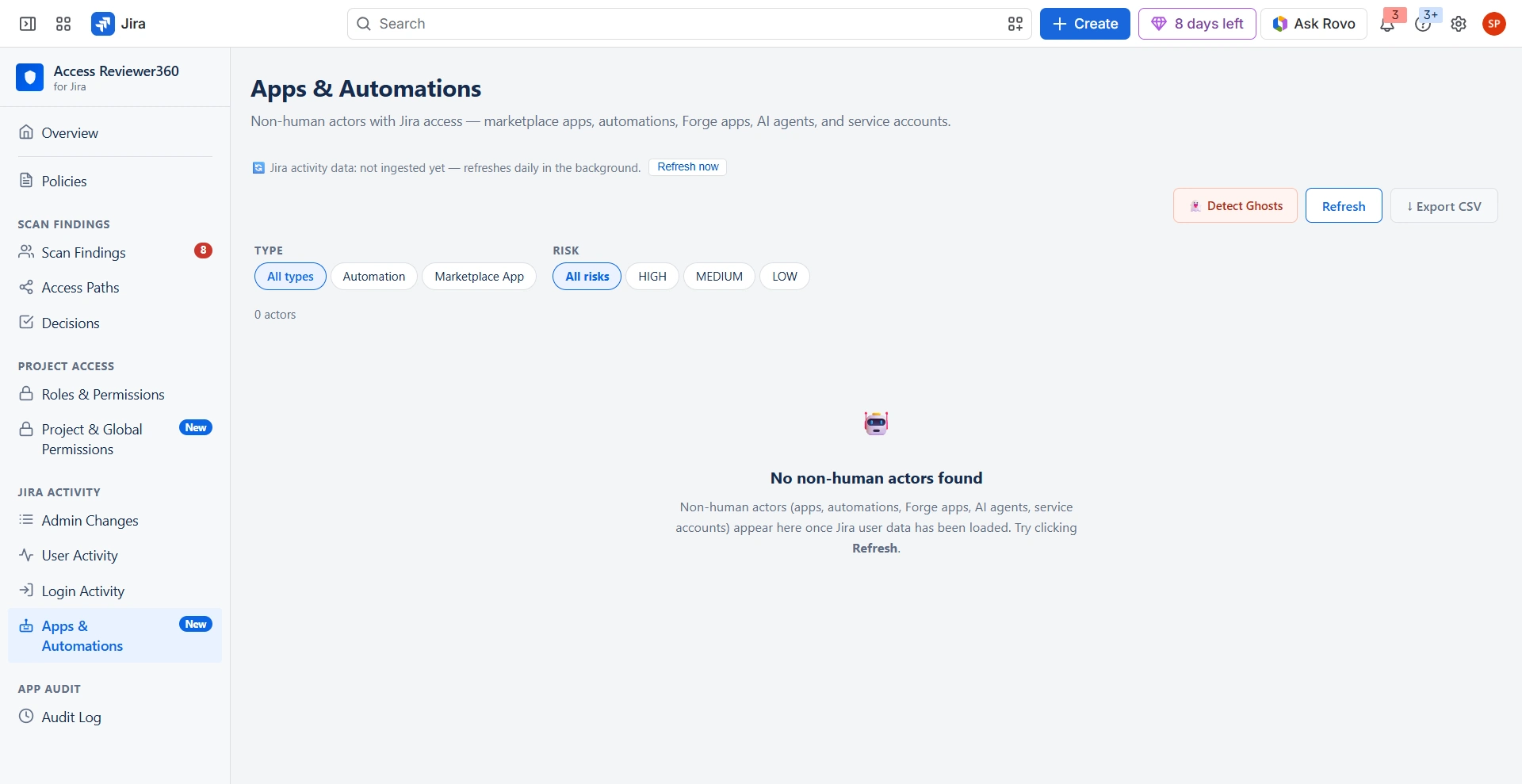
Apps & automations
Lists non-human accounts — automation rules, app integrations, service accounts, bots — and flags any holding an admin-level role as a Least Privilege violation. These accounts often get broad roles when first set up and are never tightened. Review each one's projects and roles, click Create Remediation Issue where access is excessive, and add naming patterns under Automation Actor Patterns in Policies if an account is being misclassified.
App audit
What governance actions have been taken inside the app?
The evidence trail of the app's own use: scans run, policies created, updated or deleted, tickets raised, findings suppressed. Counters across the top total events, scans run, policy changes, exceptions and remediations.
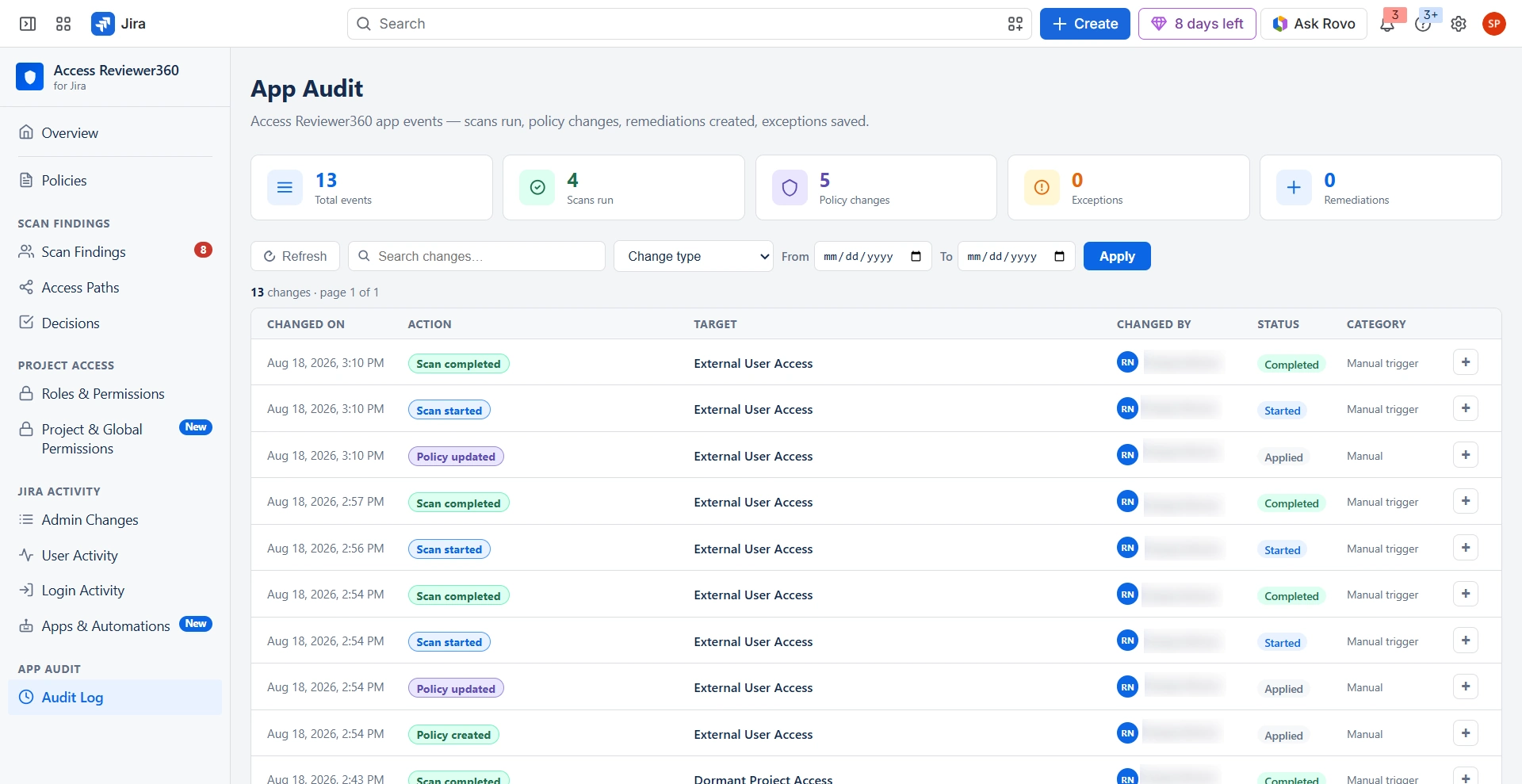
| Event | What it means |
|---|---|
| Scan started | A scan was triggered |
| Scan completed | The scan finished successfully |
| Policy created | A new policy was set up |
| Policy updated | A policy's settings were changed |
| Policy deleted | A policy was removed |
| Exception saved | A finding was suppressed with a reason |
Filter with the search box, the Change type dropdown and From / To date pickers; Apply runs the filter and Refresh pulls the latest events.
Building a compliance report
For SOC 2, ISO 27001 or an internal review, two exports together are the evidence that governance is actively managed rather than set up once and forgotten:
- Scan findings → Export — all current findings with their compliance tags
- App audit → date range → download — the event log for the period under review
The first shows what risks exist; the second shows what your team has been doing about them.
Troubleshooting
| Symptom | What to do |
|---|---|
| Scan stuck or slow | Over 30 minutes on a mid-size site (or a few hours on 10,000+ users): refresh Overview first — the scan continues server-side even with the tab closed. Still Scanning? Contact support with your site URL and start time. |
| Inventory won't leave “Building” | Click Refresh inventory once after 30 minutes. If it remains stuck, contact support. |
| Inventory shows “Partial” | Usually a temporary Jira API issue. Refresh to retry; if specific projects consistently fail, send support their project keys. |
| An enabled policy finds nothing | Confirm it was configured and saved, not just enabled — without saved thresholds it has nothing to check. Save, then run a new scan. |
| A resolved finding reappears | Findings are re-evaluated every scan. Confirm the access was actually removed in Jira, then rescan. |
| An automation account is misclassified | Adjust Automation Actor Patterns in Policies and run a new scan. |
| A suppression is expiring | They don't auto-renew. Review the finding again and re-suppress with a fresh reason and expiry. |
Need help?
- miniOrange Support: miniorange.atlassian.net/servicedesk
- Email: atlassiansupport@xecurify.com
- Marketplace listing: search “Access Reviewer360” on marketplace.atlassian.com
Access Reviewer360 for Jira is built and maintained by miniOrange. All your Jira data stays within the Atlassian platform — nothing is sent to external servers, and all app data is deleted on uninstall.


