
SAML & OAuth/OIDC SSO for JSM Customers
The SAML and OAuth/OIDC SSO for JSM Customers app by miniOrange enables secure, seamless authentication for Jira Service Management (JSM) portal customers. External users, partners, vendors, and clients can log in using their existing corporate Identity Provider (IdP) credentials, eliminating the need for separate Jira-specific passwords.
Key Features & Capabilities
- Multi-Protocol Support: Full compatibility with SAML, OAuth, and OpenID Connect (OIDC) for integration with any modern IdP.
- No Atlassian Guard Required: Enable SSO without requiring an Atlassian Guard subscription, reducing cost and simplifying deployment.
- Multiple IdP Support: Configure and manage several Identity Providers simultaneously, allowing different customer groups to authenticate via their respective corporate credentials.
- Domain-Based Redirection: Automatically route customers to the correct IdP login page based on their email domain.
- Just-in-Time (JIT) Provisioning: Automatically create customer accounts on first successful login, no manual setup required.
- Dynamic Organization Mapping: Assign users to JSM Organizations based on IdP groups or email domains.
- Portal-Level Access Control: Restrict specific JSM portals to authorised IdP groups or organisations.
- Attribute & Custom Field Mapping: Sync user data from your IdP directly into Jira custom fields to enrich support tickets with customer context.
- 24/7 Support: Round-the-clock technical assistance and free setup sessions for complex multi-IdP configurations.
Pre-requisites
Before beginning configuration, ensure the following are in place:
- App Installation: Install the SAML/OAuth SSO for JSM Customers app from the Atlassian Marketplace in your Jira instance.
- Atlassian API Token: Required for app configuration and essential features. This is configured in the Jira Configuration tab.
- JSM Instance Access: A Jira Service Management Cloud instance with administrative privileges.
App Overview
The app interface is organised through a sidebar that groups all modules into logical sections, providing quick access to configurations, user management, and monitoring capabilities.
-
SSO Configuration
This section manages Identity Provider (IdP) connections and supports SAML, OAuth, and OpenID Connect (OIDC) protocols for customer authentication. -
Jira Configuration
This section contains global app settings, including API token configuration and controls related to SSO behaviour within the Jira Service Management portal. -
Domain Configuration
This section handles the setup of custom (vanity) domains, enabling a branded portal experience for end users. -
Organization Mapping
This section governs the automatic assignment of users to Jira Service Management organizations based on their IdP attributes such as groups or domains. -
Portal Access Mapping
This section defines access control rules, determining which portals are visible to specific users, groups, or organizations. -
User Management
This section provides visibility into customer accounts and allows administrative control over user access within the app. -
Custom Field Mapping
This module manages the synchronization of user attributes from the IdP into Jira custom fields, enriching tickets with additional context. -
End User Features
This section defines the functionality available to portal users, including self-service capabilities. -
Customization
This section controls branding and interface-level customizations applied to the customer portal. -
Request Column Settings
This section allows you to customize your end user’s requests dashboard -
Audit Logs
This section records authentication events and user activity for monitoring and auditing purposes. -
Troubleshooting
This section provides diagnostic tools and guidance to identify and resolve configuration or authentication issues.
SSO Configuration
The SSO Configuration tab is the central hub for establishing trust between your JSM instance and your external Identity Providers. From here, administrators add, view, and manage the entire authentication lifecycle for portal customers.
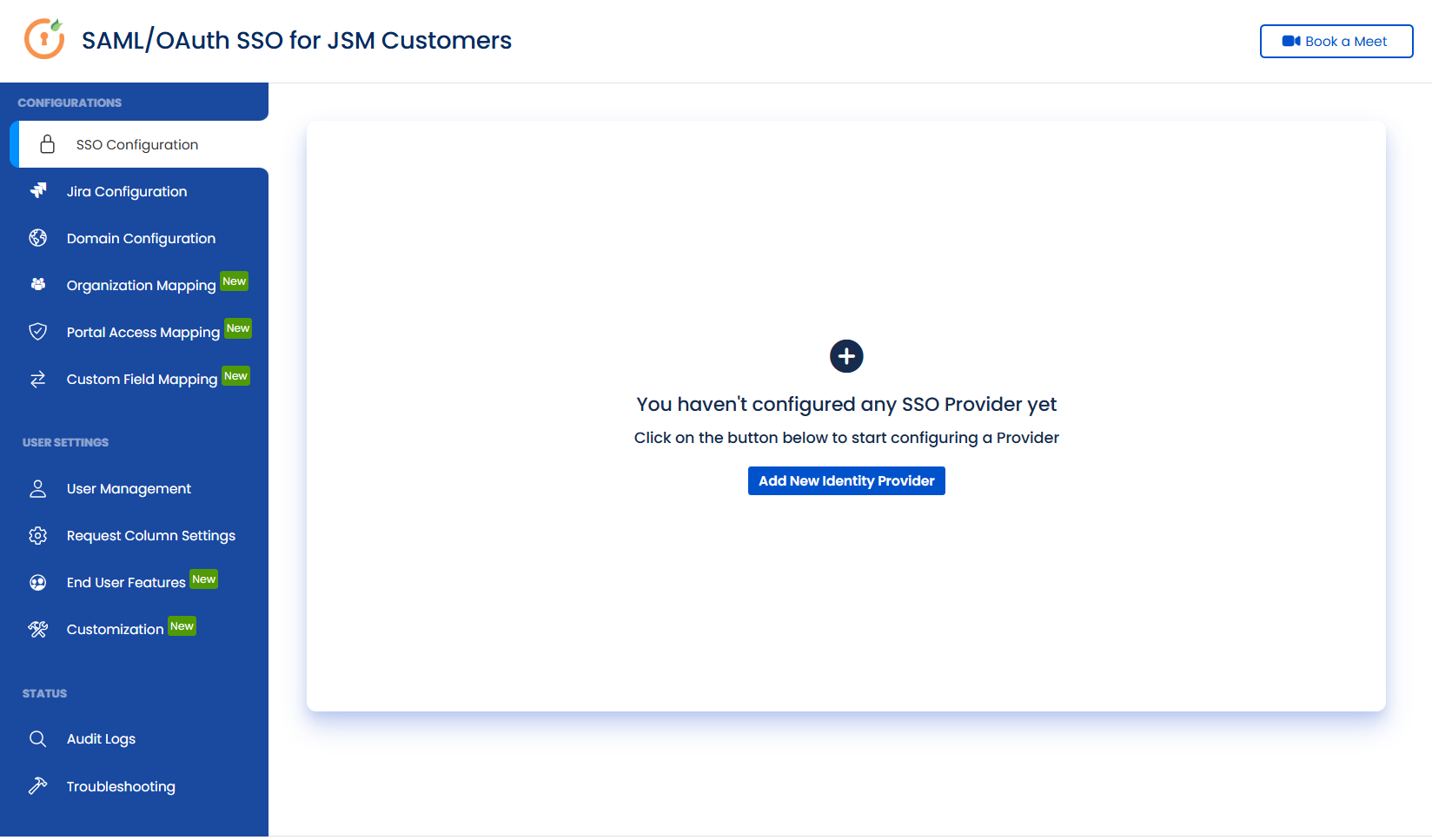
Add New Identity Provider: It initiates a new IdP connection. Start by adding your Identity Provider based on the protocol of your choice.
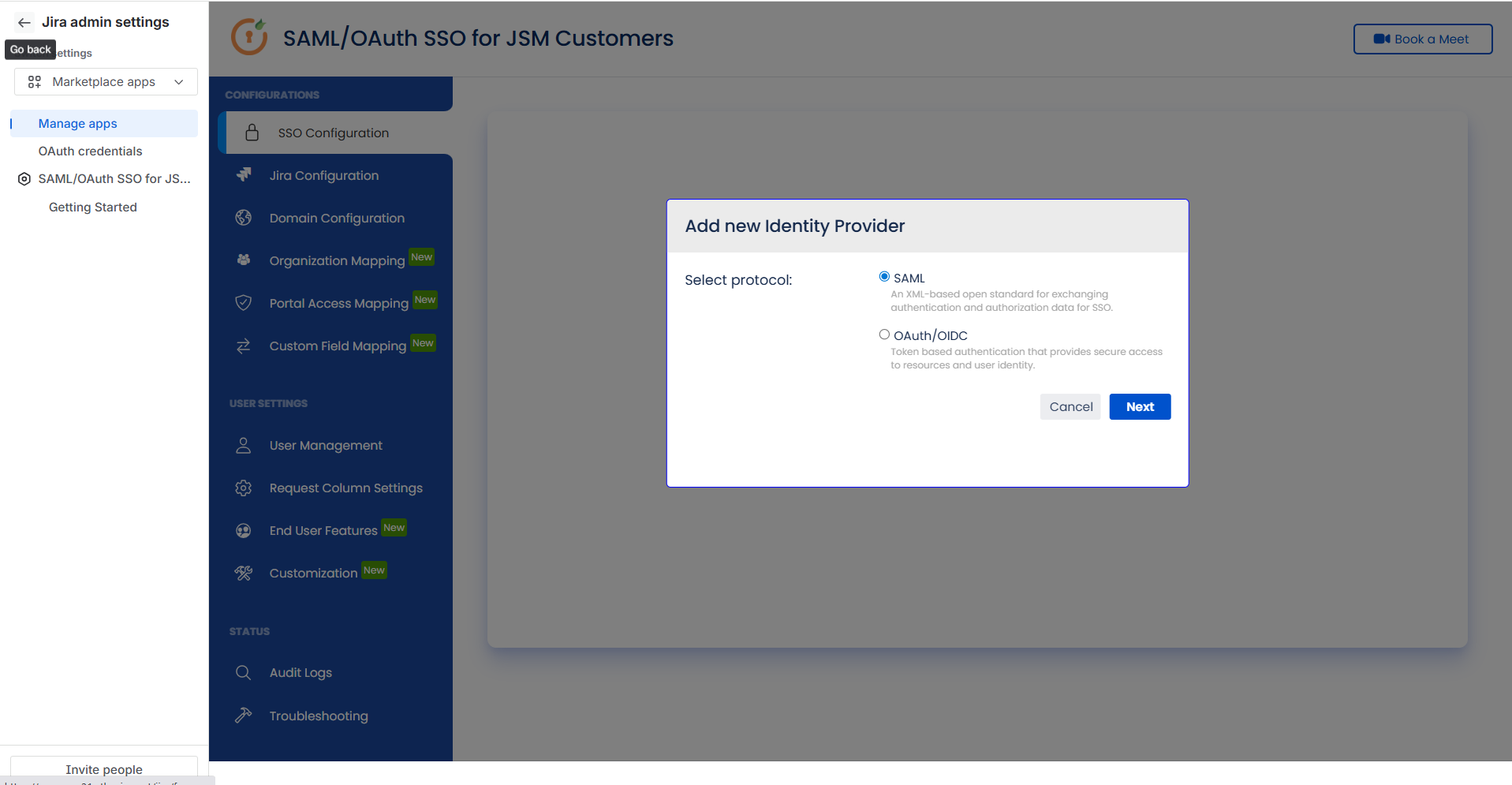
SAML vs. OAuth/OIDC: Which Protocol Should I Use?
Both SAML and OAuth/OIDC provide secure Single Sign-On for your JSM portal. In most cases, the choice depends on which protocols are supported by your Identity Provider (IdP).
How to Decide
- Use the protocol that is supported by your Identity Provider(IDP).
- If your IdP supports multiple protocols (e.g., Okta, Azure AD), either option will work, but OAuth/OIDC is generally preferred for newer integrations, while SAML is more common in enterprise setups.
SAML Configuration
SAML Configuration is a two-step process, best completed in order. First, provide your JSM details to your IdP (Step 1: SP Configuration); then enter your IdP's details into the app (Step 2: IDP Configuration). Once both steps are saved, run a Test Connection and enable SSO for your customers.
Step 1: Service Provider (SP) Configuration
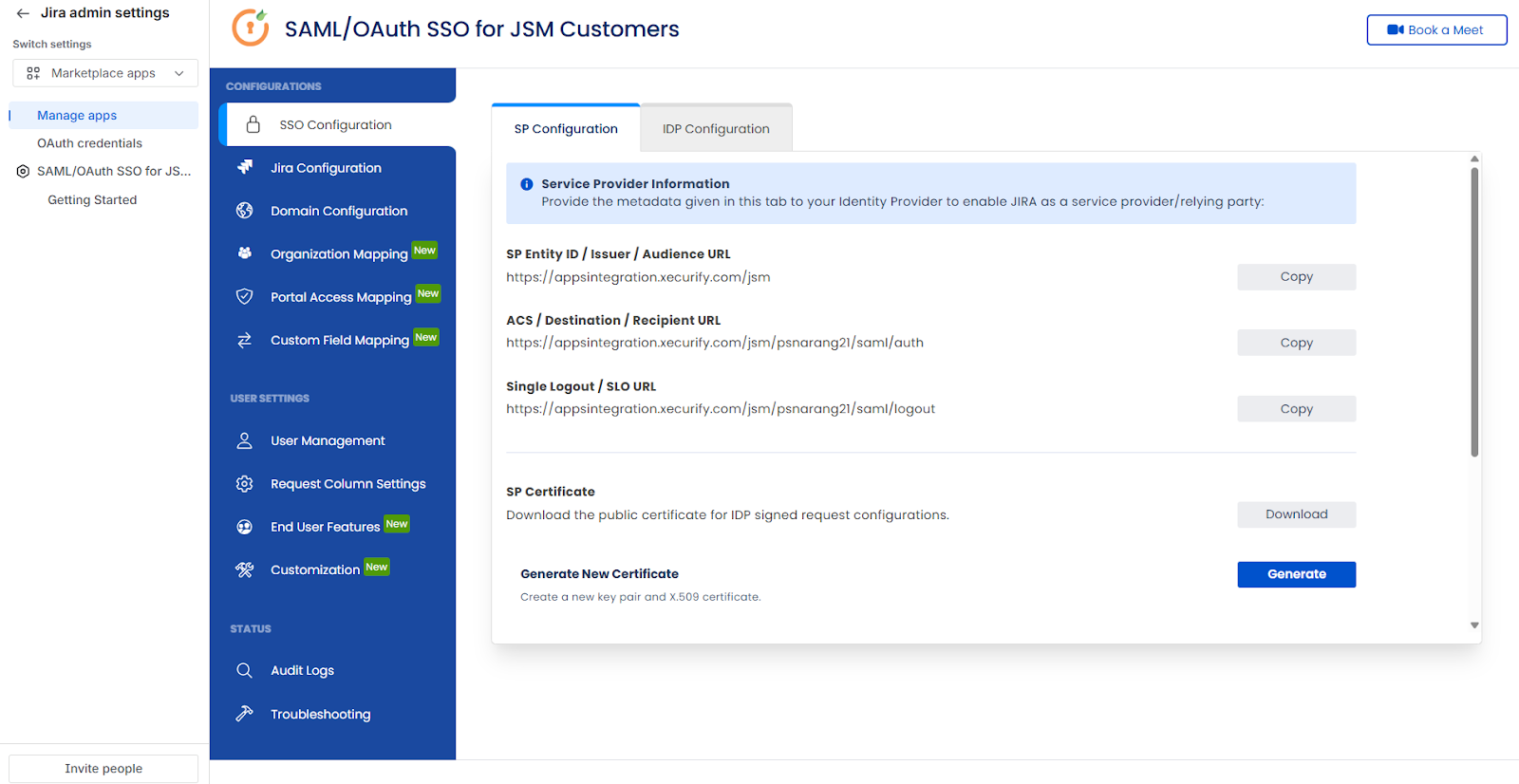
This tab provides the metadata your IdP needs to recognise JSM as a valid Service Provider. Copy these values into your IdP's SAML application settings before proceeding to IDP Configuration.
- SP Entity ID / Issuer / Audience URL: The unique identifier for your JSM instance. The IdP uses this to direct authentication responses to the correct destination.
- ACS / Destination / Recipient URL: The Assertion Consumer Service URL where the IdP sends SAML assertions after a successful login.
- Single Logout (SLO) URL: The endpoint used to securely log a user out of both the IdP and JSM in a single action.
- SP Certificate: Retrieve the public certificate required by the IdP when you click on the “Download” button.
- Generate/Configure New Certificate: Create a fresh key pair and X.509 certificate for periodic rotation.
- Restore Certificate: Revert to a previous valid certificate if an accidental update causes login failures.
- Certificate Expiry Notification: Enable this toggle to alert administrators before a certificate expires, preventing unexpected authentication outages.
Step 2: Identity Provider (IDP) Configuration
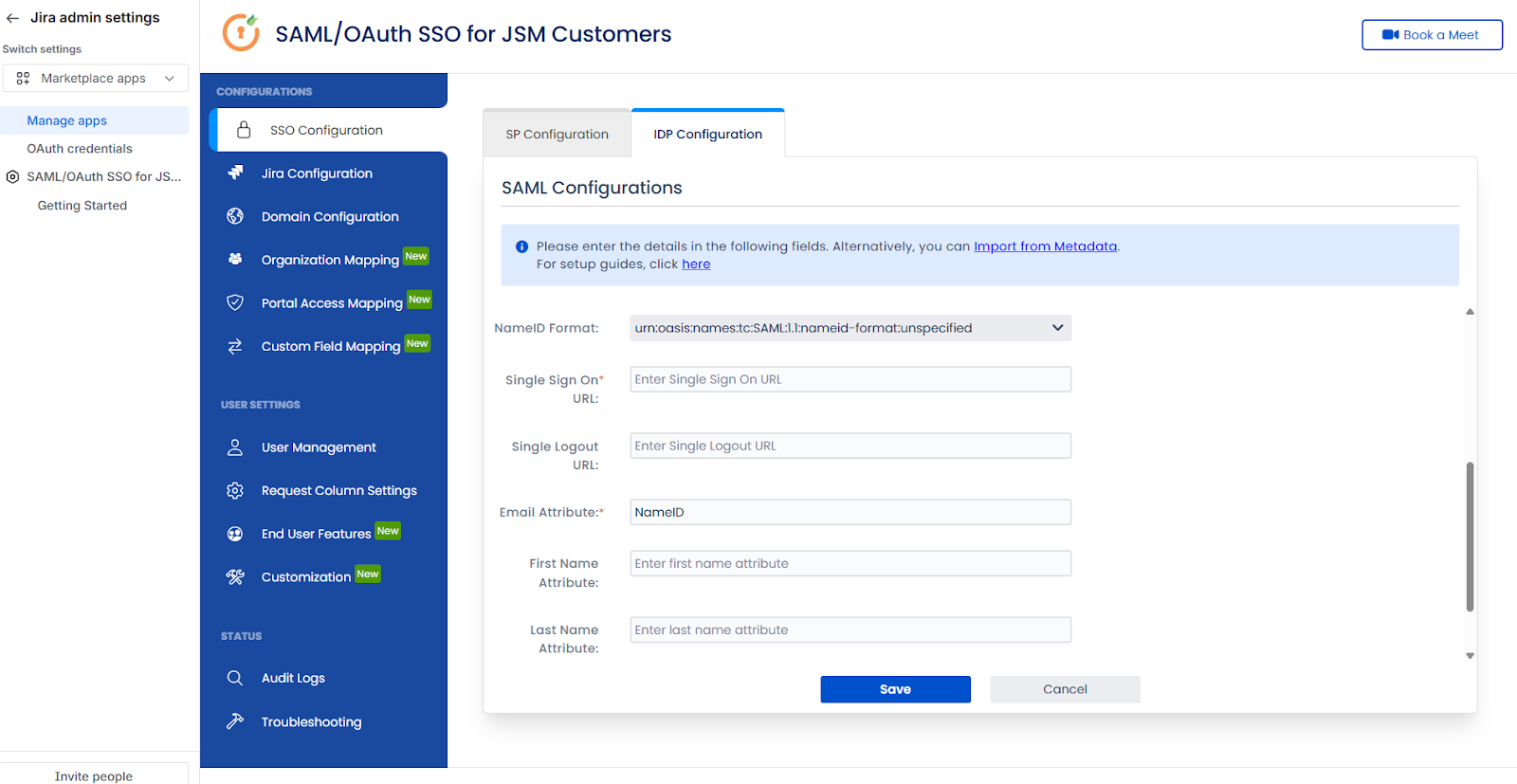
Enter the details from your IdP to complete the authentication. For providers like Azure AD, click Import IDP Metadata to auto-populate all fields from a URL or XML file.
Here are the fields you will need to fill:
- IDP Name: A custom display name to identify this provider within the app.
- IDP Entity ID / Issuer: The unique URI from your IdP that identifies it as the source of authentication.
- IDP Signing Certificate: The public key from your IdP, used to verify that SAML assertions received by JSM are authentic and untampered.
- NameID Format: Select the format (e.g., emailAddress, unspecified) matching how your IdP identifies users.
- Single Sign-On URL: The endpoint where JSM redirects customers to enter their corporate credentials.
- Single Logout URL (Optional): The URL where JSM sends logout requests to the IdP.
- Email Attribute: The SAML attribute containing the user's email address (defaults to NameID).
- First/Last Name Attribute: The IdP attributes used to populate the customer's display name in JSM.
- Group Name Attribute: The SAML attribute sent by your IdP that contains the user's group memberships (e.g., memberOf or groups).
Once saved, perform a Test Connection to verify that the authentication handshake between JSM and your IdP is working correctly before enabling SSO for customers.
OAuth/OIDC Configuration
OAuth/OIDC Configuration establishes a connection between JSM (acting as the OAuth client) and your Identity Provider using a Client ID and Secret.
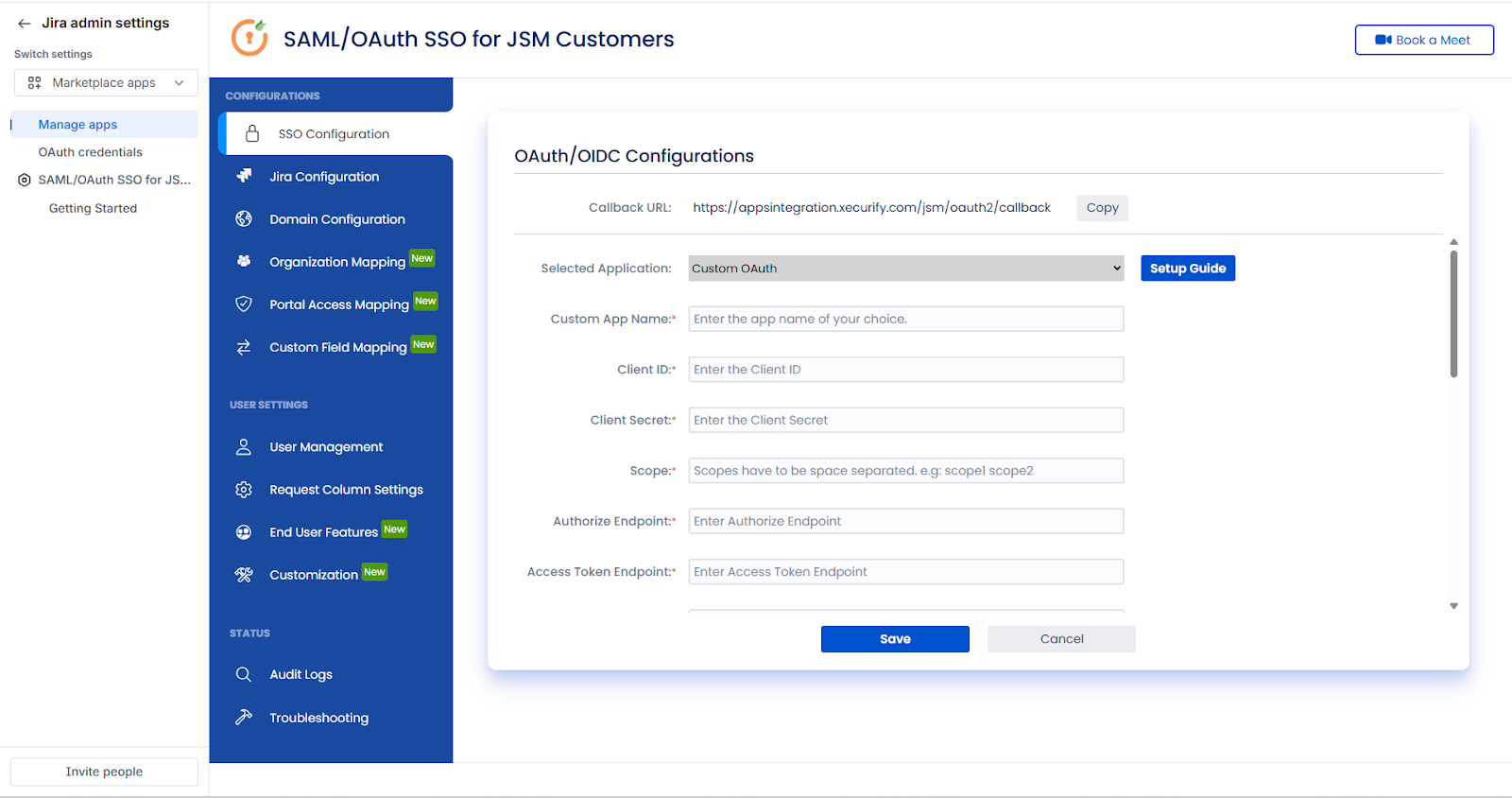
- Callback URL: The redirect URI generated by the app. Copy this URL and register it in your IdP's application settings before authentication will succeed.
- Selected Application: Choose your specific OAuth/OIDC provider from the dropdown (e.g., Google, Salesforce, Azure B2C). Select Custom OAuth or Custom OIDC if your provider is not listed.
- Custom App Name: A descriptive label for this configuration (e.g., "Vendor Portal OIDC") to identify it within the app.
- Client ID: The unique application identifier, obtained from your Identity Provider.
- Client Secret: The secret key used to authenticate the app with your provider.
- Scope: The access level the app requests from the Provider. Common values include openid, profile, and email to retrieve basic user details. Scopes must be space-separated.
- Authorize Endpoint: The URL where users are redirected to log in and grant consent to the Identity Provider.
- Access Token Endpoint: The URL the app uses to exchange the authorisation code for an access token.
- User Info Endpoint: The endpoint the app calls to retrieve user profile data after token exchange.
- Group Info Endpoint: The endpoint to fetch the user's group memberships from the IdP.
- Logout Endpoint: The URL to call when logging the user out of the OAuth/OIDC provider.
User Attribute Mapping:
- Email Attribute: The OAuth attribute containing the user's email
- First Name Attribute: Maps the IdP attribute for the user's first name
- Last Name Attribute: Maps the IdP attribute for the user's last name
- Group Name Attribute: The IdP attribute containing the user's group memberships
Request Parameters:
- Authorization Request Parameters: Checkboxes to include ACR Value and/or State Parameter in the authorisation server request, plus an Add More Parameters button for custom key-value pairs
- Send Parameters in Token Endpoint: Radio button selecting whether client credentials are sent via Http Header or Http Body
Next Step
Once SSO is configured, proceed to the Jira Configuration Tab (Part 2) to enable SSO-enforced portal links and configure the API token required for provisioning features.
Jira Configuration
The Jira Configuration tab manages the global settings governing how the SSO app integrates with your JSM environment, providing SSO-enforced substitute portal URLs and ensuring that the API connection required for advanced provisioning features remains active.
API Token Configuration
The API Token authenticates the app against your Atlassian organisation and must be configured for features like provisioning and Organization Mapping to function. Enter the email address of a Site Admin and generate the token from your Atlassian account settings, then paste it here.
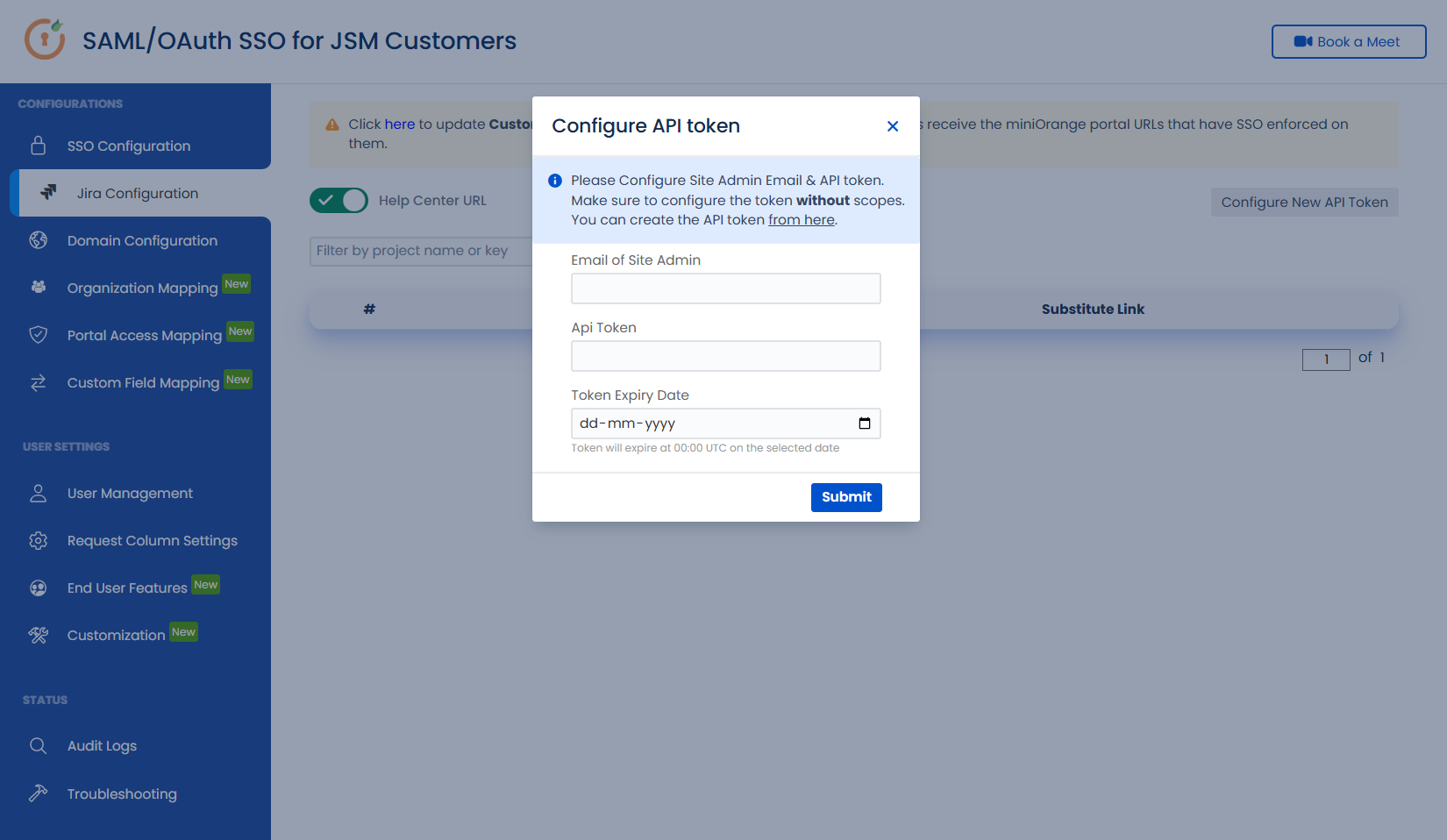
- Enter the email address of the Site admin.
- Configure New API Token: Establish or update the administrative connection to your Atlassian organisation.
- Token Expiry Date: Displays the date on which the current API token will expire. Renew the token before this date to avoid interruptions to provisioning and organisation mapping.
This section lets you generate an SSO-enabled substitute URL for your Help Center, which you can share with customers so they authenticate through your IdP instead of the default Atlassian login page.
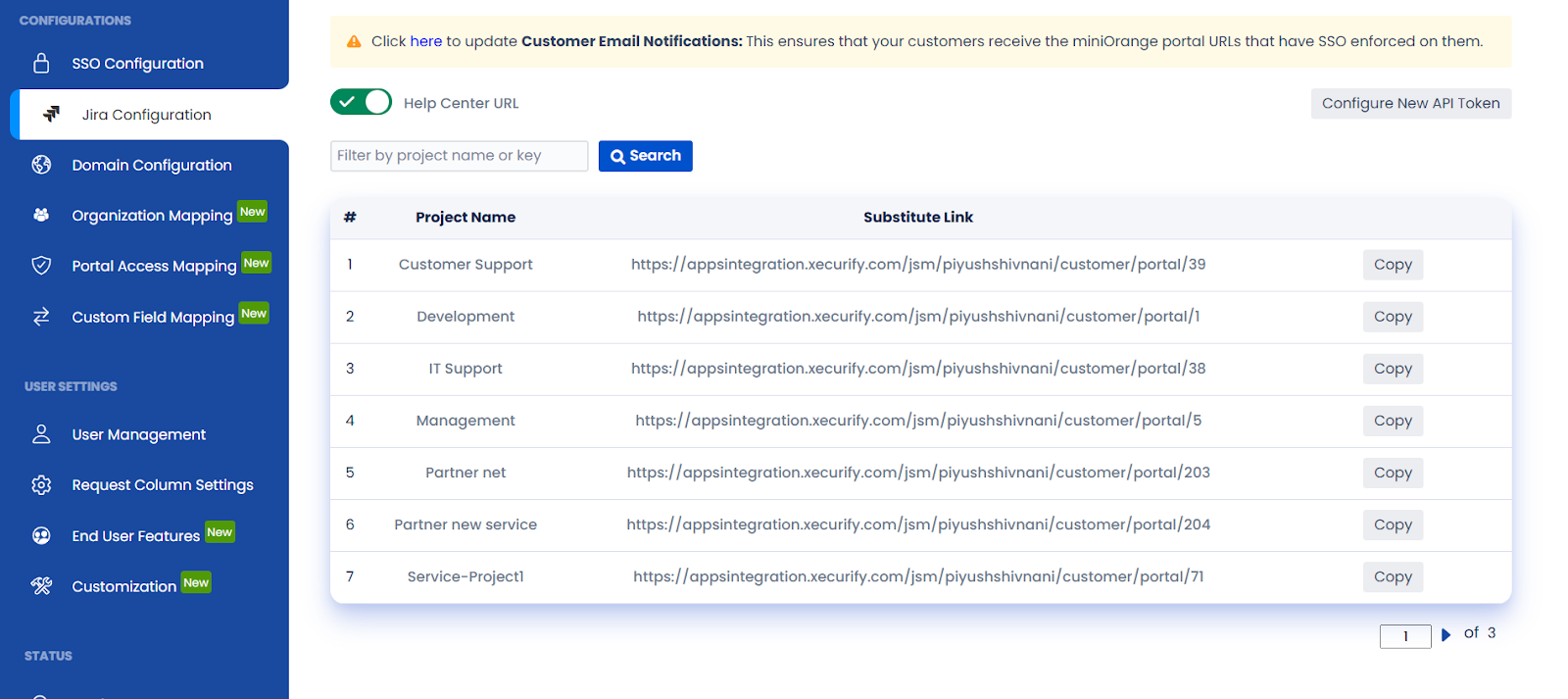
Help Center URL toggle: Enable this toggle to generate an SSO-enabled substitute URL for your Help Center (/portals). Customers who open the substitute link are routed through your configured IdP before reaching the Help Center.
This toggle does not replace the default Atlassian portal URLs, and it does not apply SSO enforcement across all JSM project URLs. Native Atlassian links remain functional and unchanged.
Customer Email Notifications: Opens step-by-step guidance for updating your Jira Service Management email notification templates so that automated notifications (e.g., "Ticket Created") link to the SSO-enabled substitute portal URLs instead of the default Atlassian portal links.
These template changes are made manually in Jira's notification settings. The app provides the instructions and the substitute URLs, but does not modify your email templates automatically.
- Project Search: Search the URL table by Project Name or Key to locate specific JSM projects.
- Substitute Link: The SSO-enforced URL for each JSM project. Use the Copy button to share portal URLs directly with customers.
Domain Configuration
The Domain Configuration tab sets up a Custom Domain (Vanity URL) as the base URL for your JSM portal. This is a multi-step process involving coordination between your DNS provider and the miniOrange infrastructure team.
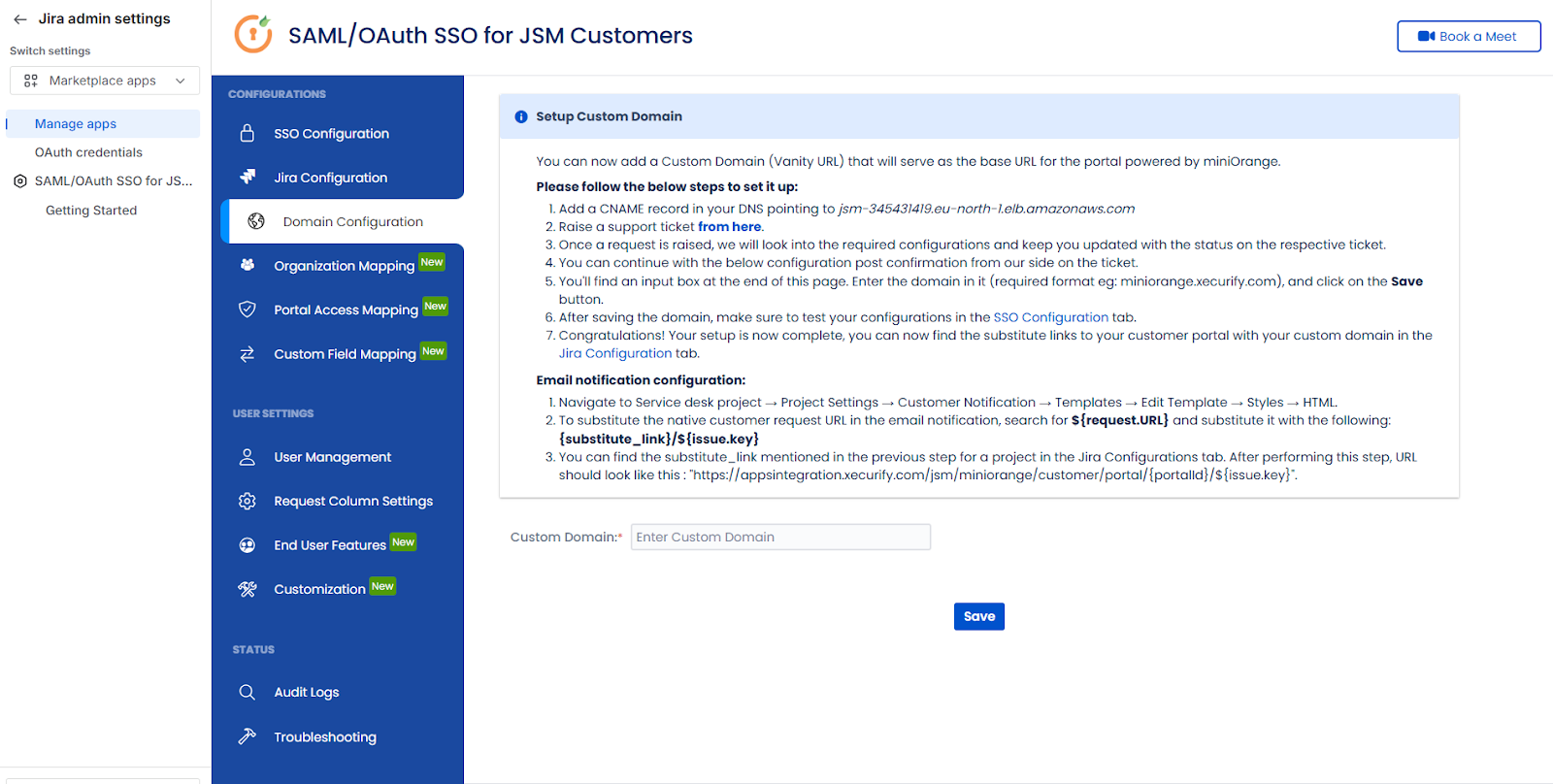
- Custom Domain Input: Once the miniOrange team confirms the backend setup, enter your domain (e.g., support.yourcompany.com) into the Custom Domain field and click Save.
Video Walkthrough
A step-by-step visual guide to this process is available here: Configure Custom Domain for JSM
Next Step
Proceed to Organization Mapping (Part 3) to automatically assign customers to JSM Organisations based on their IdP attributes.
Organization Mapping
The Organization Mapping tab automates customer assignment to JSM Organisations at scale. Instead of manually sorting users, the app dynamically adds or removes them based on their IdP attributes, email domains, or group memberships at login time.
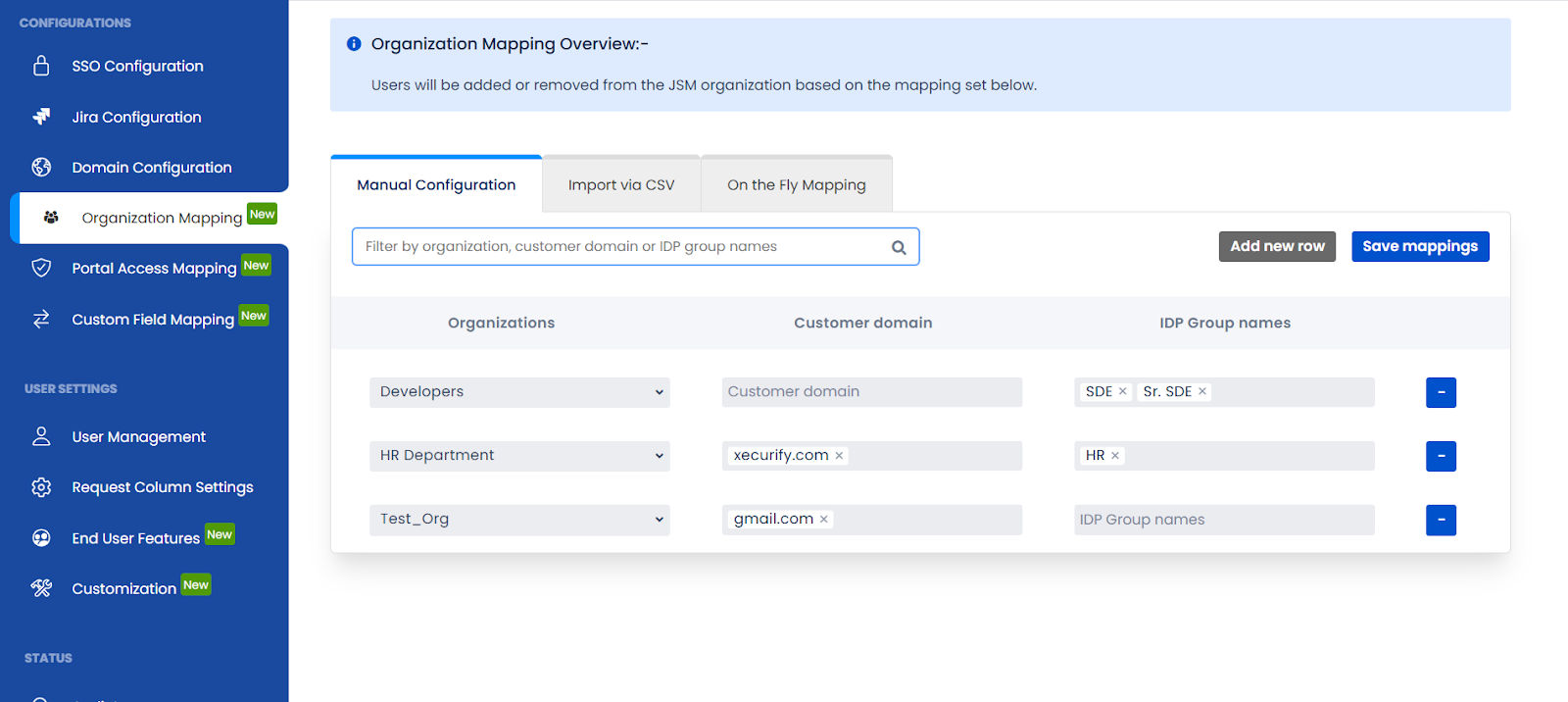
Method 1: Manual Configuration
Best for organisations with a fixed set of partners or departments where explicit rule-based mapping is preferred.
- Add New Row: Click Add new row to create a new mapping rule.
- Organisation: Choose the target JSM Organisation from the dropdown. If the Organisation you need doesn't exist yet, type the new name directly into the dropdown to create it. There's no need to create it in Jira first. Newly created Organisations are added to your JSM instance and become available for use in other mapping rules.
- Mapping criteria (Customer Domain and/or IdP Group Names): Each rule can be defined using Customer Domain alone, IdP Group Names alone, or both together. You do not need to populate both fields. Configure whichever criteria matches how you want users identified.
- Customer Domain: Enter one or more email domains (e.g., partner.com, xecurify.com) to map users by their email address.
- IdP Group Names: Enter specific group names sent by your IdP (e.g., SDE, HR) to map users by their directory group membership.
- Both: When both are configured, a user must satisfy the domain or group condition to be mapped.
- Save Mappings: Click Save mappings to activate the rules immediately.
Method 2: Import via CSV
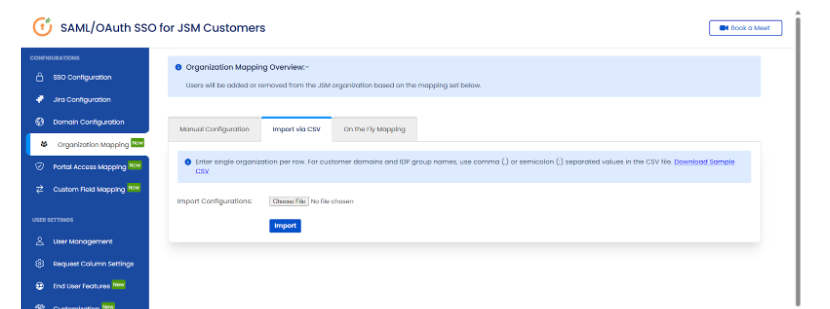
For large-scale deployments, CSV import allows bulk configuration in a single operation.
- Format: Each row in the CSV represents one organisation. Multiple domains or groups for a single organisation are separated by commas (,) or semicolons (;).
- Sample Reference: Use the Download Sample CSV option to get a correctly formatted template before preparing your file.
- Bulk Import: Select your prepared CSV file and click Import to apply all mappings simultaneously.
Method 3: On-the-Fly Mapping
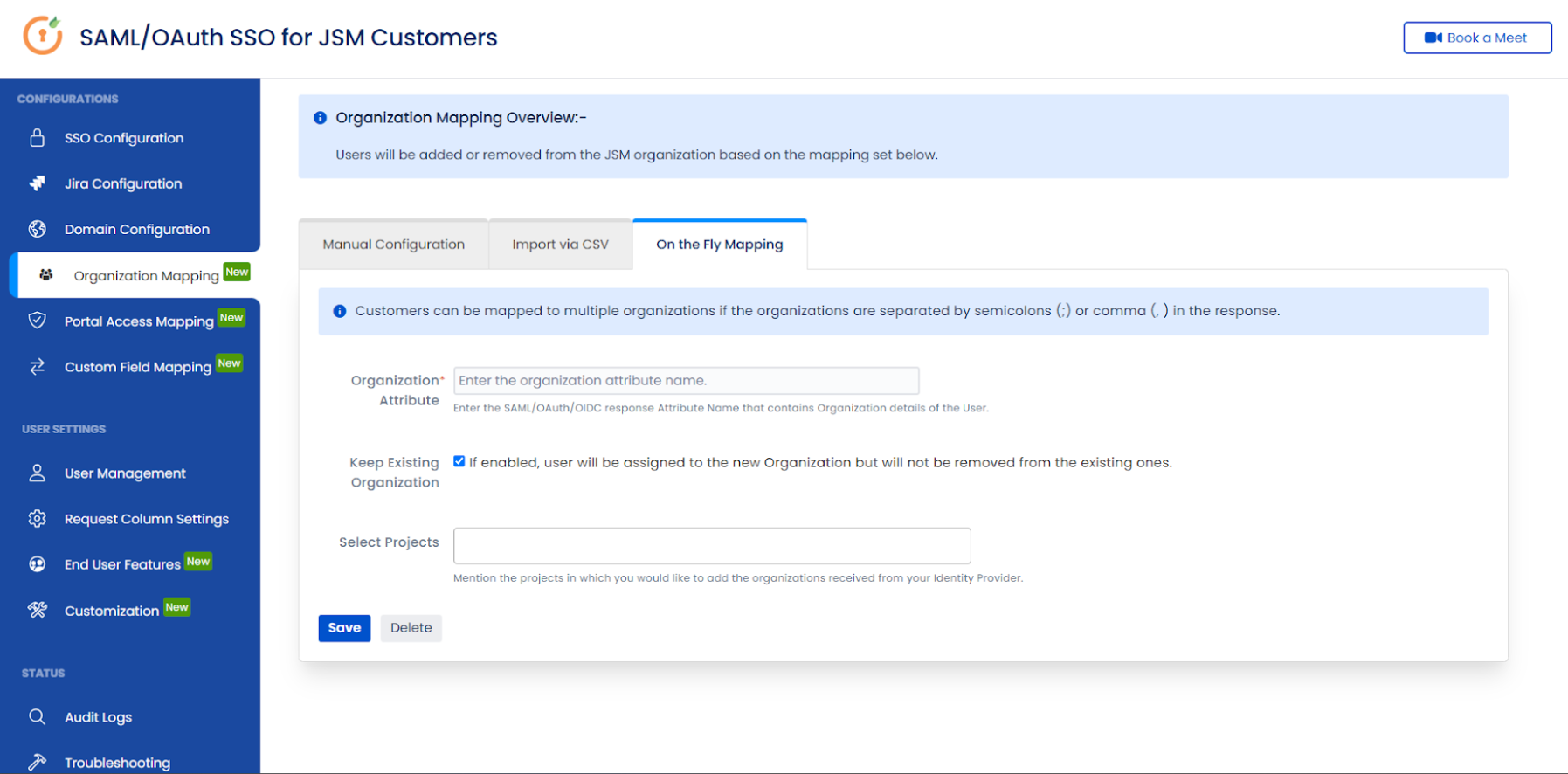
The most dynamic method, the app creates or assigns organisations in real time based on attributes received during the SSO handshake, without requiring pre-defined rules.
- Organisation Attribute: Enter the exact SAML/OAuth attribute name (e.g., company or department) that contains the organisation data from your IdP.
- Multi-Organisation Support: If the IdP response contains multiple organisation values separated by commas or semicolons, the user is added to all matching organisations simultaneously.
- Membership Retention: Enable Keep Existing Organisation to preserve a user's current organisation memberships while adding new ones from the latest login attributes.
- Project Targeting: Use the Select Projects option to restrict these mapping rules to specific JSM projects rather than applying them globally.
Portal Access Mapping
The Portal Access Mapping tab provides granular control over which customers can access specific JSM portals. Rules defined here override the default customer permission settings of each project.
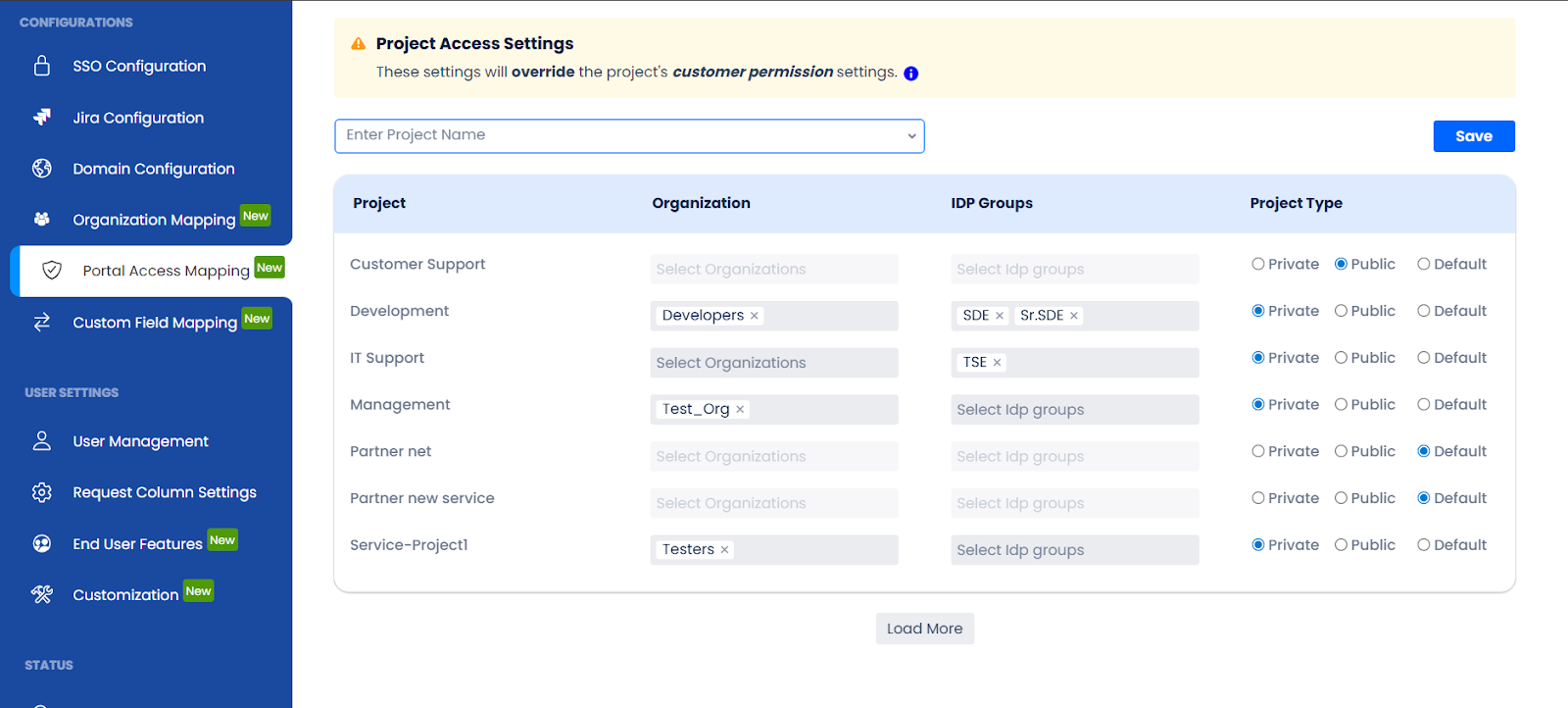
Every JSM project in your instance appears in a centralised table. For each project, define access rules based on the user's identity:
- Project: The name of the JSM project for which you are defining access rules. All projects in your instance are listed here automatically.
- Organisation: Select the JSM Organisations authorised to access this project.
- IdP Group: Specify the Identity Provider groups that should be granted access.
- Project Type:
- Private: Access is strictly limited to users in the specified organisations or IdP groups.
- Public: All authenticated users can view and access the project portal.
- Default: Reverts to the project's native Atlassian customer permission settings.
- Project Search: Filter the project list by name to locate specific portals quickly.
- Save: Click Save to activate your access rules.
Use Case: Tiered Partner Access Management
Use Case Scenario
Scenario: Your company manages support for two tiers of external partners, Gold partners (email domain: gold.xyz.com) and Silver partners (email domain: silver.xyz.com). Gold partners should be automatically placed in the "Gold-Partners" organisation and have exclusive access to the "Premium Support" portal. Silver partners should be in "Silver-Partners" and only see the "General Support" portal.
- In Organization Mapping: Click Add new row. Select "Gold-Partners" from the organisation dropdown and enter gold.acme.com in the Customer Domain field. Click Save mappings.
- In Portal Access Mapping: Locate the "Premium Support" project. In the Organisation column, select "Gold-Partners". Set Project Type to Private. Click Save.
Gold partners logging in with a gold.acme.com address are automatically placed in Gold-Partners and can access Premium Support. Silver partners see only General Support. Neither group has visibility of the other's portal.
Next Step
Proceed to Custom Field Mapping (Part 4) to enrich support tickets with customer data from your IdP.
Custom Field Mapping
The Custom Field Mapping tab synchronises user data from your Identity Provider directly into Jira custom fields. Every customer request is automatically enriched with attributes such as department, phone number, or employee ID, without requiring the customer to enter this information manually.
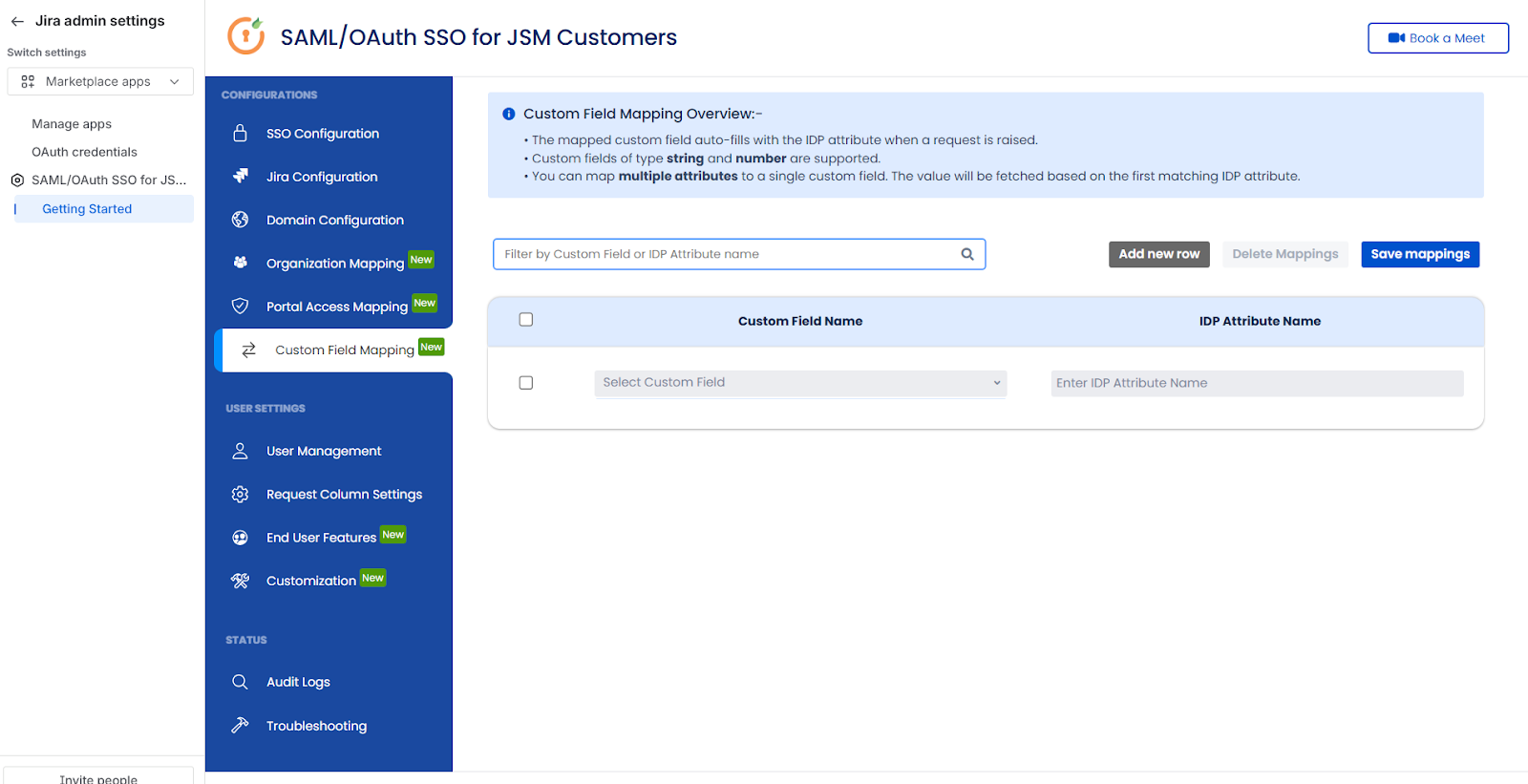
Note: Supported custom field types
Custom Field Mapping currently supports Jira custom fields of type String (Text) and Number only. Other field types, such as date fields, select lists, user pickers, and multi-select fields, are not supported and will not be populated, even if a matching IdP attribute is present in the SSO response.
Before creating a mapping, confirm the target field's type in Jira Settings → Issues → Custom fields.
- Search: Use the search bar to quickly locate specific fields or attribute names within a long configuration list.
- Add New Row: Click Add new row to create a new mapping entry.
- Delete Mappings: Select the checkbox next to row(s) and click Delete Mappings to remove them.
- Save Mappings: Click to apply and activate your configuration.
- Select Custom Field: Choose the Jira custom field you want to populate from the dropdown.
- Enter IdP Attribute Name: Enter the exact attribute name from your IdP. To map multiple attributes to a single field, separate names with commas (e.g., department, dept, division). The first matching attribute found in the IdP response is used.
Use Case: Consistent Field Population Across Inconsistent IdP Data
Use Case Scenario
Scenario: Your organisation uses different attribute names for a user's department; some IdP records use "dept", others use "division", depending on which branch the user belongs to. You need the "Department" custom field in Jira to be reliably populated regardless of which attribute is present in the SSO response.
- In the IdP Attribute Name field, enter: dept, division
All customer requests now include a populated Department field regardless of which attribute name their IdP branch uses, giving support agents immediate context without any manual input from the customer.
Next Step
Proceed to the End User Features Tab to configure self-service tools such as Knowledge Base search, external resource links, and dynamic forms for your customer portal.
User Management
The User Management tab provides a centralized directory of all portal customers who have successfully authenticated via SSO. It is the primary tool for post-migration verification and day-to-day monitoring of portal user access.
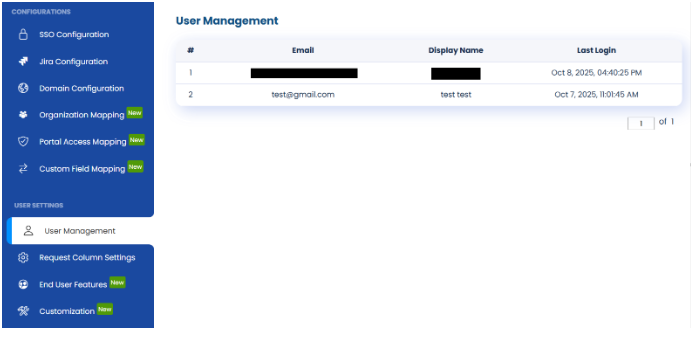
A comprehensive table captures real-time data for every SSO-enabled user:
- Email: The user's primary email address as received from the Identity Provider.
- Display Name: The full name of the user for quick identification.
- Last Login: The date and time the user last accessed the JSM portal via SSO.
Use the Last Login column to confirm a user has successfully migrated to SSO, or to identify customers who have not yet logged in after an SSO rollout.
Request Column Settings
The Request Column Settings tab allows administrators to define which data columns are visible to customers in the "My Requests" list on the JSM portal. Selecting the right columns ensures customers have immediate access to the most relevant ticket information without unnecessary clutter.
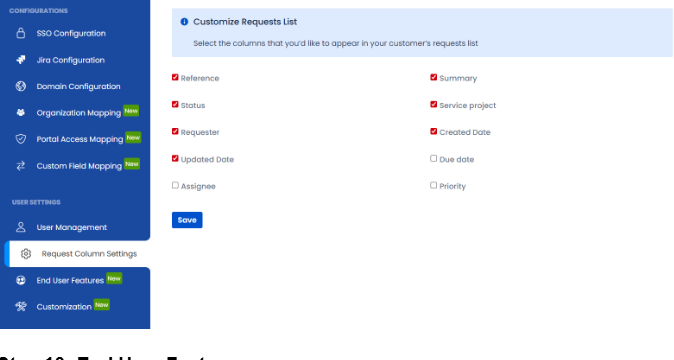
Available Columns
Toggle the visibility of any column by selecting or deselecting the corresponding checkbox:
- Reference: The unique request reference number.
- Summary: A brief description of the customer's request.
- Status: The current stage of the request (e.g., Open, In Progress).
- Service Project: The JSM project the ticket belongs to.
- Requester: The person who submitted the request.
- Created Date: When the request was first submitted.
- Updated Date: The timestamp of the most recent activity on the ticket.
- Due Date: The expected completion date for the request.
- Assignee: The support agent currently responsible for the ticket.
- Priority: The urgency level assigned to the request.
Note
All timestamps follow the UTC standard unless otherwise configured in your global Jira system settings.
Once you have selected your preferred columns, click Save to apply the changes globally across all customer portals.
End User Features
The End User Features section configures the self-service capabilities available to customers on your JSM portal. These features are designed to reduce ticket volume by helping users find answers independently before submitting a request. This section contains four functional tabs: Consent Settings, External Resources, Knowledge Base, and Manage Topics.
1. Consent Settings
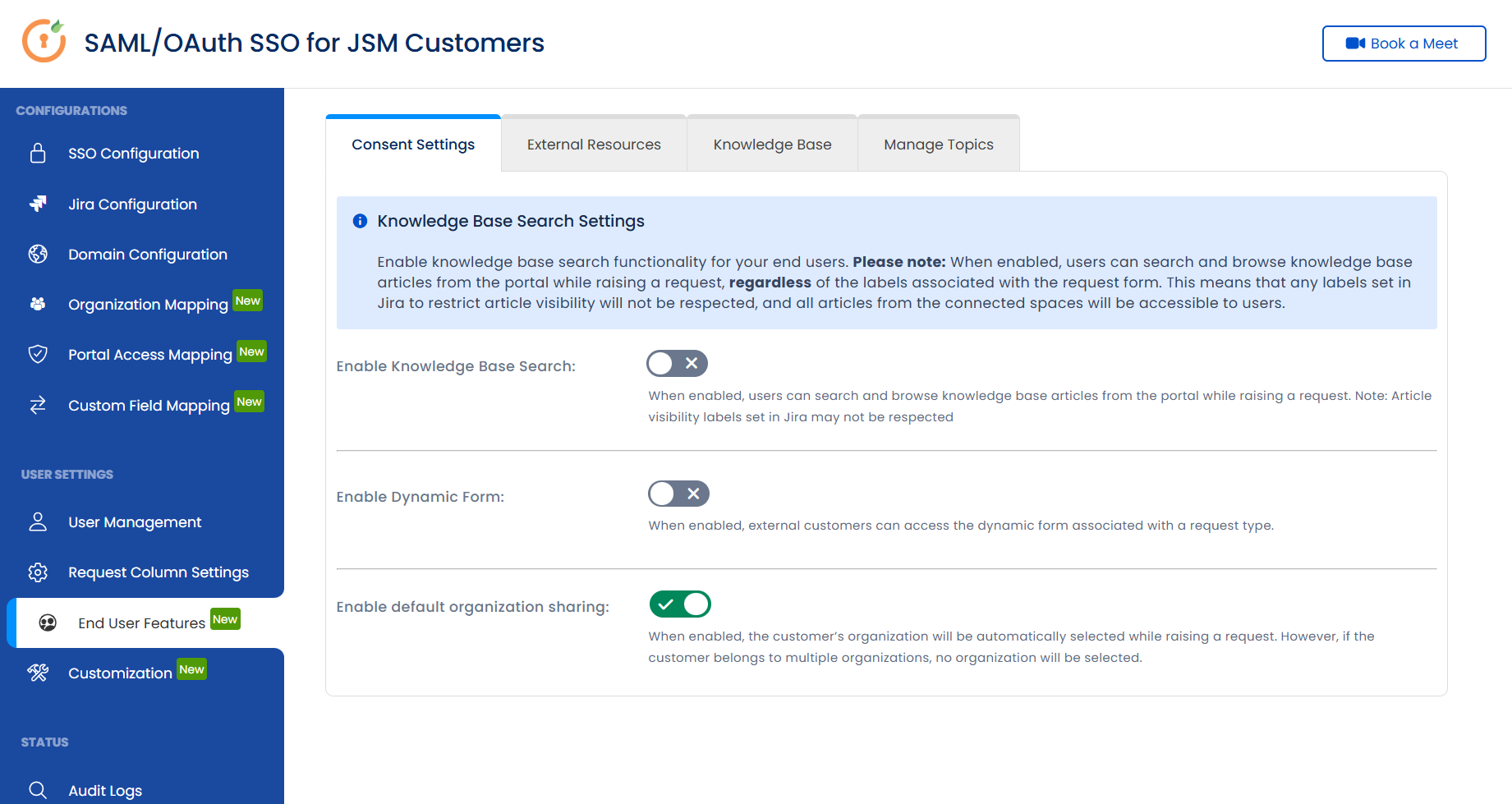
- Knowledge Base Search: When enabled, customers can search and browse Confluence knowledge base articles directly from the portal while composing a request, helping them find existing answers before submitting a ticket.
- Dynamic Forms: Activates dynamic form behaviour for your request types. Fields are shown or hidden based on user input, so customers only fill in fields relevant to their specific request, reducing errors and improving the quality of information submitted.
- Enable Default Organization Sharing: Controls whether requests raised through the portal are shared with the customer's default JSM Organisation by default.
2. External Resources
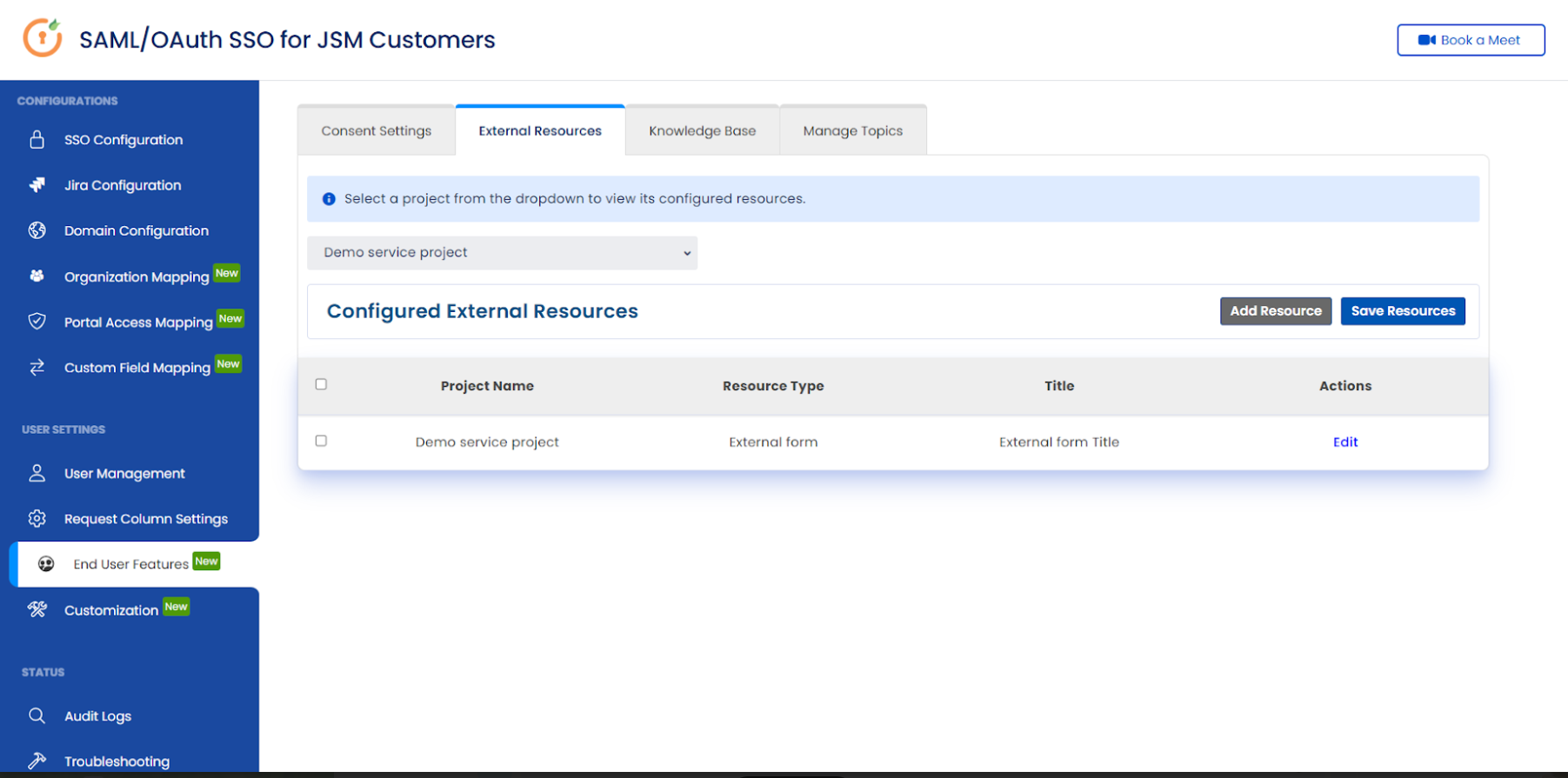
Curate a project-specific list of helpful links and documentation for each JSM portal. Resources are displayed to customers on the portal to provide additional guidance before they decide to submit a ticket.
3. Knowledge Base
The Knowledge Base tab introduces structured Confluence article categorisation for JSM projects. Administrators organise knowledge content into meaningful, project-specific categories displayed on the customer portal, encouraging self-service before ticket submission.
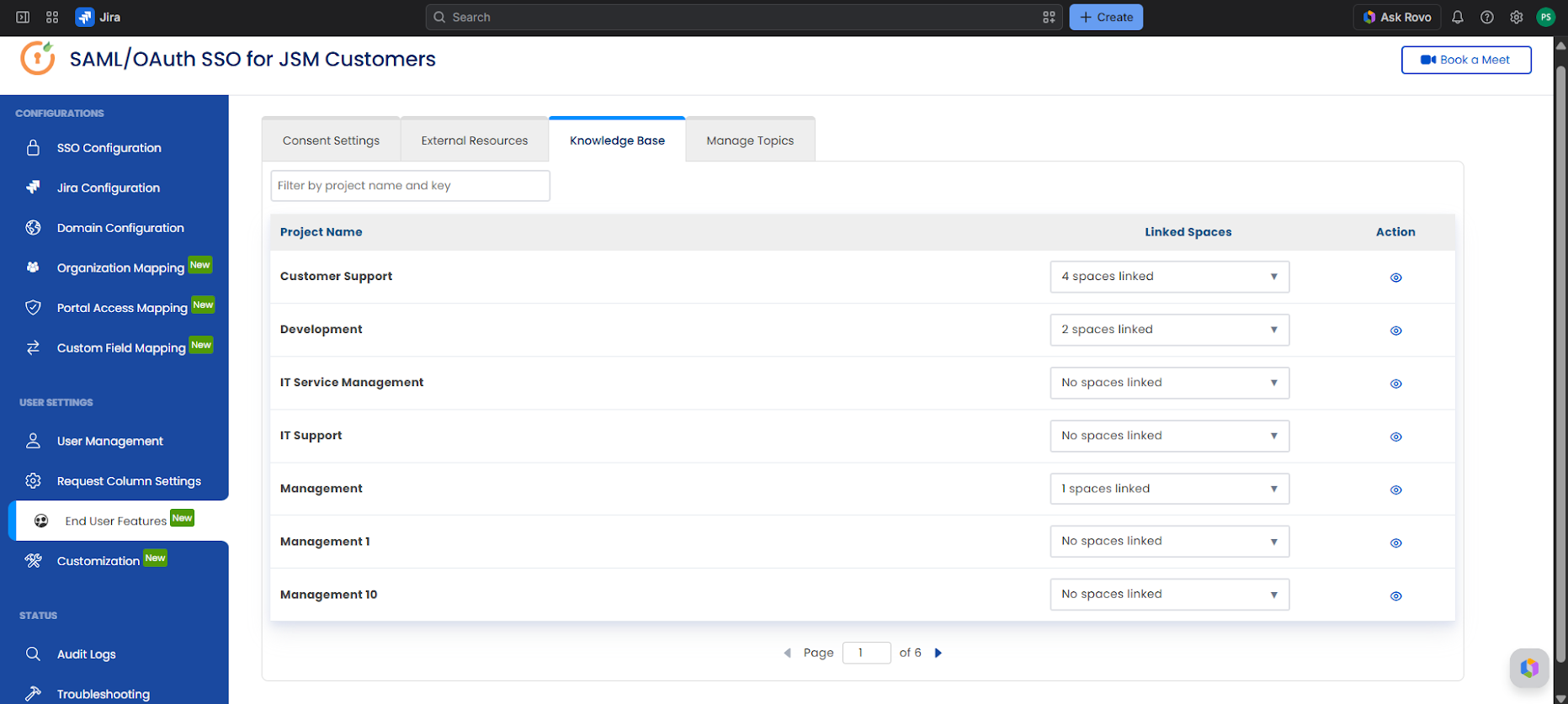
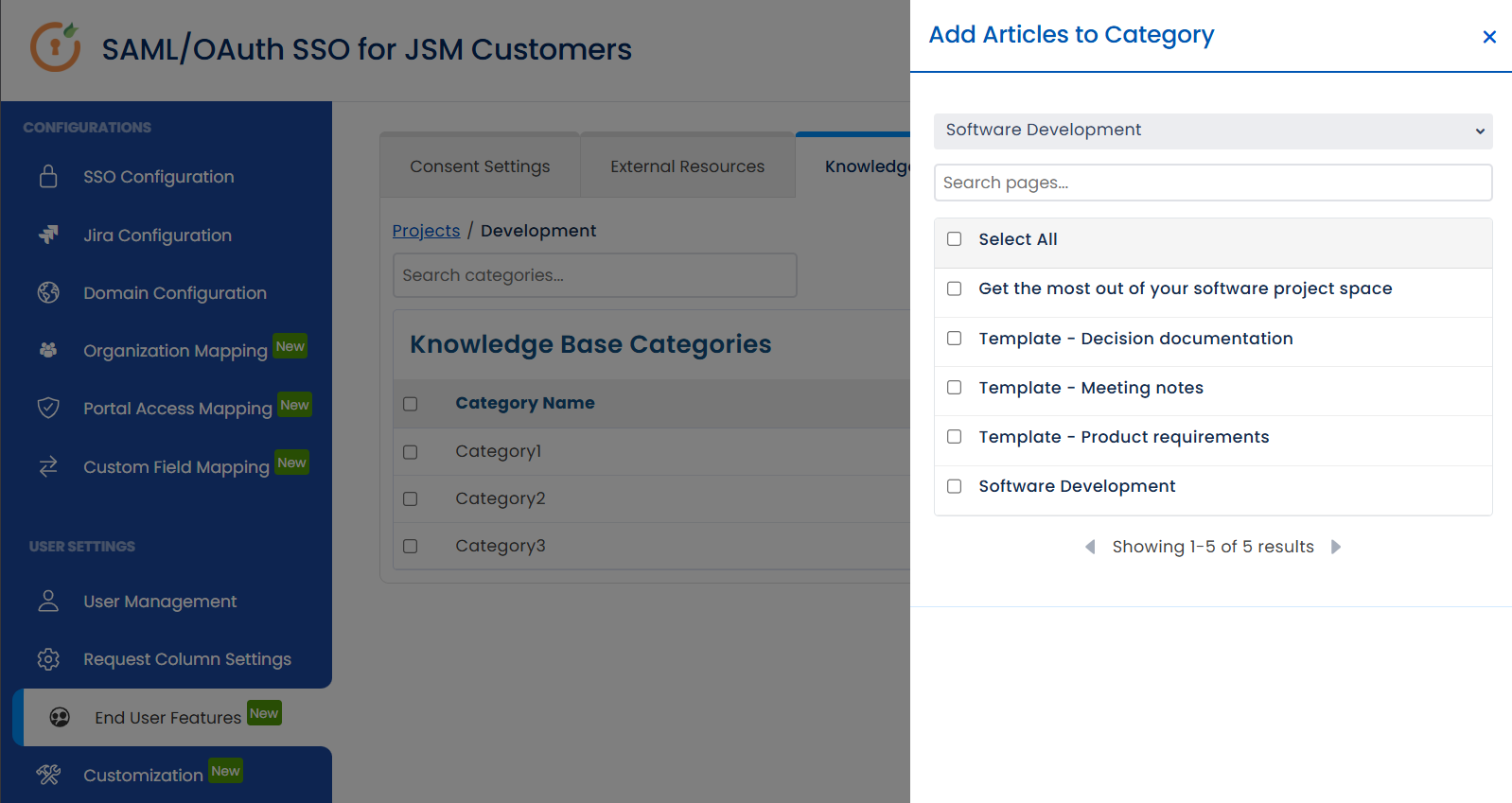
This feature allows administrators to:
- Link one or more Confluence spaces to a specific JSM project
- Create custom knowledge categories within each project
- Assign selected Confluence articles to those categories
- Mark important articles as Featured to surface them prominently
- Display categorised knowledge on the customer portal before request submission
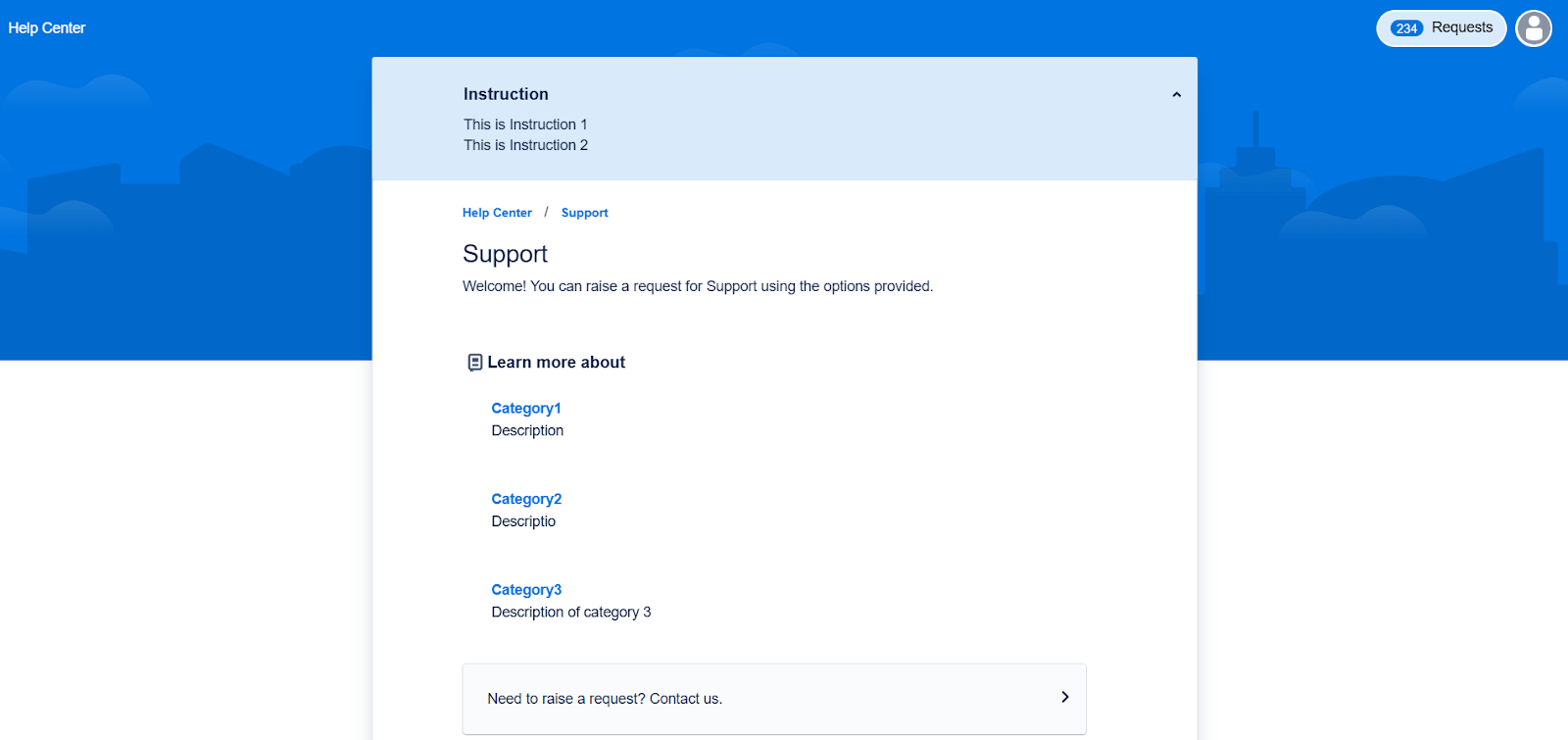
Once configured, the portal presents:
- Categories as navigable sections, each with a description
- Featured articles at the top of each category
- Remaining articles listed beneath in a standard articles section
- All content browsable by customers before they decide to raise a request
4. Manage Topics
The Manage Topics tab lets you group related resources into a single, task-oriented topic on the Help Center. Instead of navigating across multiple service projects, customers find everything they need for a process in one place. A topic can pull content from several service projects at once and may include request forms, Confluence knowledge base articles, and external resource links.
For example, an “Employee / Product Onboarding & Setup” topic could combine request forms (Laptop Request, Email Account Setup, VPN Access Request), knowledge base articles (First Day Checklist, Company IT Policies), and external resources (HR Portal, Employee Benefits Website), giving users a single destination for everything onboarding-related.
Create a topic
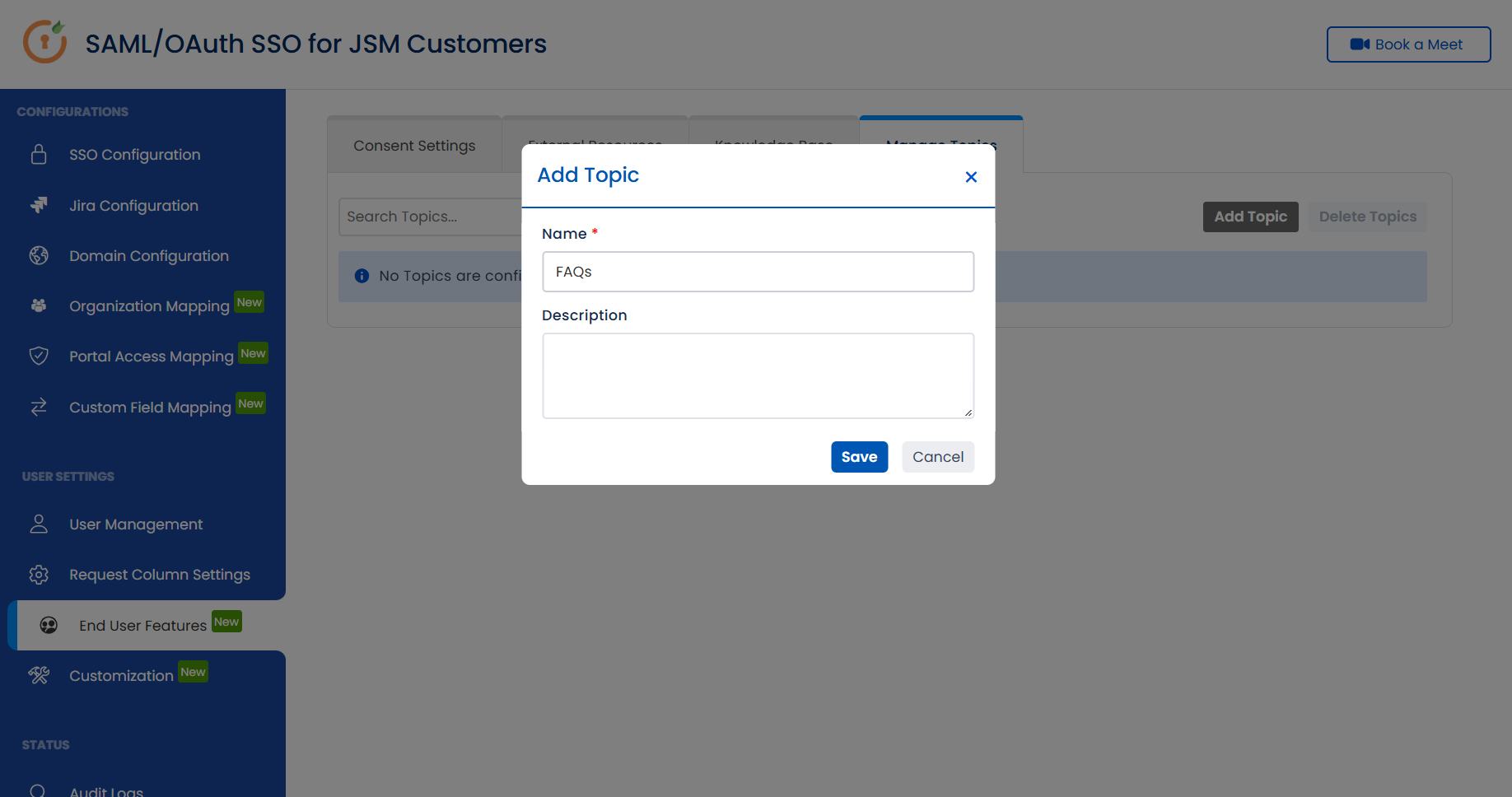
- Click Add Topic.
- In the dialog, enter a Topic Name and Description.
- Click Save. The new topic appears in the topics list.
Add content to a topic
From the topics list, click Add Contents for a topic, then choose a Project from the dropdown. The three content tabs populate based on the selected project:
- Request Forms: The request forms available in the selected project.
- External Resources: The external resources configured for that project.
- Knowledge Base Articles: Shows a Confluence Space dropdown. The available spaces are those linked to the project in the Knowledge Base Categorization tab; select a space to list its articles.
Select the items you want, then click Add Selected. Only items from the currently active tab are added, switch tabs and click Add Selected again to include items from another tab.
Edit a topic
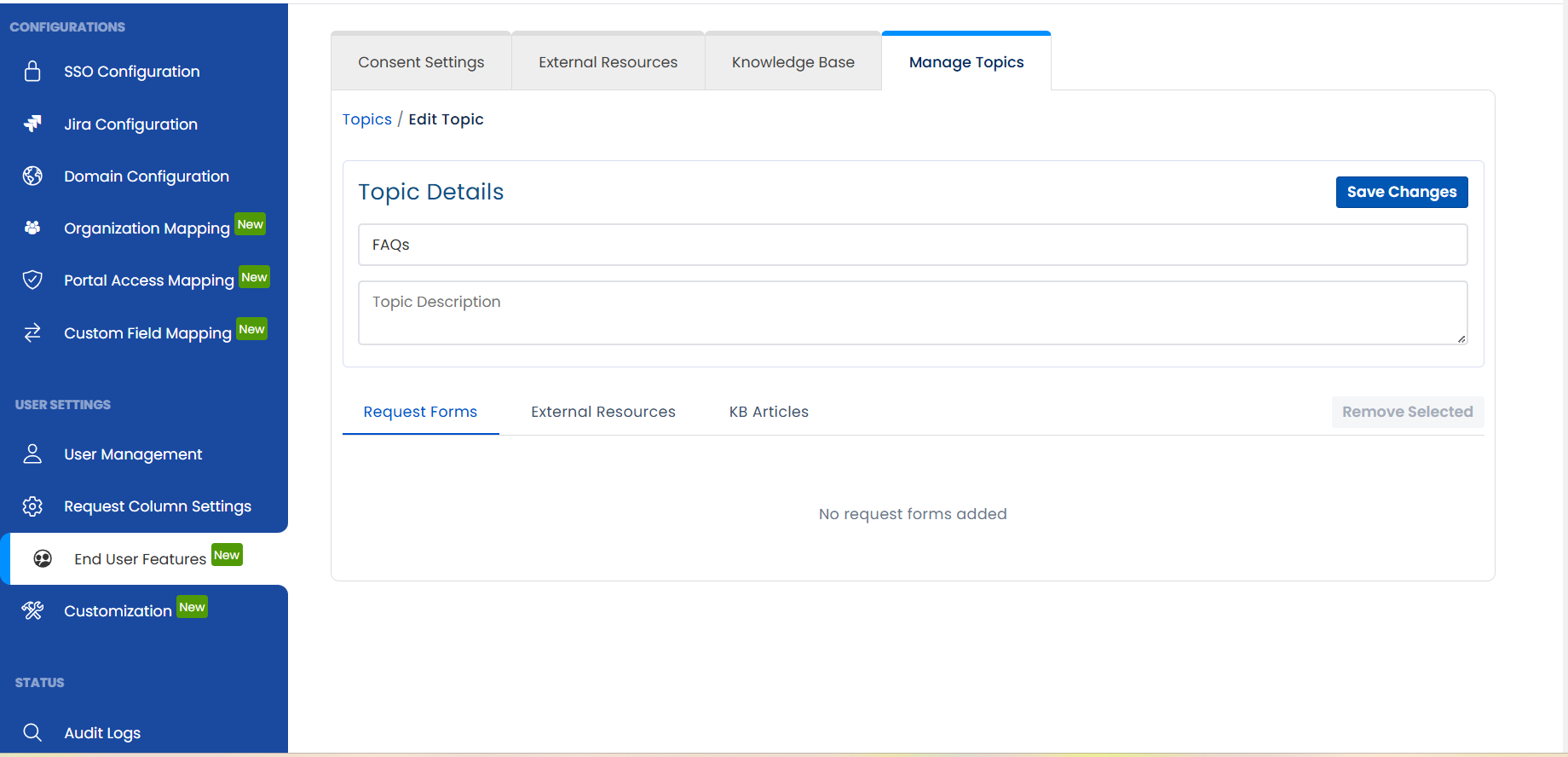
Click Edit Topic to open two sections. Topic Details lets you update the name and description (click Save Changes to apply). Linked Contents lists everything currently associated with the topic across the Request Forms, External Resources, and Knowledge Base Articles tabs; select items and click Remove Selected to unlink them. As with adding, removal applies only to the active tab.
Delete topics
Select one or more topics using the checkboxes, click Delete Topics, and confirm. Deleted topics are removed permanently.
Next Step
Proceed to the Customisation Tab to configure portal branding, footer settings, and theme colours.
Customisation
The Customisation section controls the visual appearance of your customer portal, covering footer content, portal header, theme colours, logos, and portal-wide announcements. Changes can be previewed before being saved.
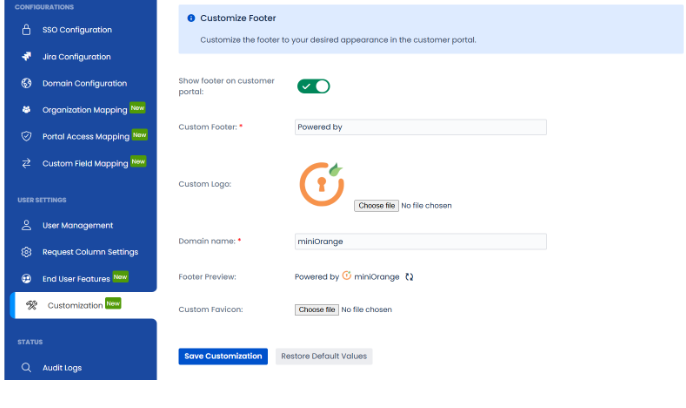
1. Customize Footer
- Show Footer Toggle: Enable or disable the footer across the entire customer portal.
- Custom Footer: Text displayed in the footer (e.g., "Support provided by").
- Custom Logo: Upload your organisation's logo to appear in the footer (max 10 MB).
- Domain Name: Your organisation or domain name as it should appear in the footer.
- Footer Preview: A live preview showing how the footer will appear before you save changes.
- Custom Favicon: Upload a favicon to represent your portal in browser tabs and bookmarks.
2. Help Center Branding
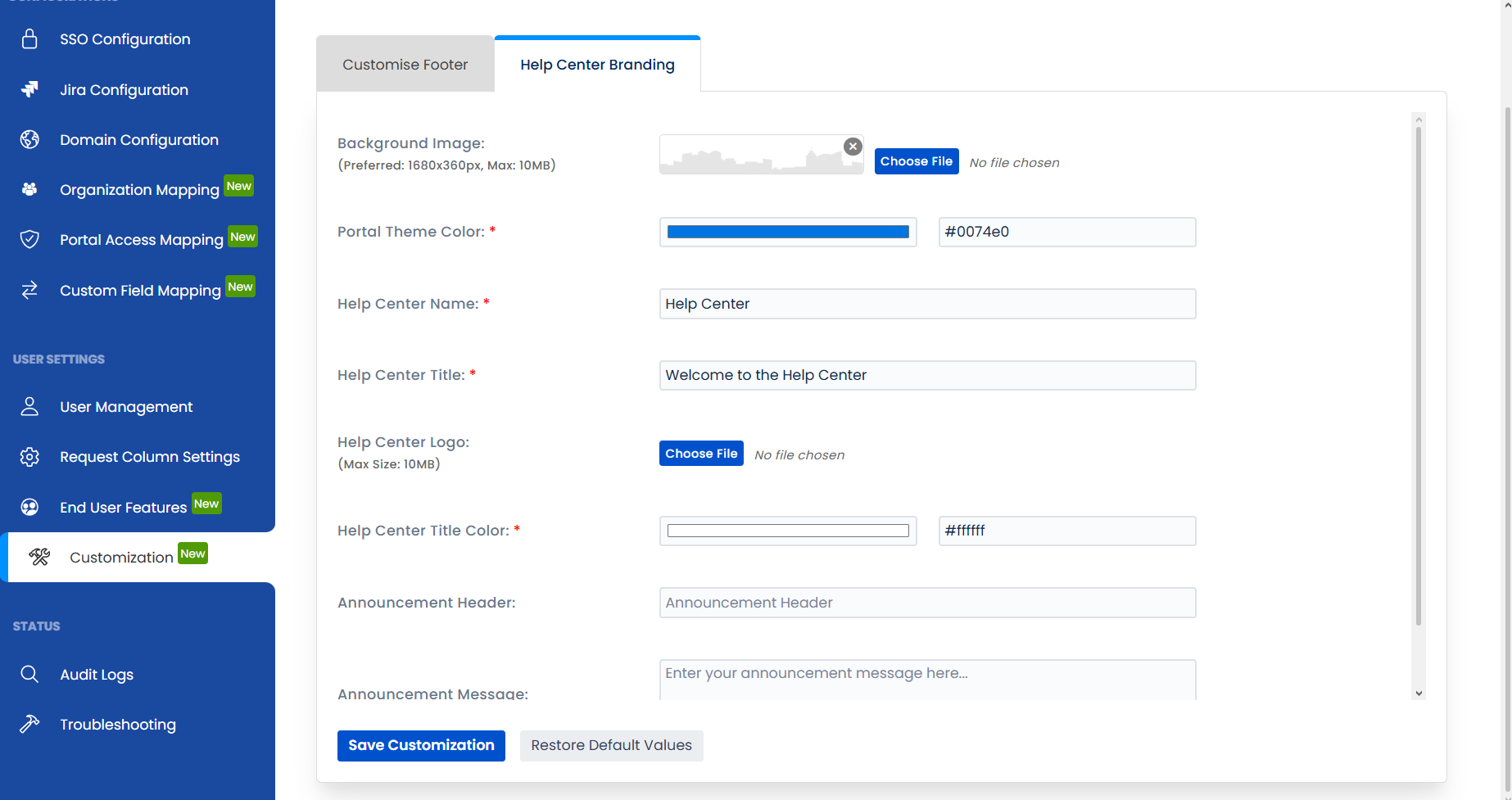
- Background Image: Upload a custom hero image for the portal header. Recommended size: 1680×360px, max 10 MB.
- Portal Theme Colour: Select a primary colour or enter a hex code (e.g., #0074e0) to brand buttons and navigation elements.
- Help Center Name: The display name of your support hub, shown in the portal header.
- Help Center Title & Colour: Set the header title text and choose a font colour that contrasts well with your background image.
- Help Center Logo: Your main organisation logo for the portal header (max 10 MB).
- Announcement Header & Message: Display important news or updates at the top of the portal to inform all users immediately upon login.
- Save Customisation: Applies all branding and footer changes to the live portal.
- Restore Default Values: Resets all customisation settings to their original state.
Next Step
Proceed to Part 5, Administration & Monitoring to manage users, configure request column visibility, and review login audit logs.
Audit Logs
The Audit Logs tab provides a comprehensive, chronological record of all significant events processed by the app. Alongside JSM customer login activity (successful, failed, or partial), it also captures key changes such as organisation creation and deletion, and users being added to or removed from a JSM organisation. It is the central place to track authentication and user-management activity, verify configuration changes, and troubleshoot issues.
The app records detailed audit information for every supported operation, enabling administrators to review historical activity, investigate incidents, and maintain an accurate audit trail.
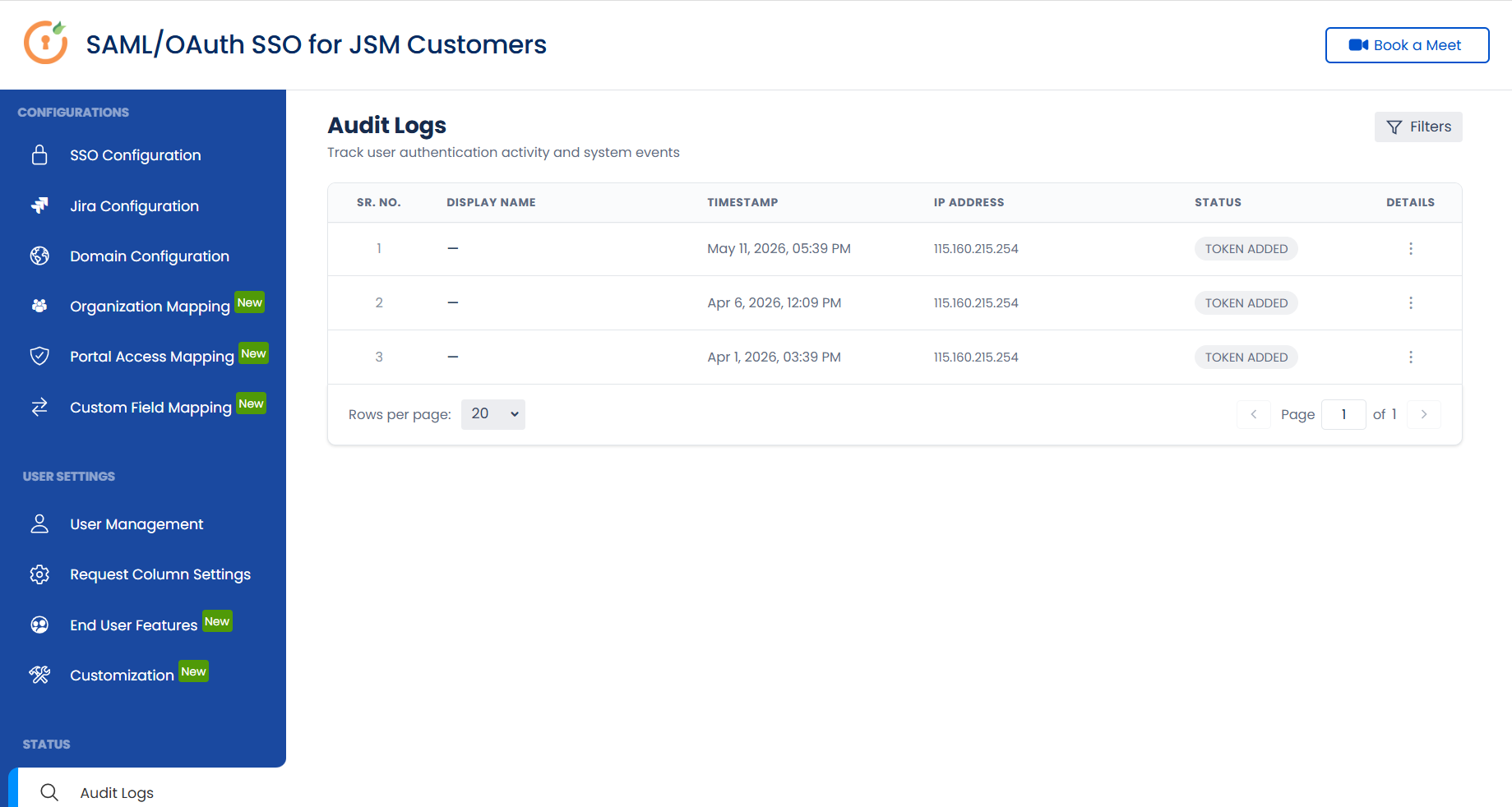
Audit Logs Dashboard
Each audit log entry displays the following information:
- Display Name: The name of the JSM customer associated with the event, when applicable.
- Timestamp: The exact date and time when the event occurred.
- IP Address: The IP address from which the request or action originated.
- Status: Indicates whether the event completed successfully or encountered an error. Authentication events resolve to one of three states:
- Success: The customer completed both authentication and authorization during the SSO process.
- Failed: The authentication / SSO attempt was unsuccessful.
- Partial: Authentication succeeded, but the authorization step failed.
Additional information about each authentication attempt is available in the Details section.
- Details: Provides additional actions for the selected audit entry (see below).
Viewing Audit Log Details
Each audit log includes a Details menu (⋮) with the following options:
- View Details: Opens a detailed view containing the complete metadata for the selected event. The Pretty View tab presents the information in a readable format, protocol, timestamp, actor, IP address, source, portal, overall status, and event-specific results. The Raw JSON tab shows the same data in its original JSON format for troubleshooting.
- Copy Log: Copies the complete audit log data in JSON format to your clipboard for analysis or sharing.
- Download Log: Downloads the selected audit log as a JSON file for offline review or record keeping.
Filtering Audit Logs
Use the Filter option to quickly locate specific audit events. You can filter using one or more of the following criteria:
- Event Type: Filter by the category of activity, for example customer authentication, User/JSM customer creation, user added or removed from an organisation, user added or removed from a project, organisation created, organisation added or removed from a project, portal access denied, access token changes, and SP certificate changes.
- Project: View events associated with a specific Jira Service Management project.
- Time Range: Filter by a predefined period such as Today, Yesterday, or Past 30 Days, or specify a Custom Range. Custom range queries support a maximum lookback of 90 days (3 months).
- Status: Display events by their execution status (success, failure, or partial).
- User: Search for events associated with a user’s email address or display name.
After selecting your criteria, click Apply Filters to refresh the log with matching results. Use Reset Filters to clear all selections and return to the complete audit history.


