Part 2: Setup miniOrange with Google Apps
Step 1. Setup Google Apps as IDP
- Login to Google Console:Visit the Google's Developer Console and login to your account.
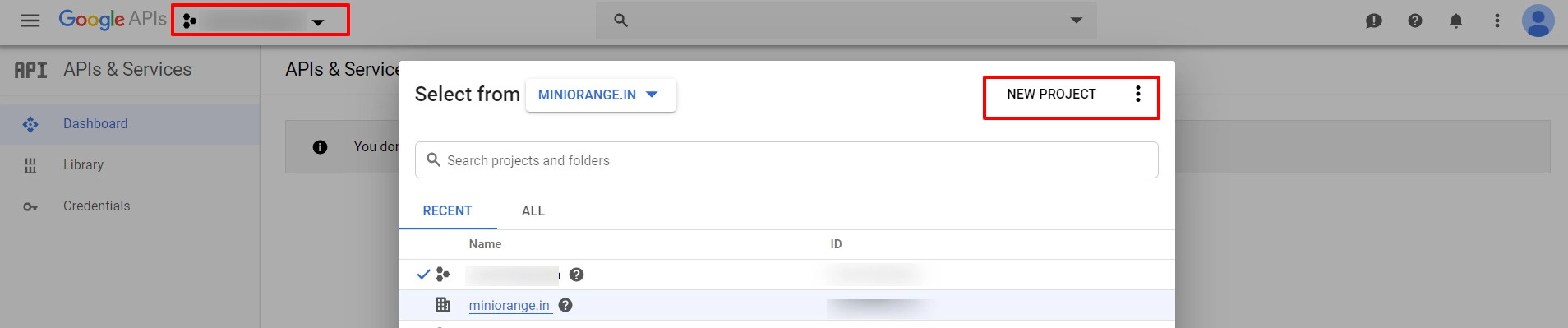
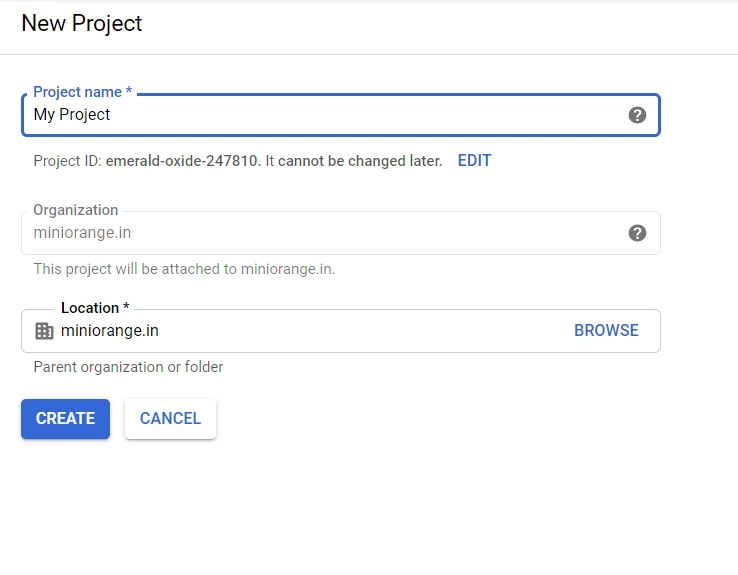
- Click Select a project, then NEW PROJECT, and enter a name for the project, and optionally, edit the provided project ID. Then click on Create button.
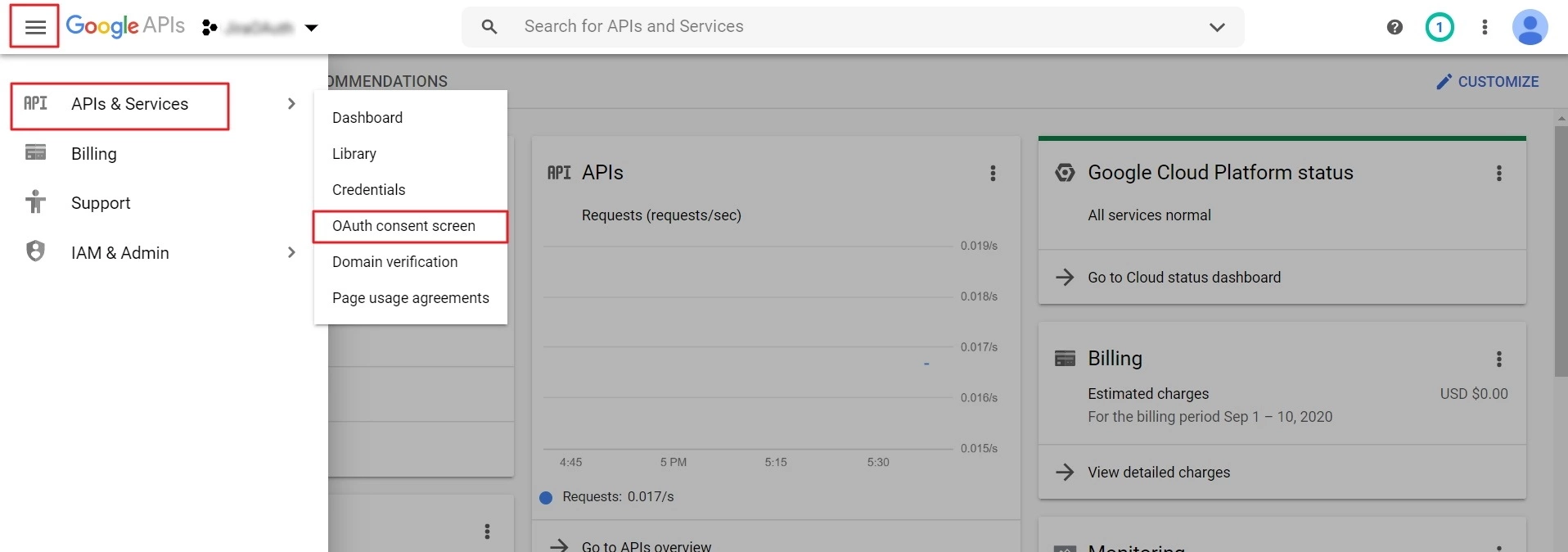
- Select your project, click on APIs & Services and select OAuth consent screen option.
- On the Consent screen page, select the User Type and click on Create. In the next screen, provide Application name and save the changes.
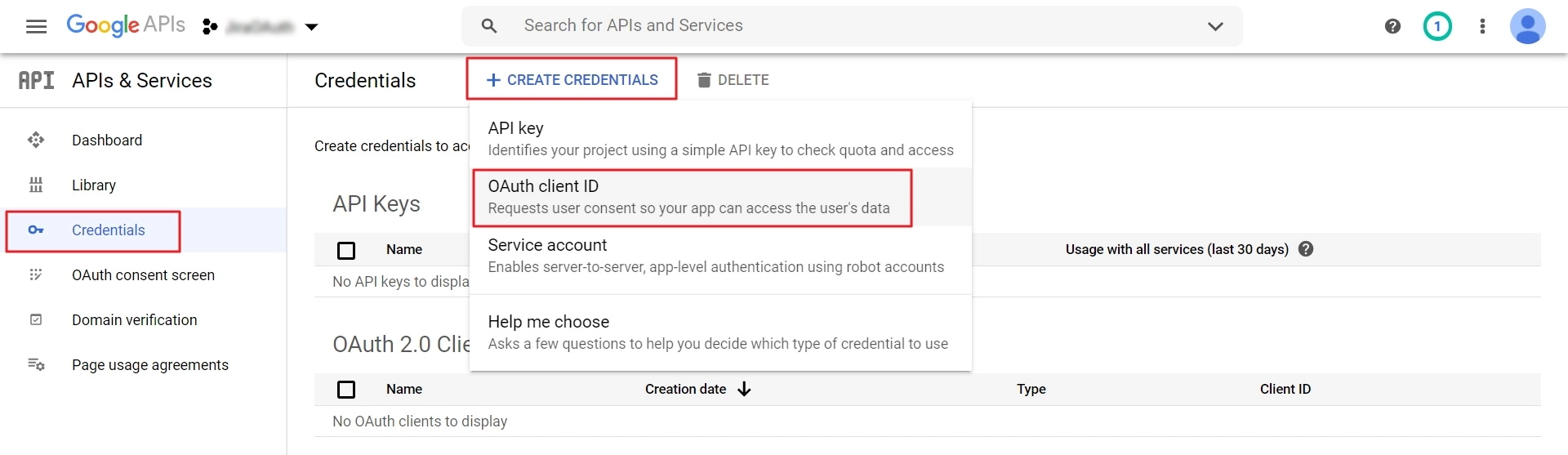
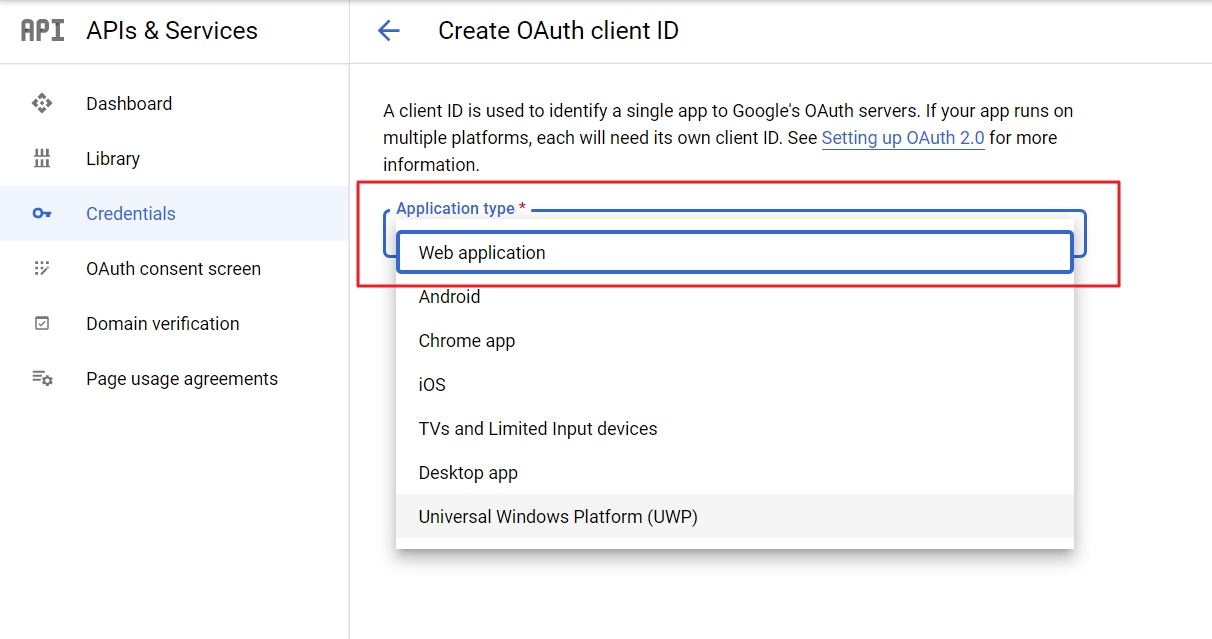
- Now go to Credentials, click on Create Credentials and select OAuth Client ID.
- Select Web Application as application type.
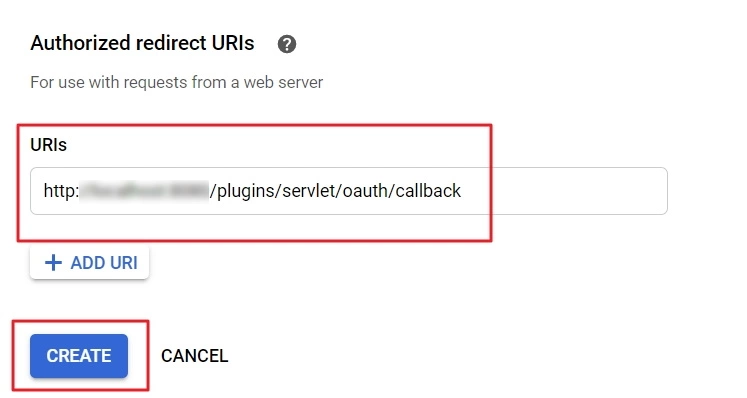
- Click on the Add URI button in Authorized redirect URIs section. Collect the callback URL provided in the miniOrange plugin and enter it here. Click on Create.
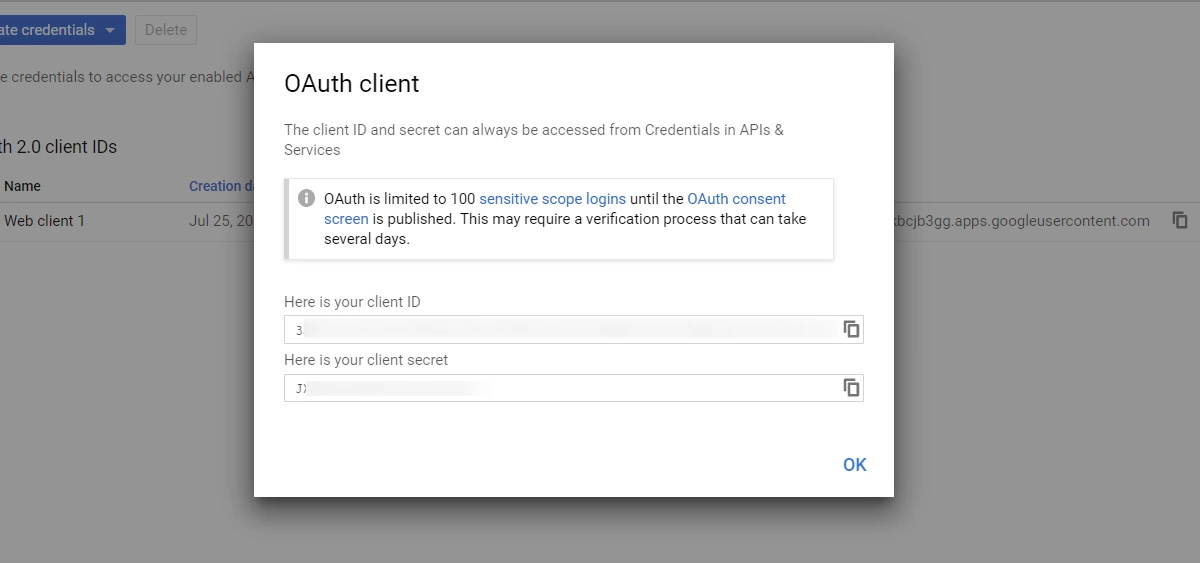
The callback URL would be {oauth_client_base_url}/plugins/servlet/oauth/callback - Get Client ID and Client Secret: Copy the client ID and client secret to your clipboard, as you will need them when you configure miniOrange plugin.
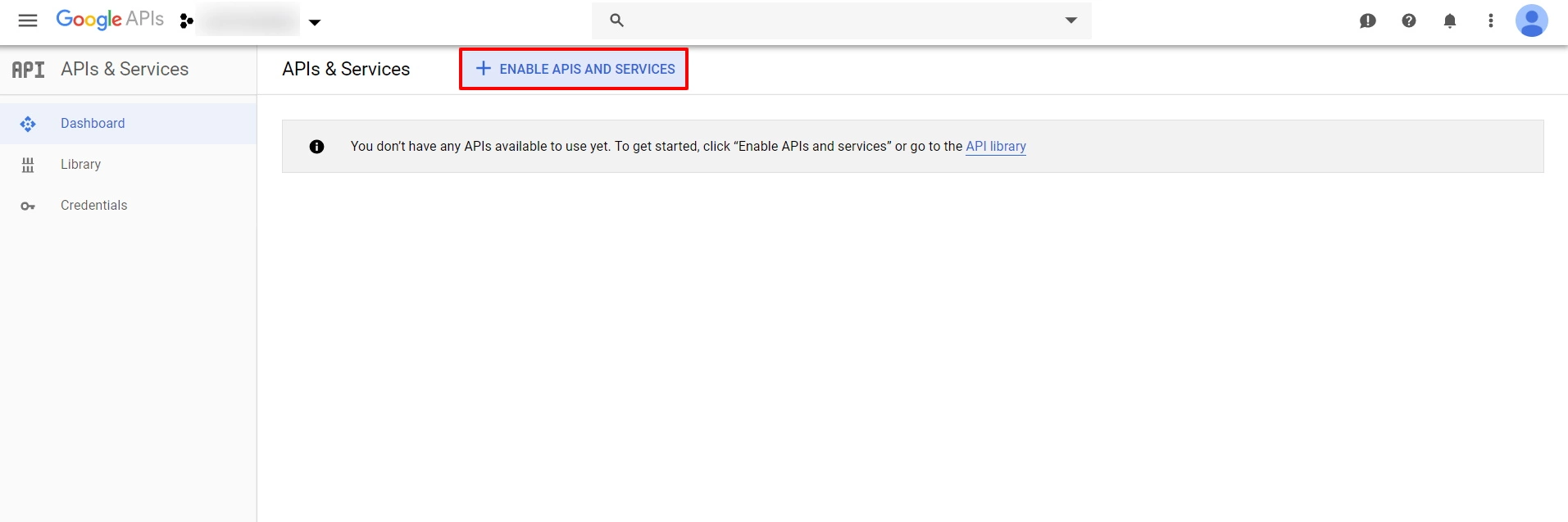
- To send user's group to the client application, you need to enable Admin SDK and API access. For Admin SDK, navigate to the Dashboard and click on ENABLE APIS AND SERVICES.
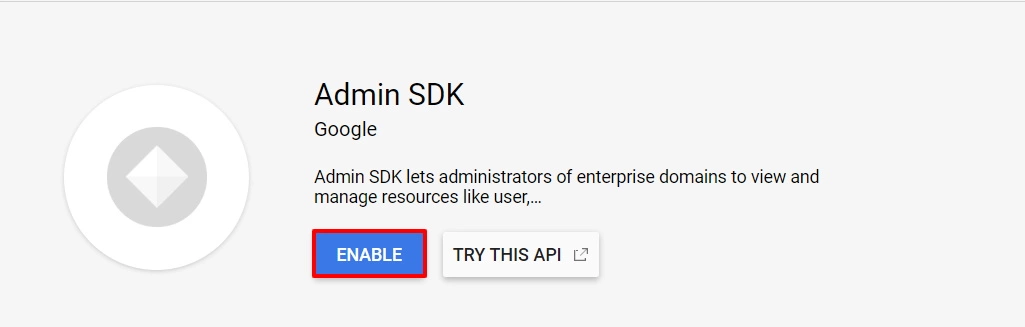
- Now search for Admin SDK, select it from the list and then click on ENABLE button.
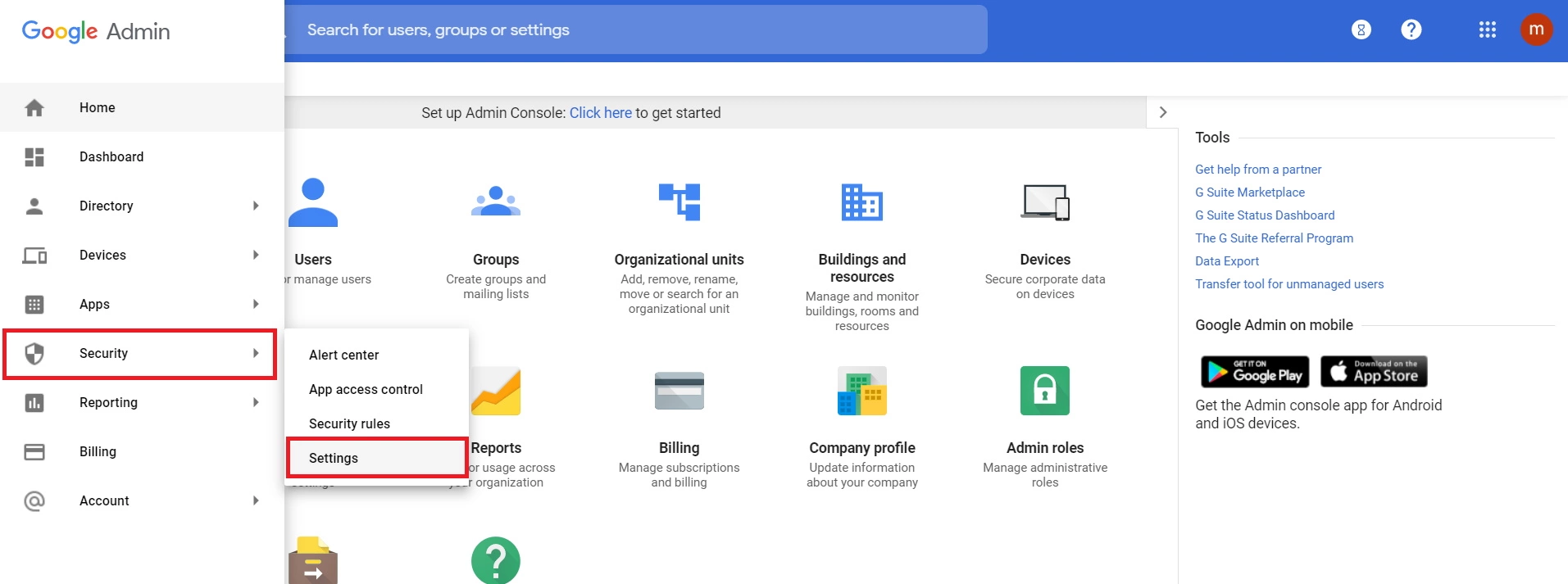
- To enable API Access you need to login into Google Admin console. In Google Admin Console, go to Security ->Settings.
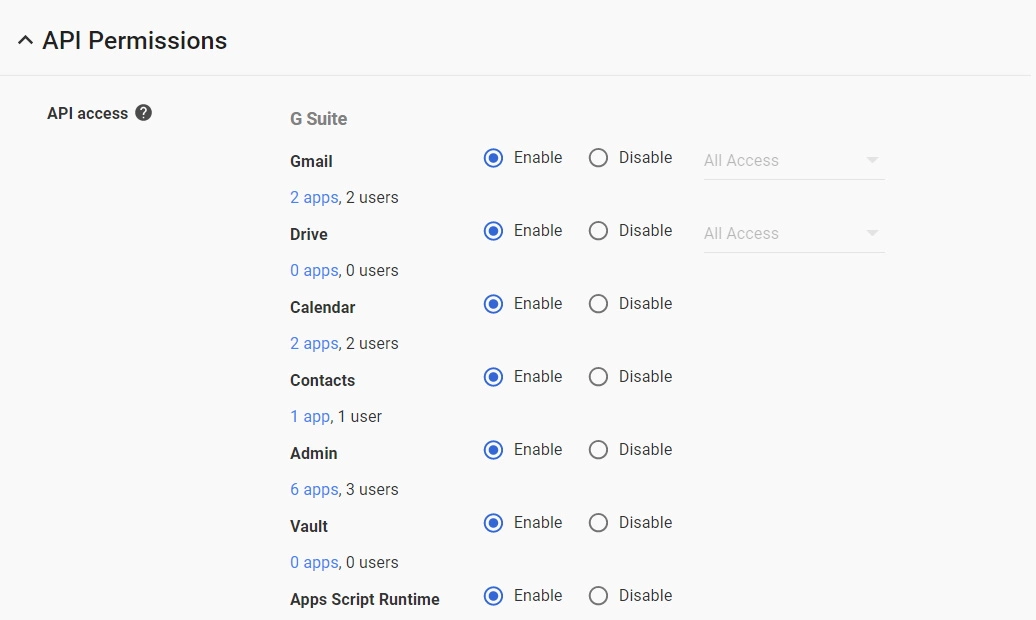
- Look for API Permissions -> Enable API access
- Go to miniOrange Admin Console.
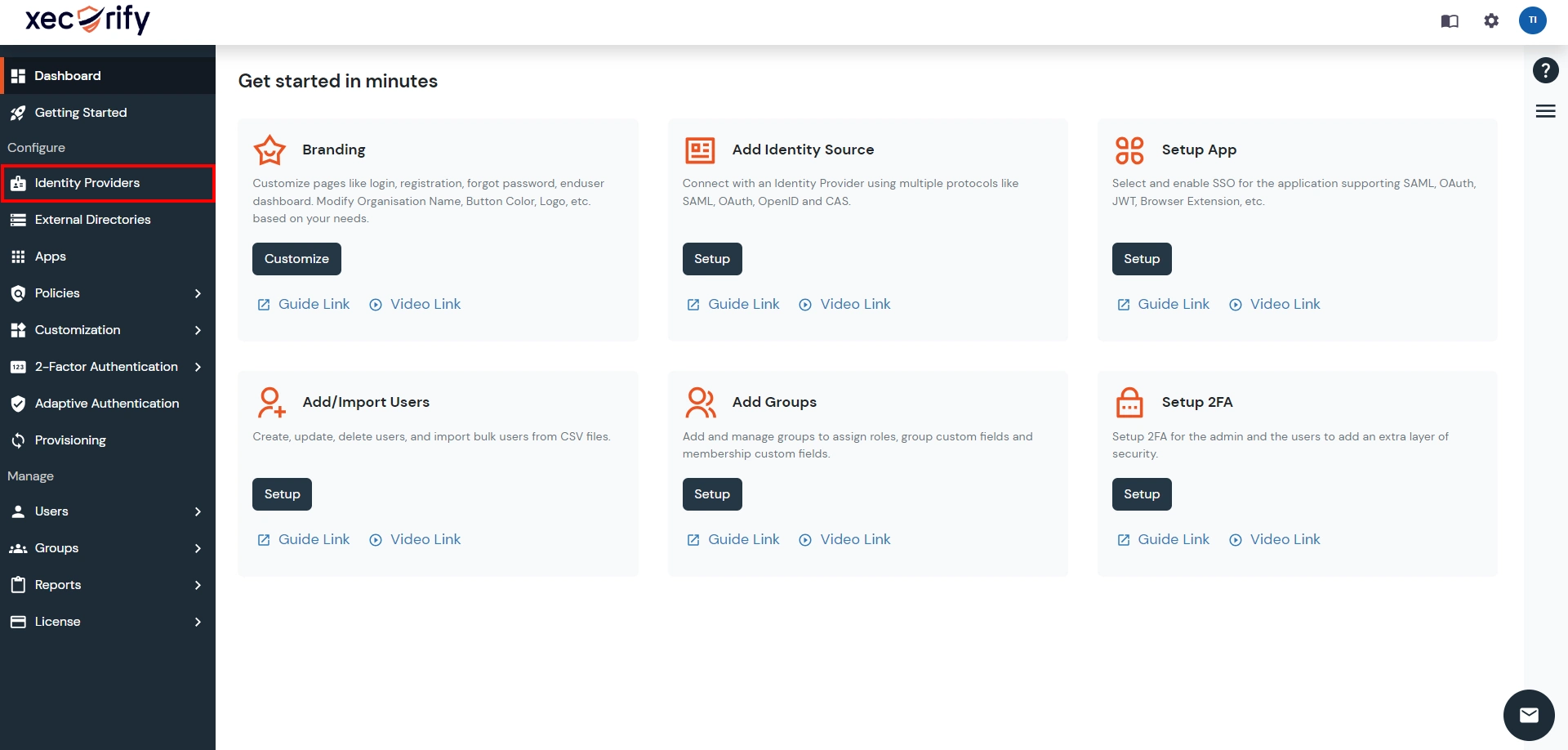
- From the left navigation bar select Identity Provider.
- Select OAuth tab.
- Enter the following values.
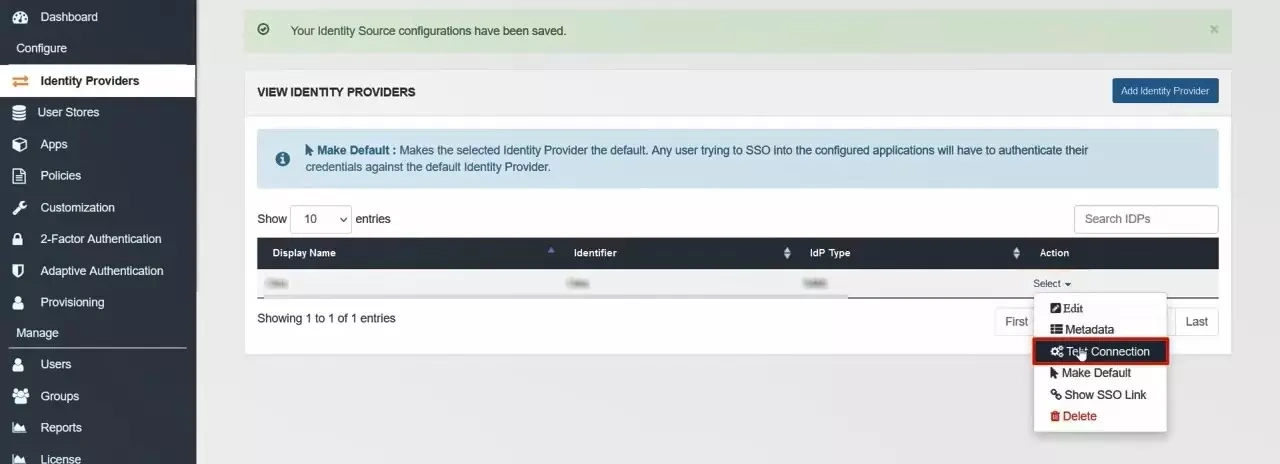
- Go to the miniOrange Admin Dashboard.
- Go to Identity Providers tab. Then click on select button under the app you just created. Then click on Test Connection.
- A new popup login window will open. Enter your credentials and login.
- Now you will see TEST SUCCESSFUL in a new popup window. If not, then check if you have missed any of the above step.
Step 2. Setup miniOrange as Service Provider
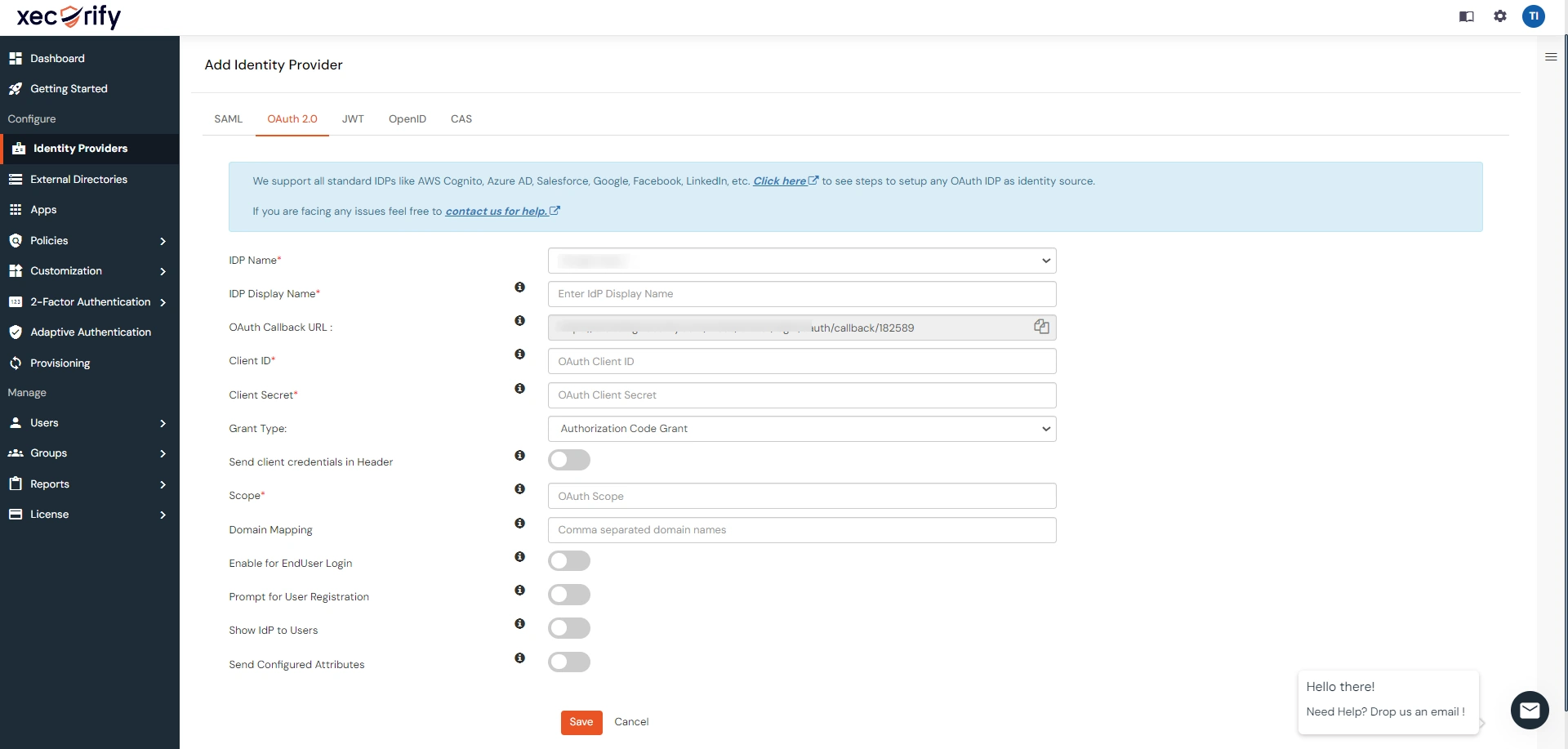
| IdP Name | Custom Provider |
| IdP Display Name | Choose appropriate Name |
| OAuth Authorize Endpoint | https://<wso2-app-domain>/oauth2/authorize | OAuth Access Token Endpoint | https://<wso2-app-domain>/oauth2/token | OAuth Get User Info Endpoint (optional) | https://<wso2-app-domain>/oauth2/userinfo |
| Client ID | From step 1 |
| Client secret | From step 1 |
| Scope | openid |
Step 3. Test connection between miniOrange and Google Apps
Hello there!
Need Help? We are right here!


