Make SSO mandatory (disable native login)
Enforcing SSO helps organizations manage user authentication through sign-on providers only, simplifying access and improving security.
For this example, we will configure SSO Enforcement for Confluence by disabling native login and requiring users to authenticate only through the configured provider.
Step 1: Navigate to the "Look and Feel" tab under the "SSO Settings".
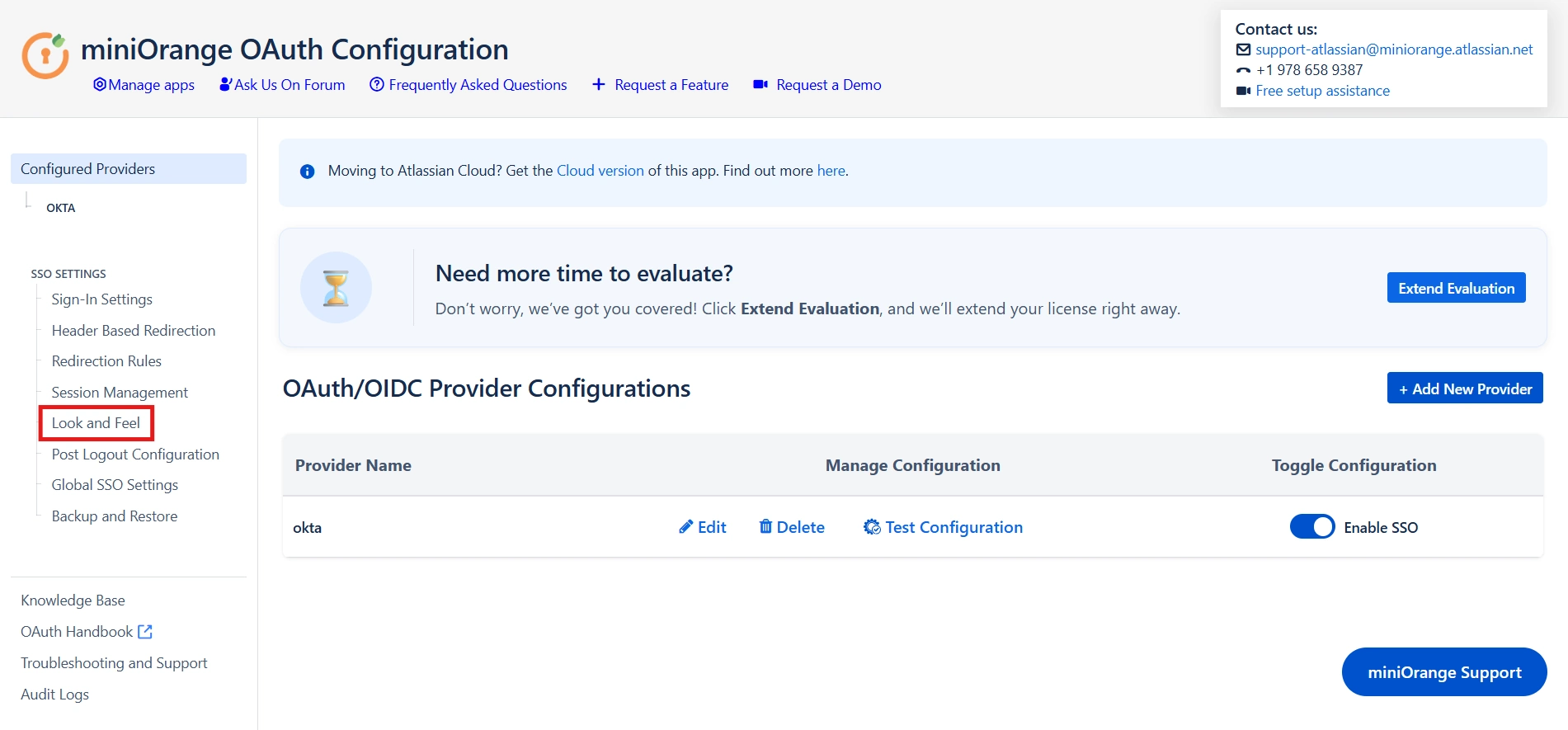
Step 2: To enforce SSO, we will first need to disable the login through the native login page for that,
- Navigate to the "Look and Feel" tab.
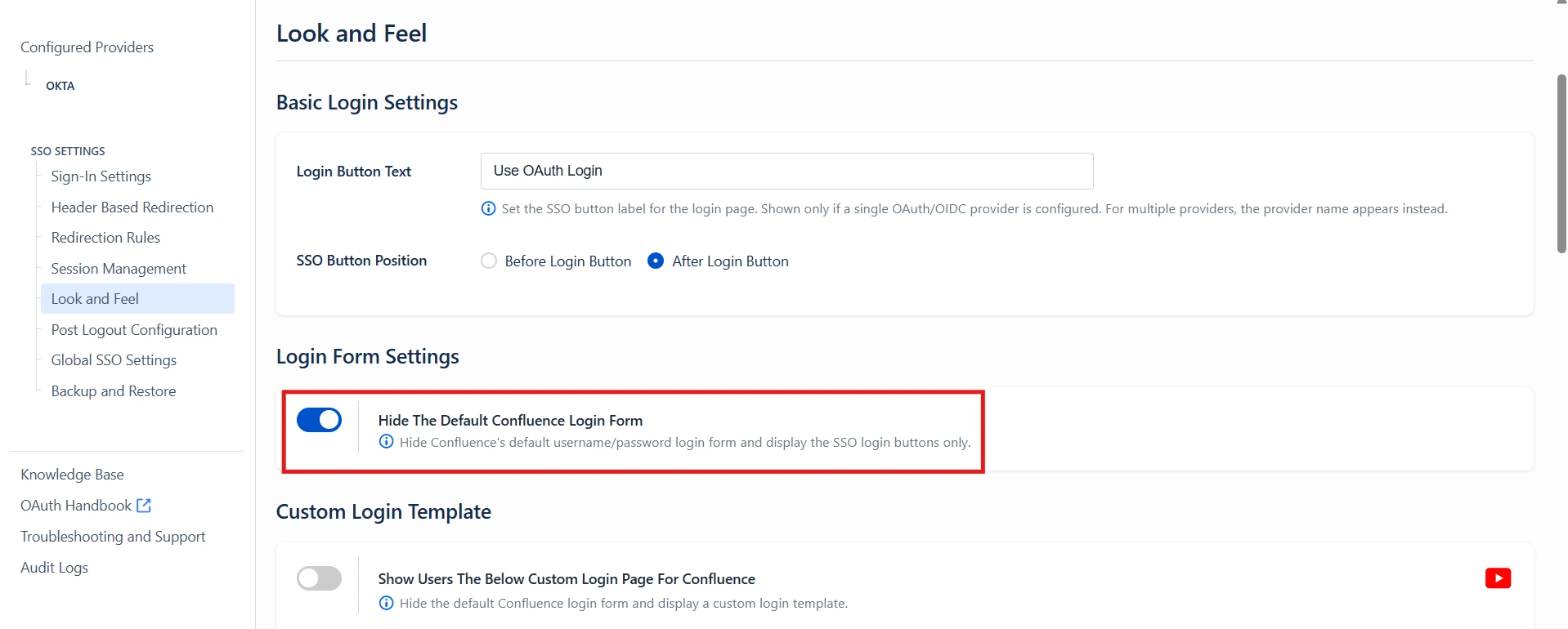
- Enable the "Hide The Default Confluence Login Form" toggle.
- This will hide the default Confluence login form and display only the configured SSO login options.
- Click "Save Settings" at the bottom of the page to apply the changes.
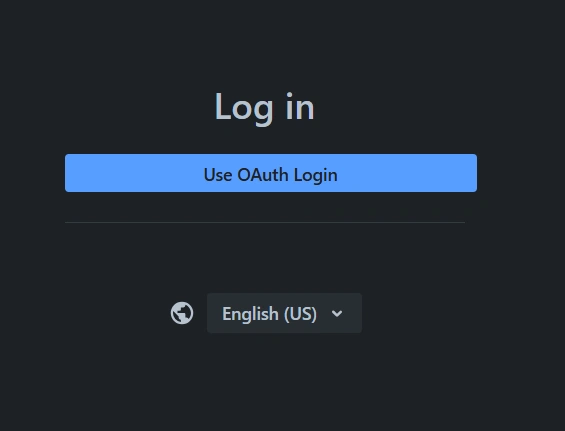
Step 3: With native login disabled, users accessing Confluence will only see the configured SSO login options. As shown in the image below, if a single Identity Provider is configured, users will see a single SSO login button. If multiple providers are configured, separate SSO login buttons will be displayed, allowing users to select their respective provider for authentication.
Note: When SSO Enforcement is enabled, there may be situations where users are unable to access the Atlassian application, such as during a provider outage, misconfiguration, or account lockout. To prevent admins from being locked out, it is recommended to enable the "Emergency/Backdoor Login" feature.
This feature provides an alternative URL that allows users to authenticate using native Atlassian credentials, even when SSO enforcement is active. Admins can configure this option from the "Sign In Settings" tab under the SSO settings.
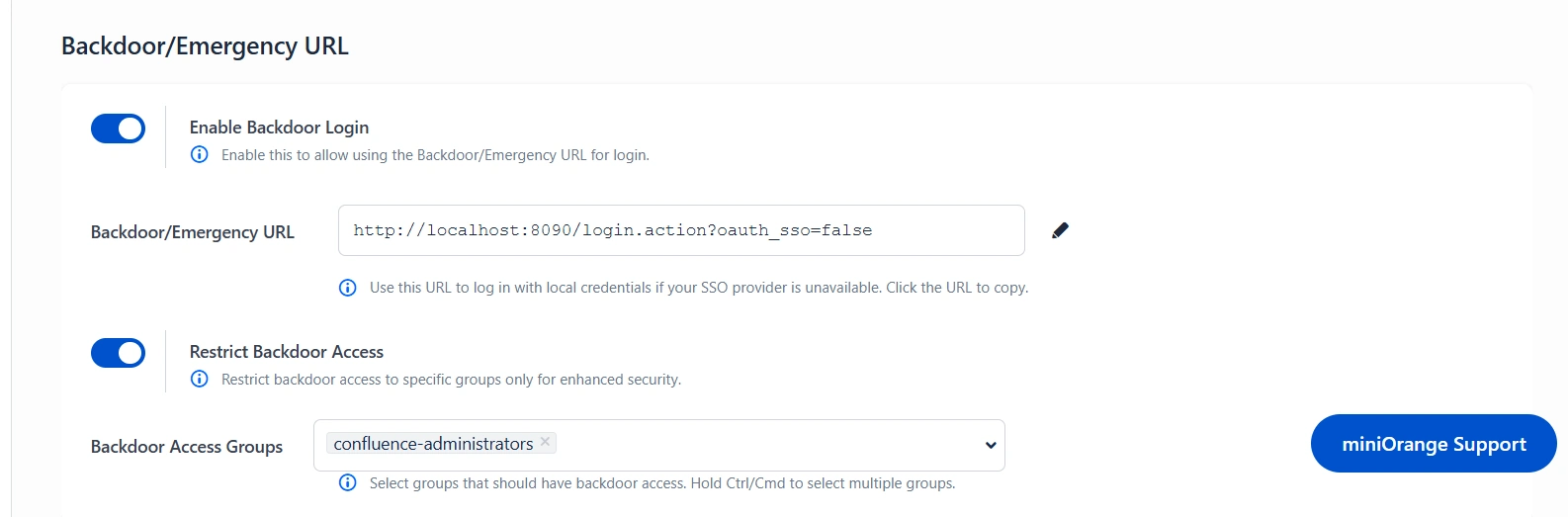
Success confirmation: This completes the SSO Enforcement configuration. Users will now sign in through the configured SSO provider, while administrators can still access the application using the backdoor login option when needed.