Want to send users to the right login automatically?
If multiple login providers are configured, users may be asked to choose the provider they want to sign in with. To avoid this extra step, admins can configure Redirection Rules to automatically send users to the correct login provider.
This creates a smoother sign-in experience for Jira and Confluence users by taking them directly to the appropriate login page, reducing confusion and helping ensure everyone signs in through the organization's preferred authentication method.
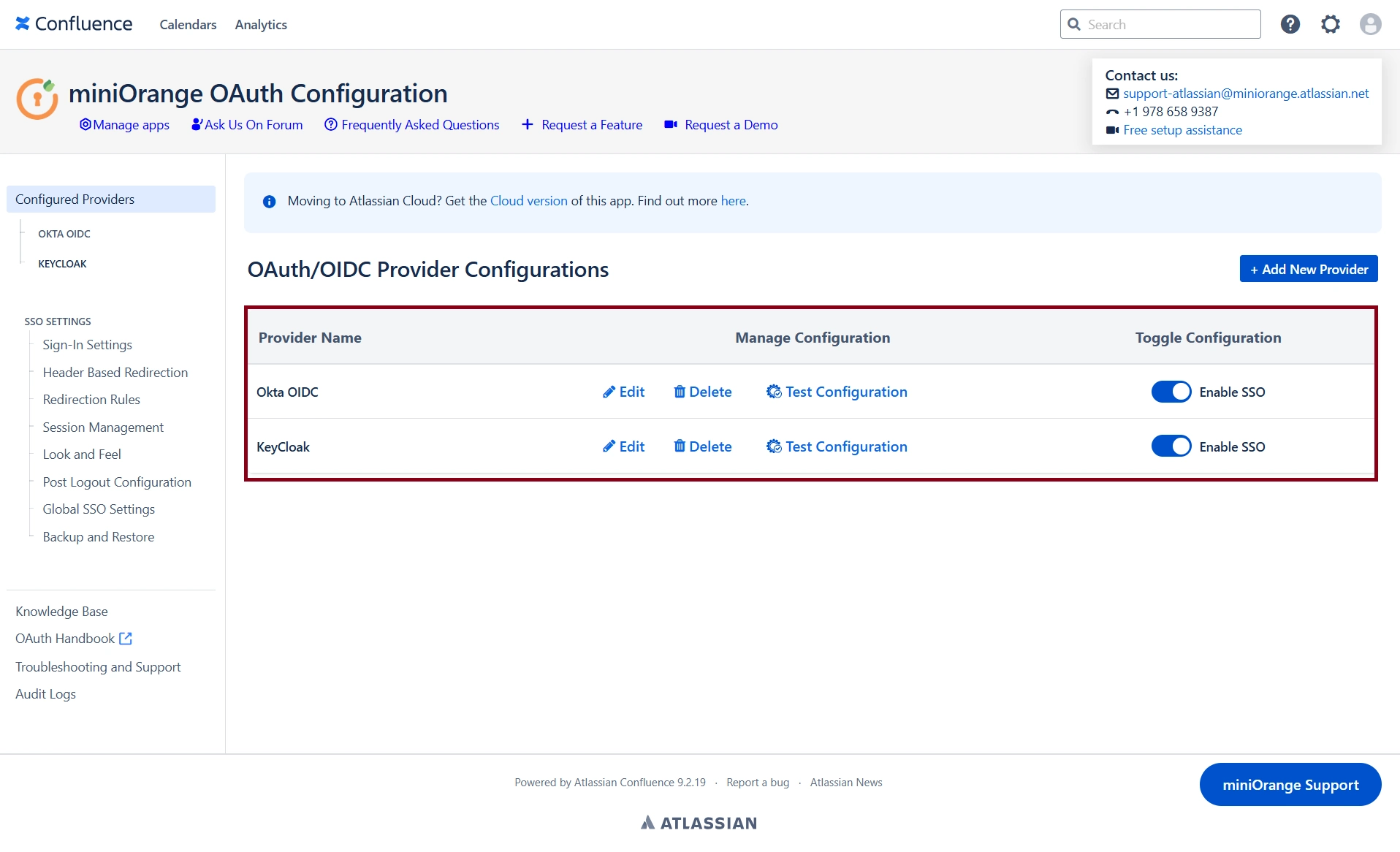
Step 1: Here, we have configured two providers: Okta and Keycloak.
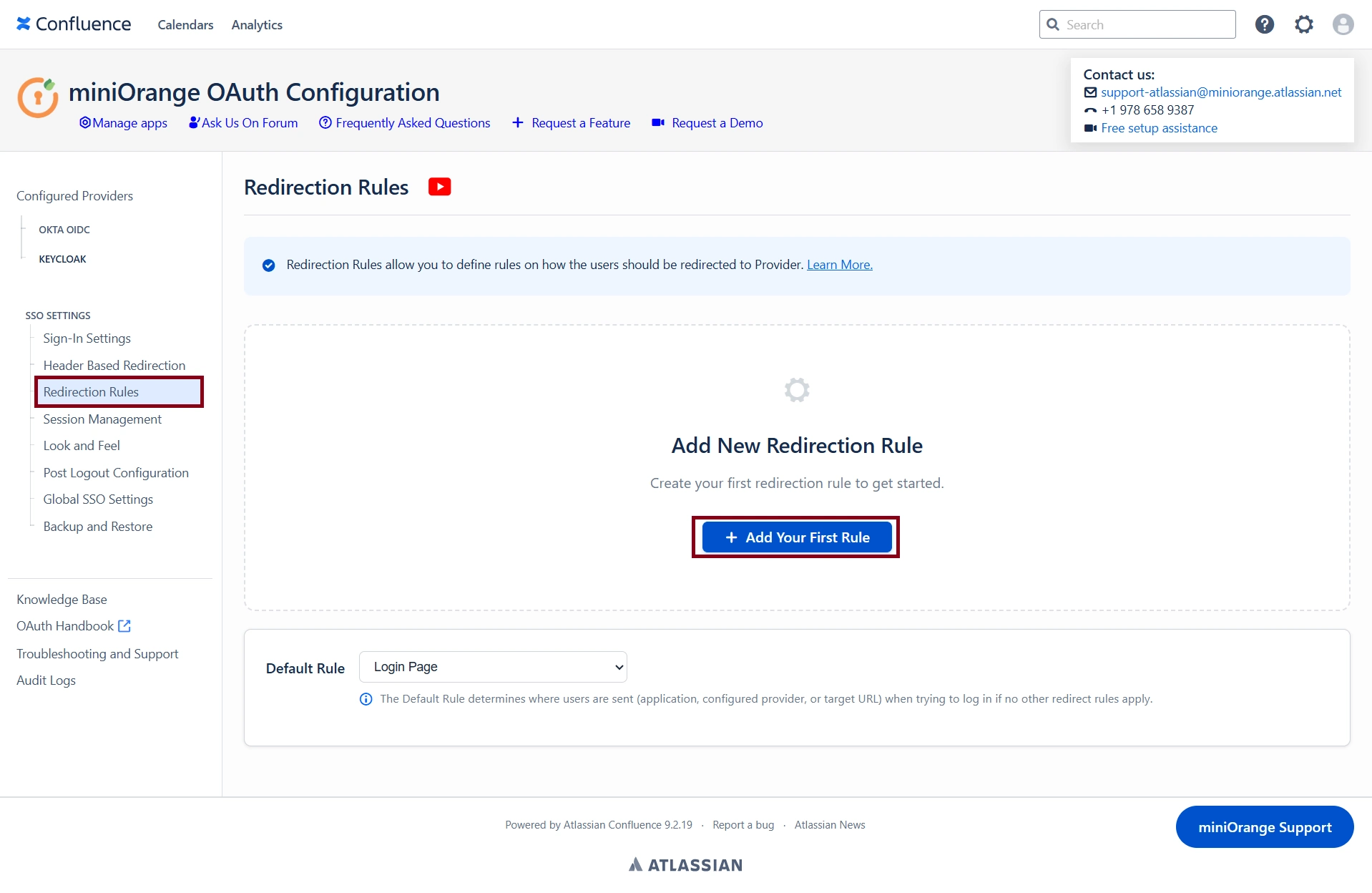
Step 2: After successfully configuring the providers, navigate to the "Redirection Rules" tab under SSO Settings. And now click on the "Add Your First Rule" button.
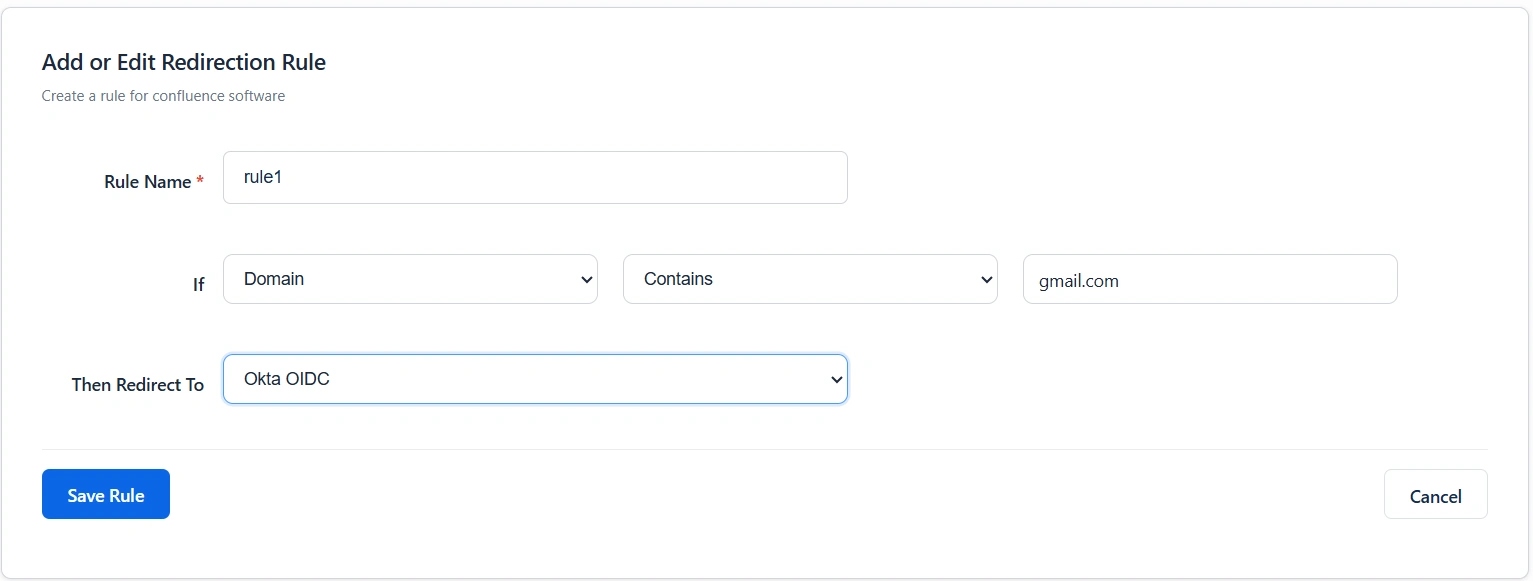
Step 3: Configure the Redirection Rules. For this example, we will set up domain-based and group-based redirection rules.
Rule 1: If the user's domain contains "gmail.com", redirect the user to Okta. Click Save Rule.
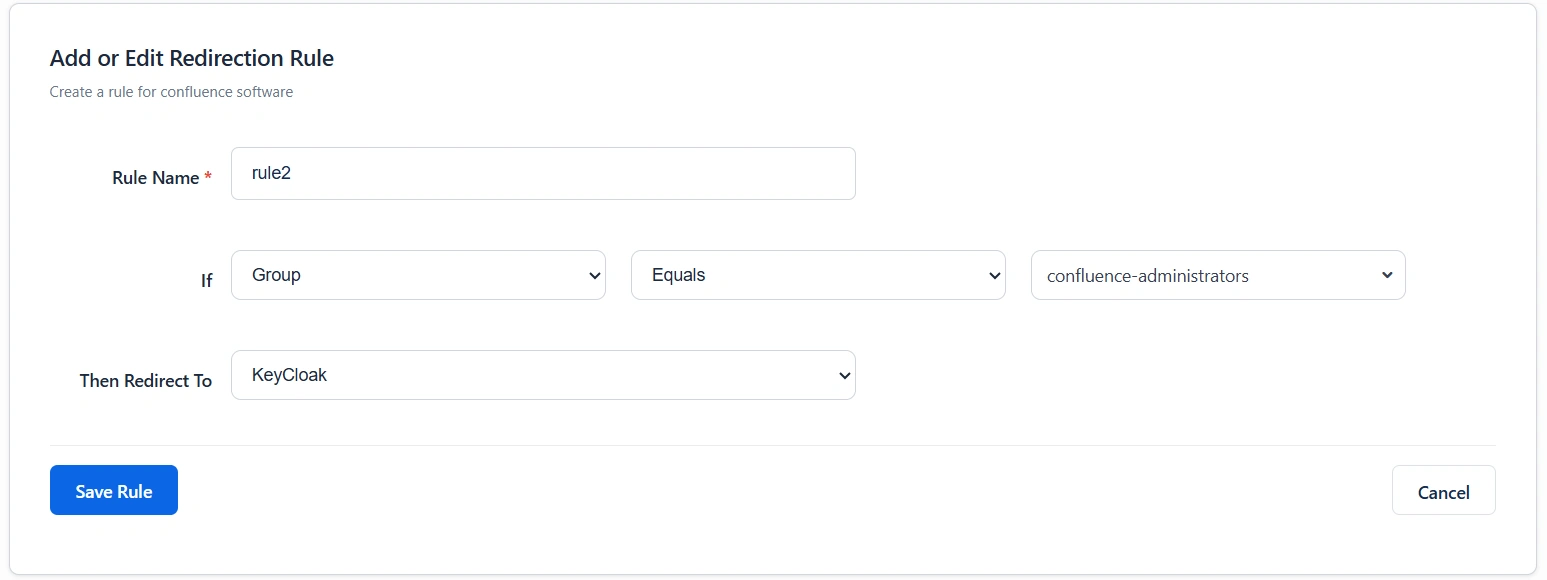
Rule 2: If the user belongs to the "confluence-administrators" group, redirect the user to Keycloak. Click Save Rule.
Step 4: Additionally, a Default Rule must be configured to handle cases where none of the defined redirection rules match. This default rule acts as a fallback authentication option, where any configured provider can be selected as the default gateway. In this example, we will use the native login page as the default backup login option.
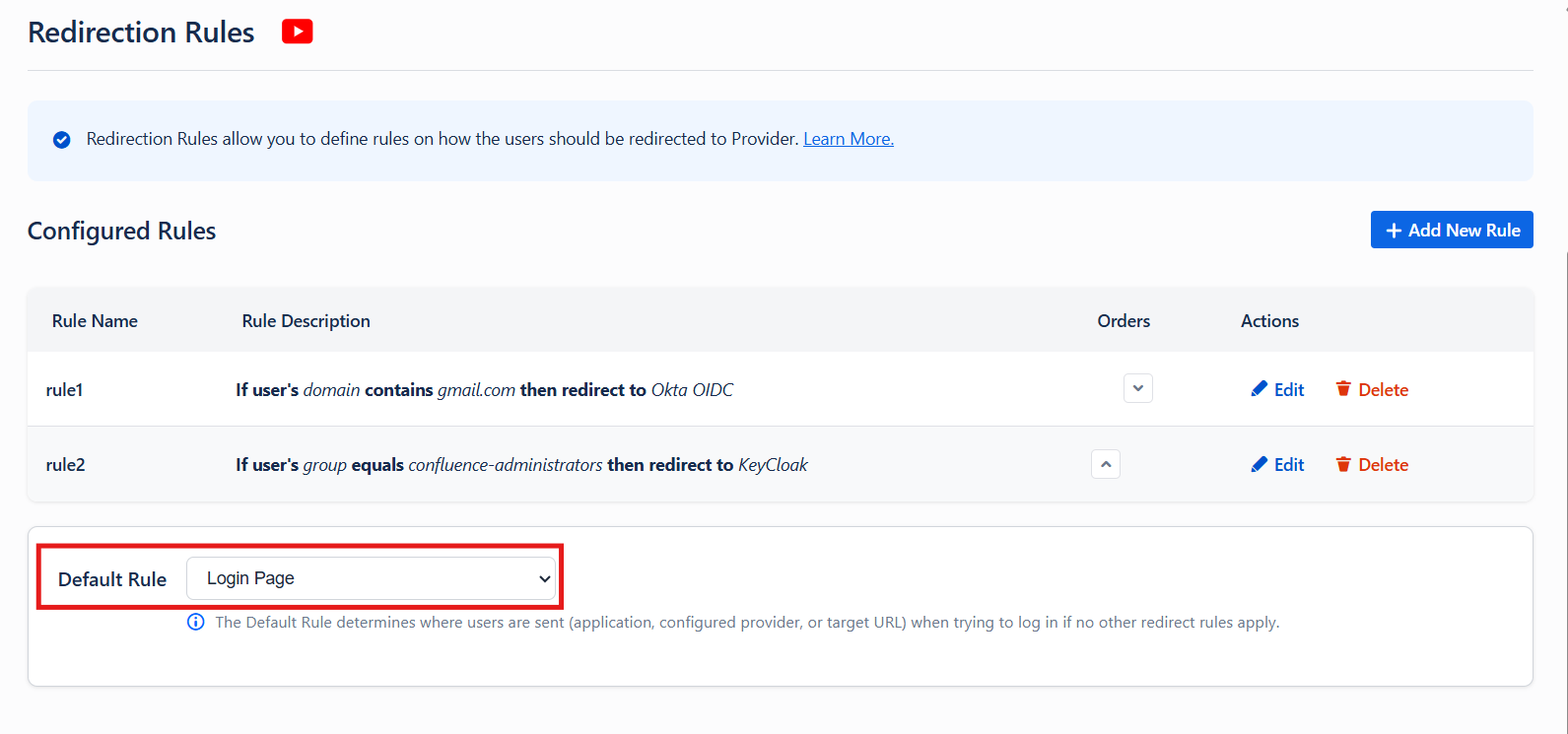
Note: Users can also set the priority of the redirection rules by moving them upward or downward in the rule list. This helps resolve conflicts in cases where a user matches multiple configured rules.
Verification:
For testing the configured redirection rules, we have created two users:
- kc_user@yahoo.com — a user who belongs to the "confluence-administrators" group.
- user1@gmail.com — a user whose domain is "gmail.com".
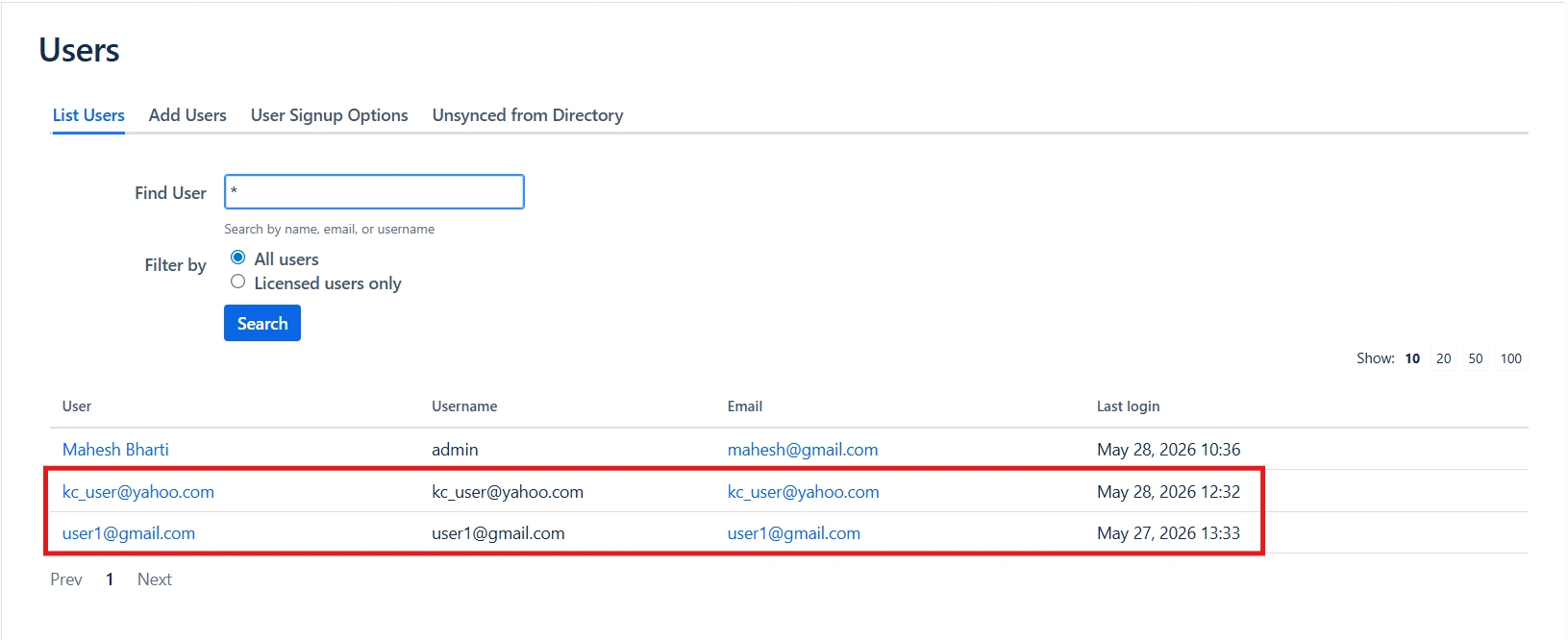
Now, let us test the configured redirection rules by accessing the Atlassian application (Confluence in this example) with both users one by one.
First, we will try to log in using "user1@gmail.com". After clicking Submit, the user will be automatically redirected to Okta based on the configured domain-based rule.
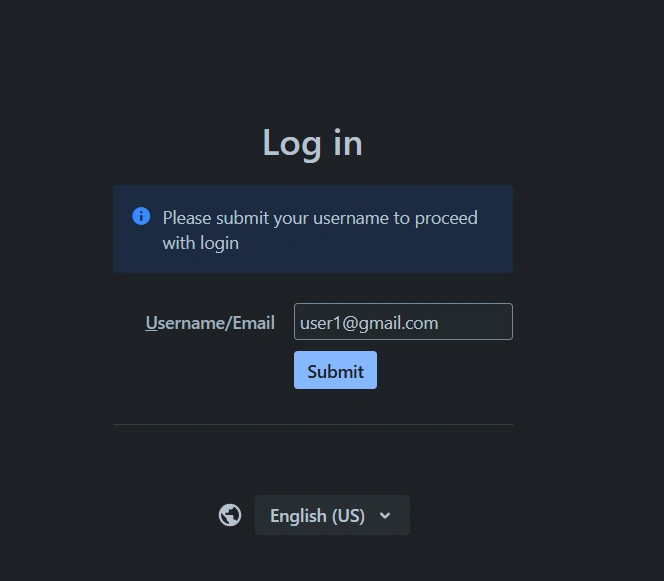
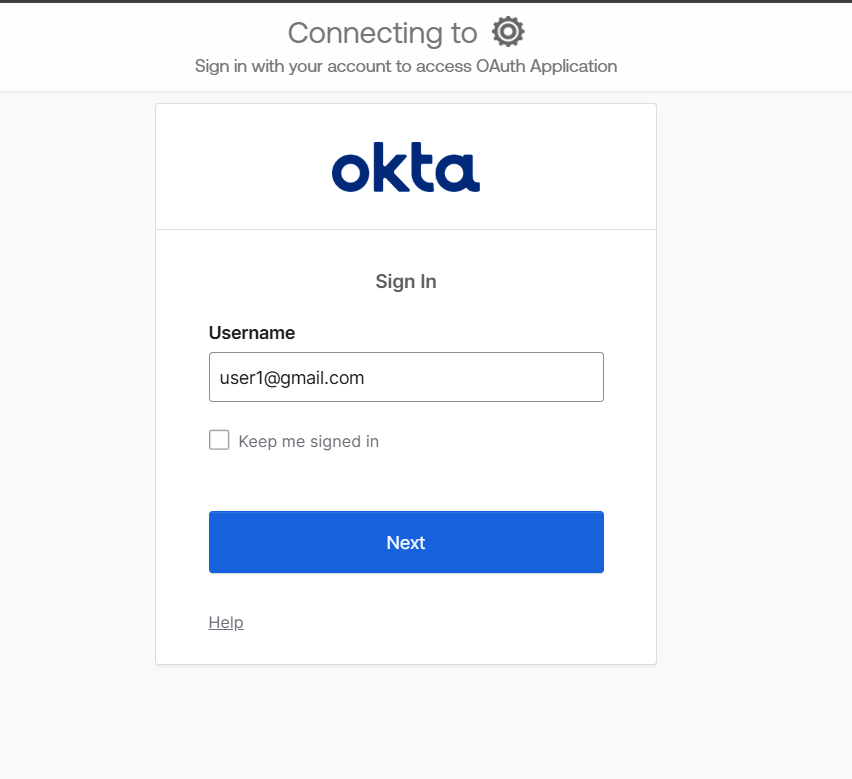
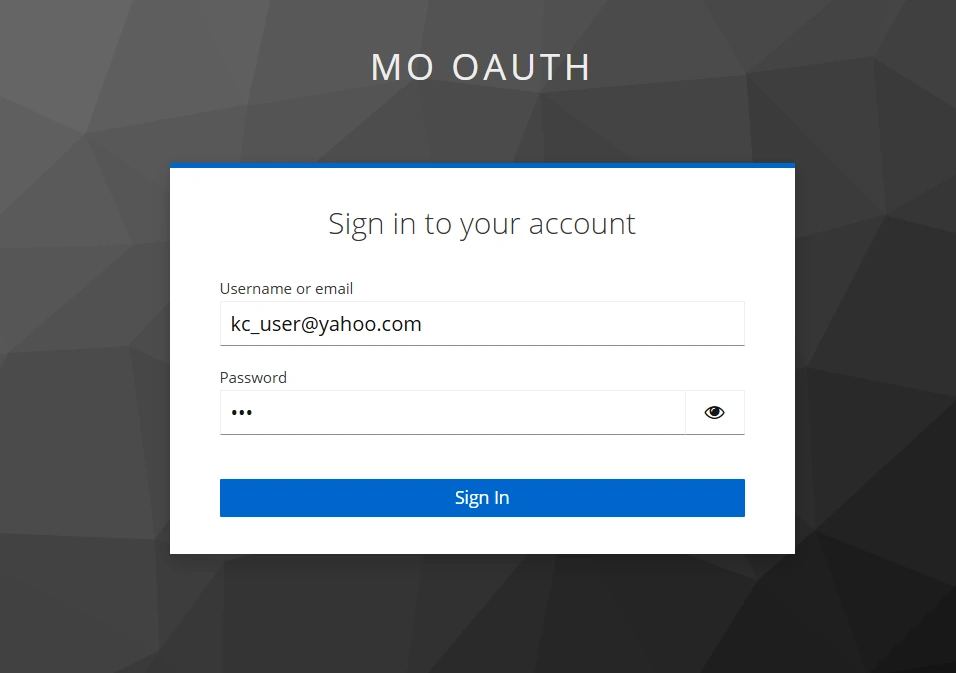
Now, let us try logging in with "kc_user@yahoo.com". After clicking Submit, the user will be automatically redirected to Keycloak based on the configured group-based redirection rule.
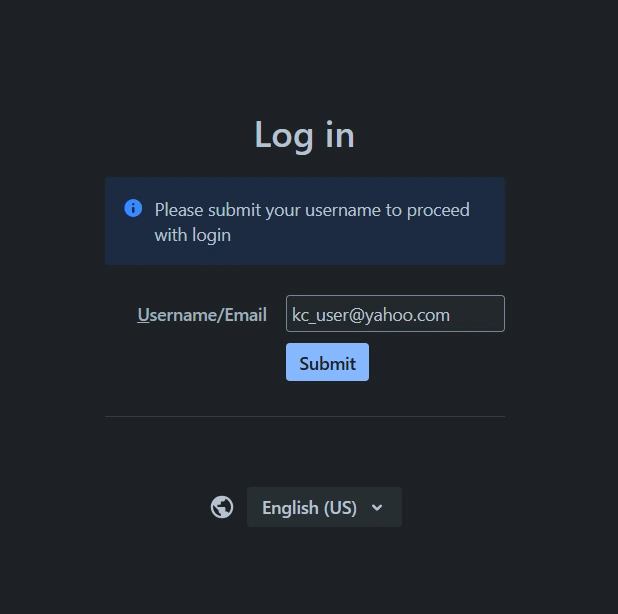
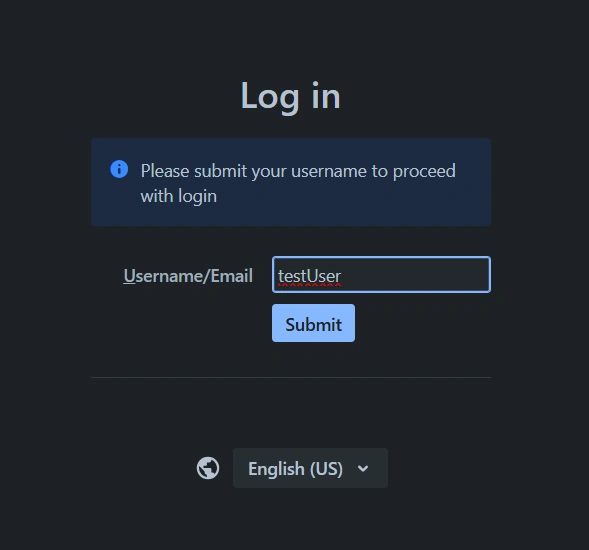
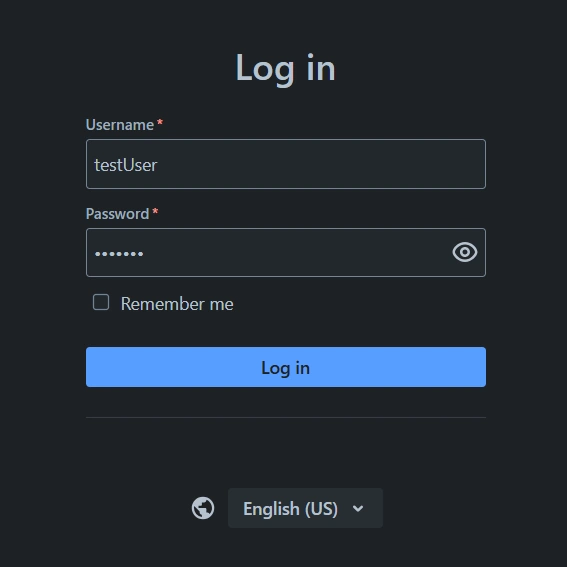
Now, if a user tries to access the application and does not match any of the configured redirection rules, the user will be redirected to the default login page configured in the Default Rule settings.
For example, a user named testUser neither belongs to the gmail.com domain nor is part of the confluence-administrators group. Therefore, the configured redirection rules will not apply, and the user will be redirected to the native login page.
Success confirmation: This concludes the configuration and verification of SSO Redirection Rules with multiple Identity Providers.