Step 2. Set up SSO between Atlassian Guard and miniOrange App
After saving the OAuth Configuration, you’ll be required to configure Atlassian Guard and the miniOrange OAuth/OIDC SSO App.
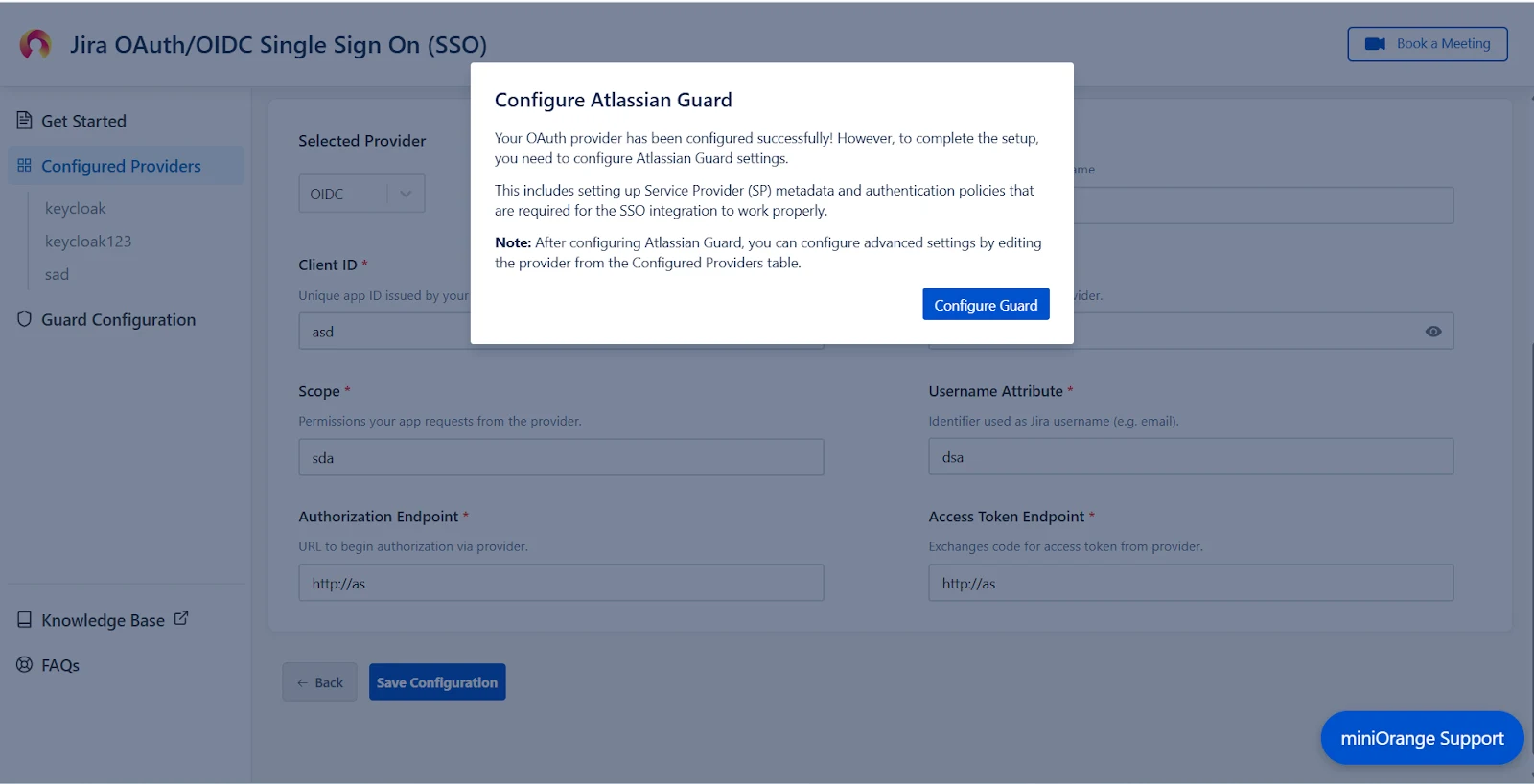
- A pop-up notification will appear, asking you to complete the Atlassian Guard configuration.
- Click on Configure Guard, and you will be navigated to the Guard Configurations section.
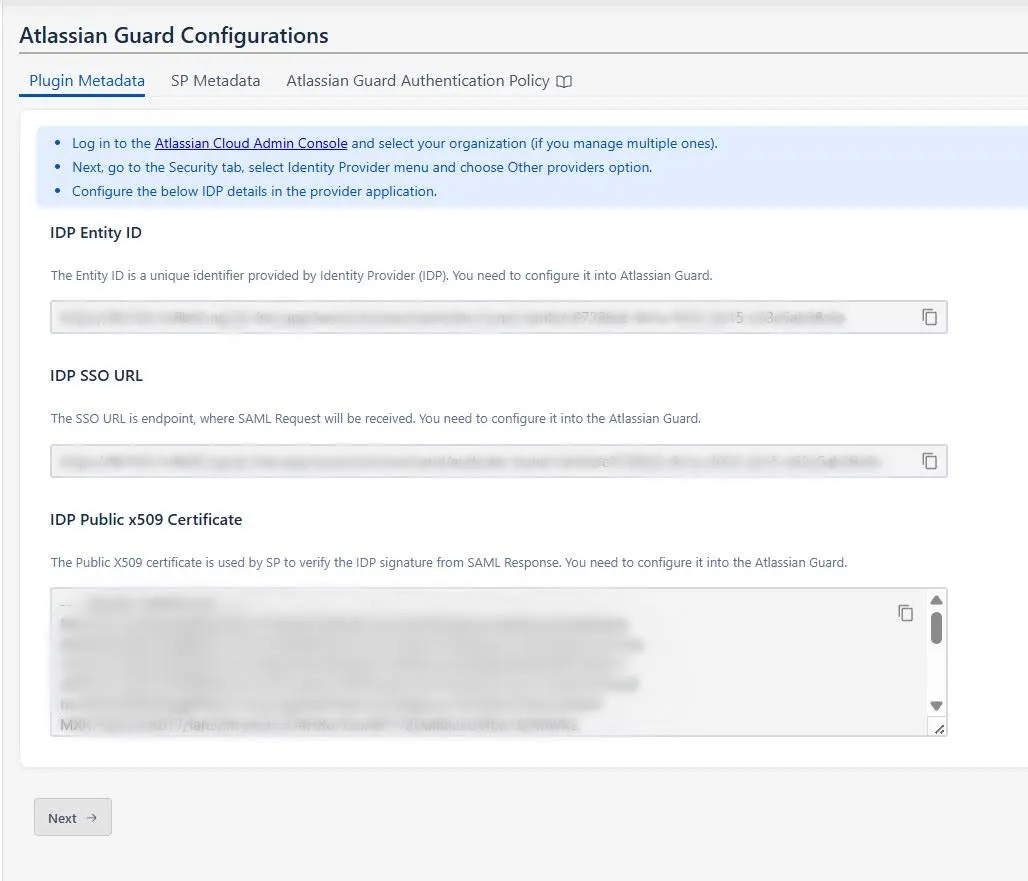
- In this section, you will find the Plugin Metadata details.
- Copy and keep the following values handy. You’ll need them while setting up your Identity Provider in Atlassian Guard:
- IDP Entity ID
- IDP SSO URL
- IDP Public X.509 Certificate
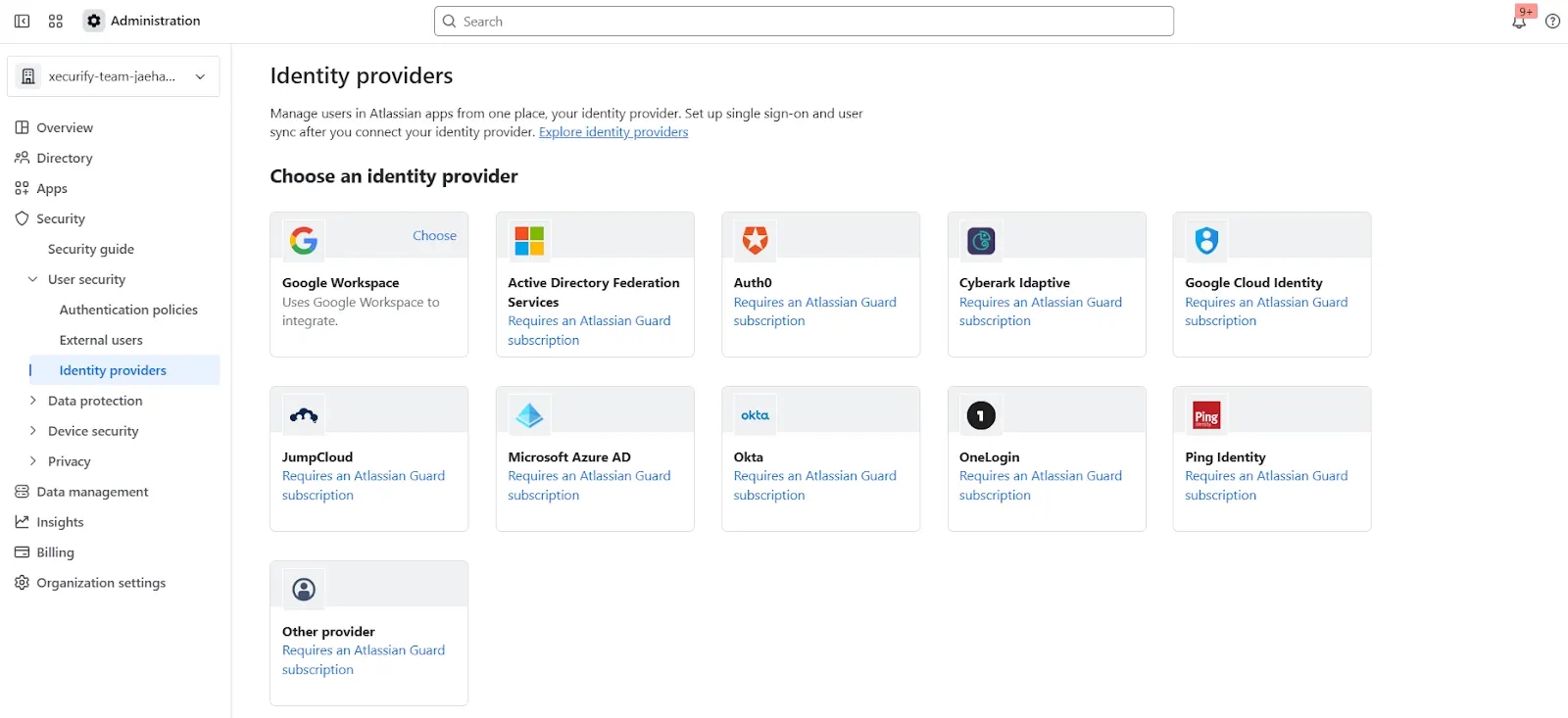
- Open the Atlassian Admin Console and navigate to the Security tab.
- Under User Security, click Identity Providers.
- Select Other to begin configuring a custom Identity Provider.
- Provide an appropriate name, select Set up SAML Single Sign-On, and click Next.
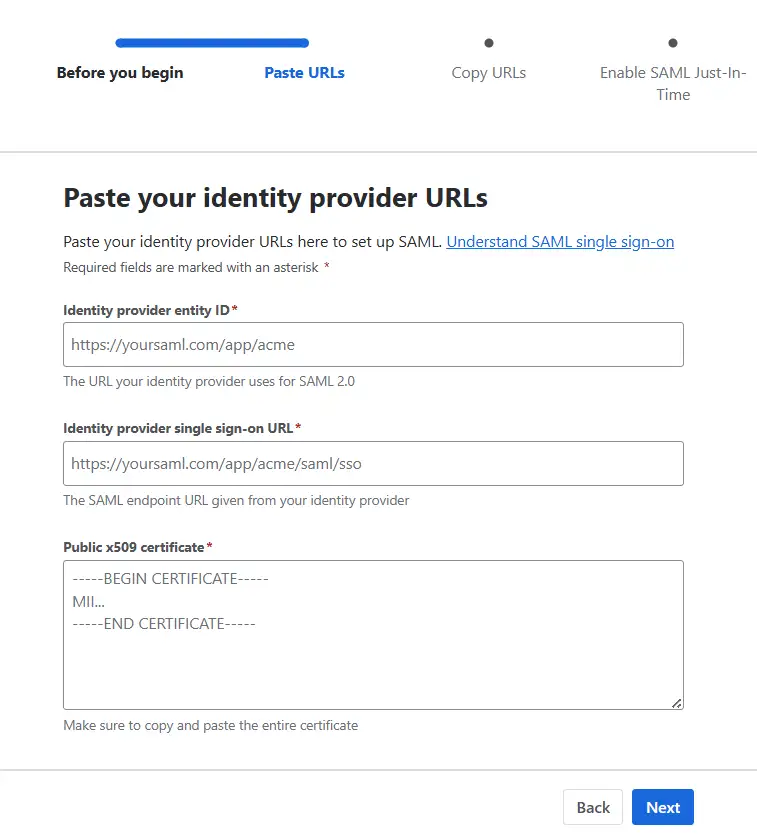
- Now, paste the IDP Entity ID, IDP SSO URL, and Public X.509 Certificate that you copied from the plugin configuration.
- Click Next and copy the Service Provider Entity ID and Service Provider Assertion Consumer Service URL. Keep these handy as they’re required to complete the plugin configuration.
- Complete the rest of the Atlassian Guard configuration.
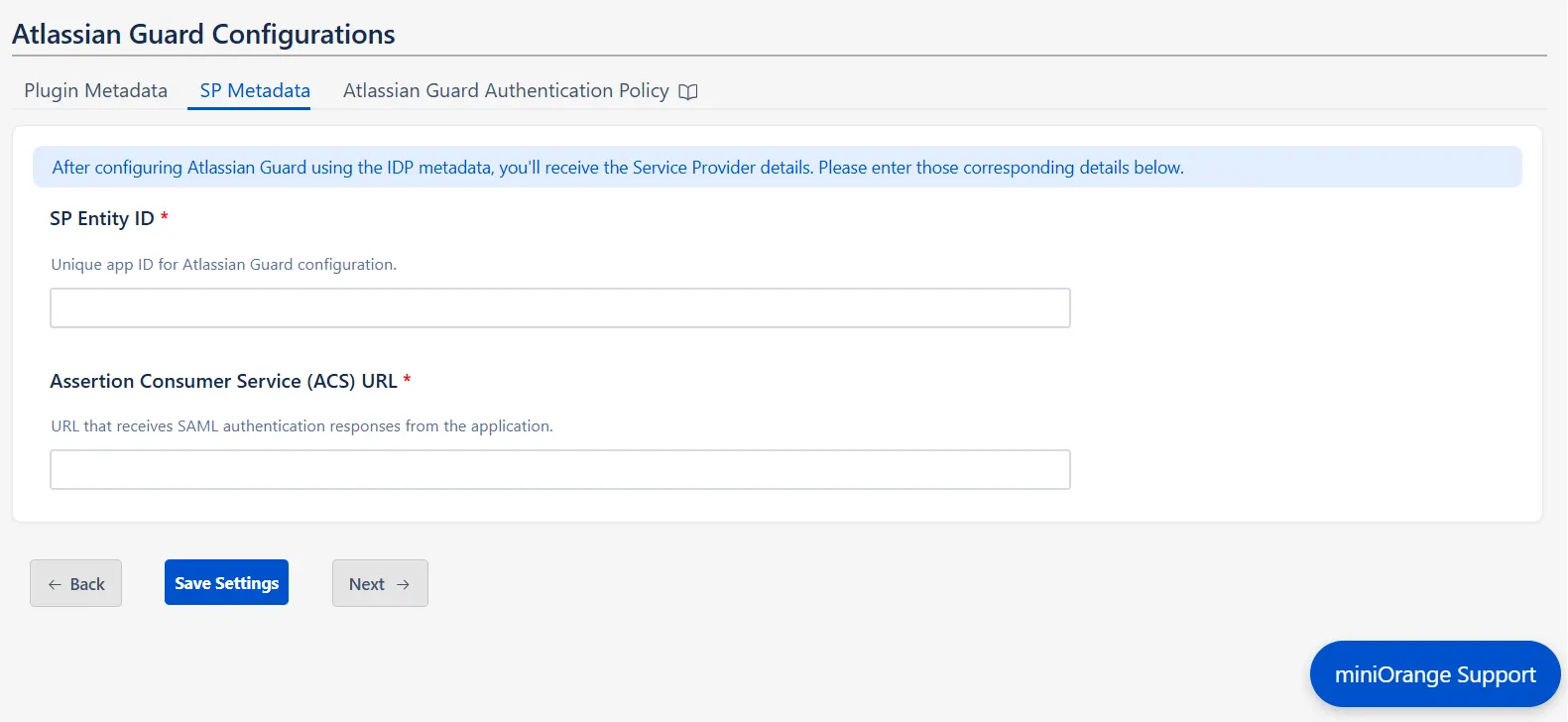
- Once you’re done, return to the plugin, go to the SP Metadata tab in the Guard Configurations section, and click Next.
- Enter the SP Entity ID and Assertion Consumer Service (ACS) URL that you copied, and click Save Settings.
Note: In case you manage multiple organizations, you’ll have to
select the intended one after accessing the admin console.
Step 3. Configure SSO Authentication Policy
After completing your SSO configuration, you must assign users to the Authentication Policy and enforce Single Sign-On (SSO).
- Go to your Atlassian Cloud Admin Console.
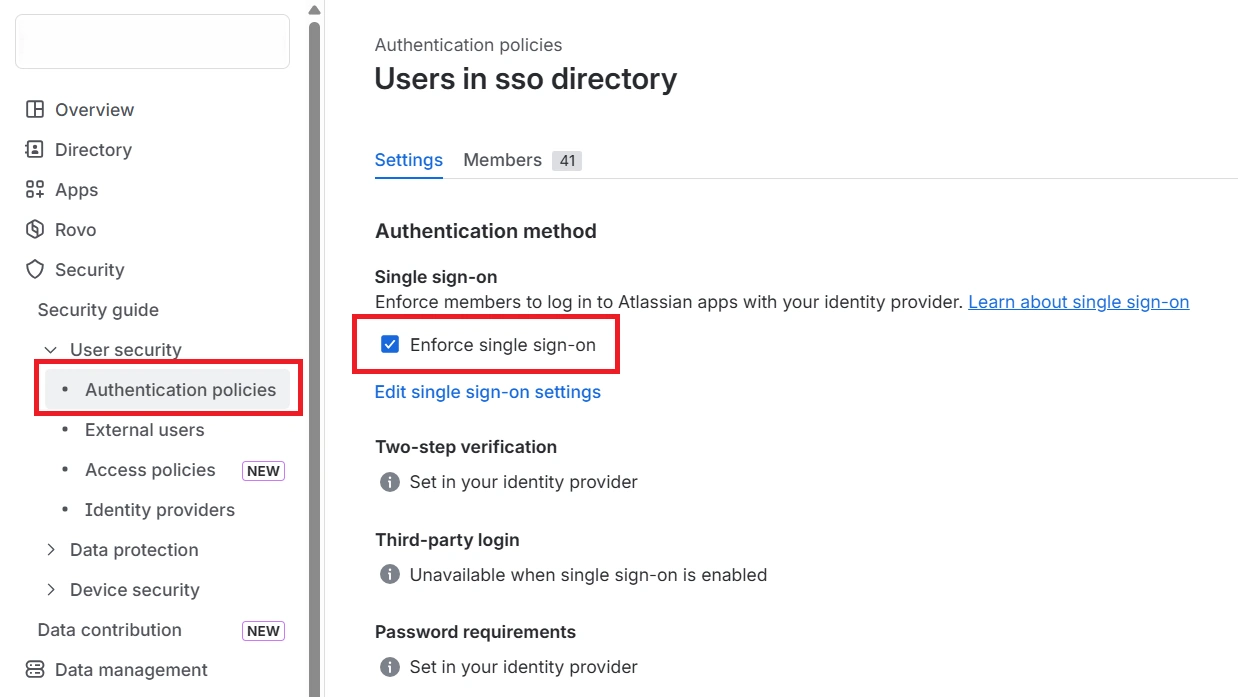
- Navigate to Security → Authentication Policies.
- Open the Authentication Policy you configured for SSO.
- Enable the Enforce Single Sign-On (SSO) option and save the changes.
- Now go to the Members section and add the users or groups who should authenticate using this policy.
- Save your changes.
Once these steps are complete, return to the app and Mark as Complete to complete the setup.

Note: Only users added to the Authentication Policy will be able
to sign in to Atlassian Cloud using your configured Identity Provider
(IdP).


