Getting started
Both views in this guide live under Project Access → Roles & Permissions, visible to Jira administrators only. By User answers "everywhere this person can go"; By Group answers the same question for a group such as vendors-external.
Before you start
- You have the person's display name or account, or the exact group name.
- You can edit group membership and project roles in Jira — the app reports, you remediate in Jira.
- If the Snapshot banner shows a stale Last site sync time, run Update site inventory first so the footprint is complete.
Why this is hard in native Jira
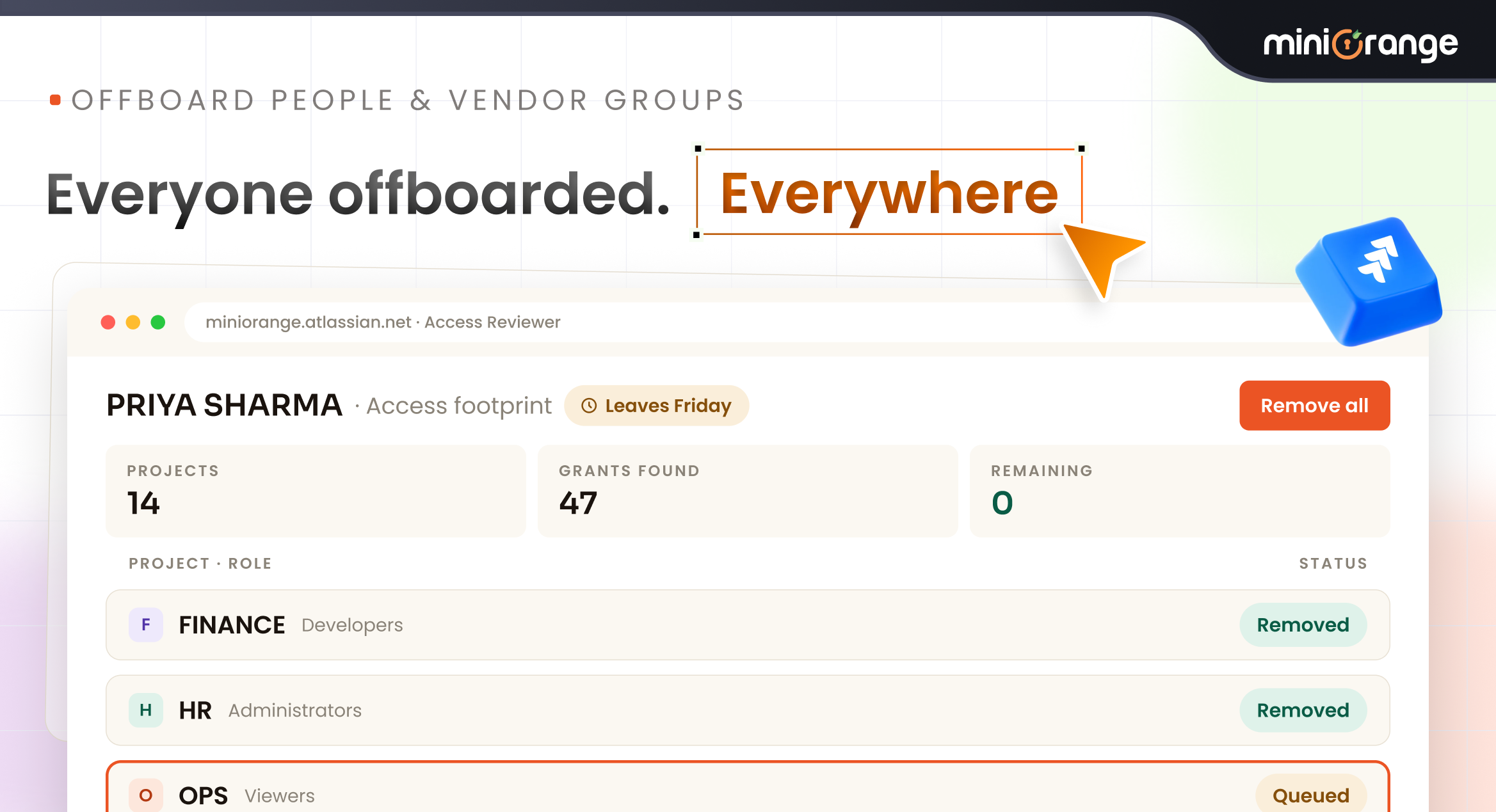
HR says a contractor's last day is Friday. Security asks which projects an external vendor group can reach. Native Jira has no person-centric or group-centric view at all: the People tab only exists inside a project, so "everywhere this person or group can go" means opening every project one at a time and trusting that nothing was missed.
The shape of the problem is inherent to how Jira exposes permissions. A permission granted to a group applies immediately to every project that shares the scheme, while a permission granted through a project role is assigned per project — so one person's real footprint genuinely spans many separate screens today.
What Access Reviewer360 shows
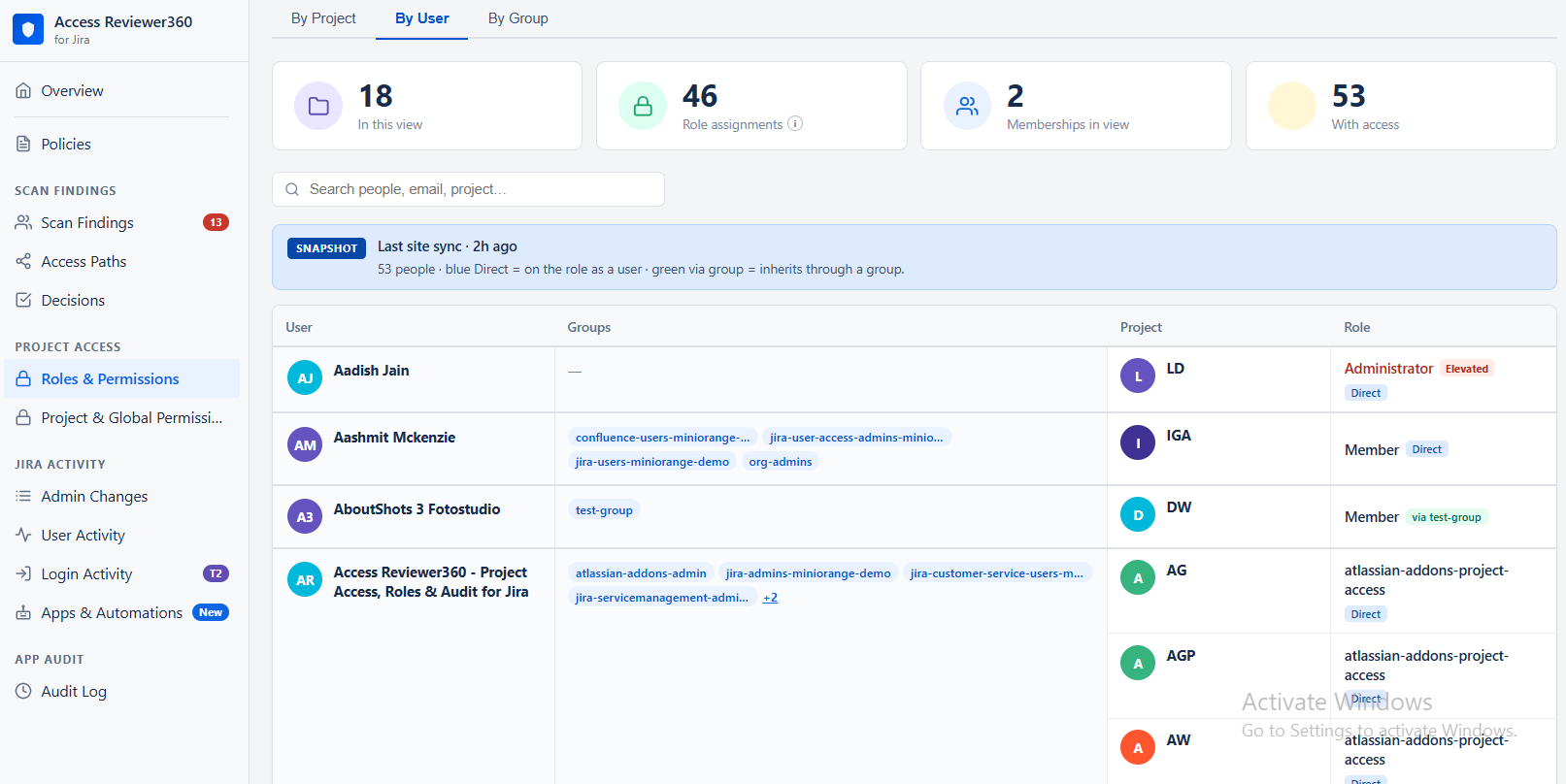
By User lists every role × project row for one person, with a Via Group column: a group name means the access is inherited, a dash means it was granted directly. That distinction is what tells you where to revoke.
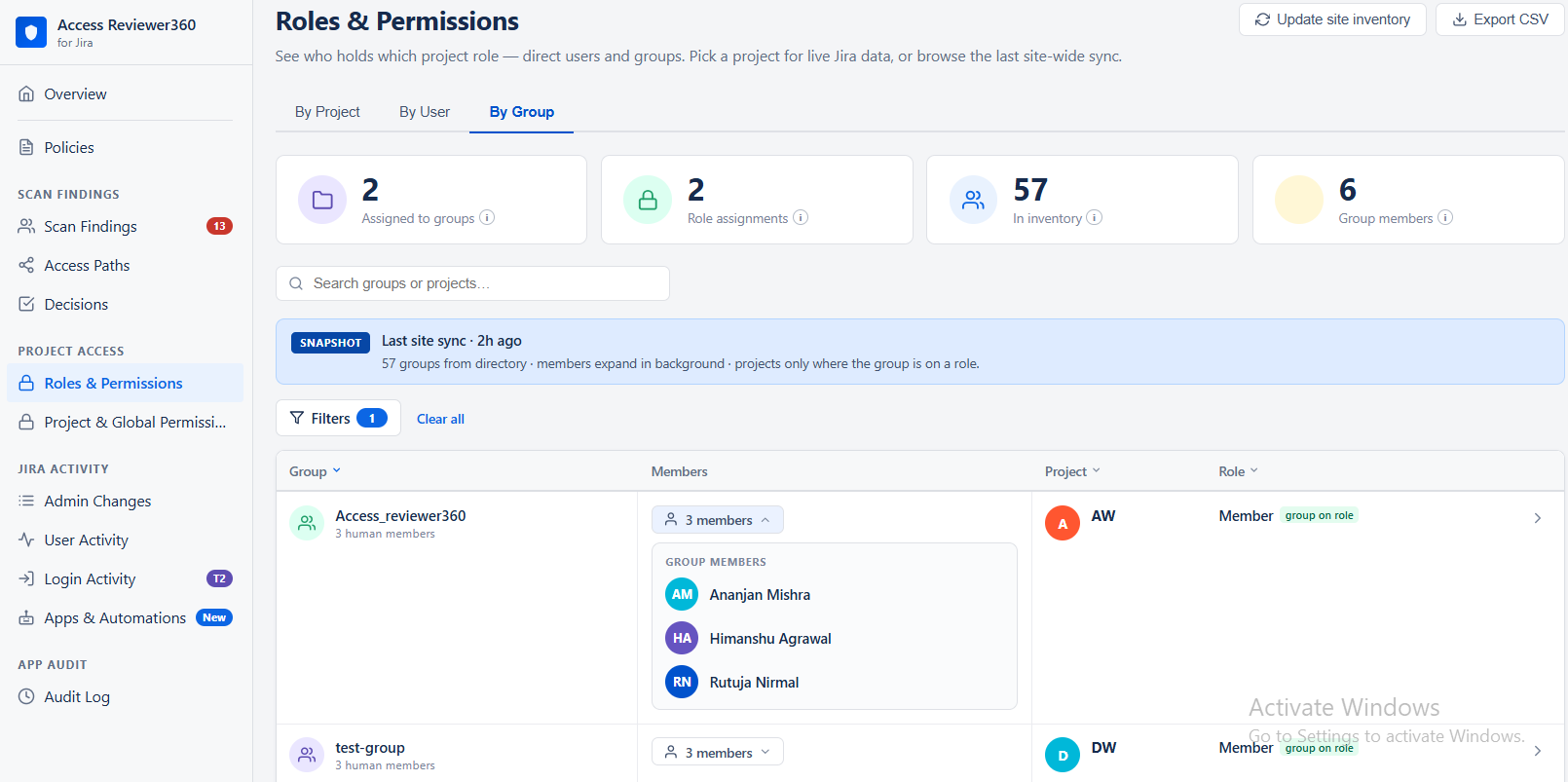
By Group does the same for a group — every project role the group reaches, so you can retire a vendor or contractor group with confidence instead of guessing at its blast radius.
Setup, step by step
- Open Project Access → Roles & Permissions. Click Update site inventory if the Snapshot banner shows a stale Last site sync time.
- Switch to By User and search for the person.
- Review every role × project row. A dash in Via Group means direct access; a group name means inherited access.
- Or switch to By Group, search for the group (e.g. vendors-external), and review every project role it holds.
- Export CSV — this is your "before" record for the offboarding ticket.
- Remediate in Jira: fix group membership first, then clean up any leftover direct grants.
- Run Update site inventory, re-check, and export again as the "after" record.
Tips
- Fix the group first. Removing one membership usually clears a dozen rows at once, and it prevents the access returning with the next re-add.
- Direct grants are the ones that outlive people. Treat any dash in Via Group as a finding worth a note in the ticket.
- Run By Group on every external or vendor group once a quarter, whether or not anyone is leaving.
Contact
If you need help or want to ask questions, please contact us through miniOrange Support or via email to atlassiansupport@xecurify.com