Fisheye/Crucible SAML app gives the ability to enable SAML Single Sign On for Fisheye/Crucible Software. Fisheye/Crucible Software is compatible with all SAML Identity Providers. Here we will go through a guide to configure SSO between Fisheye/Crucible and your Identity Provider. By the end of this guide, users from your Identity Provider should be able to login and register to Fisheye/Crucible Software.
Pre-requisites
To integrate your Identity Provider(IDP) with Fisheye/Crucible, you need the following items:
- Fisheye/Crucible should be installed and configured.
- Fisheye/Crucible Server is https enabled (optional).
- Admin credentials are set up in Fisheye/Crucible.
- Valid Fisheye/Crucible Server Licence.
Download And Installation
- Log into your Fisheye/Crucible instance as an admin.
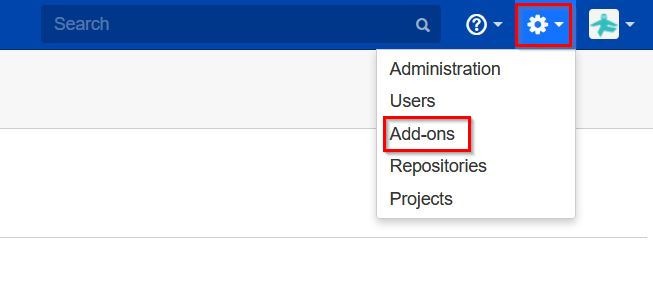
- Navigate to the settings menu and Click Add-ons.
- Click on Find new add-ons from the left-hand side of the page.
- Locate Fisheye/Crucible SAML Single Sign On/SSO via search.
- Click Try free to begin a new trial or Buy now to purchase a license for Fisheye/Crucible SAML Single Sign On/SSO.
- Enter your information and click Generate license when redirected to MyAtlassian.
- Click Apply license.
Step 1: Set Up Centrify as Identity Provider
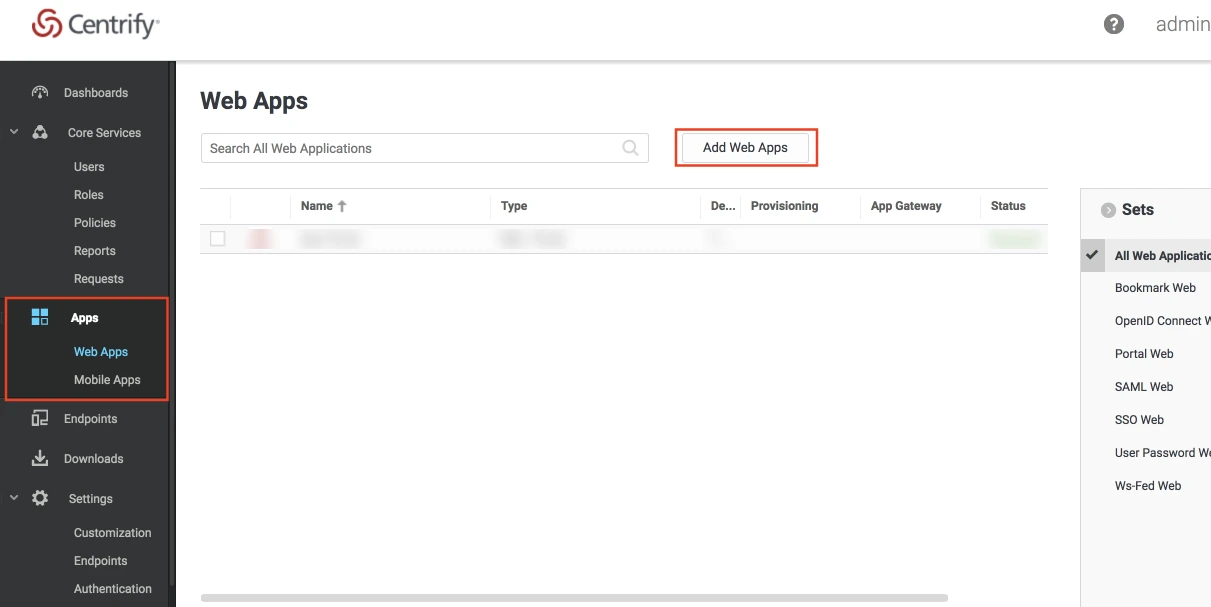
- Log into Centrify as an Administrator and click on Apps on the sidebar. Then Click on Web Apps.
- Click on the Add Web Apps button next to the search bar.
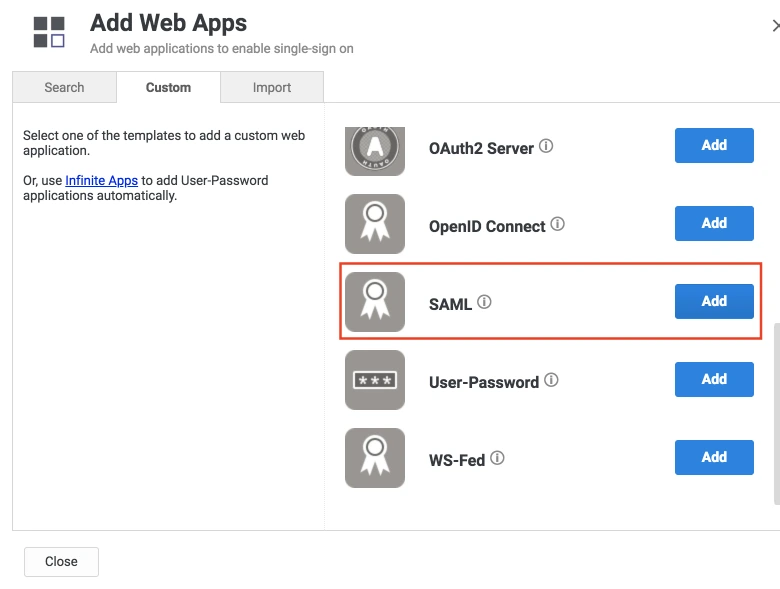
- Then select the Custom tab. Search for SAML and click on the Add button. Now press Yes to confirm.
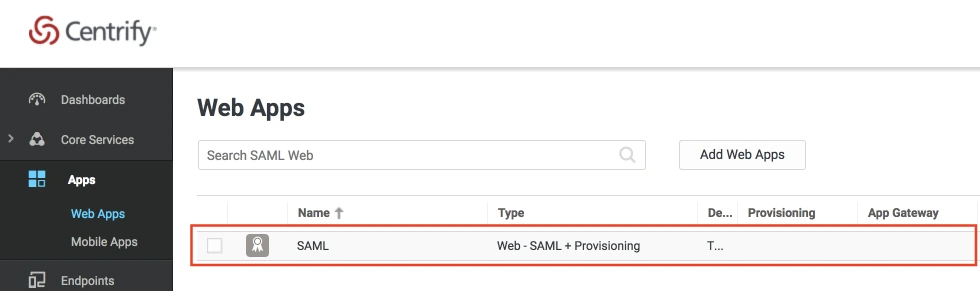
- When you create a web app, it will be listed in the Web Apps tab. Click on the newly created web app to configure.
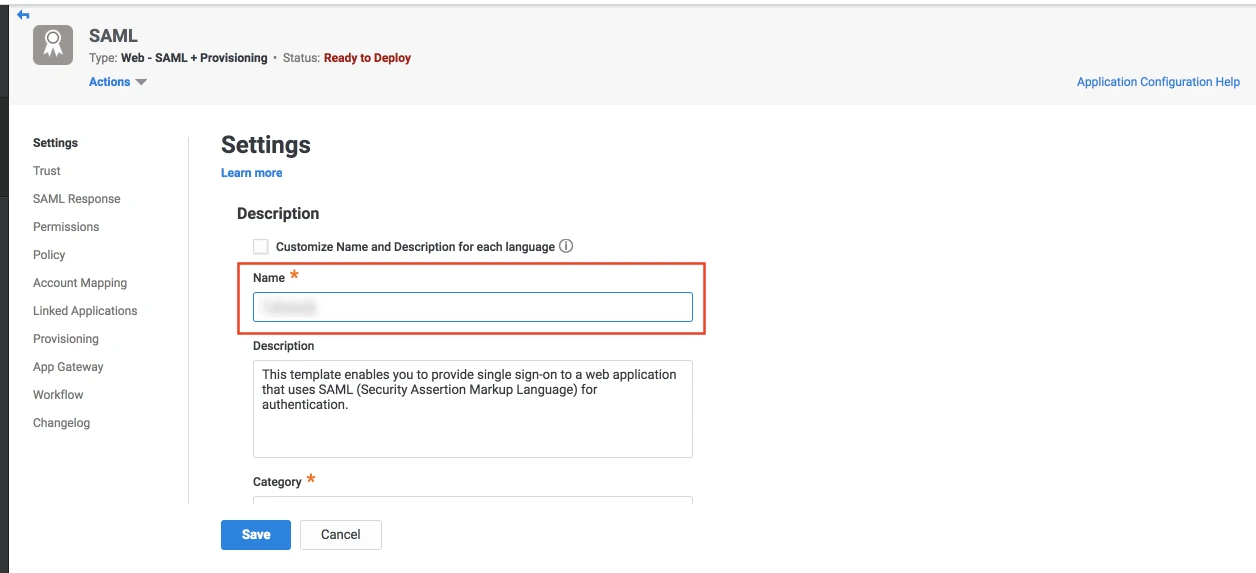
- The name and description of the web app can be updated from this settings tab.
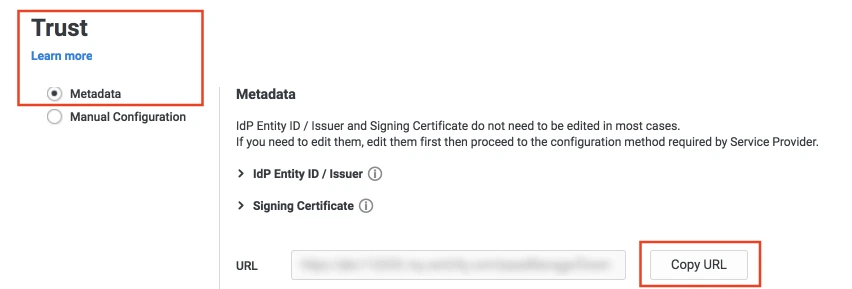
- Select the Trust tab from the sidebar. Trust tab will have metadata details for the configuration. Copy the metadata URL and save it for configuration with miniOrange.
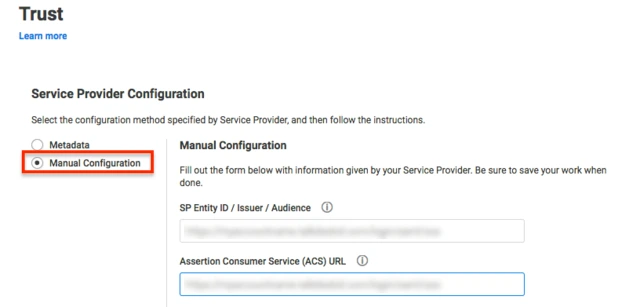
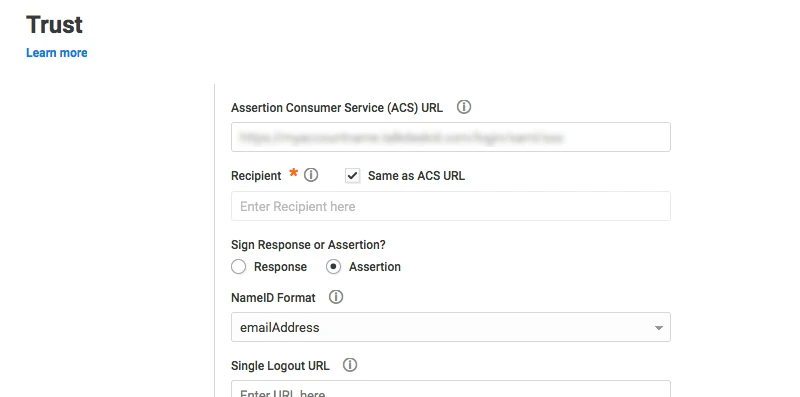
- Now scroll down until you see the Service Provider Configuration. Here you can configure the SP metadata either using the URL or manual configuration.
- Enter the configuration details and click on SAVE.
- Click on the SAML Response tab from the left sidebar.
- Here, you can map attributes from your source directory to SAML attributes that will be returned with the response.
- Also, Centrify provides a script editor under the custom logic section in the SAML Response tab to add more complex logic to map attributes.
- You will have to add below functions to the code -
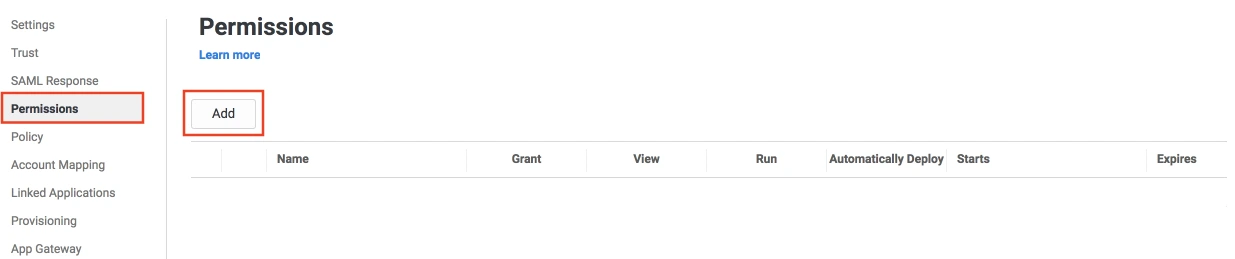
- From the left sidebar, select Permissions.
- Click on the Add button. The Select User, Group, or Role dialog will appear.
- Select the users, groups, or roles that will be accessing this web app. The role rules will be displayed on the User Access card.
- Click on the Save button.
 Create SAML App
Configure SAML App
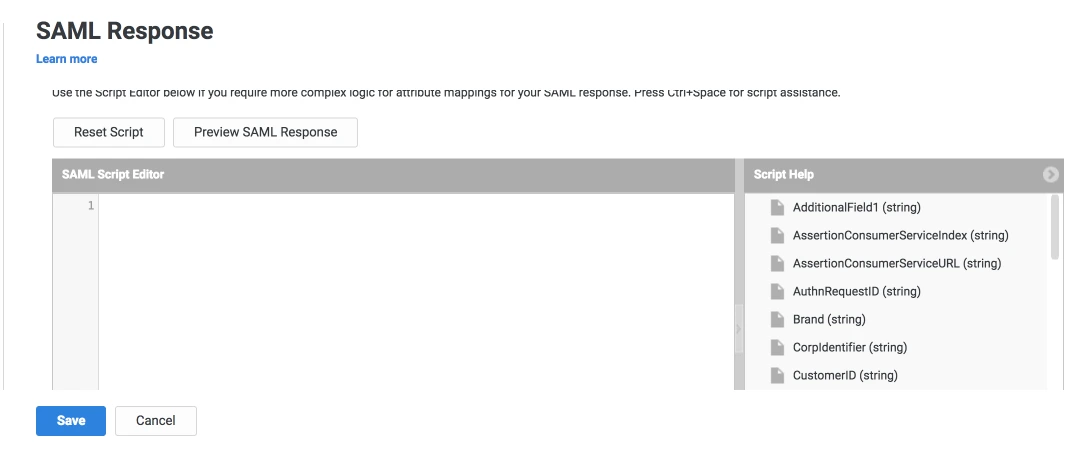
| setAudience() | SP-EntityID / Issuer from Step 1 of the plugin under the SP Info Tab. E.g: setAudience('https://example.com') |
| setRecipient() | Recipient URL from Step 1 of the plugin under the SP Info Tab. E.g: setRecipient('https://example.com/plugins/servlet/saml/auth') |
| sethttpsDestination() | Destination URL from Step 1 of the plugin, under the SP Info Tab. E.g: sethttpsDestination('https://example.com/plugins/servlet/saml/auth') |
Step 2: Setup Fisheye as Service Provider
Step 2: Set Up Fisheye as Service Provider
With the Quick Setup method, you can get the SP metadata from the first step of adding an IDP. The steps to initiate Quick Setup are given below:
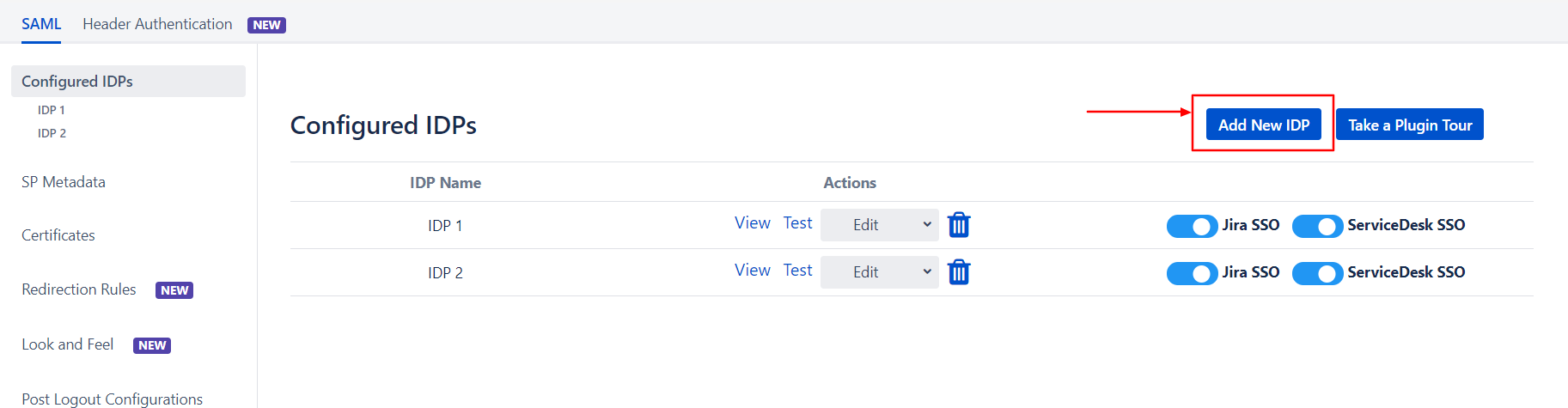
- Click on the Add New IDP button in the Configured IDPs section
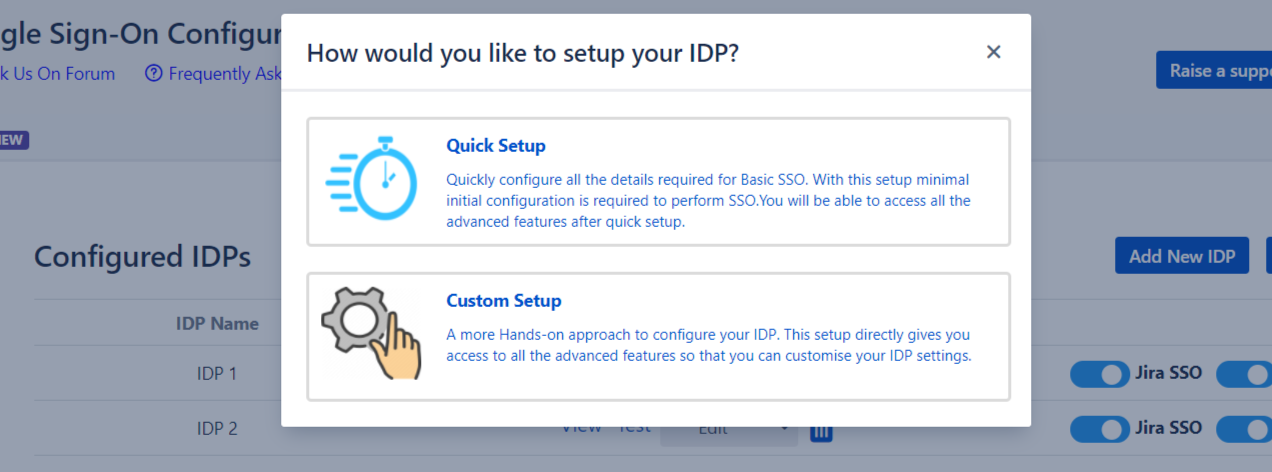
- Select the Quick Setup option in the pop-up that opens
- Select your IDP from the list of IDPs displayed
After completing the above steps, you will see the first step of the Quick Setup process. This step deals with setting up your IDP.
Step 2.1: Service Provider Metadata
- If your IDP supports importing the metadata, then you can choose By providing a metadata URL to the IDP.
- Depending on how your IDP accepts the metadata, you can either provide the metadata URL or you can use the Download Metadata button to download an XML file for the same.
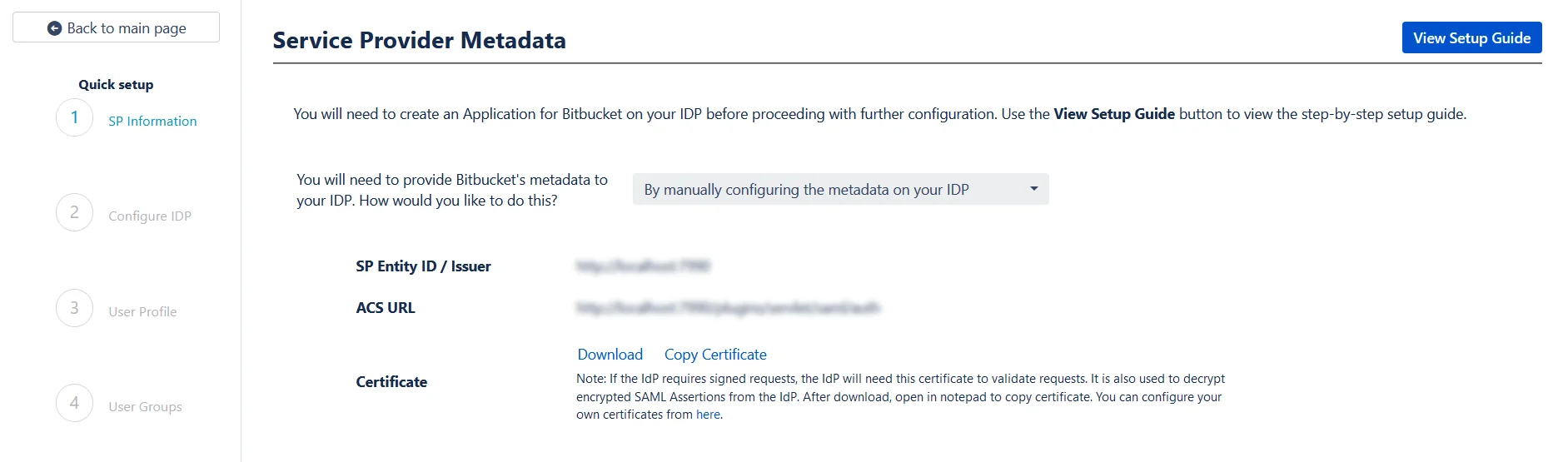
- SP Entity ID
- ACS URL
- SP Certificate
Here you will find your SP's metadata. You will need to provide this metadata to your IDP. There are two ways to add this metadata to your IDP.
 Import the metadata
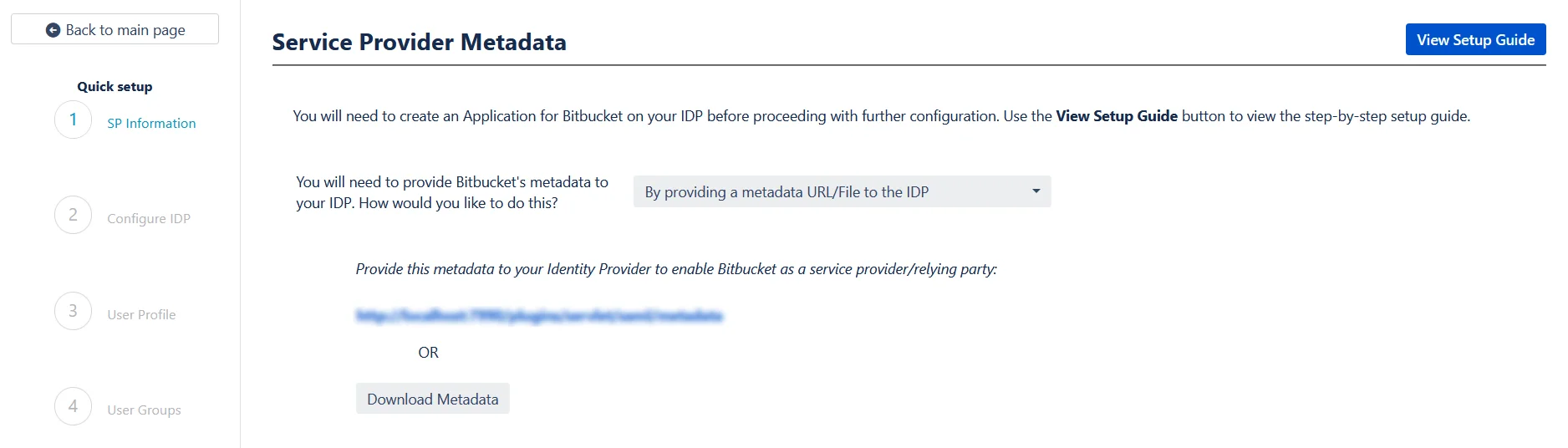
Manually add the metadata
If you wish to add the metadata manually, then you can choose By manually configuring the metadata on your IDP. You will find the following information. These details will need to be provided to your IDP
Step 2.2: Configuring your Identity Provider
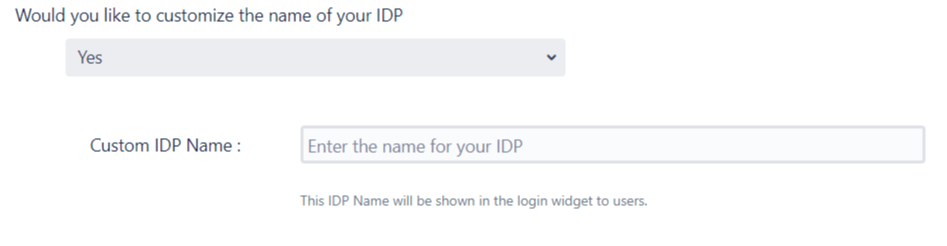
- You can enter a name for your IDP in the Custom IDP Name field. In-case your use-case requires multiple IDPs, the SSO button for this IDP on the login page will display the custom name. If you do not wish to add a custom name, simply click on the corresponding drop-down and select no.
-
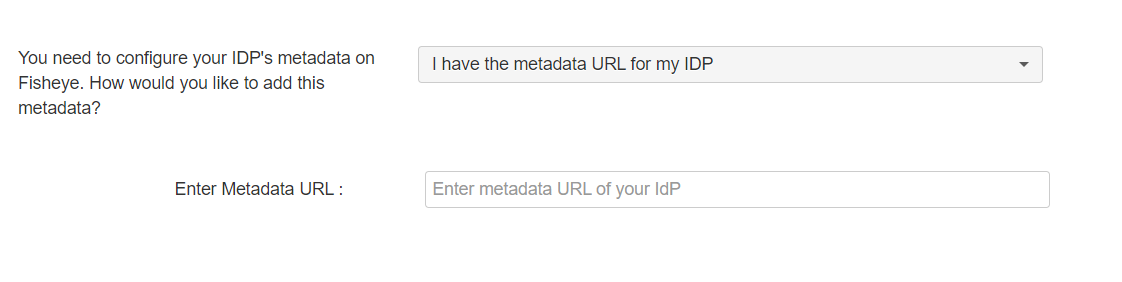
I have the metadata URL for my IDP
Add your metadata URL in the Enter Metadata URL field.
-
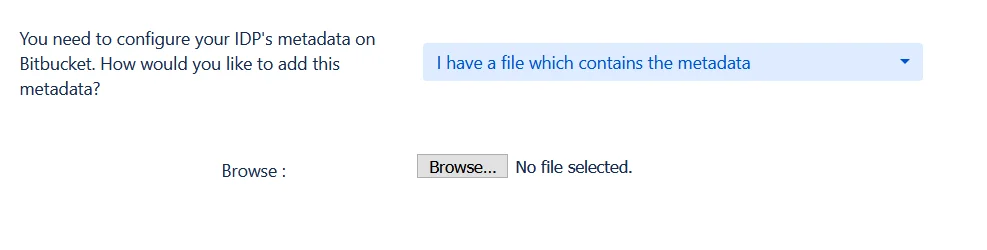
I have a file which contains the metadata
Use the Choose File button to browse for your metadata file.
-
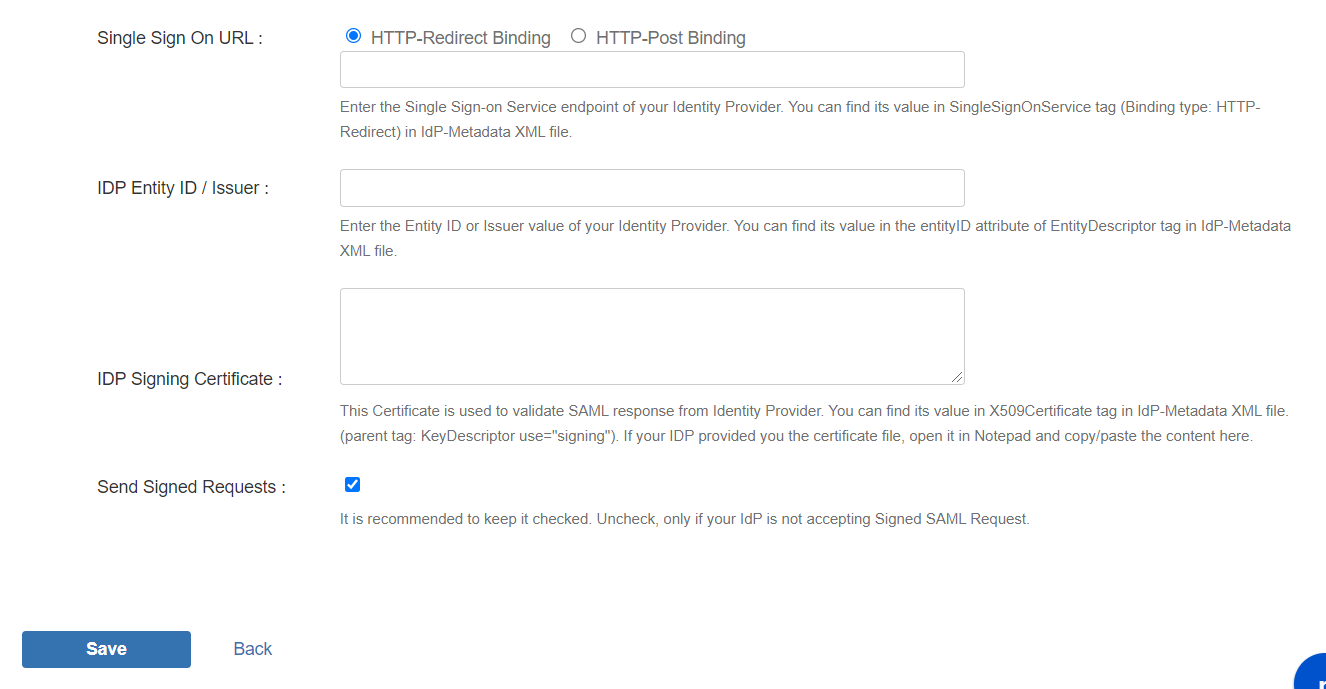
I want to manually configure the IDP
To configure the IDP manually, you will need to have the following details from your IDP's metadata.
- Single Sign On URL
- IDP Entity ID
- IDP Signing Certificate
-
Testing the configuration
Once you have added the IDP metadata, click on Save. If the IDP has been added successfully, then you will see a Test and Get Attributes URL. Copy this URL and paste it in a separate window to Get the Attributes from IDP.
This step is where you will be adding your IDP metadata.
Custom IDP name
Adding the IDP metadata
There are 3 ways in which you can add your IDP metadata. Use the drop-down to select any of the following methods:
Step 2.3: User Profile
In this step you will be setting up basic user profile attributes for your SP
- When the user logs into Atlassian Application, one of the user's data/attribute coming in from the IDP is used to search the user in Atlassian Application. This is used to detect the user in Atlassian Application and log in the user to the same account. You can choose which attribute will be used for this purpose using the drop-down provided.
- Setting up both Username and Email is required if you want to let users register. If the Test Configuration performed in the previous step was successful, then the inputs for the username and email attributes will be drop-downs. These drop-downs will contain all of the user's attribute names sent from the IDP. You will need to select the appropriate options containing the user's username and email.
Matching a user

Setting profile attributes

Step 2.4: User Groups - Default groups
- Select the user's default groups in this step. You can use the Default Groups to do this. Multiple groups can be set as default groups. The user will be assigned to these groups by default after successfully logging in via SSO.
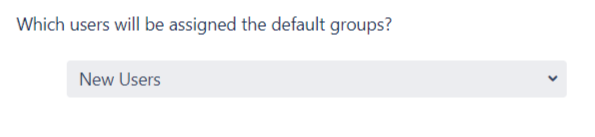
- You can enable default groups for All Users or New Users using the Enable Default Groups for drop-down. Select None if you don't want to assign any default group to SSO users.

Step 2.5: Troubleshooting and Support
- This step marks the end of the Quick Setup flow. In case you faced any issues or encountered any errors while setting up your IDP you can use the steps given in the Troubleshooting section to get in touch with us.
- You will also be able to see the results of a successful test configuration on this page. This includes the attributes received from your IDP, the SAML request sent and the SAML response received.
- Adding your IDP via this method will setup basic SSO for your end-users. You can always customise your setup further using the full set of features that we provide. To do this use the Edit drop-down for your IDP in the Configured IDPs page. From here you will be able to access your SP Metadata and customise your User Profile and User Groups settings. You can read more about these settings in the Custom Setup section of this guide.
Step 2.1: Service Provider Metadata
- SP Entity ID
- ACS URL
- SP Certificate
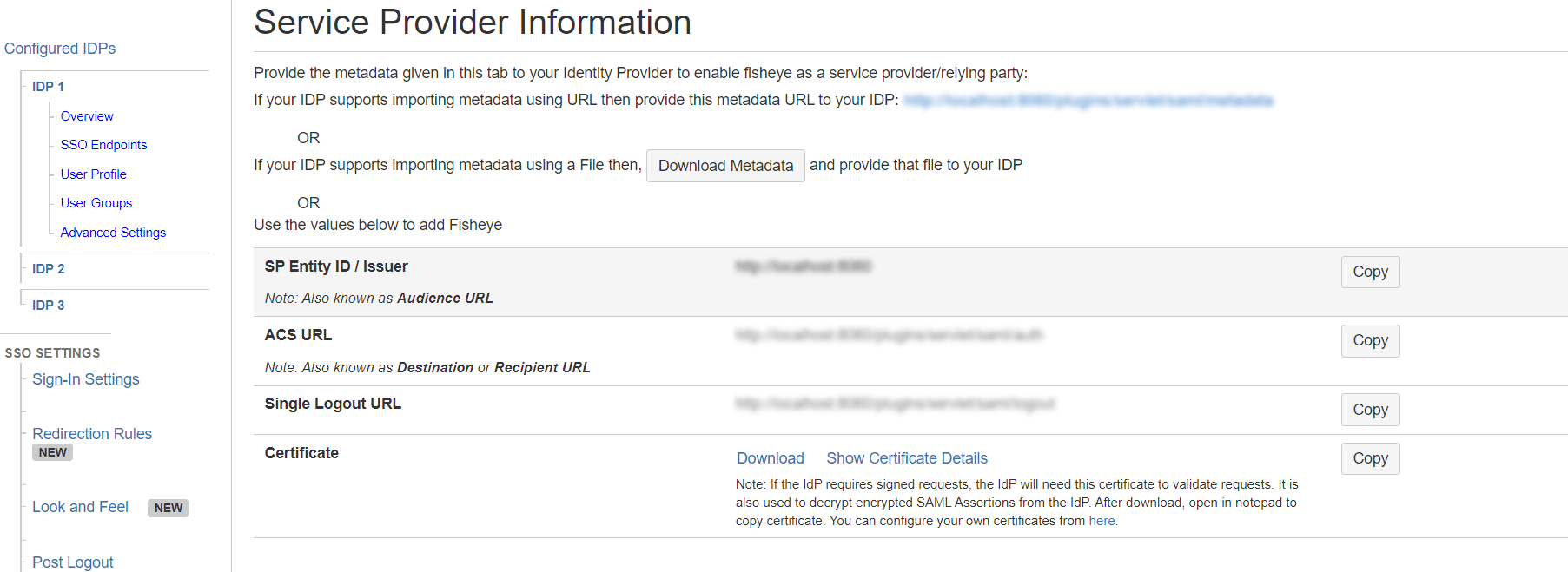
If you plan on customizing your IDP setup from the get go, you can find the metadata in the SP Metadata. Here you will find your SP's metadata. You will need to provide this metadata to your IDP. There are multiple ways to add this metadata to your IDP:
Import the metadata
Depending on how your IDP accepts the metadata, you can either provide the metadata URL or you can use the Download Metadata button to download an XML file for the same.
Manually add the metadata
If you wish to add the metadata manually, you will find the following information in this section. These details will need to be provided to your IDP.
Step 2.2: Configuring your Identity Provider
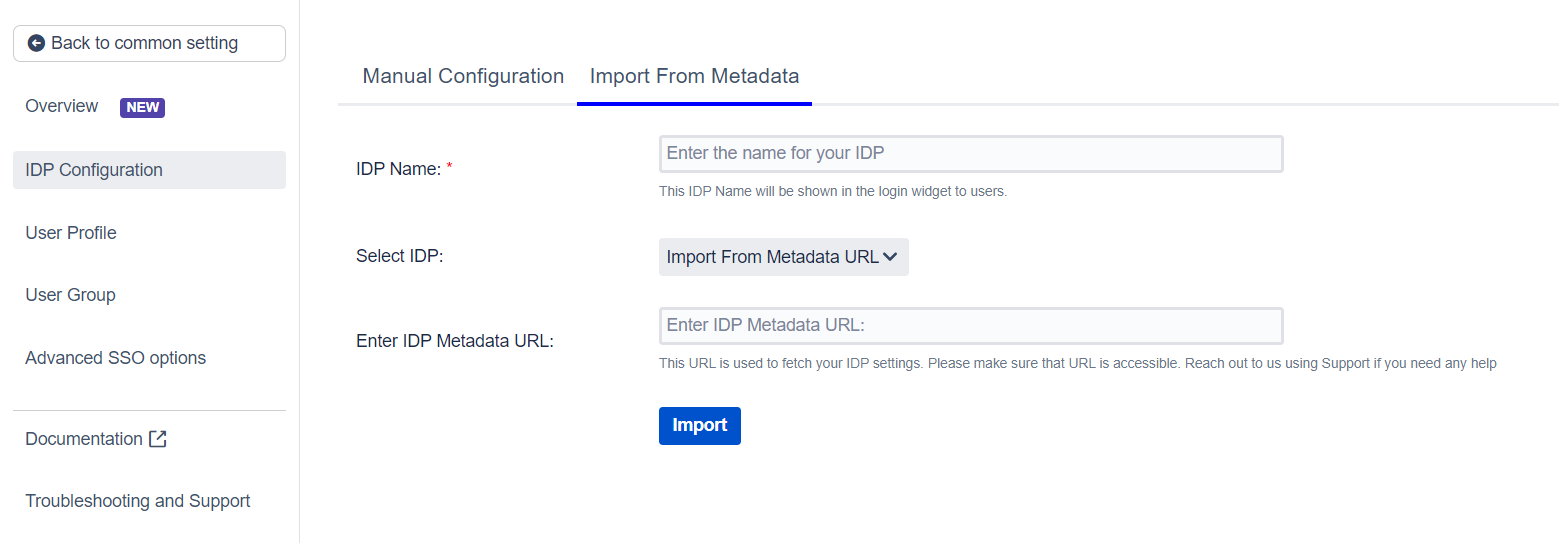
- Click on the Import from Metadata tab.
- Select IDP: Import From Metadata URL.
- Enter IDP metadata URL: Enter your metadata URL.
- If your IDP changes certificates at intervals (Eg. Azure AD), you can refresh your IDP metadata accordingly:
- Navigate to the Advanced SSO options from the menu on the left-hand side of the page.
- Enter your metadata URL in the Certificate Rollover field.
- Select the Refresh Certificate periodically option.
- Use the drop-down provided to set the interval for a periodic refresh. Select 5 minutes for the best results.
- Click Import.
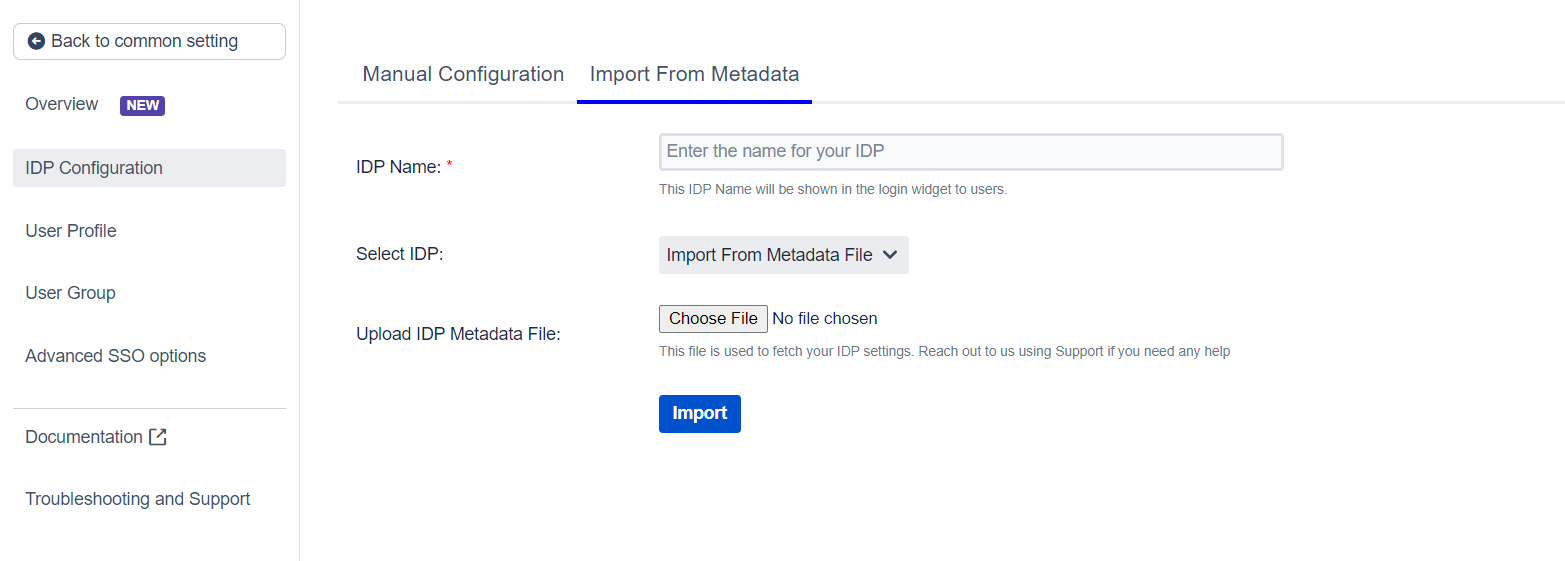
- Click on the Import from Metadata tab.
- Select IDP: Import from Metadata File.
- Upload metadata file.
- Click Import.
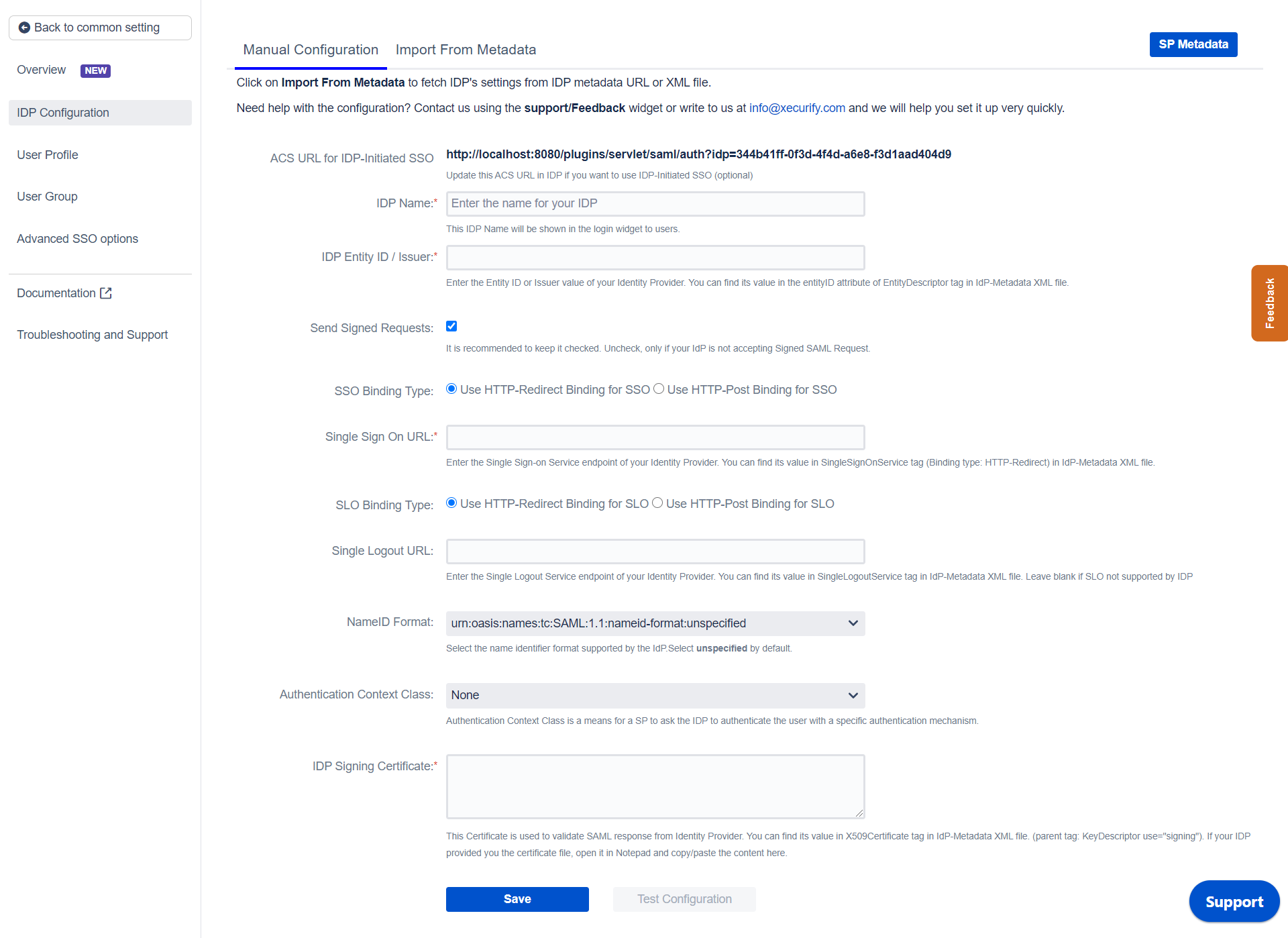
- IDP Entity ID
- Single Sign On URL
- Single Logout URL
- X.509 Certificate
The custom setup flow allows you to dive into the complete set of configurations that we provide to add a SAML Identity Provider. The steps to configure an IDP using the Custom Setup option are:
Adding IDP Metadata
With the information you have been given by Your IDP team, you can configure IDP settings in 3 ways:
By Metadata URL
By Uploading Metadata XML File
Manual Configuration
Go to Manual Configuration tab and enter the following details:
Step 2.3: User Profile
- Go to IDP Configuration section. Scroll down and click on Test Configuration.
- You will see all the values returned by your IDP to Atlassian Application in a table. If you don't see value for First Name, Last Name, Email or Username, make the required settings in your IDP to return this information.
- Once you see all the values in Test Configuration, keep the window open and go back to the User Profile section.
- In this tab, fill the values by matching the name of the attribute. For instance, if the Attribute Name in the Test Configuration window is NameID, enter NameID against Username.
- Setting up both Username and Email is required if you want to let users register. If you want existing users to only login, configure the attribute using which you will match the user in Atlassian Application.
- Select Username or Email for Login user account by.
- Enter the attribute name from IDP which corresponds to Username or Email using Finding Correct Attributes.
Next we will be setting up user profile attributes for Atlassian Application. The settings for this can be found in the User Profile section.
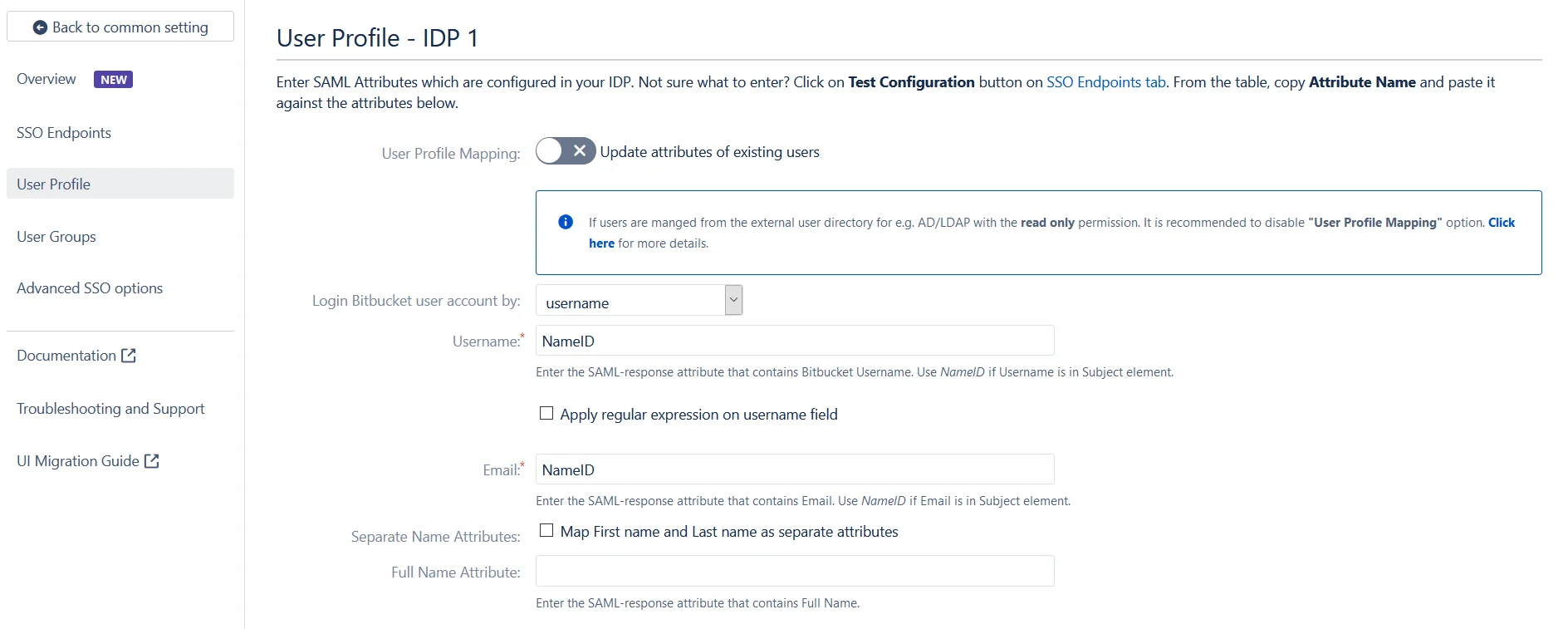
a. Finding correct attributes
b. Setting profile attributes
c. Matching a User
When the user logs into Atlassian Application, one of the user's data/attribute coming in from the IDP is used to search the user in Atlassian Application. This is used to detect the user in Atlassian Application and log in the user to the same account. You can configure it using steps given below:
Step 2.4: User Groups
- Select the users' Default Group in the tab User Groups. If no group is mapped, users are added by default to this group.
- You can enable default groups for All Users or New Users using the option. Select None if you don't want to assign any default group to SSO users. Using the option Enable Default Groups for.
- Just like we found Attribute Name for User Profile attributes, we find the group attribute.
- Go to IDP Configuration section. Scroll down and click on Test Configuration.
- You will see all the values returned by your IDP to Atlassian Application in a table. If you don't see value with groups, make the required settings in your IDP to return group names.
- Once you see all the values in Test Configuration, keep the window open and go to User Groups tab.
- Enter the Attribute Name of group against Group Attribute.
- Check Disable Group Mapping option if you don't want to update groups of existing users.
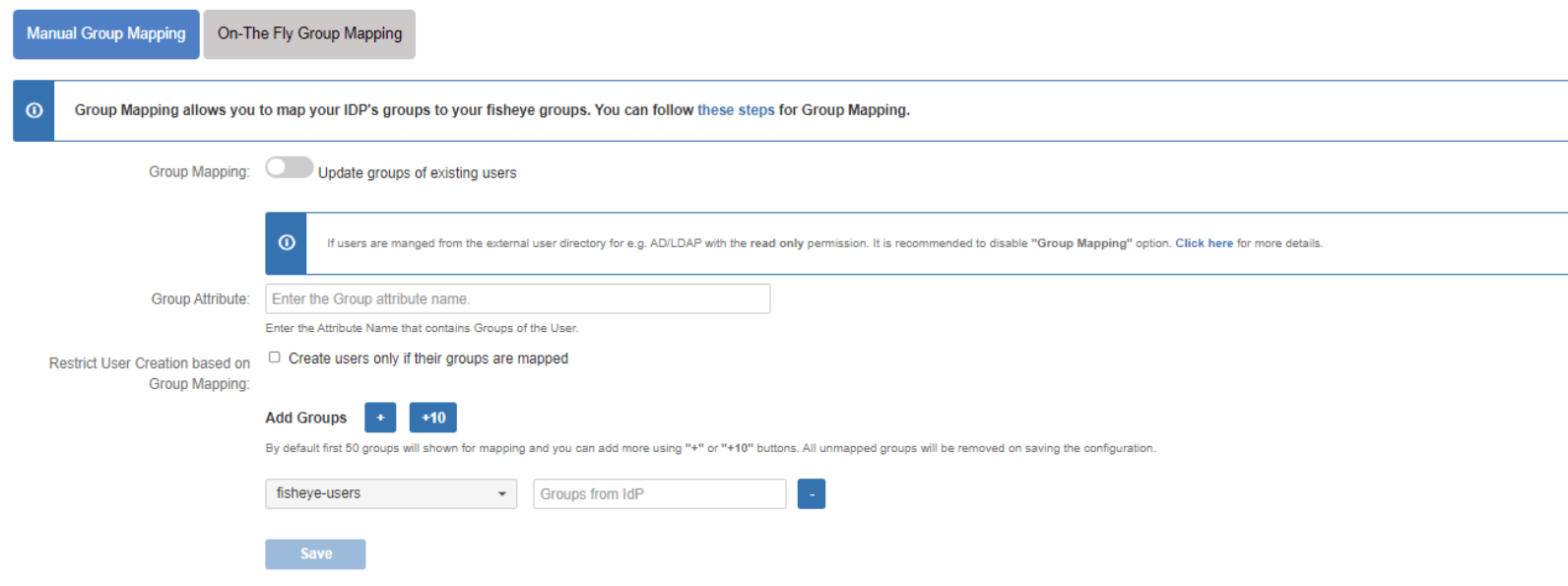
- Manual group mapping: If the names of groups in Atlassian Application are different than the corresponding groups in IDP, then you should use Manual group mapping.
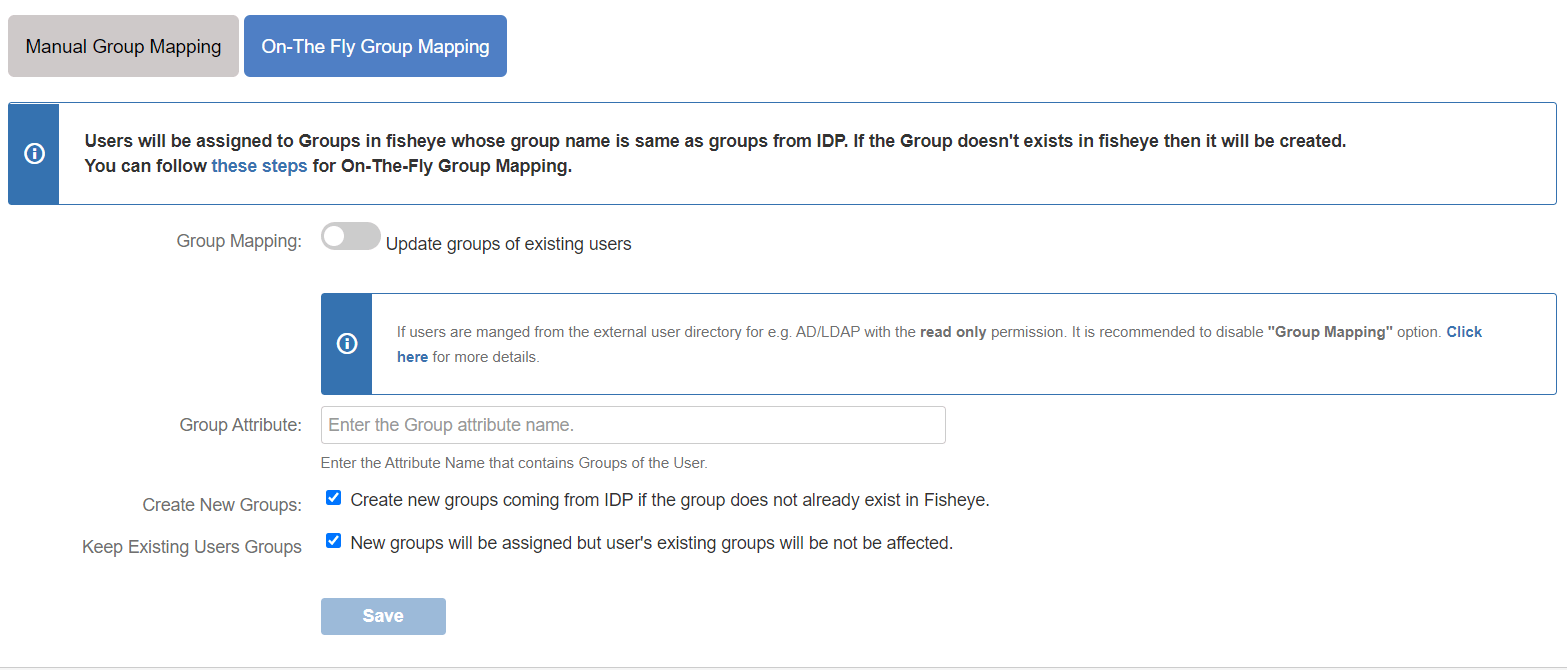
- On-The-Fly group mapping: If the names of groups in Atlassian Application and IDP are same, you should use On-The-Fly group mapping.
- Check Restrict User Creation Based on Group Mapping option if you want new users to be created only if at least one of the user's IDP groups is mapped to a group in the application.
- For mapping, first select a Atlassian Application group from the dropdown which lists all groups present in that application and then enter the name of the IDP group to be mapped in the textbox beside.
- For example, if you want all users in 'dev' group in IDP to be added to software-users, you will need to select software-users from the dropdown and enter 'dev' against software-users.
- Use '+1' and '+10' buttons to add extra mapping fields.
- Use '-' button next to each mapping to delete that mapping.
- Check Create New Groups option if you want new groups from IDP to be created if not found in Atlassian Application.
- If the user is part of some group in Atlassian Application and that group is not present in the SAML response returned by IDP, then the user will be removed from that group in Atlassian Application.
- If you don't want On-The-Fly group mapping to affect Atlassian Application's groups which are managed locally then add those groups in Exclude Groups field.
Now we will be setting up user group attributes for Atlassian Application. You can replicate your user's groups present on IDP in your SP. There are multiple ways of doing this.
a. Setting default group

b. Finding Group Attribute
c. Group Mapping
Group Mapping can be done in two ways:
I. Manual Group Mapping
II. On-The Fly Group Mapping
Step 2.5: Troubleshooting and Support
- You can verify if your SAML SSO configuration is correct by clicking the Test Configuration button on the IDP configuration tab of the plugin.
- After the successful test configuration, you will also be able to see the results on the Troubleshooting and Support page. This includes the attributes received from your IDP, the SAML request sent and the SAML response received.
- In case you faced any issues or encountered any errors while setting up your IDP you can use the steps given in the Troubleshooting section to get in touch with us.
Step 3: Redirection on Login Page
If you have only one IDP configured, you can use the features provided on the SSO Settings tab and Redirection tab of the plugin to manage the redirection on the login page.
- Enable the Auto Redirect to IDP option on the SSO Settings tab if you want to allow users to log in only using IDP.
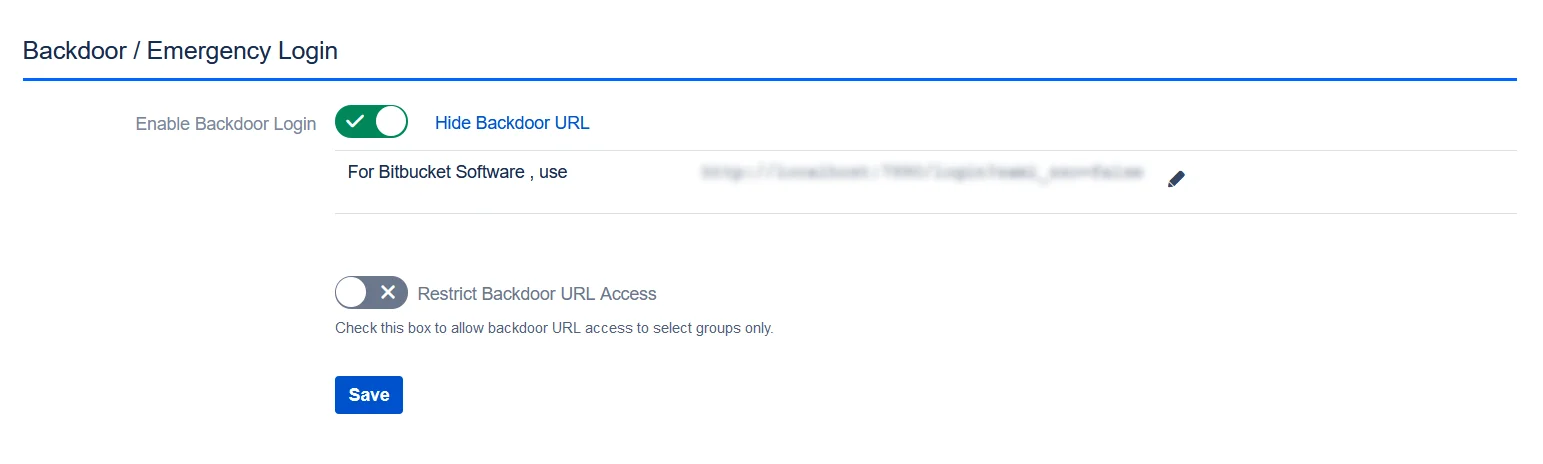
- Use the Emergency/Backdoor Login URL to allow all admins to access the Atlassian Application's default login page and log in using Atlassian Application's local credentials. You can also restrict the access of this URL to a specific set of users (i.e., users of particular groups).
- Use the settings given on the Redirection Rules tab to redirect users on the login page based on their email domains, groups, and directories. This feature is more useful when you have multiple IDPs configured. Please refer to the next section.
Step 4: Multiple IDPs
If your use case requires multiple IDPs to be configured on your SP, the plugin supports that as well. You can choose how end users use these IDPs to perform SSO.
4.1 Configuring Multiple IDPs
- You can add another IDP by going to the Configured IDPs section and using the Add New IDP button.
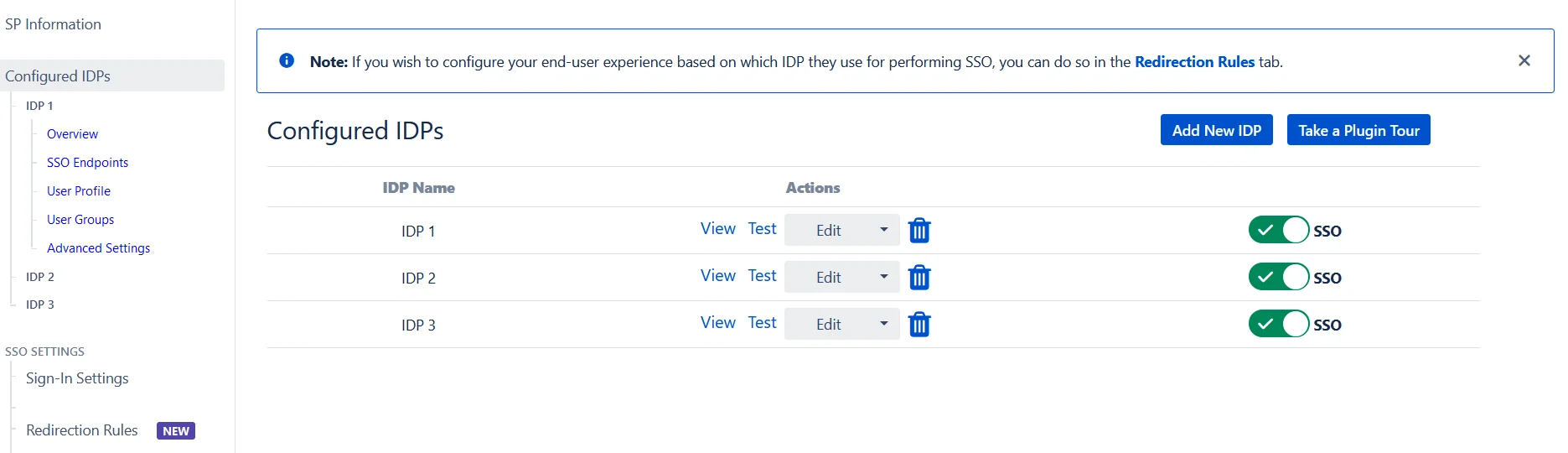
4.2 Managing SSO with multiple IDPs
- If you have multiple IDPs configured, you can choose how you want your end users to use these IDPs to perform SSO.
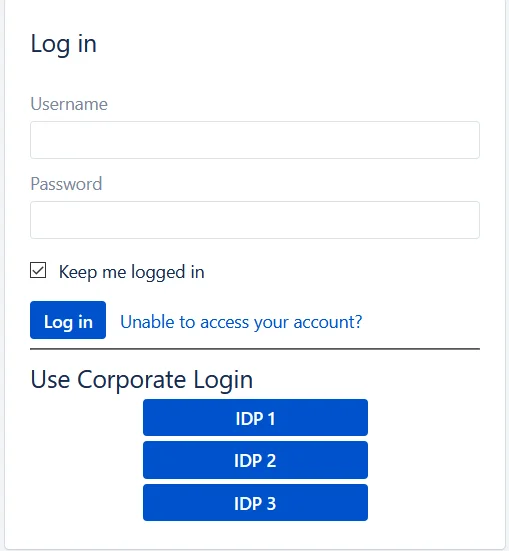
- For example, you can show the buttons for the different IDPs configured on the login page and let the users decide which IDP to use for SSO.
- Or you could force certain users to use a specific IDP based on the domain of their username/email.
- You will be able to configure these rules in the Redirection Rules section, under the Redirection Rules tab.
- By default, one rule is always configured that will be applicable to all users, irrespective of their user domains.
- For instance, if you want to display the login page with SSO buttons for each of the IDPs, then your Default Rule will be as follows:
- Based on the default rule mentioned above, the login form will contain buttons for each IDP. The users will be free to choose whichever IDP they want to use to initiate SSO.
- You can also configure a rule so that your users will automatically be redirected to an IDP based on their email domains.
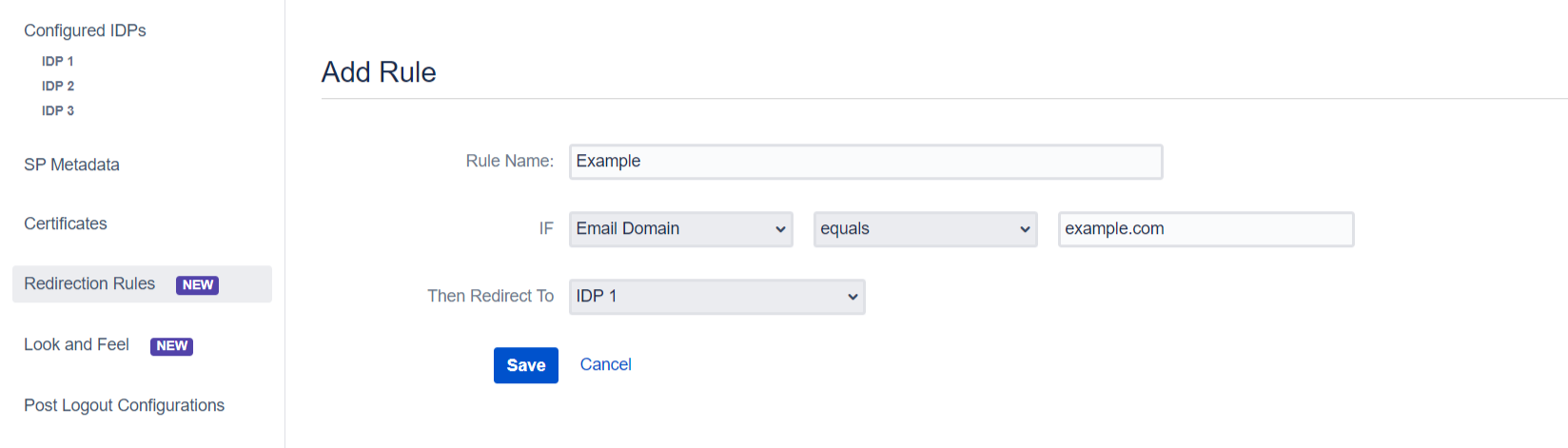
- For example, if you want users with example.com as domain to be redirected to IDP 1, you can add a rule by:

- Click on the Add Rule button in the Redirection Rules tab.
- Enter a name for your rule in Rule Name.
- In the IF statement, select Email Domain in the first drop-down.
- For the same statement, select equals in the second drop-down.
- In the last field of the IF statement, enter the email domain (example.com for the purpose of this example).
- In the Then Redirect To drop-down, select the IDP you want the users with example.com to be redirected to (IDP 1 in this case).
- Click on Save.
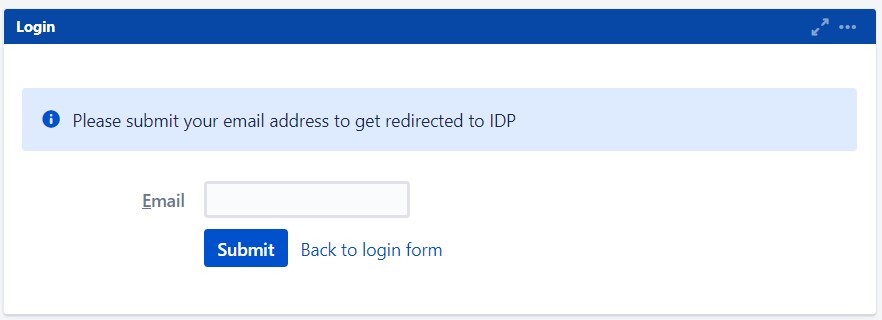
- When a rule such as the example given above is configured, a login form will be displayed to the users where they will have to input their email address.
- In this section, you will also configure an emergency URL to bypass SSO. This setting can be found under the Sign-In Settings tab in the left side menu.
 Hi! Do you need help with this guide?
Thank you for your response. We will get back to you soon.
Something went wrong. Please submit your query again

Recommended Add-Ons

Additional Resources
Bitbucket Git Authentication App | Kerberos/NTLM Apps | Word/PDF Exporter | WebAuthn | SonarQube SSO | Jenkins SSO
If you don't find what you are looking for, please contact us at support-atlassian@miniorange.atlassian.net or raise a support ticket here.


