- Home
- SAML SSO
- SAML SSO Documentation
- Bamboo SAML Single Sign On (SSO) with JumpCloud

Bamboo SAML Single Sign On (SSO) with JumpCloud
Bamboo SAML app gives the ability to enable SAML Single Sign On for Bamboo Software. Bamboo Software is compatible with all SAML Identity Providers. Here we will go through a guide to configure SSO between Bamboo and your Identity Provider. By the end of this guide, users from your Identity Provider users should be able to login and register to Bamboo Software.
 Try it for free
Pre-requisites
To integrate your Identity Provider(IDP) with Bamboo, you need the following items:
- Bamboo should be installed and configured.
- Bamboo Server is https enabled (optional).
- Admin credentials are set up in Bamboo.
- Valid Bamboo Server Licence.
Download and Installation
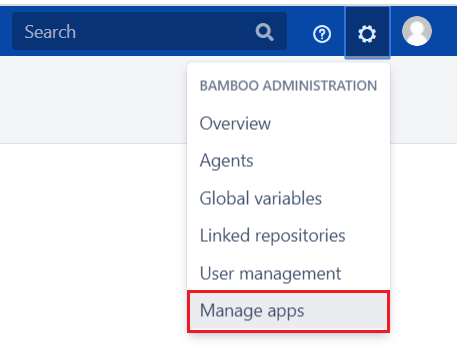
- Log into your Bamboo instance as an admin.
- Navigate to the settings menu and Click Manage Apps.
- Click Find new apps or Find new add-ons from the left-hand side of the page.
- Locate Bamboo SAML Single Sign On/SSO, SAML SSO via search.
- Click Try free to begin a new trial or Buy now to purchase a license for Bamboo SAML Single Sign On/SSO, SAML SSO.
- Enter your information and click Generate license when redirected to MyAtlassian.
- Click Apply license.
Step 1: Set Up JumpCloud as Identity Provider
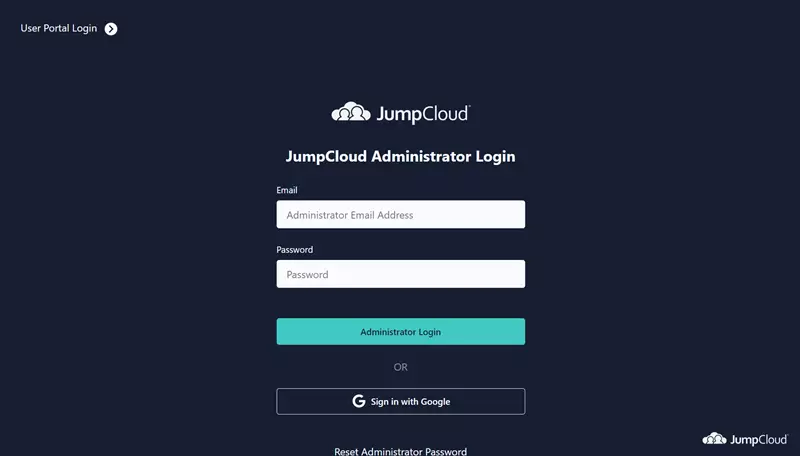
- Log in to your JumpCloud Administrator account.
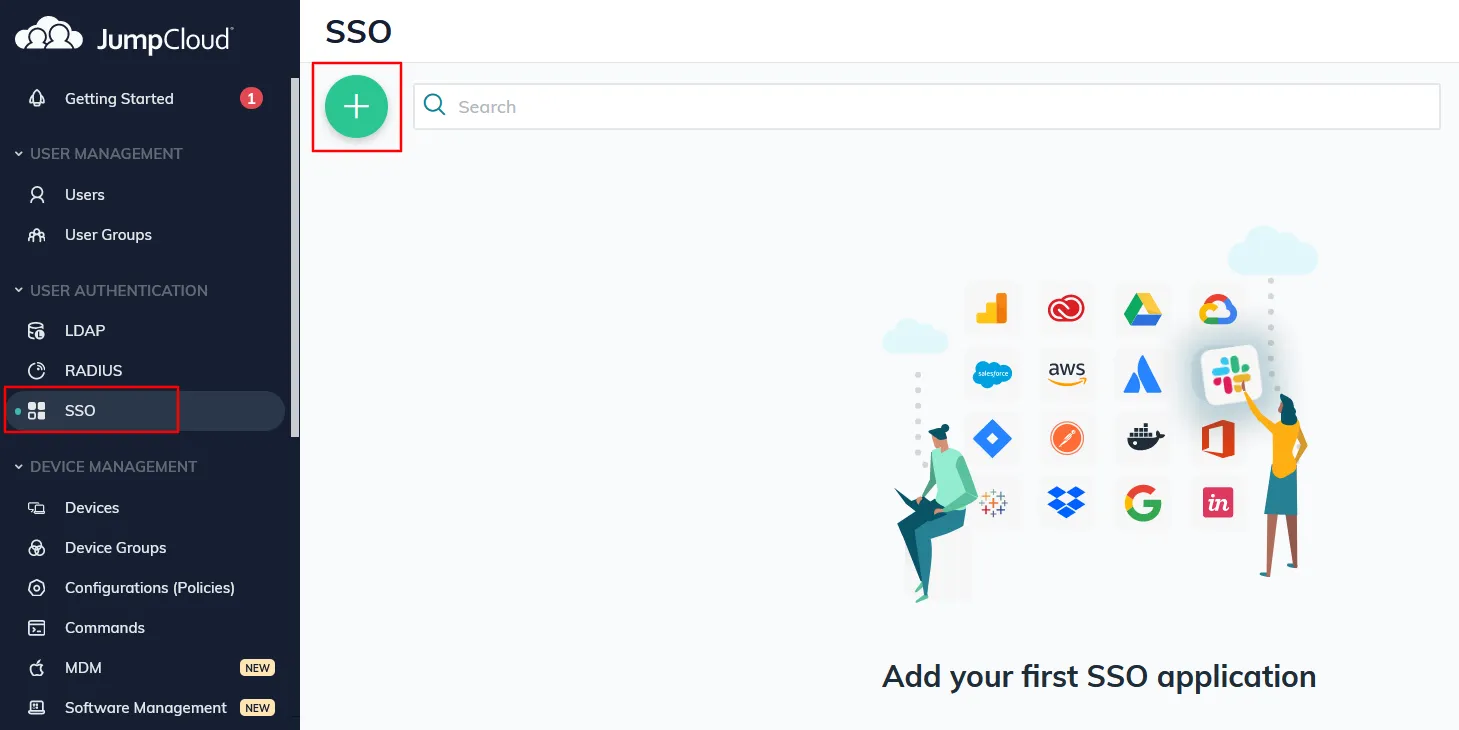
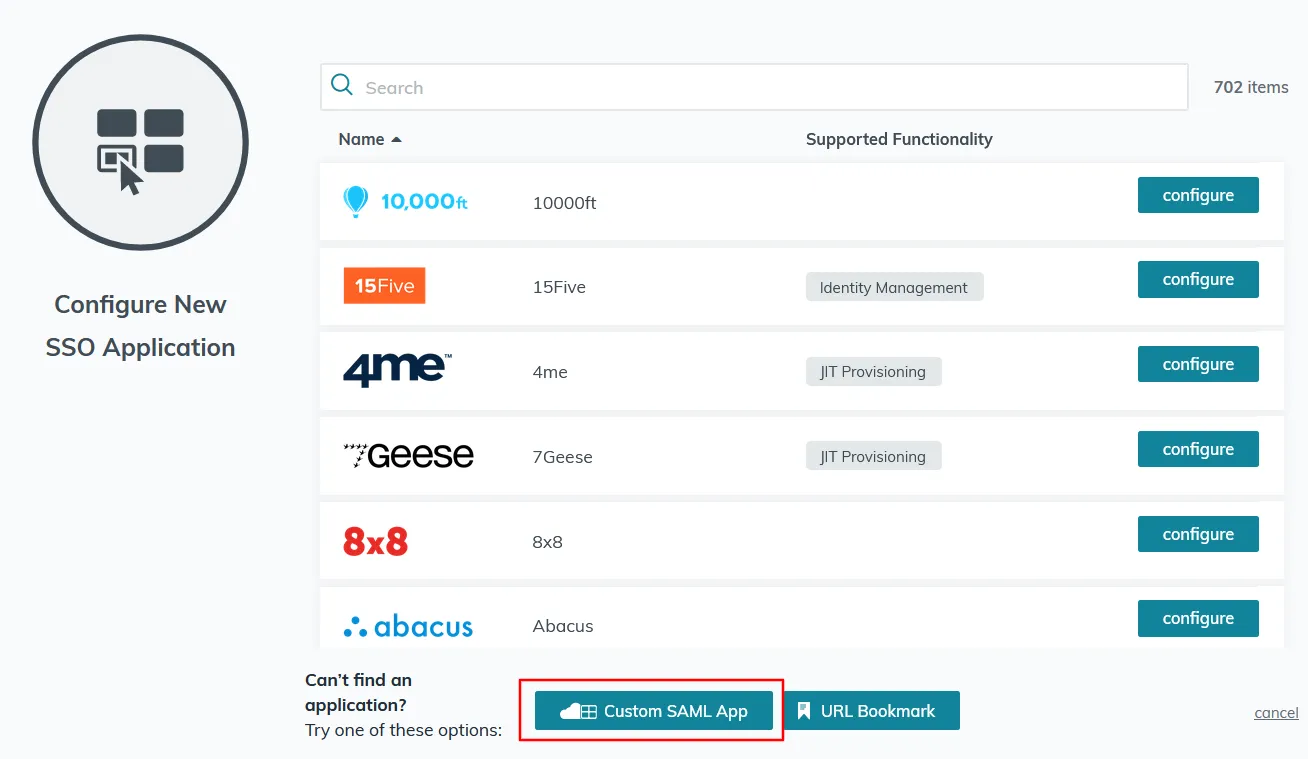
- Go to SSO tab and click on + icon given on the page for adding a new SSO app.
- Click on the Custom SAML App button.

- On the New Application page, provide a name and description (optional) for your app and then go to the SSO tab.
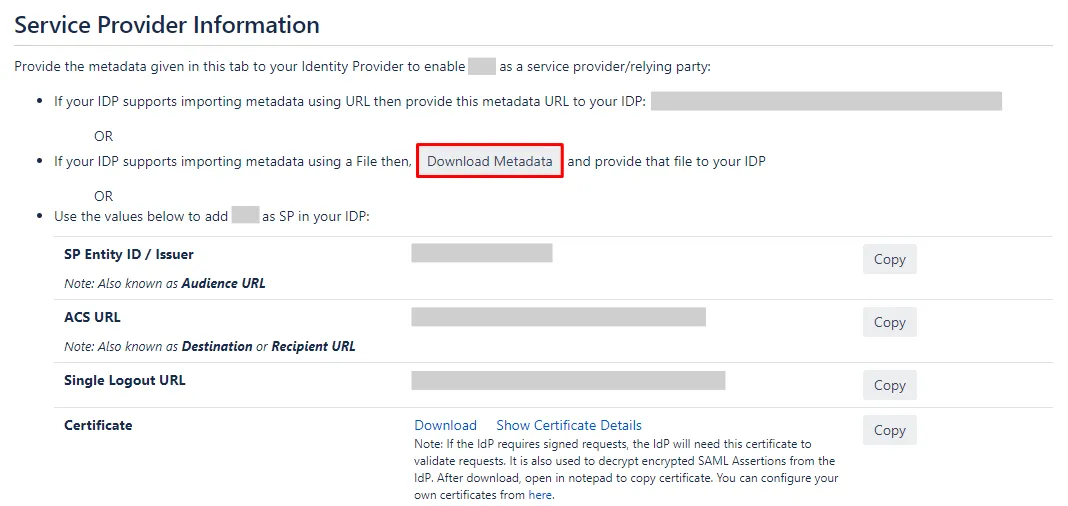
- Download SP Metadata file from SP Information tab of the plugin.
- On the JumpCloud New Application page, in the field IdP Entity ID, enter a unique value of your choice.
- Now, click on the Upload Metadata button and upload the SP Metadata file.
- Enter details manually from the SP Information tab.
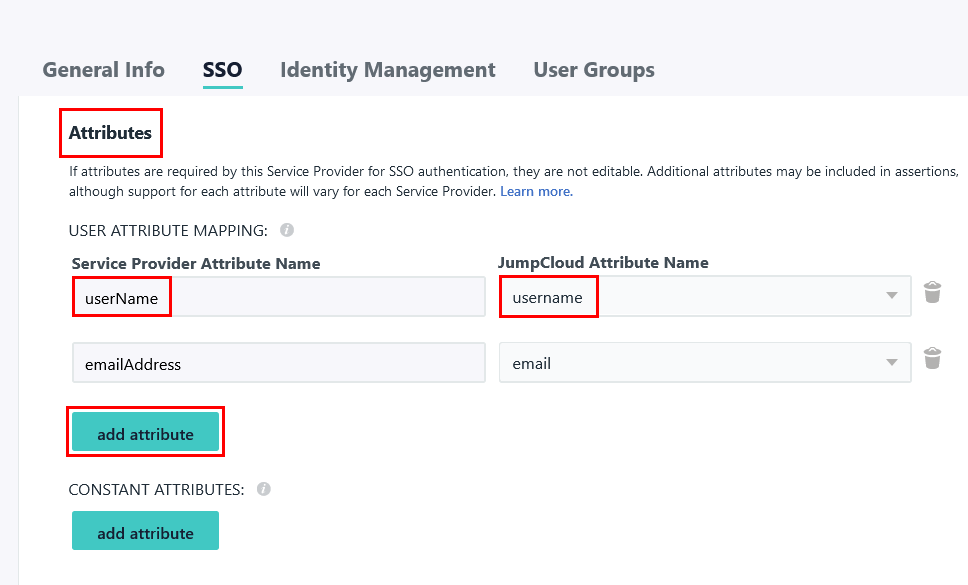
- Scroll down to the Attributes section and click the add attribute button.
- In the left-side input field provide Attribute Name to be sent in SAML assertion and, select the appropriate attribute value from the dropdown given on the right side.
- For example, below we have provided userName as attribute and selected username from the dropdown. Similarly add all the attributes you wish to provision to service provider.
- In the Group Attributes section enable the checkbox and provide the group attribute name.

- Go to the User Groups tab. Here you can select which groups will have access to this SSO app. This is an important step to allow users to perform SSO with JumpCloud.
- Click on the activate button given at the bottom and then click on Continue in the confirmation dialog box.
- On the SSO page, select the checkbox given in front of the newly created application and click on the export metadata button. IDP metadata file will be downloaded.
Step 1.1: Import SP Metadata File
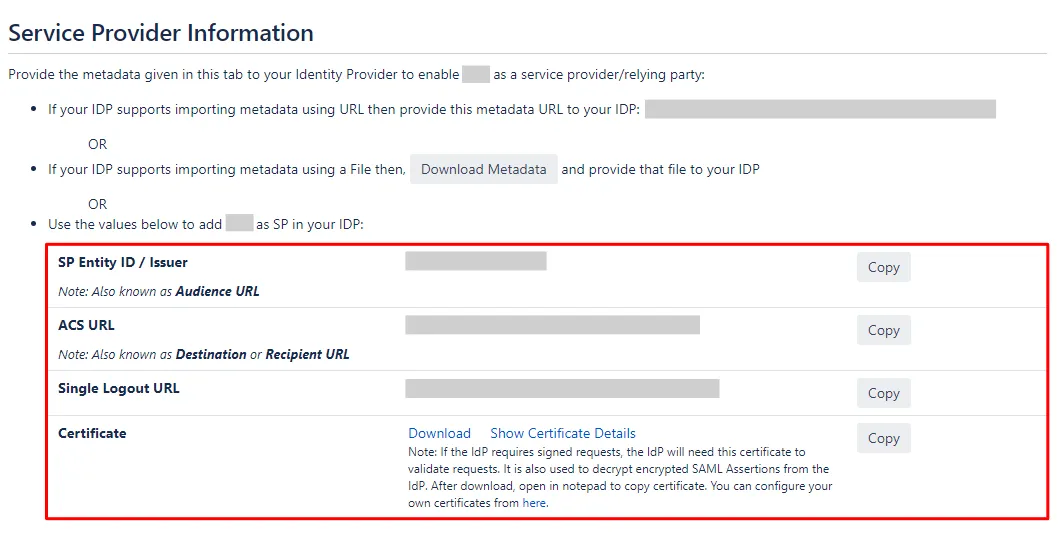
| Fields to be filled in JumpCloud | Corresponding details to be copied from the plugin |
| IdP Entity ID | Enter a unique IdP Entity ID of your choice |
| SP Entity ID | SP Entity ID/ Issuer |
| ACS URL | ACS URL |
| SP Certificate | Certificate (Download the file and upload here) |
Step 1.2: Attribute Mapping
Step 1.3: Group Mapping


Step 2: Set Up Bamboo as Service Provider
Configuring Single IDP
With the information you have been given by your IDP team, you can configure IDP settings in 3 ways:
 A. By Metadata URL
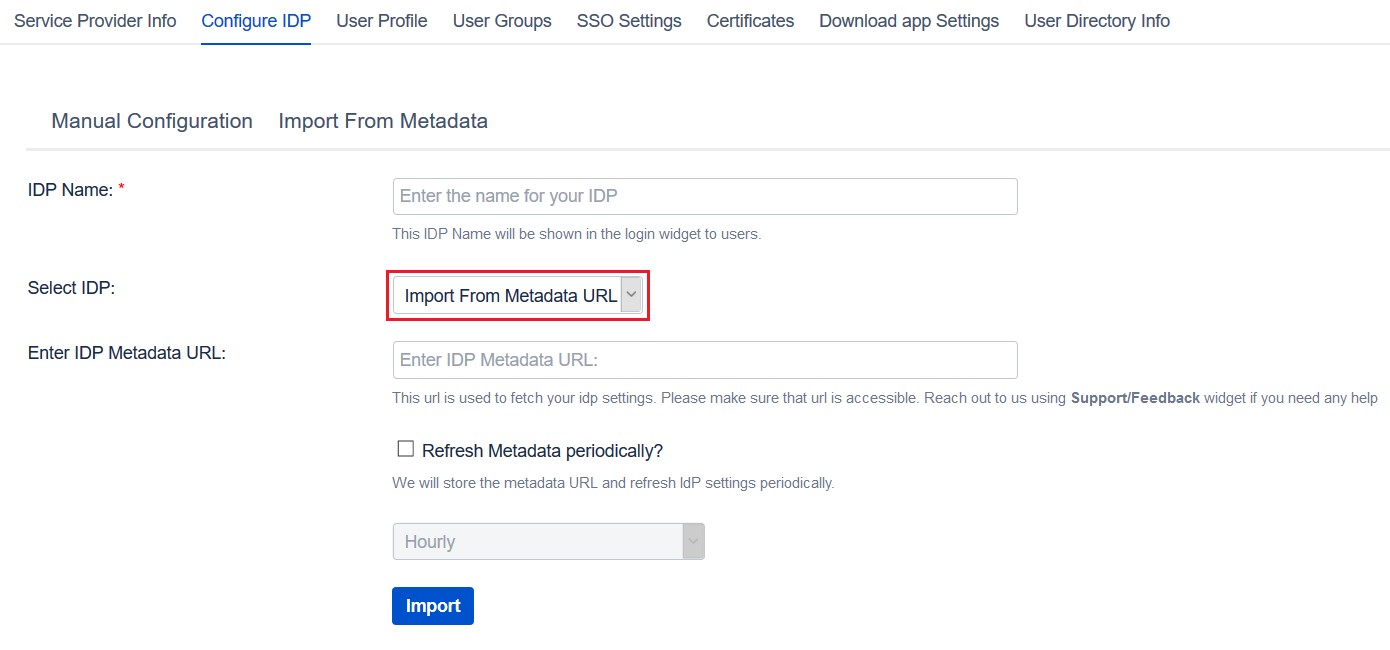
- Click on Import from Metadata in Configure IDP tab.
- Select IDP: Import From Metadata URL
- Enter IDP metadata URL: Enter your metadata URL
- If your IDP changes certificates at intervals (Eg. Azure AD), you can select Refresh metadata periodically. Select 5 minutes for the best results.
- Click Import.
B. By Uploading Metadata XML File
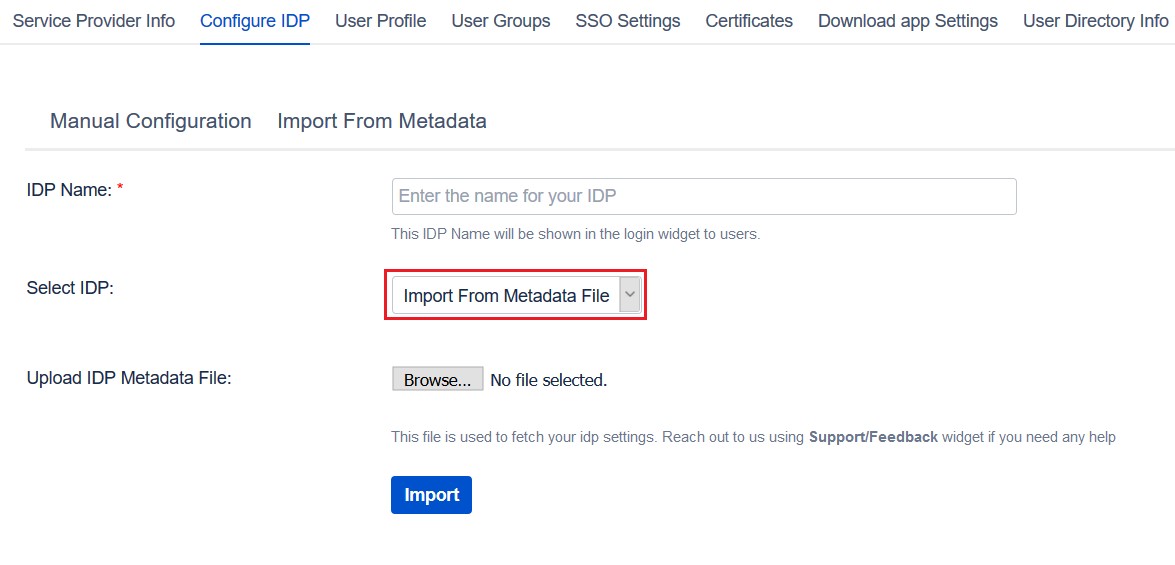
- Click on Import from Metadata in Configure IDP tab.
- Select IDP: Import from Metadata File
- Upload metadata file.
- Click Import.
C. Manual Configuration
Go to Configure IDP tab and enter the following details:
- IDP Entity ID
- Single Sign On URL
- Single Logout URL
- X.509 Certificate
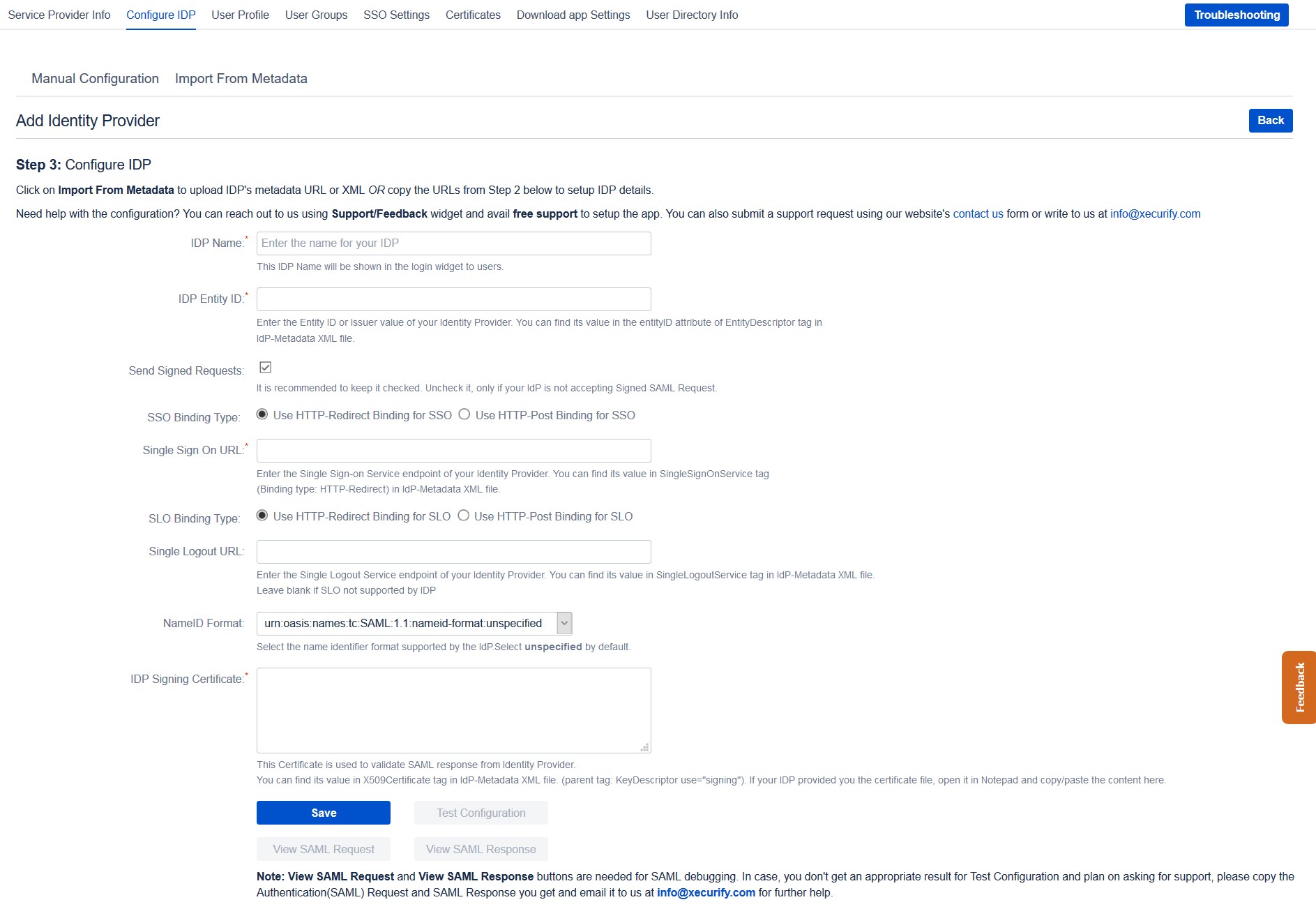
Configure New IDP
If you already have one IDP & you are looking to add Second IDP then you can do it by performing the following steps.
- Navigate to Configure IDP tab.
- Click on Add new IDP.
- It will present a blank form & you can configure new IDP using steps from Single IdP Setup.
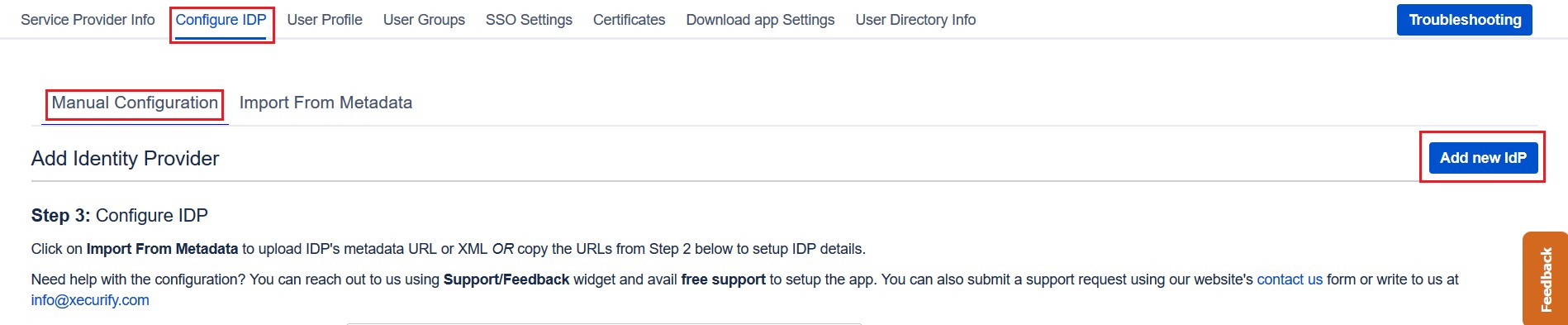
Configure multiple IDPs
If you have configured more than two IDPs then it will show you the list of IDP that you have configured with Bamboo.
Click on Add new IdP button for adding new IDP on Bamboo. The steps for adding new IDP will remain the same.
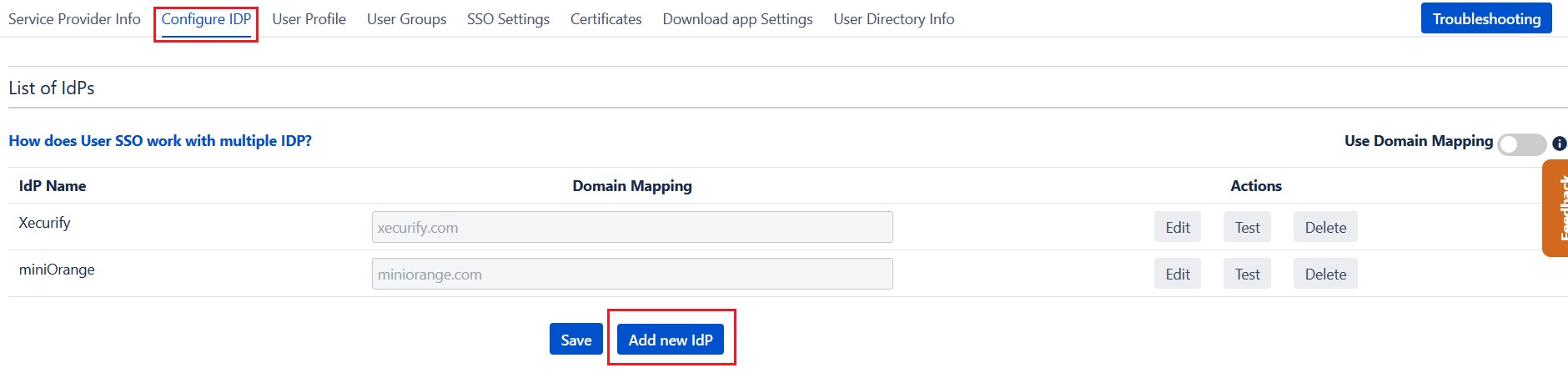
An operation that you can perform with List of IdPs page.
- Add / delete Identity Provider.
- Test Connection between bamboo & IdP by click on Test button for respective IDP.
- Edit the IdP configuration by clicking on the Edit button.
- You can allow an only specific set of users to access Bamboo by using Domain Mapping.
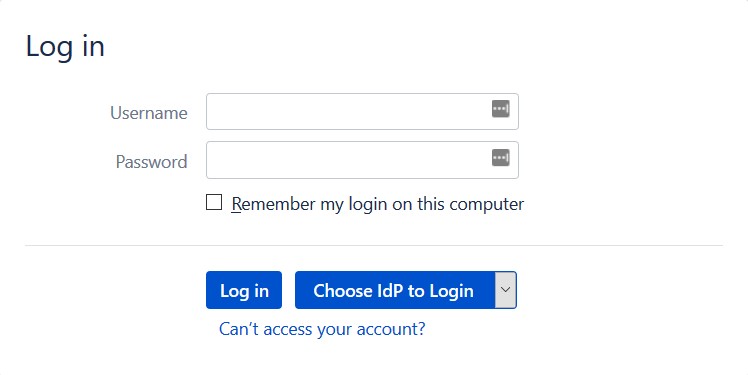
Single Sign-On with Multiple Identity Provider(IDP)
Select your IdP from the list. It will redirect you to selected IdP login page.
Configure Domain Mapping
- You can enable domain mapping using Use Domain Mapping option.
- Once enable it, you need add domain name against each IDP.
- After enabling Domain Mapping it allows SSO only for those users whose domain matches with the specified one.
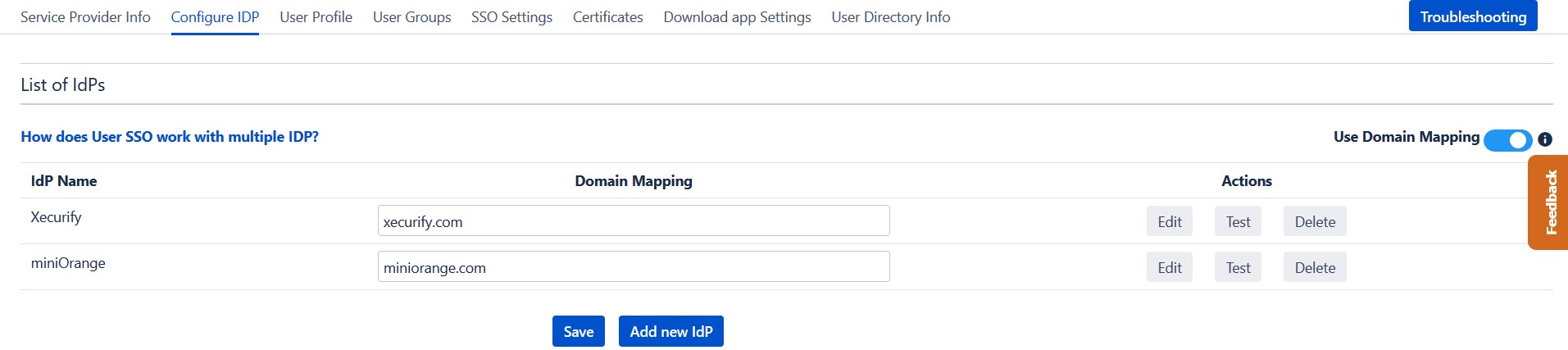
Single Sign-On using Domain mapping
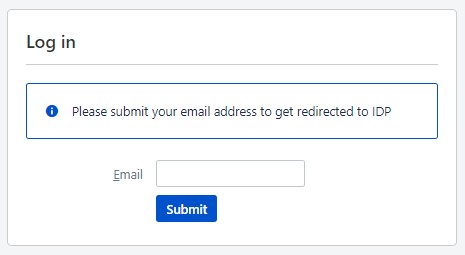
- Enter the user email address. It will check your domain name with the configured domain if it matches then it will redirect you to the respective Identity Provider Login page.
- This is how the login screen would appear after enabling domain mapping.
Step 3: Setting up Bamboo user profile attributes
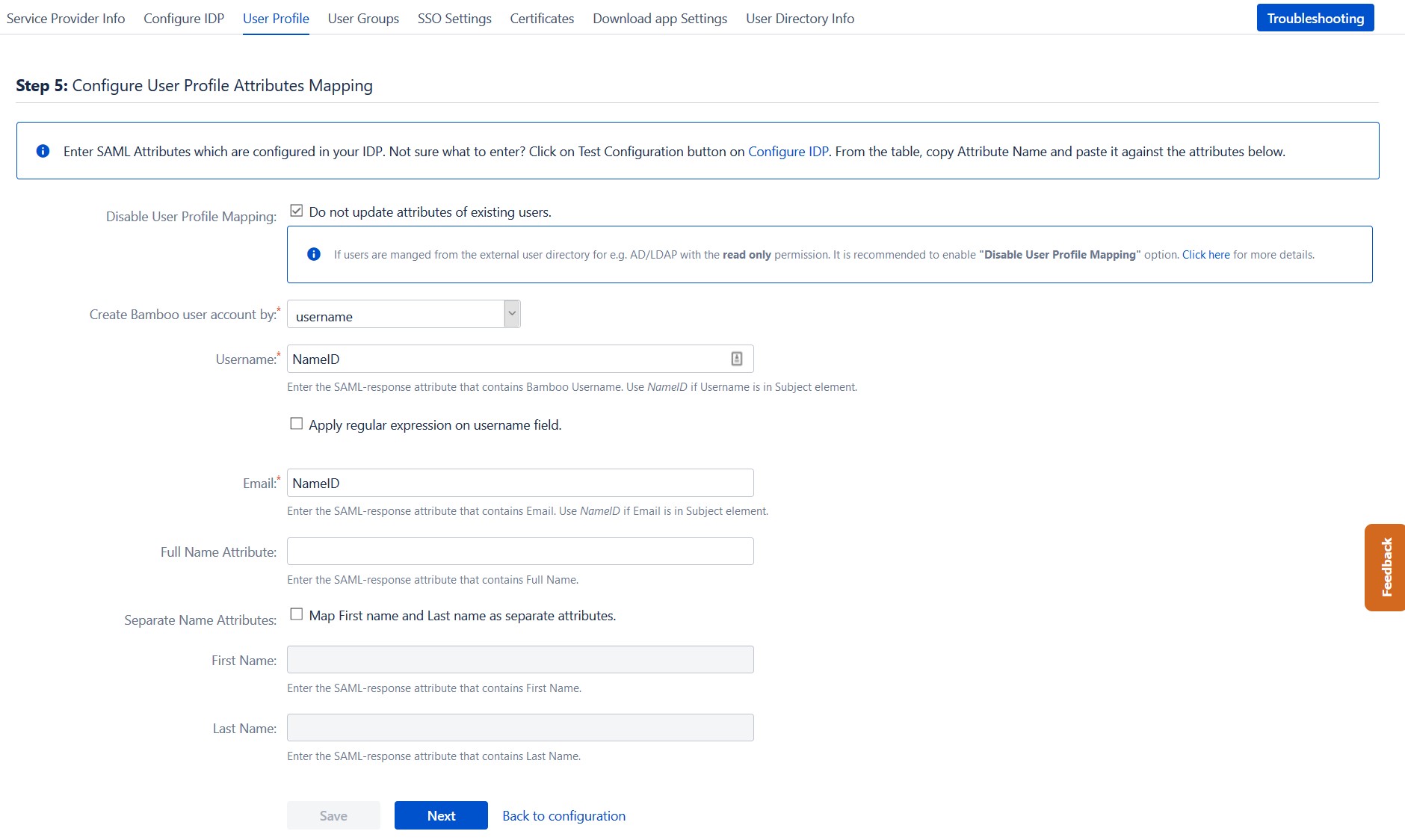
We will be setting up user profile attributes for Bamboo. If your users are stored in a directory that is Read Only, please check Disable Attribute Mapping in User Profile tab and follow steps given in Matching a User.
a. Finding correct attributes
- Go to Configure IDP tab. Scroll down and click on Test Configuration.
- You will see all the values returned by your IDP to Bamboo in a table. If you don't see value for First Name, Last Name, Email or Username, make the required settings in your IDP to return this information.
- Once you see all the values in Test Configuration, keep the window open and go to User Profile tab.
b. Setting profile attributes
- In this tab, fill the values by matching the name of the attribute. For instance, if the Attribute Name in the Test Configuration window is NameID, enter NameID against Username
- Setting up both Username and Email is required if you want to let users register. If you want existing users to the only login, configure the attribute using which you will match the user in Bamboo.
c. Matching a User
When the user logs into Bamboo, one of the user's data/attribute coming in from the IDP is used to search the user in Bamboo. This is used to detect the user in bamboo and log in the user to the same account.
- Go to User Profile tab.
- Select Username or Email for Login/Search Bamboo user account by.
- Enter the attribute name from IDP which corresponds to Username or Email using Finding Correct Attributes
Step 4: Assigning groups to users
We will be setting up user group attributes for Bamboo. If your users are stored in a directory that is Read Only, please check Disable Group Mapping in User Groups tab and skip to set default group.
4.1 Setting default group
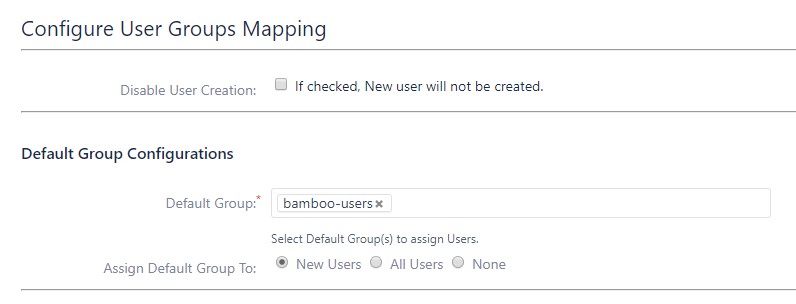
- Select the users' Default Group in the tab User Groups. If no group is mapped, users are added by default to this group.
-
You can enable default groups for All Users or
New Users using the option. Select
None if you don't want to assign any default group to
SSO users. Using the option
Enable Default Groups for.
4.2 Finding Group Attribute
- Just like we found attribute name for user profile attributes, we find group attribute.
- Go to Configure IDP tab. Scroll down and click on Test Configuration.
- You will see all the values returned by your IDP to Bamboo in a table. If you don't see value with groups, make the required settings in your IDP to return group names.
- Once you see all the values in Test Configuration, keep the window open and go to User Groups tab.
- Enter the attribute name of group against Group Attribute.
Check Disable Group Mapping option if you don't want to update groups of existing users.
4.3 Group Mapping
Group Mapping can be done in two ways:
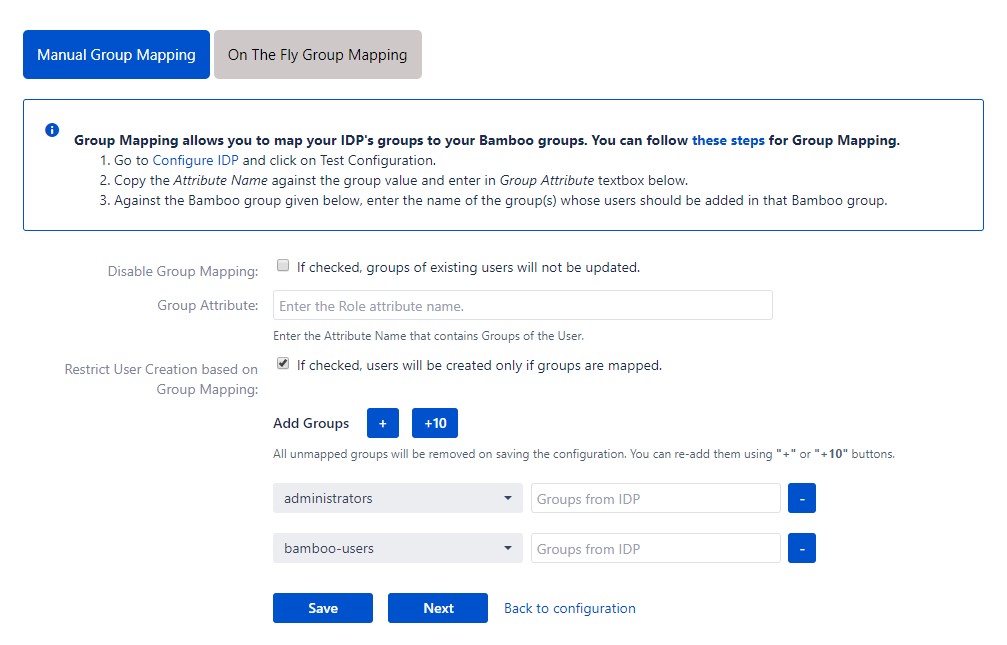
- Manual group mapping: If the names of groups in Bamboo are different than the corresponding groups in IDP, then you should use Manual group mapping.
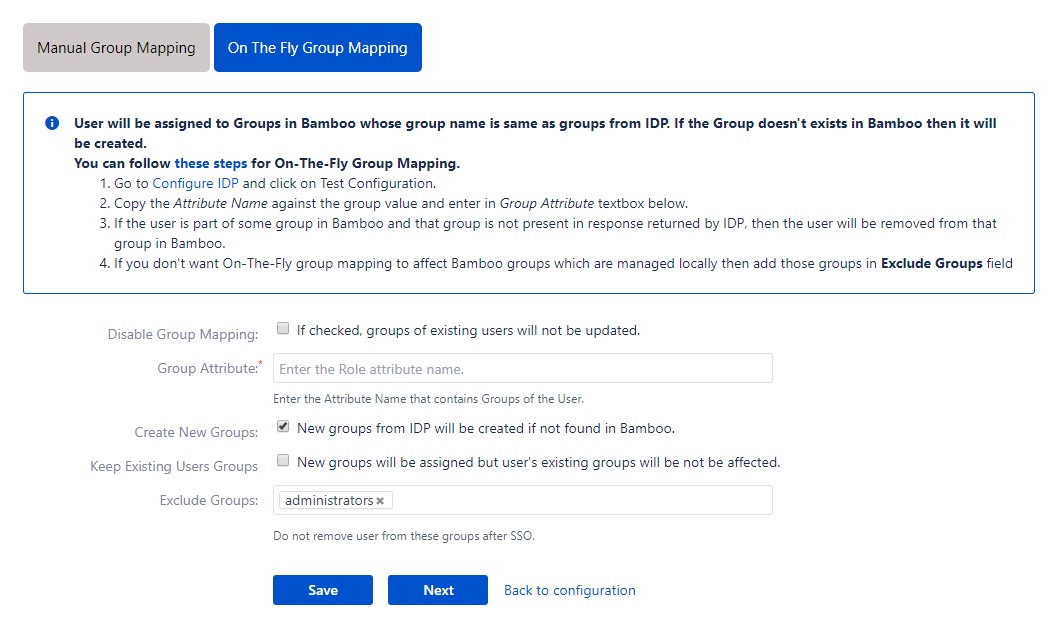
- On-The-Fly group mapping: If the names of groups in Bamboo and IDP are same, you should use On-The-Fly group mapping.
I. Manual Group Mapping
- Check Restrict User Creation Based on Group Mapping option if you want new users to be created only if at least one of the user's IDP groups is mapped to a group in the application.
- For mapping, first select a Bamboo group from the dropdown which lists all groups present in Bamboo and then enter the name of the IDP group to be mapped in the textbox beside
- For example, if you want all users in 'dev' group in IDP to be added to bamboo-users, you will need to select bamboo-users from the dropdown and enter 'dev' against bamboo-users.
- Use '+1' and '+10' buttons to add extra mapping fields.
- Use '-' button next to each mapping to delete that mapping.
II. On-The Fly Group Mapping
- Check Create New Groups option if you want new groups from IDP to be created if not found in Bamboo.
- If the user is part of some group in Bamboo and that group is not present in the SAML response returned by IDP, then the user will be removed from that group in Bamboo.
-
If you don't want On-The-Fly group mapping to affect
Bamboo groups which are managed locally then add those groups in
Exclude Groups field.
Step 5: SSO Settings
The settings in SSO Settings tab define the user experience for Single Sign On.
a. Sign In Settings
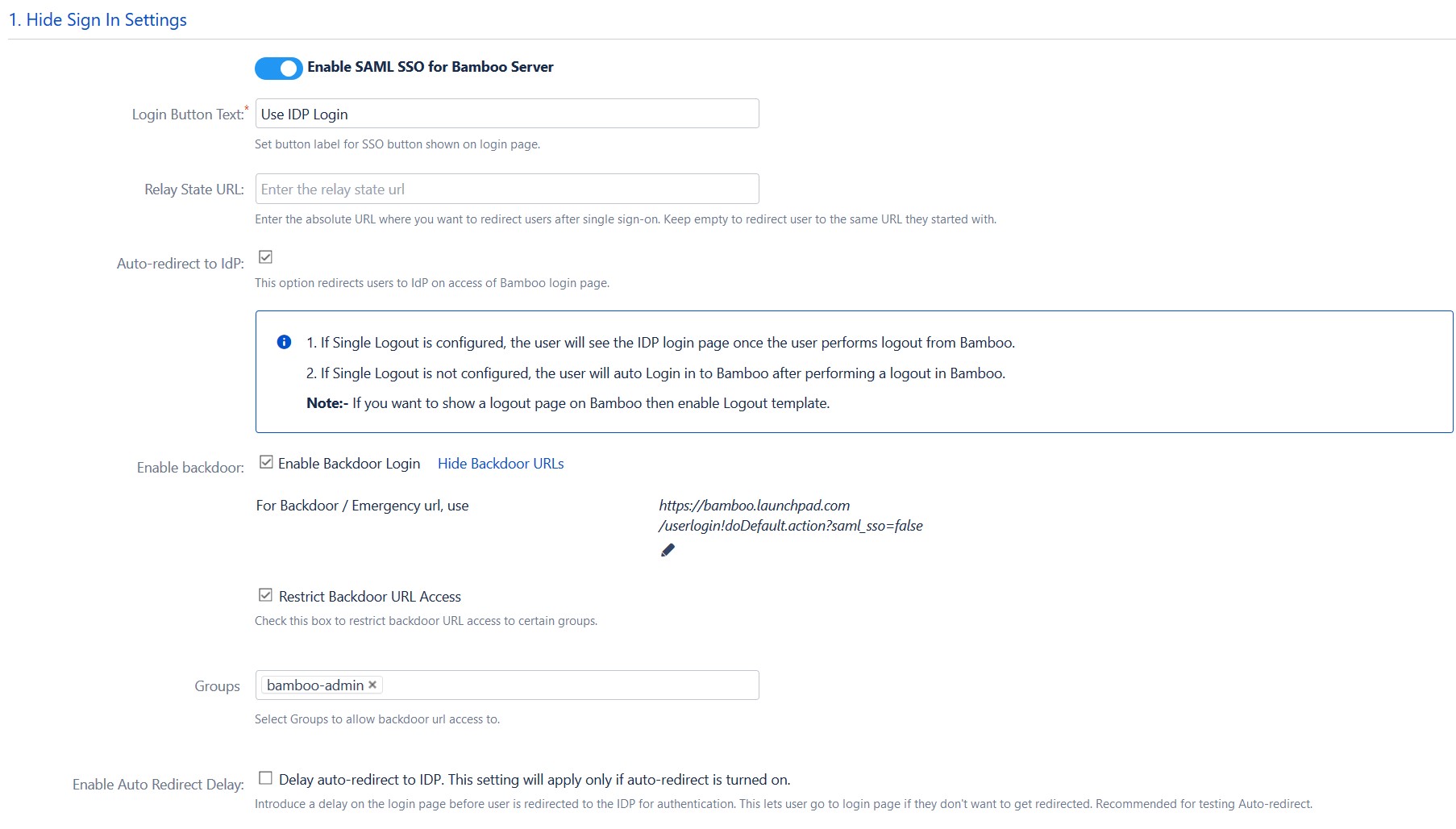
- Set Enable SSO for Bamboo Server to allow SSO for Bamboo users.
- Set button text for button on login page using Login Button Text.
- Set redirect URL after login using Relay State. Keep this empty for coming back to the same page user started from.
-
Enable Auto-redirect to IDP if you want to allow users to
login only using IDP. Enable backdoor for emergency.
b. Custom Login Template
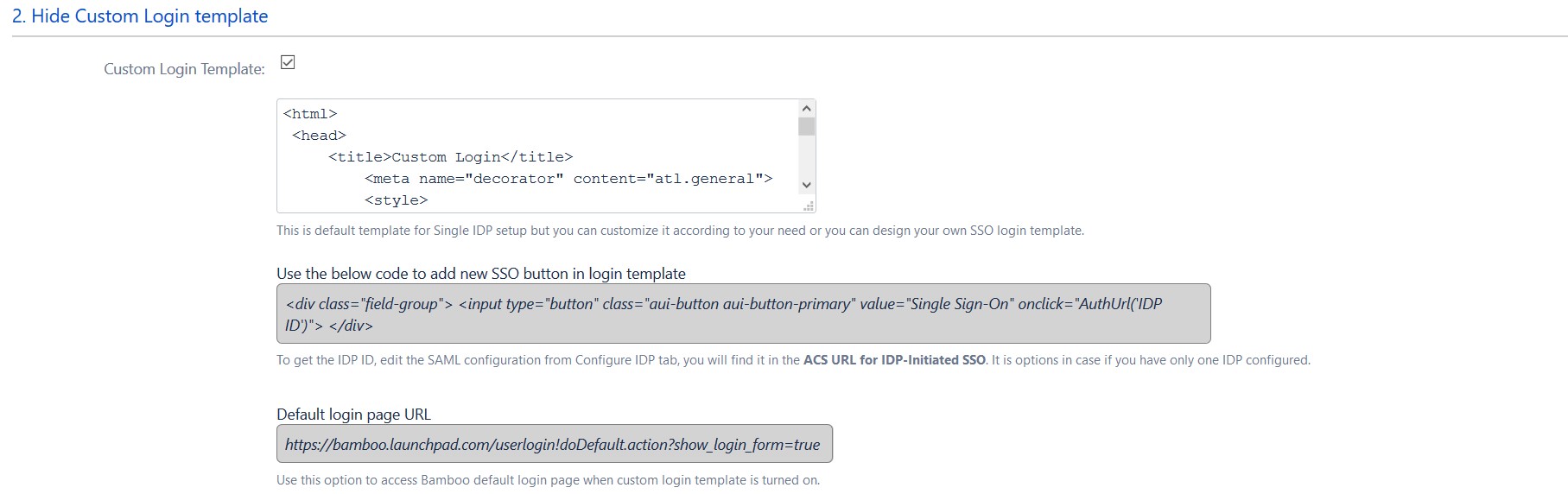
Design your own login template that will be used to initiate SSO.
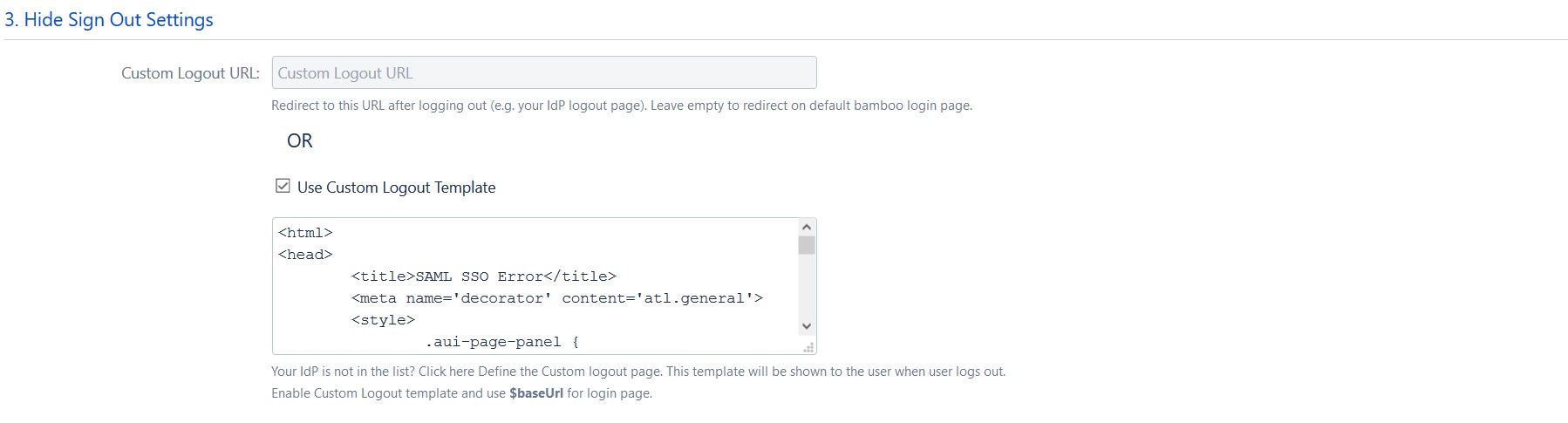
c. Sign Out Settings
Set Logout URL or Logout Template to redirect users after logout action.
d. SSO Error Settings
Set error template to redirect users to a custom error page instead of login page. Use this if you have Auto-redirect to IDP enabled.

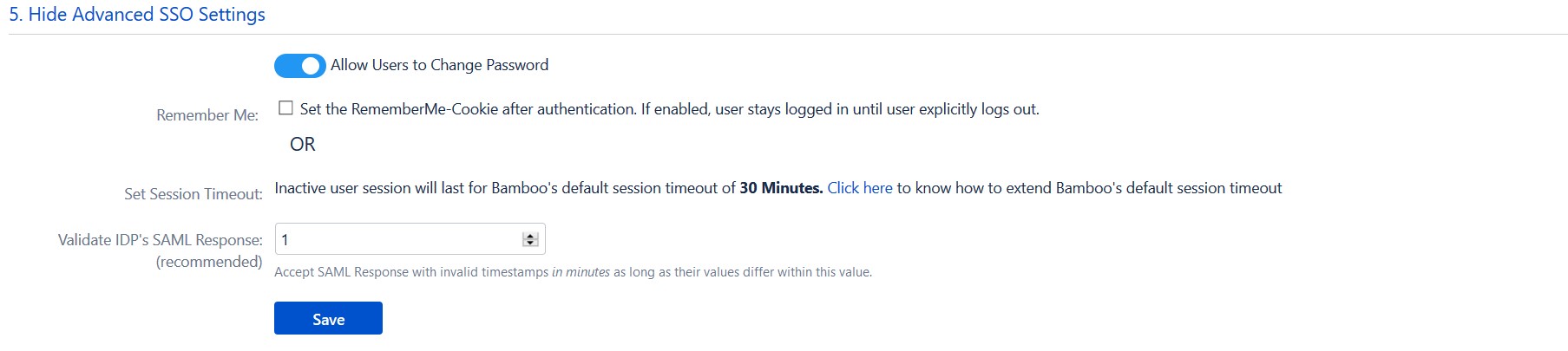
e. Advance SSO Settings
- Allow Users to Change Password: Disable if you don't want user to change their local bamboo credential.
- Remember me cookies: If enabled, user stays logged in until user explicitly logs out.
- Validate IDP's SAML Response: Configure time difference(in minute) here In case Bamboo server time is not in sync with your IDP's time.
Additional Resources
Did this page help you?