- Home
- SCIM Provisioning
- SCIM Provisioning Documentation
- User Sync and Group Sync for DUO Security

User Sync and Group Sync for DUO Security
User Sync & Group Sync app syncs user and group information from Duo Security to Jira, Confluence and Bitbucket. Users, groups and directory details can by synced user group attributes. Sync can be performed manually, scheduled to run after set time intervals, or during user login. This way the administrator only needs to manage user accounts in Duo Security. This reduces the administration time required to create users and groups in Atlassian modules such as Jira, Confluence and Bitbucket.
 Try it for free
Download and Installation
- Log into your atlassian instance as admin.
- Navigate to the settings menu and Click Manage Apps.
- Click on Find new apps.
- Locate miniOrange User and Group Sync app.
- Click Try free to begin a new trial or Buy now to purchase a license.
- Enter your information and click Generate license when redirected to MyAtlassian.
- Click Apply license.
1: Setup DUO IDP
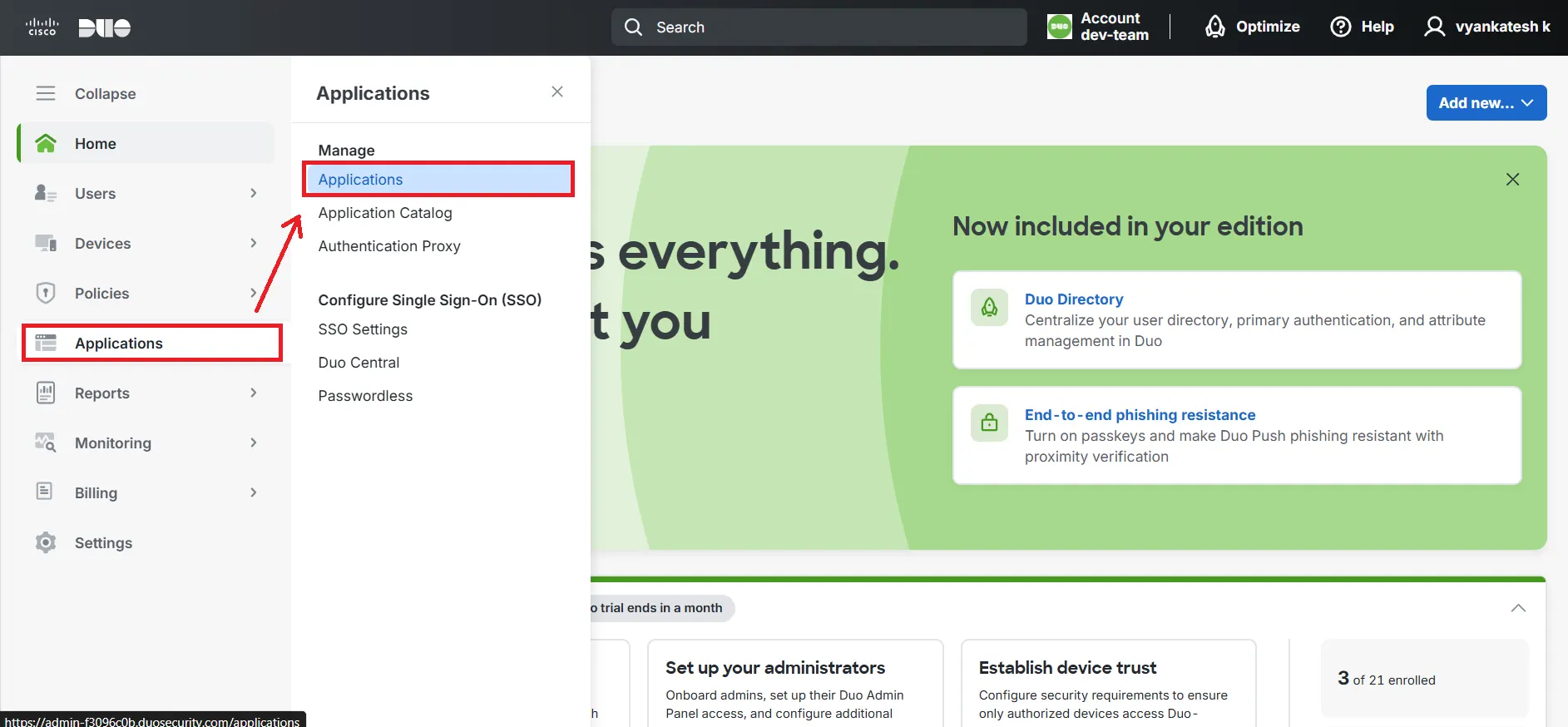
- Log in to DUO IDP admin dashboard and select 'Applications' from the Manage section.
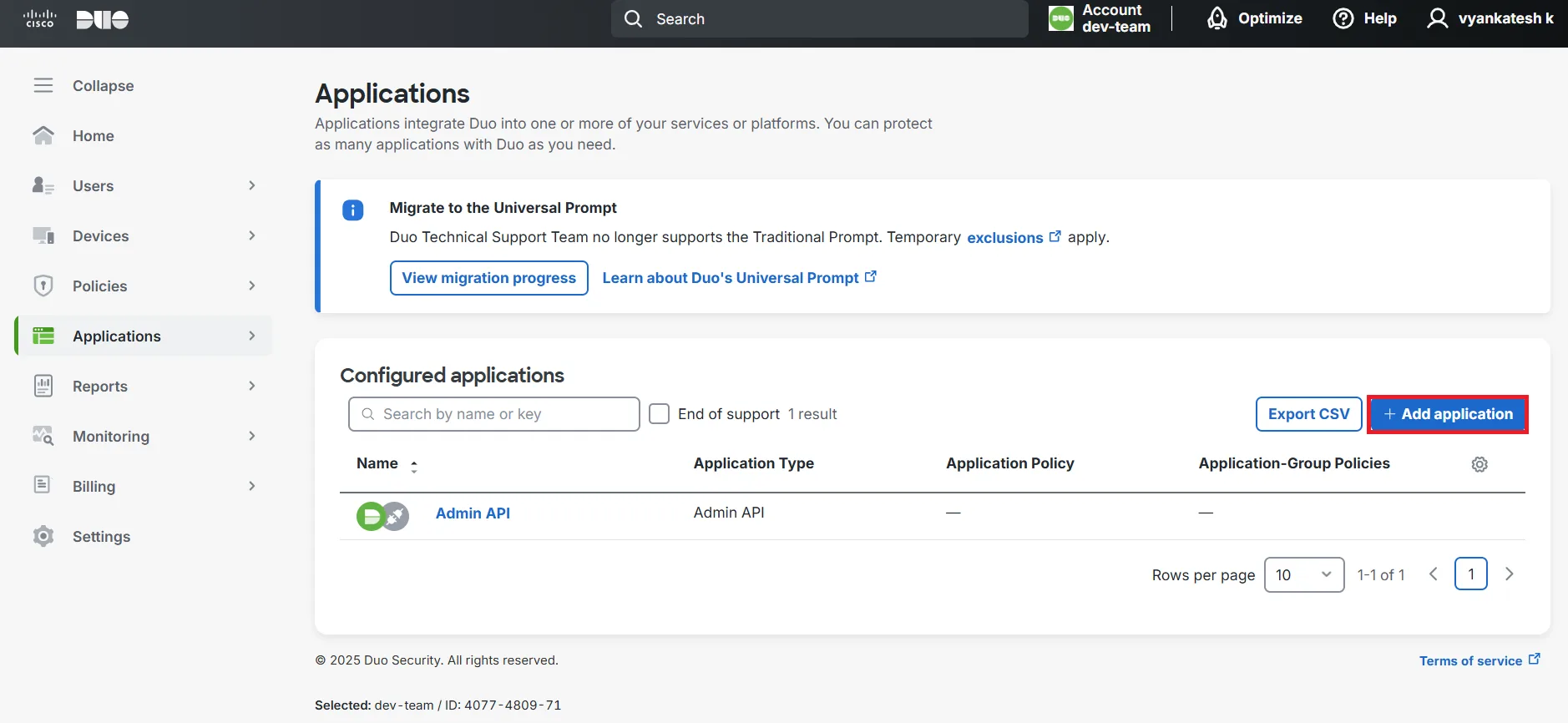
- Click on the Add Application button.
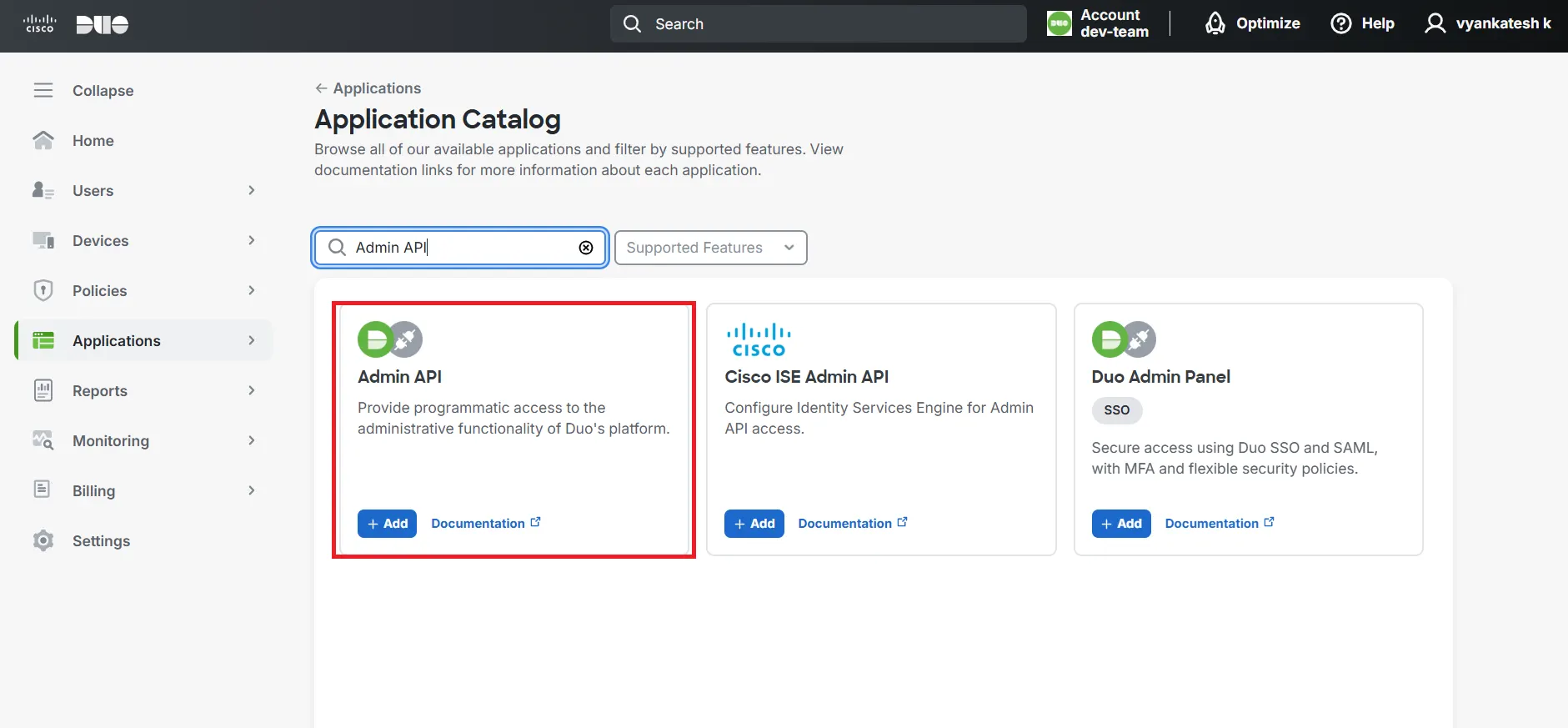
- Search for Admin API Application from Application catalog.
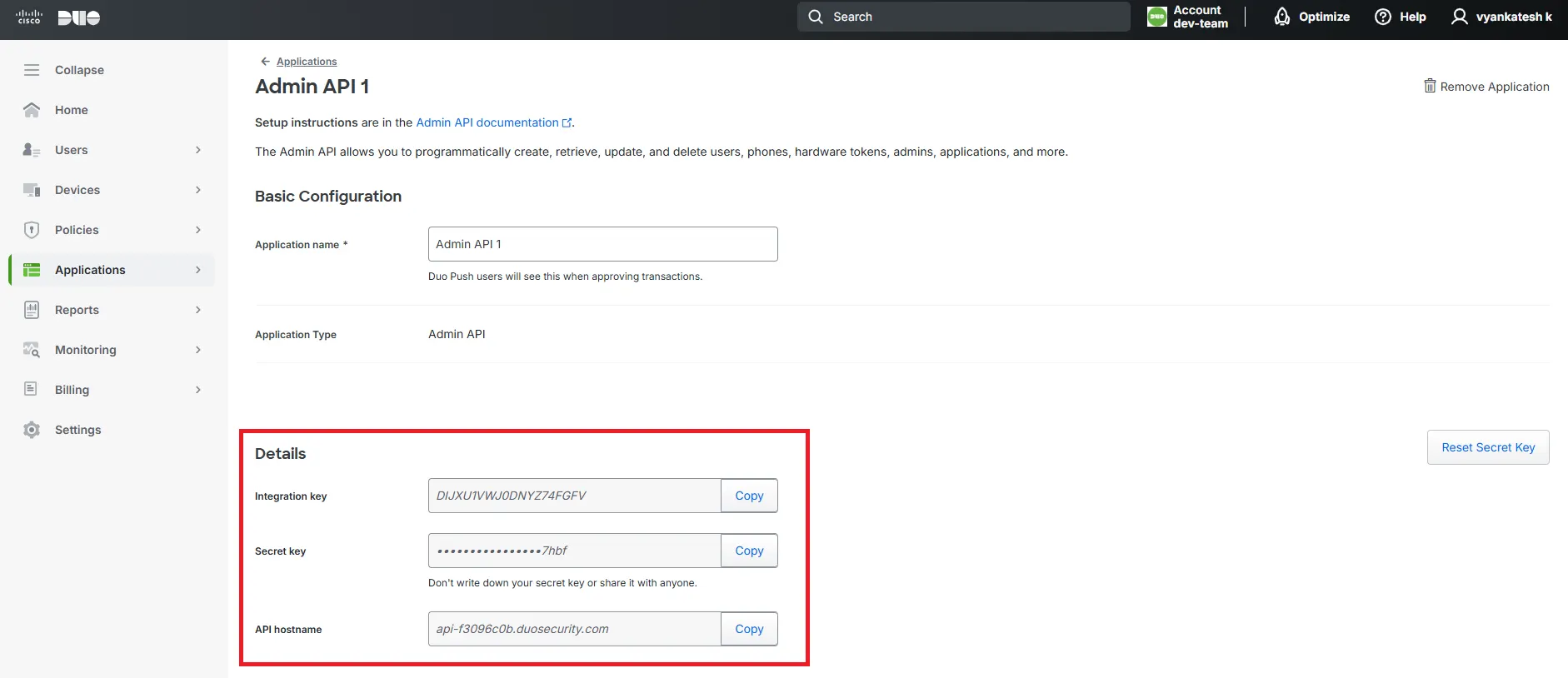
- After clicking on the Admin API, you will see the 'Integration Key,' 'Secret Key,' and 'API hostname.' You will need these details to set up the DUO IDP in the User Sync and Group Sync app.
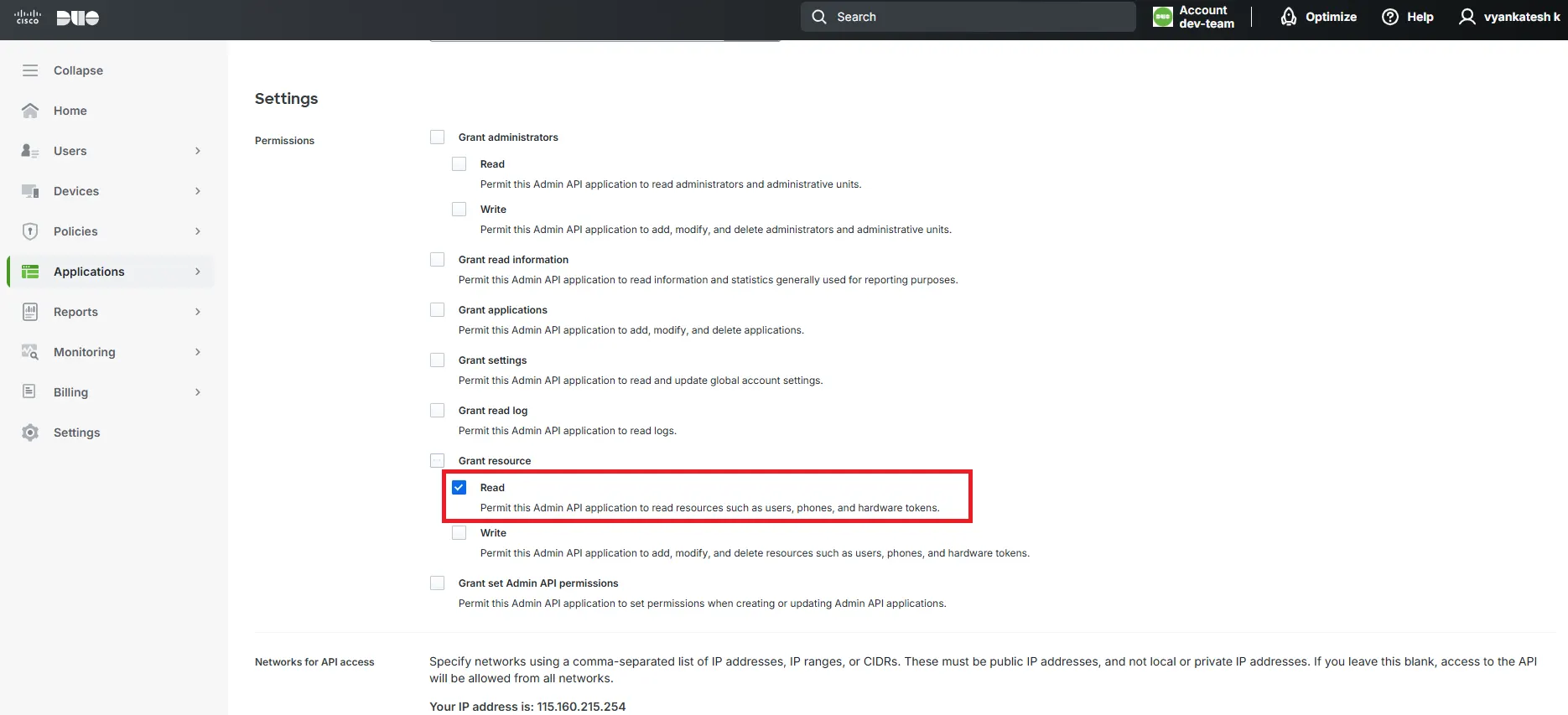
- In the same application, you will find the Settings section. Under this section, you need to grant read permission under the 'Grant Resource' option.
2: Setup User sync & Group Sync app
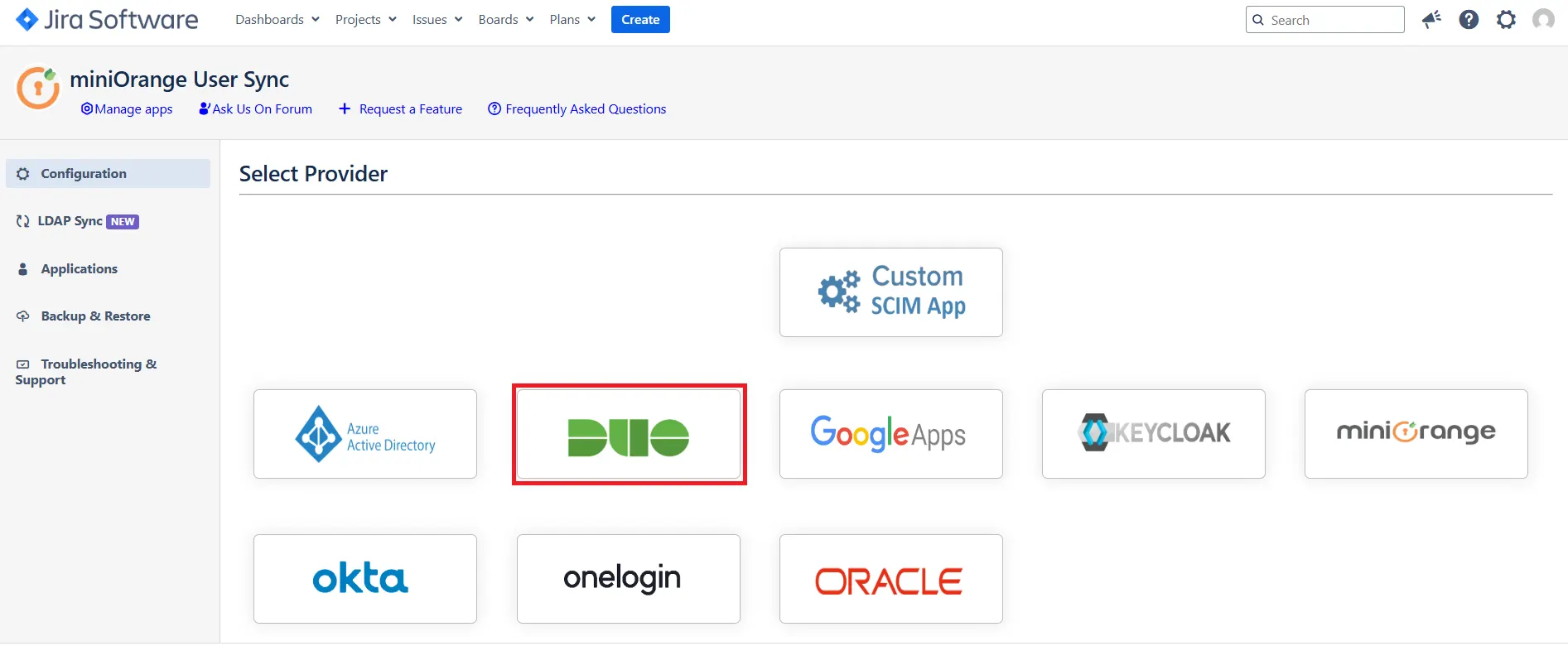
- Open the User Provisioning/Sync for Jira plugin configuration. Go to the Configuration tab and select DUO IDP from the available options.
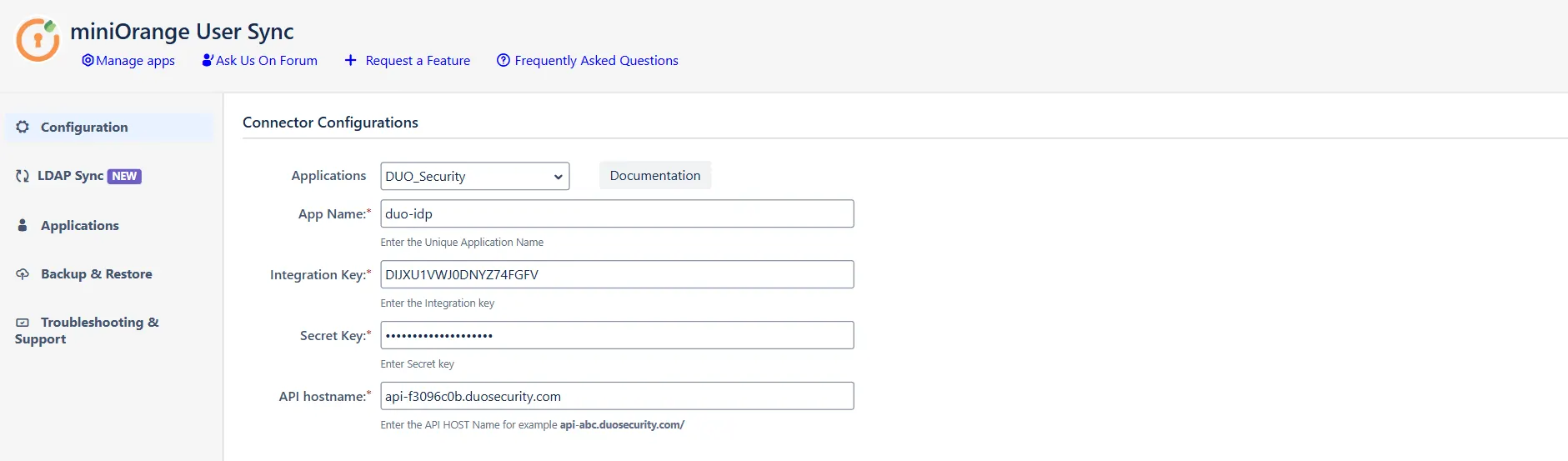
- Fill in the details like integration key, secret key, and API Hostname in the input fields below. You will get these details from the DUO application.(refer to step 1)
- You can select any option from the Synchronization Configuration to sync users from Duo to Jira, such as DUO Directory or DUO Groups.
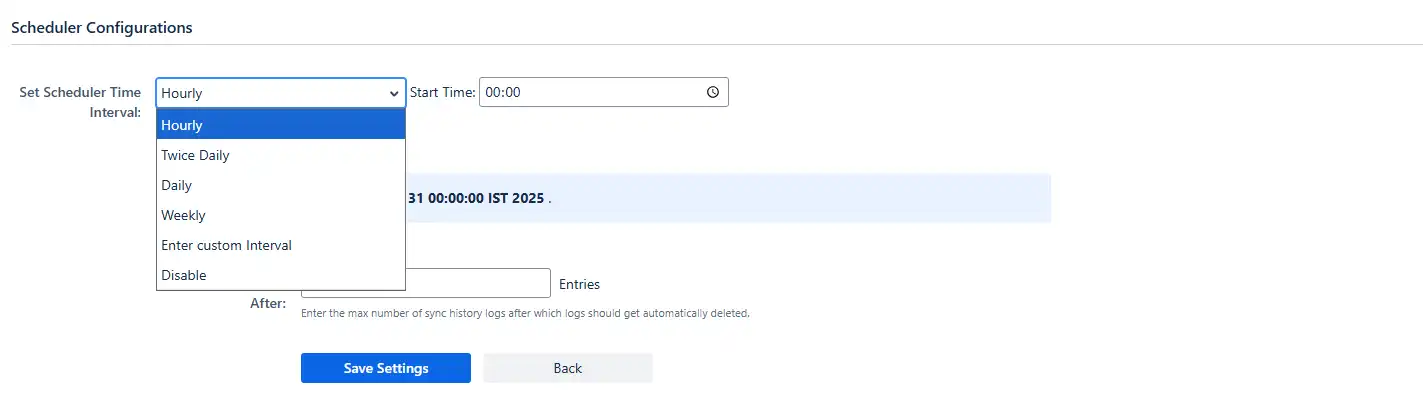
- You can schedule the synchronization using the Scheduler configuration. You can set the schedule's time interval and start time. Users and groups will be synced accordingly.
- Click on Save Settings.

3: User Sync Settings
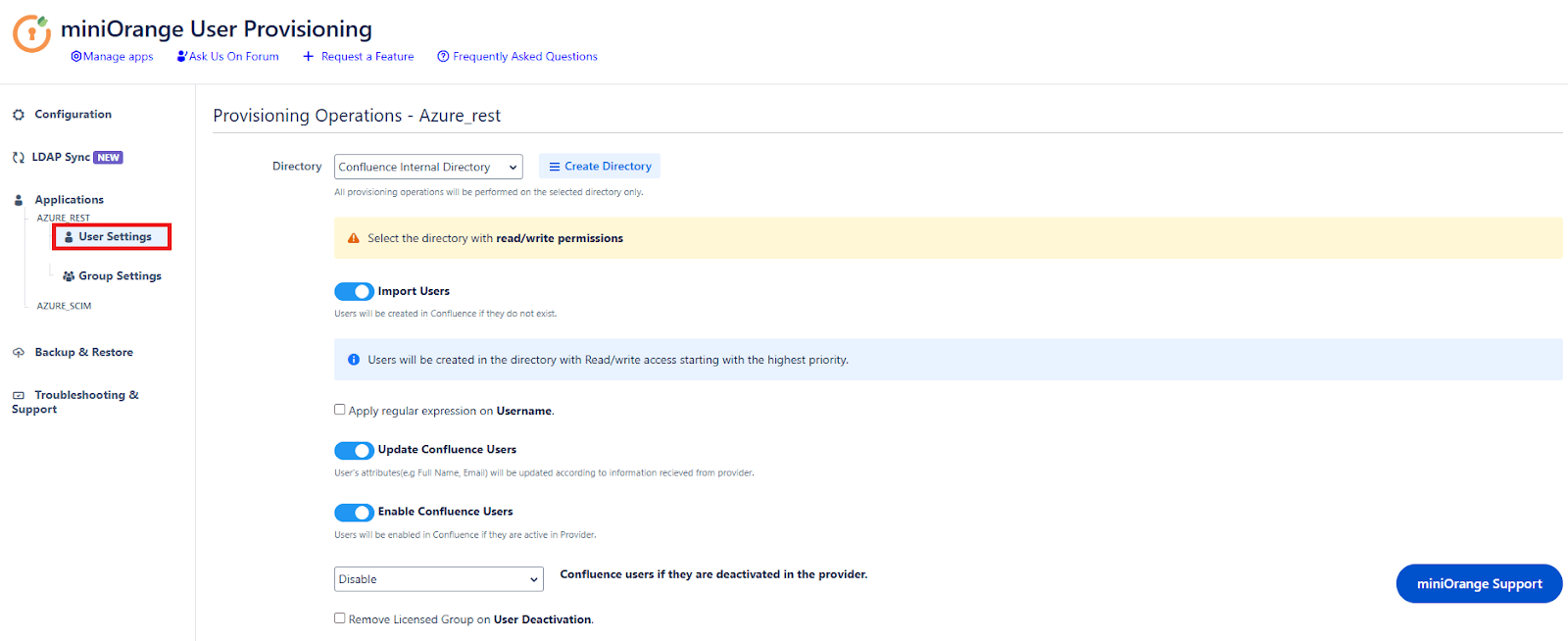
- Select the User Sync Settings tab from the left sidebar. Here you can configure different settings about user creation and updation.
- You can select the directory or can create a new one. Furthermore, you can choose from the following operations for provisioning users.
-
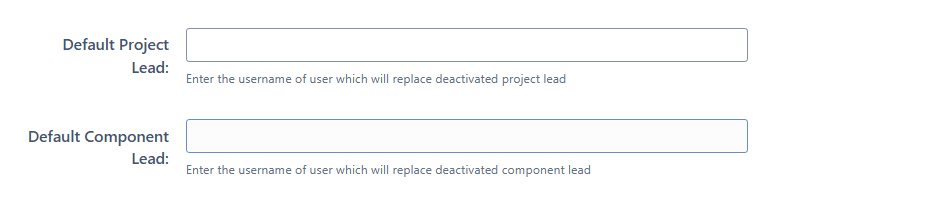
Default Project Lead and Default Component Lead:
- The user which is added here in Default Project Lead will replace deactivated project lead.
- The user which is added here in Default Component Lead will replace deactivated component lead.
 3.1 Attribute Mapping
- Attribute mapping enables you to map your attributes sourced from the IDP to Jira attributes. Through this section you can map your jira attributes to the attributes coming from IDP. By default, username attribute corresponds to the username/userPrincipalName attribute, email corresponds to the email/mail attribute, and displayName corresponds to the full name attribute. However, if you want to map these jira attributes with other attributes coming from IDP, you can use this feature to change the attribute mapping configurations.

3.2 Custom Attribute Mapping
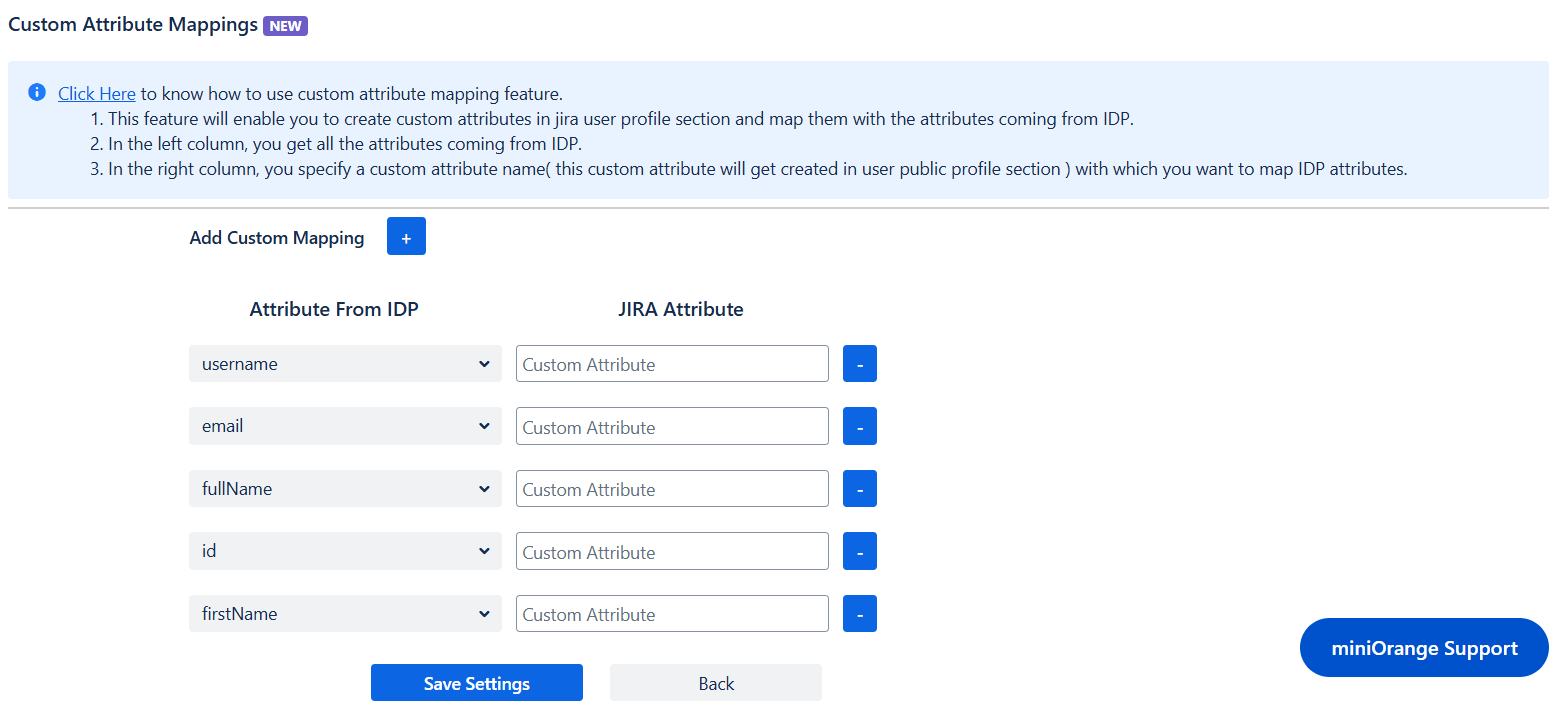
- User sync also supports mapping of custom attributes. Here, you can create custom attributes and automatically assign values to them from the IDP (Identity Provider). Select the desired attributes from the IDP that you want to display in Jira and provide a name for the custom attributes to be shown in Jira.
4: Group Sync Settings
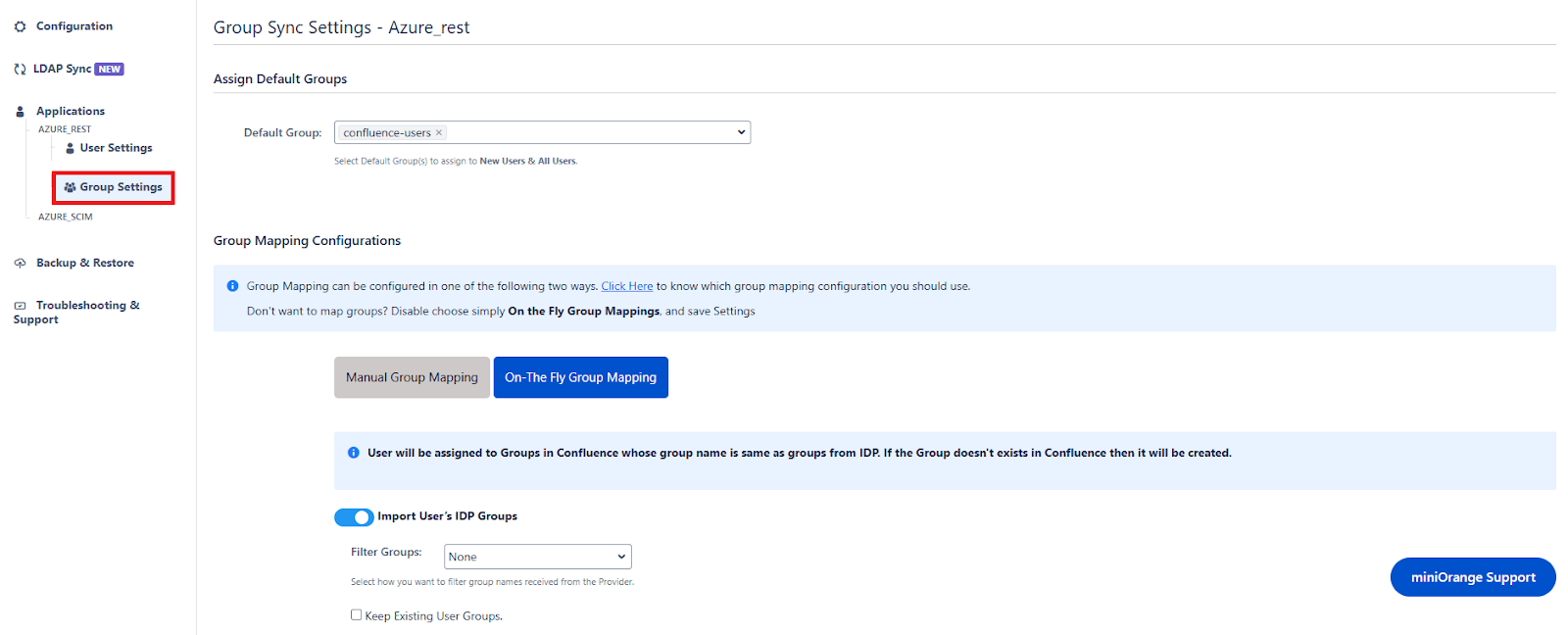
- Select the Group Sync Settings tab from the left sidebar. Here you can configure different settings about group creation and group mapping.
- Here you can configure Default groups for new and all users.
- You can set Manual Group Mapping or On-The Fly Group Mapping.
4.1 Manual Group Mapping
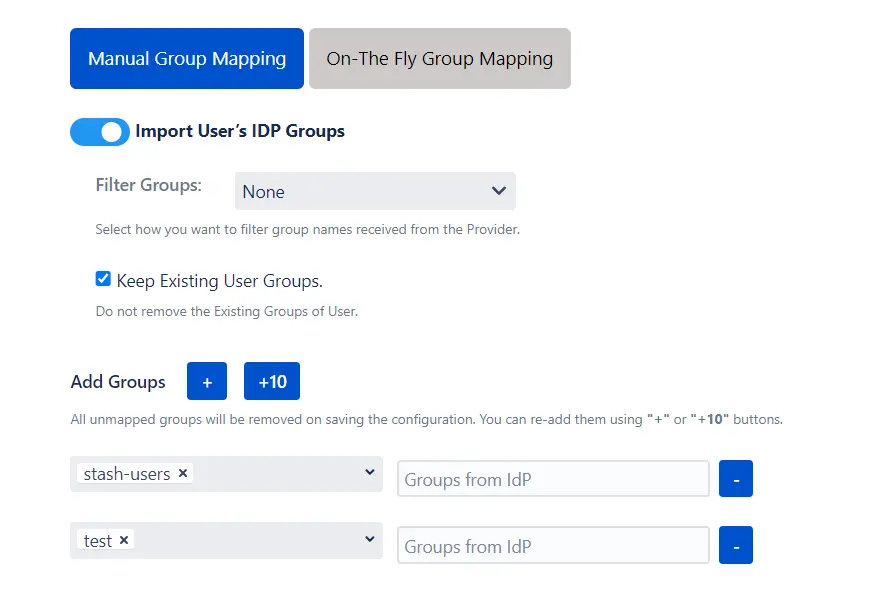
- Here you can manually map Jira groups with the groups from IDP.
- You can also configure to import IDP groups, filter groups and whether to keep existing users or not.
4.2 On-The Fly Group Mapping
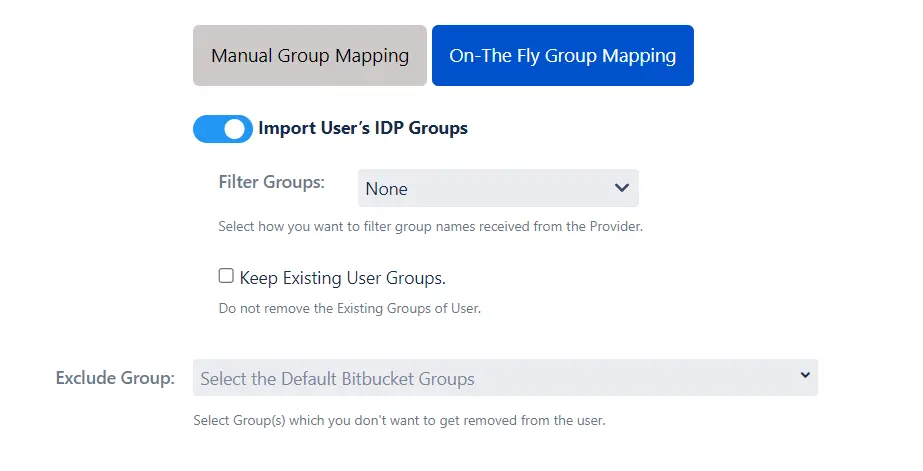
- Here users will be assigned to groups in Jira whose group name is the same as groups from IDP. If the group doesn't exist in Jira then it will be created.
- You can configure to keep the existing user groups, filter groups and apply regular expressions on the groups.
5: Synchronization Process
- To perform user sync, click on the Synchronize option of your newly created app.
- When the synchronization is complete, you will be able to view newly created and updated user information in Jira User Management section.

6: Multiple IDPs
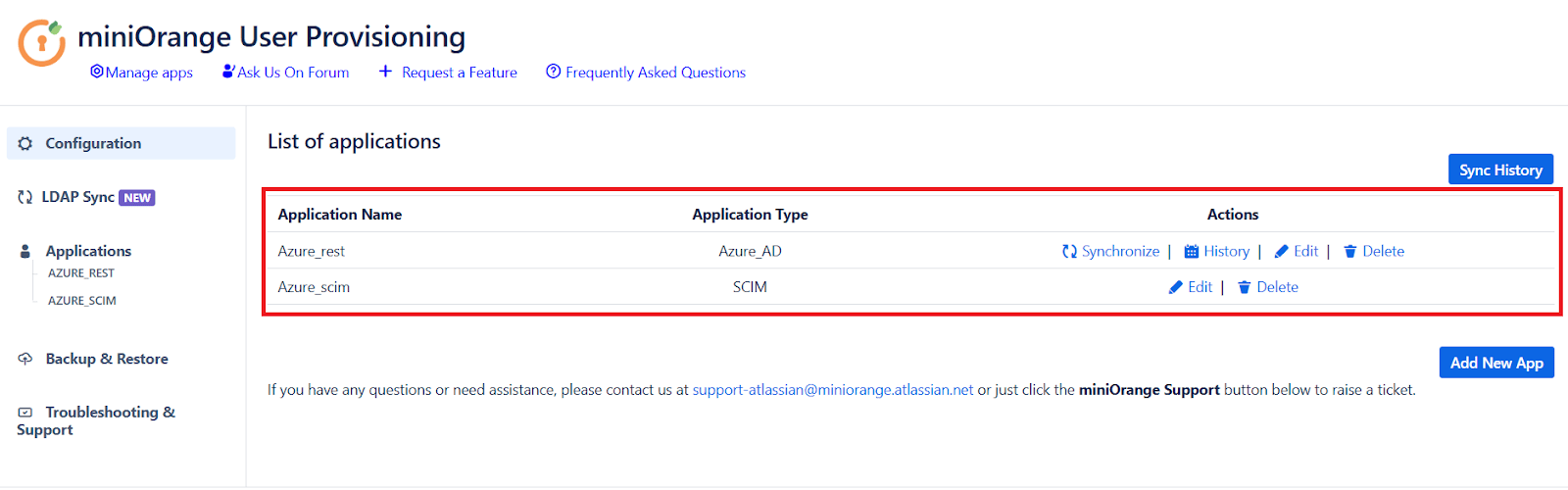
- The plugin allows for configuring SCIM provisioning on your SP (Service Provider) to accommodate your specific use case. To add another IDP, simply navigate to the "Configured IDPs" section. Select on Add new App to configure multiple provisioning connections.
7: Sync History
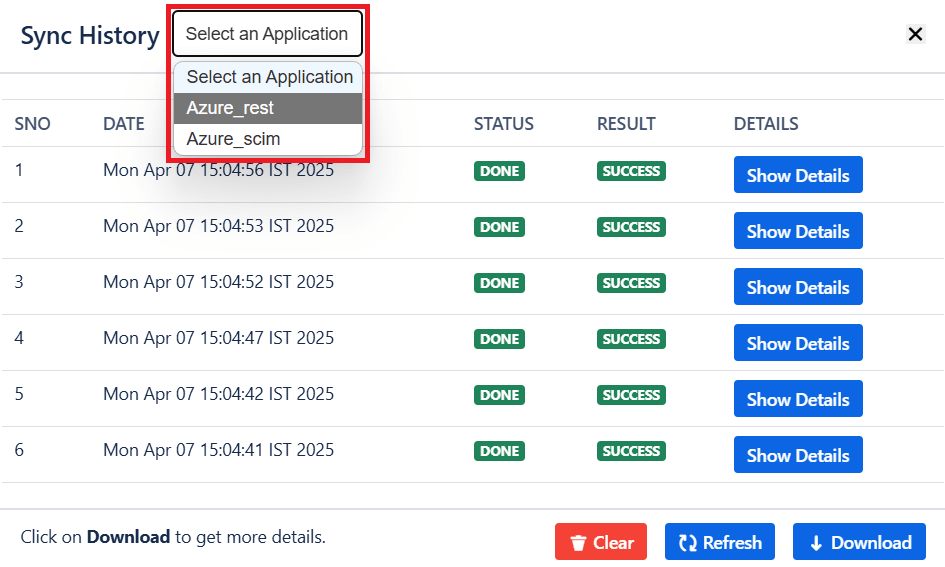
- When the synchronization is complete, you will see the logs under the 'Sync History' button. Here, you can select your specific application to view the logs.
Did this page help you?